OBS Studio is the best free virtual webcam software for most Windows users, because its built-in virtual camera sends any scene to Zoom, Teams, Discord or a browser at no cost.
This list covers the six strongest free options for Windows 11 and Windows 10, who each one suits, how to turn it on, and how to remove a virtual camera you no longer want.
![6 best free virtual webcam software for Windows [2026 update]](https://techdows.com/wp-content/uploads/2026/10/6-best-free-virtual-webcam-software-for-Windows-2026-update.jpg)
OBS virtual camera for Windows (free)
OBS Studio is free and open source, supports Windows 10 and Windows 11, and includes a virtual camera with no watermark or time limit. It shares your OBS scene with any app that can use a webcam, which helps in apps that cannot capture the screen directly.
- Download OBS Studio from obsproject.com and install it.
- Open OBS Studio and select + in the Sources dock.
- Choose Video Capture Source and pick your physical webcam.
- Add any extras you want viewers to see, such as an image, text or a window capture.
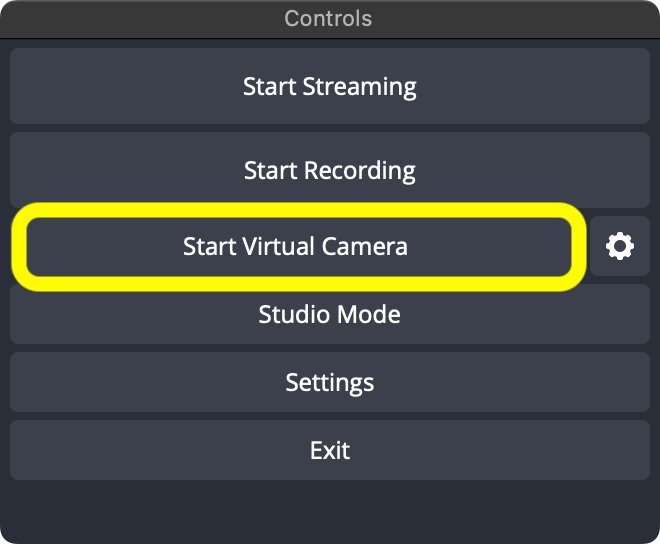
- Select Start Virtual Camera in the Controls dock.
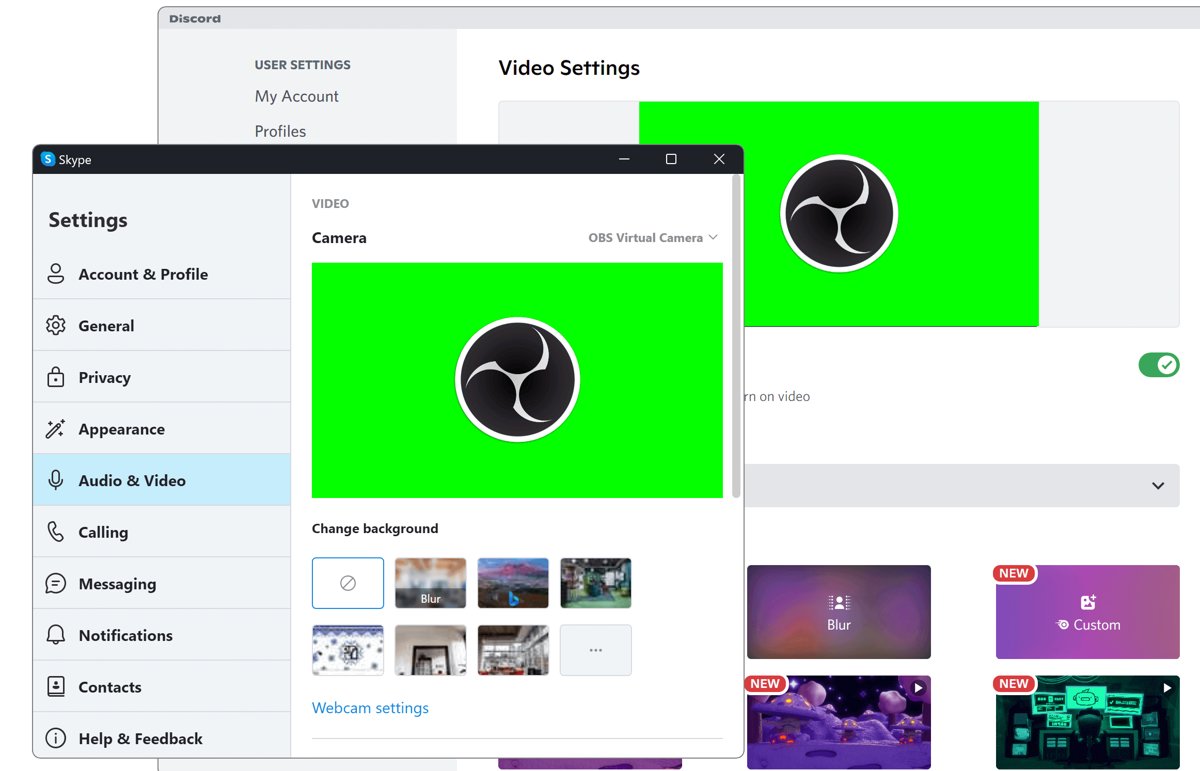
- In your meeting app's video settings, choose the OBS virtual camera as the camera.
Select the gear icon next to the button to choose what the camera sends: Program, Preview (Studio Mode), a single Scene or a single Source. Select Stop Virtual Camera when the call ends.
What is a virtual camera and how does it work?
A virtual camera is software that Windows apps list as a webcam, even though the video it sends has already been built or processed by another app. You start the virtual camera in its own app, then pick it from the camera list in your meeting or streaming platform, the same way you would pick a USB webcam.
| Virtual camera | What it sends | Platforms it connects to |
|---|---|---|
| OBS Studio virtual camera | The program output, the Studio Mode preview, one scene or one source | Any app that can use a webcam, such as Zoom, Skype and Discord |
| Streamlabs Virtual Webcam | Your current Streamlabs Desktop scene | Most video conferencing apps, including Zoom |
| Camera (NVIDIA Broadcast) | Your real webcam with AI effects applied | OBS Studio, Streamlabs, XSplit, Discord, Skype, Zoom, Webex, Microsoft Teams, Slack and Google Meet |
| Windows connected camera | An Android phone's camera feed | The Camera app and meeting apps on Windows 11 |
The meeting app needs no plugin, because it only sees a camera. The scene, effects or phone feed come from the app that owns the virtual camera, so start that camera before you open the meeting app.
What you can feed a virtual camera depends on the app: a physical webcam, an Android phone camera, a window or screen capture, images, text overlays or a whole OBS scene.
Free virtual webcam software for Windows compared
At a glance, the six picks differ mainly in the hardware they need and how much setup they take.
| Software | Best for | Windows support | Cost | Main limit |
|---|---|---|---|---|
| OBS Studio | Scenes, overlays and screen sharing in any meeting app | Windows 10 and 11 | Free, open source | Takes some setup |
| Streamlabs Desktop | Streamers who already use Streamlabs scenes | Windows 10 and later | Free (optional Ultra subscription) | About 500 MB download |
| NVIDIA Broadcast | AI background removal, eye contact and auto framing | Windows 10 and 11 64-bit, Windows 11 on Arm | Free download | Needs an NVIDIA RTX GPU |
| Windows connected camera | Using an Android phone as a webcam | Windows 11 | Built in | Android 10 or later required |
| Windows Studio Effects | Blur, eye contact and framing without extra apps | Windows 11 with an NPU | Built in | Copilot+ PCs and compatible cameras only |
| Logitech Capture | Owners of supported Logitech webcams | Windows 10 | Free download | Works with listed Logitech webcams |
Some tools do a different job. NVIDIA Broadcast and Windows Studio Effects clean up your real webcam with AI effects instead of building scenes, and the Windows connected camera turns a phone into a webcam.
Streamlabs virtual camera for PC
Streamlabs Desktop is a free streaming app for Windows 10 and later, with an optional Ultra subscription for extra features. Its Virtual Webcam sends your Streamlabs scenes, logos and green-screen layouts into conferencing apps like Zoom.
- Download Streamlabs Desktop from streamlabs.com and install it.
- Open Streamlabs Desktop and select Settings.
- Select Virtual Webcam, then Install Virtual Webcam.
- Back in the main window, select Start Virtual Webcam.
- Open your meeting app and choose Streamlabs Desktop from its camera list.
For a sharp picture, set Settings > Video > Base Canvas Resolution to your monitor's native resolution.
NVIDIA Broadcast virtual camera with AI effects
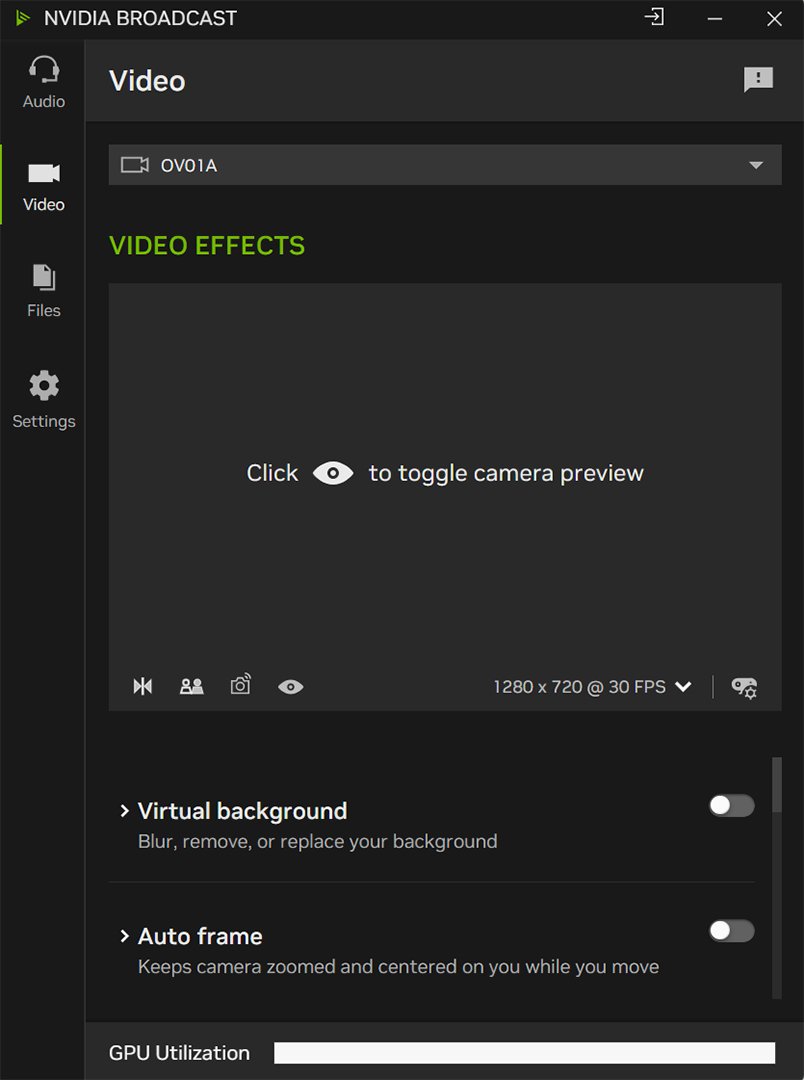
NVIDIA Broadcast creates a virtual camera, microphone and speaker that apply AI effects to your real devices. Camera effects include background removal, replacement and blur, eye contact, auto frame, video noise removal and virtual key light.
- Confirm you have a GeForce RTX 2060, Quadro RTX 3000, TITAN RTX or faster GPU and 8 GB of RAM.
- Install NVIDIA Broadcast from nvidia.com while connected to the internet, since setup downloads the AI models for your GPU.
- Open NVIDIA Broadcast, go to the camera device and select your physical webcam at the top.
- Turn on the effects you want.
- In your meeting or streaming app, select Camera (NVIDIA Broadcast) as the camera.
GeForce GTX cards are not supported. Virtual Key Light and RTX Video Super Resolution need an RTX 3060 or higher.
Windows virtual camera: use an Android phone as a webcam
Windows 11 can use an Android phone's camera as a connected camera, so it shows up in camera apps like a webcam. It needs Android 10 or later and Link to Windows version 1.24022.0 or later on the phone.
- Open Settings > Bluetooth & devices > Mobile devices.
- If your phone is not linked yet, select Add device and finish linking it.
- Select your phone and turn on Use as connected camera.
- Allow the camera permission when Link to Windows asks on the phone.
- Pick the phone from the camera drop-down in the Camera app or your meeting app.
If the image does not rotate, check whether rotation is locked on the phone. Background blur comes from the meeting app's own settings.
Windows Studio Effects virtual camera effects on Copilot+ PCs
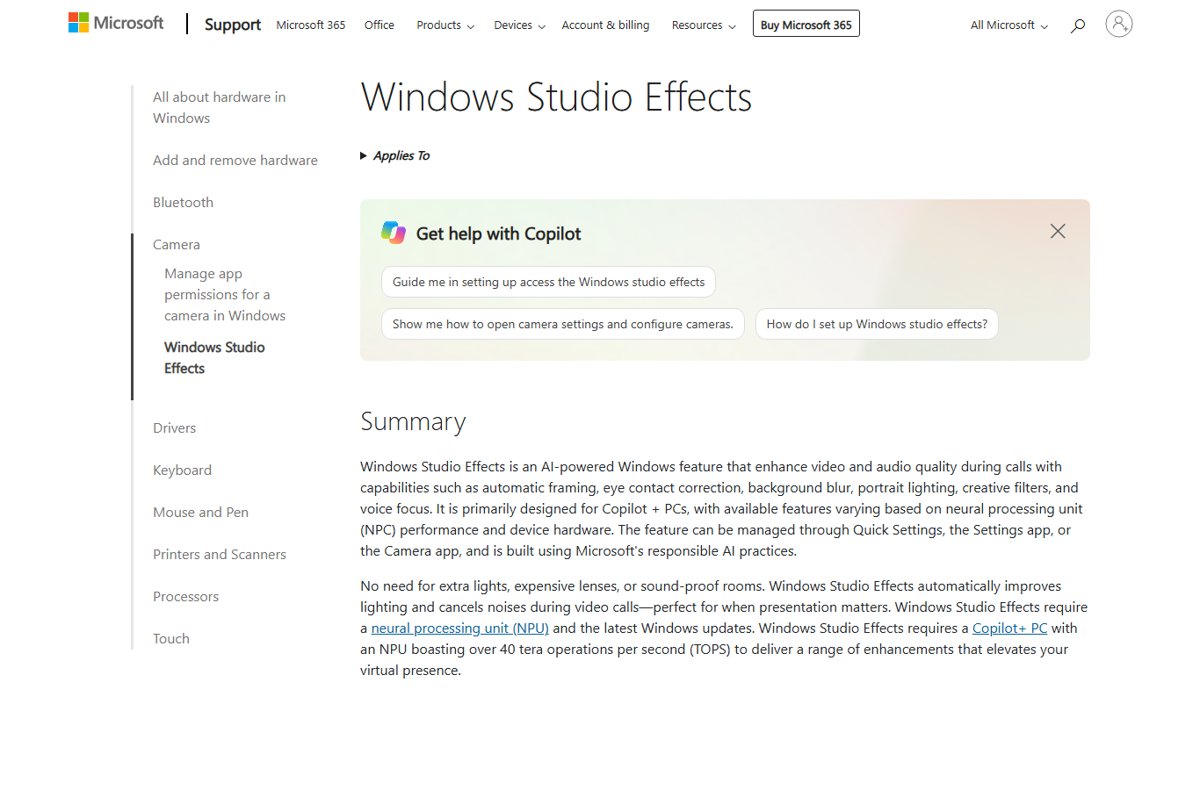
Windows Studio Effects applies AI camera effects in Windows itself, using the PC's NPU. It is designed mainly for Copilot+ PCs and now supports compatible third-party cameras.
- Select the Network, Sound or Battery icon next to the clock.
- Select the Studio Effects tile.
- Turn on Automatic framing, Eye contact or a background effect such as Standard Blur or Portrait Blur.
- For more control, open Settings > Bluetooth & devices > Cameras and select your front camera.
- Use Reset Effects in either place to switch everything off.
PCs with an NPU below 40 TOPS get background effects, standard eye contact, automatic framing and voice focus only. Portrait light, teleprompter eye contact and creative filters are limited to Snapdragon Copilot+ PCs.
Logitech Capture virtual camera for Logitech webcams
Logitech Capture records from up to two webcams or a window, with six scene layouts, text overlays, filters and chroma key. On Windows only, you can add Logitech Capture as a camera source in OBS or XSplit.
- Check that your webcam is on Logitech's supported list, such as StreamCam, C922 Pro Stream, C920s HD Pro or Brio 4K Pro.
- Download Logitech Capture for Windows from logitech.com and install it.
- Open Logitech Capture and set your field of view, aspect ratio and resolution.
- Build your scene with overlays or chroma key.
- In OBS Studio, add a Video Capture Source and choose Logitech Capture as the device.
Logitech lists Windows 10 in its system requirements and does not list Windows 11 on the product page.
FineShare FineCam, E2esoft VCam, ManyCam and AlterCam virtual camera apps
These third-party virtual camera apps for Windows also appear in many lists of free virtual webcam tools. Their free editions change often, so check the developer's own pricing page before you rely on one for a call.
FakeCam, SplitCam, Webcamoid, SparkoCam and vMix come up in the same comparisons; vMix is a paid production suite rather than free software.
| App | Developer site | Check before installing |
|---|---|---|
| FineShare FineCam (free edition) | fineshare.com | Watermark, resolution and which AI effects the free edition includes |
| E2esoft VCam (free version) | e2esoft.com | Watermark on output and Windows 11 support |
| ManyCam virtual camera (free version) | manycam.com | Watermark, account requirement and source limits |
| AlterCam virtual camera | altercam.com | Free-edition limits and how to remove its camera driver |
| FakeCam | fakecam.net | What the free edition includes and whether it adds a watermark |
| SplitCam | splitcam.com | Free-edition limits and supported meeting apps |
| Webcamoid | webcamoid.github.io | Installer source and whether its virtual camera driver installs on your Windows version |
| SparkoCam | sparkosoft.com | Watermark and which features need a licence |
| vMix | vmix.com | Not free: a 60-day trial, then lifetime licences from $60 (Basic HD) or a $50 monthly subscription |
Download any of them only from the developer's site, never from a download portal, and uninstall them from Settings > Apps > Installed apps when you stop using them.
Where a virtual camera is not allowed
A virtual camera works anywhere an app accepts an ordinary webcam, but a few Windows features need real camera hardware or a different camera type.
| Where | Works with a virtual camera? | Why |
|---|---|---|
| Zoom, Microsoft Teams, Discord, Slack, Google Meet, Webex | Yes | These apps list any webcam device, including Camera (NVIDIA Broadcast) and the OBS virtual camera |
| Windows Hello face sign-in | No | Windows Hello face authentication uses a near-infrared (IR) camera, not a standard color webcam feed |
| Settings > Bluetooth & devices > Cameras | Not listed | DirectShow virtual cameras such as the OBS camera do not appear there, so manage them in their own app |
If an app refuses every virtual camera, select your physical webcam in that app and run the effects through the app's own background settings instead.
How to remove a virtual camera from Windows 11
Uninstalling the app usually removes its camera. OBS Studio is the exception worth knowing, because its virtual camera can be removed separately while OBS stays installed.
- To remove only the OBS virtual camera, open File Explorer and go to
C:\Program Files\obs-studio\data\obs-plugins\win-dshow. - Right-click
virtualcam-uninstall.batand select Run as administrator. - For a portable or custom OBS install, right-click the OBS shortcut, select Open file location and find the same file there.
- To remove another app's camera, open Settings > Apps > Installed apps, select More options (…) next to the app and choose Uninstall.
- To hide a camera without uninstalling, open Settings > Bluetooth & devices > Cameras, select it under Connected cameras, then select Disable > Yes.
DirectShow cameras do not appear in Windows Camera settings, so a virtual camera missing from that list must be removed through its own app. To reinstall the OBS camera later, run virtualcam-install.bat the same way.
Fix OBS virtual camera not working or not showing up
Start Virtual Camera button is missing in OBS
The virtual camera component is not registered on the PC.
- Close OBS Studio.
- Open
C:\Program Files\obs-studio\data\obs-plugins\win-dshowin File Explorer. - Right-click
virtualcam-install.batand select Run as administrator. - Reopen OBS and look for Start Virtual Camera in the Controls dock.
OBS virtual camera not showing up in Zoom, Teams or Discord
The meeting app was open before the camera started, or another camera is selected.
- Select Start Virtual Camera in OBS first.
- Fully close and reopen the meeting app.
- Open the app's video settings and choose the OBS camera from the list.
Virtual camera conflicts with other camera software
Two virtual camera drivers or apps compete for the same webcam.
- Remove the virtual camera you do not use, as shown in the removal section.
- Restart the PC.
- Start only one virtual camera app before you join the call.
Frequently asked questions about virtual webcam software
What is a virtual camera?
A virtual camera is software that appears to apps as a webcam but sends processed video instead of a raw camera feed. It can add overlays, swap backgrounds, show a screen or switch scenes, and any app that accepts a webcam can use it.
Does a virtual camera work on Windows 10 and 11?
Yes. OBS Studio, Streamlabs Desktop and NVIDIA Broadcast run on Windows 10 and Windows 11. Windows 11 adds a built-in virtual camera API, and the phone connected camera and Windows Studio Effects need Windows 11.
What is the virtual camera in OBS Studio?
The OBS virtual camera is a built-in OBS Studio feature that shares your OBS scene with apps that use a webcam, such as Zoom, Skype and Discord. It can send the full program output, the Studio Mode preview, one scene or one source.
How do I use OBS virtual camera?
Add your webcam as a Video Capture Source in OBS Studio, then select Start Virtual Camera in the Controls dock. Open your meeting app's video settings and choose the OBS camera. Select Stop Virtual Camera in OBS when you finish.
How do I remove OBS virtual camera?
Run virtualcam-uninstall.bat as administrator from C:\Program Files\obs-studio\data\obs-plugins\win-dshow. This removes only the virtual camera and keeps OBS Studio installed. Uninstalling OBS Studio from Installed apps removes everything.
How do I disable OBS virtual camera?
Select Stop Virtual Camera in the OBS Controls dock to turn it off for the current session. To stop it appearing in other apps at all, run virtualcam-uninstall.bat as administrator from the OBS win-dshow folder.
How do I remove the Windows virtual camera?
Open Settings > Bluetooth & devices > Mobile devices, select your phone and turn off Use as connected camera. For other virtual cameras, uninstall the app that added them from Settings > Apps > Installed apps.
How do I use the Windows virtual camera?
Link an Android 10 or later phone in Settings > Bluetooth & devices > Mobile devices, then turn on Use as connected camera. The phone then appears in the camera list of the Camera app and meeting apps on Windows 11.
Why is my OBS virtual camera not working?
The virtual camera component is usually not registered, or the meeting app opened before the camera started. Run virtualcam-install.bat as administrator, start the virtual camera in OBS, then reopen the meeting app and select the OBS camera.
Why is OBS virtual camera not showing up?
The Start Virtual Camera button disappears when the component is not installed, often after a portable or custom install. Run virtualcam-install.bat as administrator from the win-dshow folder in your OBS install, then restart OBS.
Is it safe to use virtual webcam software?
It is safe when you install it from the developer's own site. OBS Studio is open source, and NVIDIA Broadcast and the Windows features come from the platform makers. Avoid download portals, and remove virtual camera drivers you no longer use.
Bottom line: best free virtual webcam software for Windows
Use OBS Studio for a free, watermark-free virtual camera; add NVIDIA Broadcast if you have an RTX GPU and want AI background effects. OBS works on every Windows 10 and 11 PC with any meeting app, while NVIDIA Broadcast and Windows Studio Effects add higher-quality AI effects only on the hardware that supports them.