Bluetooth Support Service (service name bthserv) is the built-in Windows service that discovers and pairs remote Bluetooth devices, so stopping it breaks Bluetooth mice, keyboards and headphones.
This guide explains what the service and its per-user companion do, why they run, when disabling them is safe, and how to restart, re-enable or troubleshoot them on Windows 11 and Windows 10.
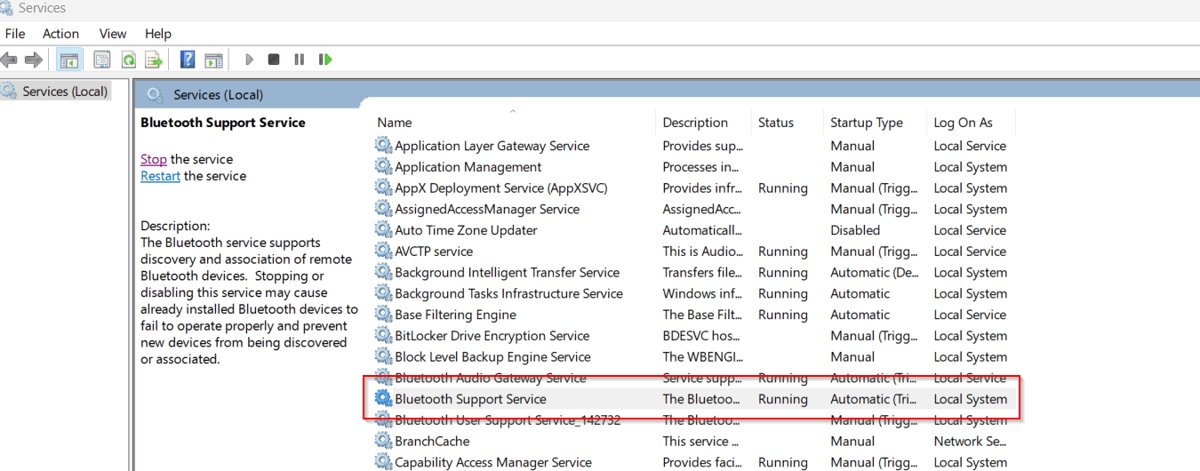
How to restart Bluetooth support service in Windows 11 and 10
Restarting the service is the quickest fix when paired devices stop responding or new ones never appear. It takes under a minute and needs no reboot.
- Press Windows + R, type
services.mscand press Enter. - Scroll to Bluetooth Support Service in the list.
- Right-click it and select Restart. If the service is stopped, select Start instead.
- Right-click any entry named Bluetooth User Support Service_ followed by a code and select Restart as well.
- Open Settings > Bluetooth & devices and confirm your device reconnects.
If Start is grayed out, the service is set to Disabled. Change the startup type first, as shown in the startup type section below.
Understanding Bluetooth support service
Microsoft describes the service in one line: it supports discovery and association of remote Bluetooth devices. Every other Bluetooth feature in Windows sits on top of that job.
| Property | Bluetooth Support Service |
|---|---|
| Display name | Bluetooth Support Service |
| Service name | bthserv |
| What it does | Discovers and associates (pairs) remote Bluetooth devices |
| Default startup type | Manual |
| Host process | Service Host (svchost.exe), the shared process Windows uses to load services from DLL files |
| Effect of stopping it | Installed Bluetooth devices may stop working and new devices cannot be discovered or paired |
| Where to find it | Services console (services.msc), listed alphabetically under B |
Since Windows 10 version 1703, PCs with more than 3.5 GB of RAM run most services in their own Service Host process. That is why Task Manager can show a separate Service Host: Bluetooth Support Service entry instead of one shared group.
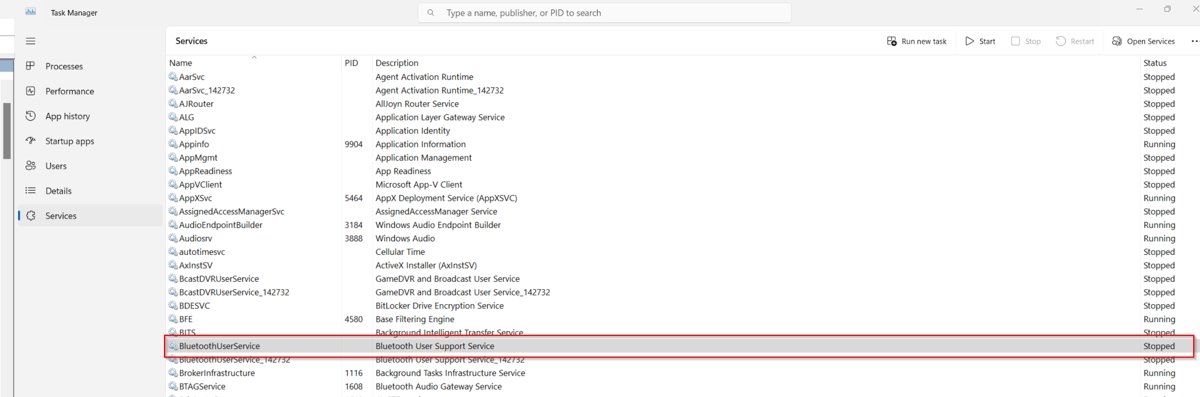
Bluetooth user support service and other related Bluetooth services
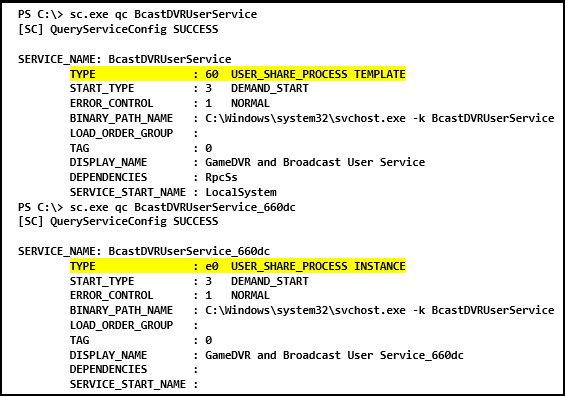
Searches for the service often turn up a second name with a random-looking suffix. That is a per-user service, created fresh for each signed-in account.
| Service | Service name | Default start | Role |
|---|---|---|---|
| Bluetooth Support Service | bthserv | Manual | System-wide discovery and pairing of Bluetooth devices |
| Bluetooth User Support Service | BluetoothUserService_<LUID> | Manual | Supports Bluetooth features that belong to each user session |
| Devices Flow | DevicesFlowUserSvc_<LUID> | Manual | Lets the Connect interface and Settings app pair Bluetooth devices and Wi-Fi displays |
The LUID is a locally unique identifier for your user session, so the suffix differs between accounts and PCs. Windows removes the per-user copy when you sign out and creates a new one at the next sign-in.
Why is Bluetooth support service running?
A Manual service still starts whenever Windows or an app asks for it. Seeing bthserv running simply means something on the PC requested Bluetooth.
| Trigger | Why the service starts |
|---|---|
| Bluetooth turned on in Quick settings or Settings | Windows needs discovery to show nearby devices |
| A paired mouse, keyboard or headset reconnects | Association with a known device runs through the service |
| You select Add device in Bluetooth & devices | Discovery of new devices starts |
| File transfer over Bluetooth | The remote phone or PC must be found and associated first |
| An app uses Bluetooth (fitness band, game controller software) | The app requests the radio through Windows |
A running bthserv on a PC with Bluetooth hardware is normal and uses few resources. It is not a sign of malware.
Is Bluetooth support service necessary?
| Your situation | What to do | Why |
|---|---|---|
| You use any Bluetooth device | Leave it on Manual | Stopping it breaks existing devices and blocks new pairing |
| The PC has no Bluetooth adapter | Leaving it alone is fine; disabling is optional | Nothing depends on it without the hardware |
| Bluetooth hardware exists but is never used | Disabling is acceptable | Microsoft rates the service OK to disable if not used |
| Work PC managed by IT | Leave the setting to your administrator | Policy may reapply the startup type |
| You want Bluetooth off temporarily | Use the Bluetooth toggle instead | The toggle is reversible in one click and keeps the service intact |
Disabling the service does not save meaningful memory or speed up Windows. Turning off the Bluetooth toggle gets the same result with no risk.
Where is Bluetooth support service and how to change its startup type
Use these steps to re-enable a disabled service or to set it to Automatic while you troubleshoot. You need an administrator account.
- Press Windows + R, type
services.mscand press Enter. - Double-click Bluetooth Support Service to open its properties.
- On the General tab, open the Startup type list.
- Choose Manual for the default behavior, Automatic to start it with Windows, or Disabled to stop it from starting.
- Select Apply.
- Select Start if the service status shows Stopped and you want Bluetooth now, then select OK.
The Dependencies tab in the same window lists which services bthserv relies on and which rely on it.
Restart or disable bthserv from PowerShell or Command Prompt
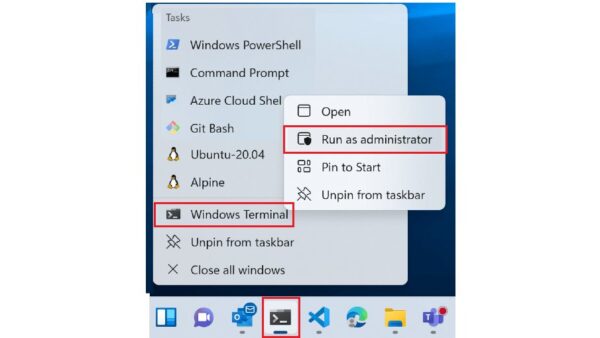
Open PowerShell or Command Prompt with Run as administrator first. These commands do the same job as the Services console.
| Task | Command | Shell |
|---|---|---|
| Check status and startup type | Get-Service bthserv | Format-Table DisplayName, Name, StartType, Status |
PowerShell |
| Restart the service | Restart-Service -Name bthserv |
PowerShell |
| Set startup type to Manual (default) | Set-Service -Name bthserv -StartupType Manual |
PowerShell |
| Disable the service | Set-Service -Name bthserv -StartupType Disabled |
PowerShell |
| Query the state | sc.exe query bthserv |
Command Prompt |
| Set startup type to Manual | sc.exe config bthserv start= demand |
Command Prompt |
| Disable the service | sc.exe config bthserv start= disabled |
Command Prompt |
The space after start= is required by sc.exe. In sc.exe, demand means Manual and auto means Automatic.
How to disable Bluetooth user support service
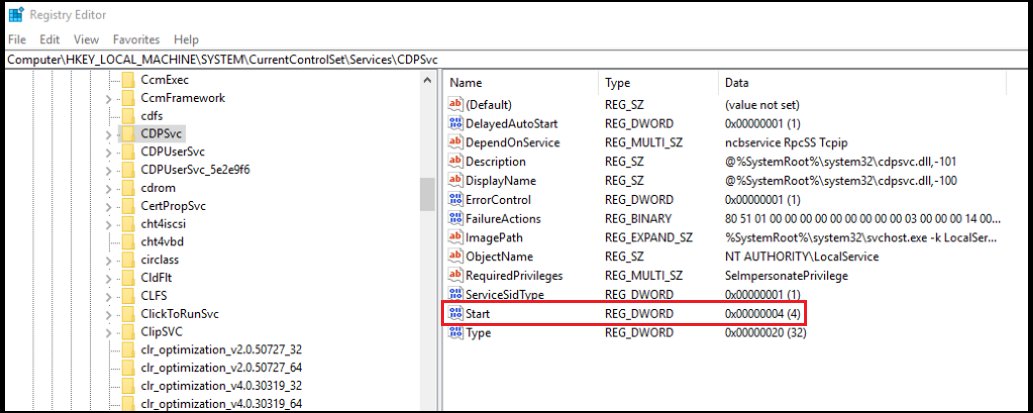
The per-user service cannot be changed reliably from the Services console, because its template is hidden there. Microsoft's method edits the template in the registry, so back up the registry before you start.
- Press Windows + R, type
regeditand press Enter, then select Yes at the prompt. - Go to
HKEY_LOCAL_MACHINE\SYSTEM\CurrentControlSet\Services\BluetoothUserService. - Double-click the Start value in the right pane.
- Change Value data from 3 (Manual) to 4 (Disabled) and select OK.
- Sign out and sign back in.
Windows still creates the per-user service at sign-in, but in a stopped and disabled state. To undo it, set Start back to 3 and sign in again.
How to check Bluetooth support service is running
- Open PowerShell and run
Get-Service bthserv. - Confirm Status reads Running after you turn Bluetooth on.
- Open Settings > Bluetooth & devices and confirm the Bluetooth toggle is present and on.
- Select Add device > Bluetooth and check that nearby devices in pairing mode appear in the list.
A Stopped status with Bluetooth turned on means the service is disabled or failing to start. Work through the fixes below.
Troubleshooting Bluetooth support service issues
Bluetooth service not working and devices will not connect
The service stalled, or the device is out of range, low on battery or not in pairing mode.
- Restart Bluetooth Support Service in
services.msc. - Charge the device, turn it off and back on, and put it in pairing mode.
- Open Settings > Bluetooth & devices, select More options (…) next to the device and choose Remove device.
- Select Add device and pair it again.
- On Windows 11, run the Bluetooth troubleshooter from Settings > System > Troubleshoot > Other troubleshooters.
Bluetooth support service missing from Services
Windows has no working Bluetooth adapter, or the adapter driver failed, so Bluetooth controls also vanish.
- Check your PC's specifications to confirm it has Bluetooth at all.
- Hold Shift, select Start > Power > Shut down, wait one minute and turn the PC back on.
- Right-click Start > Device Manager, expand Bluetooth, right-click the adapter and select Update driver > Search automatically for drivers.
- If the adapter is listed but broken, select Uninstall device > Uninstall, shut down, then power on so Windows reinstalls it.
- Install optional firmware updates from Settings > Windows Update > Advanced options > Optional updates.
Start is grayed out or the service will not start
The startup type is set to Disabled, often by a tweaking tool or an earlier change.
- Open the service's properties in
services.msc. - Set Startup type to Manual and select Apply.
- Select Start, then OK.
- If the per-user service is also disabled, set its registry Start value back to 3 and sign in again.
Bluetooth toggle missing after airplane mode or sleep
Airplane mode turns the radio off, or the adapter hit a hardware error.
- Press Windows + A and make sure Airplane mode is off.
- Turn Bluetooth off, wait 10 seconds and turn it back on.
- If the toggle is still missing, do a full shut down as described above and check the driver in Device Manager.
Reasons why Bluetooth is missing or not working on Windows
When Bluetooth fails, the service is only one suspect. Match what you see to a row, then use the fix in the same row or the sections that follow.
| Cause | What you see | What to do |
|---|---|---|
| The PC has no Bluetooth hardware | No Bluetooth toggle in Settings and no Bluetooth category in Device Manager | Check the product specifications; some devices don't have Bluetooth, and an external USB Bluetooth adapter is the only way to add it |
| Bluetooth or airplane mode is switched the wrong way | Devices never connect, or Quick settings shows Bluetooth off | Turn Bluetooth on, turn Airplane mode off, and on laptops check any physical Bluetooth switch |
| Outdated or incompatible driver | Pairing or connection fails, often after upgrading to Windows 11 | Update, reinstall or roll back the driver as shown below; Microsoft names this one of the most common causes |
| Hardware or firmware error | The Bluetooth icon or toggle is missing or grayed out | Do a hard shutdown (hold Shift while selecting Shut down), then install optional BIOS or UEFI firmware updates |
| Power-saving settings | Bluetooth keeps disconnecting or needs re-pairing | Turn off Energy Saver and stop Windows from turning the device off to save power |
| Bluetooth Support Service stopped or disabled | Toggle present but no devices are found or connect | Restart the service and set its startup type back to Manual |
| Range, battery or USB 3.0 interference | The device is sluggish or drops out | Charge the device, bring it closer, and move it away from unshielded USB 3.0 devices |
| Work PC restrictions | Bluetooth settings are grayed out on a PC managed by IT | Ask your administrator, because policy can reapply the setting |
General Bluetooth troubleshooting in Windows 11
These are the common Bluetooth issues that remain once the service itself is running. The Device Manager steps work the same way on Windows 10.
Bluetooth device does not appear when you add it
The device is off, out of range or not discoverable, or the discovery setting hides its type.
- Confirm Bluetooth is switched on: open Quick settings from the Network, Sound or Battery icon and select Bluetooth, or check Settings > Bluetooth & devices, which shows Discoverable as followed by your PC name.
- Charge the device or fit fresh batteries, turn it off for a few seconds, then turn it on and put it in pairing mode so it is discoverable.
- Bring the device closer to your PC and away from devices plugged into USB 3.0 ports.
- Go to Settings > Bluetooth & devices > Devices and, under Device settings > Bluetooth devices discovery, choose Advanced to expand discovery to all device types.
- Rebuild the pairing for a problem device that was paired before: select More options next to it, then Remove device > Yes, and pair it again.
Bluetooth keeps disconnecting
Power-saving settings, an outdated driver or a temporary glitch cut the connection.
- Select the Battery icon on the taskbar and turn off Energy Saver if it is on.
- Open Device Manager, expand Bluetooth, right-click your Bluetooth device and select Properties.
- On the Power Management tab, clear Allow the computer to turn off this device to save power and select OK.
- Restart Bluetooth Support Service in
services.msc. - Update the Bluetooth driver as shown in the next section.
Bluetooth still not working after the basic fixes
Windows is out of date, system files are damaged, or the hardware is not supported on Windows 11.
- Run the automated Bluetooth troubleshooter in the Get Help app, Microsoft's current troubleshooter on Windows 11.
- Update your Windows 11 PC: select Start > Settings > Windows Update, install available updates and restart.
- Run the SFC and DISM scan described below.
- Check Windows 11 compatibility on your PC maker's support site and download its latest Bluetooth driver for your model.
Update, reinstall or roll back the Bluetooth driver
Open Device Manager by selecting Start, typing Device Manager and selecting it, then expand Bluetooth. The adapter name may include the word "radio"; if it is not listed, check Other devices.
| Task | Steps | When to use it |
|---|---|---|
| Update the Bluetooth driver using Device Manager | Right-click the adapter > Update driver > Search automatically for drivers, then restart | First fix for connection, pairing or detection problems |
| Install Bluetooth drivers using Windows Update | Start > Settings > Windows Update, install available updates, restart | Device Manager says the best driver is already installed |
| Reinstall the Bluetooth driver | Right-click the adapter > Uninstall device > Uninstall, shut down, turn the PC on; if needed, select Action > Scan for hardware changes | Bluetooth appears in Device Manager but the Bluetooth icon is missing |
| Roll back the Bluetooth driver | Right-click the adapter > Properties > Driver tab > Roll Back Driver (if available) | Bluetooth worked before a recent driver or Windows update |
| Install the PC maker's driver | Download the latest driver for your model; run an .exe directly, or use Update driver > Browse my computer for drivers for .inf files | Windows can't find a newer driver |
Run an SFC and DISM scan to repair Bluetooth system files
Damaged Windows files can break Bluetooth even with a good driver. Right-click Command Prompt in the Start search results and select Run as administrator, then run DISM before SFC, because DISM supplies the files SFC uses for repairs.
DISM.exe /Online /Cleanup-image /RestorehealthRepairs the Windows image using Windows Update as the source; it can take several minutes. When it finishes, run sfc /scannow in the same window to scan all protected system files and replace corrupted ones with a cached copy.
You should see: SFC reports "Windows Resource Protection did not find any integrity violations" or "found corrupt files and successfully repaired them".
Restart the PC after the scan, then check Bluetooth again.
Bluetooth support service FAQ
How do I restart Bluetooth Support Service?
Press Windows + R, type services.msc and press Enter. Right-click Bluetooth Support Service and select Restart. From an elevated PowerShell window, Restart-Service -Name bthserv does the same thing without opening the console.
Where is Bluetooth Support Service in Windows 11?
It is in the Services console. Press Windows + R, type services.msc and look under B for Bluetooth Support Service. Its service name is bthserv, which is the name to use in PowerShell and sc.exe commands.
How do I disable Bluetooth User Support Service?
Set the Start value under HKEY_LOCAL_MACHINE\SYSTEM\CurrentControlSet\Services\BluetoothUserService to 4 and sign in again. The template is hidden in the Services console, so the registry or Group Policy preferences is the supported route.
Is it safe to disable Bluetooth Support Service?
It is safe only if you never use Bluetooth. Microsoft lists the service as OK to disable when unused, but stopping it breaks installed Bluetooth devices and blocks pairing. Turning off the Bluetooth toggle is the safer way to switch Bluetooth off.
Should Bluetooth Support Service be Automatic or Manual?
Manual is the Windows default and works for nearly everyone, because the service starts when Bluetooth needs it. Set it to Automatic only while troubleshooting devices that fail to reconnect after startup.
Why is Bluetooth Support Service missing?
The service usually disappears from view along with Bluetooth controls when Windows cannot detect a working Bluetooth adapter. Do a full shut down, then update or reinstall the adapter driver in Device Manager, and install optional firmware updates from Windows Update.
Can I download Bluetooth Support Service?
No. Bluetooth Support Service is part of Windows and is not offered as a separate download. If it is missing or broken, the fix is the Bluetooth adapter driver from Windows Update or your PC maker, not a standalone service file.
Does my PC support Bluetooth?
Your PC supports Bluetooth if Device Manager shows a Bluetooth category with an adapter, or if Settings has a Bluetooth & devices page with a Bluetooth toggle. Your PC maker's product specifications confirm it for certain.
Why do I need Bluetooth on a PC?
Bluetooth connects wireless mice, keyboards, headphones, speakers, game controllers and phones without cables or USB receivers. It also handles short-range file transfers between a phone and a PC, which all depend on Bluetooth Support Service running.
Bottom line: should you keep Bluetooth support service enabled?
Keep Bluetooth Support Service on its default Manual startup type and restart it when Bluetooth devices misbehave. The service only runs when Bluetooth is needed, disabling it saves nothing measurable, and turning it off silently breaks pairing and connected devices.