To set up Phone Link, open the Phone Link app on your Windows 11 or Windows 10 PC, pick Android or iPhone, and scan the QR code it shows with your phone.
This guide covers pairing both phone types, using texts, calls and photos on the PC, the settings worth changing, and fixes for pairing, sync, audio and notification problems.
How to set up Phone Link on Windows 11 and Windows 10
Phone Link is the Windows phone app: it connects an Android phone or iPhone to your PC so you can read and reply to texts, make and take calls, and see phone notifications on the computer.
Keep your phone and PC nearby, turned on, and on the same Wi-Fi network for Android, or with Bluetooth on for iPhone.
- In the search box on the taskbar, type Phone Link and select Phone Link from the results.
- Sign in with your Microsoft account if Windows asks you to.
- Select Android or iPhone as your device.
- Follow the on-screen prompts until a QR code appears on the PC.
- Scan the QR code with your phone: the Link to Windows app camera on Android, or the default Camera app on iPhone.
- Allow the permissions your phone asks for, then return to the PC to start using Phone Link.
What is Phone Link in Windows 11 and Windows 10?
Phone Link is a Microsoft app built into Windows 10 and Windows 11 that mirrors your phone's messages, calls and notifications on the PC. Its phone-side partner is the Link to Windows app.
Android phones connect over Wi-Fi and get more features. iPhones connect over Bluetooth and get a smaller set.
| Feature | Android | iPhone |
|---|---|---|
| Read and reply to texts | Yes, SMS and MMS; RCS on select Samsung devices | Yes, individual texts only |
| Send pictures, GIFs or group texts | Yes, pictures and GIFs | No |
| Make and receive calls | Yes, over Bluetooth | Yes, over Bluetooth |
| Recent call history on the PC | Last 90 days | Up to 100 recent calls |
| Phone notifications on the PC | Yes, per app | Yes, from the iPhone notification center |
| Phone photos on the PC | Yes, in File Explorer on Windows 11, or the Photos tab | Not listed by Microsoft for iPhone |
| Connection used | Wi-Fi (mobile data optional) | Bluetooth LE |
Phone Link prerequisites for Android and iPhone
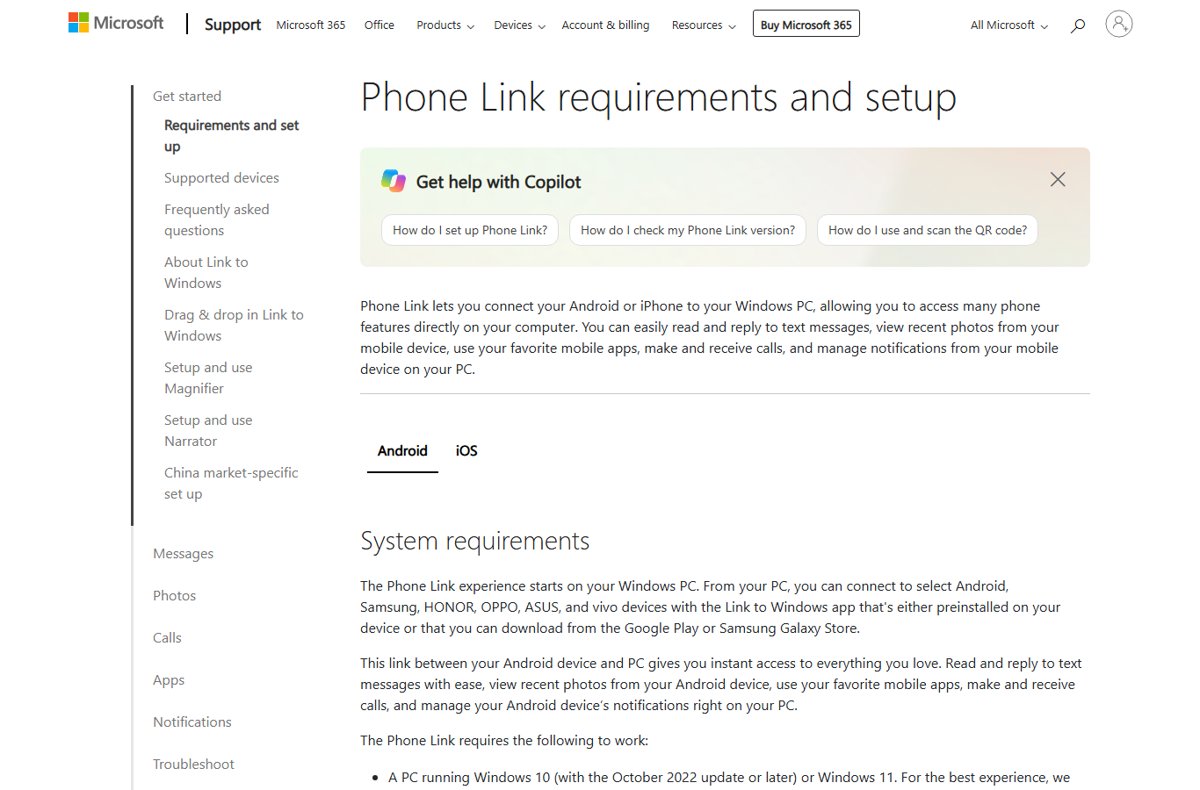
Check these before you start, because a missing requirement is the most common reason pairing never begins.
| Requirement | Android | iPhone |
|---|---|---|
| Windows version | Windows 10 with the October 2022 update or later, or Windows 11 | Windows 10 or Windows 11 on a PC that supports Bluetooth LE |
| Phone version | Android 10 or later | iOS 16 or later |
| Phone app | Link to Windows, preinstalled on some phones or from Google Play or the Samsung Galaxy Store | Link to Windows from the App Store is optional |
| Connection | Phone and PC on the same Wi-Fi network | Bluetooth turned on for both devices |
| Account | The same personal Microsoft account on PC and phone | A Microsoft account on the PC |
| Not supported | Work or school accounts, multiple Android profiles | Work or school accounts |
Step-by-step: Install or update Phone Link
Phone Link is installed by default on most Windows 10 and Windows 11 PCs. If it is missing, Windows Settings can install it, or you can download Phone Link for Windows from the Microsoft Store.
- Open Settings on your PC.
- Search for Phone Link and select Enable or disable Phone Link.
- Turn on the Phone Link toggle (on Windows 10 it reads Turn on Phone Link).
- Select Install in the pop-up window that appears.
- To update later, open Phone Link and go to Settings > About, then select Update if one is offered.
- On Android, open Link to Windows, tap Settings, and tap Check for updates.
Updates install automatically when automatic app updates are on. An Update Required page means the PC app, the phone app, or both need updating before Phone Link will work.
Step-by-step: Pair your phone with Phone Link
Both phone types start the same way on the PC. The routes split once you choose the phone type.
| Your situation | What to do | Why |
|---|---|---|
| Android phone, first time | Pair with the QR code (section A) | Fastest route; signs the phone in to your Microsoft account |
| Android camera will not scan | Select Pair manually on the PC and enter the code on the phone | Skips the QR code entirely |
| Android already linked to your Microsoft account | Pick Android, then choose the phone from the list | No QR code needed |
| iPhone | Pair over Bluetooth with the QR code (section B) | iPhone links through Bluetooth LE |
| Windows 11 Start menu | Open Start and select Android or iPhone in the mobile device pane | Same pairing, started from Start |
A) Pair an Android phone
- Open Phone Link on the PC and sign in with your Microsoft account.
- On the phone, open a browser and go to www.aka.ms/yourpc to install or open Link to Windows.
- Sign in to Link to Windows with the same Microsoft account used on the PC.
- On the PC, select the I have the Link to Windows app ready check box, then select Pair with QR code.
- In Link to Windows, tap Link your phone and PC, then tap Continue when asked if the QR code is ready.
- Allow camera access and scan the QR code on the PC screen.
- Grant the extra Android permissions, tap Done, and return to the PC.
On Android 13 and later, approve the notification permission during pairing; Phone Link needs it to move data between the devices.
B) Pair an iPhone
- Turn on Bluetooth on the PC and the iPhone.
- Open Phone Link from the Start menu.
- Under Pick your phone, select iPhone. If the option is greyed out, Bluetooth on the PC is off or unavailable.
- Scan the QR code shown on the PC with the iPhone's default Camera app to start Bluetooth pairing.
- Accept the pairing prompts on both devices.
- In the iPhone's Bluetooth settings for the PC, turn on Share System Notifications, Show Notifications, and Sync Contacts.
Sync Contacts gives Phone Link your messages, contacts and call history. Texts with two-factor codes can appear on the PC once message access is granted.
Step-by-step: Sync and use text messages (SMS)
Phone Link shows texts sent or received in the last 30 days on Android. On iPhone, message history lasts only while Bluetooth stays connected.
- Open Phone Link and select Messages.
- If no texts appear on Android, go to Settings > Features > Messages and turn on Allow this app to show text messages from my phone.
- Select New message.
- Type a contact's name or phone number and select the contact.
- Type your text and send it.
- On Android, use the Image button below the message box and choose Browse this PC to attach a picture.
You cannot delete messages from the PC. iPhone texts cannot include images, GIFs or Memojis, and group texts must be answered on the iPhone.
Step-by-step: Make and receive phone calls from your PC
Calls travel over Bluetooth, so Bluetooth must be on and the phone within range of the PC.
- Turn on Bluetooth on both the PC and the phone.
- Open Phone Link and select Calls.
- On Android, select Allow on the phone the first time calling asks for permissions.
- Search for a contact name or number in the search box, or type a number on the dial pad.
- Select the Dial icon to start the call.
- During a call, expand the call window with the down arrow to reach Mute and the keypad.
- When your phone rings, pick up the call from the PC instead of the phone.
Phone Link uses your primary SIM on dual-SIM phones. It is not a replacement for your phone service, and emergency calls may not work through it.
Step-by-step: Access and save recent photos
On Windows 11, phone photos have moved from the Phone Link Photos tab to File Explorer. On Windows 10, the Photos tab in Phone Link still shows them.
- On Windows 11, open Settings > Bluetooth & devices > Mobile devices > Manage mobile devices, and turn on Show mobile device in File Explorer.
- Open File Explorer and select your phone in the left pane.
- Open the Camera folder, or any other folder, to see your photos.
- Copy, drag, or use Save As to keep a photo on the PC.
- On Windows 10, open Phone Link, go to Settings > Features > Photos, and turn on Allow this app to show photos from my phone.
- Open the Photos tab in Phone Link to see recent pictures.
Files opened through File Explorer are online-only. Deleting one there deletes it from the phone, so copy anything you want to keep first.
Android (most seamless): photos, texts and calls
| Area | What Android gets |
|---|---|
| Photos | All phone folders in File Explorer on Windows 11, including videos and audio, in original quality |
| Photos tab | The 2,000 most recent photos and screenshots from Camera Roll and Screenshots |
| Texts | SMS and MMS from the last 30 days, with picture and GIF attachments |
| RCS | Select Samsung devices with Samsung Messages as the default app; images up to 2MB |
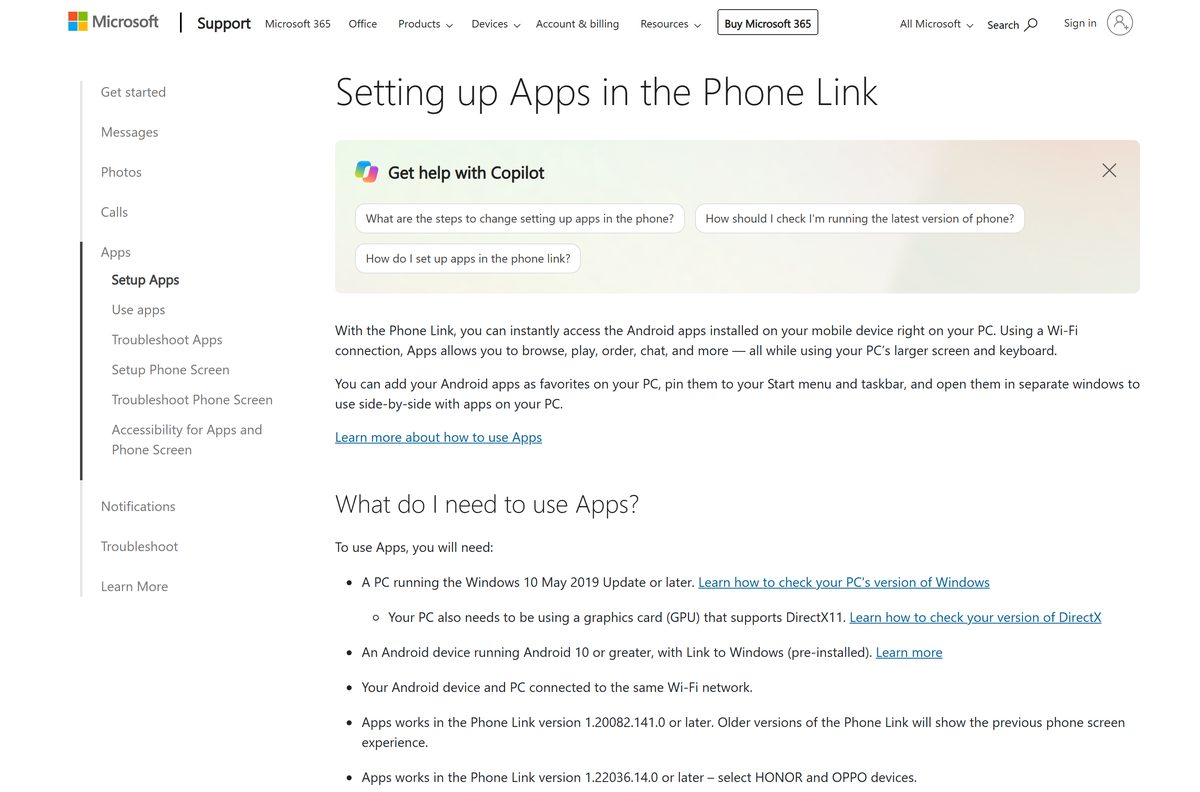
| Extra features | Phone apps, Instant Hotspot, cross-device copy and paste, audio player, wallpaper sync |
If Instant Hotspot is not available on your phone, set up USB tethering to share the phone's data connection instead.
iPhone (more limited): what syncs and what does not
| Area | What iPhone gets |
|---|---|
| Texts | Individual texts only; no images, GIFs or Memojis |
| Group texts | Shown as a notification; reply on the iPhone |
| Message history | Disappears when the Bluetooth connection ends |
| Calls | Make and take calls within Bluetooth range; up to 100 recent calls |
| Notifications | Mirrored from the iPhone notification center |
| Photos | No photo feature for iPhone appears in Microsoft's photo setup pages |
Useful Phone Link settings to check (recommended)
Open Phone Link > Settings > Features to switch each sync type on or off. Turning a feature off stops that content syncing until you turn it back on.
| Setting | Where | What it does |
|---|---|---|
| Messages, Calls, Photos, Notifications | Phone Link > Settings > Features | Turns each feature on or off |
| Transferred files will save to | Phone Link > Settings > Features | Changes where files from the phone are saved |
| Sync your content over mobile data | Phone Link settings, or Link to Windows > Settings > Sync over mobile data | Keeps syncing when Wi-Fi is not available |
| Background apps | Windows Settings > Privacy > Background apps | Lets Phone Link keep running so content stays current |
| Battery optimization | Android Settings > Apps > Link to Windows > Battery | Set to not optimize so Android does not cut the connection |
| Show mobile device in Start | Windows 11 Settings > Personalization > Start | Shows the phone pane in the Start menu |
How to check Phone Link is connected
- Open Phone Link and check the connection status indicator; select the refresh button next to it if the phone shows as disconnected.
- Select Messages and check that recent texts are listed.
- Select Calls and check that recent calls appear.
- Send yourself a test notification on the phone and watch for it on the PC.
- To confirm the account match, visit account.microsoft.com/devices/android-ios and check that your phone is listed.
Phone Link won't pair / QR code fails
The QR code will not scan or pairing never finishes
Old app versions, mismatched accounts, or a network that blocks devices from talking.
- Update Phone Link on the PC and Link to Windows on the phone.
- Sign in with the same Microsoft account on both devices.
- Use a private, trusted Wi-Fi network, not a public one in a hotel or airport.
- Turn off AP Isolation (wireless isolation) on your router if it is on.
- On Android, select Pair manually on the PC instead and enter the code on the phone.
Phone Link is not opening or will not reconnect
A stale link between the phone and the account.
- In Link to Windows, tap your Microsoft account, then Sign out and unlink account, and confirm Unlink.
- On the PC, open Phone Link and go to Settings > Devices > Add new device.
- Pair the phone again, then restart Phone Link.
Messages don't sync or only partial history appears
Some or all Android messages are missing
A third-party messaging app, the 30-day window, or a turned-off permission.
- Remember that Phone Link shows only the last 30 days of texts.
- Use regular SMS and MMS; messages inside third-party chat apps may not appear.
- On the phone, open Settings > Apps > Link to Windows > Permissions and allow SMS, Contacts, Phone and Storage.
- Turn off Battery saver on both devices.
- Update Phone Link from the Microsoft Store.
iPhone message history disappears
iPhone history lives only as long as the Bluetooth connection.
- Keep the iPhone within Bluetooth range of the PC.
- Check that Sync Contacts and Show Notifications are on for the PC in the iPhone's Bluetooth settings.
Calls connect but audio is broken
Echo or poor call audio
Bluetooth interference from other accessories.
- Disconnect a Bluetooth mouse or other accessory for the call.
- Use a wired headset to remove echo.
- Note that Phone Link cannot relay a call to Bluetooth headphones.
Calls fail or never ring on the PC
A broken Bluetooth pairing or a conflicting pairing app.
- Turn Bluetooth off and on again on the phone.
- Turn off Do Not Disturb on the PC.
- Open Settings > Bluetooth & devices on the PC, select the phone, and select Remove device.
- Unpair the PC in the phone's Bluetooth settings.
- Uninstall or sign out of other pairing apps such as Intel Unison.
- Open Phone Link, select Calls, and set up calling again.
Notifications are noisy or distracting
Too many phone notifications on the PC
Every app that notifies on the phone also notifies on the PC by default.
- Open Phone Link and go to Settings > Features > Notifications.
- Select View apps under Choose how apps show notifications.
- Set each app to the notification feed only, Feed and Banner, or Disable notifications.
- On a single notification, select … > Mute to pause it, or Turn off notifications from phone to stop it.
Android notifications never arrive
Notification access is off for Link to Windows.
- On the phone, search Settings for Notification access.
- Toggle Link to Windows off and on again, then select Allow.
How to disable Phone Link or remove your phone on Windows 11
Phone Link cannot be uninstalled because it is built into Windows, but you can turn it off or unlink your phone.
- To turn Phone Link off, open Settings, search for Phone Link, select Enable or disable Phone Link, and turn the toggle off.
- To remove a phone, open Phone Link, go to Settings > Devices, select the overflow menu next to the phone, and select Remove.
- Open Settings > Bluetooth & devices > Mobile devices > Manage devices and select Remove if the phone is listed.
- On Android, open Link to Windows, tap the Settings icon, go to Accounts, and tap Sign out.
- On iPhone, open Link to Windows, go to Settings > Account > Sign out, then forget the PC in Settings > Bluetooth.
Windows Phone Link FAQ
What is Phone Link on Windows 11?
Phone Link is the built-in Windows app that connects an Android phone or iPhone to your PC. It lets you read and reply to texts, make and take calls, and see phone notifications on the computer, with phone photos on Android.
Is Phone Link on Windows 10?
Yes. Phone Link works on Windows 10 and Windows 11. Android phones need Windows 10 with the October 2022 update or later, and Microsoft recommends the latest Windows 11 for the best experience.
Does Windows Phone Link work with iPhone?
Yes. Phone Link works with an iPhone running iOS 16 or later over Bluetooth. iPhone users get individual texts, calls and notifications, but cannot send pictures or group texts from the PC.
How does Windows Phone Link work?
Phone Link pairs with the Link to Windows app on your phone. Android connects through your Microsoft account over Wi-Fi, while iPhone connects over Bluetooth LE. Calls use Bluetooth on both phone types.
Can I uninstall Phone Link on Windows 11?
No. Microsoft says Phone Link cannot be uninstalled because it is built into Windows for cross-device features. You can turn it off from Settings with Enable or disable Phone Link, or remove your phone from it.
How do I stop Phone Link on Windows 11?
Open Settings, search for Phone Link, select Enable or disable Phone Link, and turn the toggle off. To stop syncing a single feature instead, turn it off in Phone Link under Settings > Features.
Why is my Phone Link to Windows not working?
The usual causes are different Microsoft accounts on the phone and PC, outdated apps, Battery saver, or a router with AP Isolation turned on. Update both apps, match the accounts, and use a private Wi-Fi network.
Is Phone Link on Windows safe?
Phone Link only shows phone content after you grant permissions. Texts, including two-factor codes, can appear on the PC, so Microsoft recommends a separate Microsoft account for each person who shares the PC.
Does Phone Link work without Wi-Fi?
Yes, on Android. Turn on Sync over mobile data in Link to Windows settings to sync over mobile data, though Wi-Fi saves your data allowance. iPhone uses Bluetooth, so it does not depend on Wi-Fi.
Can I use Phone Link with more than one phone or PC?
Yes. Sign in to Link to Windows on each phone with the same Microsoft account, then pick the phone from the device list in Phone Link settings. One phone can also connect to several PCs.