M.2 is a physical form factor, a small card and its slot, while NVMe and SATA are the protocols and interfaces a drive uses to talk to the computer, so an M.2 SSD can be either NVMe or SATA.
This guide explains each term, the real benefits of an NVMe SSD, how to check which drive and slot your Windows PC has, and what to check before you buy an upgrade.
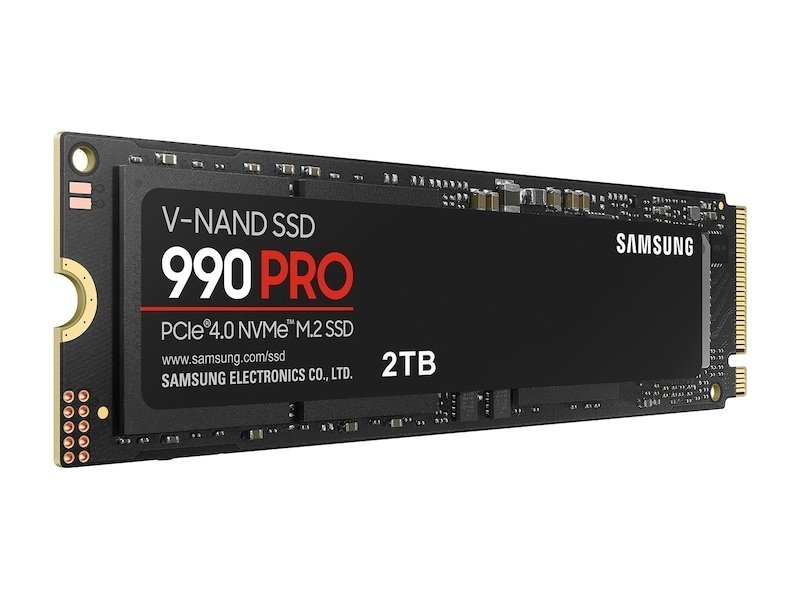
NVMe vs M.2 vs SATA: the quick mental model
The three names answer three different questions. M.2 tells you the shape, SATA and NVMe tell you how the data travels.
| Term | What it is | Question it answers | Example |
|---|---|---|---|
| M.2 | A small card form factor and connector, formerly called NGFF | What shape is the drive, and where does it plug in? | An M.2 2280 card, 22 mm wide and 80 mm long |
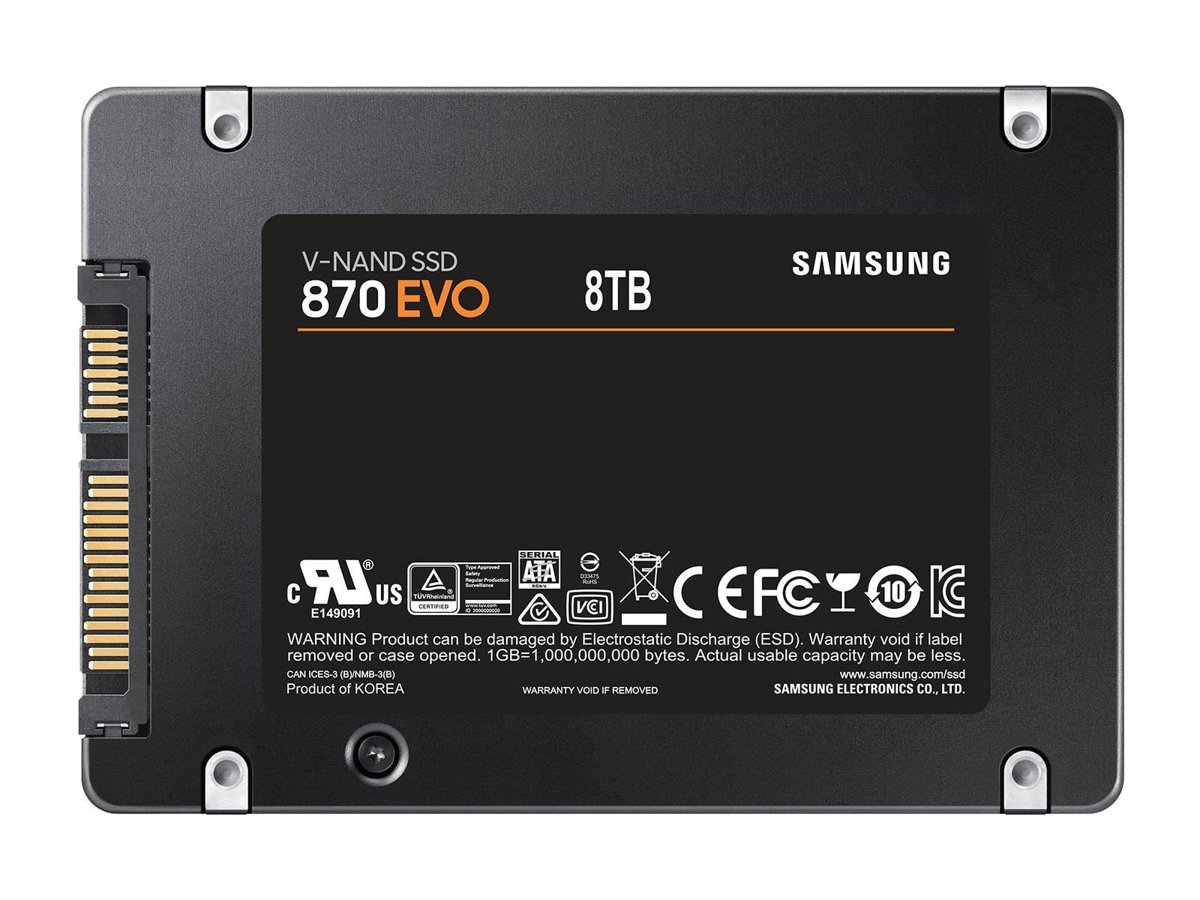
| SATA | The Serial ATA interface, with a top link speed of 6 Gb/s | How does an older-style SSD or hard drive connect? | Samsung 870 EVO, a 2.5-inch SATA SSD rated up to 560 MB/s read |
| NVMe | NVM Express, a protocol built for flash storage that runs over PCI Express (PCIe) lanes | How does a fast SSD talk to the processor? | Samsung 990 PRO, an M.2 2280 drive on PCIe 4.0 x4 rated up to 7,450 MB/s read |
So the useful comparison is NVMe vs SATA. M.2 is just one of the shapes either kind of SSD can come in.
NVMe SSD benefits over SATA SSDs
The main benefit of an NVMe SSD is speed: it connects over PCIe lanes instead of the 6 Gb/s SATA link, so sequential transfers can be more than ten times faster than a SATA SSD.
The benefit of any SSD over a hard drive is that it has no moving parts, so the PC boots, opens apps and loads files faster.
| Benefit | NVMe SSD | SATA SSD |
|---|---|---|
| Sequential read (Samsung spec sheets) | Up to 7,450 MB/s on a PCIe 4.0 x4 990 PRO | Up to 560 MB/s on an 870 EVO |
| Random read, 4 KB at queue depth 32 | Up to 1,400,000 IOPS (990 PRO) | Up to 98,000 IOPS (870 EVO) |
| Command queues | Up to 65,535 queues of up to 65,536 commands each | One queue of up to 32 commands (AHCI) |
| Form factor | Mostly M.2, also PCIe add-in cards and U.2 | 2.5-inch drive or M.2 card |
| Health monitoring in Windows | Windows watches NVMe drives and raises critical warnings | Not monitored by the built-in Windows storage health feature |
| Games using DirectStorage | Required: DirectStorage needs an NVMe SSD | Not supported for DirectStorage |
A SATA SSD still has its place. It fits older laptops with only a 2.5-inch bay, and it is far faster than a hard drive.
What SATA actually means (and why it still exists)
A quick history lesson explains why the names overlap. SATA (Serial ATA) is the interface that replaced IDE/PATA for hard drives, SSDs and optical drives. Its current generation runs at up to 6 Gb/s and stays compatible with the older 3 Gb/s and 1.5 Gb/s links.
The difference between SATA 2 and SATA 3 is only the link speed, and today's SATA SSDs are built for the 6 Gb/s generation.
| SATA fact | Detail |
|---|---|
| Top link speed | 6 Gb/s (SATA Revision 3.x), about 750 MB/s before protocol overhead |
| Common drive shapes | 2.5-inch (laptops, small PCs) and 3.5-inch (desktop hard drives); M.2 SATA cards also exist |
| SATA connection patterns you'll recognize | A thin data cable to the motherboard plus a separate power cable, or an M.2 card with SATA inside |
| Software layer | AHCI, designed when storage meant spinning disks |
| Ports on a modern board | Intel's Z790 chipset, for example, supports up to 8 SATA 6.0 Gb/s ports |
| Why it still exists | Cheap high-capacity storage, hard drives, and older laptops and desktops without an NVMe slot |
What NVMe actually means (and why it feels faster)
NVMe (NVM Express) is a storage protocol designed from the ground up for flash memory on the PCI Express bus. AHCI, the protocol SATA drives use, was designed when the drive was a slow spinning disk.
Windows has included a built-in NVMe driver since Windows 8.1, and Microsoft's inbox driver is the Standard NVM Express Controller.
| Area | AHCI (SATA drives) | NVMe |
|---|---|---|
| Queues | One command queue, up to 32 commands | Up to 65,535 queues, up to 65,536 commands each |
| Interrupts | A single interrupt | Up to 2,048 MSI-X interrupts |
| Multi-threaded commands | Needs a synchronization lock to issue a command | No locking |
| Data transmission | Usually half-duplex | Full-duplex |
| Path to the processor | Through the SATA controller | Direct PCIe lanes, usually x4 for an M.2 SSD |
PCIe generations and where the speed comes from: each new PCIe generation roughly doubles the bandwidth per lane. A four-lane (x4) link carries about 3.9 GB/s on PCIe 3.0, 7.9 GB/s on PCIe 4.0 and 15.8 GB/s on PCIe 5.0 in each direction.
How does NVMe work?
NVMe technology, defined: NVM Express is an open interface specification for reaching non-volatile storage, usually NAND flash, over the PCI Express bus. The NVMe logic runs on a controller chip inside the drive, and the operating system's NVMe driver talks to it over PCIe lanes.
That design is why NVMe is important for SSDs. AHCI was built for hard drives with long delays between a request and the data, while NVMe lets the system issue many commands in parallel with less overhead and lower latency.
| Part | What it does |
|---|---|
| NVMe controller | A chip on the SSD that runs the NVMe logic next to the flash memory |
| PCIe link | Carries commands and data between the drive and the processor, usually over four lanes on an M.2 SSD |
| Command queues | Many long queues let the host send commands in parallel instead of waiting on one 32-command queue |
| Host Memory Buffer (HMB) | Added in NVMe 1.2, it lets a DRAM-less SSD use some of the PC's RAM to cache its mapping table |
| NVM Express specifications | Maintained by NVM Express, Inc.: version 1.0 in March 2011, the rearchitected 2.0 library in May 2021, 2.1 in August 2024 and 2.4 in August 2026 |
| Version changes | Handled inside the drive's controller, so a newer NVMe version does not need a new motherboard or CPU |
The PCIe generation and lane count set the speed ceiling, while the NVMe version adds features such as Zoned Namespaces in 2.0.
What M.2 actually means (and why keying confuses everyone)
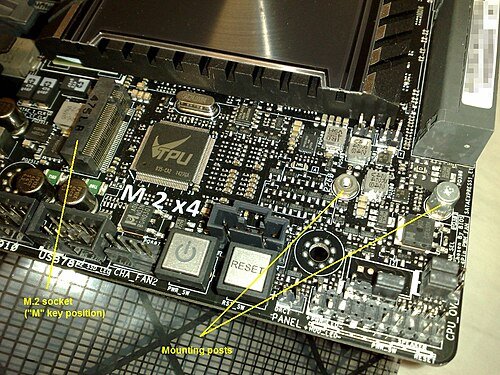
M.2, formerly Next Generation Form Factor (NGFF), is a card and connector standard from PCI-SIG. The same slot shape can carry SATA, PCIe, USB and Wi-Fi signals, which is why two M.2 drives that look alike may not work in the same slot.
M.2 size codes you'll see on retail boxes give width then length in millimeters: 2280 is 22 mm wide and 80 mm long.
| M.2 keying and what to check | Notch position | Signals | Typical use |
|---|---|---|---|
| M key | One notch at pins 59-66 | SATA and PCIe x4 | NVMe SSDs (up to four PCIe lanes) |
| B key | One notch at pins 12-19 | SATA, PCIe x2, USB | Older SATA M.2 SSDs and WWAN cards |
| B+M key | Two notches | SATA and PCIe x2 | M.2 SATA SSDs, made to fit B and M slots |
| A and E keys | Notches near the opposite end | PCIe x1, USB, CNVi | Wi-Fi and Bluetooth cards, not storage |
| Size 2230 / 2242 / 2260 / 2280 / 22110 | Not a notch: the card length | Any | Your slot needs a screw post at the matching length |
Keying shows what fits physically, not what works electrically. An M-key slot can be NVMe only, SATA only, or both, depending on how the board maker wired it.
How NVMe, M.2, and SATA fit together in real systems
| Drive you see | Shape | Interface and protocol | Typical speed ceiling |
|---|---|---|---|
| 2.5-inch SSD with a cable | 2.5-inch | SATA, AHCI | SATA's 6 Gb/s link (about 560 MB/s on real drives) |
| M.2 SATA SSD (usually B+M key) | M.2 | SATA, AHCI | Same as a 2.5-inch SATA SSD |
| M.2 NVMe SSD (M key) | M.2 | PCIe, NVMe | Set by the PCIe generation and lane count |
| PCIe add-in card SSD | Expansion card | PCIe, NVMe | Set by the slot's PCIe generation and lanes |
| U.2 or U.3 drive | 2.5-inch with SFF-8639 connector | PCIe x4, NVMe (U.3 also SATA/SAS) | Workstations and servers |
| 3.5-inch hard drive | 3.5-inch | SATA, AHCI | Limited by the spinning disk, well under the SATA link |
NVMe vs SSD: is NVMe a type of SSD?
SSD names the storage device: flash memory with no moving parts. NVMe names the way the drive talks to the computer. NVMe versus SSD is not a choice between two products, because an NVMe SSD is one kind of SSD and a SATA SSD is the other common kind.
| Term | Category | Question it answers |
|---|---|---|
| SSD | Storage device built on flash memory | What stores the data? |
| HDD | Storage device with spinning platters | What stores the data? |
| NVMe | Protocol that runs over PCIe | How does a fast SSD talk to the processor? |
| SATA with AHCI | Interface and protocol designed for hard drives | How does an older SSD or hard drive talk to the PC? |
When a spec sheet says NVMe SSD, it means a flash drive that uses the NVMe protocol, most often on an M.2 card.
How to identify what you currently have (fast, accurate methods)
Windows shows whether a drive is SSD or HDD in Settings, and PowerShell shows the bus type, NVMe or SATA. Use both if you are planning an upgrade.
- Open Start > Settings > System > Storage.
- Select Advanced storage settings > Disks & volumes to see each disk and its type (SSD or HDD).
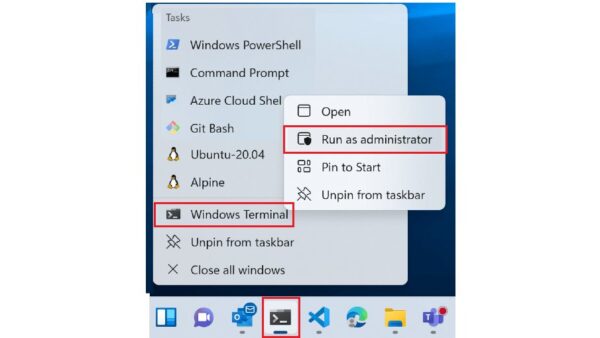
- Right-click Start and select Terminal or Windows PowerShell.
- Type
Get-PhysicalDisk | Select-Object FriendlyName, BusType, MediaTypeand press Enter. - Read the BusType column: NVMe means an NVMe SSD, SATA means a SATA SSD or hard drive, USB means an external drive.
- Read MediaType to tell SSD from HDD.
- Search the model name from FriendlyName on the maker's site to see its form factor (M.2 2280, 2.5-inch) and PCIe generation.
Single fastest sanity check, PCIe vs AHCI naming: a drive that reports NVMe runs over PCIe, while SATA means the AHCI path, even if the drive is an M.2 card.
Choosing the right drive: compatibility and performance rules that actually matter
| Rule | What it means | What to do |
|---|---|---|
| Rule 1: M.2 is not a performance guarantee | An M.2 SATA SSD is no faster than a 2.5-inch SATA SSD | Look for NVMe and a PCIe generation in the spec, not just M.2 |
| Rule 2: NVMe needs PCIe lanes, not just an M.2 slot | An M.2 slot wired only for SATA cannot run an NVMe drive | Check the motherboard or laptop manual says the slot supports PCIe or NVMe |
| Rule 3: PCIe gen mismatch can cap speeds | PCIe is backward compatible, so a PCIe 5.0 drive works in a PCIe 4.0 slot at PCIe 4.0 speed | Match the drive's generation to the slot, or accept the lower ceiling |
| Rule 4: Thermals are a real factor in sustained workloads | Fast NVMe drives draw more power, for example 5.5 W average and 8.5 W burst for a 990 PRO against 2.5 W average for an 870 EVO | Use the board's M.2 heatsink or a heatsink version of the drive for long transfers |
| Rule 5: Length must match | A 2280 drive needs a screw post at 80 mm | Check which lengths the slot accepts before you buy |
Common real-world scenarios (what to buy and why)
| Your system | Buy this | Why |
|---|---|---|
| Older laptop with only a 2.5-inch bay | A 2.5-inch SATA SSD | The bay is SATA, and the jump from a hard drive is still large |
| Desktop with an M.2 slot that supports NVMe | An M.2 NVMe SSD matching the slot's PCIe generation | Fastest option the board can run |
| Budget motherboard with an M.2 slot that supports only SATA | An M.2 SATA SSD (B+M key) | An NVMe drive would not be detected in that slot |
| Workstation/server with U.2 or backplane storage | U.2 or U.3 NVMe drives that match the backplane | U.3 drives work in U.2 hosts, but U.2 drives do not work in U.3 hosts |
| Bulk storage for media or backups | A SATA hard drive or a large SATA SSD | Capacity per dollar matters more than speed |
| Gaming PC running DirectStorage titles | An NVMe SSD | DirectStorage requires an NVMe SSD |
Adapters, converters, and myths you should avoid
These common mistakes and misconceptions are behind most drives that fit the slot but never show up, or run slower than the box promised.
| Claim | Reality |
|---|---|
| Myth: Any M.2 NVMe drive works with any M.2 slot | The slot must be wired for PCIe. A SATA-only M.2 slot will not see an NVMe drive even when it fits. |
| Myth: M.2-to-USB makes NVMe equivalent to internal performance | The USB link sets the ceiling. USB 3.2 Gen 2×2 tops out at 20 Gb/s, while PCIe 4.0 x4 carries about 7.9 GB/s (roughly 63 Gb/s). |
| Myth: An M.2 SATA SSD is faster than a 2.5-inch SATA SSD | Both use the same 6 Gb/s SATA link and AHCI. |
| Myth: NVMe needs a special driver in Windows | Windows 8.1 and later include a built-in NVMe driver. |
| Safe approach: verify electrical support before you buy the adapter | Check that a PCIe-to-M.2 card or USB enclosure lists NVMe support, and that the PCIe slot it uses has the lanes you expect. |
Benchmark expectations: what numbers mean for NVMe vs SATA
Spec-sheet speeds are sequential maximums at high queue depth. Everyday tasks rely more on small random reads at low queue depth, so the felt gap is smaller than the headline numbers.
| Metric | SATA SSD (Samsung 870 EVO) | NVMe SSD (Samsung 990 PRO, PCIe 4.0 x4) | What it tells you |
|---|---|---|---|
| Sequential read | Up to 560 MB/s | Up to 7,450 MB/s | Large file copies and game installs |
| Sequential write | Up to 530 MB/s | Up to 6,900 MB/s | Writing big video or backup files |
| Random read, 4 KB QD32 | Up to 98,000 IOPS | Up to 1,400,000 IOPS | Heavy multitasking and server-style loads |
| Random read, 4 KB QD1 | Not compared here | Up to 22,000 IOPS | Closest to light desktop use |
| Link ceiling | 6 Gb/s SATA (about 750 MB/s raw) | About 7.9 GB/s for PCIe 4.0 x4 | Why SATA SSDs all land near 550 MB/s |
Samsung notes on both drives that performance may vary with system hardware and configuration. A SATA SSD showing about 550 MB/s is working normally.
PCIe generations: why NVMe speeds vary so much
Two NVMe SSDs can differ several times over in speed because each PCI Express generation roughly doubles the bandwidth per lane. An M.2 NVMe drive normally uses four lanes (x4), so the slot's generation sets its ceiling.
| PCI Express generation | x4 bandwidth per direction | What it means for an NVMe SSD |
|---|---|---|
| PCIe 3.0 (Gen 3) | About 3.9 GB/s | Still several times faster than any SATA SSD |
| PCIe 4.0 (Gen 4) | About 7.9 GB/s | Room for drives such as the Samsung 990 PRO, rated up to 7,450 MB/s read |
| PCIe 5.0 (Gen 5) | About 15.8 GB/s | The newest drives; they need a Gen 5 slot to run at full speed |
| SATA 3, for comparison | 6 Gb/s, about 750 MB/s raw | The reason every SATA SSD lands near 550 MB/s |
PCIe is backward compatible, so a Gen 4 or Gen 5 SSD still works in an older slot, only at that slot's speed.
Compatibility checklist before you buy
- Find your motherboard model or laptop model and open its manual or spec page on the maker's site.
- Confirm the slot type: M.2 or a 2.5-inch bay.
- For M.2, confirm the slot supports PCIe/NVMe, SATA, or both, and note its PCIe generation and lane count.
- Check which card lengths the slot accepts, such as 2242 or 2280.
- Read the manual's M.2 notes for any ports or slots that are switched off when the slot is filled.
- Check that the drive's keying matches: M key for NVMe, B+M key for most M.2 SATA drives.
- Plan for heat: confirm there is an M.2 heatsink or airflow if you will copy large files often.
How to install each type of SSD: M.2 NVMe, M.2 SATA and 2.5-inch SATA
M.2 NVMe and M.2 SATA cards install the same way, into the slot itself. A 2.5-inch SATA SSD goes into a drive bay and needs two cables. Shut the PC down and unplug it first.
- Keep the new drive in its anti-static bag until you are ready, and touch an unpainted metal surface to ground yourself.
- Hold the drive by its sides and never touch the gold connectors.
- M.2 drive: remove the slot's heatsink if it has one, and check that the standoff sits at the length of your card, such as 80 mm for a 2280 drive.
- M.2 drive: insert the card into the slot at an angle, press it down level onto the standoff, and fit the screw with gentle pressure only.
- 2.5-inch SATA drive: mount it in a drive bay or laptop caddy, then connect the SATA data cable to the motherboard and the SATA power cable from the power supply.
- Refit the heatsink or cover, reconnect power and start the PC.
- Initialize and format the new drive in Windows before you use it, as shown in the next section.
Standoff heights and screws vary by motherboard, so check the board or laptop manual for the right parts.
How to add a new NVMe SSD in Windows (initialize and format)
A new NVMe or SATA SSD does not appear in File Explorer until Windows initializes and formats it. Initializing erases the disk, so only do this on a new, empty drive.
- Install the drive, then start Windows and sign in with an administrator account.
- Search the Start menu for Create and format hard disk partitions, right-click it and select Run as administrator > Yes.
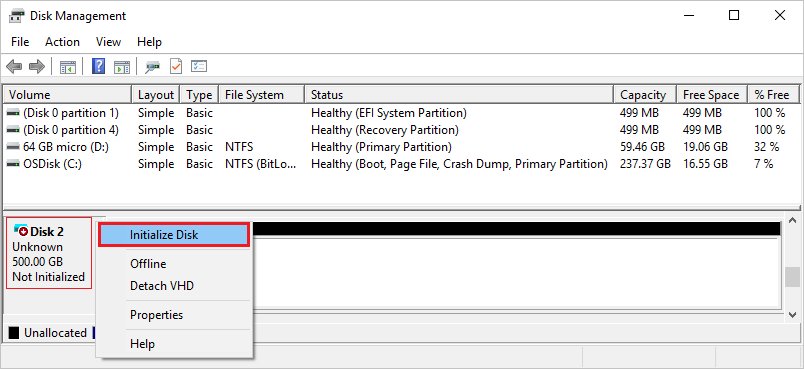
- In Disk Management, find the new disk. If it shows Offline, right-click it and select Online.
- Right-click the disk, select Initialize Disk, keep GPT and select OK.
- Right-click the Unallocated space and select New Simple Volume > Next.
- Accept the default size, choose a drive letter, choose NTFS and select Finish.
How to check NVMe SSD health in Windows 11 and Windows 10
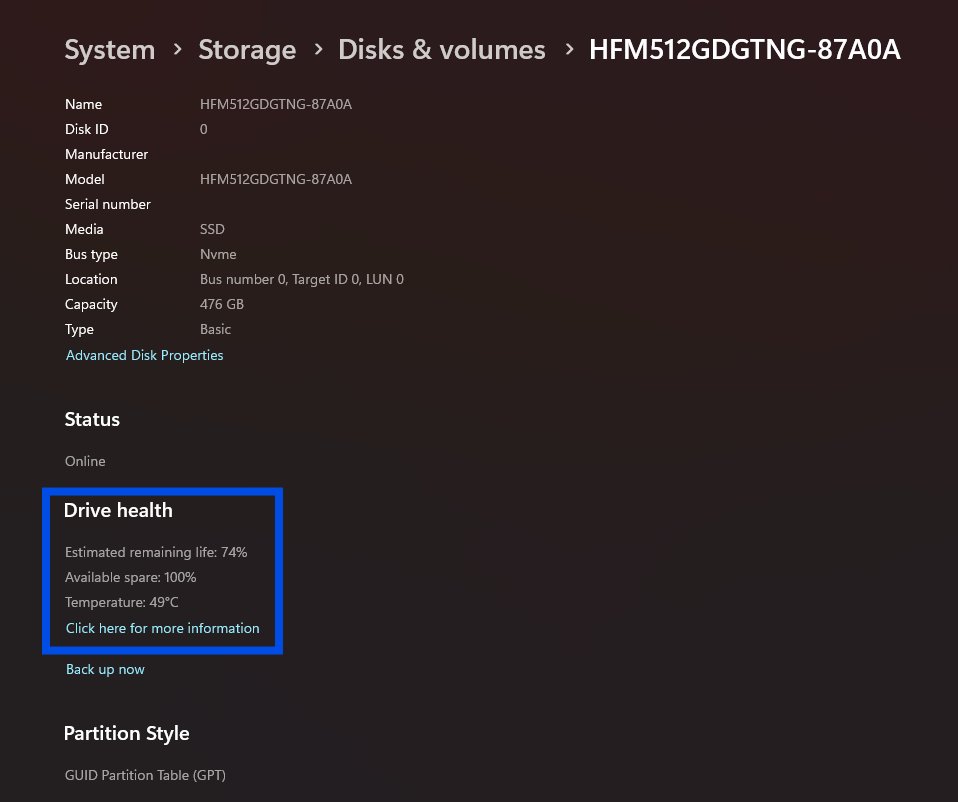
Windows monitors NVMe SSDs and shows their health, but it does not monitor SATA SSDs or hard drives this way.
- Open Start > Settings > System > Storage.
- Select Advanced storage settings > Disks & volumes.
- Select Properties for the NVMe drive.
- Read Estimated remaining life, Available spare and Temperature.
- If Windows shows Spare capacity is low, Reliability is degraded or Drive is set to read-only, back up your data right away.
For a SATA SSD, use the drive maker's own tool, and scan the drive with chkdsk if you suspect file system errors. Samsung, for example, lists Magician Software as the management tool for its SSDs.
Troubleshooting: when the upgrade doesn’t work
Drive isn’t detected in BIOS/UEFI
The slot is not wired for the drive's interface, or the card is not seated.
- Check the manual: an NVMe drive needs a slot that supports PCIe, and a SATA M.2 drive needs a slot that supports SATA.
- Power off, unplug, and reseat the card fully at an angle before fastening the screw.
- Move the drive to another M.2 slot listed as NVMe-capable, if the board has one.
- Check the manual's notes for slots that switch off when another port or slot is in use.
New SSD shows in BIOS but not in File Explorer
The disk has not been initialized or given a volume.
- Open Disk Management as administrator.
- Bring the disk Online if needed, then select Initialize Disk.
- Create a New Simple Volume on the unallocated space.
NVMe SSD slower than the rated speed
The slot runs an older PCIe generation or fewer lanes, or the drive is hot under sustained load.
- Look up the slot's PCIe generation and lane count in the manual.
- Compare it with the drive's interface, such as PCIe Gen 4.0 x4.
- Fit the M.2 heatsink, or move the drive to a slot with one, for long transfers.
- Check Temperature under Disks & volumes > Properties.
M.2 SSD in a USB enclosure is slower than inside the PC
The USB link, not the drive, is the limit.
- Check the enclosure's USB rating, such as 10 Gb/s or 20 Gb/s.
- Connect it to a matching USB port on the PC.
- Install the drive internally if you need full NVMe speed.
NVMe vs SATA SSD FAQs
What is an NVMe SSD?
An NVMe SSD is a solid-state drive that uses the NVM Express protocol over PCI Express lanes instead of SATA. Most come as M.2 cards, and current PCIe 4.0 models such as the Samsung 990 PRO are rated up to 7,450 MB/s read.
Is NVMe SSD better than SSD?
An NVMe SSD is a type of SSD, and it is faster than a SATA SSD. The Samsung 990 PRO NVMe drive is rated up to 7,450 MB/s read against 560 MB/s for the Samsung 870 EVO SATA drive. A SATA SSD is still much faster than a hard drive.
What is better, SSD or NVMe?
NVMe is better for speed, provided your PC has an M.2 slot that supports PCIe. A SATA SSD is the right choice for older laptops and desktops with only a 2.5-inch bay or a SATA-only M.2 slot.
Is an NVMe SSD good?
Yes. An NVMe SSD gives the fastest storage most PCs can use, is required for DirectStorage games, and Windows monitors its health. The only catch is compatibility: the slot must be wired for PCIe/NVMe.
Does my PC support NVMe SSD?
Your PC supports NVMe if it has an M.2 slot wired for PCIe, which the motherboard manual or spec page states. In Windows, run Get-PhysicalDisk in PowerShell: a drive with BusType NVMe means the PC already uses one.
Does my laptop support NVMe SSD?
Check the laptop maker's spec page or service manual for an M.2 slot listed as PCIe or NVMe, plus the supported length such as 2230 or 2280. A laptop with only a 2.5-inch bay takes a SATA SSD instead.
How do I check NVMe SSD health?
Open Settings > System > Storage > Advanced storage settings > Disks & volumes, then select Properties for the NVMe drive. Windows shows Estimated remaining life, Available spare and Temperature, and warns when spare capacity is low or reliability is degraded.
How do I add a new NVMe SSD?
Install it in an NVMe-capable M.2 slot, then open Disk Management as administrator. Initialize the disk with GPT, create a New Simple Volume, assign a letter and format it as NTFS.
How do I activate an NVMe SSD?
A new NVMe SSD needs no activation, only initialization. In Disk Management, bring the disk Online if it is offline, select Initialize Disk, then create and format a volume so it appears in File Explorer.
Can I use an NVMe SSD as storage?
Yes. An NVMe SSD works as a secondary data drive as well as a boot drive. After you initialize and format it, Windows treats it like any other drive, and you can set it as the save location for apps and files.
What NVMe SSD should I buy?
Buy an NVMe SSD that matches your slot: M key, the right length (usually 2280) and the slot's PCIe generation. A PCIe 5.0 drive works in a PCIe 4.0 slot, but only at PCIe 4.0 speed.
Is M.2 the same as NVMe?
No. M.2 is the card shape and slot, while NVMe is the protocol. An M.2 SSD can be NVMe or SATA, and NVMe drives also come as PCIe add-in cards and U.2 drives.
Bottom line: NVMe or SATA SSD for your PC
Buy an M.2 NVMe SSD if your board or laptop has an M.2 slot that supports PCIe, and buy a SATA SSD if it has only a 2.5-inch bay or a SATA-only M.2 slot. NVMe is the faster protocol and the one Windows monitors, but only the slot's wiring decides whether it works. M.2 alone tells you the shape, not the speed.