To enable IIS on Windows 11, open Control Panel > Programs > Turn Windows features on or off, select Internet Information Services, click OK, and then open IIS Manager by typing inetmgr in the Run box.
Internet Information Services (IIS) is Microsoft's web server, built into Windows as an optional feature that hosts websites and web apps such as ASP.NET, classic ASP and PHP. This guide covers the Windows Features method, the PowerShell and DISM commands, opening IIS Manager, adding features such as ASP and HTTPS, Windows Server installs, and fixes for common problems.
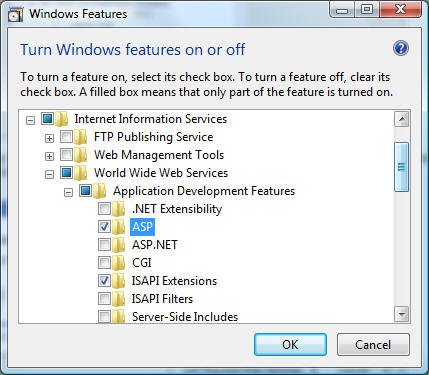
Steps to install IIS on a Windows 11 computer
IIS is already part of Windows 11, so there is nothing to download. You turn it on from the Windows Features dialog while signed in with an administrator account.
- Press Start, type Control Panel and open it.
- Select Programs, then Programs and Features, then Turn Windows features on or off on the left side.
- Select the Internet Information Services check box. This picks the default IIS features for a basic web server.
- Expand Internet Information Services > Web Management Tools and make sure IIS Management Console is checked.
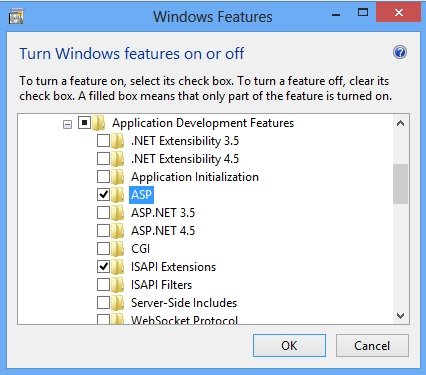
- Expand World Wide Web Services and add any extra features you need, such as Application Development Features > ASP.
- Click OK and wait while Windows applies the changes.
- Restart the PC if Windows asks you to.
Enable IIS with Windows Features, PowerShell or DISM: which to use
All three methods install the same IIS features. This comparison of methods shows which one fits your setup.
| Your situation | Use this | Why |
|---|---|---|
| One Windows 11 or Windows 10 PC, first time | Turn Windows features on or off | Visual tree, picks the default features and their dependencies for you |
| Scripted setup on several PCs | Enable-WindowsOptionalFeature in PowerShell | One command, and -All adds required parent features |
| Command Prompt only, or a batch file | DISM /Online /Enable-Feature | Works from cmd, but every dependency must be listed |
| Windows Server 2022 or Windows Server 2025 | Server Manager or Install-WindowsFeature | IIS is the Web Server (IIS) role on Windows Server, not a Windows Features entry |
IIS requirements on Windows 11
| Requirement | Details |
|---|---|
| Administrator account | Windows Features, DISM and the PowerShell feature cmdlets all need an elevated session |
| IIS Management Console | Needed for IIS Manager; it sits under Web Management Tools and is part of the default selection |
| World Wide Web Services | The actual web server; without it IIS Manager has no site to manage |
| Internet connection (sometimes) | Windows can use Windows Update as the source when feature files are not stored locally |
| Managed work PC | An organization can hide Windows Features with the Hide "Windows Features" policy; ask IT if the dialog is missing |
Install IIS on Windows 11 using PowerShell command
Open PowerShell as administrator and run the command below. It enables the same features that the default Windows Features selection installs.
Enable-WindowsOptionalFeature -Online -All -FeatureName IIS-WebServerRole, IIS-WebServer, IIS-CommonHttpFeatures, IIS-StaticContent, IIS-DefaultDocument, IIS-DirectoryBrowsing, IIS-HttpErrors, IIS-HealthAndDiagnostics, IIS-HttpLogging, IIS-RequestMonitor, IIS-Performance, IIS-HttpCompressionStatic, IIS-Security, IIS-RequestFiltering, IIS-WebServerManagementTools, IIS-ManagementConsole-Online targets the running copy of Windows. -FeatureName takes a comma-separated list of IIS features. -All also enables the parent features each one needs. Add -NoRestart to suppress the restart prompt.
You should see: PowerShell finishes without errors and reports whether a restart is needed. Restart if it says so.
To add one more feature later, run the same cmdlet with only that name, for example Enable-WindowsOptionalFeature -Online -All -FeatureName IIS-ASP for classic ASP.
How to enable IIS through CMD with DISM
DISM does not add missing dependencies on its own, so the command lists the Windows Process Activation Service parts as well. Open Command Prompt as administrator and enter this on one line.
DISM /Online /Enable-Feature /FeatureName:WAS-WindowsActivationService /FeatureName:WAS-ProcessModel /FeatureName:WAS-ConfigurationAPI /FeatureName:IIS-WebServerRole /FeatureName:IIS-WebServer /FeatureName:IIS-CommonHttpFeatures /FeatureName:IIS-StaticContent /FeatureName:IIS-DefaultDocument /FeatureName:IIS-HttpErrors /FeatureName:IIS-Security /FeatureName:IIS-RequestFiltering /FeatureName:IIS-WebServerManagementTools /FeatureName:IIS-ManagementConsole/Online works on the running Windows installation. Each /FeatureName adds one IIS or WAS feature. The order does not matter because DISM treats the whole line as one transaction.
You should see: DISM reports completion without errors. If a dependency is missing, the install can fail without a clear error message, so compare your list with the PowerShell command above.
Run IIS Manager on Windows 11
IIS Manager (inetmgr) is the console for sites, bindings, application pools and every IIS feature. Only an administrator account can use it to connect to the local web server.
- Right-click Start and select Run.
- Type
inetmgrand press Enter. You can also typeinetmgrin the Start search box. - In the Connections pane, expand your computer name, then Sites.
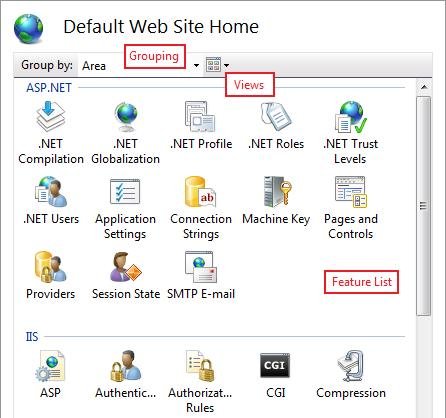
- Select Default Web Site to see its home page of feature icons in the middle pane.
- Use the Actions pane on the right to browse the site, edit Bindings…, or start and stop it.
- Switch between Features View and Content View at the bottom of the middle pane to see settings or files.
How to check IIS is working on Windows 11
- Open any browser on the same PC and go to
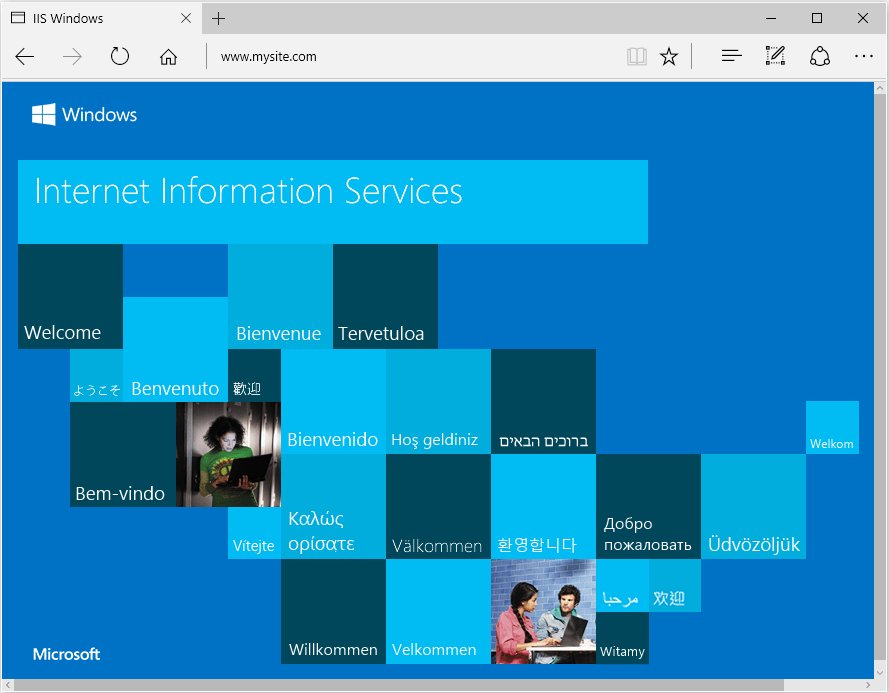
http://localhost. - Confirm the IIS welcome page loads. That page is served by Default Web Site.
- Open IIS Manager and check that Default Web Site is listed under Sites without a stopped icon.
- For a command-line check, run
Get-WindowsOptionalFeature -Online -FeatureName IIS-WebServerRolein an admin PowerShell window and confirm State shows Enabled.
What is Internet Information Services (IIS)?
Web servers provide the portal between a browser and a website: they accept each request and send back the page or app response. Internet Information Services is the web server that ships with Windows and Windows Server. On Windows 11 it is off by default and installs as a set of separate features, so you add only the parts your site needs.
| Detail | What it means |
|---|---|
| Version line | IIS 10.0 shipped with Windows 10 and Windows Server 2016 and added HTTP/2 support |
| Default install | Static content, default document, directory browsing, HTTP errors, HTTP logging, request monitor, static compression, request filtering and IIS Management Console |
| Authentication | Anonymous authentication is always installed; Basic and Windows Authentication are optional |
| Main config file | applicationHost.config in %windir%\System32\inetsrv\config |
| Process model | Sites run in application pools managed by the Windows Process Activation Service (WAS) |
| Remote management | Optional Management Service listens on port 8172 so another PC's IIS Manager can connect |
How IIS works (simplified)
IIS splits each web request across a kernel-mode listener, two Windows services and a worker process. Knowing which part does what makes configuration and administration easier to follow.
| Component | What it does |
|---|---|
| HTTP.sys | Kernel-mode driver that listens for HTTP and HTTPS requests, queues them and serves cached responses without switching to user mode |
| World Wide Web Publishing Service (WWW Service) | Configures HTTP.sys and tells WAS when a request is waiting |
| Windows Process Activation Service (WAS) | Reads applicationHost.config, manages application pools and starts a worker process when a pool has none running |
| Application pools | Separate sites by process boundary so one app cannot affect another; each pool runs in Integrated or Classic mode |
| Worker process and modules | Runs the request through an ordered list of native and managed modules, such as authentication, compression and logging, and builds the response |
Configuration lives in applicationHost.config, the root file that defines every site, application, virtual directory and application pool. Individual sites can add web.config files, but most IIS sections are locked at the global level by default. Day-to-day administration happens in IIS Manager, which edits these files for you.
Key features of IIS
Since IIS 7, every web server feature is a standalone component you can add, remove or replace. That modular design is behind most of the features below.
| Feature | What IIS provides |
|---|---|
| Componentization (modular and extensible web server) | Remove unused features to cut the attack surface and memory use, or build a server tuned for one job such as edge caching or load balancing |
| Extensibility and developing for IIS | Developers write native C++ or ASP.NET modules for custom authentication, logging, security filtering, load balancing and content redirection |
| ASP.NET integration | ASP.NET features such as forms authentication, membership and session state work for every content type, including static files and classic ASP |
| ASP.NET and PHP support | Classic ASP, ASP.NET and PHP (through FastCGI) can be added during or after installation |
| Caching and compression | HTTP.sys caches responses in kernel mode, and static compression is part of the default install |
| Diagnostic tools | HTTP logging, the request monitor and Failed Request Tracing show what happened to each request |
| Security in IIS and access protection | Request filtering ships by default, anonymous authentication is always installed, and Basic and Windows Authentication are optional |
| Secure content publishing | The IIS FTP server supports FTP over SSL and can publish to an existing website through an FTP binding |
| Delegated remote management | The Management Service lets another computer's IIS Manager connect over port 8172 |
| Scalable web infrastructure and web farm management | Shared configuration across servers in a web farm, plus Application Request Routing for load balancing |
Real-world use cases and advantages of IIS
On Windows 11, IIS is mostly a local test server. On Windows Server, the same components host production sites.
| Use case | Why IIS fits |
|---|---|
| Testing ASP.NET or classic ASP sites locally | Matches the server the site will run on, with the same applicationHost.config model |
| Hosting PHP apps on Windows | CGI provides the FastCGI handler that runs PHP |
| Intranet sites with Windows sign-in | Windows Authentication uses the account people already sign in with |
| Reverse proxy and load balancing | URL Rewrite plus Application Request Routing forward requests to other servers |
| File publishing over FTP | The FTP Server feature shares the IIS configuration store and management console |
The main advantages are that IIS is already part of Windows, installs only the features you pick, is managed from one graphical console, and isolates apps in separate application pools.
Alternatives to IIS
IIS runs only on Windows. These are the main alternatives, depending on the platform and the app.
| Alternative | What it is | Pick it when |
|---|---|---|
| Kestrel | The default cross-platform web server built into ASP.NET Core | You run an ASP.NET Core app on its own, or behind IIS or another reverse proxy |
| HTTP.sys server (ASP.NET Core) | A Windows-only server built on the HTTP.sys kernel driver | An ASP.NET Core app needs features Kestrel lacks, such as port sharing or kernel-mode Windows authentication |
| Apache HTTP Server | A free, open-source web server from the Apache Software Foundation | You want a freely available, open-source server instead of a Windows component |
| nginx | A web server, reverse proxy, content cache and load balancer under the 2-clause BSD license | You want a reverse proxy, cache or load balancer in front of your apps |
IIS Express for testing on Windows 11
IIS Express is a lightweight, self-contained version of IIS made for developers. It comes with Visual Studio or installs on its own, needs .NET Framework 4.0 or later, and does not use Windows Features at all.
| Area | IIS (Windows feature) | IIS Express |
|---|---|---|
| How you get it | Ships with Windows; turn it on in Windows Features | Included with Visual Studio or installed separately |
| Windows 11 editions | A limited number of Windows 10 and Windows 11 editions | All editions of Windows 10 and Windows 11 |
| Admin rights | Required, because WAS runs as administrator | A standard user can complete most tasks |
| How sites run | WAS starts and stops configured sites automatically | You launch and stop sites from Visual Studio, the command line or the system tray |
| Protocols | HTTP, HTTPS, FTP, WebDAV and WCF | HTTP, HTTPS and WCF over HTTP |
| Management tools | IIS Manager and appcmd.exe | appcmd.exe and Visual Studio |
Both run classic ASP, ASP.NET and PHP. Use IIS Express to test a site quickly while you code, and full IIS when you need IIS Manager, FTP or a site that keeps running without you.
How to enable IIS features like ASP, ASP.NET and WebSockets
Return to Turn Windows features on or off at any time and tick extra features under Internet Information Services. Windows adds the features each one depends on.
| You need | Tick this feature | Where it sits |
|---|---|---|
| Classic ASP pages (.asp) | ASP | World Wide Web Services > Application Development Features |
| ASP.NET Framework sites | The ASP.NET entries | World Wide Web Services > Application Development Features |
| PHP through FastCGI | CGI | World Wide Web Services > Application Development Features |
| WebSockets | WebSocket Protocol | World Wide Web Services > Application Development Features |
| Windows sign-in for intranet sites | Windows Authentication | World Wide Web Services > Security |
| Manage this PC's IIS from another computer | Management Service | Web Management Tools |
For PHP, the CGI feature provides the FastCGI handler, and you then add the FastCGI module to IIS and map it to PHP. ASP.NET Core apps also need Microsoft's .NET Hosting Bundle; if you installed it before IIS, run its installer again to repair it.
How to enable HTTPS on IIS in Windows 11
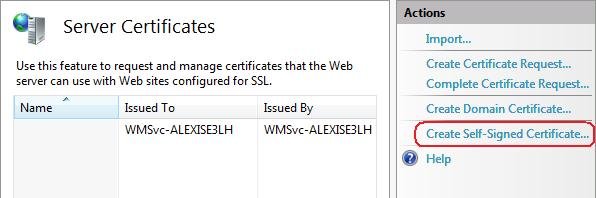
A self-signed certificate is fine for local testing. Browsers show a warning for it because your PC, not a trusted certificate authority, issued it.
- Open IIS Manager and select your computer name in Connections.
- Double-click Server Certificates in the middle pane.
- Select Create Self-Signed Certificate… in Actions, type a friendly name and click OK.
- Select Default Web Site and click Bindings… in Actions.
- Click Add…, choose https in Type, pick your certificate under SSL Certificate, and click OK.
- Select the new https link under Browse Web Site in Actions to test it.
How to enable FTP for IIS on Windows 11
The IIS FTP server is a separate optional feature under Internet Information Services. It uses the same configuration store and IIS Manager as the web server, supports FTP over SSL, and can add an FTP binding to an existing website.
- Open Control Panel > Programs > Programs and Features > Turn Windows features on or off.
- Expand Internet Information Services, then FTP Server.
- Select FTP Service.
- Also select FTP Extensibility if you want IIS Manager or ASP.NET Membership accounts to sign in to FTP.
- Make sure IIS Management Console under Web Management Tools is ticked so you can manage FTP sites in IIS Manager.
- Click OK, then open IIS Manager to add an FTP site or an FTP binding to a website.
ARR and URL Rewrite extensions for IIS
URL Rewrite and Application Request Routing (ARR) are Microsoft extensions installed on top of IIS rather than Windows features. Together they turn IIS into a reverse proxy.
| Extension | What it does | Typical use |
|---|---|---|
| URL Rewrite | Maps request URLs to friendly URLs, issues redirects, sends custom status codes or aborts requests based on rules | Search-friendly URLs, redirects, request blocking, importing Apache mod_rewrite rules |
| Application Request Routing (ARR) | Proxy-based routing module that forwards HTTP requests to content servers based on headers, server variables and load-balancing algorithms | Load balancing, higher availability, pilot deployments and A/B testing |
| URL Rewrite plus ARR | Rewrite rules hand matching requests to ARR, which proxies them to a back-end server | Reverse proxy in front of another web app |
Rewrite rules can be global, stored in applicationHost.config, or distributed in a site's web.config. Rules and rewrite maps are added, edited and tested from IIS Manager once URL Rewrite is installed.
IIS server logs location on Windows 11
HTTP logging is part of the default IIS install, so every site writes a log file from the start. The logs show each request, its status code and how long it took.
- Open IIS Manager with
inetmgrand select your computer name in the Connections pane. - Double-click Logging in the middle pane.
- Check the Format box. IIS uses the W3C log file format by default.
- Check the Directory box. The default folder is
%SystemDrive%\inetpub\logs\LogFiles, with a subfolder for each site. - Click Select Fields to change what each W3C log line records, then click OK and Apply in Actions.
- Open the log folder in File Explorer. IIS starts a new log file every day by default.
The default fields include date, time, client IP, method, URL, HTTP status and time taken. ASP and ODBC errors are not written to the IIS log files, so check the browser error page for those.
IIS server performance metrics list
Performance Monitor (perfmon) shows these metrics live or records them in a data collector set for later review. For a quick look, the Processes tab in Task Manager shows the CPU used by w3wp.exe, the process that hosts an IIS application pool.
| Metric | Where to find it | What it tells you |
|---|---|---|
| Worker process CPU | Performance Monitor > Process > % Processor Time (w3wp instance) | CPU used by an application pool; Microsoft treats a prolonged level above 80 percent as a high CPU problem |
| Total CPU | Performance Monitor > Processor > % Processor Time | Whether the whole PC, not just IIS, is under load |
| Requests running | Performance Monitor > ASP.NET and ASP.NET Applications | How many requests an ASP.NET app is handling at once |
| Managed memory | Performance Monitor > .NET CLR Memory | Memory use and garbage collection in .NET apps |
| Response time | time-taken field in the W3C log | How long each request took to complete |
| Errors | HTTP status and substatus fields in the W3C log | Which URLs return 4xx or 5xx errors |
How to enable IIS on Windows Server 2022 and 2025
On Windows Server, IIS is the Web Server (IIS) role. Install it from Server Manager, or run Install-WindowsFeature -Name Web-Server -IncludeManagementTools in an admin PowerShell window. Without -IncludeManagementTools, the cmdlet skips IIS Manager.
- Open Server Manager, select Manage, then Add Roles and Features.
- Click Next, choose Role-based or feature-based installation, and select the server.
- On Server Roles, tick Web Server (IIS) and click Add Features to include the IIS Management Console.
- Click Next through Features, then pick any extra Role Services you need.
- On Confirmation, click Install, then Close when the Results page shows success.
- Browse to
http://localhoston the server to confirm the default page loads.
Microsoft notes that a restart is not required after installing the Web Server (IIS) role.
How to disable IIS on Windows 11
- Open Control Panel > Programs > Programs and Features > Turn Windows features on or off.
- Clear the Internet Information Services check box so the whole branch is empty.
- Click OK and restart when Windows asks.
- To script it instead, use the Disable-WindowsOptionalFeature cmdlet with
-Onlineand the IIS feature names you enabled.
Fix IIS Manager, ASP and HTTPS problems on Windows 11
inetmgr is not found or IIS Manager is missing from Start
IIS Management Console was not selected, so the web server may run but the console is not installed.
- Open Turn Windows features on or off.
- Expand Internet Information Services > Web Management Tools.
- Tick IIS Management Console and click OK.
- Run
inetmgragain from the Run box.
ASP pages return HTTP 404 or show source code in the browser
Classic ASP is not part of the default IIS install, so IIS has no handler for .asp files.
- Open Turn Windows features on or off.
- Expand Internet Information Services > World Wide Web Services > Application Development Features.
- Tick ASP. ISAPI Extensions is selected with it automatically.
- Click OK, then reload the page.
HTTPS on IIS does not load after adding a binding
The https binding or its certificate entry in HTTP.sys is missing or wrong.
- In IIS Manager, select the site, click Bindings…, and confirm an https binding exists with a certificate selected.
- Open an admin Command Prompt and run
netsh http show sslcert. - Check that the IP and port of your binding appear with a certificate hash and store name.
- If they do not, edit the binding, reselect the certificate, and click OK.
FAQs about IIS on Windows 11
What is Internet Information Services?
Internet Information Services (IIS) is Microsoft's web server for Windows and Windows Server. It hosts static websites and web apps built with ASP.NET, classic ASP, PHP and other frameworks. On Windows 11 it is an optional feature you turn on from Windows Features.
How do I enable IIS in Windows 10?
Enable IIS in Windows 10 the same way as Windows 11. Open Control Panel > Programs > Turn Windows features on or off, tick Internet Information Services, click OK, and restart if asked. The PowerShell and DISM commands are also identical.
How do I enable IIS Manager?
Enable IIS Manager by ticking IIS Management Console under Internet Information Services > Web Management Tools in Turn Windows features on or off. Then open it by typing inetmgr in the Run box and pressing Enter.
How do I enable IIS through CMD?
Open Command Prompt as administrator and run DISM /Online /Enable-Feature with a /FeatureName switch for each IIS feature, starting with IIS-WebServerRole and IIS-WebServer. DISM needs every dependency listed, including the WAS features, or the install can fail.
How do I enable IIS on Windows Server 2022 or 2025?
On Windows Server 2022 or 2025, add the Web Server (IIS) role in Server Manager with Add Roles and Features. In PowerShell, run Install-WindowsFeature -Name Web-Server -IncludeManagementTools so IIS Manager is installed too. No restart is required afterwards.
How do I enable ASP in IIS?
Open Turn Windows features on or off, expand Internet Information Services > World Wide Web Services > Application Development Features, and tick ASP. Windows also adds ISAPI Extensions. Without ASP installed, .asp pages return a 404 error or show their source code.
How do I enable more IIS features after installing?
Reopen Turn Windows features on or off and tick the extra features under Internet Information Services, such as CGI, WebSocket Protocol or Windows Authentication. In PowerShell, run Enable-WindowsOptionalFeature -Online -All -FeatureName with the feature name, such as IIS-ASP.
How do I use IIS after enabling it?
Put your site files in a folder, open IIS Manager with inetmgr, right-click Sites and choose Add Website to point a new site at that folder and port. For a quick test, the Default Web Site already answers at http://localhost.
Does enabling IIS on Windows 11 need a restart?
Sometimes. Windows asks for a restart when the features it adds require one, and the PowerShell cmdlet reports whether one is needed. On Windows Server, Microsoft states that installing the Web Server (IIS) role does not need a restart.
Conclusion: should you enable IIS on Windows 11?
Enable IIS from Turn Windows features on or off with the default selection, then add only the extra features your site needs. The default set gives a working web server and IIS Manager, and every feature you leave out reduces the attack surface and memory use. Use PowerShell when you set up several PCs, and Windows Server for production hosting.