To do a squiggly line (~) on the keyboard, hold Shift and press the grave accent key, the key above Tab and to the left of 1 on a US keyboard.
This guide covers that key on Windows, Mac, Linux and Chromebook, the Alt + 126 code, iPhone and Android keyboards, the ñ-style tilde over a letter, and fixes when the wrong character appears.
The fastest way to type a squiggly line (~)
The squiggly line is the tilde, and every US keyboard has a key for it. The same key works in Windows, macOS, Linux and ChromeOS.
- Click where you want the squiggly line to appear.
- Find the key above Tab and to the left of 1. It shows a grave accent (`) with a tilde (~) above it.
- Hold Shift and press that key once.
- Release both keys. A single ~ appears at the cursor.
Pressing the key without Shift types the grave accent (`), not the tilde.
Which squiggly line method should you use?
| Your situation | Use this | Why |
|---|---|---|
| US keyboard on any computer | Shift + the grave accent key | One keystroke, works in every app |
| Windows keyboard with a number pad, key missing or broken | Alt + 126 on the number pad | Needs no tilde key at all |
| Microsoft Word or Outlook, no number pad | Type 007E, then press Alt + X | Converts the code in place without a keypad |
| Linux (Ubuntu or GNOME) | Ctrl + Shift + U, then 007E, then Space | Works when the layout hides the key |
| You need ñ, ã or õ (tilde over a letter) | Ctrl + Shift + ~ then the letter (Word), Option-N then the letter (Mac), Alt + N (Chromebook) | Places the mark on the letter instead of beside it |
| iPhone or Android | The symbols page of the onscreen keyboard | Phone keyboards have no dedicated tilde key |
| You cannot find it at all | Character Map (Windows) or Character Viewer (Mac) | Search, click, and copy the character |
Keyboard layouts and placement of the squiggly line
Where the tilde sits depends on the keyboard layout set in the operating system, not only on the printed keycaps. Microsoft notes that this key can vary by keyboard.
| Layout | Where the tilde is | How to type it |
|---|---|---|
| Standard US keyboard layout (Windows, Chromebook, Linux) | The Grave Accent and Tilde key, above Tab and left of 1 | Shift + that key |
| US layout on a Mac | The same position; Apple calls it the grave accent key | Shift + that key |
| US-International layout | The same key, but it acts as an accent key | Shift + the key, then the next letter; the mark joins that letter (ñ, õ) |
| Other keyboard layouts (UK, European, Dvorak and others) | Varies by layout; it may sit on a different key or need AltGr | Open the On-Screen Keyboard on Windows or Keyboard Viewer on Mac, hold Shift, and look for ~ |
If the keycaps say one thing and the screen shows another, the active layout is not the one printed on the keyboard. The troubleshooting section below shows how to switch it.
How to type the squiggly line on different operating systems
| System | Keyboard route | Backup route |
|---|---|---|
| Typing the tilde on Windows | Shift + grave accent key | Alt + 126 on the numeric keypad, or Character Map |
| Typing the tilde on Mac | Shift + grave accent key | Character Viewer: Fn/Globe + E, search for tilde |
| Typing the tilde on Linux | Shift + grave accent key | Ctrl + Shift + U, 007E, Space |
| Typing the tilde on a Chromebook | Shift + grave accent key | Switch layouts with Ctrl + Shift + Space if the key types something else |
| iPhone, iPad and Android | Symbols page of the onscreen keyboard | A text replacement shortcut |
Typing the squiggly line on Windows
Using the tilde key is the default route on Windows 11 and Windows 10. The steps below assume a US layout.
- Open the app where you want to type, such as Notepad, Word or a browser.
- Click in the text field.
- Hold Shift.
- Press the key above Tab and left of 1.
- Release Shift. The ~ appears.
If a different character appears, press Windows key + Spacebar to cycle through installed keyboard layouts until ENG US is active, then try again.
Using the Alt code for the tilde
Microsoft lists the tilde as Alt + 126. The code works in most Windows apps, but only from the numeric keypad.
- Turn on Num Lock if your keyboard needs it for the number pad.
- Click where the squiggly line should go.
- Hold the Alt key.
- Type 126 on the numeric keypad, not the number row above the letters.
- Release Alt. The ~ appears.
Laptops without a separate number pad cannot send Alt codes this way. Use the tilde key, Character Map, or Insert > Symbol in Word instead.
Using character codes for the tilde
Word and Outlook convert a hexadecimal Unicode code into its character with Alt + X. The tilde's code is 007E, the hexadecimal form of 126.
- Click where the tilde should go in a Word document or Outlook message.
- Type 007E.
- Press Alt + X. The code turns into ~.
- If the wrong character appears, select only 007E and press Alt + X again, or type U+007E before pressing Alt + X.
PowerPoint cannot convert codes this way, according to Microsoft. Use Character Map there.
Typing the squiggly line on macOS
Locating the tilde key on a Mac works the same way as on a PC. Apple describes the grave accent key as generally the key above Tab and to the left of 1.
- Click in the text field in any app, such as Notes, Pages or Safari.
- Hold Shift.
- Press the grave accent key above Tab.
- Release both keys. The ~ appears.
- If the key types something else, click the Input menu in the menu bar and choose Show Keyboard Viewer, then hold Shift to see which key shows ~.
No Input menu in the menu bar? Choose Apple menu > System Settings > Keyboard > Text Input, click Edit, and turn on Show Input menu in menu bar.
Steps to type the tilde (~) over a letter
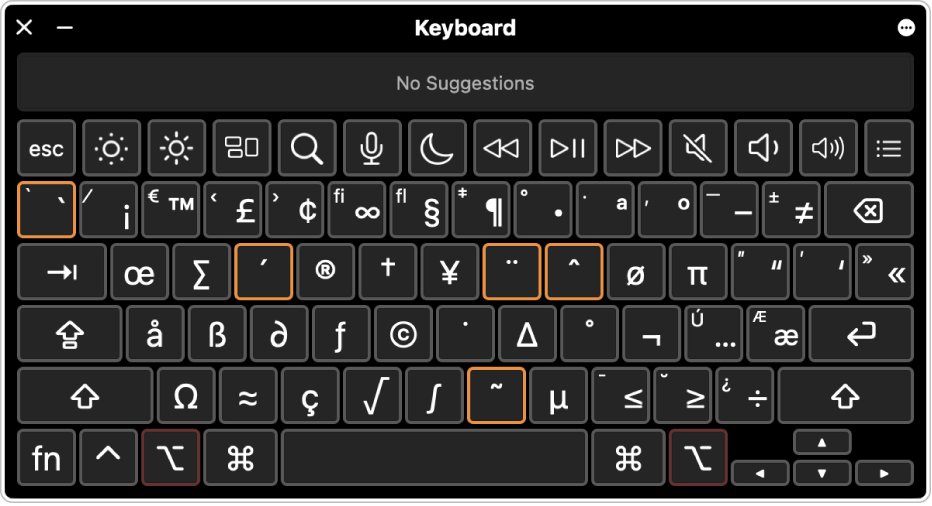
A tilde over a letter (ñ, ã, õ) is a different job from the standalone ~. Each system uses an accent shortcut followed by the letter, the same way you type an e with an accent.
| Where you type | Press | Result |
|---|---|---|
| Mac (ABC or US layout) | Option-N, release, then the letter | ñ, ã, õ |
| Mac, any layout | Press and hold the letter, then pick from the accent menu | ñ and other accents |
| Word or Outlook on Windows | Ctrl + Shift + ~, release, then the letter | ã, ñ, õ and capitals |
| Windows, any app, number pad | Alt + 164 for ñ, Alt + 165 for Ñ, Alt + 0195 for à | The accented letter |
| Chromebook, US layout | Alt + N, then the letter; or hold the letter key for the accents menu | ñ |
| Chromebook, US International layout | AltGr + N | ñ |
| iPhone or Android | Touch and hold the letter key, then slide to the accented version | ñ and others |
Typing the squiggly line on Linux
Using the keyboard shortcut (Shift + grave accent key) works on a US layout in any Linux desktop. Ubuntu's own help documents the other routes below.
| Route | Steps | When to use it |
|---|---|---|
| Using the keyboard shortcut | Hold Shift and press the grave accent key | US layout, key works |
| Using Unicode input | Press Ctrl + Shift + U, type 007E, press Space or Enter | Key missing or layout differs |
| Using compose key (if configured) | Set one in Settings > Keyboard > Compose Key, then press compose followed by the accent and letter | Typing accented letters often |
| Characters app | Open Characters from the Activities overview, search, and click the character | Browsing look-alike symbols |
Using the squiggly line in mobile devices (iOS and Android)
Phone keyboards keep the tilde on a secondary symbols page. The exact key label differs between iPhone, Gboard and other Android keyboards.
| Method | iPhone and iPad | Android (Gboard) |
|---|---|---|
| Method 1: Using the symbol keyboard | Tap the numbers key, then the extra-symbols key, and tap ~ | Tap the symbols key, open the second symbols page, and tap ~ |
| Method 2: Using text replacement | Touch and hold the globe or emoji key, tap Keyboard Settings > Text Replacement > +, put ~ in Phrase and a short code in Shortcut | Copy ~ once and paste it from the clipboard, or touch and hold a letter for accented versions |
| Method 3: Drawing the line manually | Draw a wavy stroke in an app with a drawing or markup tool | Draw it in any app that accepts ink or drawing |
A drawn line is an image, not text. It cannot be searched, copied as a character, or used in a file path or password.
Alternative methods to insert a squiggly line (copy and paste, Character Map, Emoji & Symbols)
| Method | Where | How |
|---|---|---|
| Copy and paste | Any device | Select this character: ~, press Ctrl + C (or Command-C), then paste with Ctrl + V (or Command-V) |
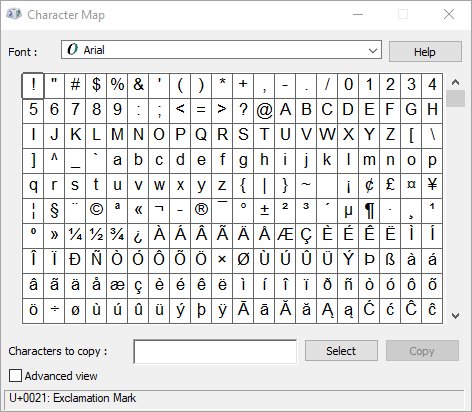
| Character Map | Windows | Search for Character Map, pick the ~, click Select and Copy |
| Emoji & Symbols panel | Mac | Press Fn/Globe + E or choose Edit > Emoji & Symbols, then search |
| Emoji panel, Symbols tab | Windows 11 | Press Windows key + . (period), select Symbols, and browse punctuation and accented characters |
| Insert > Symbol | Word for Windows | Choose Insert > Symbol > More Symbols, find ~, double-click it, then Close |
| Using Unicode input | Word, Outlook, Linux | 007E then Alt + X in Word; Ctrl + Shift + U, 007E, Space on Linux |
Character Map (Windows)
Character Map is built into Windows and copies any character in a font to the clipboard.
- Type character in the search box on the taskbar and choose Character Map.
- Pick a font from the Font list, such as Arial.
- Click the ~ in the grid.
- Click Select, then Copy.
- Right-click in your document where the tilde should go and choose Paste.
Emoji & Symbols panel (Mac)
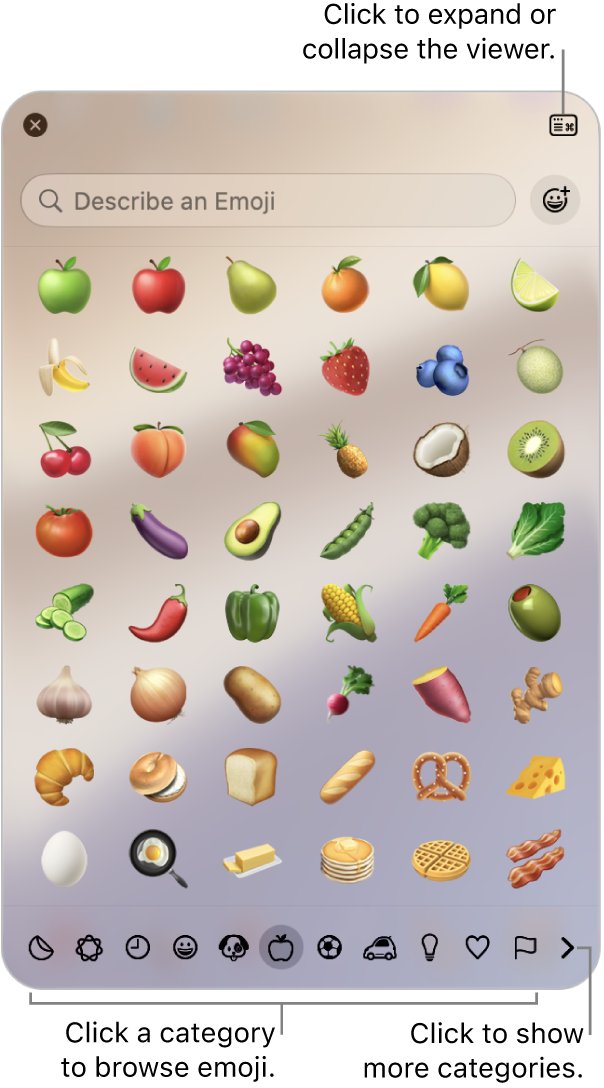
The Character Viewer on a Mac, the same panel that inserts emoji on a Mac, lists every symbol your fonts support, including the tilde and its look-alikes.
- Click in the text field where the tilde should go.
- Press Fn/Globe + E, or choose Edit > Emoji & Symbols from the menu bar.
- Type tilde in the search field.
- Click the character to insert it, or double-click it if the viewer is expanded.
Additional tips for typing a tilde
| Tip | Details |
|---|---|
| Find any key on Windows | Open the On-Screen Keyboard and hold Shift; the keys relabel to show what they type in the current layout |
| Find any key on Mac | Use Show Keyboard Viewer from the Input menu and hold Shift or Option; keys with an orange outline are accent keys |
| Switch layouts fast on Windows | Windows key + Spacebar moves forward through layouts; Windows key + Shift + Spacebar moves back |
| Switch layouts fast on Chromebook | Ctrl + Shift + Space cycles keyboard languages; Ctrl + Space returns to the previous one |
| Repeated use on iPhone | Set a text replacement once so a short code always expands to ~ |
| Laptop without a number pad | Skip Alt codes; use the tilde key, 007E + Alt + X in Word, or Character Map |
How to check you typed a real tilde
Some look-alike characters pass visually but break file paths, code and passwords. These checks confirm you have the plain tilde.
- Look at the character: a real tilde sits at mid-height, like a hyphen, not raised like an accent mark.
- In Word, place the cursor right after the character and press Alt + X. It should turn into 007E; press Alt + X again to turn it back.
- On a Mac, open Character Viewer, search tilde, and compare the result with what you typed.
- In a terminal, type cd ~ and press Enter. A real tilde takes you to your home folder; a look-alike returns an error.
Typed the wrong mark? Undo the last keystroke with Ctrl + Z and type it again.
Squiggly line common mistakes and troubleshooting
Mistake 1: Confusing tilde with similar characters
The grave accent (`), a raised accent tilde (˜), the approximately-equal sign (≈) and a wave dash (〜) all look like a squiggly line but are different characters.
- Type the character again with Shift held on the grave accent key.
- Check it with the Alt + X test in Word or the Character Viewer search on Mac.
- Replace any look-alike in code, commands and file paths with the plain ~.
Mistake 2: Incorrect key combinations
Alt codes typed on the number row, Num Lock off, or Shift not held.
- Hold Shift before you press the grave accent key; without it you get `.
- For Alt + 126, type the digits on the numeric keypad only.
- Turn on Num Lock and try the Alt code again.
- On a laptop with no keypad, use 007E + Alt + X in Word or Character Map.
Mistake 3: Language and keyboard layout settings
Another layout is active, so the key sends a different character, or US-International holds the tilde until the next key.
- On Windows, press Windows key + Spacebar until the US layout is selected. On Windows 11 you can also switch the keyboard language in Settings.
- On a Chromebook, press Ctrl + Shift + Space to cycle to English (US).
- On a Mac, choose the US or ABC layout from the Input menu in the menu bar.
- On US-International, press Shift + the grave accent key, then type the letter; the tilde joins that letter.
Tilde troubleshooting tips for Word, PowerPoint and Chromebook
Alt + X turns the code into the wrong character
Word read extra characters before the code as part of it.
- Select only 007E.
- Press Alt + X.
- Or type U+007E and press Alt + X; the prefix fixes where the code starts.
Alt + X does nothing in PowerPoint
PowerPoint cannot convert Unicode codes to characters.
- Open Character Map and copy the ~.
- Paste it into the slide.
- Or type the tilde directly with Shift + the grave accent key.
Holding a letter on a Chromebook shows an accent menu instead of repeating
Accents and special characters are turned on for the physical keyboard.
- Press Tab or the right arrow to enter the menu, pick the accent, and press Enter.
- To stop the menu, select the time, then Settings.
- Under Device, select Keyboard > Change input settings.
- Select More next to English (US) and turn off accents and special characters under Physical keyboard.
Understanding the purpose of a squiggly line
"Squiggly line" covers three different things. Knowing which one you need decides which method above applies.
| What you see | What it is | How to get it |
|---|---|---|
| ~ on its own | The tilde, a full character | Shift + grave accent key, or Alt + 126 |
| ñ, ã, õ | A letter with a tilde accent on top | The accent shortcuts in the "over a letter" section |
| A wavy underline under a word | A proofing mark drawn by the app, not a character | Nothing to type; it appears on its own when the app flags a word |
Different names for the squiggly line (tilde, squiggle, wavy line)
| Name | Where you will hear it |
|---|---|
| Tilde | The official character name; used by Microsoft, Apple and Google in keyboard documentation |
| Squiggle or squiggly line | Everyday speech and search queries |
| Wavy line or wave | Casual descriptions of its shape |
| Grave accent and tilde key | Microsoft's name for the physical key on US keyboards |
Search for tilde in Character Map, Character Viewer or any symbol picker; searching for "squiggly" rarely finds it.
Common uses of the squiggly line in text and coding
| Context | What ~ means | Example |
|---|---|---|
| In text and writing | About or approximately | The trip takes ~3 hours |
| In text and writing | A casual, friendly tone in chat | See you soon~ |
| In coding and programming | The bitwise NOT operator in C, JavaScript and Python | ~x flips every bit of x |
| In coding and programming | The current user's home folder in shells | ~/Documents |
Practical examples of using the squiggly line
| Area | Example | What it does |
|---|---|---|
| Mathematical and technical use | x ~ 5 | Reads as "x is approximately 5" or "x is similar to 5" |
| File paths and command lines | cd ~ | Moves to your home folder in macOS Terminal, Linux shells and PowerShell |
| File paths and command lines | PROGRA~1 | A Windows 8.3 short name for a long folder name such as Program Files |
| Linguistic and cultural use | año, São Paulo | The tilde accent changes the sound of the letter in Spanish and Portuguese |
| Programming and coding | ~0 | Bitwise NOT of zero, which gives -1 in most languages |
Frequently asked questions (FAQs) about drawing a squiggly line on the keyboard
How can I create a squiggly line using my keyboard?
Hold Shift and press the key above Tab and to the left of 1. On a US keyboard that key shows ` and ~, and Shift gives the ~. On Windows you can also hold Alt and type 126 on the numeric keypad.
How do you type a squiggly line on a phone?
Open the onscreen keyboard, switch to the numbers page, then to the extra-symbols page, and tap ~. This works on iPhone and on Android keyboards such as Gboard. On iPhone, a text replacement can turn a short code into ~ automatically.
How do you add a squiggly line over n?
On a Mac press Option-N, then n. In Word or Outlook press Ctrl + Shift + ~, then n. On any Windows app hold Alt and type 164 on the number pad. On a Chromebook press Alt + N. On a phone, touch and hold the n key.
What is a squiggly line called?
The squiggly line is called a tilde. People also call it a squiggle or a wavy line. The key it sits on is named the grave accent and tilde key, because the same key types ` without Shift and ~ with Shift.
What does a squiggly line mean in math?
In math and science writing, ~ usually means approximately, as in ~5 km. It can also mean "is similar to" or "has the distribution" in statistics. For exact approximate-equality, many writers use ≈ instead.
Are there specific characters that look like a squiggly line?
Yes. The grave accent (`), the small raised tilde (˜), the approximately-equal sign (≈) and the wave dash (〜) all resemble it. They are different characters, so they fail in commands, code and file paths. Search for them by name in Character Map or Character Viewer.
Can I insert a squiggly line in Microsoft Word or Google Docs?
Yes. Shift plus the grave accent key types ~ in both. In Word you can also type 007E and press Alt + X, or use Insert > Symbol > More Symbols. The keyboard route works the same in Google Docs in any browser.
Is there a shortcut to creating a squiggly line in any software?
Shift plus the grave accent key works in every program on a US layout. Alt + 126 on the numeric keypad works in most Windows programs. Linux accepts Ctrl + Shift + U, 007E, then Space in GNOME apps.
How do I copy and paste a squiggly line?
Select this character: ~. Press Ctrl + C on Windows, Linux or ChromeOS, or Command-C on a Mac, then paste with Ctrl + V or Command-V. You can also copy it from Character Map on Windows.
What is the red squiggly line under a word?
A red wavy underline is a proofing mark, not a character. Word, Outlook and many browsers draw it under words the spelling checker does not recognize. Right-click the word to see suggested spellings.