To change your email account on LinkedIn, add the new address under Settings & Privacy > Sign in & security > Email addresses, confirm it from your inbox, then click Make primary next to it.
This guide covers the desktop site, the LinkedIn app and the mobile browser, plus how to remove the old address and fix the errors that block the change.
Steps to change your email account on LinkedIn
LinkedIn does not edit an address in place. You add the new one, confirm it, and promote it to primary, because your primary email address can only be replaced with a verified one.
- Click the Me icon at the top of your LinkedIn homepage.
- Click Settings & Privacy.
- Click Sign in & security in the left pane, then click Email addresses under Account access.
- Click Add email address. If LinkedIn asks, enter the verification code sent to your current primary email, or approve the change in the LinkedIn app.
- Type the new email address and your LinkedIn password, then click Submit.
- Open the new inbox, find the message from LinkedIn and follow its prompts to confirm the address.
- Back on the Email addresses page, click Make primary next to the new address.
From this point LinkedIn sends your notifications to the new primary address. The old address stays on the account as a secondary until you remove it.
Preparing for the LinkedIn email change
Two things decide whether the change goes through in one sitting: access to the inboxes involved and your LinkedIn password.
| What to have ready | Why LinkedIn needs it |
|---|---|
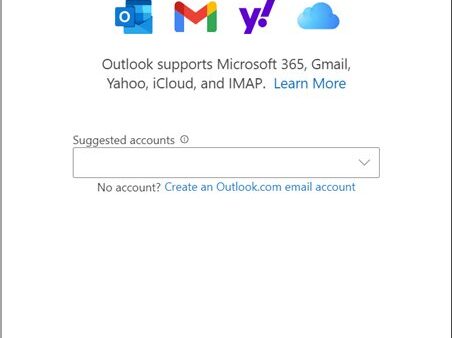
| A new email address you control | LinkedIn sends a confirmation message there, and an unconfirmed address cannot become primary. If you need a fresh mailbox, create an Outlook email account first. |
| Access to your current primary email | LinkedIn may send a verification code to it before it lets you add a new address. |
| The LinkedIn app signed in on your phone | LinkedIn may ask you to approve the change in the app instead of entering a code. |
| Your LinkedIn password | You enter it alongside the new address before clicking Submit. |
| A personal address, not only a work one | Work addresses disappear when you change jobs. LinkedIn recommends keeping at least one personal and one work address on the account. |
| A note of who uses your old address | Contacts who invite you to an address that is not on your account can trigger an error or create a second account, so tell them the new one. |
Changing your email on the LinkedIn mobile app
The iPhone and Android apps use the same menu path. The main difference from desktop is that you start from your profile photo, not the Me icon.
- Tap your profile photo, then tap Settings & Privacy.
- Tap Sign in & security, then tap Email addresses under Account access.
- Tap Add email address and enter the new address.
- Enter your LinkedIn password for confirmation and tap Submit.
- Open the new inbox and follow the prompts in the LinkedIn email to confirm the address.
- Return to Email addresses and tap Make primary below the new address.
Change your LinkedIn email from a phone browser
Use this route if you do not have the app installed and are signed in to linkedin.com in Safari or Chrome on your phone. The menu is labelled Settings here rather than Settings & Privacy.
- Tap your profile photo, then tap Settings.
- Tap Sign in & security, then tap Email addresses.
- Tap Add email address and enter the new address.
- Enter your LinkedIn password and tap Submit.
- Confirm the address from the email LinkedIn sends to it.
- Tap Make primary next to the new address.
How to check the new LinkedIn email is now primary
- Go back to Settings & Privacy > Sign in & security > Email addresses.
- Check that the new address is labelled as primary and no longer shows a prompt to confirm it.
- Sign out, then sign back in with the new address and your usual password.
- Watch the new inbox for your next LinkedIn notification. If notifications still reach the old inbox, the new address was added but never made primary.
Understanding the importance of your LinkedIn email
Your email address is not just a contact detail on a professional networking profile. It controls how you sign in and how you get back in when something goes wrong.
| What the address does | What that means for you |
|---|---|
| Sign-in identity | You can sign in with the primary address or any additional confirmed address. |
| Password reset | LinkedIn only sends reset links to confirmed addresses on the account. |
| Notifications | Notifications go to the primary address. If LinkedIn detects problems with it, it treats an additional address as primary instead. |
| Invitations | A primary email address is required to send invitations. |
| Connecting with colleagues | An invitation sent to an address not on your account can fail or create a duplicate account. |
| Product licences | A toggle next to a newly confirmed address lets you use it to activate a licence such as Sales Navigator, without forcing a password reset. |
How to remove your old email address from LinkedIn
The Remove link does not appear next to a primary address. Make the new address primary first, then delete the old one. Keep it instead if you still use it, since a second confirmed address is your backup route in.
- Click the Me icon and select Settings & Privacy.
- Click Sign in & security in the left rail.
- Open Email addresses.
- Click Remove next to the old address. In the app, tap Remove instead.
- Enter your password, a verification code or an in-app approval if LinkedIn asks for one.
Troubleshooting common LinkedIn email issues
Not receiving the verification email
The address was mistyped, or the message bounced or was delayed by the mail provider.
- Check the spam, junk and other filtered folders of the new inbox.
- Open Email addresses and confirm the new address is spelled correctly. If it is wrong, click Remove and add it again.
- If your provider was having an outage, wait and retry. LinkedIn asks you to confirm again when a message bounces.
Unable to add a new email address: "already registered"
The address belongs to another LinkedIn account, often one you created earlier, or it was recycled by your employer or email provider.
- Click Sign in and try the address with your password to see if an older account exists.
- If you do not remember that account's password, click Forgot password? and reset it through the email LinkedIn sends.
- For a Gmail address, enter it without dots in the first part, for example [email protected] instead of [email protected].
- If the address was reissued to you, contact LinkedIn Support. Adding it can take time and is not always possible.
No Remove link next to the old email
The old address is still primary.
- Click Make primary next to your confirmed new address.
- Reload Email addresses; the Remove link now appears next to the old one.
Forgotten password and no access to the old email
LinkedIn needs a confirmed address or phone number to verify it is you.
- Select Forgot password on the sign-in screen.
- Enter the email or phone number on your account and click Next.
- Click Can't access this email? on the code screen. If you have several addresses, choose another one, or click Don't have access to any of these?
- On desktop, scan the QR code shown on screen.
- Enter the new email address you want on the account.
- Upload an image of a valid government-issued ID so LinkedIn can verify your identity and contact you.
Help from LinkedIn Support
Some cases, such as a recycled address or a failed identity check, need a person at LinkedIn.
- Open the LinkedIn Help Center and select Contact us at the bottom of any help article.
- Describe the address you are trying to add or recover and the exact error message you see.
Keeping your LinkedIn profile secure after changing your email
A new address is a good moment to close the gaps that lock people out. Keep a second confirmed email or a phone number on the account, and turn on two-step verification, which LinkedIn calls two-factor authentication.
- Click the Me icon and select Settings & Privacy.
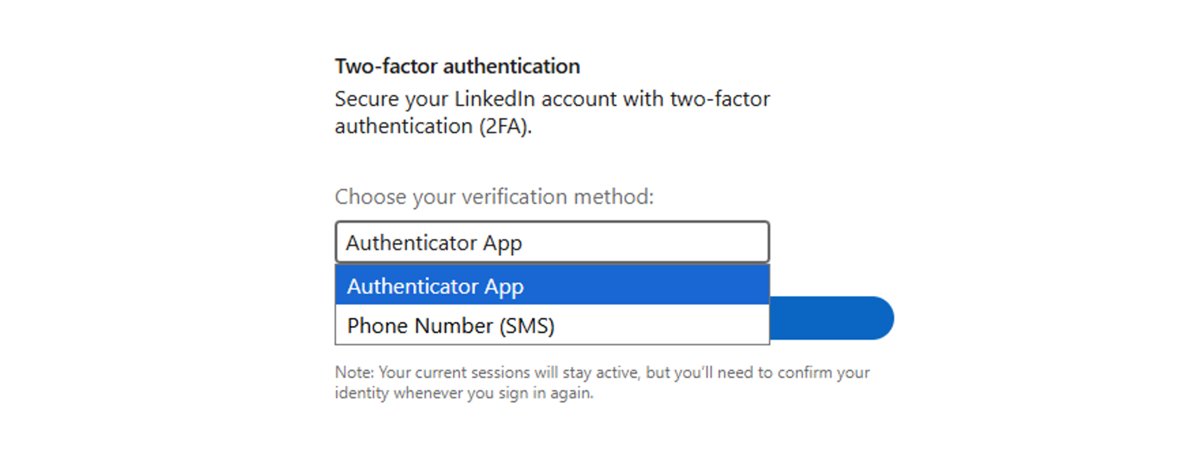
- Click Sign in & security, then click Two-factor authentication.
- Click Turn on, enter your password or the code LinkedIn sends if asked, then click Set up.
- Choose Authenticator App or Phone Number (SMS) from the dropdown and click Continue. LinkedIn recommends the authenticator app.
- Finish the setup by entering the code from the app or text message.
Recruiter, Campaign Manager and Sales Navigator users must keep two-factor authentication on to reach those accounts.
Changing your LinkedIn email: frequently asked questions
Can I change my email on LinkedIn?
Yes. Add the new address under Settings & Privacy > Sign in & security > Email addresses, confirm it from your inbox, then click Make primary. Your profile and connections stay on the same account; only the sign-in and notification address changes.
How do I change my LinkedIn email on an iPhone?
Open the LinkedIn app, tap your profile photo, then Settings & Privacy > Sign in & security > Email addresses. Tap Add email address, enter your password, confirm the address from your inbox and tap Make primary. Android uses the same path.
How do I change to another email account without losing my LinkedIn profile?
Add the other address to your existing account instead of creating a new account with it. Once it is confirmed and made primary, you sign in with it and keep everything. Signing up again with the new address creates a second account instead.
Where are the email account settings on LinkedIn?
On desktop, click the Me icon, then Settings & Privacy, then Sign in & security. Email addresses sits under Account access. In a phone browser the menu is called Settings instead of Settings & Privacy.
Do I need my LinkedIn password to change my email?
Yes. LinkedIn asks for your password when you submit a new address. If you have forgotten it, reset it first with Forgot password on the sign-in screen, which sends a link to a confirmed email on the account.
Why did my LinkedIn email change on its own?
If LinkedIn detects a problem with your primary address, such as bounced mail, it sends notifications to an additional address on your account instead. Confirm or replace the primary address under Email addresses to switch notifications back.
Can I have two email addresses on LinkedIn?
Yes. You can add several addresses and sign in with any confirmed one. LinkedIn recommends at least one personal and one work address, so losing a work inbox after a job change does not lock you out.
Why can't I change my LinkedIn email address?
The usual causes are an unconfirmed new address, an address already registered to another LinkedIn account, or no access to the current primary email for the verification code. Each has a fix in the troubleshooting section above.
Changing your LinkedIn email: final thoughts
Add and confirm the new address, make it primary, and keep one extra confirmed email or phone number on the account rather than deleting every backup. LinkedIn only sends password resets to confirmed addresses, so a single address that you later lose access to forces the slower ID-verification route.

![How to appear offline on Steam [easy & quick guide]](https://techdows.com/wp-content/uploads/2026/10/Steam-Friends-List-in-a-browser-with-the-status-line-under-the-profile-name-600x338.jpg)