The web browser on an Amazon Fire tablet is Amazon Silk, a Chromium-based browser that comes pre-installed on every Fire tablet.
This guide covers tabs, bookmarks, private tabs, clearing data, desktop view, site permissions, Amazon Kids controls, other browsers and fixes for the problems Silk users hit most.
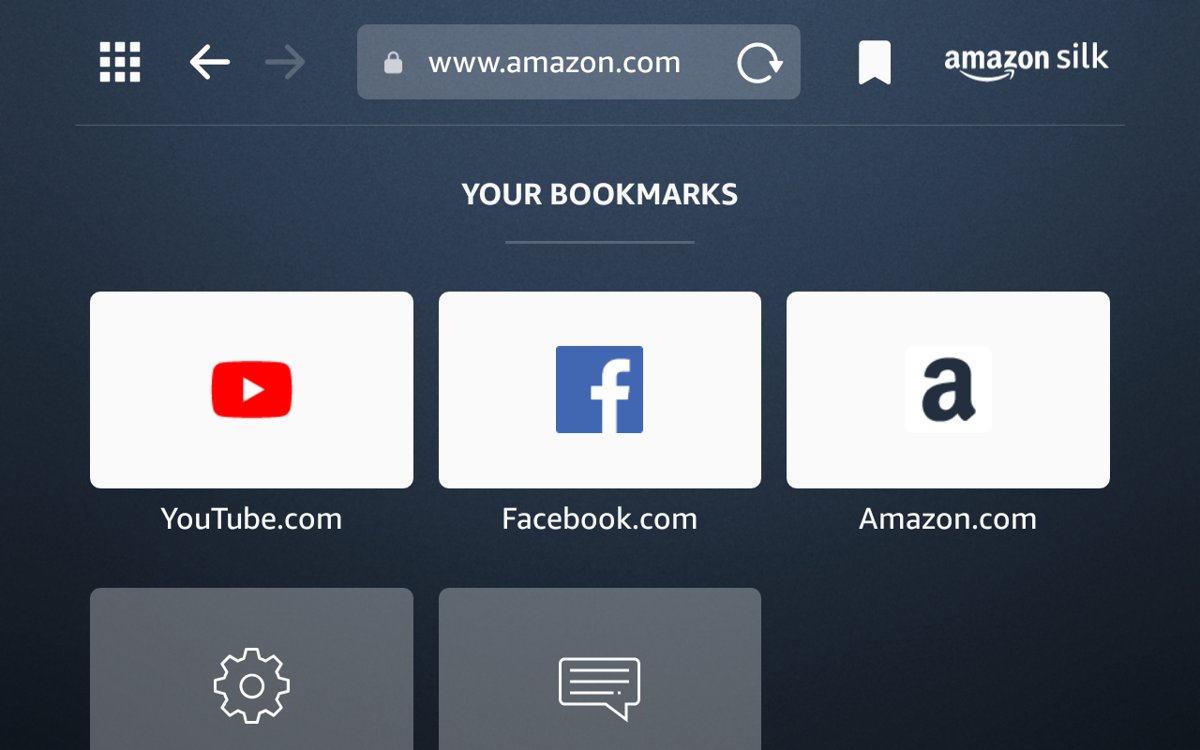
What browser does an Amazon Fire tablet use?
Every Fire tablet ships with Silk, Amazon's own browser. The same browser also runs on Fire TV and Echo Show devices.
Use Silk, the pre-installed browser: open the Silk app from the home screen and type an address or search term in the bar at the top. Silk is built on the Chromium project, and Amazon keeps updating it. You need an internet connection to browse, and pre-installed apps such as Silk cannot be uninstalled.
Quick setup checklist for a new Fire tablet
Run through this list once on a new tablet. Each item takes under a minute and prevents most of the problems covered later.
- Connect to Wi-Fi, because Silk cannot load any page offline except saved Reading List items.
- Leave the tablet online for a while so it downloads Fire OS software updates automatically.
- Open Silk and confirm a page loads. On a public hotspot, this is also where the network sign-in page appears.
- Set a readable text size: tap the Menu (3-dot) icon, select Settings, then Accessibility, and drag Text Scaling.
- Turn on Do Not Track under Menu > Settings > Privacy if you prefer sites not to track you.
- Import older Chrome bookmarks with Import Chrome bookmarks from the bookmarks menu, if you saved them to your Amazon account earlier.
- Set up a child profile or Parental Controls before handing the tablet to a child.
How to open and use Silk browser
The Silk Home page appears the first time you open the browser and on every new tab. After that, Silk reopens the last site you were viewing.
- Tap the Silk icon on the home screen.
- Tap the search field at the top of the page.
- Type a web address or a search term.
- Tap one of the suggested sites, or tap the arrow key on the keyboard to go.
- Swipe up and down to scroll the page.
- Pinch outward with two fingers to zoom in, and pinch inward to zoom out.
- Swipe from the left edge of the screen to open the side menu with History, Reading List and New Private Tab.
Suggestions come from your default search engine and your browsing history. Some pages block pinch zoom; use text scaling in settings for those.
Tabs: Open, switch, and close web pages
Silk shows open tabs across the top of the screen, so each site stays one tap away.
- Tap the + icon to open a new tab on the Silk Home page.
- Enter an address or search term in the new tab.
- Tap any tab along the top to switch back to that page.
- Tap the x on a tab to close just that page.
- Tap and hold the x on any tab, then tap Close all tabs to clear every tab at once.
Private tabs open from the menu instead of the + icon; the next section covers them.
Bookmarks and favorites
Silk keeps two lists: bookmarks for sites you return to, and favorites that appear as tiles in the Home section of the Silk Home page.
| What you want | What to do in Silk | Note |
|---|---|---|
| Save the current page | Add a bookmark for the page from the bookmark option in Silk | Edit the name or delete it later from the Bookmarks page |
| Keep a site on the start page | Pin the page to your favorites list | It shows in the Home section of the Silk Home page |
| Bring in Chrome bookmarks | Use Import Chrome bookmarks from the bookmarks menu icon, or the Sync button | Works only for bookmarks already uploaded through the Silk Bookmarks extension |
| Keep bookmarks you already downloaded | Nothing to do | Amazon does not remove bookmarks already on the tablet |
| Read a page later without Wi-Fi | Tap Menu > Reading List > Save to Reading List | Reading List is separate from bookmarks and works offline |
The Silk Bookmarks Chrome extension can no longer send new bookmarks to the cloud. Bookmarks left in the cloud but never downloaded to a tablet were deleted after December 2, 2025.
Private browsing on Fire tablets
A private tab lets you browse without Silk saving your visit history on the tablet.
- Open any web page in Silk.
- Tap the Menu icon, or swipe from the left edge of the screen.
- Tap New Private Tab.
- Browse in that tab; pages you visit there stay out of History.
- Close the private tab with its x when you finish.
Private browsing only affects what the tablet records. Websites, your network owner and your internet provider can still see your visits, so use it for privacy on a shared tablet, not for anonymity.
Clearing history, cookies, and cache
Amazon places Silk's data controls in the tablet's main Settings app. To just view your history, tap Menu > History inside Silk instead.
- Open Settings on the Fire tablet.
- Select Apps & Games.
- Select Amazon Application Settings, then Silk Browser.
- Select Privacy, then Clear browsing data.
- Check the boxes for the data you want gone, such as browsing history and cookies.
- Select Clear Data.
Clearing cookies signs you out of most websites. If Silk itself misbehaves, clearing the app cache is a stronger reset; the troubleshooting section shows that path.
Downloads: Finding and managing files
Amazon's Fire tablet help pages do not document where Silk saves downloaded files. The full download instructions live in the Silk User Guide inside the browser. These documented options cover most reasons people download from a web page.
| What you want to keep | Documented way to do it | Where it ends up |
|---|---|---|
| An article to read offline | Menu > Reading List > Save to Reading List | Reading List, opened from the left-edge menu or the Silk Home page |
| A copy of a web page | Use Silk's Print feature, which can also save the page as a PDF | A PDF you can open offline |
| A paper copy | Choose Print, pick your printer or All Printers, then tap Print | Your Wi-Fi printer |
| Help with downloading other files | Open the Silk User Guide inside the browser | Amazon's in-browser guide covers downloading content |
If downloaded files fill the tablet, open Settings > Storage to see what uses the space.
Changing search engine and browser settings
Silk's own settings open from the Menu (3-dot) icon in the top-right area, then Settings. The table lists the settings Amazon documents and where each one lives.
| Setting | Where to find it | What it changes |
|---|---|---|
| Default search engine | Not named in Amazon's help; look under Menu > Settings in Silk | The engine behind address-bar searches and suggestions |
| Text size | Menu > Settings > Accessibility > Text Scaling | Text size on web pages only |
| Do Not Track | Menu > Settings > Privacy > Do Not Track | Sends sites a request not to track you |
| Location access | Menu > Settings | Blocks location for one website or all websites |
| Dark or light theme | Menu or left-edge swipe > Dark Theme / Light Theme | Tabs and menus, not the pages themselves |
| Browsing data | Tablet Settings > Apps & Games > Amazon Application Settings > Silk Browser > Privacy | History, cookies and other stored data |
Amazon's help confirms Silk uses a default search engine but does not name the exact menu label for switching it. Check the list under Settings in Silk.
For bigger text across the whole tablet, use Settings > Display > Font Size instead.
Desktop site vs. mobile site
Silk tells websites it is a tablet by default. You can switch any page to the desktop or phone layout from the menu.
| What you see | Choose | How |
|---|---|---|
| A cut-down page with missing features | Desktop view | Tap Menu > Desktop Site |
| Tiny text, wide columns, slow loading | Phone view | Tap Menu > Mobile Site |
| The page works fine | Leave the default tablet view | No change needed |
Behind the scenes, Silk sends a different user agent string for each view, so the site serves the matching layout. Amazon recommends Mobile Site for a mobile-improved experience.
Site permissions: Location, camera, microphone, and notifications
Silk asks before a website gets sensitive access. The table shows what Amazon documents for each permission.
| Permission | How Silk handles it | How to limit it |
|---|---|---|
| Location | Silk shows a dialog asking permission the first time a site requests your location | Disable location for one site or all sites in Silk Settings |
| Camera and microphone | Sites can request photos, video or audio through the tablet's camera and microphone | Deny the request, or restrict the camera with Parental Controls |
| Location-based services, tablet-wide | Controlled by the tablet, not Silk | Parental Controls can restrict location-based services |
| Notifications | Amazon's help pages do not document site notifications in Silk | Deny any request you did not expect |
Using Silk with Amazon Kids and parental controls
Fire tablets offer two separate tools. Parental Controls lock down an adult profile for users 13 and older. A child profile in Amazon Kids is meant for children under 13.
| Your goal | Use this | Path |
|---|---|---|
| Require a password before anyone browses on an adult profile | Parental Controls | Swipe down twice > Settings > Profile and Parental Controls > turn Restrict access to current profile On, then set a password and select Finish |
| Give a child a separate profile | Amazon Kids child profile | Settings > Profiles & Family Library > Add a child profile > Add Profile |
| Allow chosen web content for a child | Child profile content | Grownups menu > Manage Content > Web content, then enter the adult PIN |
| See which sites a child visited | Parent Dashboard | Grownups menu > Settings > adult PIN > Launch > Recent activity > Web |
A lock icon appears at the top of the screen while Parental Controls are on. Forgetting that password means a factory reset.
Parental Controls do not remove Mature or Adult-rated content from the device, so pair them with a child profile for younger users.
Can you install Chrome, Firefox, or another browser?
Fire tablets get apps from the Amazon Appstore, not Google Play. Amazon's developer documentation states that Google Mobile Services do not work on Fire tablets.
| Option | What to expect |
|---|---|
| A browser from the Amazon Appstore | Search the Appstore for the browser by name, then install it like other Fire tablet apps |
| Google Chrome | Amazon does not list Google Play services on Fire tablets, so Chrome sign-in and sync cannot rely on them |
| Sideloading an Android browser | Possible if you sideload Android apps on a Kindle Fire, with the Google services limit above |
| Removing Silk | Not possible; pre-installed apps cannot be uninstalled |
Availability of specific browsers in the Appstore changes over time and by country. Check the Appstore listing on your tablet before relying on one.
Useful Silk browser features
These tools sit in the Menu icon or the left-edge menu and are easy to miss.
| Feature | How to use it | Why it helps |
|---|---|---|
| Find text on a page | Tap Menu, then the search icon | Jumps to a word or phrase on long pages |
| Reading View | Tap the Reading View icon on supported pages | Strips most graphics, ads and links from articles |
| Reading List | Menu > Reading List > Save to Reading List | Keeps pages for offline reading |
| Webpage Summaries | Tap the star icon in the search bar > Summarize page | Shows a short summary at the bottom of the screen |
| Print or save as PDF | Choose Print from the page menu | Wireless printing or an offline PDF copy |
| Share | Tap Menu, then the share icon | Sends the page by email or social network |
| History | Menu or left-edge swipe > History | Lists pages you visited outside private tabs |
| Dark Theme | Menu or left-edge swipe > Dark Theme | Darkens tabs and menus at night |
Webpage Summaries only work on compatible pages. If no star icon appears in the search bar, that page is not supported.
How Silk Compares with Chrome, Safari, and Edge
Silk shares Chrome's engine but not Chrome's account features. That difference decides whether Silk is enough for you.
| Question | Silk on a Fire tablet | What it means for you |
|---|---|---|
| Page rendering | Built on Chromium; the user agent reports Silk "like Chrome" | Sites that work in Chrome generally display the same way |
| Bookmark import | Only a Chrome import is documented | Safari and Edge bookmarks have no direct import path |
| Account sync | Bookmarks tie to your Amazon account, not Google, Apple or Microsoft | Only bookmarks have a documented sync path from a PC browser |
| Updates | Amazon keeps Silk updated; Fire OS updates install automatically when online | Stay online so fixes arrive |
| Secure pages | TLS pages go direct to the site, not through Amazon cloud proxies; TLS 1.2 is supported | HTTPS traffic stays between you and the site |
| Background audio | Audio pauses when its tab loses focus | Use an app for music you want to keep playing |
When to use an app instead of the browser
| Your situation | Use this | Why |
|---|---|---|
| Music or podcasts in the background | The service's app | Silk pauses audio when you switch tabs |
| Shopping on Amazon | The Amazon Shop app | Purchases can be restricted separately with Parental Controls |
| Watching Prime Video | The Prime Video app | Parental Controls can restrict Prime Video playback by profile |
| A site with its own Appstore listing | The Appstore version | Web apps in the Appstore install and open like native apps |
| One-off reading, searching or checking a site | Silk | No install, and private tabs keep history clean |
Tips for faster, smoother browsing
| Tip | How | Effect |
|---|---|---|
| Close tabs you are done with | Tap and hold any tab's x > Close all tabs | Frees memory on low-RAM models |
| Use Reading View on articles | Tap the Reading View icon | Removes ads and heavy graphics |
| Switch heavy sites to mobile layout | Menu > Mobile Site | Loads lighter pages |
| Keep Fire OS current | Stay connected to Wi-Fi so updates install | Adds Amazon's free improvements and performance fixes |
| Move closer to the router | Avoid microwaves and baby monitors nearby | Stronger Wi-Fi, faster page loads |
| Clear old browsing data | Privacy > Clear browsing data | Removes stale cache and cookies |
How to check Silk is working and up to date
- Open Silk and type
about:versionin the address bar. - Read the build version string that Silk displays.
- Open a new tab with + and load any site to confirm the connection.
- Tap Menu > History and check that recent normal-tab visits appear there.
- Open a New Private Tab, visit a site, close it, and confirm that visit is missing from History.
Troubleshooting common Silk browser problems
Silk will not load any page
The tablet has no working internet connection, or a public hotspot is waiting for sign-in.
- Turn off Airplane mode.
- Check the Wi-Fi network name and password.
- Confirm another device can reach the internet on the same network.
- Move the tablet closer to the router and away from microwaves or baby monitors.
- On a public hotspot, open any site in Silk to bring up the sign-in page.
- Go to Settings > Connected Devices > Network Settings Reset if nothing else works.
Silk freezes, crashes or will not open
Corrupt cache data or a stuck app process.
- Force close Silk, then open it again.
- Restart the tablet: hold the power button for up to three seconds, select OK, then power it back on.
- On 8th Generation and newer tablets, go to Settings > Apps & Notifications > Manage All Applications and choose Silk.
- Select Storage and tap Clear Cache.
- If the problem remains, tap Clear Data or Clear Storage, which also removes stored browser data.
A website looks broken or is missing features
The site serves a layout meant for another device type.
- Tap Menu > Desktop Site to load the full layout.
- If that page is slow or cramped, tap Menu > Mobile Site instead.
- Clear cookies for a fresh session under Privacy > Clear browsing data.
Text on web pages is too small to read
Silk's text scaling is set too low for the page.
- Tap the Menu (3-dot) icon in the top-right area.
- Select Settings, then Accessibility.
- Drag the Text Scaling slider until the text is comfortable.
Silk asks for a password or will not open for a child
Parental Controls restrict web browsing, or the child profile has no web access.
- On an adult profile, enter the Parental Controls password, or turn off Restrict access to current profile in Profile and Parental Controls.
- In a child profile, open the Grownups menu > Manage Content and add Web content.
Security and privacy best practices
| Practice | How | What it protects |
|---|---|---|
| Keep the tablet updated | Leave it online so Fire OS updates install automatically | Brings Amazon's latest fixes to the system |
| Prefer HTTPS sites | Check that the address starts with https | TLS traffic goes straight to the site and skips Amazon's cloud proxies |
| Turn on Do Not Track | Menu > Settings > Privacy > Do Not Track | Asks sites not to track you, though sites are not required to honour it |
| Use private tabs on shared tablets | Menu > New Private Tab | Keeps visits out of history |
| Clear data after using a shared account | Privacy > Clear browsing data, including cookies | Signs out of sites you used |
| Deny unexpected permission prompts | Refuse location or camera requests you did not start | Your location and camera |
| Record your Parental Controls password | Write it down when you set it | Avoids a forced factory reset |
Frequently asked questions
What browser does an Amazon Fire tablet use?
An Amazon Fire tablet uses Amazon Silk. It comes pre-installed, is built on the Chromium project and is kept updated by Amazon. The same Silk browser also runs on Fire TV and Echo Show devices.
What is the browser on a Fire tablet called?
The browser is called Silk, and its icon is labelled Silk on the home screen. Amazon sometimes calls it the Silk Browser or Amazon Silk in its help pages. It is the only browser installed on a new Fire tablet.
How do you add another browser to a Fire tablet?
Install it from the Amazon Appstore like any other app, if it is listed for your tablet. Browsers that depend on Google Play services will have limits, because Google Mobile Services do not work on Fire tablets. Silk stays installed either way.
What browsers work on an Amazon Fire tablet?
Silk works on every Fire tablet. Other browsers work if they are available in the Amazon Appstore for your model and do not require Google Mobile Services. Listings vary by country and tablet generation, so check the Appstore on your device.
Can you use Chrome on an Amazon Fire tablet?
Chrome is not pre-installed, and Google Mobile Services do not work on Fire tablets, so Chrome features tied to a Google account cannot rely on them. Silk uses the same Chromium engine, so most sites display as they do in Chrome.
Can you change the default browser on a Fire tablet?
Amazon's help pages do not document a default browser setting for Fire tablets. Silk is pre-installed and cannot be uninstalled. You can still open another installed browser directly and use it for your own browsing.
Where are the browser settings on an Amazon Fire tablet?
Open Silk, tap the Menu (3-dot) icon in the top-right area and select Settings. Clearing browsing data sits in the tablet's main Settings under Apps & Games > Amazon Application Settings > Silk Browser > Privacy.
Does the Amazon Fire Kids tablet have a web browser?
Yes, but a parent controls it. In a child profile, open the Grownups menu, select Manage Content and add Web content. Parents can review the sites a child visited under Recent activity > Web in the Parent Dashboard.