To upgrade an American Megatrends (AMI) BIOS, install the update that your PC or motherboard maker publishes for your exact model, using the maker's own tool or its built-in flash utility.
This guide covers finding your model and BIOS version, getting the right file, flashing from the firmware menu or from Windows, checking the result and recovering from a failed update.
The fastest way to upgrade an American Megatrends BIOS
The American Megatrends name on your startup screen identifies the firmware inside the board. The update itself comes from the company that built your PC or motherboard, such as Dell or ASUS.
- Press Win + R, type
msinfo32and press Enter. - Note the BIOS Version/Date line and the manufacturer and model entries in the same list.
- Open the support site of that manufacturer and search for your exact model.
- Open the BIOS section of the model's download page and read the release notes of the newest version.
- Plug a laptop into its AC adapter and keep it plugged in until the update finishes.
- Run the update the way the maker's page describes: its Windows updater, Windows Update, or the flash utility inside the firmware menu.
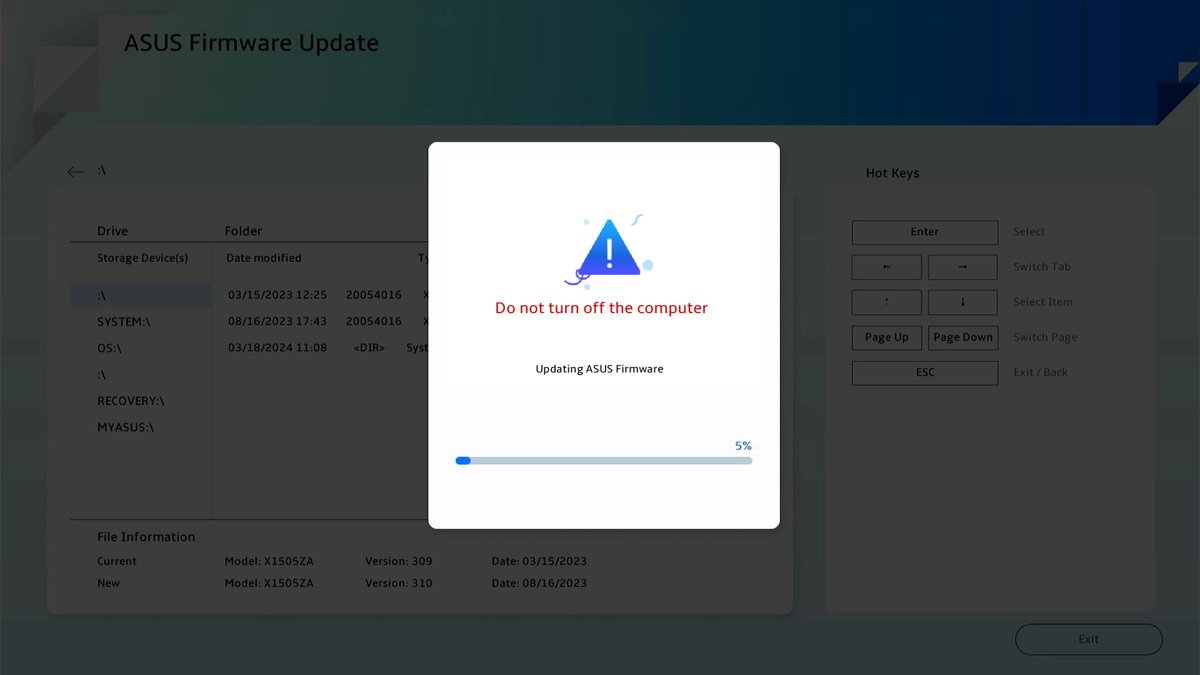
- Leave the PC alone until it restarts by itself. Never switch it off during the flash.
Which AMI BIOS update route fits your PC?
| Your situation | Use this route | Why |
|---|---|---|
| Brand-name laptop or desktop (for example Dell) that boots into Windows | The maker's Windows updater or Windows Update optional updates | The maker's tool checks the model and handles the restart for you |
| Custom-built PC with an ASUS motherboard | EZ Flash 3 in the UEFI menu with a FAT32 USB drive | Runs outside Windows, so background programs cannot interrupt it |
| Windows will not start, or you run Linux | The USB route from the maker's firmware or boot menu | Dell documents the USB route for Linux and for PCs without working Windows |
| Board no longer boots after a failed flash | The maker's recovery feature (Dell BIOS Recovery, ASUS USB BIOS FlashBack) | Rewrites the firmware without needing a working BIOS |
| The update is not listed for your exact model | Do not update | A file built for another model can leave the board unable to start |
Check your current BIOS version and system model
You need two facts before downloading anything: the exact model and the BIOS version already installed. Comparing them against the maker's page tells you whether an update exists.
- Press Win + R, type
msinfo32and press Enter to open System Information. - Select System Summary in the left pane.
- Read BIOS Version/Date. The vendor name, such as American Megatrends, appears here alongside the version string.
- Write down the manufacturer and model entries from the same list. On a custom PC, find the motherboard model in Windows or read it from the board or its box.
- Alternatively, restart and open the BIOS setup screen. On Dell PCs, press F2 at the Dell logo and check System Information.
The model name matters more than the AMI version number. Two boards with the same AMI core still need different, board-specific files.
Download the correct AMI BIOS update from the manufacturer
Download the file only from the support page for your exact model on the maker's own website. Never flash a file made for a different model or board revision, and never use a BIOS file from an unofficial download site.
| Maker | Where the official BIOS lives | What you get |
|---|---|---|
| Dell | Dell support site > your model or Service Tag > Drivers & Downloads > BIOS | A standalone updater that runs in Windows, also usable from a USB drive |
| ASUS motherboards | ASUS Download Center > your model > Driver & Utility > BIOS & FIRMWARE | A ZIP that unpacks to a .CAP file for EZ Flash 3 or USB BIOS FlashBack |
| ASUS laptops | ASUS Download Center for the laptop model, BIOS category | A file for the ASUS Firmware Update or EZ Flash 3 utility in the BIOS |
| Any other PC or board maker | The maker's own support page for the exact model | Follow that maker's instructions and tool, not a generic one |
Read the release notes before you download. If the newest version does not list a fix you need, updating is optional. Dell also notes that downgrades can be blocked once a version contains security fixes.
Prepare for the BIOS upgrade safely
Power loss during a flash is the main risk. ASUS warns that shutting down or resetting during the update can cause system boot failure, so steady power comes first.
| Check | What to do | Source requirement |
|---|---|---|
| Power | Connect the AC adapter and keep it connected for the whole update. Do not update on battery alone. | Dell: at least 10% charge on AC; Dell self-help page: 50%. ASUS laptops: 20% or higher |
| BitLocker | Search BitLocker, open Manage BitLocker and select Suspend protection before you start | Skipping this triggers a recovery key prompt at restart |
| Backup | Back up your files first | ASUS lists this as step one; Dell says the update does not affect drive data |
| USB drive (UEFI route) | Format it as FAT32 and copy the unzipped BIOS file to its root | ASUS: single-partition FAT16/32, 1 GB or larger |
| Open programs | Save work and close everything before running a Windows updater | Fewer background programs means fewer interruptions |
| Correct file | Confirm the model name on the download page matches System Information exactly | Updates are model specific |
Update the BIOS using the built-in UEFI flash utility
This route runs from the firmware menu, before Windows loads. The steps below are for ASUS EZ Flash 3 on a desktop motherboard; Dell uses the F12 boot menu instead.
- Unzip the downloaded BIOS file and copy the .CAP file to the root of a FAT32 USB drive.
- Plug the drive into a USB port on the motherboard and restart the PC.
- Press DEL when the ASUS logo appears. On an ASUS laptop, hold F2 and press the power button.
- Press F7 to open Advanced Mode.
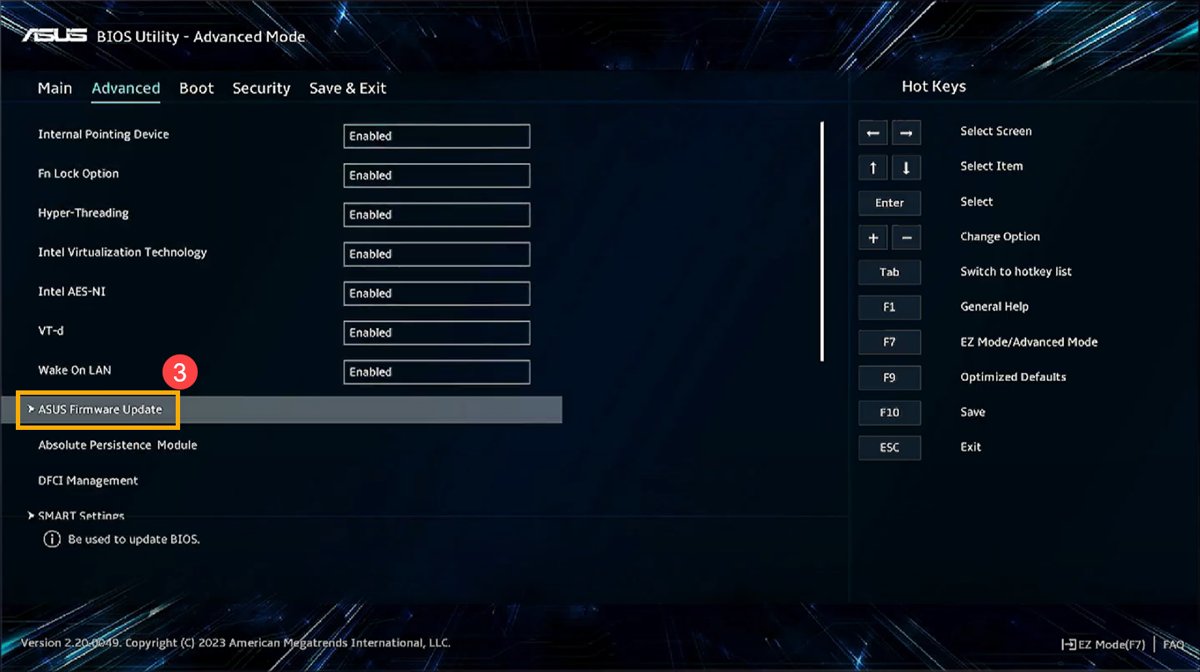
- Open Tools, then select ASUS EZ Flash 3 Utility. On laptops, go to Advanced > ASUS Firmware Update or ASUS EZ Flash 3 Utility.
- Select the USB drive, select the BIOS file and click Yes.
- Confirm the BIOS information and click Yes to start.
- Wait for the progress bar to finish, then click OK to restart.
On a Dell PC, restart, press F12 for the One Time Boot Menu, choose BIOS Update, then Flash from file, pick the file on the FAT32 drive and click Update BIOS.
To reach the firmware screen from Windows 11, open Settings > System > Recovery, select Restart now next to Advanced startup, then choose Troubleshoot > Advanced options > UEFI Firmware Settings > Restart.
Update the BIOS from Windows or DOS when required
Brand-name PCs usually ship BIOS updates as a Windows program, and some arrive as firmware updates through Windows Update. The PC restarts and finishes the flash before Windows loads again.
- Suspend BitLocker and connect AC power, as described in the preparation table.
- Check Windows Update first: open Settings > Windows Update > Advanced options > Optional updates, and look under Driver updates for a BIOS entry.
- Select the BIOS update if it is listed and install it.
- If it is not listed, run the updater you downloaded from the maker's model page, or use the maker's support app, such as Dell SupportAssist.
- Accept the restart prompt and leave the PC alone while the flash screen runs.
- Wait until Windows loads again on its own before you touch the power button.
Use a DOS or other bootable flash method only when your maker's download page supplies one for your model, and follow that page's instructions exactly. On Dell PCs running Linux, Dell documents the USB route instead; on Dell PCs with Windows, update the Dell BIOS with Dell's own updater.
Verify the update and restore BIOS settings
Confirm the new version first, then deal with settings. A fresh BIOS can reset or keep custom settings, and ASUS recommends loading defaults if the PC becomes unstable after an update.
- Open System Information with
msinfo32and check that BIOS Version/Date shows the version you installed. - Restart and enter the firmware setup screen (DEL on ASUS desktop boards, F2 on Dell and ASUS laptops).
- Load the default settings: on ASUS boards press F5 and click OK.
- Save, exit and let Windows start once with the defaults.
- Go back into the firmware screen and reapply only the custom settings you need, such as boot order or virtualization.
- In Windows, open Manage BitLocker and select Resume protection.
Troubleshoot failed BIOS updates and recovery options
The update froze, or the PC lost power during the flash
An interrupted write can corrupt the firmware and stop the PC from starting.
- Do not press the power button while a progress bar is still moving. Give it the full time; ASUS FlashBack alone can take up to 8 minutes.
- If the PC restarts normally, check BIOS Version/Date and run the same official update again on AC power.
- If the PC shows nothing at all, use the maker's recovery feature in the next group.
PC will not start (no POST or black screen) after the update
The firmware image is damaged or incomplete.
- On a Dell desktop, power on and immediately hold Ctrl + Esc until the recovery screen appears, with no USB drives attached.
- On a Dell laptop, charge to at least 25%, unplug the adapter, hold Ctrl + Esc on the built-in keyboard and plug the adapter back in.
- Follow the recovery prompts on screen. Dell's USB fallback needs the file renamed
BIOS_IMG.rcvon the root of a FAT32 drive. - On an ASUS board with USB BIOS FlashBack, rename the .CAP file with BIOSRenamer, copy it to a FAT32 drive and plug it into the FlashBack port.
- With the PC off but still on mains power, hold the BIOS FlashBack button for three seconds until the LED blinks three times, then wait for the LED to go out.
- Contact the maker's support if recovery fails. The board can need a repair.
Windows asks for a BitLocker recovery key after the update
BitLocker was not suspended before the firmware changed.
- Enter the BitLocker recovery key from wherever you saved it when BitLocker was turned on.
- Open Manage BitLocker in Windows and select Suspend protection before any future BIOS update, then resume afterwards.
EZ Flash does not see the USB drive or the BIOS file
The drive is not formatted FAT16/32, or the file is still zipped.
- Format the USB drive as FAT32 in File Explorer. Formatting erases the drive.
- Unzip the download and copy the .CAP file to the root folder of the drive.
- Reopen ASUS EZ Flash 3 Utility and select the drive again.
The American Megatrends screen appears at startup and the PC is unstable after updating
Old custom settings do not suit the new firmware.
- Enter the firmware setup screen at the logo (DEL or F2).
- Load the default settings (F5 on ASUS boards) and confirm with OK.
- Let Windows start, then reapply only the settings you need.
American Megatrends BIOS update: frequently asked questions
How do I update the American Megatrends BIOS?
Download the BIOS update for your exact model from your PC or motherboard maker's support page, connect AC power, suspend BitLocker and run it with the maker's Windows updater or its built-in flash utility. Do not switch the PC off until the update finishes and Windows loads again.
Can I download a BIOS update directly from American Megatrends?
Install the update your PC or motherboard maker publishes instead. Dell and ASUS both distribute BIOS files for each model from their own support pages, built for that exact board. A generic file is not matched to your hardware and can leave the PC unable to start.
What is American Megatrends?
American Megatrends (AMI) is the company behind the firmware used on many PCs and motherboards, which is why its name appears on the startup screen and in System Information. The maker of your PC or board customises that firmware and publishes its updates.
How do I get to the American Megatrends BIOS?
Press the setup key at the startup logo, such as DEL on ASUS desktop boards or F2 on Dell and ASUS laptops. From Windows 11, go to Settings > System > Recovery > Advanced startup > Restart now, then Troubleshoot > Advanced options > UEFI Firmware Settings > Restart.
How do I remove American Megatrends on startup?
American Megatrends is part of the firmware on the motherboard, not a Windows program, so nothing in Windows uninstalls it. If the PC stops or misbehaves on that screen after a BIOS change, load the default settings in the firmware setup and restart.
How do I remove American Megatrends from my PC?
You cannot remove it, because the AMI firmware is what starts the PC before Windows loads. Removing the firmware would leave the computer unable to boot. Keep it current with the updates your PC or motherboard maker publishes for your model instead.
How do I know if a BIOS update is safe for my motherboard?
It is safe to install when it comes from your maker's support page for your exact model and board revision. Match the model name in System Information to the download page, read the release notes, and keep AC power connected throughout the flash.
Should I update the AMI BIOS from Windows or from the UEFI flash utility?
Use whichever route your maker documents for your model. ASUS recommends EZ Flash 3 when Windows is unstable or crowded with background programs. Dell's Windows updater and Windows Update are simplest on Dell PCs. Both install the same official firmware.
What should I do if the BIOS update freezes or the PC loses power during flashing?
Wait first, because a flash can take several minutes. If the PC then fails to start, use the maker's recovery feature, such as Dell BIOS Recovery with Ctrl + Esc or ASUS USB BIOS FlashBack, and contact the maker's support if recovery fails.
Do I need to change BIOS settings again after the update?
Often, yes. ASUS recommends loading the BIOS defaults after an update to avoid instability, which resets custom choices such as boot order or virtualization. Reapply only the settings you need, and resume BitLocker protection in Windows afterwards.
Does updating the BIOS delete my files?
No. Dell states that a BIOS update does not affect the data stored on your drive. ASUS still recommends a backup first, because a failed update can stop the PC from starting until the firmware is recovered.
American Megatrends BIOS upgrade: bottom line
Update an American Megatrends BIOS only with the file your PC or motherboard maker lists for your exact model, on AC power, with BitLocker suspended. The maker builds and tests each BIOS for its own board, and an interrupted or mismatched flash is the one mistake that can stop the PC from starting.