To use the built-in PDF reader in Microsoft Edge, open any PDF file in Edge with Ctrl + O or by dragging it into a tab, then use the toolbar above the page to zoom, search, highlight, draw, add text, read aloud, print and save.
This guide covers every toolbar job, making Edge your default PDF app, working with OneDrive files, the reader's real limits, and fixes when a PDF will not open.
Open a PDF in Microsoft Edge
The reader is part of Edge on Windows and macOS, so there is nothing to install or turn on. It opens PDFs saved on your computer, PDFs linked on the web, and PDFs embedded in web pages.
- Open Microsoft Edge.
- Press Ctrl + O (Command + O on a Mac) to open a file from your computer.
- Browse to the PDF, select it and select Open. The file opens in a new tab with the PDF toolbar across the top.
- Alternatively, drag the PDF from File Explorer onto the Edge window or tab strip.
- For a PDF on the web, select its link. Edge shows it in the tab instead of downloading it, unless the PDF viewer has been turned off.
In File Explorer you can also right-click a PDF, select Open with and pick Microsoft Edge for a one-off open without changing your default app. The same Open with menu is the quickest route for opening PDF files in Windows 11 in any other installed app.
Make Edge your default PDF reader
Once Edge is the default, a double-click on any PDF opens it in Edge. Windows sets this per file type in Settings. Edge may also show its own prompt offering to become the default PDF handler.
- Open Settings (press Win + I).
- Select Apps, then Default apps.
- In the search box, type .pdf.
- Select the .pdf result from the list.
- Choose Microsoft Edge from the apps offered and confirm.
Edge became the default PDF app on many Windows 10 PCs when the Chromium version shipped. To switch back to another reader later, repeat the same steps and pick that app instead, or make PDFs open in Adobe Acrobat Reader if that is the app you prefer.
Understand the Edge PDF toolbar
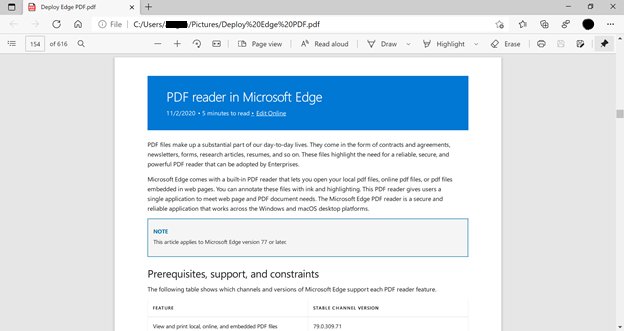
Every PDF opens with a toolbar above the page. Select the pin icon on it to keep it visible while you scroll; otherwise it hides until you move the pointer near the top.
| Toolbar control | What it does | Keyboard route |
|---|---|---|
| Table of contents | Opens a side pane listing the document's labelled sections | None |
| Page number box | Shows the current page and jumps to the page you type | None |
| Zoom (- / +) | Makes the page smaller or larger | Ctrl + – / Ctrl + +, Ctrl + 0 to reset |
| Fit to page / fit to width | Sizes the page to the window | Ctrl + \ |
| Rotate | Turns pages 90 degrees | Ctrl + [ and Ctrl + ] |
| Page view | Switches between single page and two pages side by side | None |
| Read aloud | Reads the text out loud and highlights each word | Ctrl + Shift + U |
| Draw | Freehand ink with your choice of color and stroke width | None |
| Highlight | Colors selected text | None |
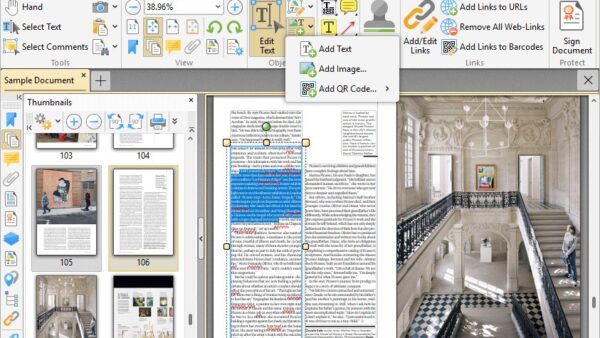
| Add text | Places a typed text box anywhere on the page | None |
| Search (magnifying glass) | Finds words in the document | Ctrl + F |
| Opens the Edge print dialog | Ctrl + P | |
| Save / Save as | Writes your changes to the file or to a new copy | Ctrl + S |
Mac users swap Ctrl for Command in every shortcut above. Some buttons move into a … overflow menu when the window is narrow.
Navigate through a PDF
Scroll with the mouse wheel or trackpad for short files. For long reports, use the page box or the table of contents to jump straight to a section.
- To move between pages, click the page number box on the toolbar, type a page number and press Enter.
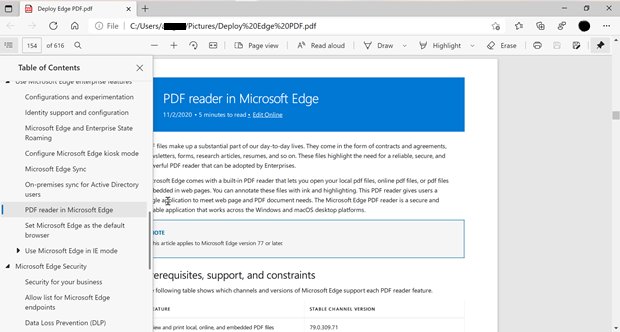
- To use the table of contents, select the Table of contents icon on the left of the toolbar.
- Select any heading in the pane to jump to that section. The pane stays open until you close it.
- To change page layout, select Page view and choose the two-page option to show pages side by side.
- To read with the keyboard only, press F7 and confirm to turn on caret browsing, then move with the arrow keys.
The table of contents button only does something when the PDF was created with bookmarks. Edge later added a thumbnail view and presentation mode for PDFs as well.
Zoom, fit, and rotate pages
| What you want | Do this | Shortcut |
|---|---|---|
| Zoom in and out | Select + or – on the toolbar | Ctrl + + / Ctrl + – |
| Return to normal size | Reset the zoom | Ctrl + 0 |
| Fit the page to your screen | Select the fit button to switch between whole page and full width | Ctrl + \ |
| Rotate sideways pages clockwise | Select Rotate on the toolbar | Ctrl + ] |
| Rotate counter-clockwise | Use the shortcut | Ctrl + [ |
Rotation changes the view in the tab. Select Save as afterwards if you want a copy that keeps the new orientation, then check the saved file.
Search inside a PDF
- Press Ctrl + F, or select the magnifying glass on the PDF toolbar.
- Type the word or phrase. Edge highlights every match and shows the count.
- Press Ctrl + G to jump to the next match.
- Press Ctrl + Shift + G to go back to the previous match.
Search only works on real text. A scanned PDF is a picture of text, so it returns no matches.
Highlight, draw, and add notes
Edge supports four kinds of markup: highlights, freehand ink, typed text boxes and comments attached to text. All of them are saved into the PDF when you save.
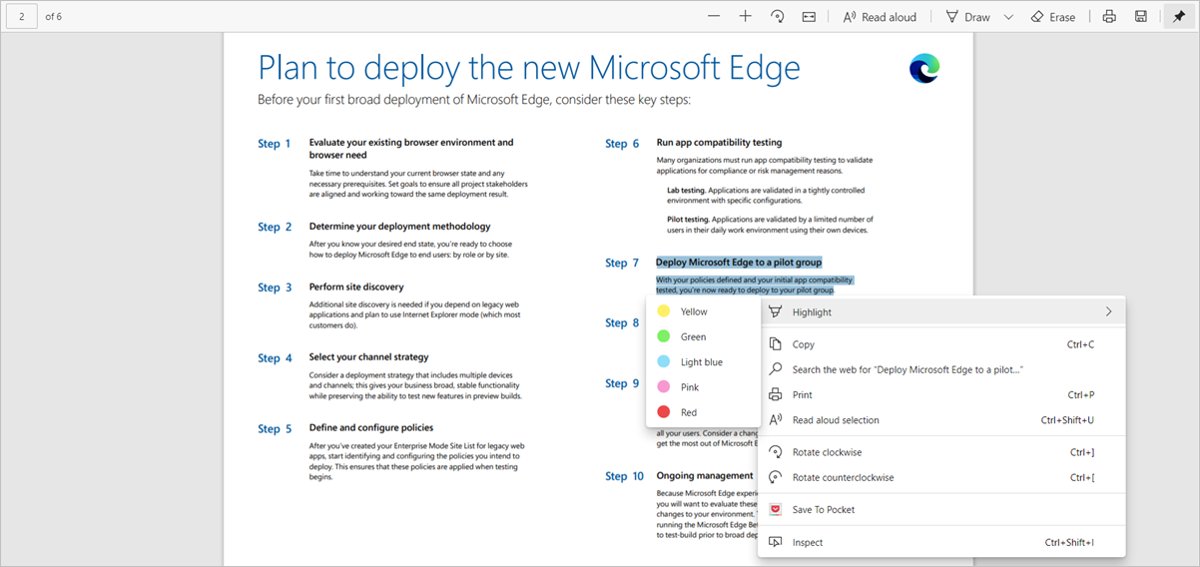
- To highlight text, select it with the mouse, right-click, choose Highlight and pick a color.
- To draw on a PDF, select Draw on the toolbar, open its menu to choose a color and stroke width, then write with the mouse, pen or finger. Use this to sign a PDF by hand.
- To add typed text, select Add text, click the spot on the page, and type. Drag the box to reposition it or change its font from the box's options.
- To add a note, select a piece of text, right-click and choose Add comment.
- Type the note and select the check mark to save it. A comment icon appears next to the highlighted text.
- Hover over the comment icon to preview the note, or select it to edit.
- Press Ctrl + S to keep your markup in the file.
Highlights can also be created with a pen or with the keyboard once caret browsing (F7) lets you select text with Shift and the arrow keys.
Fill out PDF forms
Edge fills standard fillable forms: text fields, check boxes and similar fields built into the PDF. Forms that depend on JavaScript are not supported, and legacy XFA forms only open when an administrator has enabled XFA support.
- Open the form in Edge.
- Click the first field and type. Press Tab to move to the next field.
- Select check boxes and options with a click.
- If the form has no fillable fields, select Add text and place text boxes over the blanks instead.
- To sign, select Draw and write your signature on the signature line.
- Select Save as to keep the completed form as a new file, leaving the blank original untouched.
Edge can also show and validate certificate-based digital signatures that are already in a PDF.
Use Read aloud for PDFs
- Open the PDF and scroll to where you want listening to start.
- Select Read aloud on the PDF toolbar, or press Ctrl + Shift + U (Command + Shift + U on a Mac).
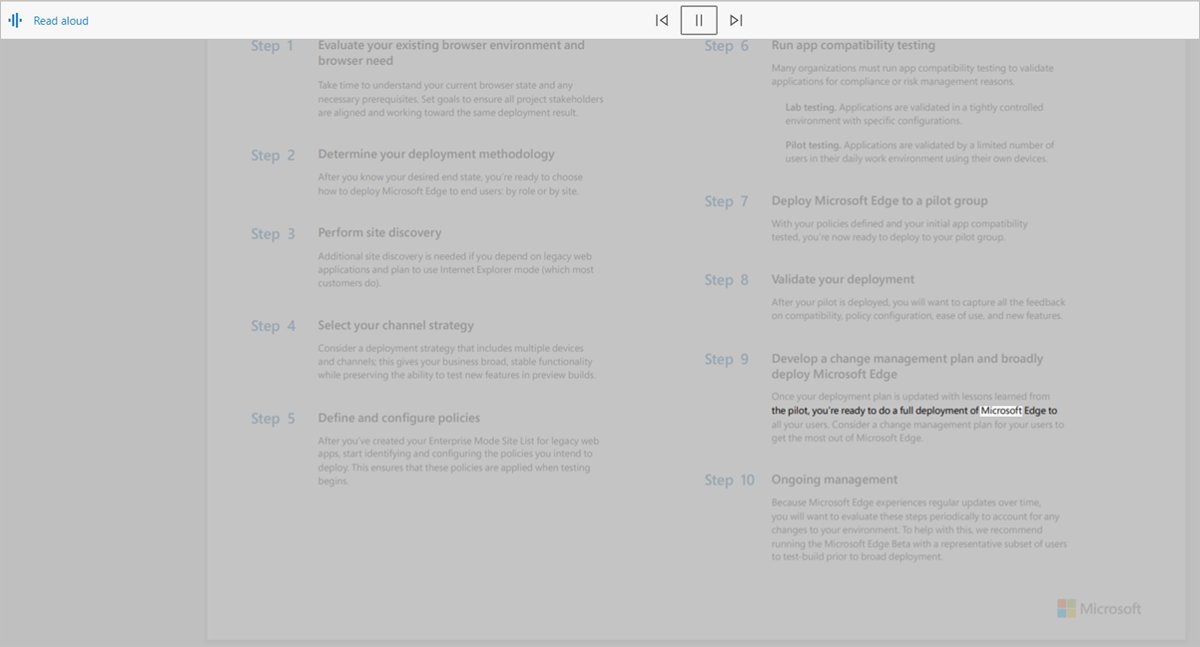
- Follow along: Edge highlights the text as it reads.
- Select Read aloud again or use its pause control to pause and resume.
- Press Ctrl + Shift + U again to stop.
Read aloud needs selectable text. A scanned PDF has no text layer for Edge to read.
Save, download, and rename PDFs
| Your situation | Do this | Result |
|---|---|---|
| Save changes to the same file | Select Save or press Ctrl + S | Your highlights, ink and text overwrite the original |
| Save a copy | Select Save as | A new file with your markup; the original stays clean |
| Rename the file | Select Save as and type a new name in the File name box | A copy saved under the new name |
| Download a web PDF | With the PDF open in a tab, press Ctrl + S or select Save | The file lands in your chosen folder |
| Choose where downloads go | Settings and more > Settings > Downloads > Change next to Location | Future downloads use that folder |
The Downloads page in Settings also has an option to ask where to save each file, which gives you a rename chance on every download.
Print a PDF from Edge
- Open the PDF in Edge and press Ctrl + P, or select the Print icon on the PDF toolbar.
- Under Printer, pick your printer.
- Set Orientation, Copies and Color or Black and white.
- Under Pages, choose All, Odd pages only, Even pages only, or type a custom range.
- Set paper size, pages per sheet, margins and scaling such as Fit to printable area or Actual size.
- Select Print.
To reach your printer driver's own options, select Print using system dialog or press Ctrl + Shift + P. To save only some pages as a new PDF, pick Microsoft Print to PDF as the printer and set a page range.
Share a PDF from Edge
Edge does not send the file for you from inside the reader. Share the saved file or the link to it.
- Save your marked-up version first with Save as, so the recipient sees your highlights and notes.
- For a PDF you opened from the web, select the address bar and copy the URL to send the link.
- For a local file, attach the saved PDF to an email or chat message.
- For a file in OneDrive, open OneDrive, select the file and choose Share to send a link with view or edit rights.
Change Edge PDF settings
| What you want to change | Where | Note |
|---|---|---|
| Stop PDFs opening in the browser | Open Settings and more > Settings and type PDF in the settings search box | Edge then downloads PDFs and opens them in your default app |
| Download folder for saved PDFs | Settings > Downloads > Location > Change | Also holds the ask-where-to-save option |
| Keep the PDF toolbar visible | Select the pin icon on the PDF toolbar | Per-reader choice, no settings page needed |
| Default app for .pdf files | Windows Settings > Apps > Default apps | Controls what a double-click opens |
On work PCs an administrator can lock these choices. The Always open PDF files externally policy forces downloads, and a separate policy hides Edge's prompt to become the default PDF reader.
Use Edge PDF reader with OneDrive and Microsoft 365
| Where the PDF lives | How it opens | What you can do |
|---|---|---|
| OneDrive or a SharePoint team library | Selecting it opens the browser's built-in PDF reader | View and print; save a copy to mark it up |
| Protected (Microsoft Purview / IRM) PDF | Select Open > Open in browser in SharePoint or OneDrive | Opens in Edge if you are signed in with work or school credentials that have at least view rights |
| Protected PDF saved on your PC | Open it directly in Edge | Needs Edge 83.0.478.37 or later and a work or school sign-in |
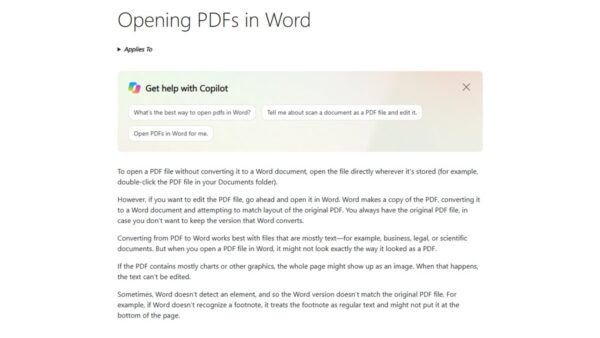
| PDF you need to edit as a document | Open it in desktop Word | Word converts the PDF to an editable file |
Viewing protected files with a personal Microsoft account is not supported. Check your version under Settings > About Microsoft Edge.
Know what Edge can and cannot do with PDFs
| Task | Edge PDF reader | Use instead |
|---|---|---|
| Read, zoom, rotate, search | Yes | – |
| Highlight, draw, typed text, comments | Yes | – |
| Fill standard fillable forms | Yes | – |
| JavaScript-driven forms | No | Adobe Acrobat Reader or the form's web version |
| XFA forms | Only when an admin enables XFA support | The app the form issuer names |
| Edit existing text or images in the PDF | No | Desktop Word (converts the PDF) or a full PDF editor |
| Build a new PDF form | No | A PDF authoring tool |
| Validate certificate digital signatures | Yes | – |
| Translate selected text | Yes, in a side pane | – |
| Summarise a long PDF | Yes, with Copilot in Edge | – |
| Read scanned pages aloud or search them | No text layer to work with | An app with OCR |
For single words, Edge can also show dictionary definitions inside the PDF reader without leaving the page.
How to check Edge is handling your PDFs
- Double-click any PDF in File Explorer. It should open in an Edge tab, not another app.
- Look for the PDF toolbar with the zoom controls, Draw, Highlight and Read aloud.
- Select a web PDF link. It should display in the tab rather than appear in your downloads.
- Add a highlight, press Ctrl + S, close the tab and reopen the file. The highlight should still be there.
Troubleshoot common PDF problems in Edge
PDFs download instead of opening in Edge
The built-in viewer has been turned off in Edge settings, or an administrator set the Always open PDF files externally policy.
- Open Settings and more > Settings and type PDF in the settings search box.
- Turn off the option that downloads PDF files instead of opening them.
- On a work PC, ask IT whether the policy is set; you cannot override it yourself.
Double-clicking a PDF opens another app
Another app is the Windows default for .pdf files.
- Open Settings > Apps > Default apps.
- Search .pdf and select the result.
- Choose Microsoft Edge.
A form shows blank, a loading message, or its buttons do nothing
The form uses XFA or JavaScript, which the Edge reader does not run by default.
- Save the PDF to your PC.
- Open it in the app the form issuer recommends, such as Adobe Acrobat Reader.
- On a managed PC, ask IT whether XFA support can be enabled in Edge.
A protected PDF will not open
Edge is too old, you are signed in with a personal account, or the file uses a legacy format such as .ppdf.
- Check Settings > About Microsoft Edge shows 83.0.478.37 or later and let Edge update.
- Sign in to Edge with your work or school account.
- From OneDrive or SharePoint, use Open > Open in browser.
- For a .ppdf file, use a reader that supports legacy protected PDFs.
Search or Read aloud finds nothing
The PDF is a scan, so its pages are images with no text.
- Try to select a word with the mouse. If nothing selects, the page is an image.
- Run the file through an app with OCR, then open the new copy in Edge.
Tips for working efficiently with PDFs in Edge
| Tip | How |
|---|---|
| Keep the tools in view | Pin the PDF toolbar |
| Jump through long reports | Use Table of contents or type a page number |
| Flip between fit modes fast | Ctrl + \ |
| Keep the original clean | Mark up, then Save as a new file |
| Listen while you work | Ctrl + Shift + U starts Read aloud |
| Understand a foreign-language passage | Select the text and choose translate to open the side pane |
| Get the key points of a long PDF | Ask Copilot in Edge to summarise the open file |
| Print only what you need | Type a custom page range in the print dialog |
Microsoft Edge PDF reader FAQ
Does Microsoft Edge have a built-in PDF reader?
Yes. Edge on Windows and macOS includes a PDF reader that opens local files, web PDFs and PDFs embedded in pages. It supports zoom, search, highlighting, ink, typed text, comments, form filling, Read aloud and printing without any add-in.
Is the Edge PDF reader also a built-in PDF editor?
Only for markup. Edge adds highlights, freehand ink, text boxes and comments, and fills standard forms. It cannot change the existing text or images in a PDF. For that, open the file in desktop Word, which converts it to an editable document.
How do you put something in a PDF with Edge?
Select Add text on the PDF toolbar, click where you want the text and type it. Use Draw for handwriting or a signature, and right-click selected text and choose Add comment for a note. Press Ctrl + S to save it into the file.
How do you use a PDF in Edge without Adobe Reader?
Open the PDF in Edge with Ctrl + O, by dragging it into a tab, or by making Edge the default app for .pdf files. Edge handles reading, markup, standard forms and printing. You only need another reader for JavaScript or XFA forms.
Can you create a PDF with Microsoft Edge?
Yes, by printing. Press Ctrl + P on any page or document open in Edge, choose Microsoft Print to PDF as the printer, and select Print. Windows asks where to save the new PDF file.
Can you build a PDF form in Edge?
No. Edge fills existing fillable forms but has no tools to add form fields. To build a PDF form you need a PDF authoring app. A non-fillable form can still be completed in Edge by placing Add text boxes over the blanks.
How do you make a PDF file of only some pages?
Open the PDF in Edge, press Ctrl + P, select Microsoft Print to PDF, and type the page range you want under Pages. Select Print and save the new file. The original PDF stays unchanged.
Is Microsoft Edge a good default PDF reader?
Make Edge your default PDF app if you mainly read, annotate, fill ordinary forms and print PDFs. It already ships with Windows, updates with the browser, and covers those jobs without another install. Keep a dedicated PDF app only for JavaScript or XFA forms and for editing a PDF's original content.