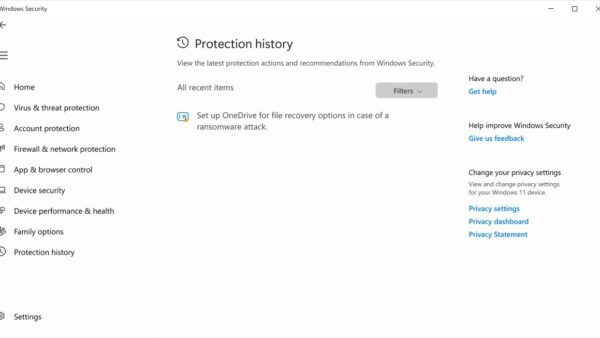
To manually update Microsoft Defender Antivirus, open Windows Security, select Virus & threat protection, select Virus & threat protection updates, and then select Check for updates.
This guide covers that button, the Update-MpSignature and MpCmdRun.exe commands, the offline package from Microsoft, how to confirm the new version, and fixes for updates that fail on Windows 11 and Windows 10.
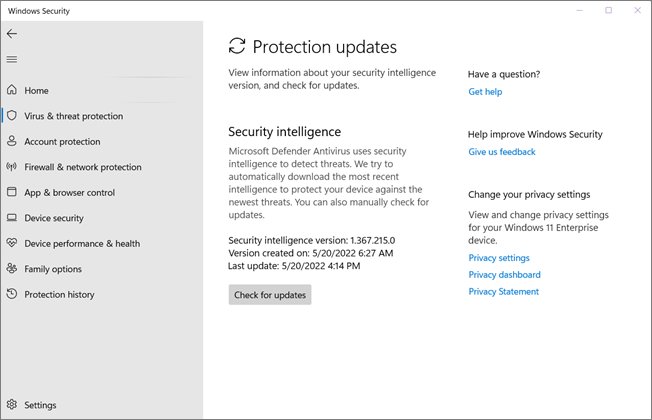
Method 1: Update Defender from Windows Security
This is the route Microsoft points home users to, and it works the same way on Windows 11 and Windows 10 version 1703 or later.
- Open Start, type Windows Security, and open the app.
- Select the Virus & threat protection tile, or the shield icon in the left menu.
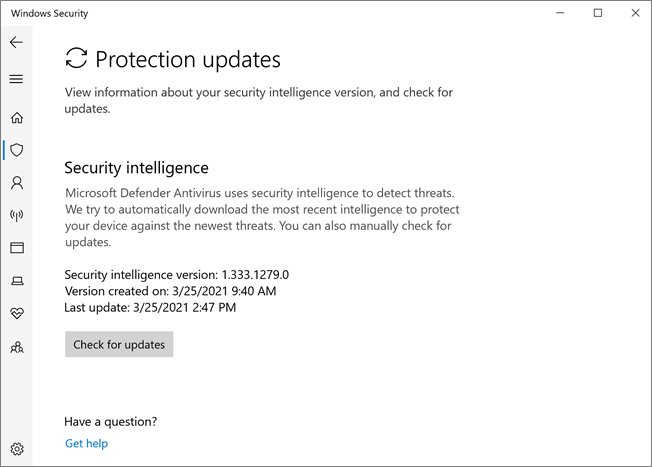
- Select Virus & threat protection updates. The page shows the installed security intelligence version and when it was downloaded.
- Select Check for updates.
- Wait for the page to show a new version number and today's date next to it.
If the buttons are greyed out, an organization manages the PC through Group Policy, and updates come from its own server instead.
Which Defender manual update method should you use?
| Your situation | Use this | Why |
|---|---|---|
| Home PC with a working internet connection | Method 1: Check for updates in Windows Security | No commands, and it pulls every pending Defender update |
| You want a one-line command or a script | Method 2: Update-MpSignature in PowerShell |
Lets you pick the update source, and runs remotely or as a background job |
| Windows Security will not open, or you work in Command Prompt | Method 3: MpCmdRun.exe -SignatureUpdate |
Can clear the cached dynamic intelligence first, then update |
| The PC is offline, or Windows Update is broken | Method 4: the standalone package from Microsoft | Installs security intelligence without contacting Windows Update |
| Security intelligence is new but the platform version is old | Windows Update or the Microsoft Update Catalog (KB4052623) | Platform updates ship separately from definitions |
| Many PCs in an organization | WSUS, Configuration Manager, Intune or a UNC file share | Central control over sources and schedules |
Before updating: identify which Defender component is outdated
Microsoft Defender Antivirus has three parts that update on different tracks, and a warning in Windows Security can point at any of them.
Run Get-MpComputerStatus in PowerShell to read all three versions at once, then compare them with the latest versions listed on Microsoft's security intelligence page.
| Component | Get-MpComputerStatus field | Update channel | How often |
|---|---|---|---|
| Security intelligence (formerly definitions) | AntivirusSignatureVersion, AntivirusSignatureLastUpdated |
KB2267602 through Windows Update, or the manual package | Frequently; Microsoft's page shows the latest release time |
| Antimalware engine | AMEngineVersion |
Bundled with security intelligence updates | Monthly |
| Antimalware platform (client) | AMProductVersion |
KB4052623 through Windows Update or the Microsoft Update Catalog | Monthly, released in phases |
Microsoft supports only the latest platform and engine plus the two before them, so an engine or platform more than two releases behind needs updating even when the definitions are fresh.
Method 2: Force a Defender update with PowerShell
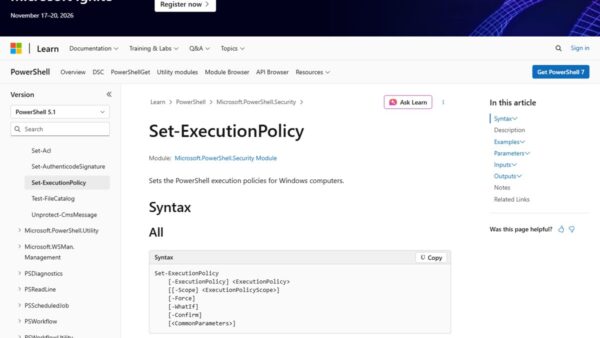
Update-MpSignature is part of the built-in Defender PowerShell module, and it updates the same security intelligence that Windows Security does.
- Open Start, type PowerShell, right-click Windows PowerShell, and select Run as administrator.
- Select Yes at the User Account Control prompt.
- Type
Update-MpSignatureand press Enter. - To skip a broken WSUS or file-share source, run
Update-MpSignature -UpdateSource MicrosoftUpdateServerinstead. - If Microsoft Update fails too, run
Update-MpSignature -UpdateSource MMPCto download straight from Microsoft's security intelligence servers. - Run
Get-MpComputerStatusand check thatAntivirusSignatureLastUpdatedshows today's date.
Without -UpdateSource, the cmdlet follows the configured fallback order; with none configured, it tries Microsoft Update Server first and MMPC second.
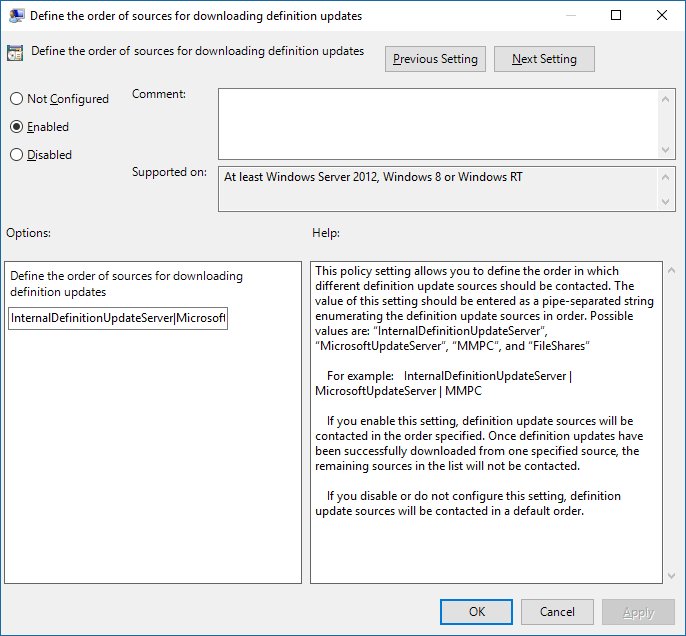
The other accepted sources are InternalDefinitionUpdateServer (a WSUS server) and FileShares. Add -AsJob to run a long update in the background.
Method 3: Force an update with MpCmdRun.exe
MpCmdRun.exe is Defender's command-line tool. It is not on the PATH, so you change to its folder first, and it needs an elevated Command Prompt.
Microsoft's own fix for stuck updates clears the cached dynamic intelligence before downloading, which is the sequence below.
- Open Start, type cmd, right-click Command Prompt, and select Run as administrator.
- Type
cd "%ProgramFiles%\Windows Defender"and press Enter. - Run
MpCmdRun.exe -RemoveDefinitions -DynamicSignaturesto clear dynamically downloaded intelligence. - Run
MpCmdRun.exe -SignatureUpdateto download and install the latest security intelligence. - If the default source fails, run
MpCmdRun.exe -SignatureUpdate -MMPCto download from Microsoft directly. - Read the output; a completed update ends without an error code.
The newest copy of the tool lives in %ProgramData%\Microsoft\Windows Defender\Platform\<platform version>. Microsoft recommends running it from there when that folder exists, because the copy in Program Files is the one that shipped with Windows.
Method 4: Download the Defender update manually
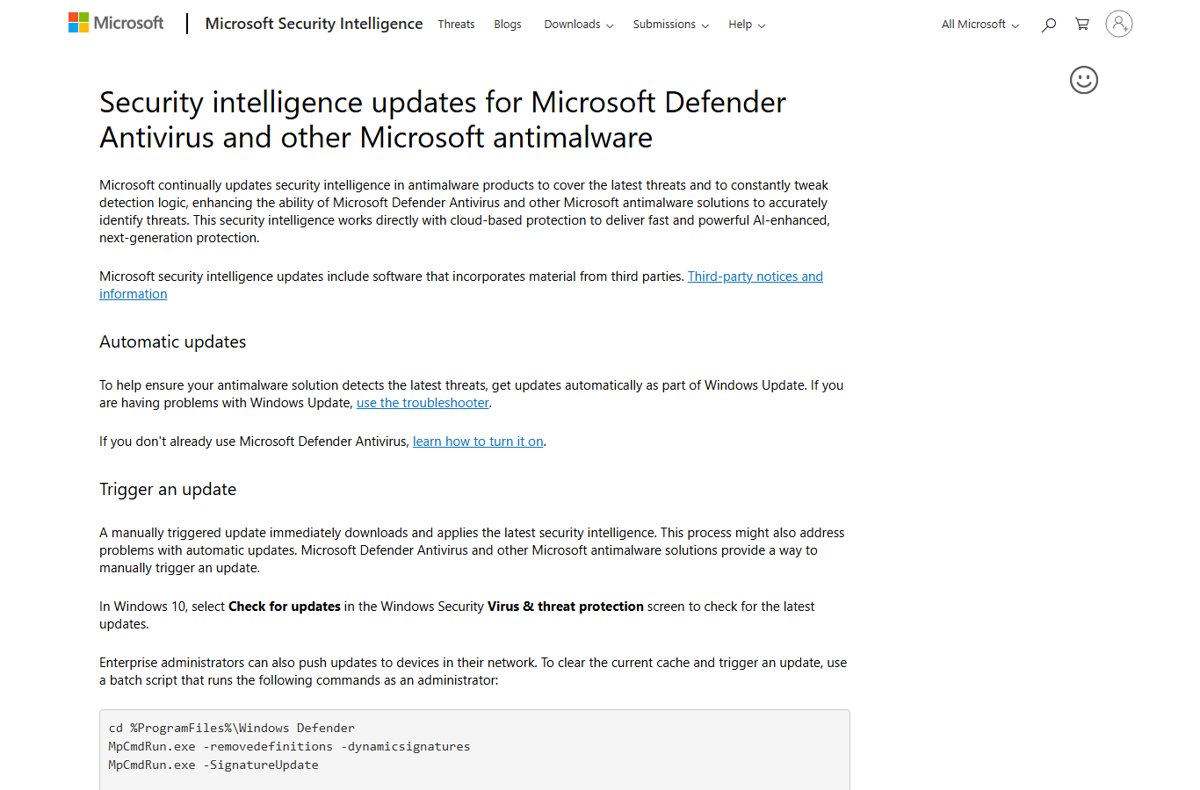
Microsoft publishes a standalone security intelligence package that installs without Windows Update. It suits offline PCs, a broken update service, or a fresh install that needs protection before going online.
The package installs security intelligence and the engine; it does not update the platform. The source page is the same Microsoft site that served the older Windows Defender definition downloads when the product still carried that name.
- Right-click Start, select Settings > System > About, and check under Device specifications whether Windows is 64-bit, 32-bit or ARM-based.
- On a PC with internet access, open
https://www.microsoft.com/en-us/wdsi/defenderupdatesand scroll to Manually download the update. - In the row Microsoft Defender Antivirus for Windows 11, Windows 10, Windows 8.1, and Windows Server, select 32-bit, 64-bit or ARM to match your PC.
- Save the file. The 64-bit package is
mpam-feX64.exeand the 32-bit package ismpam-fe.exe. - Copy the file to the target PC by USB drive if that PC is offline.
- Double-click the file and select Yes at the User Account Control prompt.
- Open Windows Security > Virus & threat protection > Virus & threat protection updates and confirm the new version.
Download only from that Microsoft page. Since October 21, 2019, every package is SHA-2 signed by Microsoft, so a copy from another site has no reason to exist.
How to verify that the update installed
- Open Windows Security > Virus & threat protection > Virus & threat protection updates and note the security intelligence version and its date.
- Open the Microsoft security intelligence updates page and compare that number with Version under Latest security intelligence update.
- In PowerShell, run
Get-MpComputerStatus | Select-Object AntivirusSignatureVersion, AntivirusSignatureLastUpdated, AMEngineVersion, AMProductVersionand compare the engine and platform numbers with the same page. - For a dated record, press Win + R, type
eventvwr.msc, and select OK. - Go to Applications and Services Logs > Microsoft > Windows > Windows Defender > Operational.
- Look for Event ID 2000, which records the current and previous signature versions after a successful update. Event 2002 records a successful engine update.
If security intelligence is current but Defender is still outdated
A fresh definition version with an old AMProductVersion means the platform update (KB4052623) did not install. The manual package and MpCmdRun -SignatureUpdate do not fix this, because platform updates travel separately.
- Open Settings > Windows Update on Windows 11, or Settings > Update & Security > Windows Update on Windows 10.
- Select Check for updates and install any Microsoft Defender Antivirus platform update (KB4052623) it lists.
- Restart the PC. Microsoft notes platform updates can be postponed while Endpoint DLP or Device Control is monitoring processes, and they retry after a reboot.
- If Windows Update still does not offer it, search the Microsoft Update Catalog for KB4052623 and pick the package that matches your architecture.
- On very old Windows 10 installs, install platform version 4.18.2001.10 from the catalog first, as Microsoft requires before newer platform packages.
- Run
Get-MpComputerStatusagain and confirmAMProductVersionmatches the platform version on Microsoft's security intelligence page.
How to roll back a Microsoft Defender update
If a new update causes a problem, MpCmdRun.exe can step back. Run each command from an elevated Command Prompt in the Defender folder.
- Roll security intelligence back to the previous or original version:
MpCmdRun.exe -RemoveDefinitions -All. - Roll the engine back to the previous version:
MpCmdRun.exe -RemoveDefinitions -Engine. - Roll the platform back to the previous version:
MpCmdRun.exe -RevertPlatform. - Return the platform to the copy that shipped with Windows:
MpCmdRun.exe -ResetPlatform. - Run Method 1 again once Microsoft releases a fixed version.
Troubleshooting failed Defender updates
"Protection definition update failed" in Windows Security
Defender could not search, download or install from its update source.
- Open Event Viewer at Windows Defender > Operational and find Event ID 2001.
- Read Update Stage (Search, Download or Install), Update Source and Error Code in the event details.
- Run Method 3 to clear the dynamic intelligence and update again.
- If the error stays, install the standalone package from Method 4.
A third-party antivirus is installed
Defender disables itself when another antivirus is active, and in disabled mode it receives no security intelligence updates.
- Open Windows Security > Virus & threat protection; Windows Security shows when Defender has turned itself off for another product.
- Keep the other product updated; it is protecting the PC.
- To return to Defender, uninstall the other antivirus from Settings > Apps and restart, then run Method 1.
The update works manually but not automatically
Automatic Defender updates ride on Windows Update, so a Windows Update fault stops them.
- Open Settings > Windows Update and check for an error or a pause.
- Resume updates if they are paused, then select Check for updates.
- Fix any Windows Update error code with Microsoft's Windows Update troubleshooting steps.
- Check Event ID 2001 for repeated failures from the Microsoft Update Server source.
The update is stuck at 0% or 96%
The download or install stage stalled, often on cached dynamic intelligence.
- Restart the PC to stop the stalled attempt.
- Run
MpCmdRun.exe -RemoveDefinitions -DynamicSignaturesfrom an elevated Command Prompt. - Run
MpCmdRun.exe -SignatureUpdate -MMPCto bypass Windows Update. - If it stalls again, install the standalone package from Method 4.
MpCmdRun.exe is not found
The folder that holds MpCmdRun is not in the PATH environment variable.
- Run
cd "%ProgramFiles%\Windows Defender"first, or change to the newest folder under%ProgramData%\Microsoft\Windows Defender\Platform. - Run the
MpCmdRun.execommand again from that folder. - If an access error appears, reopen Command Prompt with Run as administrator.
The standalone package says it is already installed
The installed security intelligence is the same as, or newer than, the package.
- Compare the version on the Virus & threat protection updates page with Version on Microsoft's security intelligence page.
- If they match, no update is needed.
- If Defender still warns that it is outdated, check
AMProductVersionand follow the platform steps above.
The package is rejected or will not install
The package architecture does not match Windows, or the file is not Microsoft's signed copy.
- Confirm 64-bit, 32-bit or ARM under Settings > System > About.
- Delete the file and download the matching package again from Microsoft's page.
- Right-click the file, select Properties > Digital Signatures, and confirm the signer is Microsoft.
- Run it again and accept the User Account Control prompt.
Use Defender's operational log for deeper diagnosis
Windows Security shows only a short message; the details sit in the logs.
- Filter the Windows Defender > Operational log for event IDs 2001 and 2003 (failed security intelligence and engine updates).
- Note the Error Code HRESULT and the Source Path.
- Review
%Windir%\WindowsUpdate.log, as Microsoft advises for event 2001. - Run
MpCmdRun.exe -GetFilesto bundle Defender logs intoMpSupportFiles.cabunderC:\ProgramData\Microsoft\Windows Defender\Supportfor Microsoft support.
Offline and enterprise update methods
Microsoft lists several update sources, and an organization sets the order Defender tries them in (the fallback order) through Group Policy, Configuration Manager, PowerShell or WMI.
| Setup | Update source | How it works |
|---|---|---|
| One disconnected Windows PC | Standalone package on USB | Download the package on a connected PC, copy it over, and run it (Method 4) |
| Offline VMs or isolated networks | UNC file share | A connected host downloads packages to a share; MpCmdRun.exe -SignatureUpdate -UNC \\Server\Share or Set-MpPreference -SignatureDefinitionUpdateFileSharesSource points devices at it |
| Platform updates on a file share | UNC file share | KB4052623 is copied into the architecture folders as updateplatform.exe and replaced each month |
| Corporate network | WSUS (InternalDefinitionUpdateServer) | Devices get security intelligence, engine and platform updates from the internal server |
| Managed fleet | Microsoft Configuration Manager or Intune | Software Update Point or Intune policy controls sources and schedules |
| Last resort | Microsoft security intelligence site (MMPC) | Microsoft recommends it only as the final fallback, not the primary source |
Windows 10 support limitation for Defender updates
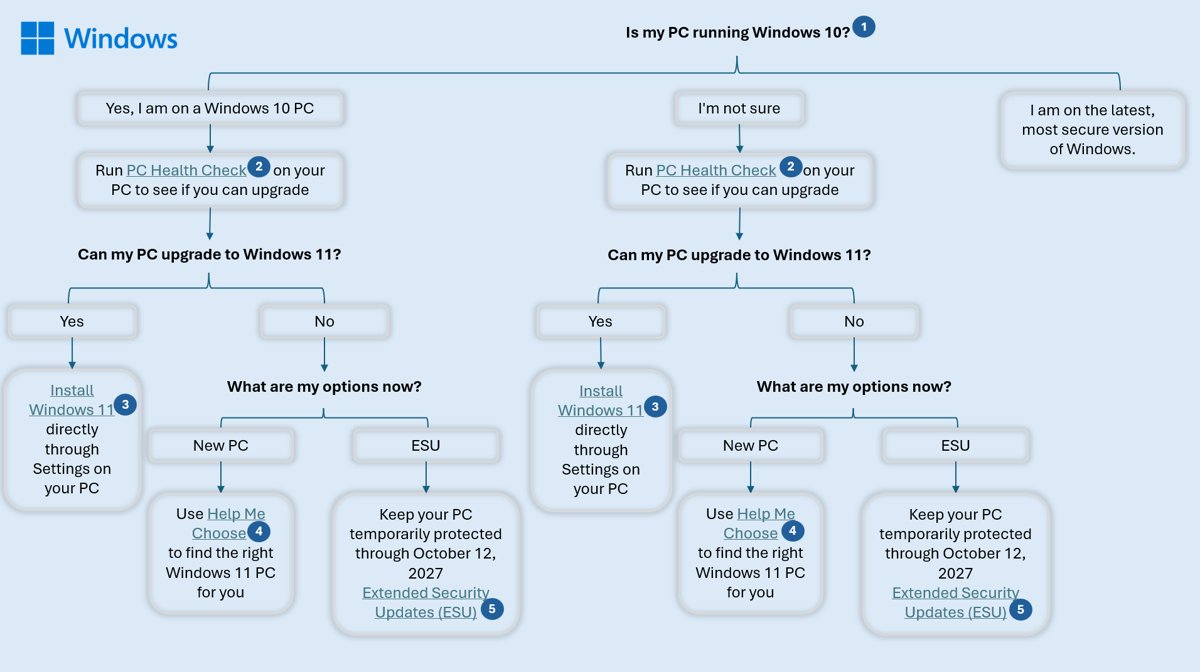
Windows 10 reached end of support on October 14, 2025, and version 22H2 is its final release. The consumer Extended Security Updates program extends Windows 10 security patches to October 12, 2027.
Microsoft states that after OS support ends, Windows stops receiving security updates for the operating system itself, while devices protected by Microsoft Defender for Endpoint keep receiving Defender product updates through existing channels.
Keep updating Defender on Windows 10, but do not treat current definitions as a substitute for Windows security patches; enrol in ESU or move to Windows 11. Defender updates refresh malware detection only. They cannot close vulnerabilities in Windows itself, and those fixes come only through Windows updates.
Microsoft Defender manual update: frequently asked questions
How do I manually update Microsoft Defender?
Open Windows Security, select Virus & threat protection, then Virus & threat protection updates, and select Check for updates. Alternatives are Update-MpSignature in an admin PowerShell window, MpCmdRun.exe -SignatureUpdate in an admin Command Prompt, or the standalone package from Microsoft's security intelligence page.
Does Microsoft Defender update automatically?
Yes. Microsoft Defender Antivirus gets security intelligence and platform updates automatically through Windows Update. A manual update only speeds things up or works around a broken Windows Update, and it does not change the automatic schedule.
How do I turn on Windows Defender updates?
Defender updates are on whenever Windows Update is running and Defender is the active antivirus. Resume paused updates in Settings > Windows Update, and remove any third-party antivirus if you want Defender active, because a disabled Defender receives no security intelligence updates.
Is mpam-fe.exe safe?
Yes, when it comes from Microsoft's security intelligence updates page. mpam-fe.exe (32-bit) and mpam-feX64.exe (64-bit) are Microsoft's own Defender packages, SHA-2 signed since October 2019. Check the Digital Signatures tab in the file's Properties before running a copy from anywhere else.
Does the manual Defender package require internet access on the target PC?
No. The standalone package contains the security intelligence and engine, so it installs on an offline PC. Download it on a connected computer, copy it over by USB drive, and run it as administrator.
Is Update-MpSignature available on Windows Home?
Update-MpSignature belongs to the Defender PowerShell module, which Microsoft documents without an edition restriction. If the cmdlet fails on a PC, MpCmdRun.exe -SignatureUpdate from an elevated Command Prompt performs the same update through Defender's own command-line tool.
What is the difference between KB2267602 and KB4052623?
KB2267602 is the security intelligence update, which also carries the monthly engine update. KB4052623 is the monthly antimalware platform update for the Defender client itself. Both arrive through Windows Update, but only KB2267602 is in the manual download package.
Why is my security-intelligence version current but my platform version old?
The platform update (KB4052623) ships separately from definitions, so a definition update cannot bring it along. Install it through Windows Update or the Microsoft Update Catalog, then restart, because platform updates can wait until processes being monitored are stopped.
Can I update Defender if another antivirus is installed?
Not usefully. On a home PC, Defender disables itself when another antivirus is active, and in disabled mode it does not receive security intelligence updates. Defender in passive mode, used on PCs onboarded to Defender for Endpoint, does keep updating.
Does manually updating Defender make unsupported Windows 10 safe?
No. Fresh definitions improve malware detection, but they do not patch vulnerabilities in Windows 10, which stopped receiving security updates on October 14, 2025. Enrol in Extended Security Updates or upgrade to Windows 11 to keep the operating system patched.
How do I update Microsoft Defender definitions offline?
Download the package for your architecture from Microsoft's security intelligence updates page on a connected PC, copy it to the offline PC, and run it. Organizations with many offline machines can point Defender at a UNC file share instead.
The bottom line on manually updating Microsoft Defender
Use Check for updates in Windows Security first, switch to MpCmdRun with the cache-clearing step when it fails, and keep the standalone package for offline PCs. Those three cover every security intelligence problem a home user meets, and the platform version needs Windows Update or the catalog, whichever route you use for definitions.