To fix the Instagram enter confirmation code error, request one fresh code, enter only the newest one, and switch to a backup code or a login link if codes keep failing.
This guide covers rejected codes, codes that never arrive, stuck sessions, temporary limits, the official recovery route at instagram.com/hacked, and the security checks to run once you are back in.
How to fix the Instagram enter confirmation code error fast
Most code errors come from an old code, a typo, or a code sent to a channel you no longer check. These steps clear all three.
- Close every Instagram tab and app window except the one asking for the code.
- Request a new code once, then wait for it instead of tapping resend repeatedly.
- Type the newest code you received, ignoring any older code in the same inbox or thread.
- If you use an authentication app, enter the current 6-digit code shown in that app.
- If the code still fails and you saved backup codes, enter one backup code instead.
- If nothing arrives, tap Forgot password? on the login screen and choose Send login link.
A login link or backup code gets you in without the code you are waiting for. The sections below cover each case in detail.
Identify what is failing with the Instagram confirmation code
The fix depends on which code Instagram wants and what happens when you enter it. Match your screen to a row.
| What you see | Likely cause | Fix to try first |
|---|---|---|
| Code is rejected as wrong or expired | An older code was entered, or a newer one replaced it | Request one new code and enter only that one |
| Two-factor login code is rejected | Authentication app code has already rolled over | Enter the code currently shown in the app |
| Code never arrives by text or email | Old phone number or email, filters, or carrier delay | Check the delivery channel, then use a login link |
| Code screen loops back to login | Stuck app or browser session | Close the app fully or log in from a browser |
| Instagram asks you to wait before trying again | Too many attempts in a short time | Stop requesting codes and try later |
| You no longer own the phone or email on the account | Account details are out of date or were changed | Use the recovery route at instagram.com/hacked |
Fix an Instagram code that is rejected
Instagram confirmation code not working after you type it
Each new request can replace the previous code, so an older code in your inbox no longer counts.
- Request one fresh code from the screen you are on.
- Open the newest message from Instagram and copy that code only.
- Check that no spaces were pasted before or after the digits.
- Enter the code on the same device and screen that requested it.
Two-factor authentication code rejected
Authentication app codes refresh constantly, and a code from a different linked account will not match.
- Open your authentication app and find the entry for this Instagram account.
- Wait for a new 6-digit code to appear, then type it straight away.
- If you have more than one Instagram entry in the app, try the other entry.
- If the app codes still fail, enter a saved backup code instead.
Help us confirm it's you screen will not accept the code
The confirmation went to a contact detail you are not watching, or a stale session is holding the old request.
- Note which email address or phone number the screen says it used.
- Close the app or browser tab completely and open Instagram again.
- Start the login again and request a new code once.
- If the listed contact is not yours, stop and use the recovery route below.
When the confirmation code never arrives
A missing code is usually a delivery problem rather than an Instagram fault. Work through the channel the code is meant to reach.
I am not getting the Instagram confirmation code by text
The number on the account is old, the phone has no signal, or texts from short codes are blocked.
- Confirm the phone shown on the code screen is the number you still use.
- Check that the phone has mobile signal and can receive other texts.
- Look in any spam or blocked-messages folder in your messaging app.
- If you set up WhatsApp as a 2FA method, check WhatsApp for the code.
Instagram not sending confirmation code email
Mail filters, a full mailbox, or an email address you no longer control.
- Search your inbox, spam and promotions folders for mail from Instagram.
- Look for a recent message from [email protected] about account changes.
- If that message says your email was changed, select secure my account in it.
- If you cannot sign in to the mailbox, recover it through your email provider first.
Code still missing on your current network
A weak or filtered connection can stop the request from reaching Instagram.
- Switch from Wi-Fi to mobile data, or the other way round.
- Turn off any VPN for this login attempt.
- Request one new code and wait a few minutes before trying again.
Clear a stuck app or browser session
A session that keeps an old login request open can reject a valid code or loop back to the login page. Starting clean resets it.
- Force close the Instagram app, then open it again.
- Update Instagram from the App Store or Google Play if an update is waiting.
- Open instagram.com in a mobile or desktop browser and log in there instead.
- In the browser, use a private window so no older session cookies are reused.
- Request a new code from the fresh session and enter it there.
On a Windows PC you can also try the Instagram app for Windows as a separate session from your browser.
If Instagram temporarily limits recovery attempts
Instagram slows down code requests and login attempts when it sees many of them in a short time. Instagram does not publish how long that limit lasts.
| What happens | What it means | What to do |
|---|---|---|
| A message asks you to wait before trying again | Too many code requests or wrong entries | Stop requesting codes and leave the app closed for a while |
| New codes arrive but every one fails | Older requests are still being processed | Wait, then request a single code and use only that one |
| Login works on one device but not another | The new device is not recognised | Log in from the device you normally use |
| You are asked for a video selfie or ID | Instagram needs to confirm identity | Follow the on-screen request instead of retrying codes |
Repeated attempts during a limit only extend the wait. Use the time to check the delivery channel or find your backup codes.
Use Instagram’s account-recovery route when you cannot receive the code
When no code can reach you, a login link or Instagram's recovery page replaces it. These steps come from Instagram's own recovery flow.
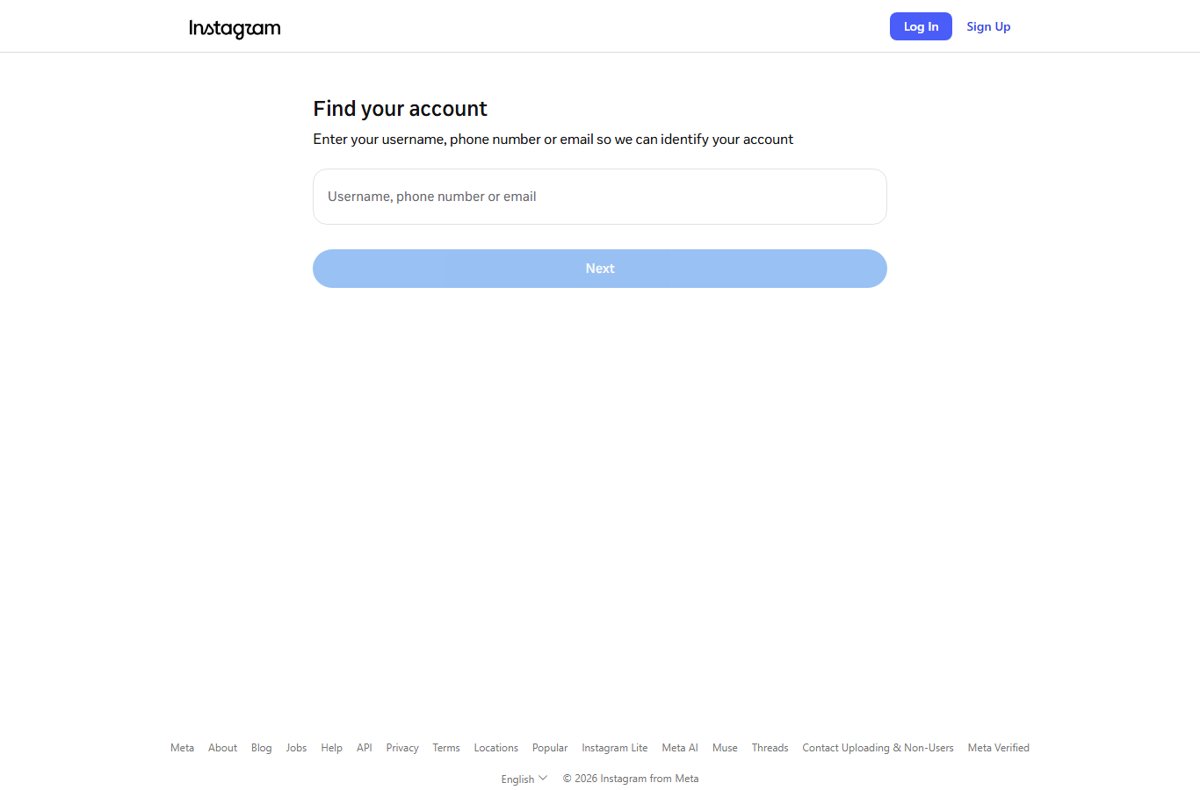
- On the Instagram login screen, tap Forgot password?.
- Enter the username, email address or phone number on the account, then select Send login link.
- Complete the captcha, then select Next.
- Open the login link in your email or text message and follow the on-screen instructions.
- If you cannot reach that email or phone, go to instagram.com/hacked in a browser and enter your username, phone number or email.
- Enter a secure email address that only you can access when Instagram asks for one.
- Complete identity checks, such as your sign-up email or phone and device type, or a video selfie.
Instagram says a video selfie is never shown on Instagram and is deleted within 30 days. If the first video is not accepted, you can submit a new one.
Use an Instagram backup code instead of a login code
Backup codes work when two-factor login codes cannot be sent because of connectivity or delivery problems. You can only view them while logged in, so save a set now.
- On Instagram, open Settings, then select Accounts Center.
- Select Password and security, then Two-factor authentication.
- Select the account you want backup codes for.
- Select Additional methods, then Backup codes.
- Copy the codes or take a screenshot and store them somewhere you can reach without your phone.
- Select Get new codes if you think an old set has been exposed; this cancels the previous codes.
At the next login code prompt, enter one backup code instead of the text or app code.
Security checks before trying again
Codes you did not request, or a confirmation code someone asks you to share, are warning signs. Check these before you enter anything.
Never share an Instagram confirmation code with anyone, and only act on recovery messages from [email protected] or the instagram.com/hacked page. Anyone holding your code and password can log in as you. A code you did not request means someone may be trying your password, so change it and turn on two-factor authentication once you are in. Avoid third-party apps that ask for your login, because they gain full access to the account.
How to check your Instagram account is secure after the code works
- Change your password, especially if you received codes you did not request.
- Open Settings, then Accounts Center, and confirm the phone number and email listed are yours.
- In Accounts Center, remove any linked accounts you do not recognise.
- Revoke access for any third-party app you do not trust.
- Turn on Two-factor authentication under Password and security if it is off.
- Select Trust this device at your next login only on a phone or computer you own.
A trusted device stops asking for a code on that device. Never trust a public or shared computer.
Quick order of operations
- Request one fresh code and enter only the newest one.
- Check that the code is going to a phone number or email you still control.
- Close the app fully, or log in from a browser private window.
- Enter a backup code if two-factor codes cannot reach you.
- Use Forgot password? and Send login link if no code arrives.
- Go to instagram.com/hacked if you have lost the phone or email on the account.
- Secure the account once you are back in.
Instagram confirmation code error FAQ
Why does Instagram say my confirmation code is wrong?
Instagram usually rejects a code because a newer one replaced it, it was mistyped, or it came from a different account. Request one fresh code, enter only the newest one, and type it on the same device that asked for it.
I am not getting the Instagram confirmation code. What should I do?
Check that the code is going to a phone number or email you still use, then look in spam folders. If nothing arrives, tap Forgot password? and Send login link, or use instagram.com/hacked if you lost that phone or email.
How long should I wait before requesting another Instagram code?
Instagram does not publish a fixed wait time. Request one code, give it a few minutes to arrive, and avoid tapping resend repeatedly, because many requests in a short time can trigger a temporary limit on further attempts.
How do I fix an Instagram login error when the code fails?
Close the app fully or log in at instagram.com in a browser, then request one new code. If the code still fails, enter a saved backup code, or request a login link from the Forgot password? option on the login screen.
Can I bypass the Instagram confirmation code?
No. You can only replace it with an official alternative: a backup code, a login link sent to your email or phone, or the identity checks at instagram.com/hacked. Any service offering to skip the code is a risk to your account.
Is instagram.com/hacked an official recovery page?
Yes. Instagram's Help Center directs anyone who cannot log in or thinks they were hacked to instagram.com/hacked. The page asks for your username, phone number or email to find the account and start recovery.
How do I fix my compromised Instagram account?
Check for an email from [email protected] and select secure my account if your email was changed. Otherwise use instagram.com/hacked, then change your password, turn on two-factor authentication and remove unknown linked accounts.
How do I confirm my email on Instagram?
Open the confirmation message Instagram sends to that address and follow its instructions. When you change your email, both the original and the new address receive requests to confirm or deny the change, so check both inboxes.
How do I fix my Instagram account if I lost my phone number or email?
Try to regain the email through your email provider, because Instagram cannot help with email accounts. If you can still log in, change the email or phone in your settings; if you cannot, use instagram.com/hacked.
Bottom line: how to get past the Instagram confirmation code screen
Request one fresh code and enter only that one; if codes cannot reach you, use a backup code, a login link or instagram.com/hacked. Most confirmation code errors come from stale codes or outdated contact details. Instagram's own fallbacks replace the code without any third-party tool, and saving backup codes now prevents the problem next time.