To sync your settings in Windows 10, sign in with a Microsoft account, open Settings > Accounts > Windows backup, and turn on Remember my preferences on every PC you use.
This guide covers the three setup steps, the older Sync your settings page, what gets synced, how to restore it on a new PC, and fixes when the options are greyed out.
How to turn on sync settings in Windows 10
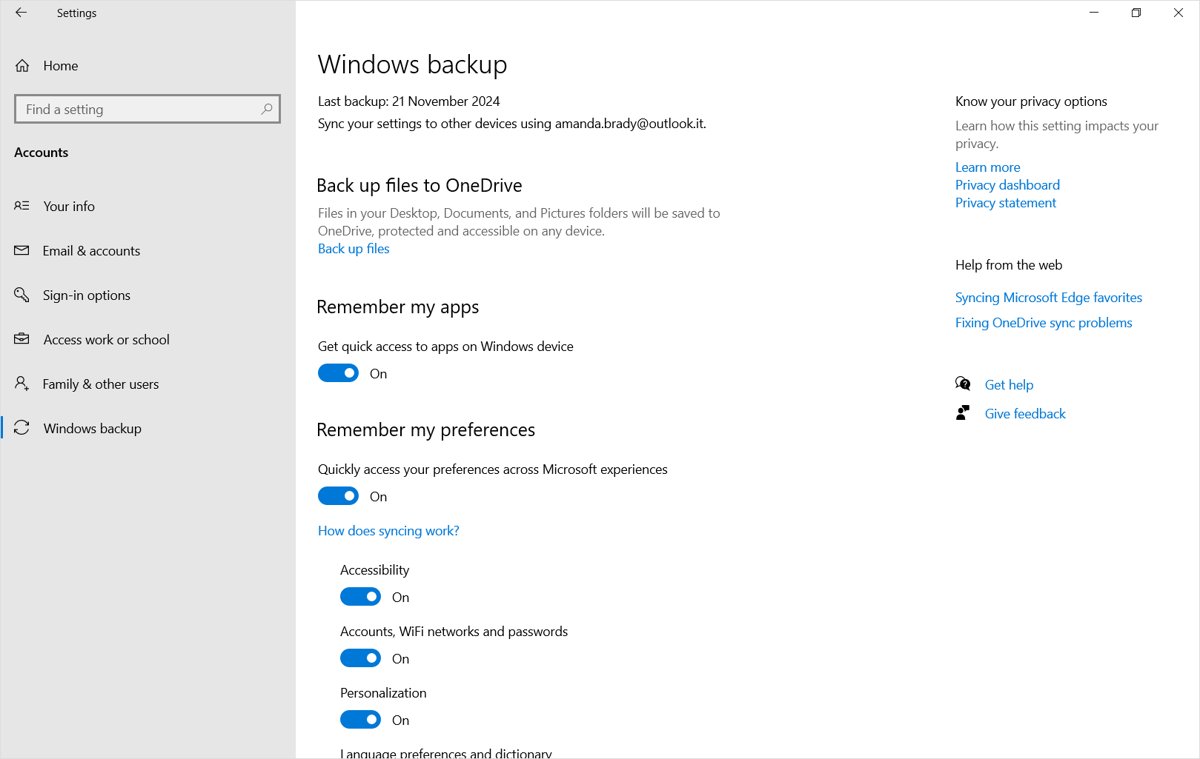
This is the fastest route on an up-to-date Windows 10 PC. You need to be signed in with a personal Microsoft account, not a local account.
- Select Start > Settings > Accounts.
- Select Windows backup in the left pane.
- Turn on Remember my preferences.
- Select the check boxes for Accessibility, Accounts and passwords, Personalization, Language preferences and Other Windows settings as needed.
- Repeat these steps on each Windows 10 or Windows 11 PC signed in with the same Microsoft account.
On an older Windows 10 build, the page is called Sync your settings instead of Windows backup. The next section shows which page your PC has.
Where is sync in Windows 10 Settings?
Microsoft renamed the sync page when it moved settings sync into Windows Backup. Match your PC to a row and go straight to the right page.
| Your PC | Where sync lives | What to turn on |
|---|---|---|
| Windows 10 with recent updates | Settings > Accounts > Windows backup | Remember my preferences and its check boxes |
| Older Windows 10 build | Settings > Accounts > Sync your settings | The switches for the items you want to sync |
| Any Windows 10 PC with the Windows Backup app | Start > type backup > Windows Backup | Expand each settings item, turn it on, then select Back up |
| Windows 11 | Settings > Accounts > Windows backup | Remember my apps and Remember my preferences |
Step 1: Sign in with a Microsoft account
Settings sync is stored with your Microsoft account, so a local account cannot sync anything. Check which account you use first, and switch if needed.
- Open Settings > Accounts > Your info.
- If you see Sign in with a local account instead, you already use a Microsoft account; go to Step 2.
- If you see Sign in with a Microsoft account instead, select it.
- Enter the email address and password of your Microsoft account, or create a new one when prompted.
- Follow the prompts, then select Next.
- Select Sign out and finish, then sign back in with the Microsoft account.
Use a personal account such as an @outlook.com or @live.com address. The Windows Backup app does not work with work or school accounts.
Step 2: Verify your identity with Microsoft
Microsoft asks for a security code when it needs to confirm a sign-in, such as on a new PC. Make sure your account has a way to receive that code before you set up sync on several devices.
- Sign in to account.microsoft.com/security with the Microsoft account you use on Windows.
- Select Manage how I sign in to see the ways you can prove who you are.
- Select Add a new way to sign in or verify if the listed email address or app is out of date.
- Choose an email address, Microsoft Authenticator or a passkey, and follow the prompts.
- Enter the security code Microsoft sends to confirm the new method, then select Next.
- When Windows later asks you to verify, choose that method and type the code.
Genuine codes by email come from an @accountprotection.microsoft.com address. If a code does not arrive, check the junk folder first.
Step 3: Enable “Sync settings” in each Windows 10 device
Sync works only on PCs where it is switched on. Turn it on, then run a first backup so the cloud copy exists before you set up the next device.
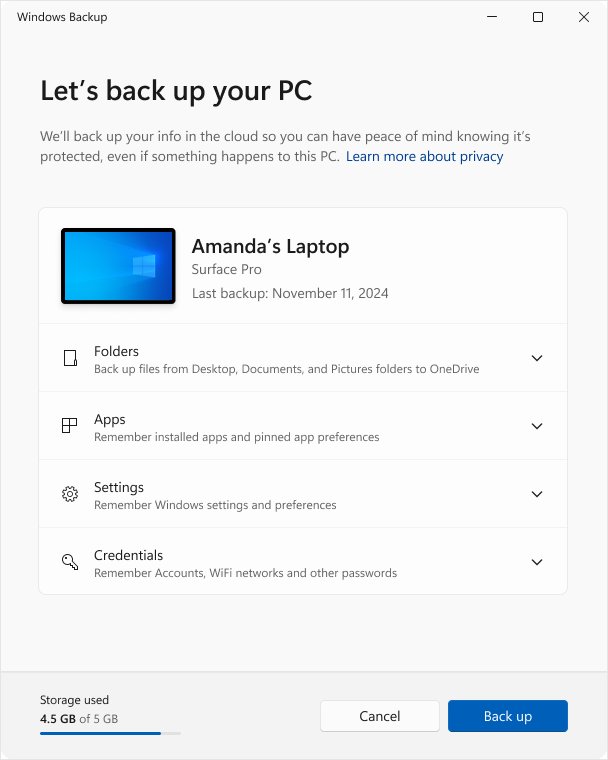
- Select Start, type backup, and select Windows Backup.
- Expand each settings item, such as Accessibility, Personalization and Language preferences, and turn on the ones you want.
- Expand Folders and turn on the folders you want in OneDrive, or leave them off if you only want settings.
- Select Back up.
- On a PC that shows Sync your settings instead, open Settings > Accounts > Sync your settings and turn on the items you want.
- Sign in to every other PC with the same Microsoft account and repeat these steps.
Items backed up before, some of them by default, show as Backed up and their switch is unavailable in the app. Change those from Settings > Accounts > Windows backup instead.
What does Windows 10 sync settings back up?
Each check box under Remember my preferences covers a group of settings. Microsoft's Windows Backup settings catalog lists the full set.
| Option | Examples of what it keeps | Notes |
|---|---|---|
| Accessibility | Text size, Narrator, Magnifier, mouse pointer style, Sticky keys and Filter keys | Useful if you rely on assistive settings on every PC |
| Accounts and passwords | Wi-Fi profiles (WPA only) and web credentials | Saves typing Wi-Fi passwords on a new PC |
| Personalization | Background, colours, theme, lock screen, Start layout, taskbar settings and pins | Needs OneDrive sign-in and free OneDrive storage |
| Language preferences | Display language, region, regional format, typing options and custom dictionary | Keeps words you added to the dictionary |
| Other Windows settings | Mouse and touchpad options, File Explorer view options, notifications, Night Light, default printer behaviour | Also syncs some device settings such as printers |
| Installed apps | The list of installed apps and their pins | Store apps reinstall from their pins; others link to the vendor's download page |
How to check sync settings are on in Windows 10
Check the status on each PC rather than assuming the switch took effect.
- Select Start, type backup, and open Windows Backup.
- Expand each settings item and confirm it shows Backed up or an On switch.
- Open Settings > Accounts > Windows backup and confirm Remember my preferences is On with the right boxes selected.
- Change a synced setting, such as the accent colour, on one PC.
- Sign in to a second PC with the same account and allow time for the change to arrive.
How to restore synced settings on a new Windows PC
Synced settings come back when you set up a new PC or reinstall Windows with the same account. This is the main reason to turn sync on before you replace a Windows 10 PC.
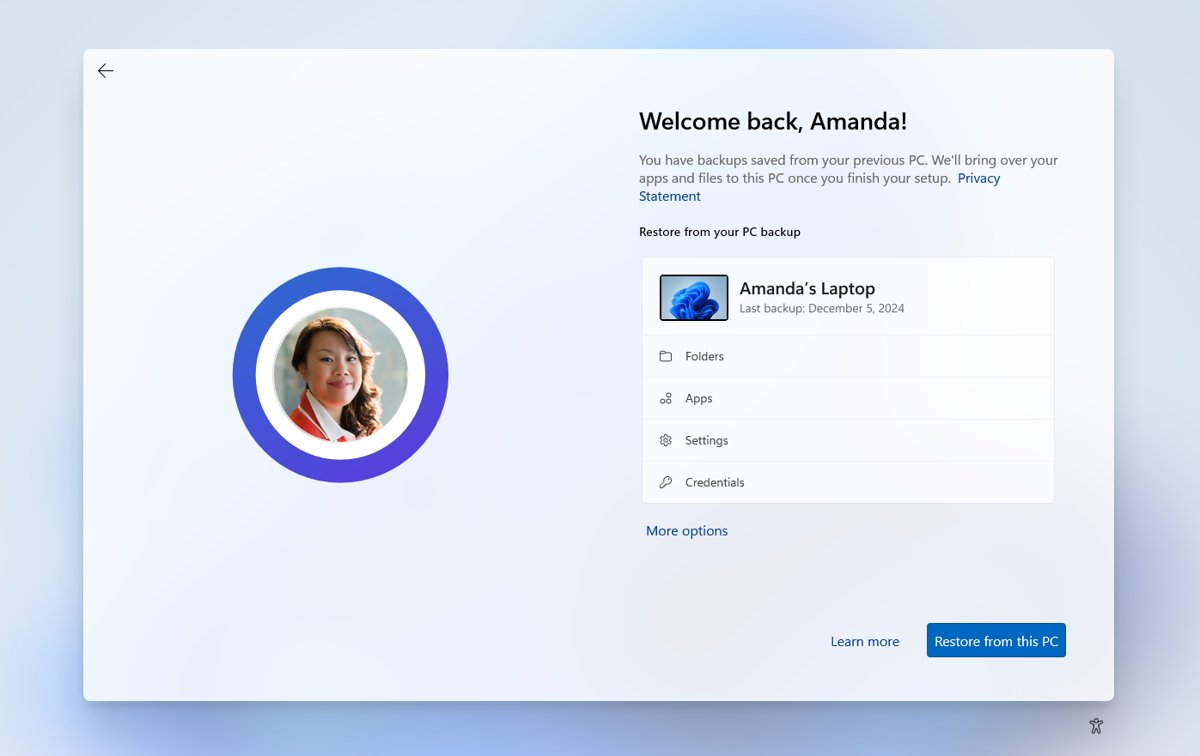
- Start setup on the new PC or the fresh Windows installation.
- Sign in with the same Microsoft account you used on the old PC.
- When Windows offers to restore from a backup, accept it.
- If you have more than one PC backed up, select More options and choose the right backup.
- Finish setup; your settings and app pins appear on the desktop.
- Sign in to OneDrive with the same account to get your backed-up folders back.
Windows 10 reached end of support on October 14, 2025. If you are moving to a new PC, you can upgrade to Windows 11 26H2 and restore the same backup during setup.
How to change sync settings in Windows 10
You can sync some groups and keep others local to one PC, for example a different wallpaper on a work laptop.
- Open Settings > Accounts > Windows backup.
- Under Remember my preferences, clear the check box of any group you want to stop syncing.
- Select the check box of any group you want to add.
- To change which folders go to OneDrive, open Windows Backup, expand Folders and toggle each folder.
- Repeat on each PC where you want the same choice.
How to turn off sync and clear stored settings
Turning sync off stops new backups. The copy already stored with your Microsoft account stays until you clear it.
- Open Settings > Accounts > Windows backup.
- Turn off Remember my preferences.
- Sign in to account.microsoft.com/devices with the same Microsoft account.
- Scroll to Cloud synced settings at the bottom of the page.
- Select Clear stored settings.
Sync settings with a work or school account in Windows 10
Work and school accounts follow different rules, because the organisation controls what roams between devices.
| Account type | What syncs | Who controls it |
|---|---|---|
| Personal Microsoft account | All Remember my preferences groups, app list and OneDrive folders | You, from Windows backup |
| Work or school account | Other Windows settings if allowed; the Windows Backup app is not supported | Your IT administrator through Enterprise State Roaming or backup policies |
| Local account | Nothing; settings stay on that PC | Switch to a Microsoft account to sync |
What Windows 10 sync settings do not cover
Windows settings sync is one of several separate sync features. Turn on the right one for each kind of data.
| Data | Synced by Windows backup? | Use instead |
|---|---|---|
| Microsoft Edge favorites, history, extensions and passwords | No | Sign in to Microsoft Edge and select Sign in to sync data |
| Documents, Pictures and Desktop files | Only if you turn on folder backup | OneDrive folder backup in Windows Backup |
| Visual Studio Code settings and extensions | No | VS Code's own Settings Sync with a Microsoft or GitHub account |
| Desktop app installers not in Microsoft Store | No; only a pin that links to the vendor's site | Reinstall from the vendor's website |
For files, set up OneDrive sync between your PCs so the same folders follow your settings.
Windows 10 sync settings not working
Match what you see to a symptom. Each one has a single most common cause.
Sync your settings or Remember my preferences is greyed out
You use a local account, or sync between your Microsoft account and Windows is turned off.
- Open Settings > Accounts > Your info and switch to a Microsoft account if needed.
- In the European Economic Area, sign in to account.microsoft.com/account/privacy.
- Under Privacy settings in our products, turn Sync your Microsoft account with Windows to On.
- Reopen Settings > Accounts > Windows backup and turn sync on.
Windows Backup shows a OneDrive error
You are not signed in to OneDrive, OneDrive storage is full, or OneDrive has its own sync problem.
- Select the OneDrive icon in the notification area and sign in with the same Microsoft account.
- Check your free storage in OneDrive settings and delete or move files if it is full.
- Run Back up again in Windows Backup.
Wallpaper and theme do not sync
Personalization needs OneDrive sign-in and available OneDrive storage.
- Sign in to OneDrive on the PC.
- Free up OneDrive space, or buy more storage.
- Confirm Personalization is selected under Remember my preferences, then back up again.
The verification code never arrives
The code went to junk email, an old address or a phone that blocks unknown senders.
- Check the junk folder for a message from @accountprotection.microsoft.com.
- Sign in to account.microsoft.com/security and update your security info.
- Choose I don't have a code to request another one.
Sync options are missing on a work PC
Work or school accounts are not supported by the Windows Backup app, and roaming is set by the organisation.
- Check whether Other Windows settings is available under Windows backup.
- Ask your IT administrator whether settings roaming is enabled for your account.
Windows 10 sync settings FAQ
How do I sync Windows settings between two PCs?
Sign in to both PCs with the same Microsoft account. On each, open Settings > Accounts > Windows backup, turn on Remember my preferences, and select the groups you want. Changes then follow you to every PC with sync turned on.
Where do I find sync settings in Windows 10?
On an up-to-date Windows 10 PC, sync settings are in Settings > Accounts > Windows backup under Remember my preferences. Older Windows 10 builds show the same options in Settings > Accounts > Sync your settings.
How do I enable sync settings?
Sign in with a Microsoft account, then open Settings > Accounts > Windows backup and turn on Remember my preferences. You can also open the Windows Backup app, turn on each settings item and select Back up.
How do I change sync settings?
Open Settings > Accounts > Windows backup and clear or select the check boxes under Remember my preferences. Each check box controls one group, such as Personalization or Language preferences, so you can sync some and keep others on one PC.
How do I check my sync settings?
Open the Windows Backup app and expand each item to see whether it shows Backed up or an On switch. Settings > Accounts > Windows backup shows the same status and the selected check boxes.
Why do I need sync settings?
Sync settings lets a new or reinstalled PC look like your old one after you sign in. Your theme, accessibility options, Wi-Fi passwords, language settings and app pins come back without reconfiguring them by hand.
Why are my sync settings greyed out in Windows 10?
Sync settings are greyed out when you sign in with a local account, or when sync between your Microsoft account and Windows is turned off. Switch to a Microsoft account under Settings > Accounts > Your info, then try again.
Does Windows sync settings include Microsoft Edge?
No. Microsoft Edge has its own sync. Select the profile icon in Edge, choose your account and select Sign in to sync data to sync favorites, passwords, history and extensions.
How do I delete settings Windows has synced to my account?
Turn off Remember my preferences first. Then sign in to account.microsoft.com/devices, scroll to Cloud synced settings and select Clear stored settings to remove the copy stored with your Microsoft account.
How do I sync VS Code settings?
In Visual Studio Code, select Backup and Sync Settings from the Manage gear menu or the Accounts menu. Sign in with a Microsoft or GitHub account, and VS Code merges local and cloud data. It is separate from Windows settings sync.
Should you turn on settings sync in Windows 10?
Turn on Remember my preferences on every Windows 10 PC you still use, and run one manual backup from the Windows Backup app. Windows 10 no longer receives regular support, so a move to a new PC is likely. A current backup tied to your Microsoft account restores your settings, Wi-Fi passwords and app pins during setup with no extra tools.