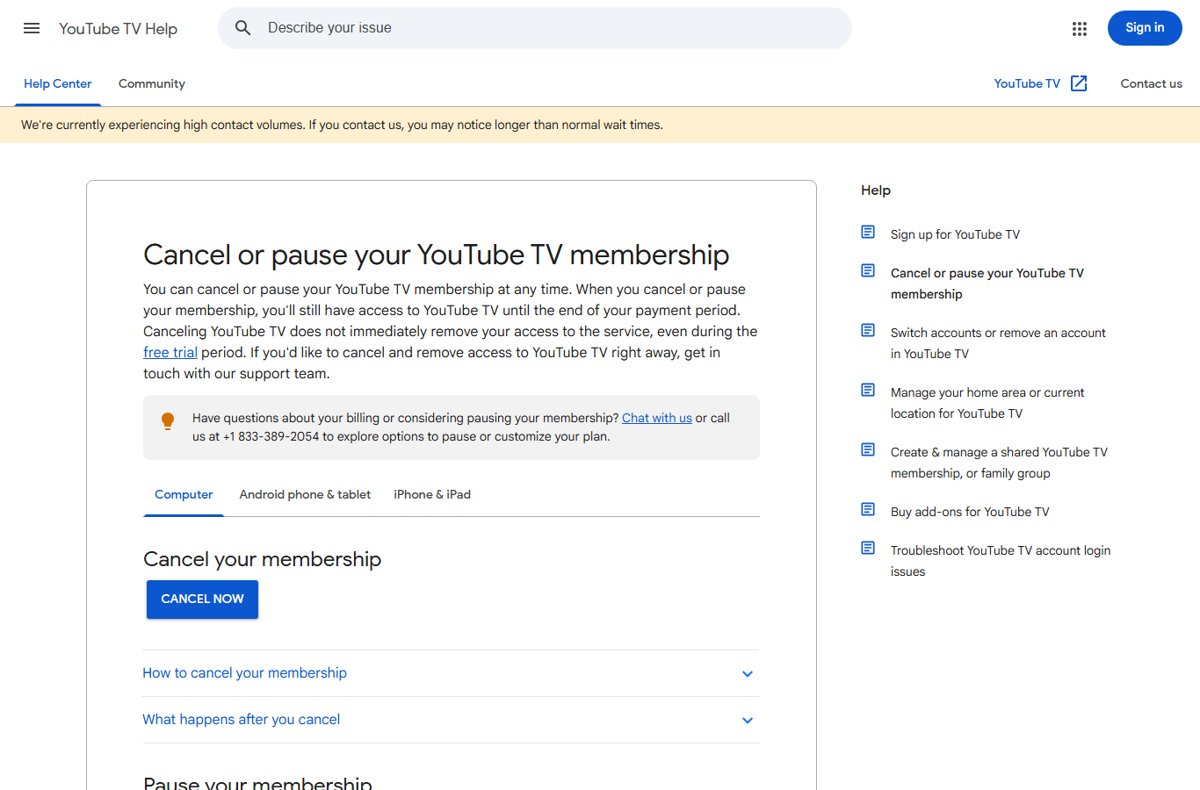
To cancel YouTube TV, go to tv.youtube.com, select your profile photo, open Settings > Membership, click Manage, then Cancel membership and Cancel; to pause instead, set the slider on the same screen and click Pause.
This guide covers the steps on a computer, Android, iPhone and iPad, what happens to your recordings, free trials, provider billing and what to do when the cancel option is missing.
Cancel YouTube TV from a computer
A web browser is the most direct route, and it works for any membership YouTube TV bills directly. You keep watching until the end of the period you have already paid for.
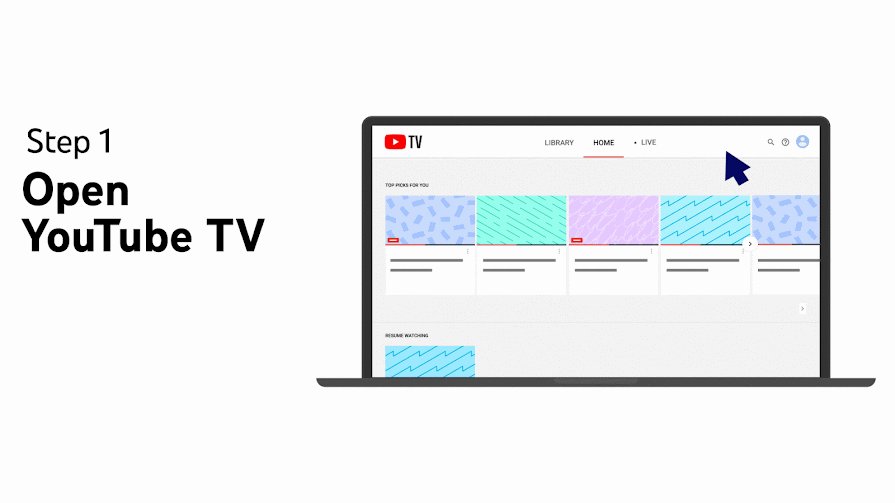
- Go to tv.youtube.com in a web browser and sign in with the account that pays for YouTube TV.
- Select your profile photo.
- Open Settings, then Membership.
- Click Manage.
- Click Cancel membership, then confirm with Cancel.
If you only want to drop an extra network, you do not have to cancel the whole plan. Add-on networks can be removed one at a time from the same membership screen.
Cancel YouTube TV on Android
On Android you can use the YouTube TV app itself or a mobile browser. The menu path is the same as on a computer.
- Open the YouTube TV app on your Android phone or tablet, or go to tv.youtube.com in a browser.
- Tap your profile photo.
- Tap Settings, then Membership.
- Tap Manage.
- Tap Cancel membership, then Cancel.
If the YouTube TV charge appears as a Google Play subscription, cancel it in Google Play: open your Play subscriptions, select YouTube TV and tap Cancel subscription. Uninstalling the app does not cancel anything.
Cancel YouTube TV on an iPhone or iPad
Google's steps for iPhone and iPad start in a web browser, not the YouTube TV app. Use Safari or another mobile browser.
- Open Safari and go to tv.youtube.com.
- Sign in, then tap your profile photo.
- Tap Settings, then Membership.
- Tap Manage, then Cancel membership.
- Confirm the cancellation on the next screen.
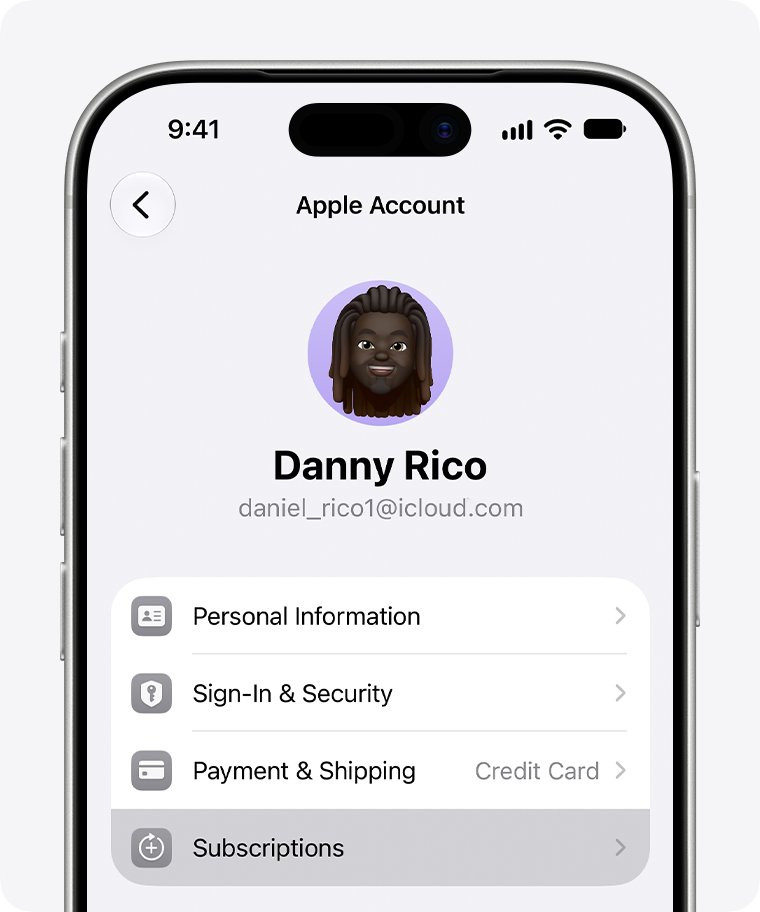
If Apple bills you for YouTube TV, cancel through Apple instead: open Settings, tap your name, tap Subscriptions, select YouTube TV and tap Cancel Subscription. No Cancel button, or a red expiration message, means it is already cancelled.
What happens after you cancel?
| Item | What happens |
|---|---|
| Access | Continues until the end of your current payment period or free trial |
| Next charge | Does not happen; the membership will not renew |
| Recordings in your library | Expire 21 days after access ends |
| Add-on networks | End with the membership; you cannot add networks without a base membership |
| Library preferences | Saved in case you sign up again later |
| Promotional price | Not guaranteed if you rejoin; earlier recordings may also be gone |
| Account data | Google may keep limited details, such as your home ZIP code, for billing and fraud prevention |
| Refund for unused days | None; YouTube TV does not refund or credit partial billing periods |
Need access to stop today rather than at the end of the period? Contact YouTube TV support, which can end it straight away. You can reach YouTube TV customer service by chat or at +1 833-389-2054.
Pause YouTube TV instead of canceling
A pause keeps your account and recordings while billing stops. It suits an off-season, a long trip or a tight month, and it starts when your current billing cycle ends.
- Go to tv.youtube.com on a computer or in a mobile browser, or open the YouTube TV app on Android.
- Select your profile photo.
- Open Settings, then Membership.
- Click Manage.
- Drag the slider to choose how many weeks to pause, from 4 weeks up to 6 months.
- Click Pause.
Pause on a computer and on a phone browser works the same way. On iPhone and iPad, use the browser, because the pause option sits under Manage > Pause membership on the web.
What happens during a YouTube TV pause?
| Question | Answer |
|---|---|
| When does the pause start? | At the end of your current billing cycle |
| How long can it last? | Any length you choose from 4 weeks to 6 months |
| Can you watch while paused? | No; YouTube TV cannot be accessed |
| Does it record new shows? | No new programs are recorded |
| What about old recordings? | Kept until the pause ends, still subject to the standard 9-month expiry |
| Can you extend a pause? | No, but you can resume and pause again |
| Can you resume early? | Yes, from YouTube TV at any time; that day becomes your new billing date |
| What happens when it ends? | You are charged the standard monthly price, and that date becomes your new billing date |
Cancel or pause: which should you choose?
| Your situation | Choose | Why |
|---|---|---|
| Leaving for a season, trip or short break | Pause | Recordings and account stay put, and billing restarts on its own |
| Coming back within 6 months on a promotional price | Pause | Rejoining after a cancel may not get the same promotional price |
| Switching to another live TV service | Cancel | A pause auto-charges you when it ends |
| Not sure you will return | Cancel | Nothing bills again unless you sign up |
| Billed by Apple, Google Play, a carrier or an internet provider | Cancel with that company | That company manages the billing and its own cancel rules |
| Payment declined this month | Fix the payment or pause | Cancelling is not needed to stop a failed charge |
Weighing a move to another service? The Hulu + Live TV and YouTube TV comparison lays out channels and pricing side by side.
If your subscription is billed by a carrier or internet provider
When a phone carrier, internet provider or app store charges you for YouTube TV, that company holds the billing. YouTube cannot refund those charges, and the provider's own policy applies.
- Check your card or bank statement, or the bill from your carrier or internet provider, to see who charges you for YouTube TV.
- Mobile carrier or internet provider: cancel or change the YouTube TV part of your plan through that provider's account page or support line.
- Apple: open Settings on your iPhone or iPad, tap your name, then Subscriptions, select YouTube TV and tap Cancel Subscription.
- Google Play: open your Google Play subscriptions, select YouTube TV and tap Cancel subscription.
- Ask the provider for refunds on that bill, because YouTube cannot grant them.
Want YouTube TV to bill you directly in future? Cancel with the provider first, then sign up again at tv.youtube.com, where the membership page holds the cancel and pause controls.
Canceling during a free trial
A trial turns into a paid membership automatically, and the end date becomes your monthly billing date. Cancelling before then costs nothing.
- Check how many trial days remain under Settings > Membership.
- Click Manage, then Cancel membership and Cancel before the trial ends.
- Keep watching; access continues until the last day of the trial.
- If you cancelled by mistake, reactivate on the same Membership page; you are not charged until the trial expires.
Free trials are for first-time subscribers only. A charge right after signing up for a trial is often a temporary authorization hold, not a real payment.
How to check your YouTube TV cancellation or pause went through
- Go to tv.youtube.com, select your profile photo and open Settings > Membership.
- Confirm the page now offers to reactivate or resume rather than cancel or pause.
- Note the end date shown; you keep access until then.
- Watch your next statement date for the absence of a YouTube TV charge.
- For Apple billing, open Settings > your name > Subscriptions and look for an expiration date.
If YouTube TV will not cancel or access has already stopped
There is no Cancel membership or Pause option
Another company bills you, or you are signed in with a different Google account from the one that pays.
- Check which Google account pays for YouTube TV and sign in with it.
- If Apple, Google Play, a carrier or an internet provider bills you, cancel with that company.
- If the option is still missing, contact YouTube TV support by chat or at +1 833-389-2054.
Access stopped before the billing period ended
A declined monthly payment ends access after 1 day, followed by a 30-day pause while YouTube retries the charge.
- Check your email for a declined-payment notice.
- Go to Settings > Billing and select Update next to the payment method.
- Check the card's expiry date and that the ZIP code matches the billing address.
- Once the payment succeeds, the membership returns on the next charge attempt.
Do not cancel just because a payment failed
Cancelling does not settle a declined charge, and a rejoin may lose a promotional price.
- Update the card under Settings > Billing, or switch the payment method at payments.google.com under Subscriptions > Manage.
- Answer any identity or payment verification request from Google Payments.
- Ask your bank whether it blocked the charge.
- If you cannot cover the next payment, pause instead of cancelling.
A pending or declined charge still shows after cancelling
Pending entries are authorization holds, not completed charges.
- Wait 1 to 14 business days; failed authorizations drop off the statement.
- Check Google Payments, where a failed attempt shows as Declined.
- If a pending entry stays longer, contact your bank or card issuer.
YouTube TV charged you after a pause
A pause ends on its scheduled date and bills the standard monthly price automatically.
- Open Settings > Membership to see the resume date.
- Cancel before that date if you do not want to return.
- If you are already charged, cancel now; access runs to the end of the new period.
YouTube TV cancel and pause FAQ
Does canceling YouTube TV stop access immediately?
No. After you cancel, YouTube TV keeps working until the end of your current payment period or free trial. If you want access removed straight away, contact YouTube TV support, which can end the membership immediately.
Can I cancel YouTube TV from the iPhone app?
No. Open tv.youtube.com in Safari, tap your profile photo, then Settings, Membership, Manage and Cancel membership. If Apple bills you, cancel in iPhone Settings under your name and Subscriptions instead.
How long can I pause YouTube TV?
You can pause YouTube TV for 4 weeks up to 6 months, chosen with a slider on the Membership page. A pause cannot be extended, but you can resume early and pause again when you need to.
Will YouTube TV record shows while paused?
No. While your membership is paused, YouTube TV records no new programs and you cannot watch. Recordings you already have are kept until the pause ends, but they still follow the standard 9-month expiry.
Will YouTube TV charge me after a pause?
Yes. When the pause ends, YouTube TV charges the standard monthly price for your plan automatically, and that date becomes your new billing date. Cancel before the resume date if you do not plan to come back.
Can I get a refund for the unused part of a YouTube TV month?
No. YouTube TV does not give refunds or credits for partial billing periods. You keep access until the period ends instead. Refunds are considered when included features are defective, and an approved refund ends access immediately.
What happens to my YouTube TV recordings after cancellation?
Recordings stay in your library until access ends, then expire 21 days later. Your library preferences are saved if you sign up again, but rejoining may not restore earlier recordings or a promotional price.
Why can't I pause my provider-billed YouTube TV subscription?
When a carrier, internet provider or app store bills you, that company manages the subscription and its terms. Ask the provider what it allows, or cancel there and sign up directly at tv.youtube.com, where the Membership page offers a pause.
Does canceling a YouTube TV free trial cost anything?
No. Cancelling during the trial costs nothing, and you keep watching until the trial ends. If you do nothing, the trial converts to a paid membership and you are billed the standard price on the end date.
The bottom line on cancelling or pausing YouTube TV
Pause YouTube TV if you expect to return within 6 months; cancel it from tv.youtube.com under Settings > Membership > Manage if you are leaving for good. A pause keeps your recordings and account at no cost, while a cancel stops all future billing and lets recordings expire 21 days after access ends. If Apple, Google Play or a provider bills you, cancel with that company instead.