Yes, the Windows Maps app is dead: Microsoft removed it from the Microsoft Store in July 2025 and shipped a final update that stops it working, and the closest replacement is Bing Maps at bing.com/maps.
This guide shows what changed, how to turn Bing Maps, Google Maps or Apple Maps into an app on your taskbar, what to use for offline maps, and how the change affects Windows location settings.
The closest replacement: Bing Maps in a browser
Microsoft's own deprecation notice sends Maps users to Bing Maps on the web. It uses the same Bing map service the app used, so search results, directions and aerial imagery look familiar.
Any modern browser works. The steps below use Microsoft Edge because it is already on every Windows 11 and Windows 10 PC.
- Open Microsoft Edge from the taskbar or the Start menu.
- Type
bing.com/mapsin the address bar and press Enter. - Type an address or place name in the search box to find it on the map.
- Open the directions panel and enter a start point to plan a route to the destination.
- Select Allow if Edge asks to use your location, so the map can centre on where you are.
To keep Bing Maps one click away like the old app, install it as a Windows app shortcut with the steps further down.
Which alternative should you choose?
| Your situation | Use this | Why |
|---|---|---|
| You want the closest thing to the old Maps app | Bing Maps in Edge, installed as an app | Same Bing map data, and Microsoft names it as the replacement |
| You want transit directions and Street View | Google Maps in Chrome or Edge | Directions for driving, transit, walking, cycling and flights, plus Street View on a computer |
| You use an iPhone or Mac and want routes to match | Apple Maps on the web | Apple supports it in Chrome and Edge on Windows PCs |
| You need maps with no internet connection | Google Maps or Apple Maps offline areas on your phone | No Microsoft, Google or Apple map product offers offline maps on a Windows PC any more |
| You built software on the Windows Maps APIs | Azure Maps | Microsoft's stated migration path for the UWP Map control and Bing Maps for Enterprise |
How to install Bing Maps as a Windows app shortcut
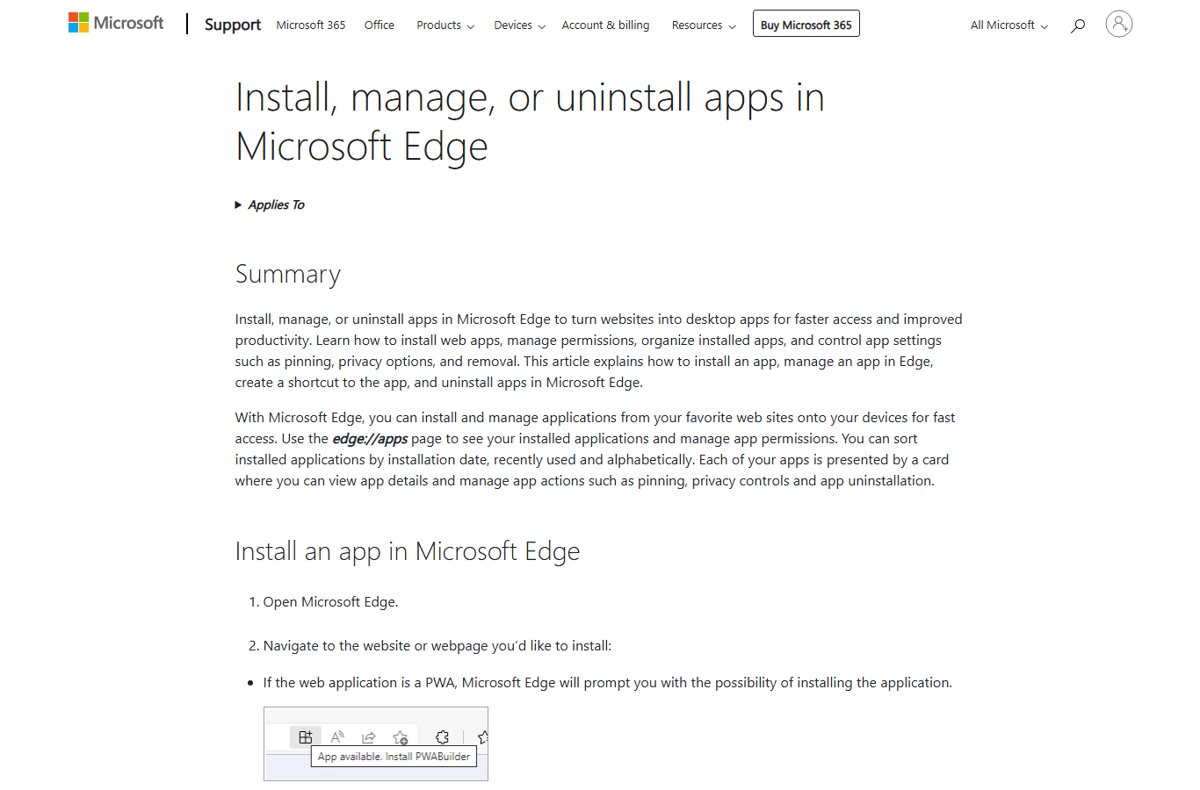
Edge can install any website as an app with its own window, taskbar icon and Start menu entry. This is the nearest experience to launching the old Maps app.
- Open Microsoft Edge and go to
bing.com/maps. - Select Settings and more (the three dots at the top right).
- Select More tools > Apps > Install this site as an app.
- Confirm the install. Bing Maps opens in its own window.
- Type
edge://appsin the address bar of a normal Edge window and press Enter. - Select Details on the Bing Maps card.
- Select Pin to taskbar, Pin to Start or Create Desktop shortcut.
To remove it later, go back to edge://apps, select Details on the card, then select Uninstall.
How to install Google Maps or Apple Maps as a Chrome app
Google Chrome installs sites the same way Edge does. Google Maps lives at google.com/maps, and Apple opened Maps on the web as a beta at beta.maps.apple.com in July 2024, in English, for Chrome and Edge on Windows PCs.
- Open Google Chrome and go to
google.com/mapsor Apple's Maps web address. - Select Install at the right of the address bar if Chrome shows it.
- Otherwise select More (three dots) > Cast, save, and share > Install page as app….
- Follow the prompt to finish. The map opens in its own app window.
- Type
chrome://appsin the address bar and press Enter to see the installed app. - Right-click the app, select Create shortcut, choose where to place it and select Create.
The chrome://apps page replaced the old Chrome App Launcher as the place where installed web apps are listed. To uninstall, open the app window, select More > Uninstall, then Remove.
Windows location settings after the Maps app removal
Windows location settings may also be affected. Browser-based maps still need location access, and the Windows 10 default location tool was built around the Maps app.
| Setting | Windows 11 path | Windows 10 path |
|---|---|---|
| Turn location on or off for the PC | Settings > Privacy & security > Location > Location services | Settings > Privacy > Location > Change > Location for this device |
| Let apps use your location | Let apps access your location on the same page | Allow apps to access your location on the same page |
| Set a default location | Default location > Set default, pick a point or type an address, then Save | Default location > Set default, which opens the Windows Maps app |
| Browser location for web maps | Desktop apps such as browsers have no per-app precise location switch | Turn on Allow desktop apps to access your location if it is listed |
On Windows 10, Set default hands off to the Maps app. With Maps removed or disabled by its final update, that button has nothing to open, so a browser map with location permission is the working route.
How to check the Bing Maps app shortcut works
- Open Start and type Bing Maps. The installed app should appear as a result.
- Open it. The map should load in its own window with no address bar or browser tabs.
- Use the map's locate option and allow location if asked. The map should centre on your area.
- Search for a familiar address and ask for directions to it to confirm routing works.
If the map centres on the wrong city, turn on location services with the paths in the table above, then reload the app.
What happened to the Windows Maps app?
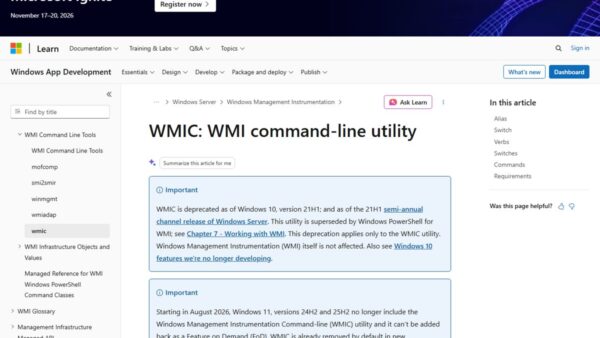
Microsoft listed the Maps app as deprecated in April 2025. The app is no longer developed or supported.
| Date | What changed |
|---|---|
| May 2024 | Microsoft announced Bing Maps for Enterprise would be unified with Azure Maps |
| April 2025 | Maps app added to the Windows deprecated features list |
| April 8, 2025 | Windows UWP Map control and Windows Maps platform APIs deprecated |
| July 2025 | Maps removed from the Microsoft Store, with a final update that makes it nonfunctional |
| Windows 11, version 24H2 | Maps no longer preinstalled on new installs |
That explains most "what happened to Microsoft Maps" searches: the app was retired, not broken by a bad update on your PC.
Can you repair or reinstall Windows Maps?
| What you try | Result after July 2025 |
|---|---|
| Reinstall from the Microsoft Store | Not possible. The listing is gone, and Microsoft says it cannot be reinstalled |
| Repair or Reset under Settings > Apps > Installed apps > Advanced options | Does not help. The final Store update itself makes the app nonfunctional |
| Restart the Downloaded Maps Manager service | Only kept offline maps updated for the old app; it cannot revive it |
| Uninstall the app | Still possible at any time from Settings > Apps > Installed apps > More > Uninstall |
Once you uninstall Maps, it is gone for good, so there is no reason to keep a nonfunctional copy except as a reminder of saved places to copy elsewhere.
Is Bing Maps also dead?
No. Bing Maps for consumers at bing.com/maps is the service Microsoft points former Maps users to. The retirement affects the developer platform, Bing Maps for Enterprise.
| Service | Status |
|---|---|
| Bing Maps website (bing.com/maps) | Working, and Microsoft's recommended replacement for the Maps app |
| Bing Maps for Enterprise, free Basic accounts | Retired |
| Bing Maps for Enterprise, Enterprise accounts | Works until June 30, 2028, then customers must be on Azure Maps |
| Azure Maps | Microsoft's current maps platform for developers |
Best Windows Maps alternatives by use case
| Alternative | Best for | How it runs on Windows | Offline maps |
|---|---|---|---|
| Bing Maps | Former Maps users who want the same map data | Website, installable as an Edge app | No |
| Google Maps | General use, transit, Street View | Website, installable as a Chrome or Edge app | On Android and iPhone only |
| Apple Maps on the web | iPhone and Mac owners | Website in Chrome or Edge (beta, English) | On iPhone only |
| Azure Maps | Developers replacing the UWP Map control | Map control and APIs for your own app | Not a consumer app |
Google Maps on a computer gives directions for driving, transit, walking, cycling and flights. Open Street View by selecting a place photo with the Street View icon, or drag Pegman from the bottom right onto a blue line.
Offline maps for Windows after the Maps app
Offline maps were the one thing the Windows Maps app did that web maps do not. Maps you downloaded through it stay on disk but stop working after the final update.
| If you need offline maps for | Use | Limits |
|---|---|---|
| Driving in a car with a phone | Google Maps offline areas on Android or iPhone | No transit, cycling or walking directions offline, no live traffic, and areas expire unless updated |
| An iPhone without signal | Apple Maps Download offline maps on iPhone | Download the area before you travel |
| A Windows laptop with no internet | A dedicated offline navigation app from its developer's own site | Neither Microsoft, Google nor Apple offers an offline map for a Windows PC |
Google also blocks offline downloads in some countries or regions, so download your area while you still have a connection and confirm it saved.
What happens to old Windows Maps links and applications?
Microsoft does not delete your personal Maps data. Saved guided navigation and map URLs stay where they are, but the Maps app no longer opens them.
| Item | What happens | What to do |
|---|---|---|
| Saved places, favourites and guided navigation | Kept on disk, no longer usable in Maps | Re-save the places you need in Bing Maps or Google Maps |
| Map links saved as URLs | No longer open in the Maps app | Open the address in Bing Maps in a browser instead |
| Apps using the Windows UWP Map control or Maps platform APIs | Keep working for now but receive no updates | Move to Azure Maps within a year of the April 2025 notice |
| Apps using Bing Maps for Enterprise keys | Basic keys retired, Enterprise keys end June 30, 2028 | Follow Microsoft's Bing Maps to Azure Maps migration guidance |
Fix Windows Maps app not working or missing
The Maps app is not working or will not open
Microsoft's final Store update in July 2025 made the app nonfunctional on purpose.
- Stop troubleshooting the app itself; Repair and Reset will not bring it back.
- Open Settings > Apps > Installed apps, select More next to Maps, then Uninstall.
- Install Bing Maps as an Edge app with the steps above, then pin it to the taskbar.
The Maps app disappeared from my PC or Start menu
Maps is not preinstalled from Windows 11 version 24H2, and an uninstalled copy cannot be reinstalled after July 2025.
- Open Start > All apps and search for Maps to confirm it is gone.
- Open
bing.com/mapsin Edge orgoogle.com/mapsin Chrome. - Install the site as an app so it appears in All apps like the old Maps entry.
Set default location does not open a map
On Windows 10 the Set default button opens the Windows Maps app, which is removed or nonfunctional.
- Open Settings > Privacy > Location and confirm location for this device is on.
- Turn on Allow apps to access your location and Allow desktop apps to access your location.
- Open your browser map and select Allow when the site asks for your location.
Bing Maps or Google Maps shows the wrong location
Location services are off, or the browser has no permission for the site.
- On Windows 11, open Settings > Privacy & security > Location and turn on Location services.
- Turn on Let apps access your location on the same page.
- Reload the map and select Allow when the browser asks.
Windows Maps app FAQ
What happened to Windows Maps?
Microsoft deprecated the Windows Maps app in April 2025 and removed it from the Microsoft Store in July 2025. A final update made the app stop working, and it is no longer preinstalled on Windows 11 version 24H2.
What happened to Microsoft Maps?
Microsoft's consumer map service lives on as Bing Maps at bing.com/maps, which Microsoft recommends to former Maps app users. Only the Windows app and the Bing Maps for Enterprise developer platform were retired, with developers moved to Azure Maps.
Why is my Maps app not working?
The Windows Maps app stopped working because Microsoft shipped a final update in July 2025 that makes it nonfunctional. Repair, Reset or reinstalling cannot fix it. Use Bing Maps or Google Maps in a browser instead.
Can I reinstall the old Windows Maps app?
No. Microsoft removed Maps from the Microsoft Store in July 2025 and states it cannot be reinstalled after that date. If you uninstall your existing copy, there is no supported way to get it back.
Why did my Microsoft apps disappear?
Some Microsoft apps, including Maps and Paint 3D, were retired and removed from the Microsoft Store or from new Windows builds. Maps is not preinstalled from Windows 11 version 24H2, so a new PC or clean install will not have it.
Is Bing Maps shutting down too?
No. The Bing Maps website at bing.com/maps keeps working. Bing Maps for Enterprise, the paid developer platform, is retired for free Basic accounts and ends for Enterprise accounts on June 30, 2028, when customers must move to Azure Maps.
Can Bing Maps be pinned like a Windows application?
Yes. In Microsoft Edge, open bing.com/maps, select Settings and more, then More tools, Apps and Install this site as an app. Then use edge://apps to pin it to the taskbar or Start.
Does Google Maps work offline on a Windows PC?
No. Google documents offline map downloads for Android phones, tablets, iPhone and iPad only. On a Windows PC, Google Maps needs an internet connection in the browser or an installed Chrome app.
What replaces the Windows Maps APIs?
Azure Maps. Microsoft deprecated the Windows UWP Map control and Maps platform APIs on April 8, 2025, and tells developers to move to an Azure Maps based replacement within one year of that notice.
The bottom line on Windows Maps alternatives
Uninstall the dead Maps app and install Bing Maps as an Edge app, or Google Maps if you want Street View and transit. The Maps app cannot be repaired or reinstalled after July 2025, while Bing Maps uses the same map service and pins to the taskbar in under a minute. For offline navigation, download areas on your phone, because no major map vendor offers offline maps on a Windows PC.