To uninstall and reinstall Windows 11, open Settings > System > Recovery, select Reset PC and choose Remove everything, or boot from Microsoft's Windows 11 USB media and delete the old partitions for a fully clean install.
This guide covers both routes, a repair reinstall that keeps your files, the backup and license checks to do first, and how to restore files, apps and drivers afterwards.
Reinstall Windows 11 with Reset this PC
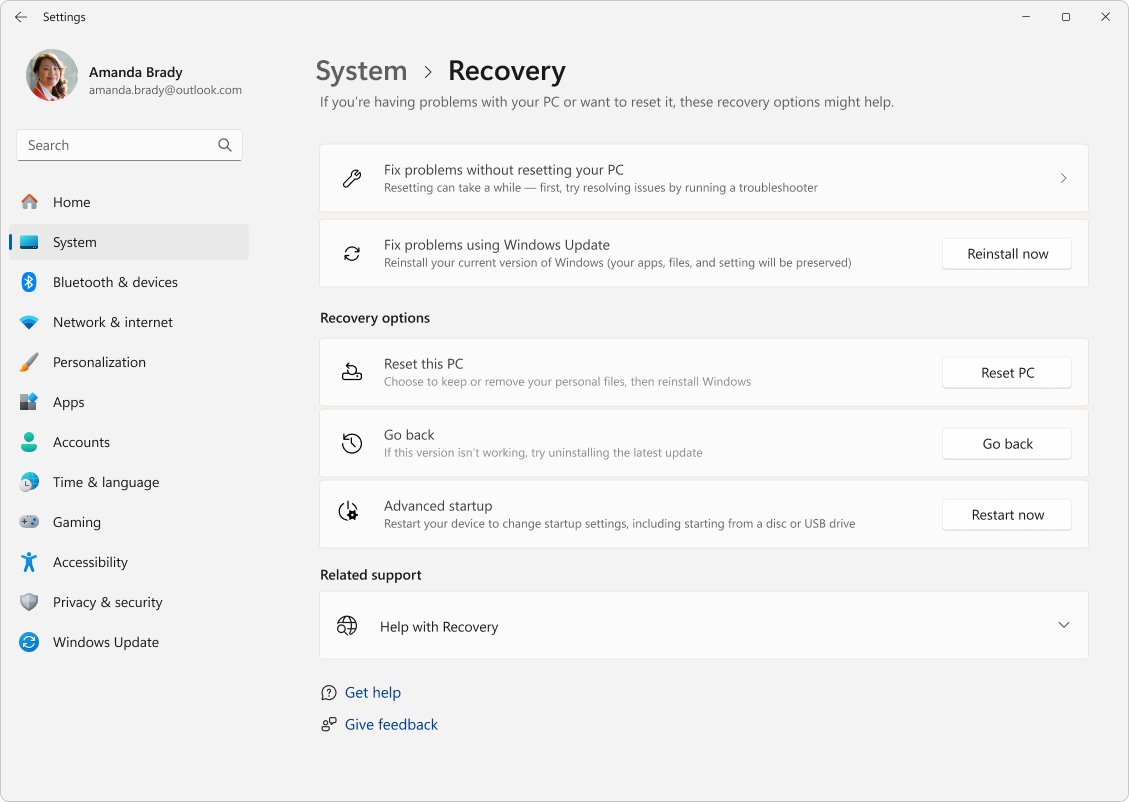
Reset this PC is the fastest full reinstall because it needs no USB drive. It works from inside Windows 11 and replaces the whole system with a fresh copy.
- Back up your files to an external drive or OneDrive.
- Select Start > Settings > System > Recovery.
- Under Recovery options, select Reset PC.
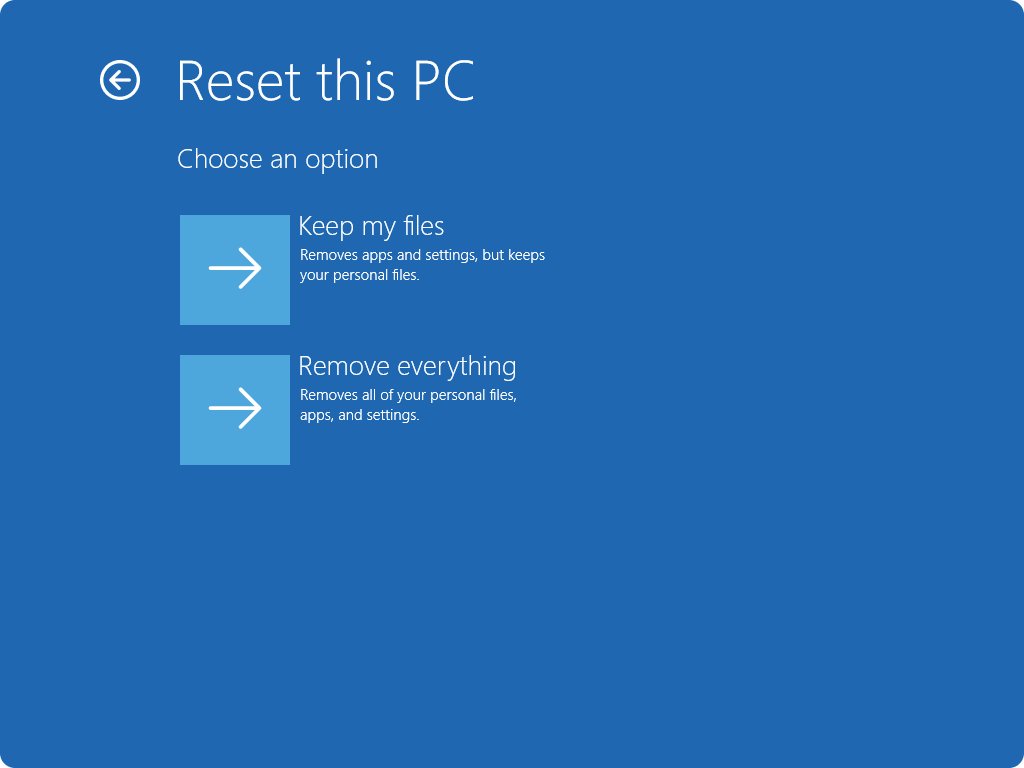
- Choose Remove everything for a clean slate, or Keep my files to keep your documents and photos.
- Choose Cloud download to get a fresh copy of Windows with the latest updates, or Local reinstall to use files already on the PC.
- Review the additional settings, then follow the on-screen prompts to start the reset.
- Leave the PC plugged in and do not restart it yourself, even if the screen stays black for 15 minutes or more.
Keep my files still removes your apps and settings. Remove everything also deletes personal files, so it suits a fresh start or a PC you plan to sell.
If the PC has manufacturer software you want back, turn on Restore preinstalled apps in the additional settings of a Keep my files reset.
Reset this PC vs clean install vs Reinstall now in Windows 11
All four routes reinstall Windows 11, but they keep very different amounts of your data. Pick the row that matches your problem.
| Your situation | Use this | What is kept |
|---|---|---|
| Windows works but system files seem damaged or an update keeps failing | Reinstall now under Fix problems using Windows Update | Apps, files and settings |
| You want a repair install from USB media without losing anything | Run setup.exe from the media and choose Keep personal files and apps | Apps, files and settings |
| Windows is slow or unstable and you want a fresh system quickly | Reset PC with Keep my files or Remove everything | Personal files only, or nothing |
| You want a completely clean disk, or Windows will not reset | Clean install from a bootable Windows 11 USB drive | Nothing on Disk 0 |
| The PC no longer reaches the desktop | Reset this PC from the Windows Recovery Environment, or a clean install from USB | Depends on the option you pick |
Why uninstall and reinstall Windows 11?
A reinstall fixes problems that live in Windows itself, such as corrupted system files, persistent crashes or a PC cluttered by years of software. It is the most disruptive fix, so Microsoft lists lighter options to try first.
| Reason to reinstall | Try this first | Reinstall when |
|---|---|---|
| PC is slow, crashing or freezing | A troubleshooter under Settings > System > Troubleshoot > Other troubleshooters | The troubleshooters find nothing and the problem persists |
| Problems began after a Windows update | Uninstall that update; your files and apps are not affected | Removing the update does not help |
| Problems began after a recent change | Point-in-time restore on Windows 11, version 24H2 or later | No restore point exists from before the problem |
| Damaged system files or failing updates | Reinstall now, which keeps apps, files and settings | The repair reinstall does not fix it |
| Selling, giving away or starting fresh | Nothing; a reinstall is the right tool | Always, with Remove everything or a clean install |
If your goal is to remove Windows 11 entirely and run Windows 10 or Linux instead, a reinstall of Windows 11 is the wrong route.
Preparing to uninstall Windows 11: backup, license and BitLocker checklist
Most routes delete at least your apps, and a clean install deletes everything on the Windows drive. Finish this checklist while Windows still starts.
| Check | Why it matters | How to do it |
|---|---|---|
| Back up personal files | A clean install and Remove everything delete them | Copy your Documents, Desktop, Downloads, Pictures, Music and Videos folders to an external drive, or back them up to OneDrive |
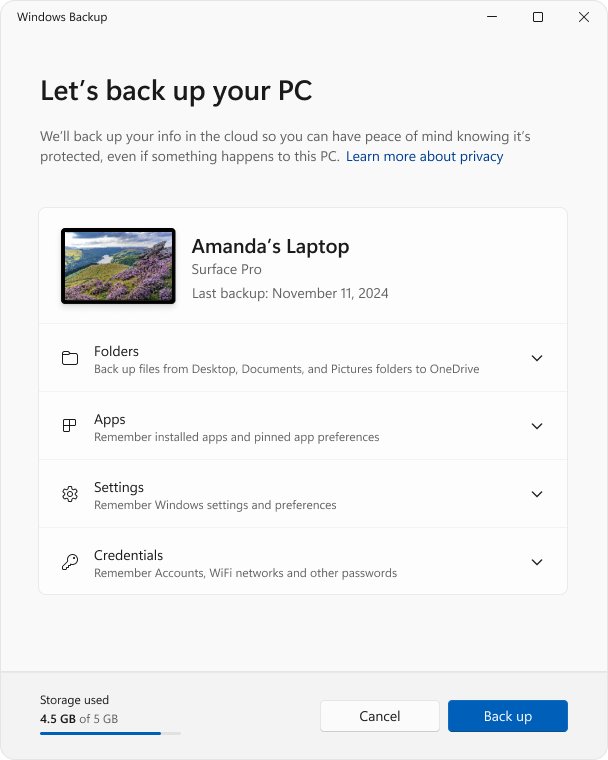
| Turn on Windows Backup | It saves your app list and settings to your Microsoft account for restoring during setup | Select Start, type backup, open Windows Backup, switch on the folders and settings you want, then select Back up |
| Confirm Windows is activated | Windows must be activated after a reinstall | Open Settings > System > Activation and read Activation status |
| Link your digital license | Reactivation after a reinstall relies on the license linked to your Microsoft account | Look for Windows is activated with a digital license linked to your Microsoft account on the Activation page; if it is missing, select Add an account |
| Note your edition | The edition you reinstall must match your license, for example Home for Home | Open Settings > System > About and read Edition under Windows specifications |
| Find your BitLocker recovery key | Most recovery options in the Windows Recovery Environment ask for it on an encrypted PC | Sign in at aka.ms/myrecoverykey with your Microsoft account, or find the printout or USB drive where you saved it |
| Get an 8 GB USB drive | A clean install needs bootable media, and the drive is erased when you create it | Use a blank USB flash drive of at least 8 GB |
Uninstalling Windows 11 with a clean install from a USB drive
A clean install removes personal files, apps, manufacturer customizations and every change made in Settings. Use it when Reset this PC fails or you want an empty disk with no leftovers.
- On a working PC, open Microsoft's Download Windows 11 page and select Download Now under Create Windows 11 Installation Media.
- Run the media creation tool as administrator, accept the license terms and create media for another PC, choosing your language, edition and 64-bit architecture, then USB flash drive.
- Plug the USB drive into the PC you are reinstalling, restart it and press the boot menu key your PC maker uses, commonly F2, F12, Delete or Esc.
- In Select language settings and Select keyboard settings, choose your options and select Next.
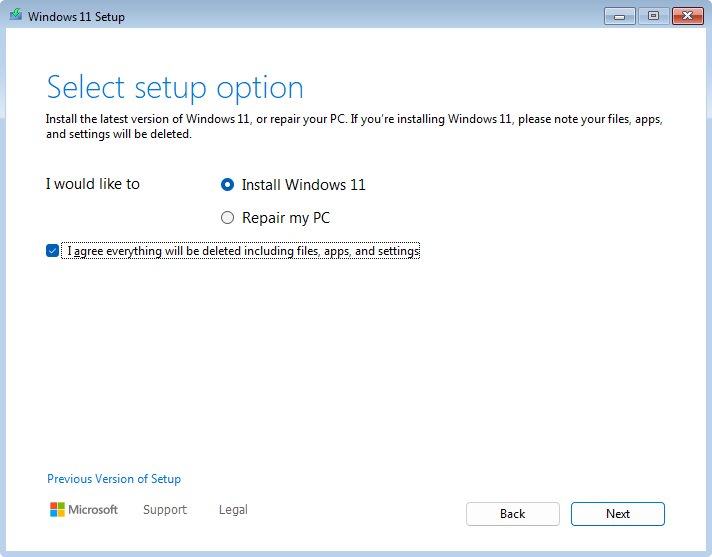
- In Select setup option, select Install Windows 11, tick I agree everything will be deleted including files, apps, and settings, and select Next.
- If a product key window appears, select I don't have a product key, pick the edition that matches your license, then select Accept on the license terms.
- In Select location to install Windows 11, select each partition on Disk 0 and choose Delete Partition until only Disk 0 Unallocated Space remains.
- Select Disk 0 Unallocated Space, select Next, then select Install in Ready to install and let the PC restart several times.
Never delete partitions on Disk 1 or any other disk; only Disk 0 holds Windows. If you have no product key and no digital license linked to your Microsoft account, close Setup and link the license first.
For the best driver support, check whether your PC maker offers its own recovery media. Manufacturer images often include hardware-specific drivers and factory apps that generic Microsoft media lacks.
Reinstall Windows 11 without losing files using setup.exe
This in-place reinstall uses the same USB media but runs from inside Windows 11. It can keep your personal files and apps, which a reset cannot.
- Create the Windows 11 installation media as described in the previous section.
- Connect the USB drive and open it in File Explorer.
- Open setup.exe from the root of the drive and select Yes when asked to allow changes.
- Select Change what to keep.
- Choose Keep personal files and apps, Keep personal files only or Keep nothing, then select Next.
- Select Install and let the PC restart several times.
Keep nothing from setup.exe gives the same result as a clean install, but without the partition screen, so the existing partitions stay as they are.
Reinstall Windows 11 from Windows Update with Reinstall now
Reinstall now downloads a repair copy of the current Windows 11 version and keeps your apps, files and settings. It needs Windows 11, version 22H2 (build 22621) or later with the February 2024 optional update or a newer update.
- Select Start > Settings > System > Recovery.
- Under Fix problems using Windows Update, select Reinstall now.
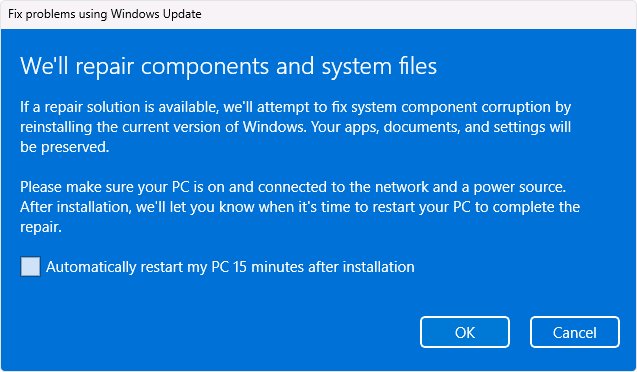
- Choose whether the PC should restart automatically 15 minutes after the installation completes.
- Select OK; the Windows Update page opens and downloads the repair version.
- Keep the PC on power and connected to the internet until the install finishes.
- Restart the PC if you did not choose the automatic restart.
Reset Windows 11 from the Windows Recovery Environment
Use this route when Windows 11 starts but Settings cannot run a reset, or when you are already at the blue recovery menu. Have your BitLocker recovery key ready.
- Select Start > Settings > System > Recovery.
- Next to Advanced startup, select Restart now.
- In the Windows Recovery Environment, select Troubleshoot > Reset this PC.
- Choose Keep my files or Remove everything, then follow the prompts.
- Enter your BitLocker recovery key if the PC asks for it.
If the PC will not reach Windows or the recovery menu at all, use the clean install from a USB drive created on another PC.
Setting up Windows 11 after a reinstall
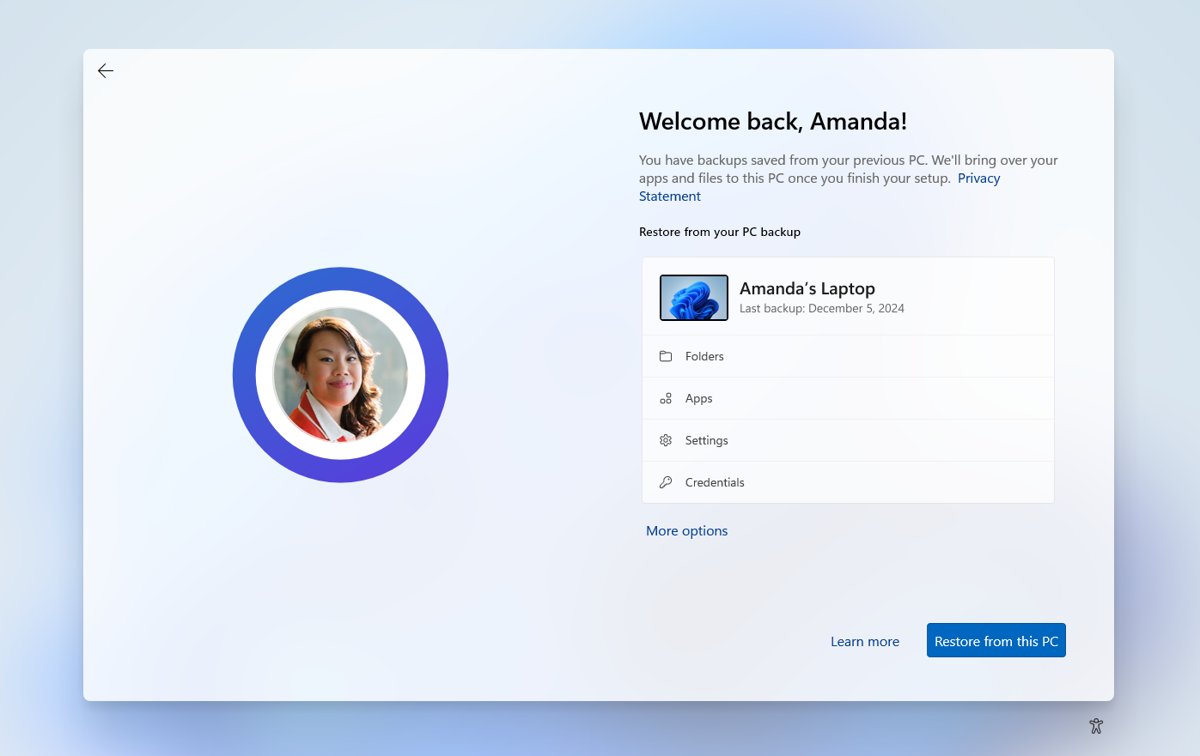
After a clean install or Remove everything reset, Windows 11 starts the setup wizard. A few choices here decide whether activation and your backup come back on their own.
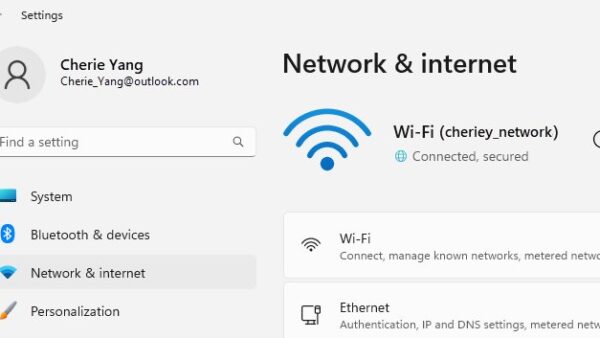
- Choose your region and keyboard layout, then connect to Wi-Fi or Ethernet.
- Sign in with the same Microsoft account that holds your digital license and your Windows Backup.
- When setup finds a backup, choose to restore it; select More options to pick a different PC's backup if you have several.
- Finish the privacy and account screens to reach the desktop.
- Open Settings > Windows Update and select Check for Windows updates, then Download & install anything listed.
- Restart when prompted, and repeat the update check until no more updates appear.
If you changed the boot order to start from USB, set it back so the PC starts from its internal drive. Otherwise the Install Windows page can appear again.
Installing necessary software and drivers after reinstalling Windows 11
A reset or clean install removes your desktop apps and some drivers. Reinstall them in this order so hardware works before you add programs.
- Open Settings > Windows Update > Advanced options and turn on Receive updates for other Microsoft products.
- Under Additional options, select Optional updates, tick any driver updates and select Download and install.
- Restart the PC, even if no update asked for it.
- Visit your PC maker's support site for drivers that Windows Update does not offer, such as chipset or touchpad software.
- Select the app pins restored from Windows Backup; Microsoft Store apps reinstall from there, and other apps open their vendor's download page.
- Install the remaining programs, such as your browser, Microsoft 365 and security tools, from each vendor's own site or the Microsoft Store.
If wireless headphones or a mouse stop pairing after the reinstall, reinstall the Bluetooth driver before blaming the device.
Restoring your files after reinstalling Windows 11
Where your files come back from depends on how you backed them up. OneDrive and Windows Backup restore through your Microsoft account; an external drive needs a manual copy.
- From OneDrive or Windows Backup: sign in to OneDrive with the same Microsoft account, and your backed-up folders sync back to the PC.
- From an external drive: connect the drive, open File Explorer and select This PC.
- Double-click the external drive, then open the folder that holds your files.
- Select the files, or select all of them, and copy them.
- Paste them into the matching folders on the PC, such as Documents or Pictures.
- Browse the folders to confirm everything arrived, then select Eject before you unplug the drive.
How to check Windows 11 reinstalled and activated correctly
- Open Settings > System > Activation and confirm Activation status shows Windows is activated with a digital license linked to your Microsoft account, or another activated message.
- Open Settings > System > About and confirm Edition matches the edition you had before.
- Open Settings > Windows Update and confirm no updates are waiting.
- Open Windows Backup and confirm it shows your folders and settings as backed up.
- Open Documents, Desktop and Pictures in File Explorer and spot-check that your restored files open.
Maintaining Windows 11 after a clean reinstall
A fresh install is the best moment to set up the safeguards that make the next recovery easier. Each of these takes a few minutes now.
| Task | Where | Why it helps |
|---|---|---|
| Keep Windows Backup on | Settings > Accounts > Windows backup | Apps, settings and folders come back automatically after the next reset |
| Install updates regularly | Settings > Windows Update | Security fixes, and the Reinstall now repair option depends on recent updates |
| Check optional driver updates | Windows Update > Advanced options > Optional updates | Hardware drivers stay current without third-party tools |
| Create a recovery drive | On a USB drive, while the PC works | A last-resort way to recover if Windows no longer starts |
| Save your BitLocker recovery key | aka.ms/myrecoverykey | Most recovery options ask for it on an encrypted PC |
Windows 11 reinstall not working: boot, activation and reset fixes
The PC starts the old Windows instead of Windows 11 Setup
The PC is not set to boot from the USB drive.
- Shut the PC down fully instead of restarting it.
- Power it on and press the boot menu key straight away, commonly F2, F12, Delete or Esc.
- Select the USB drive in the boot menu.
- If it is not listed, check your PC maker's site for how to change the boot order, then try again.
Windows 11 is not activated after the reinstall
The PC is offline, a different Microsoft account is signed in, or the edition does not match the license.
- Connect to the internet and wait a few minutes; activation is usually automatic.
- Sign in with the Microsoft account linked to your digital license.
- Open Settings > System > Activation > Troubleshoot and sign in when asked.
- If you installed the wrong edition, reinstall the edition that matches your license.
Reinstall now is missing from the Recovery page
The PC runs an older Windows 11 version or is managed by work or school policies.
- Install all updates from Settings > Windows Update, then check the Recovery page again.
- If the PC is managed by your organization, ask your IT department.
- Use the setup.exe reinstall with Keep personal files and apps instead.
Reset this PC asks for a BitLocker recovery key
The drive is encrypted, and the recovery environment cannot unlock it on its own.
- On another device, sign in at aka.ms/myrecoverykey with your Microsoft account.
- Find the key listed for this PC, or check the printout or USB drive where you saved it.
- Type the key on the PC to continue the reset.
The reset sits on a black screen
Resets can show a black screen for 15 minutes or more while they work.
- Leave the PC plugged in and wait; it may restart on its own.
- Do not restart it manually, because that can make the reset fail.
- If the reset still fails, use a clean install from a USB drive.
The Install Windows page appears again after reinstalling
The PC still boots from the USB drive first.
- Remove the USB drive and restart.
- If you changed the boot order, set the internal drive back as the first boot device.
Uninstall and reinstall Windows 11 FAQ
Does reinstalling Windows delete everything?
Not always. Reinstall now and setup.exe with Keep personal files and apps keep everything. Reset this PC with Keep my files keeps personal files but removes apps and settings. Remove everything and a clean install from USB delete all files, apps and settings.
Can you reinstall Windows 11 for free?
Yes, if the PC already has an activated Windows 11 license. Reinstall the same edition, select I don't have a product key if Setup asks, and sign in with the Microsoft account linked to your digital license. Windows 11 activates online after installation.
How do I completely reinstall Windows on a PC?
Create Windows 11 installation media with Microsoft's media creation tool, boot the PC from the USB drive, and select Install Windows 11. Delete every partition on Disk 0, install to Disk 0 Unallocated Space, and sign in with your Microsoft account during setup.
How do I delete Windows and reinstall it without a USB drive?
Use Reset this PC. Open Settings > System > Recovery, select Reset PC, choose Remove everything, and pick Cloud download to download a fresh copy of Windows. It reinstalls Windows 11 from scratch without any installation media.
How do I uninstall and reinstall Windows 10?
The same tools exist on Windows 10. Reset this PC, reinstalling from installation media and uninstalling updates all work on Windows 10, while Reinstall now and point-in-time restore are Windows 11 only. Use Microsoft's Windows 10 media for a clean install.
How do I uninstall and reinstall Windows Update?
Windows Update itself cannot be uninstalled. To repair Windows through it, select Reinstall now under Fix problems using Windows Update in Settings > System > Recovery. To remove one bad update, use Troubleshoot > Advanced options > Uninstall updates in the recovery environment.
How do I uninstall and reinstall a Windows app instead of Windows?
Open Settings > Apps > Installed apps, select More next to the app, then Uninstall. Reinstall it from the Microsoft Store or the vendor's site. A built-in app such as Calculator can be reinstalled on its own without touching Windows.
Do I need a product key to reinstall Windows 11?
Usually not. A digital license linked to your Microsoft account activates the same edition automatically, and Setup skips the key screen when a key is stored in the PC's firmware. Without either, you need a product key or must buy a license.
Bottom line: reset or clean install Windows 11?
Try Reinstall now first if Windows still works, use Reset this PC with Remove everything for a fresh start, and keep the clean install from USB for a PC that will not reset or start. Reinstall now keeps all your data, a reset needs no extra hardware, and only the clean install guarantees an empty disk, at the cost of creating media and restoring everything by hand.

![Allow apps to access your microphone Windows 11 [tutorial]](https://techdows.com/wp-content/uploads/2026/10/Windows-10-Privacy-Microphone-page-with-the-apps-access-switch-on.jpg)