To insert page numbers from a specific page in Word, put a Next Page section break before that page, turn off Link to Previous in its footer, add the page number and set Start at to 1.
The steps below work in Word for Microsoft 365, Word 2024, 2021, 2019 and 2016 on Windows and in Word for Mac, with separate routes for page 2, Roman numeral front matter and Word for the web.
Method 1: Start page numbering from a specific page and make it page 1
Word numbers a whole section the same way, so the page where numbering begins has to start a new section. Use this route for a report whose title page, contents and summary must stay unnumbered.
- Click at the very start of the page where numbering should begin, before its first word.
- Go to Layout > Breaks and select Next Page under section breaks.
- Double-click the footer (or header) of that page to open the Header & Footer tab.
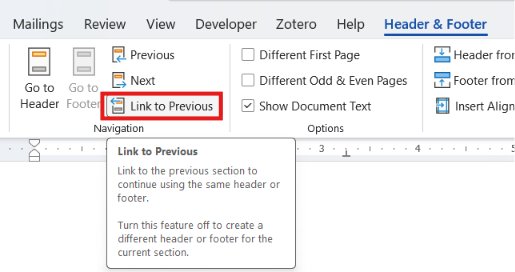
- Select Link to Previous so it is no longer highlighted. This separates the new section from the pages before it.
- Select Page Number, pick a location and a style.
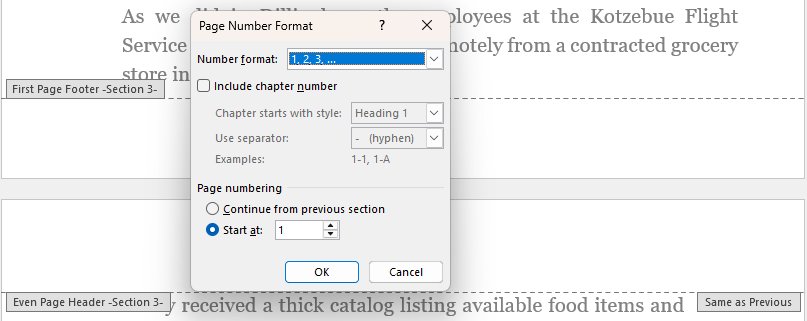
- Select Page Number > Format Page Numbers, choose Start at, type 1 and select OK.
- Scroll to an earlier page, select the page number in its footer and press Delete if one appears there.
- Select Close Header and Footer or press Esc.
Headers and footers are linked separately. If the number sits in the footer, unlink the footer; unlinking only the header leaves the footer still tied to the earlier pages.
Quick reference: which Word page numbering option should you use?
| Your goal | Use this | Section break needed? |
|---|---|---|
| Title page unnumbered, page 2 shows 1 | Method 2: Different First Page plus Start at 0 | No |
| Title page unnumbered, page 2 shows 2 | Method 2: Different First Page only | No |
| Numbering starts on page 3, 4 or later and shows 1 | Method 1: Next Page break, Link to Previous off, Start at 1 | Yes |
| Front matter in i, ii, iii, main text in 1, 2, 3 | Method 3: two sections with different number formats | Yes |
| Earlier pages unnumbered but the count continues (page 5 shows 5) | Method 4: unlink and delete numbers in the first section | Yes |
| Editing in a browser | Word for the web for Different First Page, desktop Word for anything else | Desktop app only |
Page break vs section break in Word: what to know before you start
A page break only pushes text to a new page. A section break starts a new section, and each section can carry its own headers, footers and page numbering.
| Break type | Where the new section starts | Use it for page numbers when |
|---|---|---|
| Page break | No new section; text moves to the next page | Never. It cannot restart or hide page numbers |
| Next Page section break | On the following page | Numbering starts on a chosen page, or each chapter restarts |
| Continuous section break | On the same page | Rarely; it suits a change in columns, not page numbers |
| Odd Page section break | On the next odd-numbered page | Chapters must start on a right-hand page in a printed book |
| Even Page section break | On the next even-numbered page | A section must start on an even-numbered page |
If a page break already sits where the new section should begin, remove it first and insert the section break in its place, or you get an extra blank page.
Method 2: Start page numbers on page 2 in Word
Page 2 numbering needs no section break, because Different First Page hides the number on the first page of a section. Decide whether page 2 should show 2 or 1.
- Go to Insert > Page Number and choose a location and style.
- On the Header & Footer tab, select Different First Page. The number disappears from page 1.
- To make page 2 show 1, select Page Number > Format Page Numbers.
- Choose Start at, type 0 and select OK.
- Select Close Header and Footer or press Esc.
Skip steps 3 and 4 if page 2 should keep showing 2. On a Mac, you can also clear Show number on first page in the Page Number dialog.
Method 3: Use Roman numerals for front matter and Arabic numbers for the main text
Theses, books and long reports often number the preface and contents i, ii, iii and restart the main text at 1. That takes two sections with different formats.
- Click at the start of the first main-text page and go to Layout > Breaks > Next Page.
- Double-click the footer of the main-text section and clear Link to Previous.
- Click into the footer of the front matter section and select Page Number to insert a number.
- Select Page Number > Format Page Numbers, set Number format to i, ii, iii and select OK.
- Click into the footer of the main-text section and insert a page number there if none appears.
- Open Format Page Numbers again, set Number format to 1, 2, 3, choose Start at, type 1 and select OK.
- Select Close Header and Footer.
If the title page should carry no Roman numeral, select Different First Page in the front matter section. Make sure Different First Page is cleared in a section where the first page should show a number.
Method 4: Start numbering from a specific page without changing the displayed number
Some style guides want the first pages unnumbered but still counted, so the first visible number on page 5 is 5. The section break is still needed; only the starting number changes.
- Insert a Next Page section break at the start of the page that should show the first number.
- Double-click the footer of the new section and clear Link to Previous.
- Select Page Number and insert a number in the new section's footer.
- Open Page Number > Format Page Numbers and leave Start at unselected, so numbering continues from the earlier section.
- Click into the footer of the first section, select its page number and press Delete.
- Select Close Header and Footer and check that the first numbered page shows its real position.
Quick example: start page numbering on page 4 as page 1 in Word
A typical case: page 1 is the cover, pages 2 and 3 hold the contents, and the report body on page 4 must read 1.
- Click before the first word on page 4.
- Go to Layout > Breaks > Next Page. Page 4 is now the first page of section 2.
- Double-click the footer on that page and clear Link to Previous.
- Select Page Number, choose the bottom-of-page style you want.
- Select Page Number > Format Page Numbers, choose Start at, type 1 and select OK.
- Click the footer on page 1, 2 or 3; if a number appears, select it and press Delete.
- Press Esc and scroll from page 1 to page 5 to confirm the cover and contents are blank and the body reads 1, 2.
For numbering from page 3 instead, the same steps apply with the break placed before page 3.
How to see section breaks and page breaks in Word
Most numbering faults come from a break that sits in the wrong place or is the wrong type. Showing formatting marks makes every break visible as a labelled dotted line.
- In Word for Windows, go to Home and select Show/Hide (the ¶ mark).
- In Word for Mac, go to Home and select Show/Hide (¶) in the paragraph controls.
- Scroll through the document and read each break label, for example Section Break (Next Page) or Page Break.
- Select Show/Hide again to hide the marks when you finish.
How to delete or change a section break in Word safely
Deleting a section break merges the text on both sides into one section. The merged section takes the formatting of the section that came after the break, including its headers and footers.
- Turn on Show/Hide so the break is visible.
- To delete a break in Word for Windows, place the cursor just before the break and press Delete.
- To delete a break in Word for Mac, place the cursor just before the break and press Backspace.
- To change a break type in Word for Windows, click in the section, select the dialog launcher in the Page Setup group on the Layout tab, open the Layout tab and pick a type under Section start, then select OK.
- To change a break type in Word for Mac, click in the section, go to Format > Document, open the Layout tab and choose a type under Section start.
- If a formatting change lands in the wrong section, press Ctrl + Z (Windows) or Command + Z (Mac) and reapply it after the break.
To make a later section reuse the earlier header or footer, select Link to Previous instead of deleting the break. Word for the web cannot change section breaks, so make this change in desktop Word.
How to insert page numbers in different positions in Word
| Position you want | How to get it |
|---|---|
| Bottom of the page | Select Page Number and choose a footer location, then a left, centre or right style |
| Top right of the page | Select Page Number, choose a header location and the right-aligned style |
| Exactly where the cursor is | Double-click the header or footer, click the spot, then select Page Number > Current Position and a style |
| Move an existing number | Select the number and press Tab once for centre or twice for right; press Backspace to move it back |
| Page X of Y | In Word for the web, turn on Include Page Count in the Page Numbers gallery |
In a document with several sections, change the position in each unlinked section separately. Graphics in the header or footer can cover the number, so move them if the number seems to vanish.
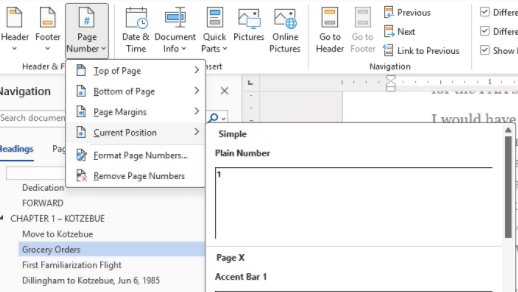
How to format page numbers in Word
- Double-click the header or footer that holds the page number.
- Select the page number itself.
- Use the Font group on the Home tab to change the font, size, colour or bold.
- To change the numbering style, select Page Number > Format Page Numbers on the Header & Footer tab.
- Pick a style in Number format, such as 1, 2, 3 or i, ii, iii, and select OK.
- Select Close Header and Footer.
Formatting applies to the section you are in. Repeat it in every unlinked section so the numbers match across the document.
How to start page numbers from a specific page in Word for the web
Word for the web cannot add section breaks, and Microsoft directs different numbering in different sections to the desktop app. In the browser you can still hide the number on the first page.
- Switch the document to Editing using the mode menu in the upper-right corner.
- Go to Insert > Page Numbers and choose a layout.
- To hide the number on page 1, go to Insert > Header & Footer and select Different First Page.
- For numbering that starts on page 3 or later, select Open in Word to open the file in desktop Word.
- Follow Method 1 in desktop Word and save. The file stays where it was stored, such as OneDrive or SharePoint.
How to check Word page numbers start on the right page
- Turn on Show/Hide and confirm a Section Break (Next Page) line sits at the end of the page before the first numbered page.
- Double-click the footer on the first numbered page and confirm Link to Previous is not highlighted.
- Check that the first numbered page shows the number you set in Start at.
- Scroll back and confirm the pages before it show no number.
- Scroll forward a few pages and confirm the numbers count up without a jump or repeat.
Common Word page number problems and how to fix them
Page numbers appear on the pages before the start page
The new section's footer is still linked to the earlier section, or the earlier numbers were never deleted.
- Double-click the footer of the first numbered page and clear Link to Previous.
- Click the footer on an earlier page, select the number and press Delete.
- If the number is in the header, unlink and clear the header as well.
The first numbered page shows the wrong number
Numbering continues from the earlier section because Start at is not set.
- Click in the footer of the first numbered page.
- Select Page Number > Format Page Numbers.
- Choose Start at, type 1 (or 0 when Different First Page hides page 1) and select OK.
Link to Previous is grayed out
There is no section break before this page, so there is nothing to unlink from.
- Turn on Show/Hide and look for a section break before the page.
- If you only see a page break, delete it and insert Layout > Breaks > Next Page instead.
- Open the footer again; Link to Previous is now available.
Insert page number is grayed out, or Word will not let you insert page numbers
The document is open for viewing only, such as in Protected View, Viewing mode or with owner restrictions.
- If a Protected View bar appears, select Enable Editing.
- Use the mode menu in the upper-right corner to switch from Viewing or Reviewing to Editing.
- Go to File > Info > Protect document and clear Always Open Read-Only if it is set.
- If editing stays blocked, ask the file owner for edit permission; organisation restrictions cannot be changed locally.
You cannot insert a footer and page numbers in Word for the web
The document is not in Editing view, or the layout needs section breaks that the browser cannot add.
- Switch to Editing from the mode menu.
- Use Insert > Page Numbers or Insert > Header & Footer.
- For numbering from a specific page, select Open in Word and finish in the desktop app.
Remove Page Numbers leaves some numbers behind
The document has several sections or different odd and even pages.
- Double-click the header or footer in each section that still shows a number.
- Select the number and press Delete.
- Select Close Header and Footer.
Best practices for page numbering long Word documents
| Practice | Why it matters |
|---|---|
| Insert all section breaks before you add page numbers | Numbers inserted first get copied to every linked section and must be cleaned up later |
| Use Next Page breaks for chapters and Odd Page for chapters that must open on a right-hand page | The break type decides where the new section, and its numbering, begins |
| Unlink the header and the footer separately | Each has its own Link to Previous setting |
| Use Link to Previous rather than deleting a break to reuse an earlier footer | Deleting a break hands the earlier text the formatting of the section after it |
| Keep Show/Hide on while you set up sections | Misplaced or wrong-type breaks are visible straight away |
| Edit complex numbering in desktop Word | Word for the web cannot add or change section breaks |
Word page numbering from a specific page FAQ
How do I insert page numbers from page 3 in Word?
Click before the first word on page 3, go to Layout > Breaks > Next Page, then double-click the footer and clear Link to Previous. Insert the page number, open Format Page Numbers, set Start at to 1 and delete any numbers left on pages 1 and 2.
How do I insert page numbers from page 2 in Word?
Insert page numbers from Insert > Page Number, then select Different First Page on the Header & Footer tab. Page 1 loses its number. To make page 2 show 1 rather than 2, open Format Page Numbers and set Start at to 0.
How do I insert page numbers from the current page in Word?
Put the cursor at the start of the current page and insert a Next Page section break from Layout > Breaks. Then unlink that page's footer with Link to Previous, insert the number and set Start at in Format Page Numbers. Numbers on earlier pages can then be deleted.
How do I insert page numbers from the middle of a Word document?
Use the same section break method as for any specific page. A Next Page section break before the middle page creates a new section, and with Link to Previous cleared that section can start at 1 or continue the count while earlier pages stay blank.
Why is insert page number grayed out in Word?
Page number commands are unavailable when the document is open for viewing only. Select Enable Editing on a Protected View bar, switch the mode menu to Editing, or ask the owner for edit permission if restrictions are set by the owner or your organisation.
Why can't I insert page numbers in Word for the web?
Word for the web needs Editing view for Insert > Page Numbers. It can hide the first page number through Header & Footer, but it cannot add section breaks, so numbering from a later page must be set up in desktop Word with Open in Word.
How do I insert different page numbers in one Word document?
Split the document into sections with Next Page section breaks, clear Link to Previous in each new section's footer, then set each section's Number format and Start at value in Format Page Numbers. This gives Roman numerals for front matter and Arabic numbers for the body.
Why does Link to Previous not work when I try to unlink a page?
Link to Previous is dimmed when the page has no section break before it. A page break does not start a new section. Delete the page break, insert Layout > Breaks > Next Page in its place and the option becomes available.
Does deleting a section break remove my page numbering?
It can. Deleting a section break merges the two sections, and the merged section uses the formatting, headers and footers of the section after the break. Select Link to Previous instead if you only want the later section to reuse the earlier footer.