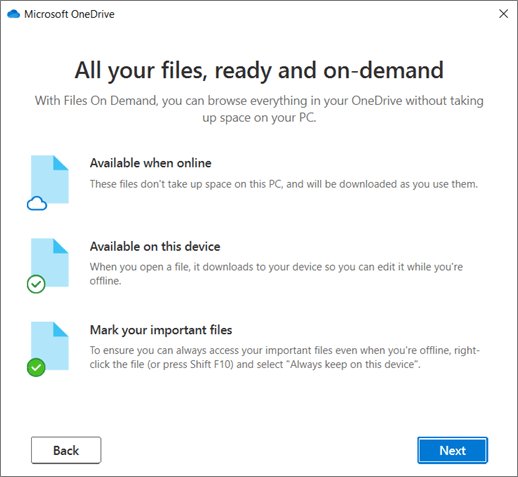
OneDrive icons tell you where a file lives and whether it synced: a blue cloud means online-only, a green check means the file is on your PC, circular arrows mean syncing, and a red circle with a white X means a sync error.
This guide explains every symbol OneDrive shows in File Explorer, the Windows taskbar, the Mac menu bar, OneDrive.com and the mobile app, and what to do when an icon signals a problem.
What do the OneDrive icons mean?
Most people only ever see five icons. Match the one in front of you to a row and act on the last column.
| Icon you see | What it means | What to do |
|---|---|---|
| Blue cloud outline next to a file | Online-only file: it takes no space on your PC and needs internet to open | Nothing, unless you need it offline |
| White circle with a green check | Locally available: the file downloaded when you opened it | Right-click and select Free up space to reclaim disk space |
| Solid green circle with a white check | Always available: you marked it Always keep on this device | Nothing; it works offline |
| Circular arrows | Sync in progress (uploading or downloading) | Wait; act only if it never finishes |
| Red circle with a white X | The file or folder can't sync | Select the OneDrive cloud icon in the taskbar to read the error |
Where OneDrive icons appear
The same cloud logo shows up in five places, and each place answers a different question. File Explorer icons describe single files; the taskbar icon describes your whole account.
| Location | What the icons describe | Example |
|---|---|---|
| File Explorer (Windows) and Finder (Mac) | Status of each file and folder in your OneDrive folder | Blue cloud, green check, red X |
| Notification area at the right end of the Windows taskbar | Status of the whole OneDrive account | Paused, not signed in, account needs attention |
| Mac menu bar | Same account status as the Windows taskbar icon | Faded cloud when signed out |
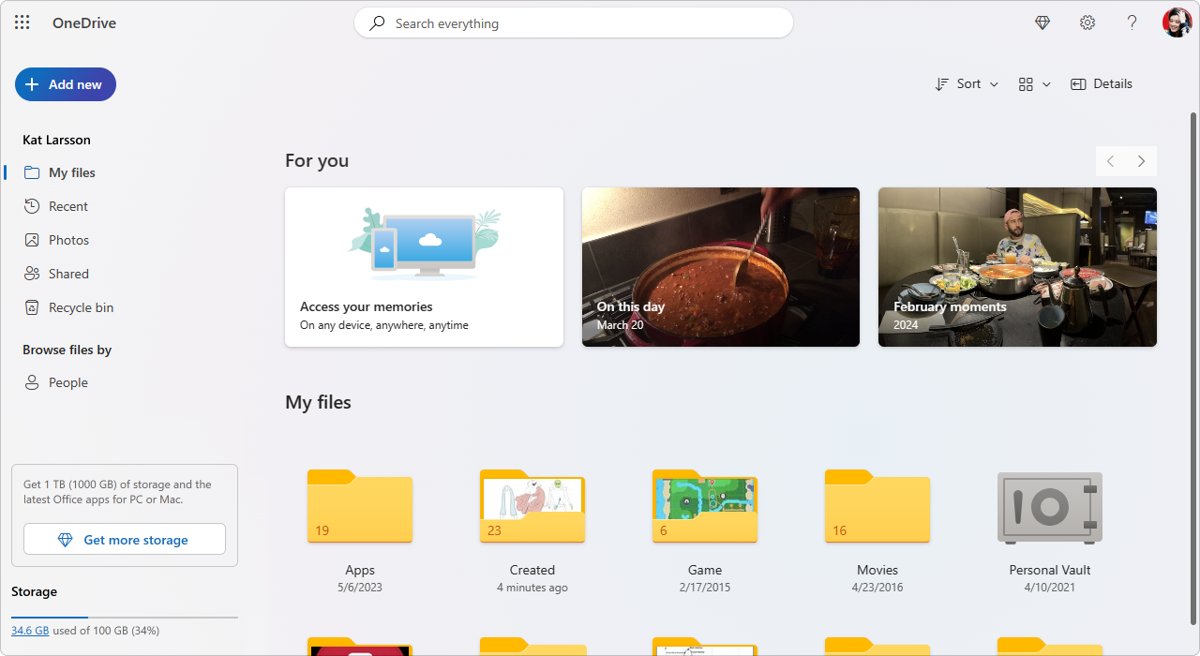
| OneDrive.com | Subscription, storage, sharing and new items | Blue diamond, three blue lines |
| OneDrive app for Android and iOS | Offline and sharing status inside the app | Keep offline icon in List view |
The most important OneDrive sync icons
These overlays appear on files and folders in File Explorer when Files On-Demand is on. OneDrive build 23.066 and later turn Files On-Demand on by default.
| Icon | Name | Uses disk space? | Opens offline? |
|---|---|---|---|
| Blue cloud outline | Online-only file | No | No |
| White circle with green check | Locally available file | Yes | Yes |
| Solid green circle with white check | Always available file | Yes | Yes |
| Circular sync arrows | Syncing or sync pending | Depends on the file | Depends on the file |
| Red circle with white X | Sync error | Depends on the file | The local copy may be out of date |
| Gray circle with a flat bar | Blocked file type (an admin blocked it, most often an Outlook .pst file) | Yes | Yes, but it never uploads |
New files created online or on another device arrive as online-only. If you mark a folder Always keep on this device, new files added to it download automatically.
OneDrive taskbar and menu bar icons
The cloud icon in the Windows notification area, or in the Mac menu bar, shows the state of the whole account. It may appear white or blue; both are normal OneDrive icons, and the badge on top is what carries the meaning.
| Icon | Meaning | Action |
|---|---|---|
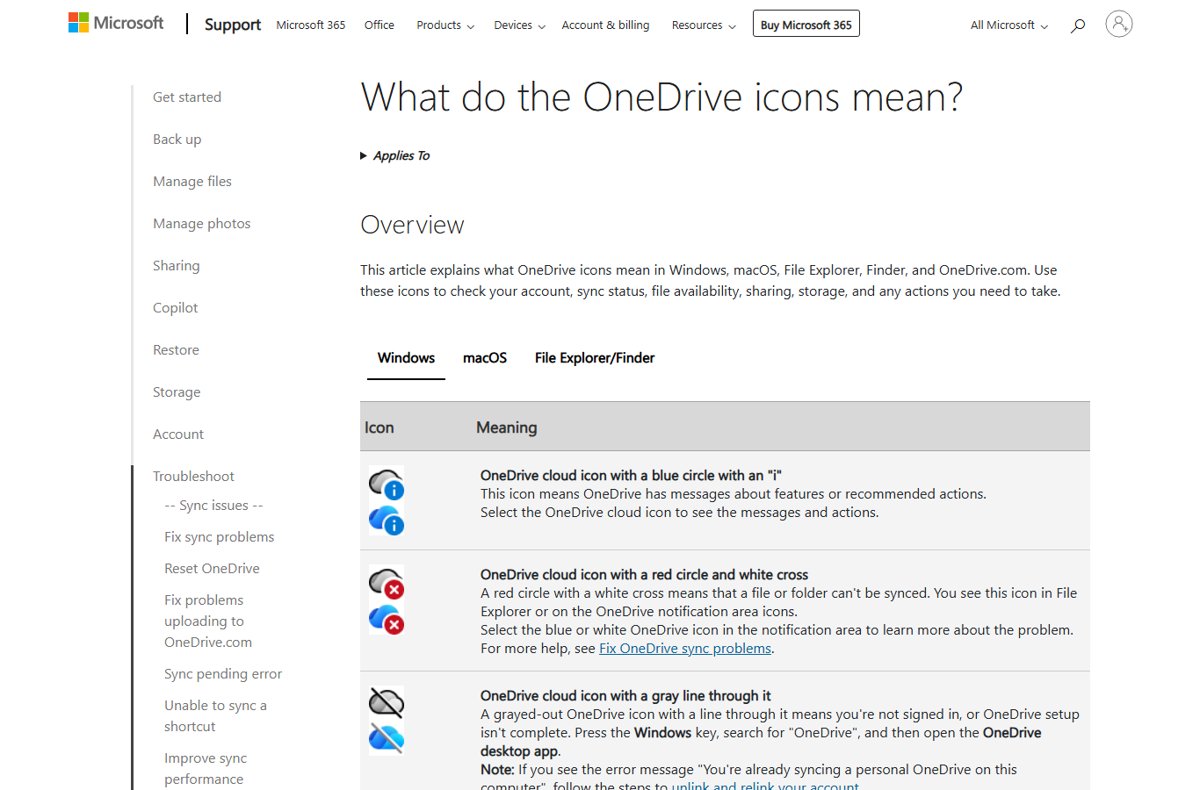
| Plain white or blue cloud | OneDrive is running and up to date | None |
| Cloud with circular arrows | Uploading or downloading changes | Wait for it to finish |
| Cloud with a pause symbol | Sync is paused, manually or by battery saver or a metered network | Select the icon, then select Resume syncing |
| Cloud with a red circle and white X | A file or folder can't sync | Select the icon to see which file and why |
| Cloud with a gray line through it (faded cloud on Mac) | You're not signed in, or setup isn't finished | Open the OneDrive desktop app and sign in |
| Cloud with a blue circle and an "i" | OneDrive has messages about features or recommended actions | Select the icon to read them |
If you use both a personal and a work or school account, each one gets its own cloud icon, and you can pause and resume each separately.
OneDrive sharing and collaboration icons
| Icon | Where | Meaning |
|---|---|---|
| Blue cloud outline with a person | File Explorer | The file or folder is shared with other people |
| Folder with a chain link | File Explorer and OneDrive.com | A shortcut to a folder someone shared with you |
| Three blue lines (glimmer marks) | OneDrive.com | The file or folder is new |
| AutoSave switch set to On | Word, Excel and PowerPoint title bar | Changes save to OneDrive every few seconds, so co-authors see them |
OneDrive shortcut and folder icons
Folder icons in the File Explorer navigation pane tell you which service a synced folder belongs to.
| Folder icon | What it is |
|---|---|
| OneDrive cloud in front of the folder name | Your OneDrive folder, personal or work or school |
| SharePoint synced folder icon | A SharePoint document library synced from a work or school site |
| Folder with a chain link | A shortcut to a folder someone shared with you; it syncs like your own folders |
| Personal Vault shortcut in the file list | Your Personal Vault, shown as a shortcut rather than in the folder list |
OneDrive Personal Vault and security icons
Personal Vault is a protected folder inside OneDrive that asks for a second verification step every time you open it. You see its icon in your OneDrive folders and when you select the OneDrive taskbar icon.
| Icon or state | Meaning | What to do |
|---|---|---|
| Personal Vault shortcut | The vault exists and is locked | Open it and verify your identity with a code, PIN or the Microsoft Authenticator app |
| Vault open after verification | Files are readable until it locks again | Select Lock when you finish |
| Vault locked again on its own | Auto-lock: 20 minutes of inactivity on the web, 3 minutes on mobile | On a PC, change the wait under OneDrive Settings > Account > Personal Vault |
| Padlock on a file in File Explorer | The file is locked and can't sync | Close the app that has it open, then let OneDrive retry |
Personal Vault works on Windows 11, Windows 10 version 1903 or newer, Android 6 or newer, and iOS 11.3 or newer. Its files never appear in search results.
OneDrive warning and attention icons
Warning badges sit on the taskbar or menu bar cloud and mean the account, not one file, needs your attention.
| Badge on the cloud icon | Meaning | Action |
|---|---|---|
| Yellow warning triangle | Your account needs attention | Select the icon and read the message in the activity center |
| Brown circle with an exclamation mark | Your account needs attention | Select the icon and read the message in the activity center |
| Red "no entry" circle | Your account is blocked or frozen | Sign in at OneDrive.com and follow the frozen-account steps |
| Red circle with white X | One or more items failed to sync | Select the icon to see the failing file |
A full or nearly full storage quota also raises a warning. Once you exceed your Microsoft storage, OneDrive stops uploading, editing or syncing new files until you free space or add storage.
Office file icons in OneDrive
Word, Excel, PowerPoint and OneNote files keep their normal app icons in OneDrive, with the sync overlay added on top. The useful status signal for Office files is the AutoSave switch in the upper-left corner of the app's title bar.
| What you see | Meaning |
|---|---|
| AutoSave On | The file is stored on OneDrive or SharePoint and saves every few seconds |
| AutoSave Off and grayed out | The file is saved locally, on another cloud service, or not saved yet |
| AutoSave Off on a OneDrive file | Older format (.doc, .xls, .ppt), sync is paused, an older OneDrive sync app, an embedded file, or a slide show in progress |
| Save a Copy instead of Save As on the File menu | The document was opened from OneDrive or SharePoint |
AutoSave needs a Microsoft 365 subscription. Without one, AutoRecover still protects open files after a crash.
Mobile OneDrive icons
The OneDrive app for Android and iOS uses fewer symbols than the desktop app, because files stay online unless you choose otherwise.
| Icon | Meaning | How to change it |
|---|---|---|
| Keep offline icon in List view | The file or folder is saved on the phone for reading without a connection | Select the item and tap Online only to remove it |
| No icon | The item is online-only on the phone | Press and hold the item, then tap Keep offline |
| Personal Vault in the folder list | Your vault, which locks after 3 minutes of inactivity by default | Tap Me > Settings > Personal Vault to change the lock time |
Offline files on Android are read-only. Editing one offline saves a new file instead of changing the original, and keeping whole folders offline needs a Microsoft 365 subscription.
What "Free up space" and "Always keep on this device" mean in OneDrive
Free up space turns a downloaded file back into an online-only file with a blue cloud. Always keep on this device downloads it and pins it, giving it the solid green circle. Neither option deletes anything from OneDrive.
- Open File Explorer and go to your OneDrive folder.
- Right-click the file or folder you want to change.
- Select Free up space to remove the local copy, or Always keep on this device to keep it offline.
- Watch the overlay change to a blue cloud or a solid green circle with a white check.
With Storage Sense turned on, Windows frees up space on locally available files automatically after the period you choose. Files marked Always keep on this device are left alone.
How to check OneDrive sync status in File Explorer
- Select the OneDrive cloud icon in the notification area at the right end of the taskbar.
- Read the status line in the activity center; it lists files still syncing and any errors.
- Open File Explorer and go to the folder you care about.
- Confirm each file shows a blue cloud, a green check or a solid green circle, with no red X or sync arrows.
- Open one online-only file while connected and confirm its icon changes to a white circle with a green check.
Why OneDrive icons sometimes disappear
The OneDrive cloud is missing from the taskbar
The icon moved into the hidden-icons overflow, or OneDrive isn't running.
- Select the Show hidden icons arrow next to the notification area.
- If the cloud isn't there, select Start, type OneDrive and select the OneDrive app.
- Sign in if OneDrive asks you to.
Files in File Explorer show no OneDrive status icons
OneDrive isn't running, isn't signed in, or Files On-Demand is off.
- Start OneDrive from the Start menu and confirm the taskbar cloud has no gray line through it.
- Select the OneDrive cloud icon, select the Help and Settings icon, then Settings.
- Go to Sync and back up, expand Advanced settings and turn on Files On-Demand.
The Personal Vault icon is missing from the folder list
On a PC, Personal Vault appears as a shortcut in the file list, not in the folder list.
- Open your OneDrive folder in File Explorer.
- Look in the main file list for the Personal Vault shortcut.
- Open it and verify your identity to unlock it.
Quick OneDrive icon meaning chart
Every OneDrive symbol on one chart, ordered from harmless status icons to the ones that stop sync.
| Icon | Short meaning | Urgency |
|---|---|---|
| Blue cloud outline | Online-only | Normal |
| White circle, green check | Downloaded, can be freed | Normal |
| Solid green circle, white check | Always kept on device | Normal |
| Blue cloud with a person | Shared | Normal |
| Folder with chain link | Shortcut to shared folder | Normal |
| Three blue lines (web) | New item | Normal |
| Blue diamond (web toolbar) | Subscription and storage details | Normal |
| Blue circle with "i" | Message or recommended action | Low |
| Circular arrows | Syncing or sync pending | Low |
| Pause symbol | Sync paused | Low |
| Gray line through cloud | Not signed in | Medium |
| Yellow triangle or brown exclamation circle | Account needs attention | Medium |
| Padlock | File locked | Medium |
| Gray circle with flat bar | Blocked file type | Medium |
| Red circle with white X | Sync error | High |
| Red "no entry" circle | Account blocked or frozen | High |
How to fix common OneDrive icon problems
Red circle with a white X on a file or the taskbar cloud
OneDrive could not upload or download that item.
- Select the OneDrive cloud icon in the notification area.
- Read the error listed against the failing file.
- Fix what it names, such as a path that is too long or a file that is still open, then let OneDrive retry.
Folder stuck on "Sync pending" with no file visible
A hidden file in the folder is the one that can't sync.
- In File Explorer, select View and turn on Hidden items.
- Deal with the hidden file, or if there is none, create a new folder.
- Copy all files from the stuck folder into the new folder.
- Delete the stuck folder.
Taskbar cloud stuck on "Sync pending"
The Office Document Cache can hold changes in a pending state.
- Close Word, Excel and PowerPoint.
- Delete your Office Document Cache.
- Select the OneDrive cloud icon and confirm sync completes.
Pause symbol on the OneDrive cloud
Sync was paused for 2, 8 or 24 hours, or battery saver or a metered network paused it.
- Select the paused OneDrive cloud icon.
- Select Resume syncing in the activity center.
Gray line through the cloud icon
OneDrive is not signed in or setup is not complete.
- Press the Windows key, type OneDrive and open the OneDrive desktop app.
- Sign in with your Microsoft account or work or school account.
- If you see "You're already syncing a personal OneDrive on this computer", unlink and relink the account.
Icons stay wrong after every other fix
The sync app's local database is out of step with the cloud.
- Press Windows + R to open Run.
- Paste
%localappdata%\Microsoft\OneDrive\onedrive.exe /resetand select OK. - If Windows can't find it, use
C:\Program Files\Microsoft OneDrive\onedrive.exe /resetinstead. - If that also fails, use
C:\Program Files (x86)\Microsoft OneDrive\onedrive.exe /reset. - Select Start, type OneDrive and open the OneDrive app to restart it.
- Choose your folders again if you synced only some of them before the reset.
Resetting OneDrive does not delete files. It disconnects all sync connections and runs a full sync when OneDrive restarts.
OneDrive icons and symbols FAQ
What do the OneDrive icons mean?
OneDrive icons show where a file is stored and whether it synced. A blue cloud means online-only, a green check means downloaded, a solid green circle means always kept on the device, arrows mean syncing, and a red X means a sync error.
What do all the OneDrive symbols on the taskbar mean?
The taskbar cloud shows your whole account. A pause symbol means sync is paused, a gray line means you're not signed in, a red X means a sync error, a yellow triangle or brown exclamation means the account needs attention, and a red no-entry circle means it is blocked.
What do the symbols in OneDrive mean in File Explorer?
File Explorer symbols describe single files. A blue cloud is online-only and uses no disk space, a white circle with a green check is a downloaded copy, and a solid green circle with a white check is a file marked Always keep on this device.
What does the blue cloud icon mean in OneDrive?
A blue cloud outline next to a file means it is online-only. It takes no space on your PC and downloads when you open it, so you can't open it without an internet connection.
What does the red X mean in OneDrive?
A red circle with a white X means a file or folder can't sync. Select the OneDrive cloud icon in the notification area to see which item failed and the reason, then fix that cause.
What does the green check mark mean in OneDrive?
A white circle with a green check means the file is downloaded and opens offline. A solid green circle with a white check means you pinned it with Always keep on this device, so OneDrive never frees it up.
Does Free up space delete the file from OneDrive?
No. Free up space only removes the local copy and turns the file back into an online-only file with a blue cloud. The file stays in OneDrive and remains available on the web and in the mobile apps.
What do the three blue lines mean on OneDrive.com?
Three blue lines, called glimmer marks, next to a file or folder on OneDrive.com mean the item is new. They are informational and need no action.
Why can't I see the OneDrive icon on the taskbar?
The icon is usually hidden in the overflow area or OneDrive isn't running. Select the Show hidden icons arrow, and if the cloud is missing, start OneDrive from the Start menu.
Conclusion: which OneDrive icons need action?
Ignore blue clouds, green checks and sync arrows, and act only on a red X, a red no-entry circle, a gray line through the cloud, or a yellow or brown warning badge. The first group describes where files are stored, which is normal behaviour, while the second group means files have stopped syncing or the account is blocked, so changes can be lost until you fix it.