To open an RPMSG file, open the protected email in Outlook while signed in with the email account it was sent to, and double-click the message so Outlook can download your permission to read it.
If Outlook is not available, Outlook on the web or the free Microsoft Purview Information Protection viewer opens it too; this guide covers each route, the common errors, and what you can and cannot do with the file.
Step-by-Step Guide on How to Open RPMSG Files
An RPMSG file is the protected body of an email, so the reliable way to read it is through the mailbox it was sent to. These steps cover classic Outlook for Windows.
- 1. Ensure you have Outlook installed: use Outlook for Microsoft 365 or Outlook 2016 or later, or skip to Outlook on the web.
- 2. Verify your Outlook configuration: sign in to Outlook with the exact email address the message was sent to.
- 3. Find the message in your Inbox; protected messages show a restricted-permission icon and nothing in the Reading Pane.
- 4. Open the file via Outlook: double-click the message so it opens in its own window.
- Wait while Outlook contacts the licensing server to verify your credentials and download a use license; sign in if prompted.
- Read the message once its contents appear.
- 5. Troubleshoot common problems with the fixes further down if you see only a
message.rpmsgormessage_v2.rpmsgattachment.
3. Save the RPMSG file locally only when someone sent you the .rpmsg file on its own, not inside a protected email. Save it to a folder, then open it with the Microsoft Purview Information Protection viewer (below).
What is an RPMSG File? A Technical Overview
RPMSG stands for rights-protected message. When someone sends an email with Information Rights Management (IRM) or Microsoft Purview Message Encryption, the readable body and attachments are encrypted into a file named message.rpmsg or message_v2.rpmsg.
| Property | Detail |
|---|---|
| Full name | Rights-protected message |
| Usual file names | message.rpmsg, message_v2.rpmsg |
| Created by | Outlook and Exchange when IRM or Microsoft Purview protection is applied |
| What it contains | The encrypted message body and its attachments |
| Where the permissions live | Inside the message itself, so restrictions follow it wherever it goes |
| What it needs to open | An app that can request a use license for your account, such as Outlook or the Purview viewer |
| Attachments covered | Word, Excel, PowerPoint, InfoPath and XPS files attached to a protected message are protected too |
Common Scenarios Where You Encounter RPMSG Files
| Scenario | Why you see an RPMSG file | Best route |
|---|---|---|
| Protected email in a mail app other than Outlook | The app cannot request a license, so it shows the raw attachment | Outlook on the web or the Purview viewer |
| Encrypted email from another company to classic Outlook | Cross-organisation sign-in fails, so the body stays locked | Outlook on the web, or ask IT about the known issue below |
"Encrypt Only" email that shows message_v2.rpmsg |
A classic Outlook build bug affected messages encrypted from File > Encrypt | Update Outlook |
| Message forwarded as an attachment or saved to disk | The .rpmsg file was separated from the email |
Purview viewer |
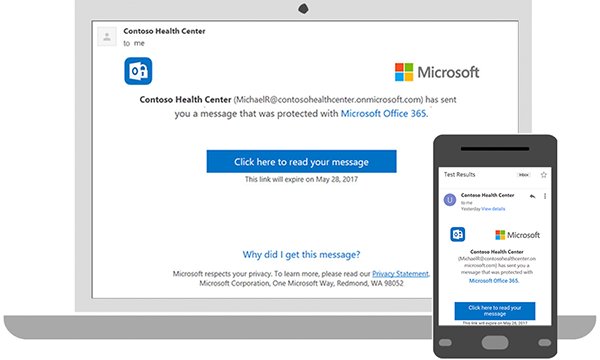
| Gmail or Yahoo inbox | Microsoft Purview Message Encryption sends a Read the message link instead | Select the link and sign in or use a one-time passcode |
Open RPMSG attachments in Outlook on the web
Outlook on the web reads restricted messages in any browser. Use it on a PC without Outlook, on a Mac, or when the desktop app keeps failing.
- Open
outlook.office.comfor work or school mail, oroutlook.comfor a personal Microsoft account. - Sign in with the email address the message was sent to.
- Open the protected message from your Inbox.
- Read the message; a banner lists any restriction such as Do Not Forward.
Alternative Methods to Access RPMSG Files (Third-Party Tools and Viewers)
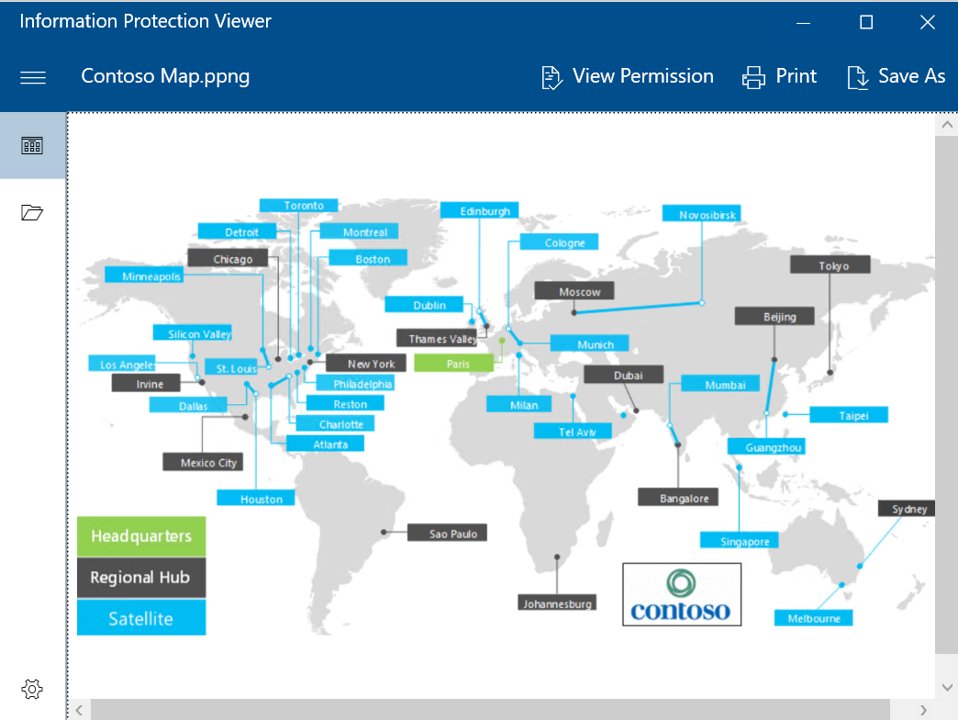
Microsoft's own viewer opens a saved .rpmsg file without Outlook. It runs on Windows 10, Windows 11, Windows Server 2016 and 2019, iOS 11 or later and Android 8.1 or later.
- Install the Microsoft Purview Information Protection viewer from Microsoft.
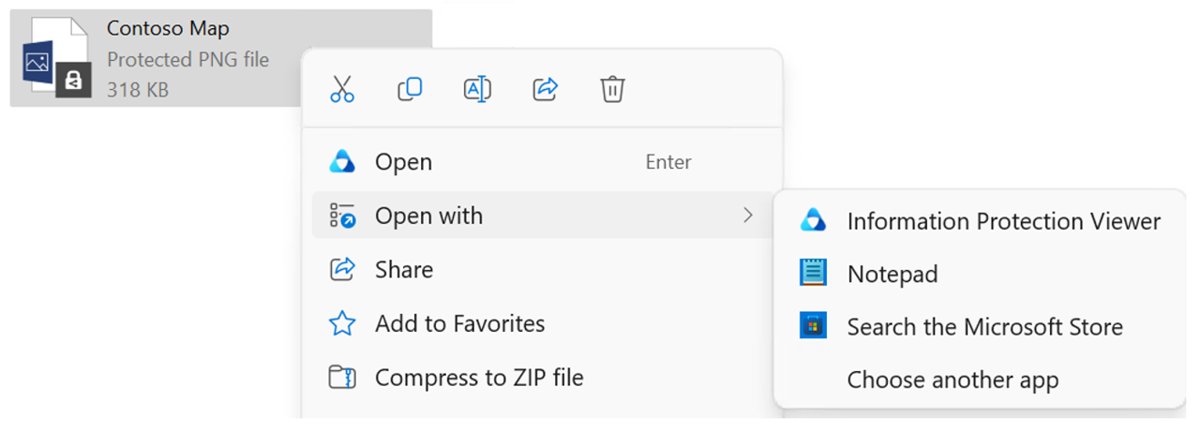
- Double-click the
.rpmsgfile. - Select Open with > Information Protection Viewer.
- Sign in with your work or school account, the Microsoft account the message was protected for, or a one-time passcode if offered.
- Read the message; the viewer is read-only.
On iPhone, iPad or Android, install the Azure Information Protection app, select the file, choose AIP Viewer, and sign in. The mobile viewer cannot open attachments inside a protected email, and third-party "RPMSG viewers" cannot decrypt the file without your licence.
Using Microsoft Outlook to Open RPMSG Files: Pros and Cons
| Option | Pros | Cons | Use it when |
|---|---|---|---|
| Outlook desktop | Opens the message in place; can reply with the same protection | Needs the right account signed in; first open needs the licensing server; classic Outlook has cross-tenant issues | The email arrived in your Outlook mailbox |
| Outlook on the web | Any browser, no install; avoids desktop configuration errors | Needs internet and the recipient mailbox | Desktop Outlook fails or is not installed |
| Purview Information Protection viewer | Opens a saved .rpmsg file; Windows, iOS and Android |
Read-only; cannot open attachments inside protected emails | You only have the file |
| Read the message link | Works from Gmail, Yahoo and other inboxes | Passcodes expire after 15 minutes | The email came to a non-Microsoft address |
Pros of using Microsoft Outlook: the message keeps its protection, you can reply to the sender, and nothing has to be saved to disk. Cons of using Microsoft Outlook: you cannot print, forward or copy a rights-managed message as the recipient, and it fails when you are signed in with a different account.
How to check the message opened correctly
- Confirm the email body text appears instead of a single
message.rpmsgattachment. - Look for the banner that names the restriction, such as Do Not Forward or Encrypt Only.
- Open any attached Office file and confirm it opens without a permission error.
- Close and reopen the message; after the first license download, it opens without a delay.
Troubleshooting Common Issues When Opening RPMSG Files
Check your email client: the message shows only a message.rpmsg attachment
The mail app cannot request a use license for protected mail.
- Open the same mailbox in Outlook desktop or Outlook on the web.
- Double-click the message so it opens in a new window; conversation view does not show encrypted messages.
- If you only have the file, open it with the Purview viewer.
Verify encryption and permissions: you are told you do not have permission
The message was protected for a different email address than the one you are signed in with.
- Check the To line against the account signed in to Outlook.
- Sign in with that exact account, or ask the sender to resend to your current address.
"This message with restricted permission cannot be viewed in the reading pane until you verify your credentials" and a message_v2.rpmsg attachment
A classic Outlook Current Channel build (Version 2511) broke "Encrypt Only" mail encrypted through File > Encrypt.
- Update your software: in Outlook, select File > Office Account > Update Options > Update Now.
- Fixed builds include Current Channel Version 2602 (Build 19725.20000).
- Ask senders to encrypt from the Options ribbon > Encrypt instead of File > Encrypt.
Security and firewall settings: "Configuring your computer for Information Rights Management…" never finishes
Classic Outlook cannot open encrypted mail from another organisation because of cross-tenant sign-in settings.
- Open the message in Outlook on the web instead.
- Ask your IT admin about the Microsoft Entra cross-tenant Trust settings workaround for this known issue.
- Check that your network allows Outlook to reach Microsoft's licensing service; IT controls this on company networks.
Check for corruption: the saved file will not open anywhere
The .rpmsg file was damaged or cut off when it was saved or transferred.
- Open the original email again instead of the saved copy.
- Ask the sender to resend the message.
Double-clicking the .rpmsg file opens the wrong app
Windows has associated the extension with another program.
- Right-click the file and select Open with.
- Choose Information Protection Viewer and set it as the default.
- If the wrong app keeps opening, reset the Open With choices for the extension.
Security Considerations When Opening RPMSG Files
| Consideration | What to do |
|---|---|
| Protection travels with the message | Respect the restrictions; the sender chose who may read, print or forward |
| Unknown senders can encrypt phishing too | Treat a protected email from an unexpected sender like any other suspicious mail |
| Online converters and viewers | Never upload a protected message to a third-party site; it exposes content meant only for you |
| Screenshots and retyping | IRM cannot stop them, so do not use them to get around a restriction |
| Shared or public PCs | Sign out of Outlook on the web after reading a protected message |
Converting RPMSG Files to Other Formats for Easier Access
You cannot convert a protected message into an unprotected PDF or document unless the sender's permissions allow it. A recipient of a rights-managed message cannot print, forward or copy it.
| Approach | What happens |
|---|---|
| Steps for manual conversion (using Outlook) | Open the message in Outlook; if the permissions allow printing, print it to PDF. If Print is greyed out, the sender has blocked it |
| Ask the sender | The sender can remove protection from their own copy: open it from Sent Items, select File > Encrypt > Unrestricted Access, select Save, then send it again |
| Using conversion tools | Third-party converters cannot decrypt without your licence and would expose protected content; avoid them |
Frequently asked questions
How do I open an RPMSG file in Outlook?
Sign in to Outlook with the address the message was sent to, then double-click the message to open it in its own window. Outlook downloads a use license from the licensing server the first time, then shows the content.
How do I open an RPMSG attachment?
Do not open the attachment itself. Open the email that contains it in Outlook or Outlook on the web. If you only have the saved file, open it with the Microsoft Purview Information Protection viewer and sign in.
What is an RPMSG file?
An RPMSG file is a rights-protected email message. Outlook and Exchange create it when IRM or Microsoft Purview protection is applied, and it holds the encrypted message body and attachments.
How do I view an RPMSG file without Outlook?
Use Outlook on the web in any browser, or install the Microsoft Purview Information Protection viewer on Windows, iOS or Android. Both need you to sign in with the account the message was protected for.
How do I open message_v2.rpmsg?
message_v2.rpmsg is an encrypted message body. Open the email in Outlook on the web, or update classic Outlook; a 2025 build bug showed this attachment for "Encrypt Only" mail and is fixed in later builds.
Can I open an RPMSG file in Gmail?
Gmail cannot decrypt the file. Messages encrypted with Microsoft Purview Message Encryption arrive with a Read the message link; select it, sign in with Google or request a one-time passcode, and read it in the browser.
How do I open a RPMSG document on my phone?
Use the Outlook mobile app signed in to the recipient account, or install the Azure Information Protection app, select the file and choose AIP Viewer. The mobile viewer is read-only.
Can I convert an RPMSG file to PDF?
Only if the sender allowed printing. Open the message in Outlook and print it to PDF. If printing is blocked, ask the sender for an unprotected copy instead of using a converter.
Best Practices for Managing RPMSG Files in Your Workflow
Read protected messages in the mailbox they were sent to, using Outlook desktop or Outlook on the web, and keep the Purview viewer installed only for saved .rpmsg files. Understanding RPMSG files comes down to one rule: the file opens for the person it was protected for. Opening RPMSG files works best when you keep the original email instead of saved copies, update Outlook regularly, and ask senders for an unprotected copy when you need to share it. Managing RPMSG files effectively means leaving the protection in place rather than trying to strip it.