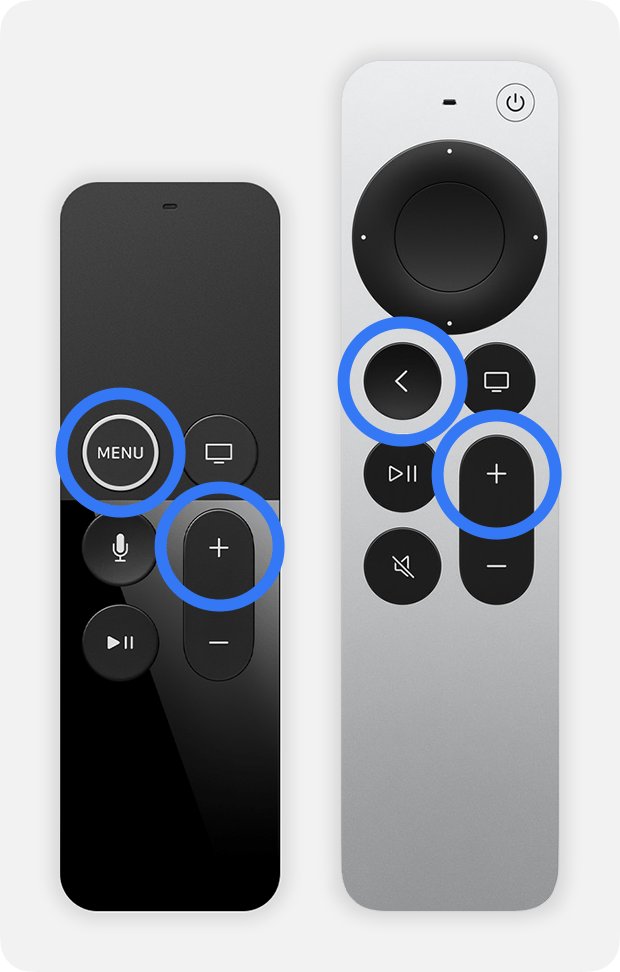
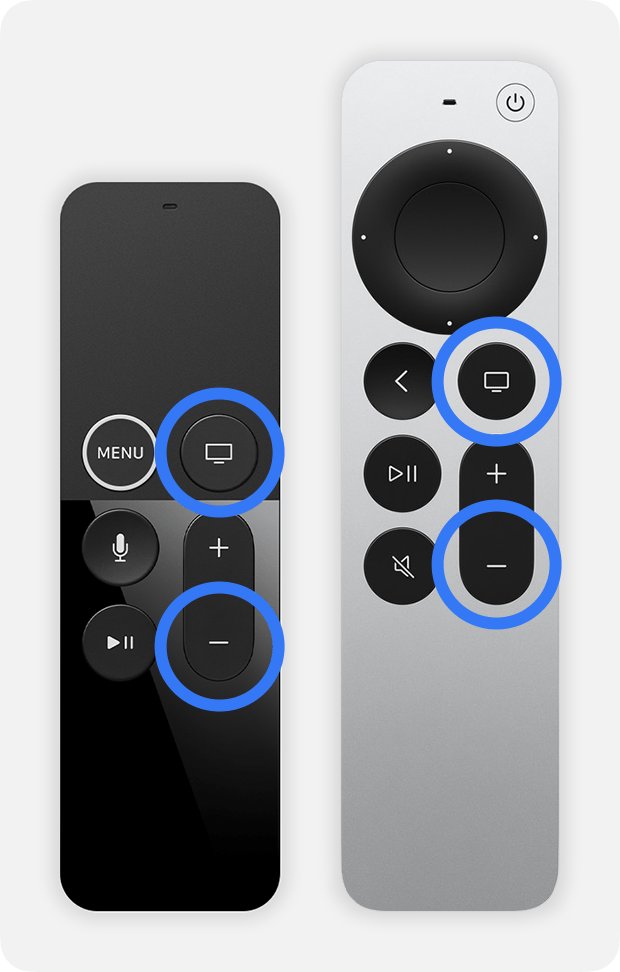
To pair a Siri Remote or Apple TV Remote, hold it 3 to 4 inches from the Apple TV and press and hold Back (or Menu) and Volume Up until an onscreen message confirms it; to reset it, which also unpairs it, press and hold TV/Control Center and Volume Down for at least 5 seconds.
This guide covers every Apple TV remote, including the older aluminum and white Apple Remote, the iPhone remote, and fixes for a remote that will not respond.
Pairing the Apple TV Remote
The remote that comes with an Apple TV 4K arrives already paired. You only pair manually after a reset or when you use a different remote.
- Turn on the Apple TV.
- Point the remote at the front of the Apple TV from about 3 to 4 inches (8 to 10 cm) away.
- Press and hold Back (or Menu on older remotes) and Volume Up together.
- Keep holding for 2 seconds; Apple's troubleshooting steps allow up to 5 seconds.
- If asked, place the remote on top of the Apple TV to finish.
- Wait for the onscreen message that the remote is paired.
An Apple TV 4K pairs with only one Apple TV 4K remote at a time. Pairing a new one automatically unpairs the old one.
Understanding Different Apple TV Remotes
| Remote | How to recognise it | Pair | Reset or unpair |
|---|---|---|---|
| Siri Remote or Apple TV Remote (2nd and 3rd generation) | Clickpad with a ring, Power and Mute buttons | Back + Volume Up | TV/Control Center + Volume Down, 5 seconds |
| Siri Remote or Apple TV Remote (1st generation) | Touch surface, Menu button, no Power button | Menu + Volume Up | TV/Control Center + Volume Down, 5 seconds |
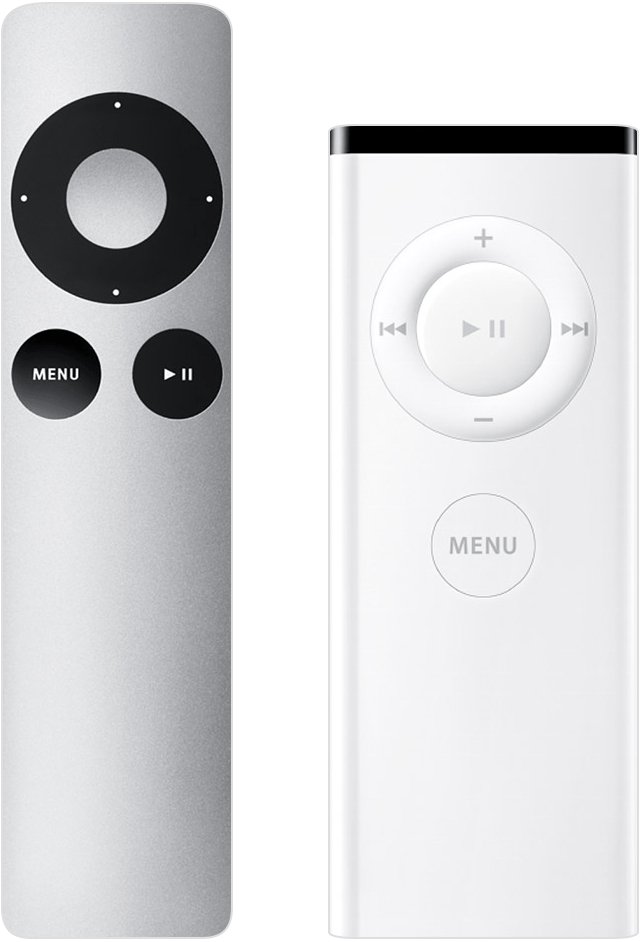
| Apple Remote (aluminum or white) | Small remote with Menu and a ring of arrow buttons, replaceable battery | Menu + Right, 6 seconds | Menu + Left, 6 seconds, unlinks it |
Siri Remote features include a Siri button for Siri, Search or dictation, Control Center on a long press of the TV button, and a rechargeable battery charged over USB-C or Lightning. Older Apple TV remote features differ: the aluminum and white Apple Remote uses a replaceable battery and links with Menu and the arrow buttons.
Pairing the aluminum remote
Apple calls this linking. The steps apply to the aluminum and white Apple Remote; Apple has archived the article but the button combination is unchanged.
- Replace the battery if the remote has been unused for a while.
- Point the remote at the Apple TV.
- Hold down Menu and the Right button for six seconds.
- Look for the Link icon above a remote icon on the Apple TV.
Unpairing Your Apple TV Remote
- Siri Remote or Apple TV Remote: press and hold TV/Control Center and Volume Down for at least 5 seconds. Resetting the remote unpairs it from the Apple TV.
- Alternatively, pair a different remote with the Apple TV 4K; the previously paired remote is unpaired automatically.
- Aluminum or white Apple Remote: hold down Menu and the Left button for six seconds.
- Look for the Unlink icon above a remote icon on the Apple TV.
- iPhone, iPad or Apple Watch: on the Apple TV, open Settings > Remotes and Devices > Remote App and Devices, select the device and choose Forget This Device.
Resetting Your Apple TV Remote
Apple's support page calls this restarting the remote. It clears a stuck connection and unpairs the remote, so pair it again afterwards if it does not reconnect.
- Press and hold TV/Control Center and Volume Down at the same time.
- Hold for about 5 seconds, or until the status light on the Apple TV turns off and on again.
- Release the buttons and wait 5 to 15 seconds; a Remote Disconnected notification may appear.
- Press any button on the remote.
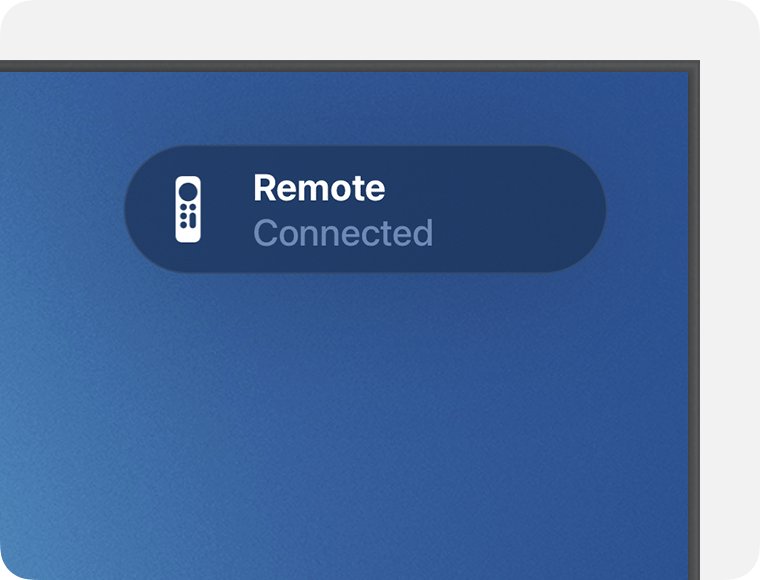
- If Remote Connected appears, the remote is ready; if not, pair it with Back (or Menu) and Volume Up.
The aluminum and white Apple Remote has no reset combination. Replace its battery, unplug the Apple TV for at least six seconds, then unlink and link it again.
How to check the remote is paired
- Look for the Remote Connected or paired message on the TV.
- On the Apple TV, open Settings > Remotes and Devices and select Remote.
- Confirm the remote's information appears, including Battery Level.
- On tvOS 18.0 or later, check the signal strength indicator (Bluetooth RSSI) on the same screen.
Using the Apple TV Remote App on iPhone
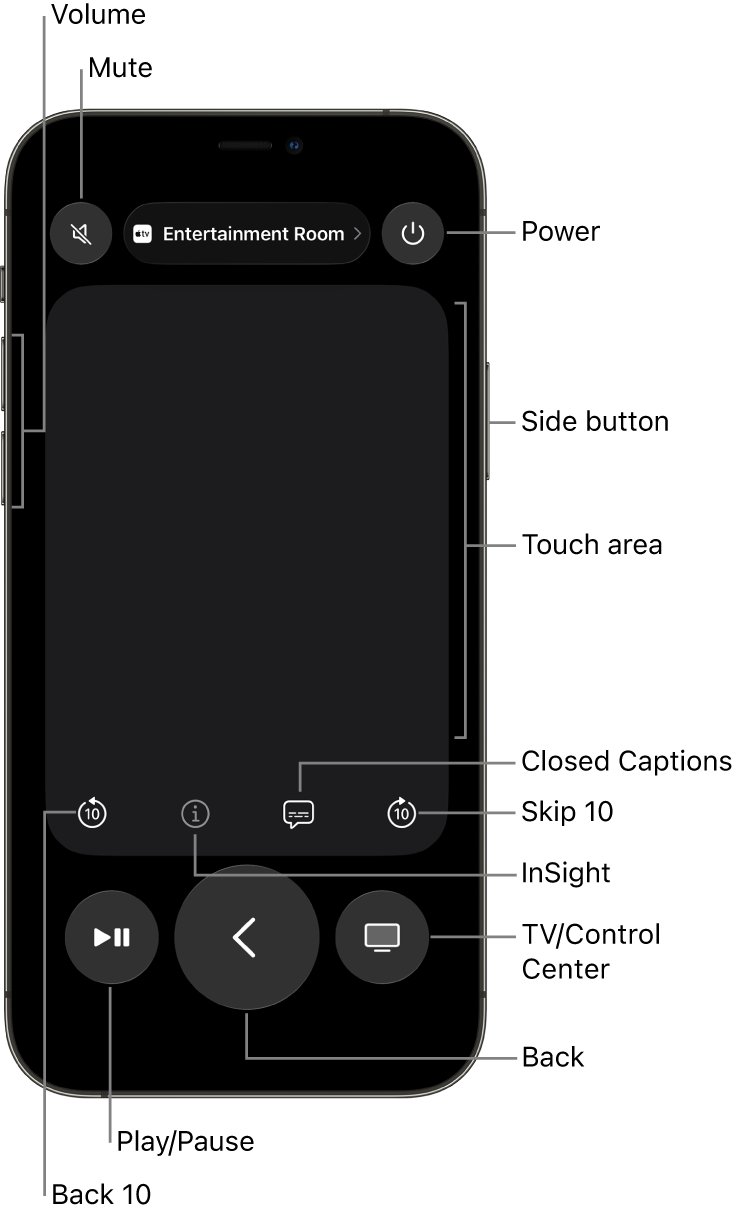
The iPhone or iPad remote works even when the physical remote is lost or flat, which makes it the easiest way to reach Settings and pair a remote again.
- If the Apple TV Remote app is not on your device, download it from the App Store.
- Open Control Center and tap the Apple TV Remote icon, or open the app from the Home Screen or App Library.
- Choose your Apple TV.
- Swipe in the touch area to move and tap it to select.
- Use the iPhone's volume buttons to change the volume on supported TVs and receivers.
On an iPhone with iOS 12 or later or an iPad with iPadOS 13 or later, the remote controls activate automatically when the device connects to the Apple TV.
Troubleshooting Common Remote Issues
Remote not responding
The battery is flat or the remote has lost its pairing.
- Charge a Siri Remote for 30 minutes with a USB-C or Lightning cable and a USB wall charger.
- Pair it again with Back (or Menu) and Volume Up from 3 inches away.
- If it still will not pair, unplug the Apple TV, wait six seconds, plug it back in and pair again.
Remote lagging or unresponsive after pairing
A weak Bluetooth signal or an outdated tvOS.
- Open Settings > Remotes and Devices > Remote and check the signal strength indicator.
- Move within 20 feet (about 6 meters) of the Apple TV.
- Clear anything between the remote and the front of the Apple TV, TV, receiver or sound bar.
- Update the Apple TV to the latest tvOS, using the iPhone remote to navigate if needed.
Volume buttons do nothing
The volume control setting does not match your TV or sound system.
- Restart the remote with TV/Control Center and Volume Down.
- Open Settings > Remotes and Devices > Volume Control.
- Choose another option, such as TV via IR instead of Auto; use an IR setting for sound bars connected by optical cable.
Replacing the remote
The remote still fails after charging, resetting and pairing.
- Use the Apple TV Remote on your iPhone or iPad in the meantime.
- Contact Apple for service, or pair a replacement remote; it automatically replaces the old one.
Frequently asked questions
How do I unpair and re-pair an Apple TV remote?
Press and hold TV/Control Center and Volume Down for at least 5 seconds to reset and unpair it. Then hold the remote 3 to 4 inches from the Apple TV and press and hold Back (or Menu) and Volume Up until the paired message appears.
How do I unpair a device from my Apple TV?
For an iPhone, iPad or Apple Watch, open Settings > Remotes and Devices > Remote App and Devices on the Apple TV, select the device and choose Forget This Device. A Siri Remote is unpaired by resetting it or pairing another remote.
Can I pair two Siri Remotes with one Apple TV?
No. An Apple TV 4K can have only one Apple TV 4K remote paired at a time. When you pair a second remote, the first is unpaired automatically, though you can still use iPhones and iPads as extra remotes.
How long does it take to charge a Siri Remote?
About three hours for a full charge from a computer or a USB power adapter. Apple suggests 30 minutes of charging as a troubleshooting step, and you can keep using the remote while it charges.
How do I check my Apple TV remote's battery?
Open Settings on the Apple TV, go to Remotes and Devices and select Remote. The screen shows information about the remote, including Battery Level. An alert also appears on the TV when the battery runs low.
Why won't my Apple TV remote pair?
Move closer, about 3 inches from the front of the Apple TV, and hold the buttons again. If it still fails, unplug the Apple TV for six seconds, plug it back in and repeat. Charge the remote if the battery is low.
Conclusion
Remember two combinations: Back (or Menu) plus Volume Up to pair, and TV/Control Center plus Volume Down to reset and unpair; keep the iPhone remote as a backup. Those two combinations solve most Siri Remote problems, and the iPhone remote lets you reach Settings when the physical remote is flat, lost or unpaired.