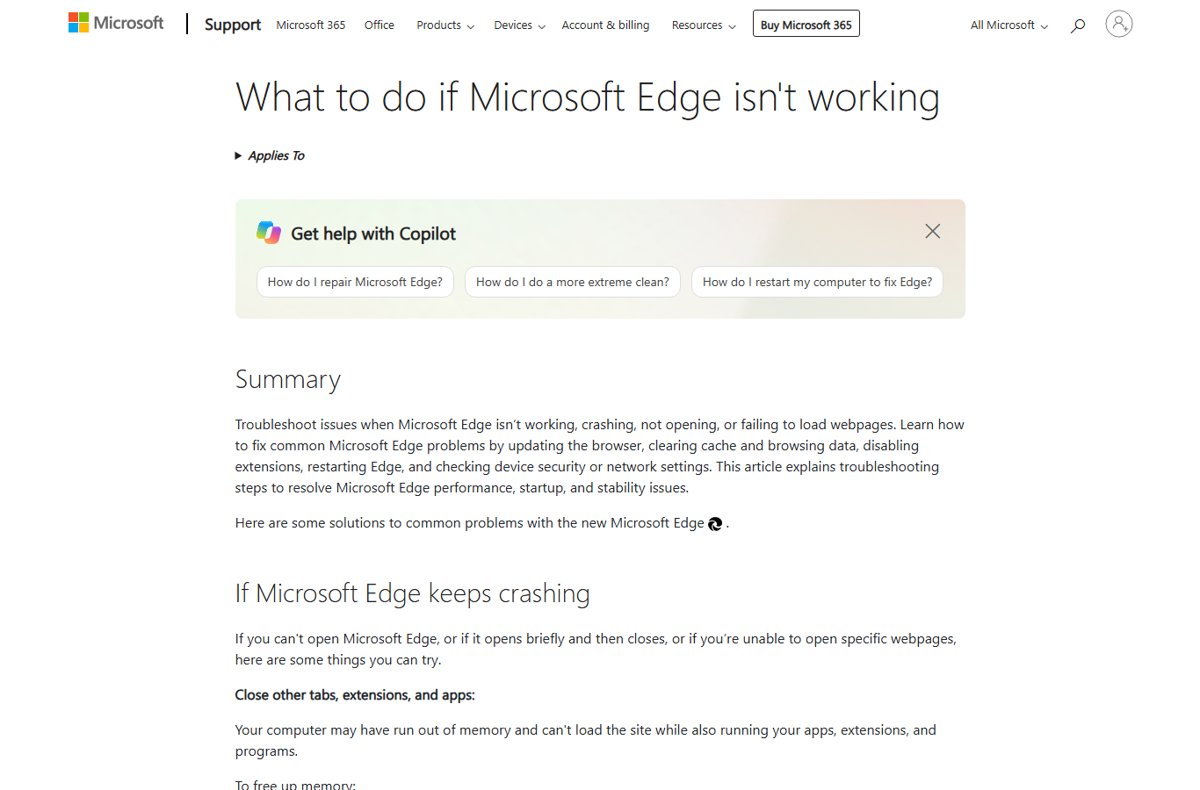
To fix Microsoft Edge when it is not working, end every Edge process in Task Manager and restart it; if that fails, clear browsing data, turn off extensions, update, reset settings, and finally use Repair from Settings > Apps > Installed apps.
This guide covers 9 ways in the order that fixes most cases fastest, which one matches your symptom, how to confirm Edge is healthy again, and what to do when Edge will not open or repair at all.
1. Restart Microsoft Edge
Closing the window does not always stop Edge. Microsoft notes that background processes left from a previous session can prevent a clean start, so end them all.
- Press Ctrl + Shift + Esc to open Task Manager.
- Find every Microsoft Edge or
msedge.exeentry. - Select each one and select End task.
- Open Microsoft Edge again.
- If Edge still misbehaves, restart the PC from Start > Power > Restart, which clears any other program interfering with it.
Which fix matches your Edge problem?
Microsoft groups Edge failures into three symptoms. Start with the fix for yours, then work down the list.
| What Edge does | Try first | Then |
|---|---|---|
| Will not open, or a blank window flashes and closes | 1. Restart (end all msedge.exe tasks) | 8. Repair Edge, then the graphics acceleration fix below |
| Opens but crashes or freezes | 4. Turn off extensions | 5. Update, then 8. Repair |
| Opens but pages will not load | 2. Check internet connection | 3. Clear browsing data |
| Pages load but look broken or old | 3. Clear browsing data | 6. Reset settings |
| Slow, high CPU or memory | Browser Task Manager (Shift + Esc) | 4. Turn off extensions |
| Update or install fails | 7. Run the Windows troubleshooter | 9. Reinstall Edge |
2. Check Internet Connection
If one page fails, Microsoft suggests opening it in another browser. If it fails there too, the problem is the network or the website, not Edge.
- Open the same page in another browser.
- If it fails there too, restart your modem and router.
- Disconnect from any VPN and try the page again.
- If only one site fails everywhere, the site itself is down; contact its owner or try later.
- If every site fails only in Edge, continue with the next fix.
3. Clear Browsing Data
Edge saves temporary internet files so pages load faster. Microsoft notes that clearing this cache sometimes fixes page display problems.
- Select Settings and more (the three dots) > History > Open history page.
- Select Delete browsing data.
- Set Time range to All time.
- Select Browsing history and Cached images and files.
- Select Clear now and reload the problem page.
- If that does not help, repeat with every box selected. This also signs you out of websites.
4. Disable Extensions
A faulty or outdated extension can crash Edge or pin the CPU. Turn them all off to test, then bring them back one by one.
- Type
edge://extensions/in the address bar and press Enter. - Turn off the toggle next to every extension.
- Restart Edge and use it normally for a few minutes.
- If the problem is gone, turn extensions back on one at a time until it returns.
- Select Remove under the extension that brings the problem back.
Press Shift + Esc inside Edge to open the Browser Task Manager, sort by CPU or Memory, and see which tab or extension is busiest. For Edge that lags rather than fails, see fixing Microsoft Edge lag.
5. Update Microsoft Edge
- Select Settings and more > Settings > About Microsoft Edge, or type
edge://settings/helpin the address bar. - Wait while Edge checks for updates and downloads any it finds.
- Select Restart when Edge offers it.
- Also select Start > Settings > Windows Update > Check for updates and install what is offered.
If the update check fails with an error code, use fix 7 or fix 9.
6. Reset Microsoft Edge Settings
A reset undoes changed settings without touching your saved data. Microsoft states that bookmarks, history and saved passwords are preserved, while pinned tabs, the startup page, search engine and extensions are reset.
- Type
edge://settings/resetin the address bar and press Enter. - Select Restore settings to their default values.
- Confirm the reset in the dialog that opens.
- Restart Edge and turn back on only the extensions you need.
7. Run the Windows Troubleshooter
For install and update problems on Windows 11, Microsoft points to the Program Compatibility troubleshooter, which runs diagnostics and attempts fixes automatically.
- Select Start > Settings > System > Troubleshoot > Other troubleshooters.
- Find Program Compatibility Troubleshooter and select Run.
- Choose Microsoft Edge when the troubleshooter asks which program has problems.
- Follow the on-screen instructions.
- If Edge updates fail with a connection error, run the Windows Update troubleshooter from the same list.
8. Repair Edge
Repair reinstalls the Edge program files over the existing copy. Microsoft says your browser data and settings shouldn't be affected.
- Close Edge for every user signed in to the PC, and make sure you have administrator rights.
- Select Start > Settings > Apps > Installed apps.
- Find Microsoft Edge in the list, open its menu and select Modify.
- Select Yes at Do you want to allow this app to make changes to your device?
- Stay connected to the internet and select Repair.
- Wait for the repair to finish and open Edge.
If Modify is missing or greyed out, your organization probably installed and manages Edge; contact your administrator.
9. Reinstall Microsoft Edge
Edge is part of Windows and normally cannot be uninstalled from Settings. Installing the latest version over the top replaces damaged files.
- Open another browser if Edge will not start.
- Go to
www.microsoft.com/edge. - Download Microsoft Edge and run the installer.
- Restart the PC with Start > Power > Restart.
- Open Edge and check
edge://settings/helpto confirm it is on the latest version.
How to check Edge is working again
- Open Edge from the taskbar and confirm a window appears and stays open.
- Load three or four sites you use daily, including one with video.
- Open
edge://settings/helpand confirm it says Microsoft Edge is up to date. - Press Shift + Esc and check that no single tab or extension is using most of the CPU.
- Open
edge://crashesafter a day of use; no new entries means the crashes have stopped.
Fix Edge when the usual steps do not work
Edge shows a blank window or freezes as soon as it opens
Microsoft links blank windows to graphics driver problems.
- If Edge stays open long enough, go to
edge://settings/system. - Turn off Use graphics acceleration when available.
- Restart Edge.
- If that fixes it, update the graphics driver through Windows Update, then turn acceleration back on.
Edge still will not open after repair
The user profile is damaged, so Edge fails before the window appears.
- Close every Edge window.
- Press Windows key + R, type
%LOCALAPPDATA%\Microsoft\Edge\User Dataand press Enter. - Rename the Default folder to Default.old.
- Start Edge to create a fresh profile.
- If Edge is stable, copy files you want, such as Bookmarks, from Default.old into the new Default folder.
Microsoft Edge won't repair, or Repair is missing
Edge is managed by an organization, another user has it open, or the PC is offline.
- Sign other users out, or end their Edge processes in Task Manager.
- Confirm the PC is online, since Repair downloads files.
- Use an administrator account.
- If Modify is still unavailable, the device is managed; ask your administrator, or reinstall from
www.microsoft.com/edgeas in fix 9.
Edge keeps crashing on many sites
The PC is low on memory, malware is interfering, or security software is out of date.
- Close every tab except the failing one, close other apps and pause downloads.
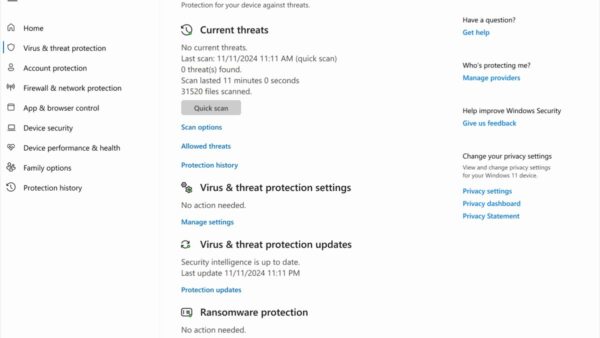
- Run a scan in Windows Security.
- Update any third-party security software you use.
- Reload the page.
If nothing works, select Settings and more > Help and feedback > Send feedback to report the problem to Microsoft. The Edge public issue tracker lists known bugs.
Frequently asked questions
How do I fix issues with Microsoft Edge?
End every Edge process in Task Manager and reopen it. If the problem stays, clear browsing data, turn off extensions at edge://extensions/, update from edge://settings/help, reset at edge://settings/reset, then use Repair under Settings > Apps > Installed apps.
Why is Microsoft Edge not working correctly?
The usual causes are a faulty extension, a damaged cache, an outdated version, low memory, malware or a corrupted profile. Pages that fail in every browser point to the network or the site instead. Turning off extensions and clearing cached files fix most cases.
Why won't my Microsoft Edge open?
Leftover background processes, graphics driver problems, a damaged profile or broken program files can stop Edge starting. End all msedge.exe tasks in Task Manager, restart the PC, then run Repair from Settings > Apps > Installed apps > Microsoft Edge > Modify.
Why can't I repair Microsoft Edge?
If Modify is missing, your organization most likely installed and manages Edge, so ask your administrator. Repair also needs administrator rights, an internet connection and Edge closed for every signed-in user. Reinstalling from www.microsoft.com/edge is the alternative.
Will repairing or resetting Edge delete my bookmarks?
No. Microsoft says Repair shouldn't affect browser data or settings. Resetting settings keeps bookmarks, history and saved passwords, but resets pinned tabs, the startup page, the search engine and extensions.
Can I uninstall Microsoft Edge and reinstall it?
Edge is part of Windows and normally cannot be uninstalled from Settings. Instead, download the latest version from www.microsoft.com/edge in another browser and install it over the existing copy, then restart the PC.
Why isn't Microsoft Edge working properly when other browsers are?
The fault is inside Edge: an extension, cached data, a changed setting or the profile. Turn off extensions first, then clear cached images and files, then reset settings. If Edge still fails, test with a fresh profile as described above.
Conclusion
Work from the cheapest fix up: restart, clear data, extensions, update and reset first, and use Repair or a reinstall only when Edge still fails. The early fixes take seconds and keep everything, Repair keeps your data but replaces program files, and a new profile is the last resort because it starts Edge from scratch.