To enable hardware-accelerated GPU scheduling in Windows 11, open Settings > System > Display > Graphics, turn on Hardware-accelerated GPU scheduling under the default settings, and restart the PC.
This guide covers what the feature does, which PCs show the switch, the Windows 10 path, how to confirm it stayed on, and how to turn it off again if a game or app misbehaves.
Enable Hardware-accelerated GPU Scheduling in Windows 11/10
The switch appears only when both your graphics card and its driver support the feature. Microsoft ships it as an opt-in setting, so it is off unless you or the PC maker turned it on.
- Select Start, then open Settings.
- Select System > Display.
- Scroll down and select Graphics.
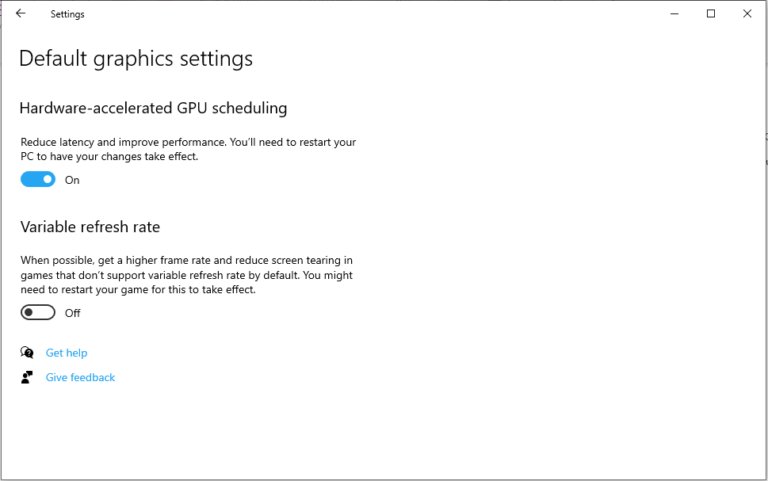
- Under Default settings, turn on Hardware-accelerated GPU scheduling; on older Windows 11 builds, open the default graphics settings link on this page first.
- Close Settings and restart the PC so the new scheduler loads.
On Windows 10 version 2004 or later, the same switch sits under Settings > System > Display > Graphics settings. Turn it on there and restart.
What Hardware-Accelerated GPU Scheduling (HAGS) actually does
Since the first Windows Display Driver Model, a high-priority thread on the CPU has scheduled every app's work on the GPU. HAGS moves most of that scheduling to a dedicated scheduling processor on the graphics card.
| Item | Classic scheduler | Hardware-accelerated scheduling |
|---|---|---|
| Who schedules GPU work | A high-priority CPU thread | A scheduling processor on the GPU |
| Who sets app priority | Windows | Still Windows |
| Frequent tasks such as context switching | Handled on the CPU | Offloaded to the GPU |
| Default state | On for every PC | Off unless you or the PC maker turn it on |
| Requirement | Any WDDM driver | Supported GPU plus a WDDM 2.7 or later driver |
Microsoft says most apps already hide scheduling costs by buffering frames, so the change should be transparent. Treat it as a modernisation of the graphics stack, not a guaranteed frame-rate boost.
Who should enable HAGS (and who shouldn’t)
| Your situation | Recommendation | Why |
|---|---|---|
| Gaming PC with a recent GPU and current driver | Turn it on and compare | The feature was built for this hardware |
| A game's own requirements list it | Turn it on | Follow the game maker's requirement |
| PC maker shipped it on | Leave it on | Microsoft encourages makers to validate systems with it on |
| Stutter, black screens or crashes after enabling | Turn it off | Reverting to the classic scheduler isolates the cause |
| Older GPU with no switch in Settings | Nothing to do | The GPU or driver does not support it |
| Work PC managed by IT | Ask IT first | Graphics changes can affect validated apps |
Prerequisites and compatibility checks
| Requirement | How to check |
|---|---|
| Windows 11, or Windows 10 version 2004 (May 2020 Update) or later | Settings > System > About shows the version |
| A GPU with scheduling hardware | Check the graphics card name in Device Manager under Display adapters and confirm support with its maker |
| A WDDM 2.7 or later driver | Install the current driver from Windows Update or the GPU maker |
| Time to restart | The change applies after a restart |
Get driver updates from Settings > Windows Update > Advanced options > Optional updates, or from NVIDIA, AMD or Intel directly.
Enable via Registry (advanced, scriptable)
Microsoft documents only the Settings switch. It publishes no registry value and no Group Policy setting for hardware-accelerated GPU scheduling, so registry tweaks passed around online are not a supported route.
| Route | Documented by Microsoft | Use it for |
|---|---|---|
| Settings > System > Display > Graphics | Yes | Every single PC |
| Registry edit | No documented value | Avoid; a wrong edit can break graphics |
| Group Policy (Pro/Enterprise) | No policy published | Not available; set it per PC or in the deployment image |
| PC maker factory setting | Yes, makers may ship it on | New PCs that arrive with it enabled |
If the switch is missing, a registry edit will not add support that the GPU or driver lacks. Update the driver instead.
Verify HAGS is enabled (and confirm it sticks)
- After the restart, open Settings > System > Display > Graphics.
- Check that Hardware-accelerated GPU scheduling still shows On.
- Restart once more and check again; the setting should survive every restart.
- If it flips back to off after a driver update, turn it on again and restart.
Restart and reboot gotchas
| Gotcha | What happens | What to do |
|---|---|---|
| No restart after the switch | The old scheduler keeps running | Restart, not just sign out |
| Driver reinstall or clean install | Support can disappear until the new driver loads | Restart, then check the switch again |
| Switching GPUs or drivers | The switch may vanish or reset | Update to a supported driver and re-enable |
| Fast benchmark right after boot | Background startup tasks skew results | Wait a few minutes before testing |
Performance testing: measure before and after
Measure in the games or apps you actually use. Results differ by GPU, driver and title, so a one-off impression is not enough.
- Pick one game with a built-in benchmark, or one repeatable scene.
- With the feature off, run the test three times and note the average and lowest frame rate.
- Turn on Hardware-accelerated GPU scheduling and restart.
- Run the same test three times at the same settings and resolution.
- Compare the averages; keep the feature on only if results are equal or better and nothing stutters.
HAGS vs alternatives: GPU scheduling behaviors you may also see
The Graphics page holds several switches that change how games run. They are separate from GPU scheduling and can be set independently.
| Setting | What it does | Where |
|---|---|---|
| Hardware-accelerated GPU scheduling | Moves GPU work scheduling from the CPU to the graphics card | Graphics > Default settings |
| Optimizations for windowed games | Moves DirectX 10 and 11 windowed games to the flip model for lower latency, Auto HDR and VRR | Graphics > Default settings |
| Graphics preference per app | Picks Power saving or High performance GPU on PCs with two GPUs | Graphics > Custom options for apps > Options |
| Auto HDR | Adds HDR to supported games; turning it on also turns on windowed game optimizations | Per game: Custom options for apps > Options > Don't use Auto HDR |
Common mistakes
| Mistake | Result | Better approach |
|---|---|---|
| Looking for the switch on an unsupported GPU | The setting never appears | Check driver and GPU support first |
| Skipping the restart | No change in behaviour | Restart after every toggle |
| Confusing it with browser hardware acceleration | Changing the wrong setting | Browser acceleration lives in the browser's own settings |
| Using registry tweaks from forums | Unsupported state, possible display problems | Use the Settings switch only |
| Judging speed from one session | Misleading results | Test the same scene several times |
How to disable hardware-accelerated GPU scheduling
- Open Settings > System > Display > Graphics.
- Under Default settings, turn off Hardware-accelerated GPU scheduling.
- Restart the PC.
- Open the same page and confirm the switch shows Off.
This only changes how Windows schedules GPU work. To stop individual apps or browsers using the GPU, turn off hardware acceleration in apps instead.
Troubleshooting when HAGS causes issues
Hardware-accelerated GPU scheduling is missing
The GPU lacks the scheduling hardware or the driver is older than WDDM 2.7.
- Install the latest driver from the GPU maker or from Optional updates in Windows Update.
- Restart and check Settings > System > Display > Graphics again.
- If it is still missing, the graphics card does not support the feature.
The switch turns itself off or will not stay on
A driver update or reinstall reset the setting, or the PC was not restarted.
- Turn the switch on again.
- Restart the PC rather than signing out.
- Reinstall the current GPU driver if it keeps resetting.
Stutter, black screens or freezes after enabling
The game, app or driver behaves differently with the new scheduler.
- Turn the switch off and restart.
- Update the GPU driver and the game.
- Turn it on again and retest; leave it off if the problem returns.
- Report a lasting slowdown to Microsoft at aka.ms/submitgameperformancefeedback.
Only one GPU on a laptop shows a change
Laptops with integrated and dedicated GPUs pick a GPU per app.
- Open Graphics > Custom options for apps and select the game.
- Select Options and choose High performance.
- Select Save and restart the game.
FAQs
What is hardware-accelerated GPU scheduling?
It is a Windows 11 and Windows 10 feature that moves most GPU work scheduling from a CPU thread to a scheduling processor on the graphics card. Windows still decides app priority. It needs a supported GPU and a WDDM 2.7 or later driver.
Should I enable hardware-accelerated GPU scheduling?
Turn it on if you have a recent GPU with a current driver, then compare performance in your own games. Leave it off if you see stutter, freezes or crashes after enabling it. Microsoft expects most users to notice no significant change.
What does hardware acceleration GPU scheduling do for games?
It reduces the overhead of scheduling GPU work, which can lower latency in some cases. Most games already buffer frames to hide scheduling costs, so gains vary by game, GPU and driver.
Why is hardware-accelerated GPU scheduling missing?
The switch appears only when both the graphics card and its driver support the feature. Install the latest GPU driver, restart and check Settings > System > Display > Graphics again.
How do I disable hardware-accelerated GPU scheduling?
Open Settings > System > Display > Graphics, turn off Hardware-accelerated GPU scheduling under Default settings, then restart the PC. The classic CPU-based scheduler is used again after the restart.
Do I need to restart after enabling HAGS?
Yes. The scheduler change takes effect only after a full restart. Signing out or closing the game is not enough.
Is hardware-accelerated GPU scheduling on by default?
Microsoft introduced it as an opt-in setting that is off by default. PC makers can ship new systems with it turned on, so check the Graphics page to see the current state.
How do I enable hardware acceleration in my browser?
Browser acceleration is a separate setting. In Chrome, turn on Use hardware acceleration when available under Settings > System. In Edge, turn on Use graphics acceleration when available under Settings > System and performance, then restart the browser.
Bottom Line
Turn on hardware-accelerated GPU scheduling from Settings > System > Display > Graphics if the switch appears, restart, and keep it only if your games run as well or better. The Settings switch is the only route Microsoft documents, the feature needs a supported GPU and driver, and its effect varies by game, so a quick before-and-after test settles it.