To connect to Wi-Fi using a QR code, open your device's camera, point it at the code, and tap the prompt that appears to join the network without typing the password.
This guide covers iPhone, Android and Windows 11, how to make and share your own Wi-Fi QR code, how to read the code's text, and what to do when a scan works but the connection fails.
How To Connect to a Wi-Fi Using a QR Code
These steps work on an iPhone, most Android phones and a Windows PC with a camera. The code carries the network name and password, so you never type either one.
- Make sure Wi-Fi is turned on on the device that will join the network.
- Open the Camera app. On Windows, select the barcode mode icon first.
- Point the camera at the Wi-Fi QR code until the whole code sits inside the frame and is in focus.
- Tap or select the network prompt that appears on screen.
- Confirm that you want to join the network. On Windows, confirm in Settings, where you can also choose whether to connect automatically.
The device saves the network, so it reconnects on its own the next time it is in range.
Best method to use in different situations
| Your situation | Use this | Why |
|---|---|---|
| The code is printed on a sign or card and you have an iPhone | iPhone Camera app or the Scan Code control | Built in, no app to install |
| The code is printed and you have an Android phone | The phone's camera or the QR option in Wi-Fi settings | Android 10 and later can join a network from its QR code |
| You are on a Windows laptop with a webcam | Windows Camera app in barcode mode | Opens Settings with the network details already filled in |
| The code is a screenshot or photo on your PC | Show the image on one screen and scan it with another device | The Windows Camera app reads codes through the camera, not from files |
| Your desktop PC has no camera | Scan with your phone, then type the details on the PC | The phone shows the network name and lets you view the password |
| You want to let a guest join your network | Show your network's QR code on iPhone, Android or Windows | The guest scans it and never sees a typed password |
| The Camera app on Windows has no barcode mode | Update the Camera app, or use a QR scanner app from the Microsoft Store | Barcode mode is part of the current Camera app |
How to Connect to Wi-Fi Using a QR Code on iPhone
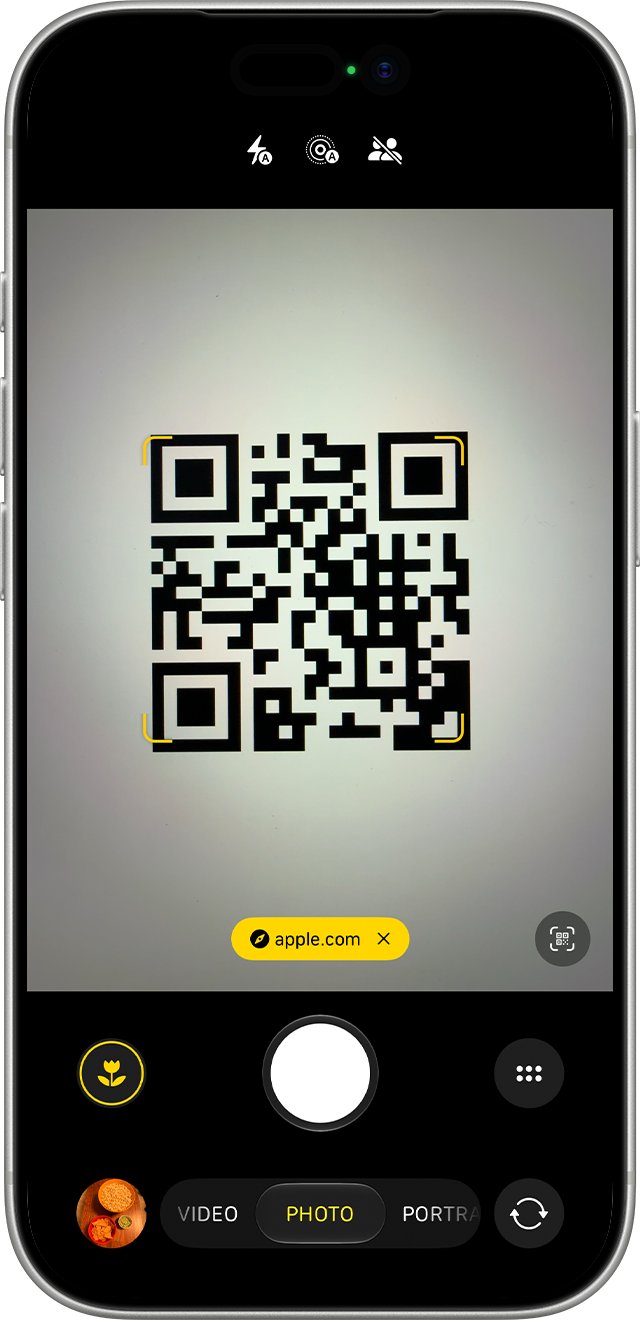
Apple's Camera app reads QR codes in Photo mode. Code Scanner in Control Center does the same job and also works from the Lock Screen.
- Open Camera from the Home Screen, Lock Screen or Control Center.
- Stay in Photo mode and position the iPhone so the QR code appears inside the camera frame.
- Tap the Wi-Fi prompt that appears at the bottom of the screen.
- Confirm that you want to join the network when iOS asks.
- If the camera ignores the code, open Control Center, tap the Scan Code control and point it at the code instead.
To add Scan Code to Control Center, touch and hold the Control Center background, tap Add a Control, then tap Scan Code. On supported models the Camera Control button also opens the scanner.
How to Connect to Wi-Fi Using a QR Code on Android
Android 10 added Wi-Fi Easy Connect, which lets a phone join a network by scanning the network's QR code. Where the scanner sits depends on the phone maker, so try the camera first.
- Open the phone's Camera app and point it at the QR code.
- Tap the network prompt that appears and confirm the connection.
- If the camera does not react, open Settings and tap Network & internet, then Internet.
- Look for the QR scan option on the Wi-Fi list, often next to the option to add a network, and tap it.
- Point the phone at the code and confirm when the network appears.
Once connected, the network is listed as Saved and the phone rejoins it automatically when Wi-Fi is on and the network is in range.
What happens when you scan a Wi-Fi QR code on Windows?
Windows 11 and Windows 10 PCs with a camera can join a network from its QR code through the built-in Camera app. Windows does not connect silently; it hands the details to Settings for you to confirm.
| Stage | What you see |
|---|---|
| Camera app in barcode mode reads the code | A link appears at the bottom of the Camera window |
| You select the link | The Settings app opens with the network from the code |
| Settings asks for confirmation | You approve adding the network and choose whether to connect automatically |
| Connection completes | The network shows as connected in quick settings and is saved under known networks |
Method 1: Scan a Wi-Fi QR code with the Windows Camera app
This is the route Microsoft documents for Windows laptops and tablets with a built-in or USB camera. No extra app is needed.
- Select Start, type Camera and open the Camera app.
- Select the Barcode mode icon on the right side so the app switches from photo mode to barcode mode.
- Hold the QR code in front of the camera so it is in focus. The app scans it automatically.
- Select the link that appears at the bottom of the Camera app. Settings opens.
- Confirm that you want to add and connect to the Wi-Fi network, and choose whether to connect automatically when in range.
Method 2: Scan a Wi-Fi QR code from an image file
The Windows Camera app reads codes held in front of the lens; it has no option to open a saved picture. When the code arrives as a screenshot, email attachment or photo, put it on a second screen and scan that.
- Open the image on your phone, or on a second monitor or tablet.
- Zoom in so the QR code fills most of the screen and turn the screen brightness up.
- On the PC, open the Camera app and select Barcode mode.
- Hold the phone screen in front of the webcam until the link appears, then select it.
- Confirm the network in Settings.
The reverse also works: open the image full screen on the PC and scan it with your phone's camera to put the phone on the network.
Method 3: Use your phone to scan the code, then enter the details on Windows
A desktop PC without a camera cannot scan anything. Let the phone join first, read the password from it, and type that on the PC.
- Scan the code with your iPhone or Android phone and join the network.
- On an iPhone with iOS 18 or later, open the Passwords app, tap Wi-Fi, tap the network, then tap the Password field to reveal it.
- On the PC, select the Network, Sound or Battery icons on the taskbar to open quick settings.
- On the Wi-Fi quick setting, select Manage Wi-Fi connections.
- Choose the network with the same name, select Connect, type the password and select Next.
Windows saves the network after the first connection and rejoins it automatically, the same as when you connect a computer to Wi-Fi from the network list.
What Is a Wi-Fi QR Code and How Does It Work?
A Wi-Fi QR code is a square barcode that stores a network's name, security type and password as short text. Android and iOS 11 and later read this format and offer to join the network.
| Part | What it holds | Why it matters |
|---|---|---|
| Network name (SSID) | The exact name the router broadcasts | Must match character for character, including case |
| Security type | WPA, WEP or no password | Tells the device which sign-in method to use |
| Password | The network key | Saves you from typing a long passphrase |
| Hidden flag | Whether the network hides its name | Lets a device join a network that does not appear in the list |
How to read the Wi-Fi QR code text correctly
Some scanners show the raw text instead of a join button. The common layout is WIFI:S:MySSID;T:WPA;P:MyPassW0rd;;, where each letter labels the value that follows it up to the next semicolon.
| Label | Meaning | Example value |
|---|---|---|
S: |
Network name (SSID) | MySSID |
T: |
Security type: WPA, WEP or nopass | WPA |
P: |
Password | MyPassW0rd |
H: |
Hidden network: true, false or left blank | true |
;; |
End of the code | Not part of the password |
Copy only the text between P: and the next semicolon when you type the password elsewhere. A trailing semicolon copied into the password field is a common reason a manual entry fails.
How to Generate and Share a Wi-Fi QR Code
You do not need a QR generator website to share your own network. Every major platform can display a code for a network it is already connected to.
| Device | Where to find the code | Notes |
|---|---|---|
| Android | Settings > Network & internet > Internet > tap your network > Share | Some steps need Android 12 or later; the phone shows a QR code to scan |
| iPhone | Passwords app > Wi-Fi > tap the network > Show Network QR Code | Needs iOS 18 or later, which added the Passwords app |
| iPhone to a nearby Apple device | Unlock your iPhone while the other device picks the network, then tap Share Password | Devices must be in Bluetooth and Wi-Fi range and in each other's contacts |
| Windows 11 | Settings > Network & internet > Properties, then Show next to Wi-Fi network password | Another device can scan the code or use the password |
| Windows mobile hotspot | Settings > Network & internet > Mobile hotspot | Other devices join with the hotspot password or its QR code |
Can Windows 11 show Wi-Fi QR codes?
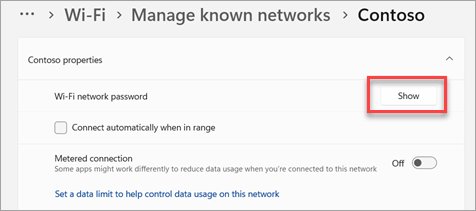
Yes. Windows 11 shows the password and a QR code for the network you are on, and for saved networks under Manage known networks.
- Open Settings and select Network & internet.
- Select Properties for the Wi-Fi network you are connected to.
- Next to Wi-Fi network password, select Show.
- Let the other device scan the QR code, or read the password to the person joining.
- For a network you are not connected to, select Wi-Fi > Manage known networks, pick the network and select Show next to Wi-Fi network password.
How to check you are connected
- On Windows, select the Network, Sound or Battery icons on the taskbar and check that the network name shows Connected below it.
- On iPhone or Android, open Wi-Fi settings and look for a check mark or Connected under the network name.
- Open a website you do not visit often, so a cached copy cannot fool you.
- If a hotel or cafe sign-in page opens, finish it; the QR code only handles the Wi-Fi password, not the venue's login page.
Troubleshooting Wi-Fi QR Code Connection Problems
The camera does not react to the code
The code is out of focus, too small, glared, or the app is in the wrong mode.
- Move closer so the code fills about half of the frame.
- On iPhone, stay in Photo mode or use the Scan Code control instead.
- On Windows, select the Barcode mode icon in the Camera app.
- Add light; on iPhone, tap the flashlight in Code Scanner.
Why won't my phone or iPhone connect to Wi-Fi after scanning?
The code holds an old password, or the network is out of range.
- Check that the network name in the prompt matches the network you expect.
- Ask the owner to share a fresh code from their device, since printed codes go stale after a password change.
- Move closer to the router and scan again.
- Forget any older saved copy of the network, then scan once more.
Why won't my iPad connect to Wi-Fi from a QR code?
The same causes as on iPhone: a stale code, weak signal or the wrong scanning mode.
- Open Camera in Photo mode or use Scan Code in Control Center.
- Tap the prompt at the bottom of the screen and confirm joining.
- If it still fails, join the network from Wi-Fi settings and type the password from the code's
P:value.
The scan shows text instead of a join button
A third-party scanner or an older phone decodes the code but does not act on it.
- Read the network name after
S:and the password afterP:. - Open Wi-Fi settings, select the network and type the password by hand.
- Leave out the closing semicolons when typing.
Troubleshooting: QR code scans but Windows will not connect
Why won't my laptop connect to Wi-Fi after Settings opens?
An older saved profile for the same network name has a different password.
- Open Settings > Network & internet > Wi-Fi > Manage known networks.
- Select the network and select Forget.
- Scan the code again with the Camera app and confirm in Settings.
No Wi-Fi option, or Wi-Fi will not turn on
Airplane mode is on, a hardware switch is off, or the adapter is disabled.
- Open Settings > Network & internet > Airplane mode and turn it off.
- Check for a physical Wi-Fi switch on the laptop.
- Open Device Manager, expand Network adapters, right-click the Wi-Fi adapter and select Enable device.
- Review the Wi-Fi adapter settings if the adapter still shows a problem.
Why can't I connect to Wi-Fi even with the right password?
The router or the PC's network stack needs a reset.
- Run the Network and Internet troubleshooter in the Get Help app.
- Restart the modem and router: unplug both, wait at least 30 seconds, then plug the modem in first.
- Try the other band if the router shows separate 2.4 GHz and 5 GHz networks.
- As a last step, open Settings > Network & internet > Advanced network settings > Network reset and select Reset now.
Security Tips Before Scanning or Sharing Wi-Fi QR Codes
Stay secure before you scan: a QR code can point to a website as easily as to a network, and a printed code is easy to cover with a sticker.
| Precaution | What to do |
|---|---|
| Read the prompt before tapping | A Wi-Fi code should offer to join a named network, not open a website or download an app |
| Check public codes for tampering | Look for a sticker placed over the original code, and confirm the network name with staff |
| Treat a shared code as the password | Anyone who photographs the code can join, so do not post it publicly |
| Use a guest network for visitors | Share the guest network's code, not the one your own devices use |
| Change the password if a code leaks | The old code stops working once the router password changes |
| Hide your hardware address on public Wi-Fi | Turn on Random hardware addresses in Windows under Network & internet > Wi-Fi |
Frequently Asked Questions
Can I connect to Wi-Fi using a QR code on Windows?
Yes. Open the Camera app, switch to barcode mode, point the camera at the code and select the link that appears. Settings opens and asks you to confirm adding the network. This needs a PC with a built-in or USB camera.
How do I connect to a Wi-Fi network without the password?
Scan the network's QR code. The code stores the password, so your phone or PC joins without you typing it. The network owner can show the code from Android, iPhone with iOS 18 or later, or Windows 11 Settings.
How do I connect to a Wi-Fi hotspot with a QR code?
Ask the person sharing the hotspot to show its QR code, then scan it with your camera. Windows mobile hotspot supports joining with either the hotspot password or a QR code.
Why can't I connect to Wi-Fi after scanning the code?
The most common cause is a stale code: the router password changed after the code was made. Ask for a fresh code, forget any older saved copy of the network, and scan again closer to the router.
Why won't my phone connect to Wi-Fi through a QR code?
Check that the camera is in photo mode and the code is in focus. If a join prompt appears but fails, the password in the code is out of date or the signal is weak. Move closer and scan a fresh code.
Why won't my iPhone connect to Wi-Fi from a QR code?
Use Photo mode in Camera or the Scan Code control in Control Center, then tap the prompt and confirm joining. If joining fails, the code's password is probably outdated, so ask the owner to share it again.
Is it safe to scan a Wi-Fi QR code in public?
It is safe when the prompt only offers to join a named network you expect. Do not tap a prompt that opens a website or asks for personal details, and check printed codes for stickers placed over the original.
Does a Wi-Fi QR code expire?
No. The code holds fixed text, so it keeps working until the network name or password changes. After a password change, every old code stops working and a new one must be shared.
Bottom Line
Use your phone's built-in camera for printed codes, and the Windows Camera app in barcode mode on a laptop with a webcam. Both are built in, read the network name and password from the code, and ask you to confirm before joining, so there is nothing to install and nothing to type.