To remove a browser hijacker, uninstall the unfamiliar program that installed it, delete extensions you do not recognise, reset the browser's settings, and run a full or offline malware scan before you change any passwords.
This guide covers the warning signs, each removal step for Chrome, Edge, Firefox and Safari on Windows and Mac, how to confirm the hijacker is gone, and how to stop it coming back.
The fastest way to remove a browser hijacker
Work in this order. Resetting the browser first is wasted effort if the program that changed it is still installed.
- Select Start > Settings > Apps > Installed apps and Uninstall anything you did not knowingly install.
- Remove unknown extensions:
edge://extensions/in Edge, or More > Extensions > Manage extensions in Chrome. - Reset the browser:
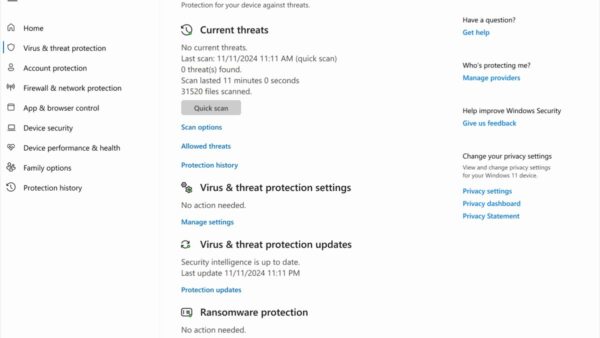
edge://settings/reset> Restore settings to their default values in Edge, or Settings > Reset settings > Restore settings to their original defaults in Chrome. - Open Windows Security > Virus & threat protection and run a Full scan.
- If the hijack returns, run the Microsoft Defender Antivirus (offline scan).
- Change passwords for important accounts once the scan comes back clean.
Signs Your Browser Has Been Hijacked
Google lists these as signs of unwanted software. A single browser update can change a new tab page once, but a hijacker changes settings back after you fix them.
| What you see | What it usually means |
|---|---|
| Homepage or search engine changed without your permission | A program or extension took over browser settings |
| Searches redirect through unfamiliar sites before the results load | A search hijacker extension is intercepting queries |
| Pop-up ads and new tabs that won't go away | Adware is running in the browser or on the PC |
| Unwanted extensions or toolbars that keep coming back | A program outside the browser reinstalls them |
| Virus or infection alerts in the browser | A scam page or adware, not a real security warning |
Disconnect and Check for Suspicious Programs
Disconnect from the internet first if pages are opening on their own or you are asked for payment details. Then remove the software that installed the hijacker; it often arrives bundled with a free download.
- Turn off Wi-Fi or unplug the network cable.
- On Windows, select Start > Settings > Apps > Installed apps.
- Look through the list for programs added around the time the problem started.
- Select the program and choose Uninstall.
- On a Mac, open Finder, select Applications, right-click unrecognised apps and choose Move to Trash, then right-click Trash and select Empty Trash.
- Restart the computer and reconnect to the internet.
A second browser you never installed, such as one bundled with antivirus, can be removed the same way; see uninstalling Avast Secure Browser for one common example.
Remove Malicious Browser Extensions
- In Chrome, select More > Extensions > Manage extensions and select Remove under anything you do not recognise.
- In Microsoft Edge, type
edge://extensions/in the address bar, then remove unknown extensions. - In Safari on a Mac, open Safari settings, select the Extensions tab, and turn off or uninstall extensions you did not add.
- In Firefox, open the add-ons manager from the menu and remove unknown add-ons.
- Restart the browser and check the extension list again.
If an extension keeps coming back after removal, a program on the PC is reinstalling it. Repeat the previous section and the malware scan below.
Reset Browser Search, Homepage, and Startup Settings
A reset puts back the default homepage, startup page and search engine in one step, without hunting for each setting.
| Browser | How to reset | What you keep |
|---|---|---|
| Google Chrome | More > Settings > Reset settings > Restore settings to their original defaults > Reset settings | Homepage, search engine and extensions go back to default; re-enable trusted extensions under Manage extensions |
| Microsoft Edge | edge://settings/reset > Restore settings to their default values |
Bookmarks, history and saved passwords; pinned tabs, startup page, search engine and extensions are reset |
| Safari (Mac) | Remove the extension, then set the homepage and search engine again in Safari settings | Everything else |
| Firefox | Use Firefox's own refresh option, then check the homepage and search engine | Check Mozilla's help for what refresh keeps |
After the reset, confirm the default browser is still the one you chose; setting Edge as the default browser shows where that lives.
Scan Your Device for Malware
A full scan checks every file and program. The offline scan runs after a restart without loading Windows, so persistent malware has a harder time hiding.
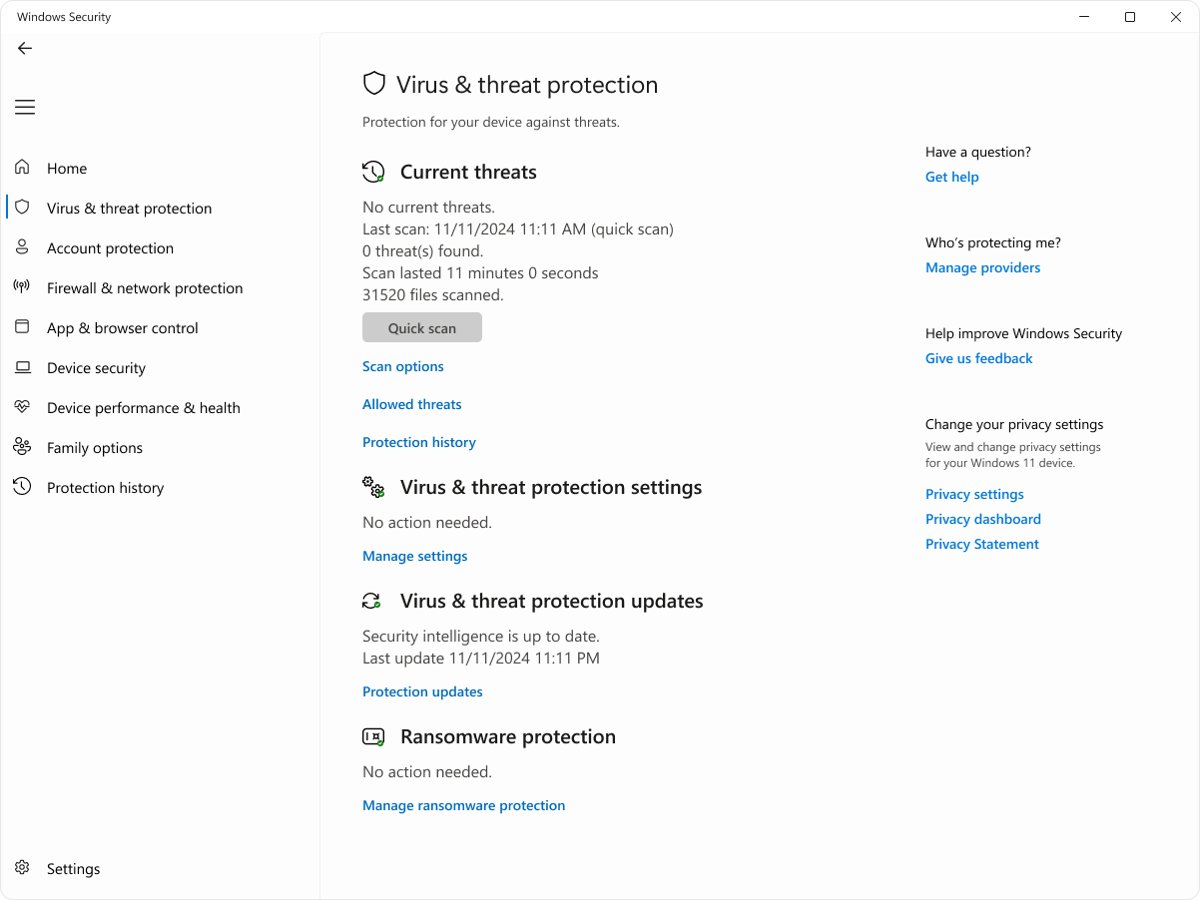
- Open Windows Security and select Virus & threat protection.
- Select Protection updates > Check for updates so the scanner has current definitions.
- Go back, select Scan options, choose Full scan and select Scan now.
- If threats are found or the hijack returns, choose Microsoft Defender Antivirus (offline scan) and select Scan now.
- Let the PC restart into the scan; it restarts again when finished.
- Open Protection history to see what was found and removed.
Clear Browser Data and Update Your Software
- In Edge, select Settings and more > History > Open history page > Delete browsing data, choose All time, select Cached images and files and the cookies box, then Clear now.
- In Chrome, clear cached images, files and cookies from History in the More menu.
- Update Edge at
edge://settings/help, and update Chrome from its More menu when an update is offered. - Select Start > Settings > Windows Update > Check for updates and install everything offered.
- On a Mac or iPhone, install the latest system and Safari updates.
Clearing cookies signs you out of websites, which is useful here: it removes any session a hijacker might have opened.
How to check the hijacker is gone
- Restart the PC and open the browser.
- Confirm the homepage and new tab page are the ones you set.
- Search for a common word and check the address bar goes straight to your chosen search engine.
- Open the extensions page and confirm only the extensions you trust are there.
- Use the browser for a day; if settings change back, a program is still installed.
Fix a hijacker that keeps coming back
Settings change back after a reset
The installing program or a scheduled task is still on the PC.
- Check Installed apps again for anything added on the same day.
- Uninstall it and restart.
- Run the Microsoft Defender Antivirus (offline scan).
Pop-ups keep appearing on iPhone or iPad
A website is using pop-ups, not an installed hijacker.
- Open Settings > Apps > Safari.
- Turn on Block Pop-ups and Fraudulent Website Warning.
- Close the page and use the search field to go to a new site instead of tapping the pop-up.
How To Prevent Browser Hijackers in the Future
- Download software from trusted sources: the developer's own site, the Microsoft Store or the App Store.
- During installs, choose Custom setup when offered and untick bundled toolbars or browsers.
- Be selective with browser extensions and remove ones you no longer use.
- Keep browsers, apps and the operating system updated.
- Leave Windows Security real-time protection on.
- Never click a pop-up that claims your device is infected; close the tab instead.
Frequently Asked Questions
What does a browser hijacker do?
A browser hijacker changes your homepage, search engine or new tab page without permission, redirects searches through its own sites, and shows ads or pop-ups. Many reinstall themselves after removal and some collect browsing data for advertising.
How do I remove a browser hijacker from Chrome?
Uninstall unknown programs from Settings > Apps > Installed apps, remove unknown extensions under More > Extensions > Manage extensions, then use Settings > Reset settings > Restore settings to their original defaults and run a full malware scan.
How do I remove a browser hijacker from Edge?
Remove unknown extensions at edge://extensions/, then go to edge://settings/reset and select Restore settings to their default values. Bookmarks, history and saved passwords stay. Then run a Full scan in Windows Security.
How do I remove a browser hijacker from Firefox?
Uninstall the program that installed it, remove unknown add-ons in Firefox's add-ons manager, and use Firefox's refresh option to restore defaults. Then run a full Windows Security scan to catch anything outside the browser.
How do I remove a browser hijacker on Windows 11?
Uninstall suspicious apps from Settings > Apps > Installed apps, reset each browser, and run a Full scan and then the Microsoft Defender Antivirus (offline scan) from Windows Security > Virus & threat protection > Scan options.
Is there a browser hijacker removal tool?
Windows Security, built into Windows 11 and 10, detects and removes most hijackers with a full or offline scan. The browsers' own reset options then undo the changed settings. Avoid tools advertised in pop-ups; they are often the problem.
How do I stop a browser hijacking from happening again?
Install software only from developers' own sites or official stores, choose custom setup to untick bundled offers, keep extensions to a minimum, and keep the browser and operating system updated with real-time protection on.
How do I know if my browser was hijacked and not just changed by an update?
An update may change a new tab page once, and the change stays in the browser's own settings. A hijacker changes settings back after you fix them, adds extensions you did not install, or redirects searches through unfamiliar sites.
Bottom Line
Remove the installing program first, then extensions, then reset the browser, and finish with a full or offline scan. Resetting alone fails while the program behind the hijack is still installed, and the offline scan catches what hides while Windows is running.


![Clear or refresh cache in Google Chrome [Windows 11]](https://techdows.com/wp-content/uploads/2026/10/Google-Chrome-Help-page-listing-steps-to-delete-browsing-data-on-a-computer-600x338.jpg)