To put Google Calendar on your Windows 10 desktop, open calendar.google.com in Microsoft Edge, install it as an app, and select Create Desktop shortcut on its app card.
This guide covers the Edge and Chrome routes, Outlook and other desktop clients, Start menu and taskbar pins, what Windows 10 widgets can and cannot show, and fixes for missing reminders.
The fastest way to put Google Calendar on your desktop
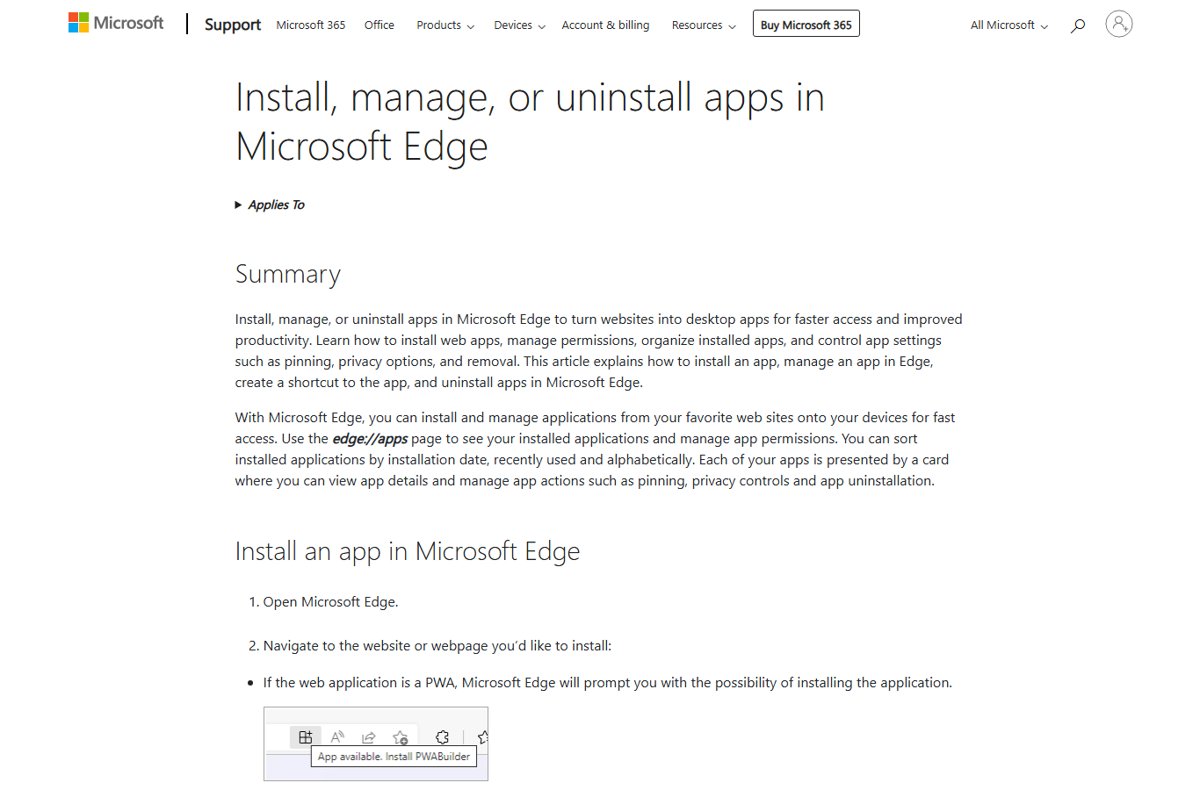
Microsoft Edge ships with Windows 10, so this route works without installing anything else. The result is a desktop icon that opens Google Calendar in its own window, without browser tabs.
- Open Microsoft Edge and go to
calendar.google.com. Sign in with your Google account. - Select Settings and more (the … button) at the top right.
- Select More tools > Apps > Install this site as an app, then confirm the install.
- Type
edge://appsin the address bar and press Enter. - Select Details on the Google Calendar card.
- Select Create Desktop shortcut. The Google Calendar icon now sits on your desktop.
The same Details panel also offers Pin to taskbar and Pin to Start, so you can add both while you are there.
Which method should you use?
| Your situation | Use this | Why |
|---|---|---|
| You want a desktop icon that opens Google Calendar in its own window | Edge or Chrome app install (Method 1) | Full Google Calendar with editing, reminders and offline mode |
| You used the old Windows 10 Calendar app | New Outlook for Windows (Method 2) | Mail and Calendar stopped syncing on December 31, 2024 |
| You already live in a desktop mail client | Add your Google account or iCal link to it (Method 3) | Events sit next to your other calendars |
| You open everything from the Start menu | Pin the installed app to Start (Method 4) | One click from the Start tile |
| You want events on the taskbar or desktop without opening anything | No built-in option in Windows 10 (Method 5) | News and interests has no calendar card |
Method 1: Using Google Calendar in a Web Browser
On a Windows 10 PC, Google Calendar runs as a web app, and both Chrome and Edge can install it as a stand-alone window with its own icon.
If you would rather compare every download option first, see Download Google Calendar for PC, Windows 11/10 & Mac. The steps below use Google Chrome; the Edge steps are in the section above.
- Open Google Chrome and go to
calendar.google.com. - Sign in with the Google account whose calendar you want.
- Select More (the three dots) at the top right.
- Select Cast, save, and share > Install page as app…. On some pages an Install icon also appears at the right of the address bar.
- Follow the on-screen prompt to finish the install. Google Calendar opens in its own window.
- For a plain browser shortcut instead of an app, choose Cast, save, and share > Create shortcut…, keep or edit the Name, and select Create.
Right-click the running app on the taskbar and select Pin to taskbar to keep it there after you close it.
Method 2: Sync Google Calendar with the Windows 10 Calendar App (now new Outlook)
Microsoft ended support for Windows Mail, Calendar and People on December 31, 2024. The old Calendar app can no longer send or receive events, so adding a Google account to it no longer works.
Its replacement is the new Outlook for Windows, which is also available on Windows 10 from the Microsoft Store. The route Microsoft documents for Google Calendar is a web subscription through your calendar's secret iCal address.
- Open Google Calendar in a browser and select Settings > Settings.
- Under Settings for my calendars, select the calendar you want on the desktop.
- Select Integrate calendar and copy the Secret address in iCal format.
- Open the new Outlook for Windows and switch to the calendar view.
- Select Add calendar below the calendar grid.
- Select Subscribe from web, paste the address, and select Import.
An iCal subscription shows your Google events but does not let you edit them from Outlook. Treat the secret address like a password; if it leaks, select Reset next to it in Google Calendar to invalidate the old one.
Method 3: Adding Google Calendar via a Third-Party Desktop Client
Google documents two ways to show its calendar in another program: sign in with your Google account for view-and-edit sync, or paste the secret iCal address for view-only access. Which one you get depends on what the client supports.
| Desktop client | How to add Google Calendar | What you get |
|---|---|---|
| Any client with a Google sign-in option | Open its account settings, choose Sign in with Google, and follow the prompts | View and edit events from either side |
| Any client that accepts a calendar URL | Paste the Secret address in iCal format from Integrate calendar | View only; changes are made in Google Calendar |
| New Outlook for Windows | Add calendar > Subscribe from web (Method 2) | View only, updates on its own |
| Classic Outlook | Export from Settings and sharing > Export calendar, unzip, then File > Open & Export > Import/Export > Import an iCalendar (.ics) or vCalendar file (.vcs) > Open as New | A static snapshot that does not update |
| Classic Outlook with a work or school Google account | Ask your admin about Google Workspace Sync for Microsoft Outlook | Workspace accounts only |
Prefer a subscription over the classic Outlook import. Microsoft states the imported calendar is a static snapshot, so new Google events never appear in it.
Method 4: Creating a Live Tile to Access Google Calendar from Start Menu
Windows 10 shows pinned apps as tiles in the Start menu. Once Google Calendar is installed as an app with Method 1 or the Edge steps, pinning it takes a few clicks.
- Install Google Calendar as an app in Edge or Chrome first.
- In the Search box on the taskbar, type Google Calendar.
- Right-click the Google Calendar result.
- Select Pin to Start. The tile now appears in the Start menu.
- In Edge, you can do the same from
edge://apps> Details > Pin to Start.
Method 5: Use Windows 10 Widgets
Windows 10 has no Widgets board and no calendar widget. Its closest feature is news and interests on the taskbar, which shows information cards but cannot display Google Calendar events.
| Windows 10 feature | What it shows | Google Calendar support |
|---|---|---|
| News and interests (taskbar) | Weather, top stories, sports, stocks and traffic | None; there is no calendar card |
| Google Calendar desktop notifications | Event reminders that pop up outside the browser while Calendar is open | Yes, set under Notification settings |
| Installed Google Calendar app on the taskbar | One-click access to the full calendar | Yes, via Pin to taskbar |
To show or hide news and interests, right-click a blank area of the taskbar and select News and interests > Show icon and text or Turn off.
How to check it worked
- Double-click the Google Calendar icon on your desktop. It should open in its own window, with no browser tabs or address bar.
- Check that the account name at the top right is the one whose events you expect.
- Create a test event and confirm it appears on your phone's Google Calendar too.
- In new Outlook, confirm the subscribed calendar is listed and shows the same test event after it refreshes.
- Open Start and confirm the Google Calendar tile launches the same window.
Additional Customizations
| What you want | Where to set it | Note |
|---|---|---|
| Open Google Calendar at sign-in | Edge: edge://apps > Details > Auto-start on device login |
Launches the app window each time you sign in to Windows |
| Pop-up reminders on the desktop | Google Calendar Settings > General > Notification settings > Notifications drop-down | Allow calendar.google.com to show notifications when asked |
| Snooze reminders | Turn on Desktop notifications, then Show snoozed notifications | Snooze works only in Chrome |
| See events without internet | Google Calendar Settings > General > Offline > Turn on offline calendar > Reload now | Chrome only; shows the last 4 weeks and all future events |
| Dark appearance | Chrome New Tab page > Customize Chrome > Appearance > Dark or Device | Darkens Chrome's own pages and toolbar |
| Keep it on the taskbar | Right-click the running app > Pin to taskbar | Stays after you close the window |
If you also want Google Drive files on the same PC, the Drive client is covered in How to download Google 'Drive for Desktop' now.
Fix Google Calendar on the desktop when it does not work
No reminders pop up on the desktop
Notifications are off in Google Calendar or the site is blocked in the browser.
- In Google Calendar, open Settings > Notification settings and choose how to receive alerts in the Notifications drop-down.
- In Chrome, open More > Settings > Privacy and security > Site Settings > Notifications.
- Next to Allowed to send notifications, select Add and enter
calendar.google.com. - Keep the Calendar window open; desktop notifications only appear while Calendar is open.
Google events never update in Outlook
The calendar was imported as an .ics file, which is a one-time snapshot.
- Remove the imported calendar from Outlook.
- Copy the Secret address in iCal format from Integrate calendar in Google Calendar.
- Add it again with Add calendar > Subscribe from web in new Outlook.
Google Calendar will not open offline
Offline mode is off, or the browser cache was cleared, which also removes offline data.
- Go online and open Google Calendar in Chrome.
- Open Settings > General > Offline and select Turn on offline calendar.
- Select Reload now and wait until the status reads Ready for offline.
Frequently Asked Questions
Can I put Google Calendar on my desktop?
Yes. Install calendar.google.com as an app in Microsoft Edge or Google Chrome, then create a desktop shortcut. In Edge, open edge://apps, select Details on the Google Calendar card and choose Create Desktop shortcut. The icon opens Calendar in its own window.
How do I put a Google Calendar widget on my desktop in Windows 10?
Windows 10 has no calendar widget for Google Calendar. News and interests on the taskbar shows weather, news, sports, stocks and traffic only. The closest option is an installed Google Calendar app pinned to the taskbar or desktop, with desktop notifications turned on.
How do I put Google Calendar on the taskbar?
Install Google Calendar as an app in Edge or Chrome, open it, then right-click its icon on the taskbar and select Pin to taskbar. In Edge you can also open edge://apps, select Details on the app card and choose Pin to taskbar.
How do I put Google Calendar on my laptop?
A Windows laptop uses the same steps as a desktop PC. Open calendar.google.com in Edge or Chrome, sign in, and install the page as an app. It then appears in the Start menu and can be pinned to the taskbar or desktop.
Is there a Google Calendar app for Windows 10?
On Windows 10, Google Calendar runs as a web app that you install from the browser. Chrome installs through Cast, save, and share > Install page as app and Edge installs through More tools > Apps > Install this site as an app.
How do I put Google Calendar on the home screen?
On Windows 10 the equivalent of a home screen is the Start menu. Install Google Calendar as an app, search for it from the taskbar, right-click it and select Pin to Start. On a phone, install the Google Calendar app from its app store instead.
How do I put Google Calendar in Outlook?
Copy the Secret address in iCal format from Integrate calendar in Google Calendar settings. In new Outlook, select Add calendar, then Subscribe from web, paste the address and select Import. The subscription is view only; edit events in Google Calendar.
How do I put Google Calendar on a website?
Open Google Calendar on a computer, go to Settings, select the calendar and click Integrate calendar. Under Embed code, select Customize, set the options, copy the code and paste it into your page. Visitors only see the calendar if it is public or shared with them.
How do I use Google Calendar in dark mode on Windows?
Set Chrome's appearance to Dark from Customize Chrome on the New Tab page, or choose Device to follow the Windows setting. This darkens Chrome's homepage, toolbar, settings and some other pages.
Can I use Google Calendar on the desktop without internet?
Yes, in Chrome only. Open Settings, then General, then Offline, and select Turn on offline calendar. Offline you can view events from the last 4 weeks and all future events, but you cannot create or edit events or email guests.
Conclusion
Install calendar.google.com as an app in Edge or Chrome, then add a desktop shortcut and a taskbar pin. It is the only route that keeps full editing, reminders and offline access, and the old Windows 10 Calendar app no longer syncs at all.

![[Solved]: How to fix IRQL NOT LESS OR EQUAL in Windows 10/11](https://techdows.com/wp-content/uploads/2026/09/Startup-Settings-screen-listing-options-4-and-5-for-Safe-Mode-520x338.jpg)