The VRChat download for PC comes free from Steam on Windows 11 and Windows 10. Install it in a few minutes and play on a monitor with mouse and keyboard, or with any SteamVR headset.
VRChat Inc. makes the same free app for Meta Quest headsets, iPhone, iPad and Android phones. Every version joins the same worlds, so friends on different devices meet in one place.
Below: which store to use, the official links, install steps for each device, PC requirements, Mac options, fixes and removal.
Which VRChat download do you need for your device?
Each device gets VRChat from its own official store. Match your hardware to a row and open that link.
| Your device | Where to get it | Size |
|---|---|---|
| Windows 11 or Windows 10 PC, 64-bit, with or without a SteamVR headset | Steam store page | 1 GB of free space |
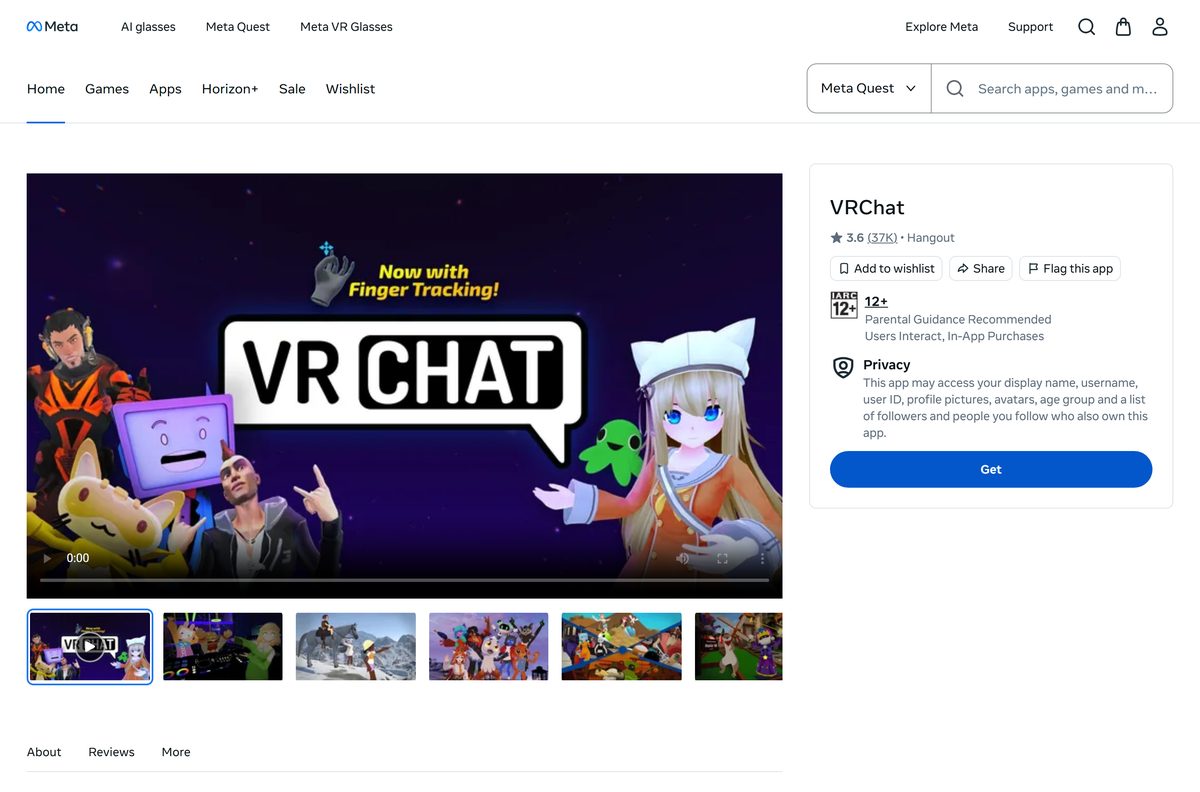
| Meta Quest 2, Quest 3, Quest 3S or Quest Pro | Meta Quest store listing | 882.15 MB |
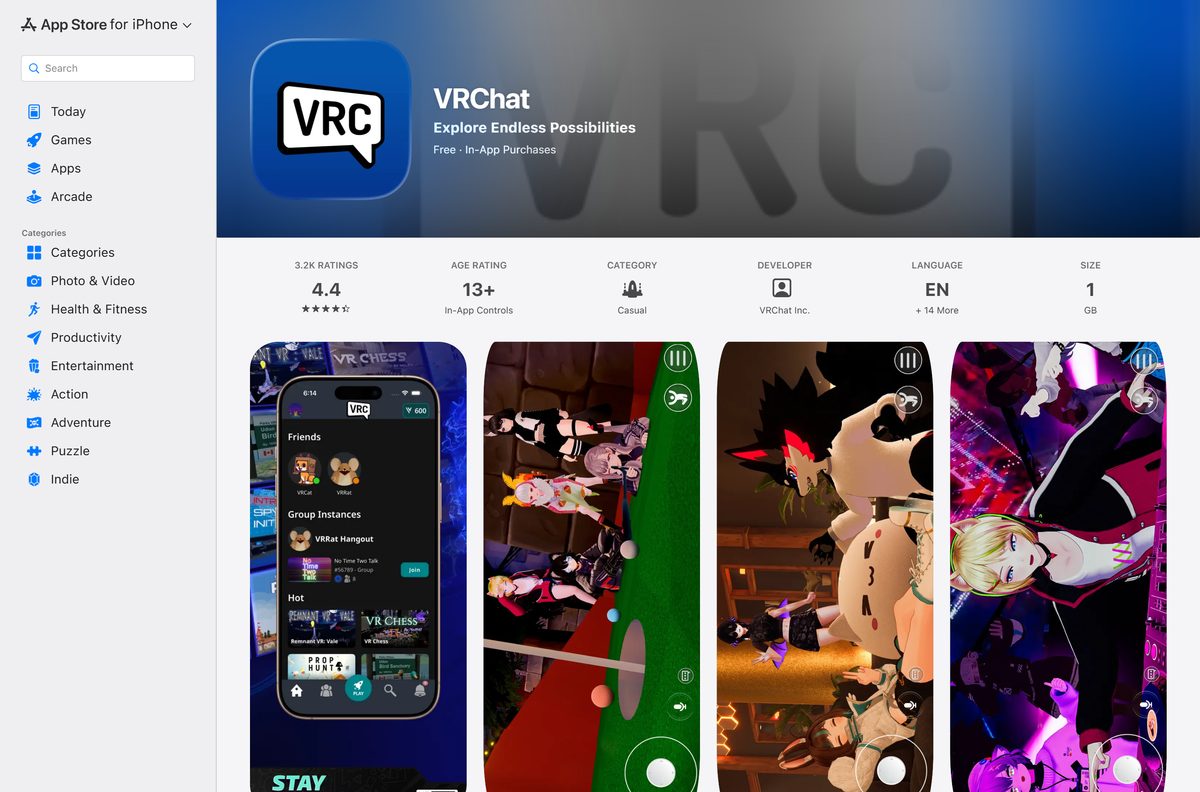
| iPhone or iPad on iOS 17.0 or later | App Store listing | 1 GB |
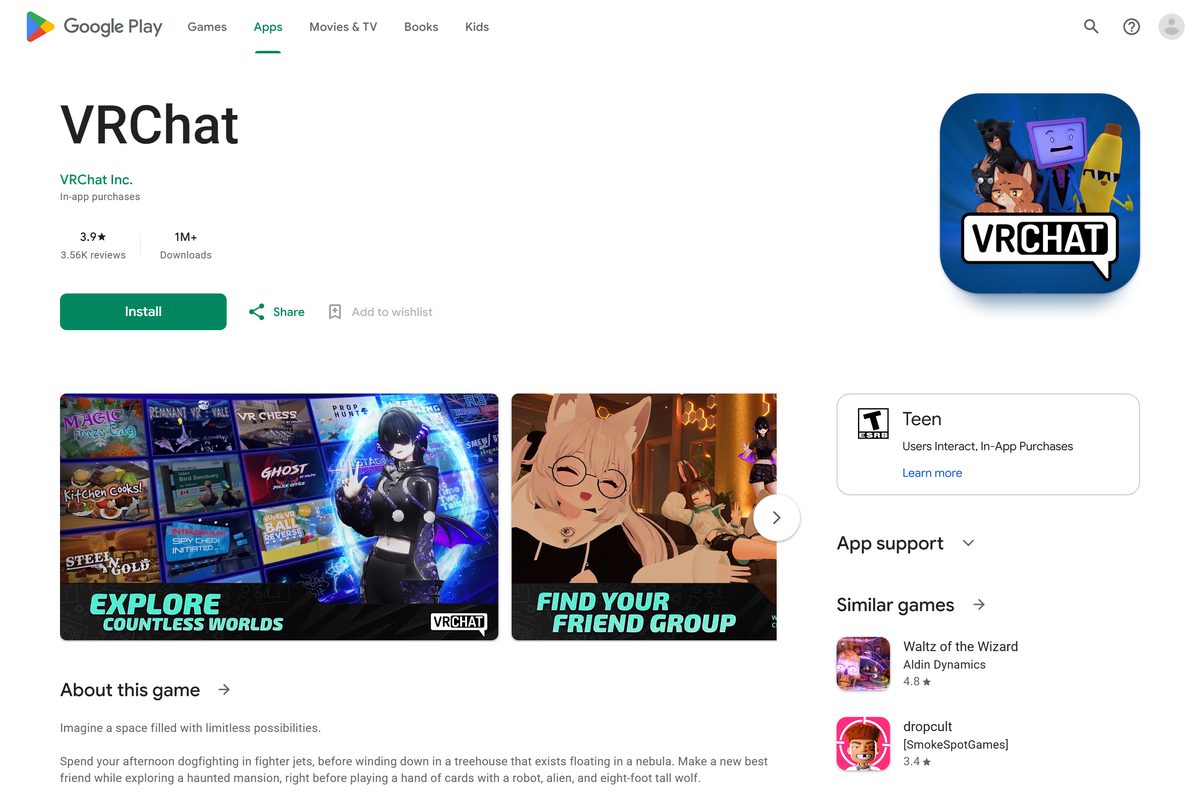
| Android phone or tablet | Google Play listing | Shown on the listing |
All four downloads cost nothing. VRChat’s own site also lists Viveport for PC and Pico headsets as official routes.
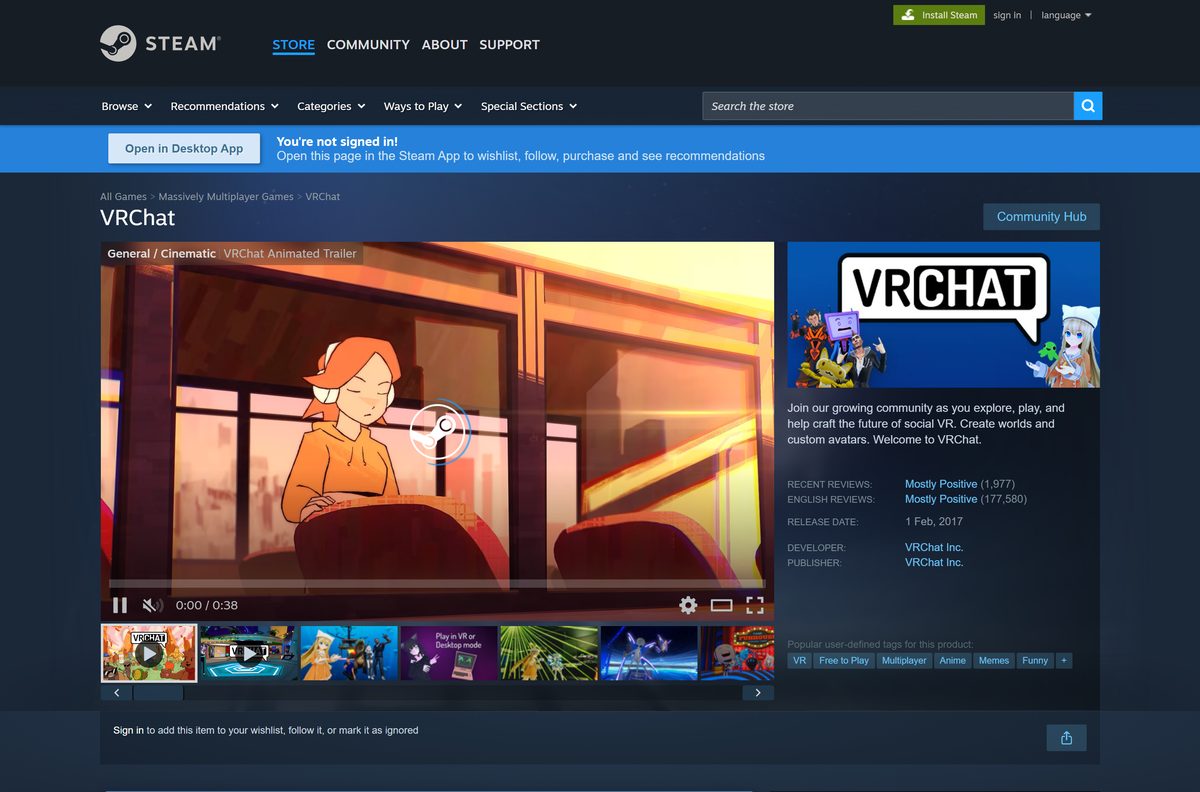
Download VRChat from the official store links
Each listing names VRChat Inc. as the developer and publisher. Use these links rather than a download site.
- VRChat on Steam — 1 GB · Windows 10 and 11, 64-bit, desktop or SteamVR
- VRChat on the Meta Quest store — 882.15 MB · Quest 2, 3, 3S and Pro
- VRChat on the App Store — 1 GB · iPhone and iPad, iOS 17.0 or later
- VRChat on Google Play — Android phones and tablets
- VRChat official site — Links to every platform
A site that offers a VRChat setup file, a modded client or an APK outside Google Play is not an official source. Skip it.
How to install VRChat on Windows 11 and 10 with Steam
Steam is the PC route. Install the Steam client first and sign in to your Steam account.
- Open the VRChat Steam page in the Steam client.
- Select Play Game in the Free To Play box.
- Pick an install drive with at least 1 GB free and select Install.
- Wait for the download to finish in the Downloads view.
- Connect and start your SteamVR headset first if you want to play in VR.
- Select Play on the VRChat page in your Library.
- Sign in with your Steam account or a VRChat account, then accept the terms.
Steam lists VRChat as running in both standard and VR modes, so a headset is optional on PC.
Install VRChat on Meta Quest, iPhone or Android
The standalone and mobile versions install straight from each device’s store. No PC is needed.
Meta Quest
The Quest version runs on the headset itself.
- Put on the headset and open the Store from the menu bar.
- Search for VRChat and open the listing by VRChat Inc.
- Select Get, then Install.
- Open VRChat from your Library and sign in.
iPhone or iPad
The App Store version needs iOS or iPadOS 17.0 or later.
- Open the App Store listing.
- Tap Get, then confirm with Face ID, Touch ID or your password.
- Tap Open and sign in or create a VRChat account.
Android
Google Play installs and updates the Android build.
- Open the Google Play listing.
- Tap Install.
- Tap Open and sign in or create a VRChat account.
Is VRChat free?
Yes. VRChat’s site describes it as available free on all platforms, and Steam tags it Free To Play.
Download VRChat free from an official store, and treat VRChat+ as optional. The App Store lists VRChat+ at $9.99 a month or $99.99 a year, plus VRChat Credits from $4.99 to $49.99. None of these are needed to join worlds or talk to people. On Steam’s Early Access page, the developer states that VRChat is currently free and plans to remain so.
A page that charges for a VRChat download, or sells a free account, is not an official offer.
Should you play VRChat in desktop mode or with a VR headset?
The Steam version runs on a normal monitor or through SteamVR. The same account and friends list work in both.
Start in desktop mode on any PC that meets the minimum specs, and move to a SteamVR headset when you want full-body movement. Desktop mode needs only mouse and keyboard or a controller, and Steam lists full controller support. VR adds hand and body movement through SteamVR, and Quest owners can skip the PC entirely with the standalone Quest version.
Which VRChat download do you need for your Mac?
Steam lists Windows as the only desktop platform, and the App Store listing requires iOS 17.0 with no Mac support. A Mac needs another device or a Windows PC to join.
| Your setup | What to do | Link |
|---|---|---|
| Mac plus an iPhone or iPad | Install the free app on the iPhone or iPad and play there | App Store listing |
| Mac plus a Meta Quest headset | Install the standalone Quest version, which needs no computer | Meta Quest store listing |
| Mac plus a Windows PC | Install the Steam version on the PC | Steam store page |
Steam shows no macOS system requirements for VRChat, so the Mac Steam client cannot install it.
Check the VRChat PC system requirements
Steam lists these minimum Windows requirements. They apply to desktop mode and SteamVR alike.
| Field | Value |
|---|---|
| App | VRChat |
| Developer | VRChat Inc. |
| Latest version | 2026.3.2 (September 1, 2026) |
| Price | Free; optional VRChat+ and Credits |
| Supported OS | Windows 10 and 11 (64-bit); Meta Quest; iOS 17.0 or later; Android |
| Architecture | 64-bit processor and operating system required on PC |
| Processor | Intel i5-4590 or AMD FX 8350 or better |
| Memory | 4 GB RAM |
| Graphics | NVIDIA GeForce GTX 970 or AMD Radeon R9 290 or better |
| DirectX | Version 11 |
| Storage | 1 GB available space |
| Network | Broadband internet connection |
| VR support | SteamVR headsets, optional |
| Offline installer | No, Steam downloads the app |
| Last verified | 2026-09-25 |
To check your PC, open Settings, select System, then About. The Installed RAM and System type lines show your memory and whether Windows is 64-bit.
How to keep VRChat updated on every device
Release 2026.3.2 arrived on September 1, 2026 with a throwable camera and theme-matched radial menus. Each store installs updates for you.
- Close VRChat completely.
- On PC, open your Steam Library and let any pending VRChat update finish before you select Play.
- On Meta Quest, open Library, then Updates, and update VRChat.
- On iPhone or iPad, open the App Store, tap your account icon, and tap Update next to VRChat.
- On Android, open Google Play, tap your profile, select Manage apps & device, then Update all.
- Launch VRChat again and sign in.
Steam and the Meta Quest store post release notes under each update’s announcement.
Verify and repair the VRChat files in Steam
There is no setup file to scan, because Steam downloads the app. Steam can check every installed file and replace damaged ones.
- Restart your computer and launch Steam.
- Right-click VRChat in your Library.
- Select Properties.
- Open the Installed Files tab and select Verify integrity of game files.
- Wait for the check to finish, then launch VRChat.
Steam leaves local configuration files alone during this check, so your settings stay in place.
Fix VRChat not downloading or launching on Windows
Most PC problems come from the Steam download, the hardware floor or a missing sign-in. Find your symptom and follow its fix.
The Steam download is stuck at 0 bytes
Steam’s download cache is stale.
- Open Steam, then Settings, then Downloads.
- Select Clear Download Cache and confirm.
- Sign in to Steam again and restart the VRChat download.
VRChat will not install
The PC runs 32-bit Windows or the drive is full.
- Open Settings, System, About, and confirm System type says 64-bit.
- Free at least 1 GB on the install drive.
- Retry the install from your Steam Library.
VRChat crashes or shows a black screen at launch
The graphics driver is old or game files are damaged.
- Update your NVIDIA, AMD or Intel graphics driver from the vendor’s site.
- Run Verify integrity of game files in Steam.
- Close SteamVR and start VRChat on the monitor to rule out the headset.
VRChat will not start in VR
SteamVR is not running or does not see the headset.
- Connect the headset and start SteamVR before VRChat.
- Wait until SteamVR shows the headset and controllers as ready.
- Launch VRChat from your Steam Library.
How to uninstall VRChat on PC, Quest and phones
Removing the app deletes the local files. Your VRChat account, friends and any VRChat+ subscription stay on the account.
Windows PC with Steam
Steam removes its own apps.
- Right-click VRChat in your Steam Library.
- Select Manage, then Uninstall.
- Confirm with Uninstall.
Meta Quest
The headset lists VRChat in its app library.
- Open Library in the headset.
- Select the three dots on the VRChat tile.
- Select Uninstall and confirm.
iPhone, iPad or Android
Mobile apps uninstall from the home screen.
- Touch and hold the VRChat icon.
- Tap Remove App on iPhone or Uninstall on Android.
- Confirm the removal.
Which device should you play VRChat on without a gaming PC?
A PC below the Steam minimum specs cannot run VRChat well. These official versions run on other hardware at no cost.
| Option | Cost | What it needs |
|---|---|---|
| Meta Quest standalone | Free, in-app purchases | Quest 2, Quest 3, Quest 3S or Quest Pro |
| iPhone or iPad | Free, in-app purchases | iOS or iPadOS 17.0 or later |
| Android phone or tablet | Free, in-app purchases | An Android device with Google Play |
| Steam desktop mode | Free | 64-bit Windows 10 or 11 and a GTX 970-class GPU |
Players on every device share the same worlds, so a phone user can meet a PC VR user in one instance.
Frequently asked questions
Is VRChat free on PC?
Yes. VRChat is free to play on Steam for Windows 11 and Windows 10. VRChat+ at $9.99 a month or $99.99 a year and VRChat Credits are optional purchases.
Is VRChat free on Oculus Quest 2?
Yes. The Meta Quest store lists VRChat free for Quest 2, Quest 3, Quest 3S and Quest Pro, with optional in-app purchases. It runs on the headset without a PC.
Where is the official VRChat download page?
For PC, use the VRChat page on Steam. VRChat’s own site, hello.vrchat.com, links to Steam, Viveport, the Meta Quest store, Pico, the App Store and Google Play.
Can you download VRChat without Steam?
On PC, VRChat’s site lists Viveport as the other official store. On other devices, the Meta Quest store, the App Store and Google Play install VRChat without Steam.
Can you download VRChat on a Mac?
No. Steam lists VRChat for Windows only, and the App Store version requires iOS 17.0 with no Mac support. Mac owners can play on an iPhone, iPad, Quest headset or Windows PC instead.
Does VRChat work on Windows 11?
Yes. Steam lists Windows 10 and Windows 11 as supported, on a 64-bit processor with a GTX 970 or Radeon R9 290 class graphics card and 4 GB of RAM.
How big is the VRChat download?
Steam asks for 1 GB of free space on PC. The Meta Quest version is 882.15 MB, and the App Store lists the iPhone and iPad version at 1 GB.
Is there a VRChat offline installer?
No. Steam, the Meta Quest store, the App Store and Google Play download VRChat through their own apps. No official page offers a standalone setup file.
Does VRChat run on 32-bit Windows?
No. Steam states that VRChat requires a 64-bit processor and a 64-bit operating system. Check System type under Settings, System, About to confirm your PC.
Can you play VRChat without VR?
Yes. Steam lists VRChat as running in both standard and VR modes, so a Windows PC plays it on a monitor with mouse and keyboard or a controller. The mobile apps need no headset either.
What is the latest version of VRChat?
Release 2026.3.2 went live on September 1, 2026, adding a throwable camera and radial menus that match your UI theme. Quest and iOS show patch build 2026.3.2p2.
Is it safe to download VRChat?
Yes, from Steam, the Meta Quest store, the App Store or Google Play. Avoid modded clients and APK files from other sites, because they are not published by VRChat Inc.
Why won’t VRChat install on my PC?
The usual causes are 32-bit Windows, less than 1 GB of free space, or a stuck Steam download. Confirm 64-bit Windows, free up space, clear Steam’s download cache, and retry.