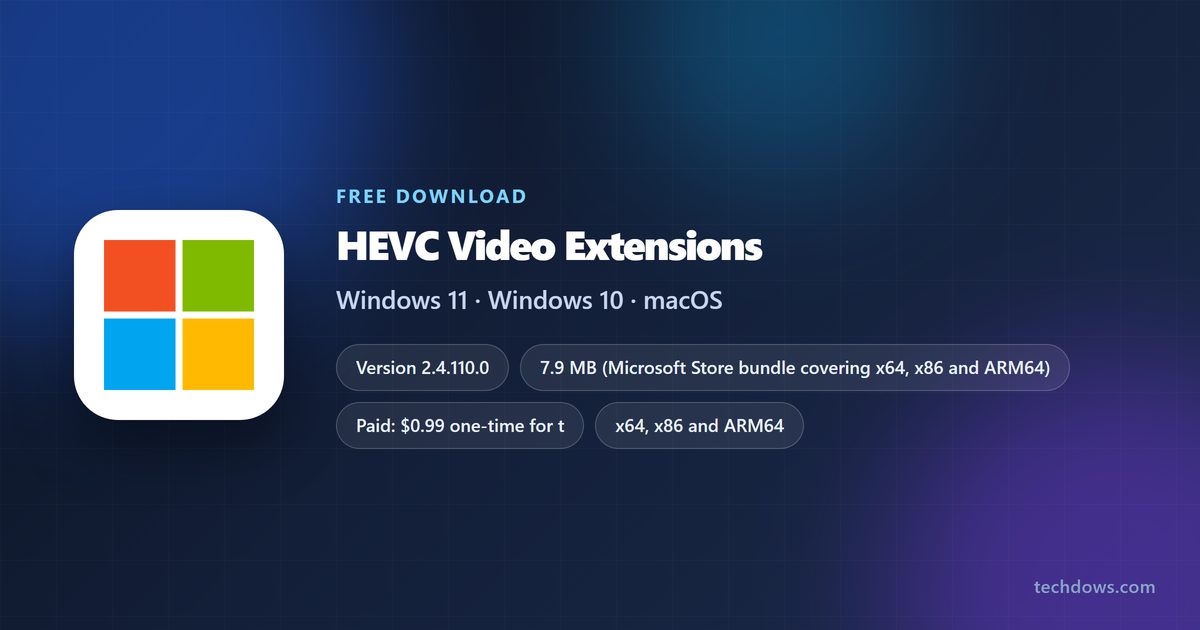
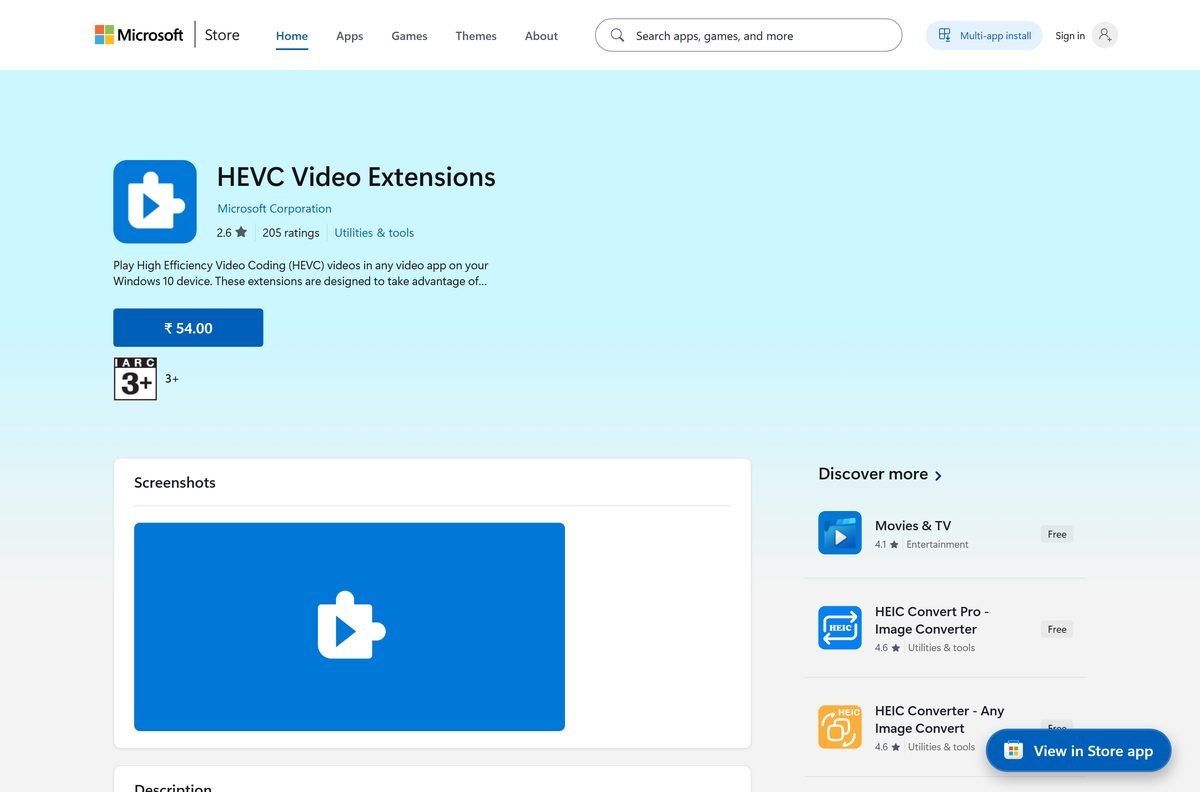
HEVC Video Extensions is a Microsoft Store package that teaches every video app on Windows 11 and Windows 10 to play H.265 files. Microsoft charges $0.99 for the listing anyone can buy.
A second listing, HEVC Video Extensions from Device Manufacturer, carries the same decoder at $0.00. It is already present on a lot of prebuilt PCs and laptops.
This guide covers which listing to open, installing from the Store or with winget, what the decoder handles, and fixes for playback that still fails.
Which HEVC Video Extensions download do you need?
Open Settings > System > About and read the System type and OS build lines. Those two values decide which listing installs on your PC.
| Your PC | Open this listing | Price | Bundle size |
|---|---|---|---|
| Windows 11 build 26200 or later, x64 or ARM64 | HEVC Video Extensions from Device Manufacturer | $0.00 | 10.6 MB |
| Windows 10 build 16299 or later, or an older Windows 11 build | HEVC Video Extensions from Device Manufacturer | $0.00 | 8.0 MB |
| A 32-bit x86 copy of Windows 11 | HEVC Video Extensions | $0.99 | 7.9 MB |
| The free listing gives you no install button | HEVC Video Extensions | $0.99 | 7.9 MB |
Each figure is the whole bundle, which carries the x64, x86 and ARM64 payloads together. Your PC keeps only the payload that matches its processor.
Check the HEVC Video Extensions system requirements first
The package is small and has no hardware floor of its own. The minimum Windows build below comes from the Store package manifest.
| Specification | Detail |
|---|---|
| Software | HEVC Video Extensions |
| Developer | Microsoft Corporation |
| Latest version | 2.4.110.0 on the paid listing, 2.5.33.0 on the device manufacturer listing |
| Price | $0.99 one-time, or $0.00 on the device manufacturer listing |
| Windows | Windows 10 build 16299 or later, and Windows 11 |
| Architecture | x64, x86 and ARM64 |
| Download size | 7.9 MB bundle for the paid listing, 10.6 MB for the newest free bundle |
| Package family name | Microsoft.HEVCVideoExtensions_8wekyb3d8bbwe |
| Delivery | Microsoft Store only; no standalone installer and no offline setup |
| Windows Server | Not supported |
| Official listing | apps.microsoft.com/detail/9NMZLZ57R3T7 |
| Last verified | 2026-09-22 |
Download HEVC Video Extensions from the official Store listings
Microsoft ships no .exe, no .msi and no appx file for this package. Both links below open the listing in the Store app on the PC.
- HEVC Video Extensions (product 9NMZLZ57R3T7) — 7.9 MB bundle · $0.99 one-time purchase
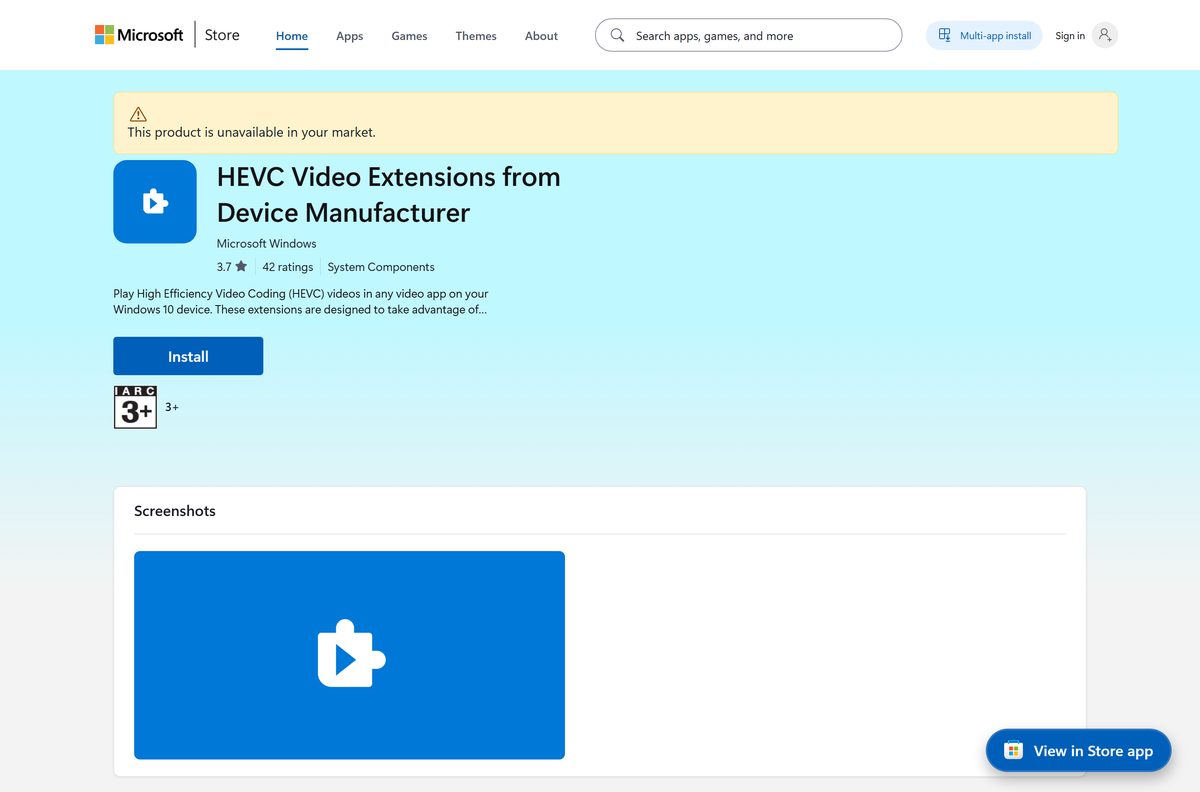
- HEVC Video Extensions from Device Manufacturer (product 9N4WGH0Z6VHQ) — 10.6 MB bundle · $0.00, same decoder
A site offering an HEVC installer or a codec pack is not a Microsoft source. Microsoft’s own codecs guidance warns that those packs cause playback problems and system corruption, and points to the Store extensions instead.
How to install HEVC Video Extensions on Windows 11 and Windows 10
Start with the free listing. It takes seven steps at most, and nothing here needs administrator rights.
- Open the device manufacturer listing in your browser.
- Select Get in Store app and confirm the prompt that opens Microsoft Store.
- Select Get and wait for the package to download.
- Open the $0.99 listing instead when step 3 offers no install button.
- Select Buy, sign in with your Microsoft account and confirm the payment.
- Close every video app that was already running, then reopen it.
- Play an .mp4 or .mkv file that carries H.265 video to confirm the decoder loaded.
No restart is required. The package registers itself with Media Foundation as soon as the Store finishes.
Install HEVC Video Extensions from the Microsoft Store or with winget
WinGet ships the msstore source by default, so the same package installs from a terminal. Store product IDs work as the package ID on that source.
- Right-click Start and select Terminal.
- Run winget source list and confirm that msstore appears in the output.
- Run winget install 9N4WGH0Z6VHQ -s msstore to fetch the device manufacturer package.
- Run winget install 9NMZLZ57R3T7 -s msstore when the first command finds no applicable package.
- Add –accept-source-agreements –accept-package-agreements to either command to skip the prompts in a script.
- Run Get-AppxPackage -Name Microsoft.HEVCVideoExtension* to confirm the package landed.
The wildcard in the last command matters. It catches both package names at once, which is the only way to see which listing supplied your copy.
Is HEVC Video Extensions free?
Both listings carry the identical product description and the identical H.265 decoder. Only the price and the package name differ.
Open the device manufacturer listing first, and pay the $0.99 only when it will not install. Microsoft prices that listing at $0.00, and its current package is newer than the paid one. The general listing is a one-time $0.99 purchase rather than a subscription, and it covers the 32-bit x86 case the newest free package drops.
How to check your HEVC Video Extensions version and update it
Two package names exist and they differ by one letter. Microsoft.HEVCVideoExtensions is the paid build, and Microsoft.HEVCVideoExtension is the device manufacturer build.
- Right-click Start and select Terminal.
- Run Get-AppxPackage -Name Microsoft.HEVCVideoExtension* to list every matching package.
- Read the Version line: 2.4.110.0 is the current paid build, and 2.5.33.0 the current free one.
- Open Microsoft Store and select Library in the left rail.
- Select Get updates and wait for the queue to clear.
- Run the command from step 2 again to confirm the version moved.
Nothing on the listing page shows the installed version. The command is the only place it appears.
What HEVC Video Extensions can decode and encode
The package registers Media Foundation transforms rather than a player. Every app that hands playback to Windows inherits the limits below.
| Capability | Supported |
|---|---|
| Decoder profiles | Main, Main Still Picture and Main 10 |
| Encoder profiles | Main |
| Chroma format | 4:2:0 |
| Minimum resolution | 48 x 48 pixels |
| Maximum resolution | 4096 x 2304 pixels |
| Hardware acceleration | DX11 and DX12 DXVA, guaranteed to 1920 x 1088 and higher when the GPU allows |
| Containers | mp4 and m2ts, from Annex B H.265 input |
| Output formats | NV12 and P010 |
Files in 4:2:2 or 4:4:4 chroma sit outside that list, and so does anything past 4096 x 2304. Those play in a third-party player with its own decoder or not at all.
Can you install HEVC Video Extensions on a Mac?
No. The package is an MSIX built for Windows desktop, so macOS has nothing to install it with, and Microsoft publishes no Mac build of it.
| Your computer | What you install | Where |
|---|---|---|
| Windows 11, or Windows 10 build 16299 or later | HEVC Video Extensions | Microsoft Store listing |
| Windows on ARM, such as a Snapdragon laptop | The ARM64 payload inside the same bundle | Device manufacturer listing |
| Any Mac | Nothing from Microsoft; use a player that carries its own H.265 decoder | Not published |
| Windows Server | Nothing; Microsoft lists no server support for the H.265 decoder | Not supported |
Fix HEVC Video Extensions not installing or not playing
Four failures cover almost every report. Work down the list in order.
The free listing shows no install button
That listing is published for devices whose manufacturer already licensed the decoder.
- Open the $0.99 listing.
- Select Get in Store app, then Buy.
- Sign in with the Microsoft account you use on this PC.
- Confirm the payment and wait for the Store to install the package.
The video plays with sound but no picture
The player built its decoder list before the package arrived.
- Close the player, then reopen it and play the file again.
- Open Task Manager, find the player under Processes and select End task when it kept running in the background.
- Sign out of Windows and sign back in when the picture is still missing.
- Run Get-AppxPackage -Name Microsoft.HEVCVideoExtension* to confirm a package is actually installed.
The Store returns an error code during the download
The Store app itself is stuck rather than the package.
- Open Settings > System > Troubleshoot > Other troubleshooters.
- Select Run next to Windows Store Apps.
- Open Microsoft Store, select your profile picture and confirm you are signed in.
- Open the listing again and select Get.
4K HEVC video stutters after the install
DXVA acceleration is guaranteed only to 1920 x 1088; above that it depends on the GPU.
- Open Settings > System > Display > Advanced display and note the graphics adapter.
- Install the newest graphics driver from that adapter’s own support site.
- Close other apps that use the GPU, then play the file again.
- Play a 1080p copy of the file to confirm the decoder works and the limit is hardware.
How to uninstall HEVC Video Extensions from Windows
Removing the package takes H.265 playback away from every app that relies on Windows for decoding.
- Open Settings > Apps > Installed apps.
- Type HEVC in the search box at the top of the list.
- Select the three dots next to the entry and choose Uninstall.
- Select Uninstall again to confirm.
- Open Terminal and run Get-AppxPackage -Name Microsoft.HEVCVideoExtension* | Remove-AppxPackage when no entry appears in Settings.
- Run Get-AppxPackage -Name Microsoft.HEVCVideoExtension* once more to confirm nothing is left.
A paid licence survives the removal. Reinstalling from the same Microsoft account costs nothing a second time.
Which other Microsoft media extensions should you add?
Windows leaves several formats to separate Store packages. Every one of these is published by Microsoft and priced at $0.00.
| Extension | Covers | Price |
|---|---|---|
| AV1 Video Extension | AV1 video, common on streaming services | $0.00 |
| VP9 Video Extensions | VP9 video in webm files | $0.00 |
| MPEG-2 Video Extension | MPEG-2 video from DVDs and broadcast recordings | $0.00 |
| Web Media Extensions | Open web media formats such as OGG | $0.00 |
| HEIF Image Extension | HEIF and HEIC photos from iPhones and modern cameras | $0.00 |
None of them replaces the H.265 decoder. HEIC photos in particular need both the image extension and this package.
Frequently asked questions
Is HEVC Video Extensions free?
It depends on the listing. HEVC Video Extensions from Device Manufacturer is priced at $0.00 and carries the same decoder. The general listing, the one every PC can buy, costs $0.99 as a one-time purchase.
What is the official HEVC Video Extensions download page?
apps.microsoft.com/detail/9NMZLZ57R3T7 is the paid listing and apps.microsoft.com/detail/9N4WGH0Z6VHQ is the device manufacturer listing. Microsoft distributes the package only through the Store, so no other page is official.
Does HEVC Video Extensions work on Windows 11?
Yes. The paid package requires Windows 10 build 16299 or later, which covers every Windows 11 release. The newest free package targets Windows 11 build 26200 and later on x64 and ARM64.
How big is the HEVC Video Extensions download?
The paid bundle is 7.9 MB and the newest free bundle is 10.6 MB. Both figures cover all architectures together, so the files a single PC keeps are smaller than that.
Is there an offline installer for HEVC Video Extensions?
No. Microsoft publishes no standalone setup, no MSI and no appx file for it. The PC has to reach the Microsoft Store over the internet to install or update the package.
Can you get HEVC Video Extensions for Mac?
No. The package is an MSIX built for Windows desktop, and Microsoft publishes no macOS version. On a Mac, play H.265 files in a player that ships its own decoder instead.
Does HEVC Video Extensions support 64-bit and ARM64?
Yes. The paid bundle carries x64, x86 and ARM64 payloads. The newest free bundle drops x86 and ships x64 and ARM64 only, so 32-bit PCs need the paid listing.
Is HEVC Video Extensions safe to install?
Yes, when it comes from the Store. Microsoft publishes and signs the package. Its codecs guidance warns against third-party codec packs, which it links to playback problems and system corruption.
What is the latest HEVC Video Extensions version?
The paid listing is on 2.4.110.0 and the device manufacturer listing is on 2.5.33.0, with 2.4.109.0 still served to Windows builds older than 26200. Check yours with Get-AppxPackage.
Why will HEVC Video Extensions not install?
The free listing installs only on devices whose manufacturer licensed the decoder, so the Store offers no install button elsewhere. Buy the $0.99 listing, or run the Windows Store Apps troubleshooter when an error code appears.
What video formats does HEVC Video Extensions handle?
It decodes Main, Main Still Picture and Main 10 profiles in 4:2:0 chroma, from 48 x 48 up to 4096 x 2304 pixels, inside mp4 and m2ts files. It also encodes H.265 in the Main profile.
Do you need HEVC Video Extensions for HEIC photos?
Usually yes. HEIC files store their image data with H.265, so Windows needs this package alongside the free HEIF Image Extension to open them in Photos and File Explorer.