FaceTime download options cover every screen you own. The app is free on Mac, iPhone and iPad, and a Windows 11 or Windows 10 PC joins FaceTime video calls straight from Google Chrome or Microsoft Edge.
On a PC, open the FaceTime link a friend sends, type your name and select Join. The call opens in the browser tab, with no sign-in and no setup file.
Below: the right route for each device, the PC join steps, how to send a link to a PC user, Mac setup, fixes and clean removal.
Which FaceTime route do you need?
Match your device to the row below. Apple devices use the app; Windows and Android devices use a link.
| Your device | Where FaceTime comes from | Size | What you can do |
|---|---|---|---|
| iPhone or iPad | FaceTime on the App Store | 6.3 MB | Start, join and create links; SharePlay and screen sharing |
| Mac | FaceTime User Guide for Mac | Part of macOS | Start, join and create links; approve web guests |
| Windows 11 or Windows 10 PC | Join from a Windows device | Nothing to download | Join a call from a link in Chrome or Edge |
| Android phone or tablet | Join from an Android device | Nothing to download | Join a call from a link in Chrome or Edge |
A PC can join a call but cannot start one. Someone on an iPhone, iPad or Mac creates the link first.
Download FaceTime from Apple’s official pages
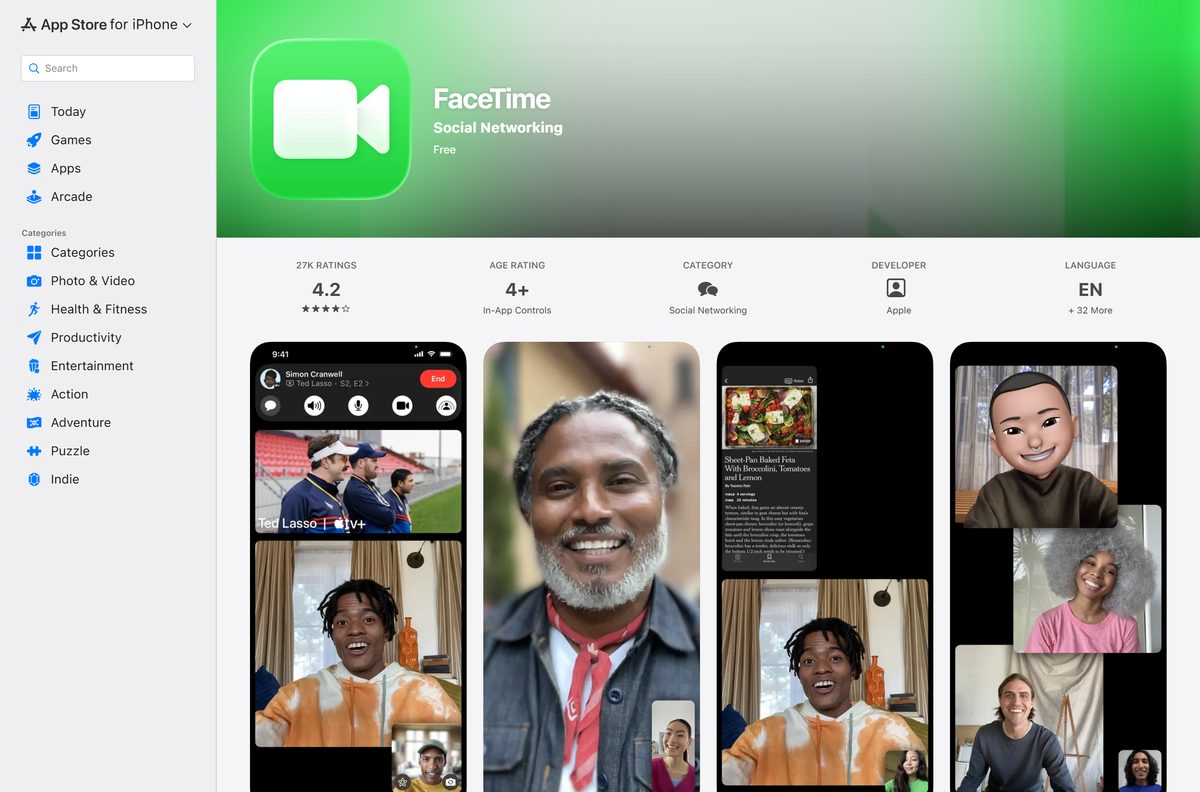
- FaceTime on the App Store — 6.3 MB · iPhone and iPad, seller Apple Inc., price Free
- Join a FaceTime call from an Android or Windows device — Apple’s steps for Chrome and Edge on a PC
- FaceTime Support — Apple’s guides for iPhone, iPad and Mac
Check the FaceTime system requirements before your first call
| Field | Detail |
|---|---|
| Software | FaceTime |
| Developer | Apple Inc. |
| Latest version | 2.6 on the App Store listing, updated 17 September 2026 |
| License / price | Free, no in-app purchases |
| Download size | 6.3 MB on iPhone and iPad; part of macOS on a Mac |
| iPhone and iPad | iOS 10.0 or later; iOS 15 or later to create links |
| Mac | Built into macOS; macOS Monterey or later to create links |
| Windows and Android | Latest Google Chrome or Microsoft Edge with WebRTC |
| Hardware | Microphone, plus a camera with H.264 encoding for video |
| Architecture | Apple devices only; no x64 or ARM64 Windows build |
| Official download source | App Store |
| Offline installer | No |
| Last verified | 24 September 2026 |
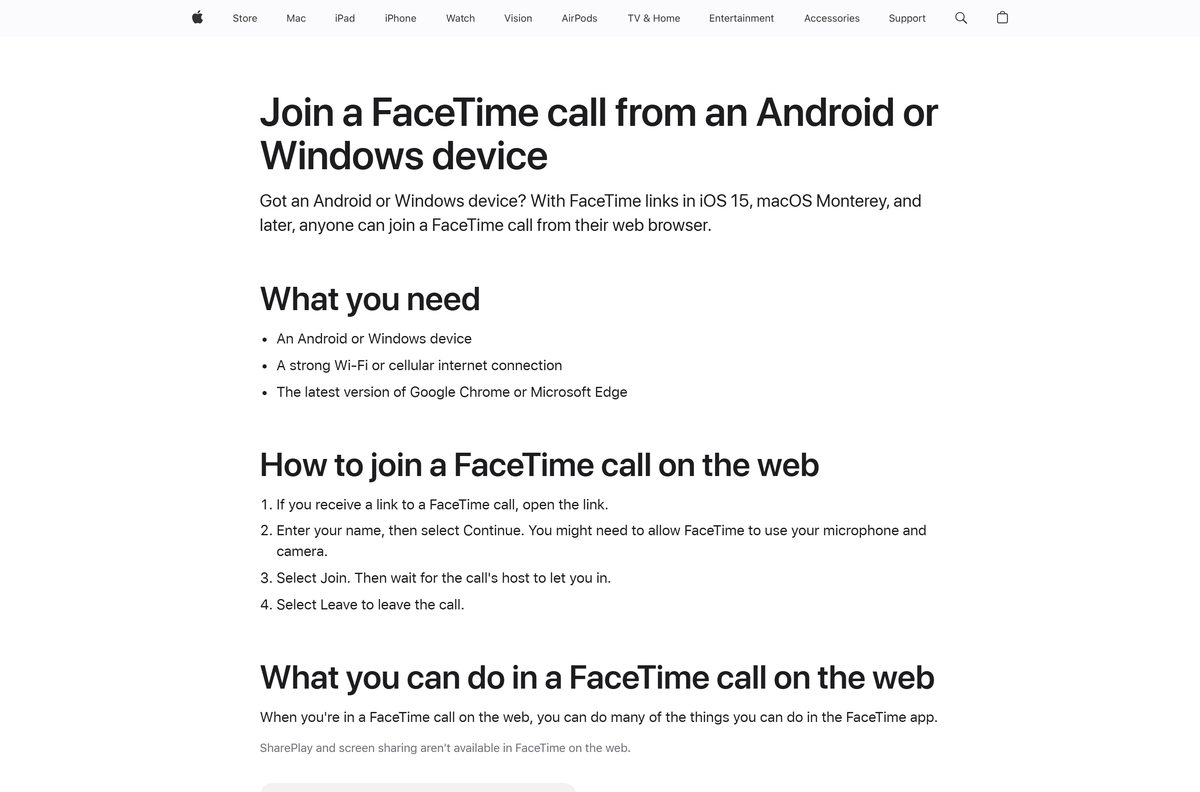
How to use FaceTime on a Windows 11 or Windows 10 PC
You need a FaceTime link, a strong internet connection and the latest Google Chrome or Microsoft Edge. No Apple Account is required.
- Update Google Chrome or Microsoft Edge to the latest version.
- Open the FaceTime link from the message or email you received.
- Type your name, then select Continue.
- Select Allow when the browser asks for the microphone and camera.
- Select Join, then wait for the call’s host to let you in.
- Use the Microphone and Camera buttons to mute or hide your video.
- Select the Participant List and Settings Menu button, then Grid Layout to see everyone in tiles.
- Select Leave to end your part of the call.
To invite someone else from the PC, click the More button and choose Copy Link or Share Link.
How to send a FaceTime link to someone on a PC
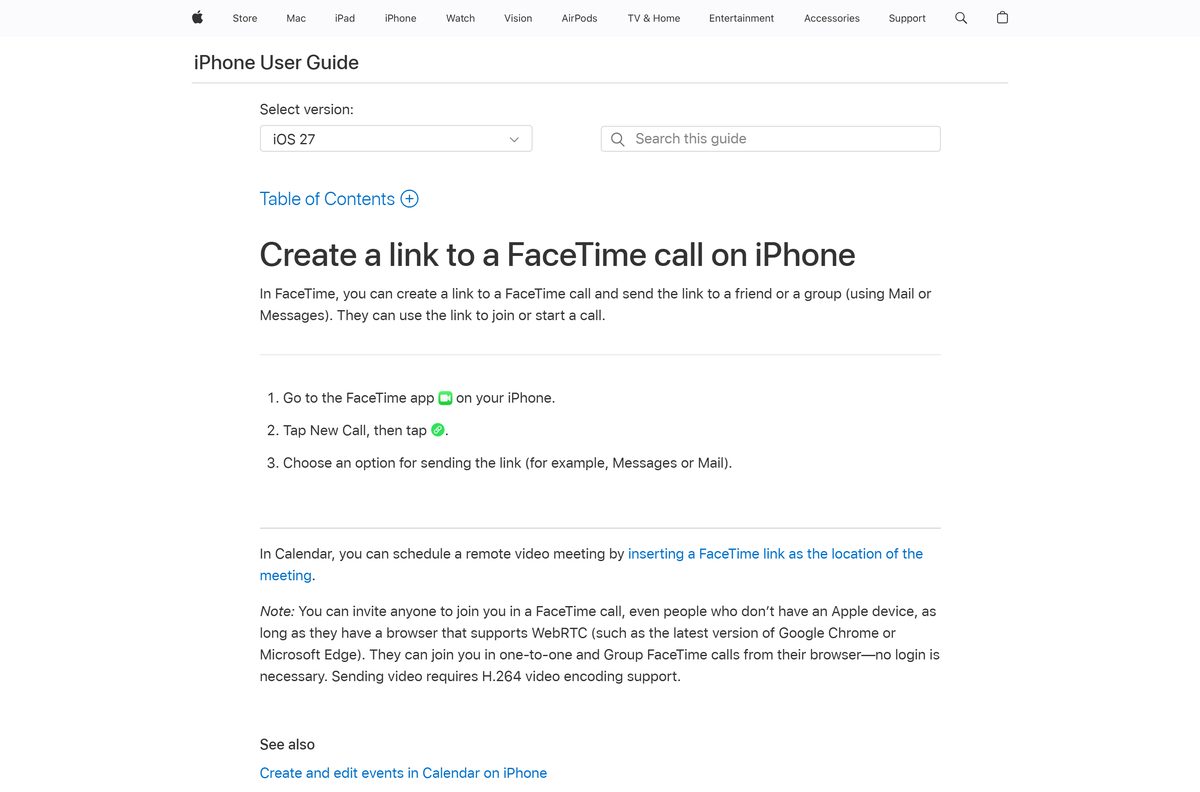
The host needs an iPhone or iPad on iOS 15 or later, or a Mac on macOS Monterey or later.
- On an iPhone, open the FaceTime app and tap New Call.
- Tap Create Link, then choose Messages, Mail or another way to send it.
- On a Mac, open FaceTime, click New Call, then click Create Link.
- Choose how you want to share the link from the menu.
- Start the call from the link tile, then wait for the PC user to join.
- Click the waiting notification at the top of the screen.
- Click Approve Join Request to let the person in, or Decline Join Request to refuse.
Anyone who has been in the call for at least 30 seconds on an Apple device can approve guests too. A FaceTime link also works as the location of a Calendar event.
How to set up FaceTime on your Mac
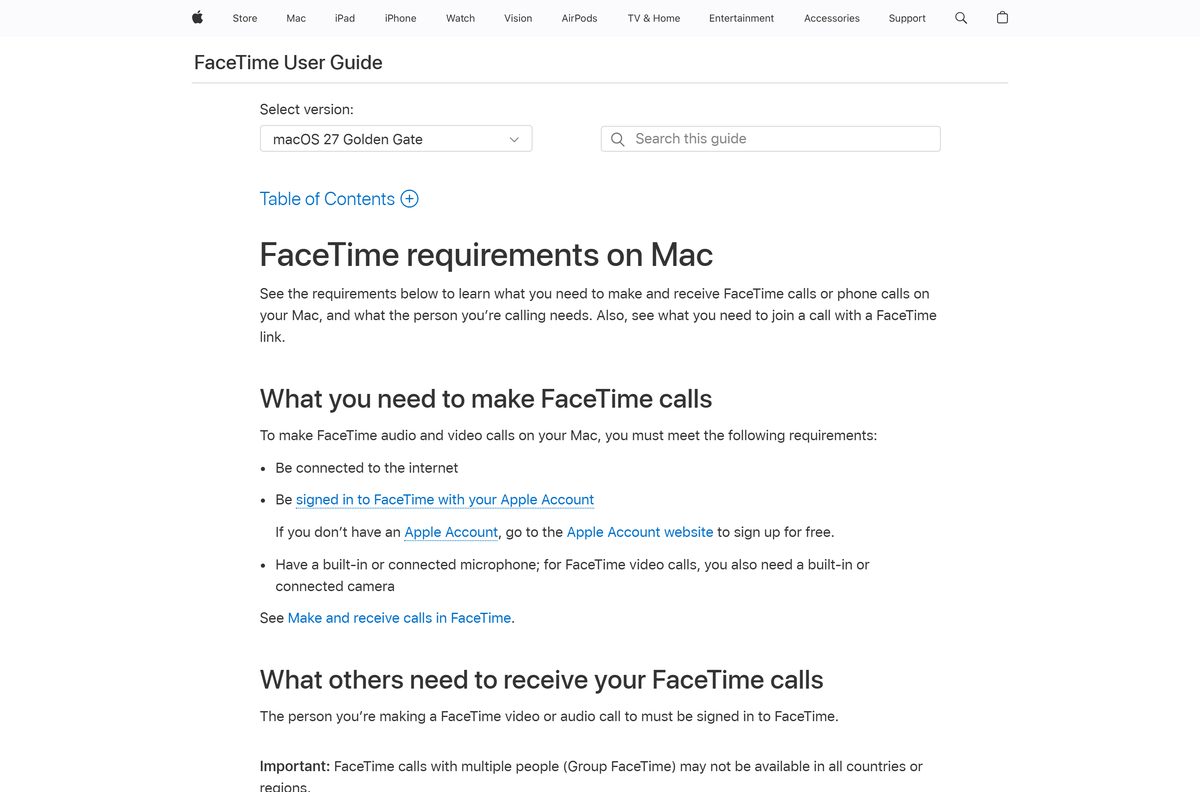
FaceTime comes with macOS, so setup is a sign-in. Match your Mac to a row, then follow it.
| Your Mac | What to do | Apple guide |
|---|---|---|
| First time opening FaceTime | Enter your Apple Account email or phone number, click Sign In, enter the password, click Sign In | Sign in to FaceTime on Mac |
| macOS Monterey or later | Calls, Group FaceTime for up to 32 people, and link creation all work | Get started with FaceTime on Mac |
| Older than macOS Monterey | Calls work, but creating a link for PC guests needs Monterey or later | FaceTime on Android or Windows |
| No camera or microphone connected | Connect one; video calls need a camera and every call needs a microphone | FaceTime requirements on Mac |
Is FaceTime free?
Yes. The App Store lists FaceTime as Free, with no in-app purchases, and joining from a browser needs no Apple Account. Calls run over Wi-Fi or cellular data, so a cellular call draws on your data plan rather than a per-minute charge. The listing pitches it for calls to family and friends around the world. Any site selling a FaceTime licence, or a FaceTime setup file for Windows, is not Apple.
How to spot a fake FaceTime download
Apple publishes no FaceTime exe, msi or apk. Its Windows software page lists only Apple Music, Apple TV, Apple Devices and iTunes.
- Check that the App Store listing’s seller line reads Apple Inc.
- Check that the price reads Free and the category reads Social Networking.
- On a PC, open only a link sent by someone you know who uses an iPhone, iPad or Mac.
- Close any page that asks you to install software before joining.
- Delete any file named like a FaceTime installer for Windows or Android.
What FaceTime on the web can and cannot do
The browser version covers the call itself. The Apple-only extras stay in the app.
| Feature | Chrome or Edge on a PC | FaceTime app on Apple devices |
|---|---|---|
| One-to-one and Group FaceTime calls | Yes | Yes, up to 32 people |
| Mute, camera off, full screen | Yes | Yes |
| Grid Layout | Yes | Yes |
| Copy or share the call link | Yes | Yes |
| Start a new call or create a link | No | Yes |
| SharePlay | No | Yes |
| Screen sharing | No | Yes |
FaceTime links do not work in China mainland, and iPhone models bought there cannot create them.
Fix FaceTime not working on a PC, Mac or iPhone
The link will not open or join on a Windows PC
An outdated or unsupported browser.
- Update Google Chrome or Microsoft Edge to the latest version.
- Open the link again in that browser rather than the default mail viewer.
- Select Allow for the microphone and camera when prompted.
- Ask the host to check for your join request and approve it.
The camera or microphone does not work on a Mac
Another app holds the device, or the wrong one is selected.
- Quit FaceTime, then open it again.
- Restart the Mac.
- With FaceTime closed, test the camera in Photo Booth.
- Open the Video menu in FaceTime and select the right camera and microphone.
Calls fail or never ring on an iPhone or iPad
FaceTime is switched off or the device needs an update.
- Update the device to the latest iOS or iPadOS.
- Open Settings, tap Apps, tap FaceTime, then turn FaceTime off and back on.
- In Screen Time, check that Camera and FaceTime are allowed under Allowed Apps & Features.
- Set the date and time to automatic, then restart the device.
Video freezes, goes black or the call drops
A slow or busy network.
- Move both ends to a fast Wi-Fi or cellular connection; Wi-Fi calls need broadband.
- Pause other streaming on the same network.
- Check that a router, firewall or security app is not blocking the call.
How to remove and restore FaceTime on an iPhone or iPad
With iOS 14 or later, FaceTime is a built-in app you can delete. Deleting it also removes its settings data.
- Touch and hold the FaceTime icon on the Home Screen.
- Tap Remove App, then tap Delete App.
- To restore it, open the App Store and search for the exact name, FaceTime.
- Tap the Redownload button.
- Open FaceTime from the Home Screen when the restore finishes.
With the app deleted, FaceTime calls still work from Contacts and the Phone app. On a Mac, sign out instead: choose FaceTime > Settings, click General, then Sign Out.
Which FaceTime alternative should a Windows user install?
Pick an alternative when a Windows user needs to start calls, not only join them.
| App | Where to get it | Best for |
|---|---|---|
| WhatsApp download page | Friends already on WhatsApp; desktop apps for Windows and Mac | |
| Zoom Workplace | Zoom Download Center | Scheduled meetings with people on any platform |
| Google Meet | Google Meet | Browser calls from a Google account |
Keep FaceTime when the host owns an iPhone, iPad or Mac. The link route costs the PC user nothing.
Frequently asked questions
Is FaceTime free?
Yes. The App Store lists FaceTime as Free with no in-app purchases. Calls run over Wi-Fi or cellular data, and PC or Android guests join from a link in Chrome or Edge without an Apple Account.
Is FaceTime free on Wi-Fi and for international calls?
Yes. FaceTime charges nothing per call on Wi-Fi, including calls to other countries. Over cellular, the call uses your mobile data allowance, so check your plan before long video calls abroad.
Can I use FaceTime on Windows 11 or Windows 10?
Yes, through a FaceTime link. Open the link in the latest Google Chrome or Microsoft Edge, enter your name, select Continue, then select Join and wait for the host to let you in.
What is the official FaceTime download page?
The FaceTime listing on Apple’s App Store, sold by Apple Inc., covers iPhone and iPad. On a Mac, FaceTime ships with macOS. Apple’s support article on joining from Android or Windows covers PCs.
How big is the FaceTime download?
The App Store listing for iPhone and iPad is 6.3 MB. On a Mac, FaceTime is part of macOS, and on a Windows PC the call runs in the browser tab with nothing to download.
Is there a FaceTime offline installer?
No. FaceTime comes with iOS, iPadOS and macOS, and the App Store restores it on iPhone and iPad. Apple publishes no standalone package, and a Windows PC uses the browser instead.
Is there a 64-bit or ARM64 FaceTime build for a PC?
No. Apple ships no Windows binary in any architecture. A Windows PC joins FaceTime calls in a WebRTC browser such as Chrome or Edge, with H.264 support for sending video.
Can a Windows PC start a FaceTime call?
No. A PC can only join. Someone on an iPhone or iPad with iOS 15 or later, or a Mac with macOS Monterey or later, must create the link and approve the join request.
Is it safe to download FaceTime?
Yes, from the App Store, where the seller reads Apple Inc. and the price reads Free. Any FaceTime exe, msi or apk offered for Windows or Android did not come from Apple.
What is the latest FaceTime version?
The App Store listing shows version 2.6, updated on 17 September 2026. On a Mac, FaceTime ships with macOS, and the current Mac user guide covers macOS 27.
Can I share my screen in FaceTime on the web?
No. SharePlay and screen sharing are not available in the browser. Web guests can mute, turn off the camera, use full screen, switch to Grid Layout and share the call link.
Why won’t FaceTime work in my browser?
Usually an outdated browser or blocked permissions. Update Chrome or Edge, allow the microphone and camera, and ask the host to approve your join request. FaceTime links do not work in China mainland.