An installed copy of Office will not show you its full 25-character product key, because Microsoft states the full key is never displayed inside Office or online.
What you can recover is the Microsoft account the licence belongs to, the last five characters of a volume licensed key, and the original key from your purchase record.
Check Your Microsoft Account First
The Microsoft account you redeemed the key with is the record that replaces the key. It reinstalls and activates Office without one.
- Go to the Microsoft account Services & subscriptions page and select Sign in.
- Sign in with the Microsoft account you used to buy Office.
- Find your Office or Microsoft 365 entry in the product list.
- Select Install to reinstall on any PC without typing a key.
Microsoft states the Office key shown on that page is always a different key from the one printed on a product key card. Both are genuine.
First, Understand What You Can—and Cannot—Recover
| What you want | Can you get it? | Where it comes from |
|---|---|---|
| The full 25-character key of an installed copy | No | Microsoft does not display it inside Office or on your account page |
| The last five characters of the installed key | Yes, volume licensed Office only | cscript ospp.vbs /dstatus |
| The account the licence belongs to | Yes | File > Account in Word, Excel or PowerPoint |
| The full key you were sold | Yes | The key card, the email receipt, or Microsoft Store order history |
| A key for a Microsoft 365 subscription | No key exists | The subscription is tied to an account, not to a key |
| A volume license key at work | Through your admin only | Your organisation's volume licensing agreement |
Which route fits your copy of Office?
| Your situation | Do this | Why |
|---|---|---|
| Microsoft 365 Personal or Family | Sign in at account.microsoft.com/services | No product key is issued for the subscription itself |
| One-time purchase bought online | Open the email receipt or your store order history | The 25-character key was issued at purchase |
| Retail box or product key card | Scratch the silver foil on the back of the card | The key is printed under the coating |
| Office arrived on a new PC | Start Word and read the prompt | A digital key is delivered when Windows activates |
| Volume licensed Office at work | Ask your IT admin | Microsoft states you need the admin for that key |
| Bought through the Workplace Discount Program | Open your Order Details page | This is the one case where the key shows online |
Open an Office App and Check the Account Page
This is the fastest way to learn which account a working install is licensed to.
- Open Word, Excel or PowerPoint and open or create a document.
- Select File.
- Select Account in the left navigation.
- Read the email address shown after Belongs to, under the product name.
- Select About Word to read the version and the License ID.
A License ID starting with EWW belongs to Microsoft 365 Apps, and one starting with CWW belongs to a consumer Microsoft 365 plan.
Volume licensed Office such as Office LTSC 2021 lists a Product ID here instead of a License ID.
Find the Last Five Characters of the Installed Office Product Key on Windows
This applies to volume licensed Office LTSC 2024, Office LTSC 2021, Office 2019 and Office 2016, including Project and Visio.
Open Command Prompt as an administrator first, and change to the folder that holds ospp.vbs.
cscript ospp.vbs /dstatusThe script lives in Program Files\Microsoft Office\root\Office16. For 32-bit Office on 64-bit Windows, use Program Files (x86)\Microsoft Office\root\Office16. Earlier versions may not include \root\ in the path. Your account must belong to the Administrators group.
You should see: License information for each installed product key, including the last five characters of the key.
If the first folder does not exist, open the Program Files (x86) path instead; that is the 32-bit layout, and the folder that exists tells you which build is installed.
The same five characters are what /unpkey expects, which is why Microsoft documents them as the identifier for an installed key.
Use PowerShell to Locate the Office Licensing Script
Microsoft 365 Apps moved to a new activation method in Version 1910, so ospp.vbs no longer reports on it. A PowerShell script named vnextdiag.ps1 does, and it ships with Microsoft 365 Apps from Version 2104.
./vnextdiag.ps1 -action listOpen a Windows PowerShell prompt and change to C:\Program Files\Microsoft Office\Office16. For 32-bit Microsoft 365 Apps on 64-bit Windows, use C:\Program Files (x86)\Microsoft Office\Office16.
You should see: A list of installed products with the licence type, the product name such as O365ProPlusRetail, the licence state, and the email address that activated it.
No product key appears in that output. A subscription install is licensed to an account, so the email address is the identifier that matters.
Can You Find the Full Product Key in the Windows Registry?
No. Microsoft documents licensing values in the registry, but none of them return the 25-character key.
| Claim you will read | What Microsoft documents | What it means for you |
|---|---|---|
| The full key sits in the registry | No documented value returns the 25-character key | There is nothing to read back |
| Office can show the key | "For security reasons, the full product key isn't displayed within Office" | File > Account shows the account, not the key |
| The key is on your account page | Microsoft states the key is not displayed online, apart from Workplace Discount Program orders | Use the account to reinstall instead |
| The registry holds licence data | HKEY_CURRENT_USER\SOFTWARE\Microsoft\Office\16.0\Common\Licensing\LicensingNext lists activated products |
It records the activation method, not a key |
| Licence files exist on disk | %localappdata%\Microsoft\Office\Licenses holds a file per activated product |
These are licence tokens, not readable keys |
Be Careful With Product Key Finder Tools
Skip third-party key finder utilities and stay with the official routes. No tool can read a key that was never stored on the PC in full, and installing an unknown utility to chase a string that is not there adds risk without adding a key. Microsoft also warns that keys sold separately are often stolen, abused or blocked.
Find the Product Key From the Original Purchase
The purchase record is the only place a full key ever existed for a one-time purchase.
| Where you bought it | Where the key is | What to do |
|---|---|---|
| Downloaded from an online store | In the email receipt | Search your mailbox, then check the junk folder |
| Bought through the Microsoft Store | In your order history | Sign in at www.microsoftstore.com, open Order History, then select Install Office to display the key |
| Retail box, card or disc | On the card or the packaging | Scratch the silver foil coating on the back of the key card |
| A retailer such as Amazon, Best Buy or Walmart | On the key card or in the order confirmation | Check the card first, then the retailer's order email |
| Workplace Discount Program at work | On your Order Details page | Sign in to the program portal and open the order |
A key card can also carry bar codes and other groups of characters. The product key is always the one in XXXXX-XXXXX-XXXXX-XXXXX-XXXXX format.
If Office Came Preinstalled on Your PC
- Start Word and read the first screen it shows.
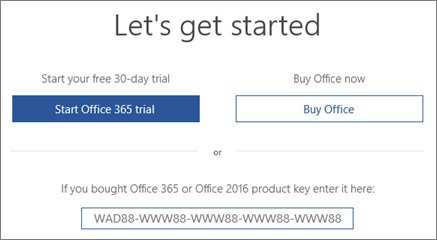
- Treat a Let's get started screen offering to try, buy or activate as a one-month trial of Microsoft 365 Family.
- Sign in with your Microsoft account if Office was paid for with the PC; a digital product key is transmitted to the PC when you activate Windows.
- Expect no printed key from the manufacturer unless you also paid for a product key card.
- Look for a Certificate of Authenticity if the machine shipped with an older boxed Office version.
The Windows licence on that PC is separate from the Office licence. For the Windows side, see How to Activate Windows 10 Product Key.
If You Use Microsoft 365
A Microsoft 365 subscription is not sold as a key you can look up later.
| Your plan | Is there a product key? | What to use instead |
|---|---|---|
| Microsoft 365 Personal or Family | Only if you bought a renewal key card | Sign in with your Microsoft account at account.microsoft.com/services |
| Microsoft 365 for work or school | No | Sign in with the work or school account at m365.cloud.microsoft/apps |
| A renewal key card you have not used | Yes, printed on the card | Redeem it at microsoft365.com/setup |
| A one-month trial on a new PC | No | Start the trial, or buy a plan and sign in |
If a Microsoft 365 app asks for a key, sign in with the account that owns the subscription rather than hunting for one.
If Office Says “Professional Plus” or “Volume License”
| How you got it | Who holds the key | How to get at it |
|---|---|---|
| Volume licensed Office at work | Your organisation | Microsoft states you need to contact your admin for the product key |
| Office Professional Plus through the Workplace Discount Program | You | View it on your Order Details page in the program portal |
| A MAK your IT team deployed | Your volume licensing agreement | The key is set in configuration.xml or the Office Customization Tool, never shown to users |
| Office activated against a KMS host | No key for you to recover | Run cscript ospp.vbs /dstatusall to read the licence status instead |
A MAK allows a predetermined number of activations under the agreement it came from, so each activation is counted.
How to Find Office License Information on a Mac
Office for Mac has no product key to display either. The licence follows the account you sign in with.
- Open Finder, select Applications, then open Word.
- Select Get Started in the What's New box.
- Select Sign in on the activation screen.
- Enter the email address associated with Microsoft 365 for Mac, then select Next.
- Enter the password and select Sign in.
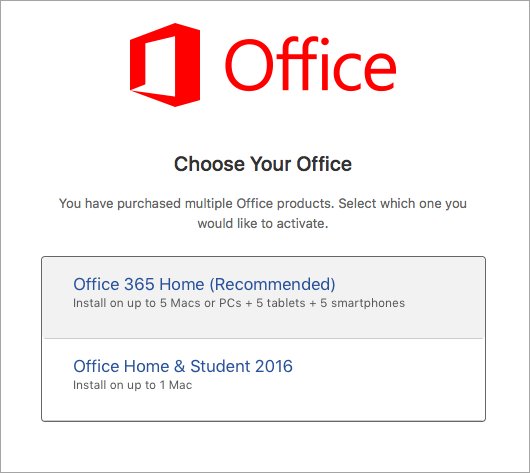
- Pick an entry under Choose the license you want to use if more than one appears, then select Start Using Word.
Licences already in use appear greyed out in that list. Signing in with the wrong address is the usual reason a Mac copy looks unlicensed.
What If You Need the Key to Reinstall Office?
Microsoft's answer is that you do not need one. Sign in instead.
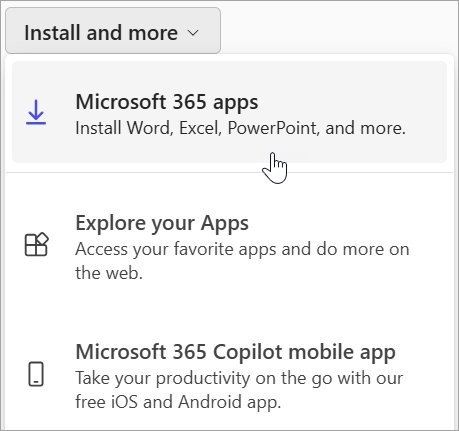
- For a personal copy, go to the Microsoft account Services & subscriptions page and sign in.
- Select Install beside your Office or Microsoft 365 product.
- For a work or school copy, go to m365.cloud.microsoft/apps and select Sign in.
- Select the Install apps drop-down, then select Install apps to start the download.
- Run the downloaded setup and select Yes at the User Account Control prompt.
- Open Word and accept the licence agreement to finish activation.
One exception applies: you do still need the key to reinstall Office Professional Plus, Visio Professional or Project Professional from the Workplace Discount Program.
What If You Need to Move Office to a New Computer?
- Confirm on the old PC which account Office belongs to, under File > Account.
- Sign in on the new PC with that same Microsoft account at account.microsoft.com/services.
- Select Install beside the Office product and run the setup.
- Open Word on the new PC and accept the licence agreement.
- Uninstall Office from the old PC if the licence covers a single computer.
Got A New Computer How Do I Transfer Microsoft Office covers the move in more detail.
How to Match an Installed Office Copy to a Product Key You Found
A key in your hand is only useful if it belongs to the copy on this machine.
- Run
cscript ospp.vbs /dstatusfrom an elevated Command Prompt in the Office folder. - Read the last five characters reported for each installed key.
- Compare them with the last five characters of the key on your card or receipt.
- Treat a match as proof that the key belongs to this install.
- Treat a mismatch as a sign the key belongs to another product or another computer.
The key listed on the Services & subscriptions page never matches a key card, by design, so do not use that page for this comparison.
Common Problems and What They Mean
The command says “Input Error: Can Not Find Script File”
ospp.vbs is not in the folder you opened, or the install is Microsoft 365 Apps, which does not include the script.
- Change to
Program Files\Microsoft Office\root\Office16and run the command again. - Try
Program Files (x86)\Microsoft Office\root\Office16if that folder is missing. - Drop
\root\from the path for an older Office version. - Run
./vnextdiag.ps1 -action listfromC:\Program Files\Microsoft Office\Office16if no ospp.vbs exists.
The command shows multiple product keys
More than one licence is installed, such as Office alongside a standalone Project or Visio.
- Run
cscript ospp.vbs /dstatusallto list every installed licence. - Match each entry by its product name rather than by its position in the list.
- Use the last five characters from the entry whose name matches the app you care about.
Office is activated, but no product key appears
Subscription installs are licensed to an account, so there is no key stored to display.
- Open File > Account in Word.
- Note the address shown after Belongs to.
- Sign in at account.microsoft.com/services with that address to reinstall or renew.
You can't find the Microsoft Office product key anywhere
For a one-time purchase, the key only ever existed on the card, in the receipt, or in the store order.
- Search your mailbox for the purchase confirmation, then check the junk folder.
- Sign in at www.microsoftstore.com and open Order History.
- Find the key card and scratch off the silver foil coating.
- Contact Microsoft support with valid proof of purchase if the key is damaged.
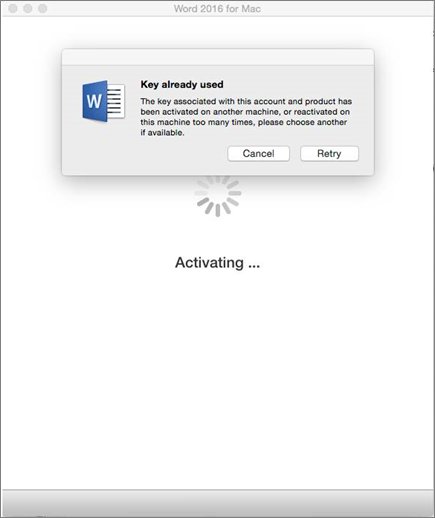
You bought a key but Microsoft says it was already used
Keys sold separately from the software are often stolen or otherwise unauthorised, and are then blocked.
- Contact the seller and request a refund.
- Buy a replacement from the Microsoft Store or a known retailer.
- Redeem the new key at microsoft365.com/setup so it attaches to your Microsoft account.
Best Practices Before Reinstalling Windows or Replacing a PC
- Record the address shown after Belongs to in File > Account.
- Save the purchase email, or a photo of the key card, somewhere other than this PC.
- Run
cscript ospp.vbs /dstatuson a volume licensed copy and note the last five characters. - Redeem any unused key at microsoft365.com/setup so the licence attaches to your account.
- Confirm you can sign in at account.microsoft.com/services before you wipe the drive.
Redeeming a key is a one-time step per key, and it is what makes a future reinstall keyless.
When to Contact Microsoft Support
| Situation | What Microsoft says | Have this ready |
|---|---|---|
| Your key is lost or damaged | Support may replace the key or offer other options with valid proof of purchase | The receipt or order number |
| A redemption error at the setup site | Use the guidance for product key errors on the setup site | The exact error text on screen |
| The key does not work, or stopped working | Contact the seller and request a refund | The seller's order details |
| You are locked out of the buying account | Use the Microsoft account recovery form | Old passwords and billing details |
| Nothing above resolved it | Visit the Microsoft support page for assistance | The product name and version from File > Account |
What Not to Do
| Do not | Why | Do this instead |
|---|---|---|
| Buy a cheap key from an unknown seller | Microsoft warns such keys are often stolen, abused or blocked | Buy from the Microsoft Store or a known retailer |
| Install a key finder utility | Nothing on the PC holds the full key to be found | Use File > Account and your purchase record |
| Edit the registry hunting for the key | The documented licensing values hold activation state only | Run ospp.vbs or vnextdiag.ps1 |
| Reuse one key across several computers | A MAK has a predetermined number of allowed activations | Buy a licence for each computer |
| Assume your Windows key covers Office | They are separate products with separate licences | Check the Office entry on your Microsoft account |
Frequently Asked Questions
How do you find a Microsoft Office product key?
Look in the purchase record, not on the PC. The key is in the email receipt, on the product key card under the silver foil, or in your Microsoft Store order history. An installed copy never displays the full key.
Can you find the Microsoft Office product key on the computer?
Only partly. A volume licensed install reports the last five characters through cscript ospp.vbs /dstatus. Microsoft 365 and retail installs report the account they belong to instead, because no full key is stored on the computer.
How do you find your Microsoft Office product ID?
Open Word, select File, then Account, then About Word. Volume licensed versions such as Office LTSC 2021 list a Product ID there. Microsoft 365 Apps list a License ID starting with EWW instead.
How do you find an old Microsoft Office product key?
Check the packaging, the disc sleeve or the key card that came with it, then search your mailbox for the order confirmation. For a preinstalled copy, look for the Certificate of Authenticity supplied with the computer.
How do you find a Microsoft 365 product key?
There is no key to find. A Microsoft 365 subscription is tied to the Microsoft account that bought it. Sign in at account.microsoft.com/services to install, reinstall or renew it without a key.
What do you do if you can't find your Microsoft Office product key?
Sign in to the Microsoft account you bought Office with and reinstall from the Services and subscriptions page. Microsoft does not require a key for that. Contact support with proof of purchase if the key itself is damaged.
How do you find your Office 2019 product key?
Retail Office 2019 keys live in the purchase record only. A volume licensed Office 2019 install reports the last five characters through cscript ospp.vbs /dstatus, run from an elevated Command Prompt in the Office16 folder.
How do you check which Microsoft products are licensed on a PC?
Run cscript ospp.vbs /dstatusall for volume licensed Office, or ./vnextdiag.ps1 -action list for Microsoft 365 Apps. Each command lists every installed product with its licence state and identifying details.
How do you find the Microsoft Office product code?
People usually mean the 25-character product key, written as XXXXX-XXXXX-XXXXX-XXXXX-XXXXX. It appears on the key card or in the purchase email. The Product ID in the About dialog is a different value and cannot activate Office.
How do you identify which product key an Office install is using?
Compare the last five characters reported by cscript ospp.vbs /dstatus with the last five characters of the key you hold. A match confirms the key belongs to that install, and a mismatch points to another copy.
Where is the Microsoft Office product key stored on Windows?
It is not stored in a readable form. Licensing data sits under the Office key in the registry and in %localappdata%\Microsoft\Office\Licenses, but those values record activation state, not the 25-character key.