To insert multiple rows in Excel, select the same number of rows as you want to add, right-click the selection and choose Insert; the new blank rows appear above the selected ones.
This guide covers six methods, from the right-click menu and keyboard shortcuts to VBA macros and Power Query, plus Excel for the web, Mac, tables and the errors that block insertion.
1. Using the Context Menu to Insert Multiple Rows
The count of rows you select is the count Excel inserts. Select three rows and you get three blank rows; select ten and you get ten.
- Click the row number on the left edge of the sheet where the new rows should start. The new rows go above this row.
- Hold Shift and click the row number further down, so the number of highlighted rows matches the number of rows you want to add. To add five rows, highlight five.
- Right-click any of the highlighted row numbers.
- Select Insert. In Excel for the web the command reads Insert Rows.
- Check that the same number of blank rows now sits above your original selection, which has moved down.
On a Mac, hold Control and click the selected rows, then click Insert on the pop-up menu. Microsoft's own example for the Mac is the same rule: to insert five blank rows, select five rows.
Which method should you use?
| Your situation | Use this method | Why |
|---|---|---|
| You add rows now and then, with a mouse | 1. Context menu | Two clicks after the selection, and it works in Excel for Windows, Mac and the web |
| Your hands stay on the keyboard | 2. Keyboard shortcuts | Shift + Spacebar, Shift + Down Arrow and Ctrl + Shift + Plus sign (+) never touch the mouse |
| You already work from the Home tab | 3. Ribbon Insert command | Insert Sheet Rows sits next to the delete and format commands |
| You need the same block of blank rows in several places | 4. Copy and insert blank rows | Copy the blank block once, then insert it wherever you need it |
| You repeat the same insertion every week, or need a blank row between every row | 5. VBA macro | One run does the whole job, however many rows are involved |
| The rows you want to add already exist in another table or file | 6. Power Query append | It stacks the second table under the first by matching column headers and refreshes later |
2. Using Keyboard Shortcuts for Quick Insertion
Microsoft lists these shortcuts for Excel for Windows. Ctrl + Shift + Plus sign (+) opens Excel's Insert command for whatever is selected, so select whole rows first.
- Click any cell in the row where the new rows should start.
- Press Shift + Spacebar to select that entire row.
- Press Shift + Down Arrow once for each extra row you want. Four presses give five selected rows.
- Press Ctrl + Shift + Plus sign (+). Excel inserts the same number of blank rows above the selection. If an Insert dialog opens instead, choose the entire-row option and select OK.
- To add the same number of rows somewhere else, click the new spot, select the same number of rows and press F4 or Ctrl + Y to repeat the last action.
On a Mac, Shift + Spacebar also selects the row, and Ctrl + Shift + Equal sign (=) inserts cells. To remove rows you inserted by mistake, select them and press Ctrl + Minus sign (-), or press Ctrl + Z straight away.
3. Using the “Insert” Command from the Ribbon
- Select the row numbers of as many rows as you want to insert, starting at the row that should move down.
- Go to the Home tab.
- Select Insert to open its menu.
- Select Insert Sheet Rows.
- If the new rows picked up formatting you do not want, select the Insert Options button that appears next to them and pick Clear Formatting.
Selecting a single cell instead of whole rows still works for one row: Insert Sheet Rows adds one full row above that cell's row. Delete Sheet Rows on the same menu removes rows the same way.
4. Using Drag-and-Drop for Repetitive Insertion
Microsoft documents the fill handle, the small square at the corner of a selected cell, for copying data and filling series, not for inserting rows. The documented drag route for repeated insertion is copy-and-insert, which pushes existing rows down instead of overwriting them.
Use it when you need the same size of blank block in several places. Keep a few empty rows below your data as the source.
- Select as many empty rows as you want to add, for example five blank rows below your data.
- Press Ctrl + C to copy them.
- Right-click the row number of the row that should sit below the new rows.
- Select Insert Copied Cells. Excel inserts the blank rows and shifts the existing rows down.
- Right-click the next target row and select Insert Copied Cells again. Repeat for every place that needs the same block.
- To drag instead, hold Shift and Ctrl, point to the border of the selected blank rows until the move pointer appears, and drag them to the new location. Keep both keys held until you release the mouse button.
If you let go of Ctrl or Shift before the mouse button, Excel moves the rows instead of copying them. Dragging needs Enable fill handle and cell drag-and-drop turned on under File > Options > Advanced > Editing options.
5. Using Macros to Automate Multiple Row Insertions
A macro suits jobs that are too large or too repetitive for the menus, such as a blank row between every record. VBA macros run only in the Excel desktop app; Excel for the web can open a workbook with macros but cannot create, edit or run them.
- Show the Developer tab: go to File > Options > Customize Ribbon, select the Developer check box under Main Tabs and select OK.
- On the Developer tab, select Record Macro, keep the default name and select OK, then select Stop Recording straight away. This creates an empty macro to edit.
- Select Developer > Macros, pick the macro and select Edit. The Visual Basic Editor opens. You can also press Alt + F11 to open it.
- Replace the recorded code with one of the macros in the next two sections and close the editor.
- Back in the sheet, select the starting cell or the rows the macro should work on.
- Press Alt + F8, pick the macro and select Run.
- Save the workbook as Excel Macro-Enabled Workbook (.xlsm), or the macro is not kept with the file.
Save a copy of the workbook before running a macro on real data for the first time.
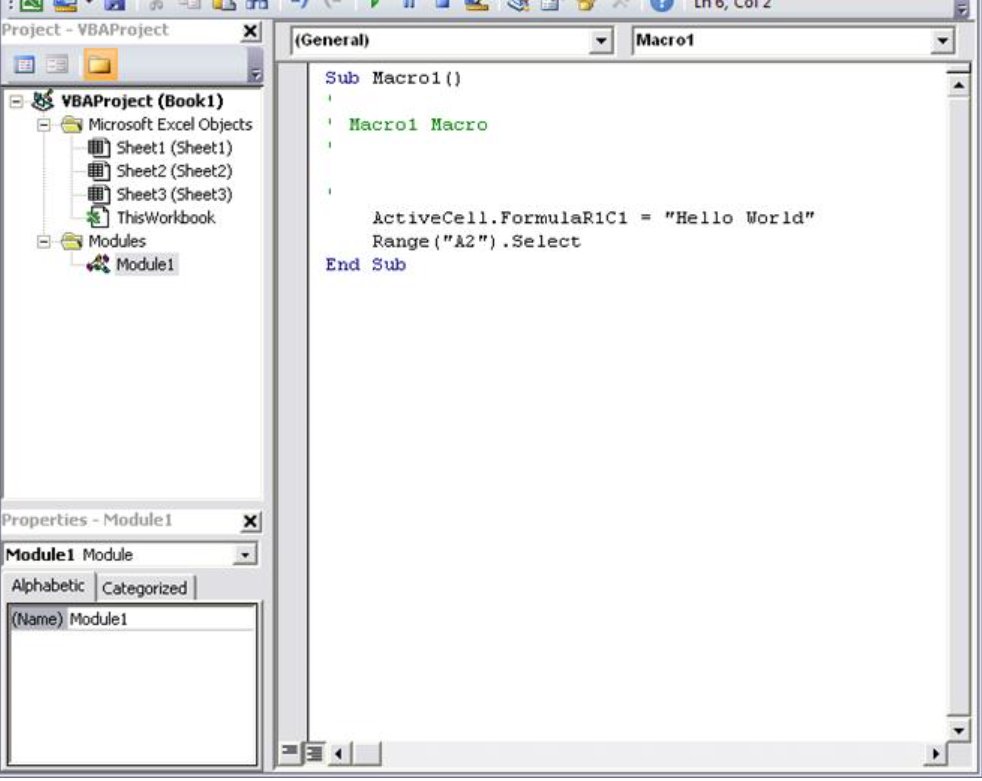
Macro code that inserts a chosen number of rows
Sub InsertBlankRows()
    Dim n As Long
    n = Val(InputBox("How many blank rows should go above the active cell?"))
    If n < 1 Then Exit Sub
    ActiveCell.EntireRow.Resize(n).Insert Shift:=xlShiftDown
End Sub
The macro asks for a number, then inserts that many full rows above the row of the active cell. Insert Shift:=xlShiftDown pushes the existing rows down. By default the new rows take their formatting from the row above (xlFormatFromLeftOrAbove); add CopyOrigin:=xlFormatFromRightOrBelow after the shift argument to copy formatting from below instead.
You should see: the number you typed, as blank rows directly above the cell you had selected, with the old data shifted down.
Macro code that inserts a blank row between multiple rows
Sub InsertRowBetweenEach()
    Dim r As Long, firstRow As Long, lastRow As Long
    firstRow = Selection.Row
    lastRow = firstRow + Selection.Rows.Count - 1
    For r = lastRow To firstRow + 1 Step -1
        Rows(r).Insert Shift:=xlShiftDown
    Next r
End Sub
Select the rows of data first, for example rows 2 to 100, then run the macro. It works from the bottom of the selection upward so every insertion leaves the rows it has not reached yet in place, and it puts one blank row above every selected row except the first.
You should see: a blank row between each pair of original rows, with the first selected row still in its original position.
6. Using Power Query or External Data to Insert Multiple Rows
Power Query does not push blank rows into the middle of a sheet. It adds rows from another table or data source to the bottom of an existing table, which is the job when the new rows already exist somewhere else, such as a second sheet, a CSV export or a database.
Power Query matches the two tables by column header names, not by position. A column that exists in only one table is filled with null values in the rows from the other.
- Format each block of data as a table: select a cell in it, choose Home > Format as Table, pick a style, confirm the range and headers, and select OK.
- Select a cell in the first table and choose Data > Get & Transform Data > From Table/Range. The Power Query Editor opens.
- Load the second table the same way, or import it with Data > Get Data if it lives in an external file or database.
- In the Power Query Editor, select the first query, then select Home > Append Queries. Use the arrow next to it and Append Queries as New if you want a separate combined query.
- Choose Two tables, pick the second table from the list and select OK. For more sources choose Three or more tables and add each one to Tables to append.
- Select Home > Close & Load > Close & Load to put the combined rows into the workbook.
When either source gets new rows, refresh the query instead of copying rows by hand. To change the steps later, select Data > Queries & Connections, right-click the query and select Edit.
Where the insert command is in Excel for the web, Mac and tables
The rule is the same everywhere: select as many rows as you want to add. Only the command name changes.
| Where you are working | Select | Then use |
|---|---|---|
| Excel for Windows (Microsoft 365, 2024, 2021, 2019, 2016) | Row numbers of as many rows as you need | Right-click > Insert, or Home > Insert > Insert Sheet Rows |
| Excel for the web | The same number of rows as you want to add | Right-click > Insert Rows |
| Excel for Mac | The same number of row headings | Control-click > Insert |
| Inside an Excel table | Cells or rows in the table body, not the header row | Right-click > Insert > Table Rows Above; in the last row Table Rows Below is also offered |
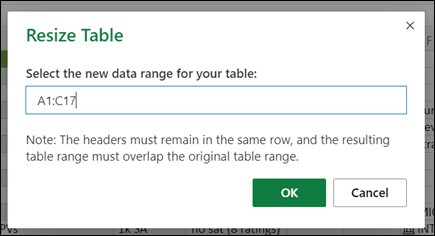
| Growing a table by a large block | The table | Table Design > Resize Table, then select the whole new range and select OK |
How to check the rows went in correctly
- Look at the row numbers on the left: the rows you selected should now start that many numbers lower. Rows that were 5 to 9 become 10 to 14 after inserting five rows above row 5.
- Scroll to the end of your data and check that the last record's row number grew by exactly the number of rows you inserted.
- Click a formula below the insertion point and check that its references moved down with the data. Excel adjusts cell references automatically when rows shift.
- Check the formatting of the new rows. If it copied a header or total row style, select the Insert Options button and pick a different option.
- If the count or position is wrong, press Ctrl + Z right away to undo the insertion and try again.
If the Insert Options button never appears, turn on Show Insert Options buttons under File > Options > Advanced in the Cut, copy, and paste section.
Tips and Best Practices for Inserting Multiple Rows
| Practice | Why it matters |
|---|---|
| Select whole rows by their row numbers before inserting | Inserting cells rather than rows shifts only the selected columns down, which misaligns them with the columns beside them |
| Insert above the row you select | Excel always adds rows above the selection and columns to the left, so start the selection where the new rows should go |
| Use table commands inside tables | Table Rows Above adds rows inside the table itself, so the new rows belong to the table's range from the start |
| Watch the sheet limit | A worksheet holds 1,048,576 rows and 16,384 columns. Rows pushed past the last row would be lost, so Excel refuses the insertion instead |
| Keep Alert before overwriting cells on | It warns you before a drag drops cells over existing data |
| Save a copy before running a macro | Test the macro on the copy so a wrong range or count cannot damage the original |
| Append with Power Query instead of pasting | The combined table refreshes when the source changes, so the rows never need adding twice |
Fix Excel when it will not insert multiple rows
Insert is greyed out or the sheet refuses new rows
The worksheet is protected, and Insert rows was not allowed when protection was turned on.
- Go to the Review tab.
- Select Unprotect Sheet and enter the password if one was set.
- Insert the rows.
- To protect the sheet again but still allow new rows, select Review > Protect Sheet and select the Insert rows check box before selecting OK.
"Cannot shift objects off sheet"
The workbook hides objects such as comments, shapes or pictures, and the insertion would move one of them past the edge of the sheet.
- Select File > Options > Advanced.
- Scroll to Display options for this workbook.
- Under For objects, show, select All instead of Nothing (hide objects).
- Select OK and insert the rows again.
The macro does nothing in Excel for the web
Excel for the web cannot create, edit or run VBA macros.
- Open the workbook in the Excel desktop app.
- Press Alt + F8, select the macro and select Run.
- Save the workbook as an Excel Macro-Enabled Workbook (.xlsm) so the code stays with the file.
The new rows copied the wrong formatting
Excel copies formatting from the row above by default, which may be a header or total row.
- Select the Insert Options button next to the inserted rows.
- Pick Clear Formatting, or the option that copies formatting from the row below.
- If the button is missing, turn on Show Insert Options buttons under File > Options > Advanced > Cut, copy, and paste.
Frequently Asked Questions
Can I insert multiple rows in Excel at once?
Yes. Select as many rows as you want to add, right-click the selection and choose Insert. Excel adds that many blank rows above the selected rows in one step, in Excel for Windows, Mac and the web.
What is the shortcut to insert multiple rows in Excel?
Press Shift + Spacebar to select the current row, Shift + Down Arrow to extend the selection to the number of rows you want, then Ctrl + Shift + Plus sign (+). Press F4 or Ctrl + Y afterwards to repeat the insertion elsewhere.
How do I insert multiple rows in Excel online?
In Excel for the web, select the same number of rows as you want to add, right-click the selection and choose Insert Rows. The new blank rows appear above the rows you selected. VBA macros cannot run in the browser version.
How do I insert many rows at once?
Click the first row number, scroll down and Shift-click the last row number so the selection covers as many rows as you need, then right-click and choose Insert. For hundreds of rows or a repeated task, a VBA macro that asks for the count is faster.
How do I insert rows between multiple rows?
Excel has no single command that adds a blank row between every existing row. Select the data rows and run a VBA macro that works from the bottom up and inserts one row above each selected row, such as the InsertRowBetweenEach macro in this guide.
How do I insert multiple rows in a table in Excel?
Select as many rows in the table body as you want to add, right-click, and choose Insert > Table Rows Above. In the last row you can also choose Table Rows Below. To grow the table by a large block, use Table Design > Resize Table.
How do I insert multiple rows in Google Sheets?
Highlight the number of rows you want to add, right-click them, and choose the option that reads Insert 5 rows above or below, with your own count in place of 5. Google Sheets builds the number into the menu label from your selection.
How do I insert multiple rows in a Word table?
Select as many table rows as you want to add, then on the table Layout tab select Insert Above or Insert Below in the Rows and Columns group. Selecting two rows and choosing Insert Above adds two rows above them.
How do I insert multiple rows in SQL?
Use one INSERT ... VALUES statement with several parenthesised value lists separated by commas, for example INSERT INTO dbo.t VALUES (1,'a'), (2,'b');. In SQL Server a single VALUES clause accepts up to 1,000 rows; beyond that, use several statements, a derived table or a bulk import.
How many rows can an Excel sheet hold?
An Excel worksheet holds 1,048,576 rows and 16,384 columns. If the last rows of the sheet contain anything, Excel cannot push them further down, so clear those rows before inserting a large block higher up.