Turn on Enable Remote Desktop in Settings > System > Remote Desktop on the Windows 10 PC, then connect to it by name from the Remote Desktop Connection app.
This guide covers the setup on the host, user permissions, connections from a Mac or phone, safe routes over the internet, and the errors that stop a session starting.
The fastest way to connect to a Windows 10 PC
Both PCs need to be on the same network for this short route. The PC being connected to must run Windows 10 Pro, Enterprise or Education.
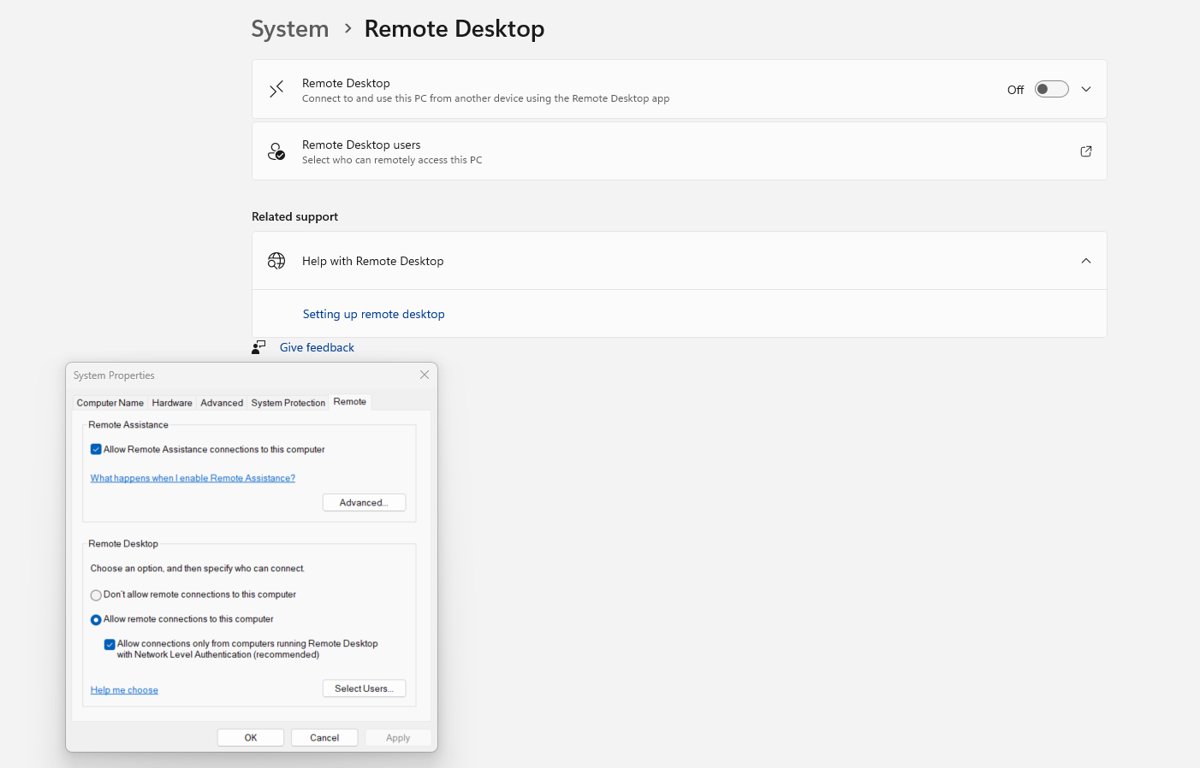
- On the Windows 10 PC, select Start > Settings > System > Remote Desktop.
- Set Enable Remote Desktop to On, then select Confirm.
- Note the name shown under How to connect to this PC.
- On the second PC, select Start, type
Remote Desktop Connectionand open the app. - Type that name in Computer, then select Connect.
- Enter the user name and password of an account on the remote PC, then select OK.
The remote desktop fills the screen and the connection bar appears at the top. Everything below covers the cases this short route does not fit.
What You Need Before You Start
Remote Desktop fails at one of six points. Clear all six before opening the client.
| Requirement | Why it matters | Where to check |
|---|---|---|
| Windows 10 Pro, Enterprise or Education on the host | Windows 10 Home cannot accept incoming Remote Desktop connections, though it can act as the client | Settings > System > About, under Windows specifications > Edition |
| Administrator rights on the host | Only a member of the Administrators group can turn Remote Desktop on | Sign in to the host with an administrator account |
| The host powered on and awake | A PC that is off, asleep or hibernating cannot be reached | Settings > System > Power & sleep, set sleep to Never |
| A strong, unique password on the account | Every account with remote access is reachable from the network | Settings > Accounts > Sign-in options |
| Network access to the host | The connection is peer to peer, so the client needs a direct path | Same network, a VPN, or a Remote Desktop Gateway |
| Remote Desktop allowed through the firewall | RDP listens on port 3389 by default and the inbound rule must be on | Windows Defender Firewall > Allow an app or feature through Windows Firewall |
Step 1: Enable Remote Desktop on the Windows 10 PC
Do this at the PC you want to reach later, not at the one you will be sitting in front of.
- Select Start, then select Settings, then select System.
- Select Remote Desktop in the left column.
- Toggle Enable Remote Desktop to On.
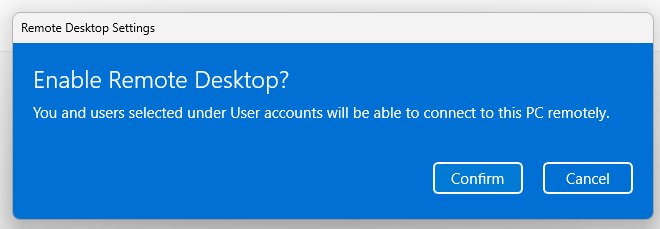
- Select Confirm in the pop-up dialog box.
- Leave Make my PC discoverable on private networks to enable automatic connection from a remote device checked.
- Select Show settings beside the sleep entry and set sleep and hibernation to Never.
Enabling Remote Desktop opens a port on the PC and makes it reachable by devices on the local network. Turn it on only on a network you trust.
Step 2: Choose Which Users Can Connect
Members of the Administrators group already have remote access. Every other account has to be named.
- Stay on the Remote Desktop page in Settings.
- Select Select users that can remotely access this PC, or Remote Desktop users on later Windows releases.
- Select Add.
- Type the user name of the account, then select OK.
- Repeat for each additional account, then select OK to close the dialog.
Keep the list short. An account that is not on it and not an administrator is refused at the sign-in screen.
Step 3: Find the PC Name or IP Address
The client needs one of the two. Write both down before leaving the host.
- On the host, select Start > Settings > System > About.
- Read Device name under Device specifications.
- Open Settings > Network & Internet > Status.
- Select View your network properties.
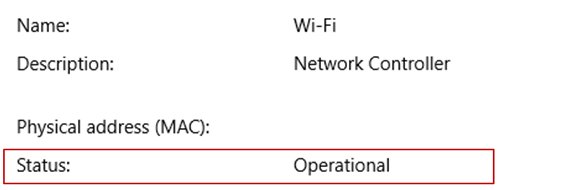
- Find the network configuration with an Operational status and read its IPv4 address.
Using the PC name requires the network to resolve that name through DNS. On many home networks the IPv4 address is the only entry that works.
Run Remote Desktop Connection from Command Prompt
Type hostname on the host first and press Enter; it prints the computer name you need.
mstsc /v:OFFICE-PC /fmstsc.exe is the Remote Desktop Connection client built into Windows. /v: names the remote computer and takes an optional :port suffix when the listening port was changed. /f starts the session in full-screen mode.
You should see: Remote Desktop Connection opens full screen and asks for the credentials of an account on OFFICE-PC.
Add /prompt to be asked for credentials every time, or /public so passwords and bitmaps are not cached on a shared machine.
Step 4: Connect from Another Windows PC
- Select Start, type
Remote Desktop Connectionand open the app. - Enter the PC name or the IPv4 address in Computer.
- Select Connect.
- Enter the user name and password for an account on the remote PC, then select OK.
- Press Ctrl + Alt + Home inside the session to activate the connection bar.
- Press Ctrl + Alt + End to open the Windows Security dialog for the remote PC, which is where Sign out and Change a password live.
On a Microsoft Entra joined remote PC, type the user name as [email protected] or AzureAD\[email protected]. The domain\user format returns a logon failure on those PCs.
Step 5: Connect from a Mac, iPhone, iPad, or Android Device
Windows App is the current Microsoft client for a remote PC on macOS, iOS/iPadOS and Android/Chrome OS. See Download Microsoft Remote Desktop for PC, Windows & Mac (Free) for the links.
| Your device | Client to install | What to enter |
|---|---|---|
| Mac | Windows App for macOS | The host's PC name or IPv4 address, then an allowed account and password |
| iPhone or iPad | Windows App for iOS/iPadOS | The host's PC name or IPv4 address, then an allowed account and password |
| Android phone, tablet or Chromebook | Windows App for Android/Chrome OS | The host's PC name or IPv4 address, then an allowed account and password |
| Another Windows PC | Remote Desktop Connection (mstsc.exe), already installed | Remote PC support in Windows App on Windows is still in preview |
| A web browser | Not supported for a remote PC | The Remote Desktop web client reaches Remote Desktop Services only, and needs a gateway |
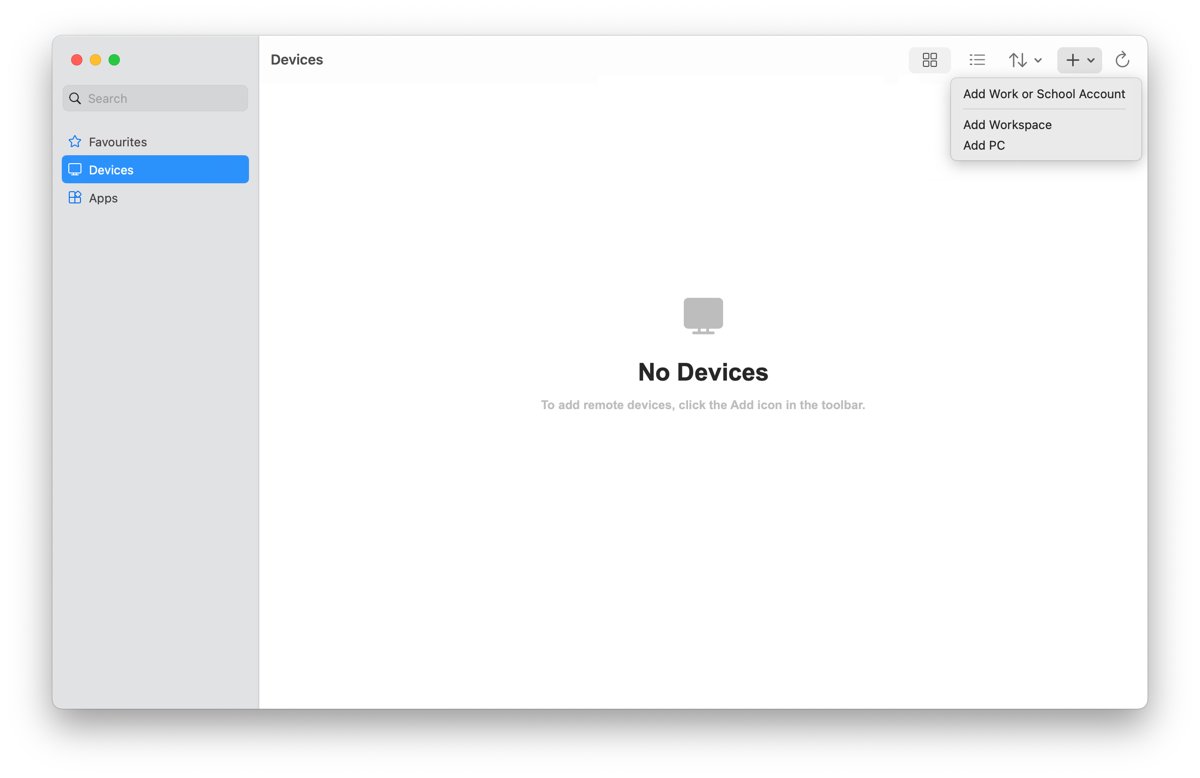
In Windows App, open the Devices tab, select the plus (+) icon, enter the host under PC Name, then select Add & Connect. Signing in to Windows App is not required for a remote PC.
Using Remote Desktop on the Same Network
A local connection is the simplest case. Nothing is exposed to the internet and no extra service is involved.
- Connect both PCs to the same router, over Wi-Fi or Ethernet.
- Confirm Make my PC discoverable on private networks to enable automatic connection from a remote device is still checked on the host.
- Enter the host's PC name in Computer and select Connect.
- If the name is not found, enter the IPv4 address instead.
- If the connection is refused, open Windows Defender Firewall, select Allow an app or feature through Windows Firewall, select Change settings, then tick Remote Desktop and select OK.
Using Remote Desktop Over the Internet Safely
Remote Desktop creates a peer-to-peer connection, so a client outside the network needs a way in. Pick the row that matches what is available.
| Route | How it works | What it needs |
|---|---|---|
| VPN | The client joins the host's network, so the PC stays off the public internet | A VPN server on the host network and a VPN client on the device |
| Remote Desktop Gateway | The gateway brokers the session on the organisation's behalf | Windows Server 2016, 2019 or 2022 in the RD Gateway role; name it with mstsc /g:<gateway> |
| A managed remote access service | Azure Virtual Desktop or Windows 365 hosts the desktop instead of the office PC | A work or school account and Windows App |
| Port forwarding on the router | The router maps port 3389 on the public IP to the PC's internal IP | Admin access to the router, a static internal IP, and Dynamic DNS if the public IP changes |
Microsoft's own guidance is blunt about the last row: port forwarding opens the PC up to the internet and is not recommended. A VPN is preferable.
Important Security Settings
Remote access turns a desk PC into a network service. These six settings decide how exposed it is.
| Setting | Why it matters | What to do |
|---|---|---|
| Strong, unique passwords | Every account with remote access can be tried from the network | Set one in Settings > Accounts > Sign-in options for each account on the list |
| Multi-factor authentication where possible | A stolen password alone then gets nobody in | Turn it on for work or school accounts through the organisation's identity system |
| Network Level Authentication | The user authenticates before a session is established, which cuts off unauthenticated attempts | Leave it on; turn it off only for an old client that cannot support it, and turn it back on after |
| Limit who can connect | Only administrators and the named users can sign in remotely | Remove accounts you no longer need from Select users that can remotely access this PC |
| Lock or sign out when finished | A disconnected session is still signed in on the host | Press Ctrl + Alt + End, then select Sign out |
| A non-default listening port | RDP listens on port 3389 unless the registry says otherwise | Change PortNumber under HKLM\SYSTEM\CurrentControlSet\Control\Terminal Server\WinStations\RDP-Tcp, then connect using name:port |
How to check it worked
A remote window that looks like your own desktop is easy to misread. Prove which PC is answering.
- Press Ctrl + Alt + Home to activate the connection bar and read the name it shows.
- Open Command Prompt inside the session, type
hostnameand press Enter. - Confirm the name printed is the remote PC, not the machine in front of you.
- On the host, run
qwinstaand confirm a session is listed as Active. - If the session drops, open PowerShell on the client and run
Test-NetConnection -ComputerName <name or IP> -port 3389 -InformationLevel Detailed. - Confirm TcpTestSucceeded reads True.
Useful Remote Desktop Tips
Each row below is set once and then applies every time that connection opens.
| What you want | How to set it | Result |
|---|---|---|
| Save a connection shortcut | Save the connection from Remote Desktop Connection as an .rdp file | Windows saves user-created .rdp files in Documents by default; open the file to reconnect without retyping anything |
| Use multiple monitors | Right-click the saved remote desktop, select Edit, then enable Use all monitors and Full screen | The remote session uses every display attached to the client |
| Mirror the client's monitor layout | Run mstsc /v:PC-NAME /multimon |
The session monitor layout matches the client-side configuration |
| Span two side-by-side screens | Run mstsc /v:PC-NAME /span |
One desktop stretches across both monitors; they must share a resolution and be aligned horizontally |
| List monitor IDs first | Run mstsc /l |
Prints each attached monitor and its ID for the selectedmonitors setting in an .rdp file |
| Adjust display, audio, and clipboard settings | Open the Local Resources tab before connecting, then open Remote audio > Settings | Sets where remote sound plays and which local resources are redirected |
| Copy and paste between PCs | Keep clipboard redirection enabled on the Local Resources tab | Copied content moves between the two desktops, unless a policy on the host blocks it |
| Set a smaller session window | Run mstsc /v:PC-NAME /w:1280 /h:720 |
The window opens at that size instead of full screen |
Common Problems and How to Fix Them
Match the message on screen to a symptom below. If nothing here fits, see Fix: Remote Desktop Not Working in Windows 10/11.
"Remote Desktop can't connect to the remote computer"
Remote access is off, the host is unreachable, or the RDP-TCP listener is not running.
- Confirm the host is powered on and awake rather than asleep or hibernating.
- Re-check that Enable Remote Desktop reads On in Settings > System > Remote Desktop.
- On the host, open Command Prompt as an administrator and run
qwinsta. - Confirm the output lists
rdp-tcpin the Listen state. - If it does not, open Services and start Remote Desktop Services (TermService) and Remote Desktop Services UserMode Port Redirector (UmRdpService).
- Run
mstscon the host itself and connect tolocalhostto tell a host problem apart from a network problem.
Wrong username or password
The account is not permitted to connect, the format is wrong, or a saved credential is stale.
- Add the account under Select users that can remotely access this PC on the host.
- On a Microsoft Entra joined host, type the name as
[email protected]orAzureAD\[email protected]. - Delete any saved credential for that connection and type the password again.
- Inside a working session, press Ctrl + Alt + End and select Change a password if the password expired.
The PC name does not work
The name has to resolve through DNS, and many home networks do not resolve host names.
- Run
hostnameon the host to confirm its exact spelling. - Enter the IPv4 address in Computer instead of the name.
- If the address works, keep using it or give the host a static internal IP address.
- If the listening port was changed from 3389, enter
name:portoraddress:port.
Remote Desktop is blocked by the firewall
The inbound Remote Desktop rules are off on the host, or another firewall blocks port 3389.
- Open Windows Defender Firewall and select Allow an app or feature through Windows Firewall.
- Select Change settings, tick Remote Desktop, then select OK.
- For the full rule list, run
wf.msc, select Inbound Rules, and enable Remote Desktop – User Mode (TCP-In) and Remote Desktop – User Mode (UDP-In) for all profiles. - From another PC on the network, run
Test-NetConnection -ComputerName <host> -port 3389and check TcpTestSucceeded. - If a different firewall product is in use, open the Remote Desktop port in that product's own rules.
Black screen or poor performance
A stalled session or a large window with many redirected devices gives the connection more to carry.
- Sign out of the session completely rather than disconnecting, then sign in again.
- Reconnect at a smaller size with
mstsc /v:PC-NAME /w:1280 /h:720. - Open the Local Resources tab and turn off redirections you do not need.
- Check the wireless signal at both ends, or move the host to Ethernet.
Someone at the host PC is signed in
The credentials entered decide which session opens, so the account in use matters.
- Ask the person at the host to sign out of that account, then connect again.
- Or connect with a second account that has been added to the remote access list.
- Add that account under Select users that can remotely access this PC first.
- Press Ctrl + Alt + End and select Sign out when finished, so no session is left open.
Can't use Remote Desktop on a Home edition
Windows 10 Home and Windows 11 Home cannot host incoming Remote Desktop connections.
- Open Settings > System > About and read Edition under Windows specifications.
- If it reads Home, use that PC as the client only, and host on a Pro, Enterprise or Education PC.
- To upgrade, buy a Windows 10 Pro or Windows 11 Pro licence and apply it in Settings > Update & Security > Activation.
- For one-off help instead, install Quick Assist from the Microsoft Store.
Remote Desktop vs. Quick Assist
The two tools solve different problems. Remote Desktop is for your own PC; Quick Assist is for someone else's.
| Question | Remote Desktop | Quick Assist |
|---|---|---|
| What it is for | Signing in to a PC you control from somewhere else | Helping a person who is sitting at their own PC, or getting help yourself |
| Editions that can host | Windows 10/11 Pro, Enterprise and Education, plus Windows Server 2016 and later | Any edition that can install the Microsoft Store app |
| Who has to be present | Nobody at the far end | The person being helped must accept the session |
| How a session starts | A PC name or IP address plus an allowed account and password | A 6-digit code the helper shares with the other person |
| Where to get it | Built in as Remote Desktop Connection (mstsc.exe) | Microsoft Store; open it with Ctrl + Windows logo key + Q |
| Control at the far end | The remote desktop is yours to use for the session | Screen sharing first; full control needs Request control and an Allow |
Only accept a Quick Assist session you asked for. Unsolicited remote help requests are the standard shape of a tech support scam.
Frequently Asked Questions
How does Windows Remote Desktop work?
It creates a peer-to-peer connection over the Remote Desktop Protocol, which listens on port 3389 by default. The client sends keyboard and mouse input to the host and receives the screen back, so apps, files and network resources stay on the host PC.
Can I use Remote Desktop on Windows 11 Home?
A Home edition can run the client and connect out, but it cannot accept incoming connections. Only Windows 10 and 11 Pro, Enterprise and Education, and Windows Server 2016 and later, can host a Remote Desktop session.
Why can't I use Remote Desktop Connection?
The usual causes are Remote Desktop switched off on the host, the host asleep, a firewall blocking port 3389, a PC name that does not resolve, or an account that is not in the Remote Desktop Users group.
How do you use Remote Desktop to connect over a VPN?
Connect the device to the VPN first. The client then behaves as though it is on the same network as the host, so you enter the host's internal PC name or IPv4 address in Remote Desktop Connection as usual.
How do you use Remote Desktop to connect to a Mac?
Remote Desktop Connection reaches Windows hosts, not macOS desktops. A Mac can be the client instead: install Windows App on the Mac, add the Windows PC by name or IP address, and sign in with an allowed account.
How do you use Remote Desktop to change a password?
Inside the session, press Ctrl + Alt + End. That opens the Windows Security dialog for the remote PC, the same dialog Ctrl + Alt + Del gives locally, where the password change option lives.
How do you use Remote Desktop to check an IP address?
Open Settings > Network & Internet > Status on the host, select View your network properties, and read the IPv4 address of the configuration marked Operational. Running ipconfig in Command Prompt returns the same address.
Can I use Remote Desktop on another computer?
Yes. Any supported Windows PC, Mac, iPhone, iPad, Android device or Chromebook can be the client. The restriction is on the host side, which must run an edition that allows incoming Remote Desktop connections.
Why use Remote Desktop Services?
Remote Desktop Services runs on Windows Server 2016, 2019 or 2022 and serves desktops and individual apps to many users. It also provides the RD Gateway and Web Access roles that let staff reach internal desktops without port forwarding.
How do you use Remote Desktop to connect to Linux?
The Remote Desktop clients connect to Windows hosts. A Linux machine can act as the client through the Remote Desktop web client, which supports Linux and ChromeOS in Edge, Firefox, Safari or Chrome, and requires a Remote Desktop Gateway.
Can Remote Desktop use all my monitors?
Yes. Right-click the saved connection, select Edit, then enable Use all monitors and Full screen. From a command line, mstsc /multimon mirrors the client's monitor layout and mstsc /span stretches one desktop across matching side-by-side screens.
Is there an alternative if the host runs a Home edition?
Quick Assist covers one-off help between two people. For unattended access from a Home PC, a cross-platform tool such as Chrome Remote Desktop works where Windows Remote Desktop hosting is not available.
Quick Setup Checklist
| Check | Done when |
|---|---|
| Host edition | Settings > System > About shows Pro, Enterprise or Education |
| Remote Desktop on | Enable Remote Desktop reads On and the confirmation dialog was accepted |
| Users listed | Each account appears under Select users that can remotely access this PC |
| Sleep off | Power & sleep on the host is set to Never |
| Address noted | The Device name and the IPv4 address are written down |
| Firewall open | Remote Desktop is ticked under Allow an app or feature through Windows Firewall |
| Route chosen | Same network, a VPN, or a gateway rather than an open port 3389 |
| Proof | hostname inside the session prints the remote PC's name |