Let the pending Microsoft Store app updates finish installing, and wsappx CPU usage drops back to near zero on its own.
This guide covers the fast route, the Store cache reset, background activity limits, Group Policy and registry options, and what to do when the load never ends.
The fastest way to stop wsappx high CPU usage
wsappx spikes while Windows installs or licenses a Store app. Finishing that work ends the spike.
- Select Start, type
Microsoft Store, and open the app. - Select Library in the left pane.
- Select Get updates and leave the window open while the queue drains.
- Select Start > Settings > Windows Update > Check for updates and install anything offered.
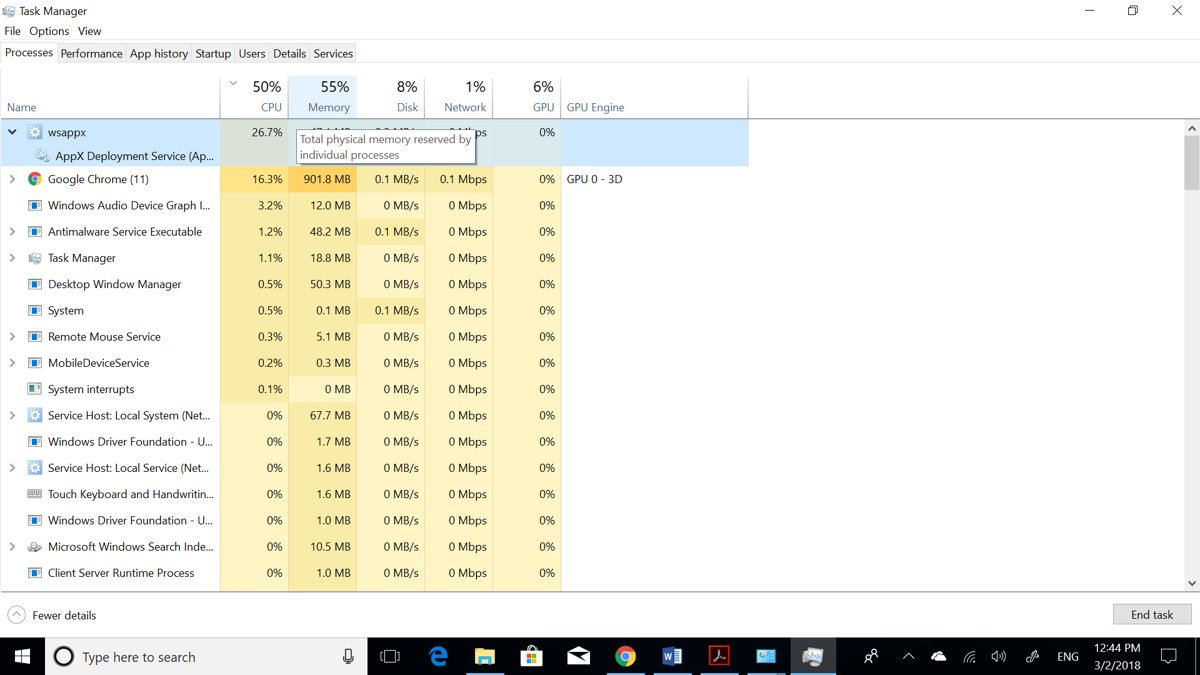
- Restart the PC, then open Task Manager and read the CPU column for wsappx.
On a slow disk or a first login after a feature update, that queue can run for several minutes before it settles.
What Is WSAPPX and Why Is It Using So Much CPU?
wsappx is the Task Manager entry for the service group behind Microsoft Store apps. Expand it to see which service is busy.
| Service under wsappx | Service name | What Microsoft says it does | When it uses CPU |
|---|---|---|---|
| AppX Deployment Service | AppXSvc | "Provides infrastructure support for deploying Store applications. This service starts on demand and, if disabled, Store applications don't deploy to the system and may not function properly." | While an app is installed, updated, repaired or removed |
| Client License Service | ClipSVC | "Provides infrastructure support for the Microsoft Store. This service starts on demand, and, if disabled, applications bought using Microsoft Store don't behave correctly." | While a Store app checks or renews its licence, usually at launch |
Both services start on demand, so steady CPU use means something is still deploying or licensing. That is the symptom to chase, not the service itself.
Microsoft's own service guidance gives no recommendation to disable either one, and states plainly what breaks if you do.
Which fix matches your situation?
| What you see | Use this | Why |
|---|---|---|
| Spike lasts a few minutes after a restart or a new app install | Let it finish, then check Task Manager | Deployment work ends on its own |
| Spike returns every day at random times | Turn off App updates in Store settings | Automatic downloads trigger deployment |
| Microsoft Store will not open or update stalls | Run wsreset.exe |
Clears the Store cache that blocks the queue |
| One named app reinstalls or repairs repeatedly | Repair, reset, then reinstall that app | A broken package retries deployment forever |
| Battery drains and many apps sit active in the background | Set background activity to Never per app | Stops background update triggers |
| Managed or shared PC on Enterprise or Education | Group Policy under Windows Components > Store | Applies the setting for every sign-in |
Check for Microsoft Store App Updates and Install Pending Windows Updates
A stalled update queue is the single most common reason wsappx never goes quiet. Clear both queues in order.
- Open Microsoft Store from Start.
- Select Library, then Get updates.
- Wait for every app in the list to reach Installed or Open.
- Select Start > Settings > Windows Update.
- Select Check for updates and install everything offered, including optional quality updates.
- Restart when Windows asks, and let the PC sit idle for five minutes after sign-in.
Updating Store apps manually when convenient is fine, but the queue still has to run at some point. Running it deliberately beats it starting mid-game.
For a wider look at what else is eating the processor, see How to Check, Increase, or Reduce CPU Usage in Windows 11.
Disable Automatic Microsoft Store App Updates
Turning the toggle off stops the Store starting deployments without warning. You then update on your own schedule.
- Select Start, search for Microsoft Store, and open it.
- Select your Profile picture at the top of the window.
- Select Store settings.
- Set App updates to Off.
- Return to Library > Get updates once a week and install the queue yourself.
Leaving updates off indefinitely means missing app security fixes, so book a weekly slot for the manual run.
Some publishers ship updates through their own app rather than the Store, so that toggle does not cover everything on the PC.
Troubleshoot or Reset the Microsoft Store Cache
A corrupt Store cache makes the download queue retry forever, and AppX Deployment Service keeps working through every retry.
- Press Windows logo key + R to open the Run box.
- Type
wsreset.exeand select OK. - Leave the blank Command Prompt window alone; it closes after about ten seconds and Microsoft Store opens.
- Select Library > Get updates and watch whether the queue now moves.
- On Windows 10, open Settings > Update & Security > Troubleshoot, select Windows Store apps, and run it.
- On Windows 11, open the Get Help app and search for the troubleshooter you need.
Windows 11 no longer lists a Windows Store Apps troubleshooter among its built-in troubleshooters, so repair and reset of the Store app itself replaces it.
To repair the Store app, go to Settings > Apps > Installed apps, select More next to Microsoft Store, choose Advanced options, then Repair.
Remove or Reinstall Problematic Store Apps
One package that fails mid-deployment restarts the job on every sign-in. Repair it first, reset it second, remove it last.
- Open Settings > Apps > Installed apps.
- Select More next to the app that keeps updating, then Advanced options.
- Select Repair if it is offered, and test the app.
- Select Reset if repair changes nothing; this clears the app's data.
- If it still misbehaves, select More > Uninstall on the Installed apps list.
- Reinstall it from Microsoft Store > Library > Install.
Apps worth reviewing first are the large, frequently patched ones: games from the Store, Xbox, Phone Link, and anything installed in the last week.
Handle built-in apps carefully. Some are part of Windows and cannot be uninstalled from Installed apps; repair or reset those instead of forcing removal.
Limit Background App Activity in Windows
Background activity is what wakes Store apps up to check for content, which in turn wakes the licensing service.
- Select Start > Settings > System > Power & battery.
- Select Battery usage.
- Find the app you want to restrain in the list.
- Select More options > Manage background activity.
- Choose Never to stop it running in the background entirely, or Power optimized (recommended) to let Windows decide.
- Repeat for each app that shows meaningful background use.
Never also stops that app's notifications and background updates, so keep it for apps you open deliberately.
Leave at least one app allowed to run always, or the device stops receiving app updates in the background.
Advanced Fixes: Group Policy, Registry, and Service Options
These options belong on managed or shared machines. On a personal PC the Store toggle does the same job with less risk.
- Press Windows logo key + R, type
gpedit.msc, and select OK. - Go to Computer Configuration > Administrative Templates > Windows Components > Store.
- Open Turn off Automatic Download of updates on Win8 machines and set it to Enabled to stop automatic app downloads.
- Open Turn off the Store application only on Enterprise, Education or IoT Enterprise, where it is supported; it denies access to the Store completely.
- Close the editor and sign out, then back in, for the policy to apply.
Both policies write to Software\Policies\Microsoft\WindowsStore, using the value names AutoDownload and RemoveWindowsStore.
Windows Home has no Local Group Policy Editor. Microsoft's documented fallback is the same setting exposed in the Store: with the policy not configured, automatic downloads follow the App updates toggle under Store settings.
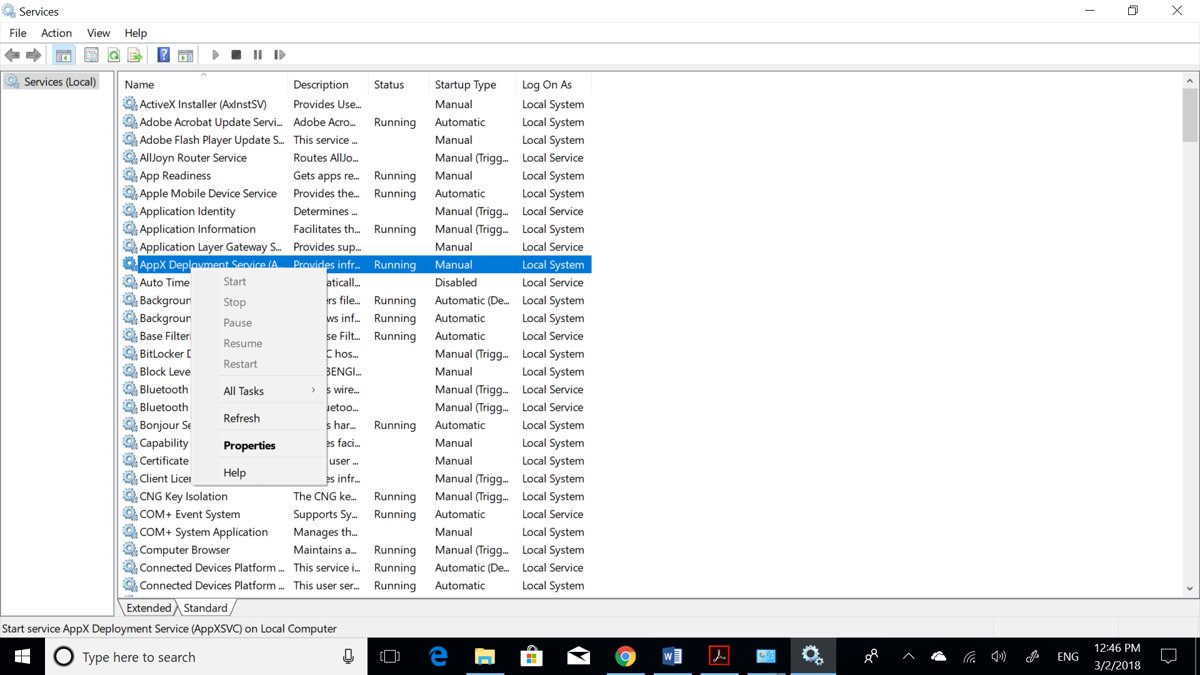
Leave AppXSvc and ClipSVC on Manual in the Services console. Both are demand-started, and disabling them breaks Store app deployment and licensing.
How to check it worked
- Press Ctrl + Shift + Esc to open Task Manager.
- Open the Processes tab and sort by the CPU column.
- Confirm wsappx sits at 0% while no app is installing.
- Open the Details tab and check that
AppXSVCandClipSVCare not running constantly. - Open Microsoft Store > Library and confirm no app is stuck on Downloading.
- Leave the PC idle for ten minutes, then re-check Task Manager for a return spike.
A brief spike when you launch a Store app is normal. A licence check runs, then the service stops again.
Fix wsappx when CPU usage stays high
wsappx stays at high CPU usage for hours
A download or deployment is failing and retrying in a loop.
- Open Microsoft Store > Library and note any app stuck on Downloading or Pending.
- Press Windows logo key + R, type
wsreset.exe, and select OK. - Return to Library > Get updates and let the queue restart.
- If the same app stalls again, uninstall it from Settings > Apps > Installed apps, then reinstall it from the Store.
wsappx shows high memory usage rather than CPU
A large package is being unpacked and staged before installation.
- Open Task Manager and sort the Processes tab by Memory.
- Check Microsoft Store > Library for a large app or game mid-install.
- Let the install finish before judging the figure.
- If nothing is installing, restart the PC and re-check; staged work does not survive a restart.
wsappx causes high disk usage on Windows 10 and Windows 11
Deployment writes the whole package to disk, so disk load tracks the install.
- Open Task Manager and sort by the Disk column to confirm wsappx is the top writer.
- Open Settings > Windows Update > Check for updates and let pending updates complete first.
- Turn App updates off in Store settings so installs happen when you choose.
- Re-check disk use with no install running; it should fall to 0 MB/s.
svchost.exe appears alongside wsappx in Task Manager
Both services are hosted inside svchost.exe, so Task Manager shows the host and the group.
- Expand the wsappx entry in the Processes tab to see which service is active.
- Open the Details tab and locate
AppXSVCorClipSVCby service name. - Treat the fix as a Store deployment problem, not an svchost problem.
- If a different service under svchost.exe is the real load, chase that service instead.
CPU usage is high but wsappx is not the top process
Another background service is the real cause and wsappx is incidental.
- Sort the Processes tab by CPU and read the top three entries.
- If security scanning is at the top, follow How to Fix 'Antimalware Service Executable' High Memory, CPU, or Disk Usage in Windows 11.
- If Windows Update is at the top, let it finish and restart.
- Re-check wsappx once the larger job has completed.
What to know before disabling AppXSVC or ClipSVC
Leave both services on Manual and fix the deployment that is keeping them busy. Microsoft states that with AppX Deployment Service disabled, Store applications don't deploy to the system and may not function properly, and that with Client License Service disabled, applications bought using Microsoft Store don't behave correctly. Both start on demand, so a disabled service saves nothing while an idle one already costs nothing.
Frequently Asked Questions
These questions come from Bing autocomplete for wsappx, plus the questions the pages currently ranking for this query answer.
Why is wsappx using so much CPU?
Windows is installing, updating, removing or licensing a Microsoft Store app. AppX Deployment Service unpacks and registers the package, and Client License Service checks the licence. Both start on demand and stop when that work ends.
Is wsappx a virus or malware?
No. wsappx is the Task Manager label for two built-in Windows services, AppX Deployment Service and Client License Service. If you want certainty, run a full scan with Windows Security rather than deleting anything.
Can I safely end the wsappx process in Task Manager?
Ending it cancels an app install or licence check in progress, which can leave a Store app broken. The work restarts at the next sign-in anyway. Let the deployment finish instead.
Will disabling Microsoft Store automatic updates stop wsappx high CPU usage?
It stops the unscheduled spikes, because nothing downloads without you asking. It does not remove the work: the same deployment runs when you select Get updates in the Store Library.
What should I do if wsappx stays at high CPU usage for hours?
Check Microsoft Store Library for an app stuck on Downloading, then run wsreset.exe from the Run box to clear the Store cache. If one app keeps stalling, uninstall and reinstall that app.
Should I disable AppXSVC or ClipSVC to fix wsappx?
No. Microsoft documents that Store applications don't deploy properly without AppX Deployment Service, and that purchased Store apps misbehave without Client License Service. Leave both on Manual startup.
Does wsappx high CPU usage happen on Windows 11 too?
Yes. Windows 11 uses the same AppX Deployment Service and Client License Service as Windows 10, so the behaviour and the fixes are identical. Only the Settings paths differ slightly.
Why does wsappx use high memory or high disk instead of CPU?
Deployment unpacks the package in memory and writes it to disk, so a large app shifts the load. Sort Task Manager by Memory or Disk to confirm, then let the install finish.
Why does svchost.exe show next to wsappx?
Both wsappx services run inside a shared svchost.exe host process, so Task Manager lists the host and the group together. Expand the wsappx entry to see which service is actually busy.
How do I fix high CPU usage in general on Windows?
Sort Task Manager by the CPU column, identify the top process, and address that specific process. Install pending Windows updates, restart once, and re-check before changing services or settings.
Bottom Line
Clear the Microsoft Store and Windows Update queues first, then turn App updates off so deployments run when you choose. wsappx is busy only while a Store package is being deployed or licensed, so removing the trigger removes the spike without touching a service Windows needs.