The Gmail gear icon is the small cog-shaped Settings button in the top-right corner of Gmail on a computer, and clicking it opens the Quick settings panel.
This guide shows where it sits on desktop, where settings live in the Gmail app for Android and iPhone, what each panel controls, and what to check when the icon is missing.
Open Gmail settings with the gear icon
This works in any supported browser on Windows, Mac, Linux or ChromeOS.
- Go to gmail.com and sign in.
- Look at the top-right corner of the page, above your inbox.
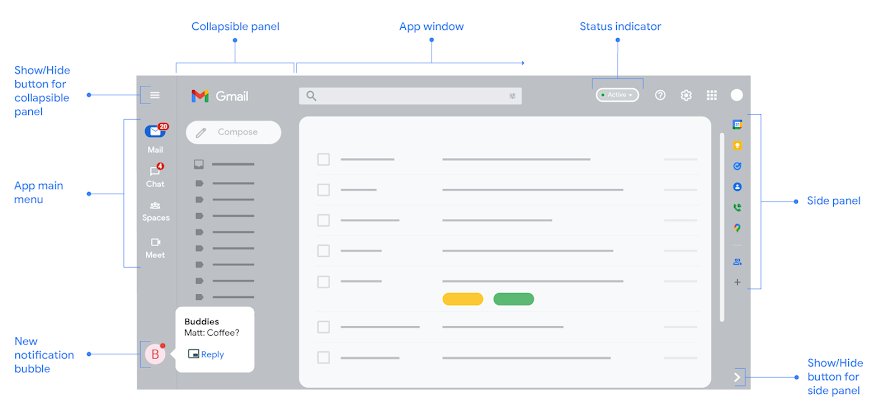
- Click the gear-shaped Settings button. The Quick settings panel opens.
- Click See all settings in that panel to open the full settings pages.
On a phone, the Gmail app has no gear in the corner. Tap Menu at the top left instead, as shown below.
Where Gmail settings are on each device
| Where you use Gmail | Where to tap or click | What opens |
|---|---|---|
| Browser on a computer | Gear-shaped Settings button, top right | Quick settings panel, then See all settings |
| Gmail app on Android | Menu (top left) > General settings or your account | App settings for that account |
| Gmail app on iPhone or iPad | Menu (top left) > Settings | App settings list |
| You need a setting the app lacks | Switch to a computer browser | Full settings; Google notes some settings are computer only |
Where to Find the Gear Icon on Gmail Desktop
Google's help pages call this button Settings and place it "in the top right" of Gmail. Its image is a gear, which is why most people search for it by shape.
- Open Gmail in Chrome, Firefox, Safari or Microsoft Edge on your computer.
- Look at the buttons in the top-right corner of the Gmail window.
- Click the gear-shaped Settings button to open Quick settings.
- Change a quick option such as Theme or Inbox type directly in the panel.
- For anything else, click See all settings.
- Pick a tab at the top, such as General, Labels or Inbox.
- Make your change, then click Save Changes at the bottom of the page.
Google's instruction is to click Save Changes after you finish each settings page, so save before you switch tabs.
How to Access Gmail Settings on Mobile
The Gmail app for Android and iPhone does not show a gear icon in the corner. Its settings sit inside the Menu button at the top left.
| Device | Steps | Settings you find there |
|---|---|---|
| Android phone or tablet | Open the Gmail app > tap Menu at the top left > tap General settings, or tap the account you want to change | General settings, Gmail account settings, and POP and IMAP settings for non-Gmail addresses |
| iPhone or iPad | Open the Gmail app > tap Menu at the top left > tap Settings | Show Sender Images, Swipe actions, Notifications, Labels, Mobile signature, Vacation responder, Smart Reply, Clear search history, Privacy settings, Hide bottom navigation |
Google states that some Gmail settings can only be changed on a computer. Language input tools, for example, can only be set up in a browser, not in the Gmail app.
How to check you opened the right panel
- After clicking the gear, confirm a panel titled Quick settings appears on the page.
- Check it lists sections such as Apps in Gmail, Theme and Inbox type.
- Confirm the panel includes a See all settings button.
- Click it and check the page now shows tabs like General, Labels and Inbox across the top.
- On mobile, confirm the screen you reached lists your account name or General settings.
If none of these appear, you clicked a different button. Close what opened and click the gear-shaped Settings button.
What the Gear Icon Looks Like in Gmail
| Detail | What to expect |
|---|---|
| Shape | A small gear, also called a cog: a circle with teeth around its edge |
| Official name | Settings (the label Google uses for the button in Gmail Help) |
| Position on a computer | Top-right corner of the Gmail window, in the button row above the inbox |
| What it opens | The Quick settings panel, which includes See all settings |
| Gmail app on a phone | No gear in the corner; settings are under Menu at the top left |
| Full settings pages | Reached from the gear through See all settings, with tabs such as General, Labels and Inbox |
The gear is the general symbol for settings across Google products, Windows and most apps. In Gmail it always means account and display settings, never message actions.
What You Can Do from the Gmail Gear Icon
The gear leads to two layers. Quick settings holds display choices you change often; See all settings holds everything else.
| Task | Where it lives | Path after clicking the gear |
|---|---|---|
| Change the theme or use dark mode | Quick settings | Theme > View all > choose Default, Dark or a picture > Save |
| Set a personal photo as background | Quick settings | Theme > View all > My photos > pick a photo > Insert > Save |
| Switch inbox type | Quick settings | Inbox type > Default, Important first, Unread first, Starred first, Priority Inbox or Multiple Inboxes |
| Choose inbox category tabs | Quick settings | Inbox type > Default > Customize > tick categories > Save |
| Show or hide Chat and Meet | Quick settings | Apps in Gmail > Customize > tick Google Chat or Google Meet > Done |
| Change the display language | See all settings | Language section > pick from the drop-down > Save Changes |
| Turn on the reading pane | See all settings | Inbox tab > Reading pane > tick Enable reading pane > Save changes |
| Turn keyboard shortcuts on | See all settings | Keyboard shortcuts section > Keyboard shortcuts on > Save Changes |
| Show text instead of toolbar icons | See all settings | Button labels section > Text > Save changes |
| Stop hover actions on messages | See all settings | Hover actions section > Disable hover actions > Save changes |
| Create custom shortcuts | See all settings | Advanced > Custom keyboard shortcuts > Enable > Save Changes |
Labels are managed on the Labels tab of See all settings, and most account-wide options sit on the General tab.
Why the Gear Icon May Be Missing or Hard to Find
| Reason | What you see | Fix in brief |
|---|---|---|
| You are in the Gmail mobile app | No gear anywhere on the screen | Tap Menu at the top left, then Settings |
| You are looking in the wrong corner | Only the search bar and folders on the left | Look at the far top right of the page |
| The browser is outdated or unsupported | Gmail looks broken or shows a browser error | Use the newest or last prior version of Chrome, Firefox, Safari or Edge |
| Cookies or JavaScript are turned off | Gmail shows a cookie or JavaScript error | Turn both on in your browser settings |
| A browser extension interferes | Parts of the Gmail page do not appear or respond | Turn extensions off one at a time, or try a private window |
Quick Fixes If You Cannot See the Gmail Gear Icon
Where do I find the gear icon in the Gmail app?
The Android and iPhone apps put settings in the side menu instead of a corner gear.
- Open the Gmail app.
- Tap Menu at the top left.
- Tap Settings on iPhone or iPad, or General settings or your account on Android.
The gear icon is not at the top right of Gmail on a computer
The page has not fully loaded, often because of an unsupported browser, blocked cookies or JavaScript, or an extension.
- Reload the Gmail tab.
- Update your browser to its newest version, or switch to Chrome, Firefox, Safari or Microsoft Edge.
- Make sure cookies and JavaScript are turned on in the browser.
- Open Gmail in an Incognito or private window.
- If the gear appears there, turn your extensions off one by one and reload Gmail after each to find the culprit.
The gear opens but the setting you want is not in the panel
The Quick settings panel only holds display options; the rest is on the full settings pages.
- Click the gear icon.
- Click See all settings in the panel.
- Open the tab that matches your task, such as General, Labels, Inbox or Advanced.
- Click Save Changes at the bottom after each change.
A setting from a guide is missing in the phone app
Google keeps some Gmail settings on the computer version only.
- Open a browser on a computer and sign in at gmail.com.
- Click the gear icon, then See all settings.
- Find the setting on the matching tab and click Save Changes.
Bottom Line
On a computer, click the gear-shaped Settings button at the top right of Gmail and use See all settings for anything beyond theme and inbox layout. On a phone, tap Menu at the top left instead. The full settings pages exist only in the browser version, so a computer is the one place every Gmail option is reachable.
Once settings are sorted, the next common Gmail job is finding what you have already sent; see how to check sent emails in Gmail.
Frequently Asked Questions
What does the gear icon look like in Gmail?
It is a small cog: a circle with teeth around the edge, like a machine gear. In Gmail on a computer it sits in the top-right corner, and Google names it Settings. Clicking it opens the Quick settings panel.
What is a gear icon?
A gear icon is the standard symbol for settings in apps and websites. It is drawn as a toothed wheel, or cog. In Gmail, Windows, Android and most Google products it opens the options for that app or account.
What does a gear icon look like on a computer?
On a computer screen the gear icon is a small toothed wheel. In Gmail it appears at the top right of the browser page, in the row of buttons above your inbox.
Where is the gear icon located in Gmail?
In Gmail on a computer, the gear icon is at the top right of the page. In the Gmail app for Android or iPhone there is no gear in the corner; tap Menu at the top left and then Settings or General settings.
How do I find the gear icon if I cannot see it?
Reload Gmail, then check you are in a supported browser with cookies and JavaScript turned on. Try a private window to rule out extensions. If you are in the Gmail phone app, use Menu at the top left instead.
Why don't I see a gear icon in the Gmail mobile app?
The Gmail app for Android and iPhone does not use a corner gear. Its settings are in the side menu: tap Menu at the top left, then Settings on iPhone or General settings on Android.
What can I change from the Gmail gear icon?
The Quick settings panel changes the theme, inbox type, inbox categories and which apps appear in Gmail. See all settings covers the rest, including language, reading pane, keyboard shortcuts, labels, signatures and button labels.
How do I describe the gear icon to someone?
Tell them to look for a small toothed wheel, like a cog from a clock, at the top right of Gmail. It sits in the same row as the other round buttons above the inbox and opens Settings.
What should I do if the Gmail gear icon is missing?
Update or switch your browser to Chrome, Firefox, Safari or Edge, and turn on cookies and JavaScript. Open Gmail in a private window to test extensions. On a phone, open settings from Menu at the top left.