To add an Arabic keyboard in Windows 11, open Settings > Time & language > Language & region, select Add a language, choose Arabic and select Install, then press Windows key + Spacebar to switch to it.
This guide covers the three Arabic layouts Windows ships, adding a second Arabic layout, switching between Arabic and English, typing right to left in Word, the Windows 10 path, and fixes when the keyboard does not appear or will not switch.
The fastest way to add the Arabic keyboard in Windows 11
The Arabic keyboard is built into Windows 11, so there is nothing to download from a third-party site. Adding the Arabic language brings its default keyboard with it.
- Select Start > Settings > Time & language > Language & region.
- Next to Preferred languages, select Add a language.
- Type Arabic in the search box, pick the Arabic variant for your country, and select Next.
- On Install language features, clear Language pack if you only want to type Arabic and keep English menus, then select Install.
- Press Windows key + Spacebar to switch to the Arabic layout and start typing.
Understanding the Need for Arabic Keyboard Support
Arabic is written right to left in its own script, so an English layout cannot produce it. Windows maps Arabic letters onto the same physical keys, and you can print or buy key stickers if your keyboard has English legends only.
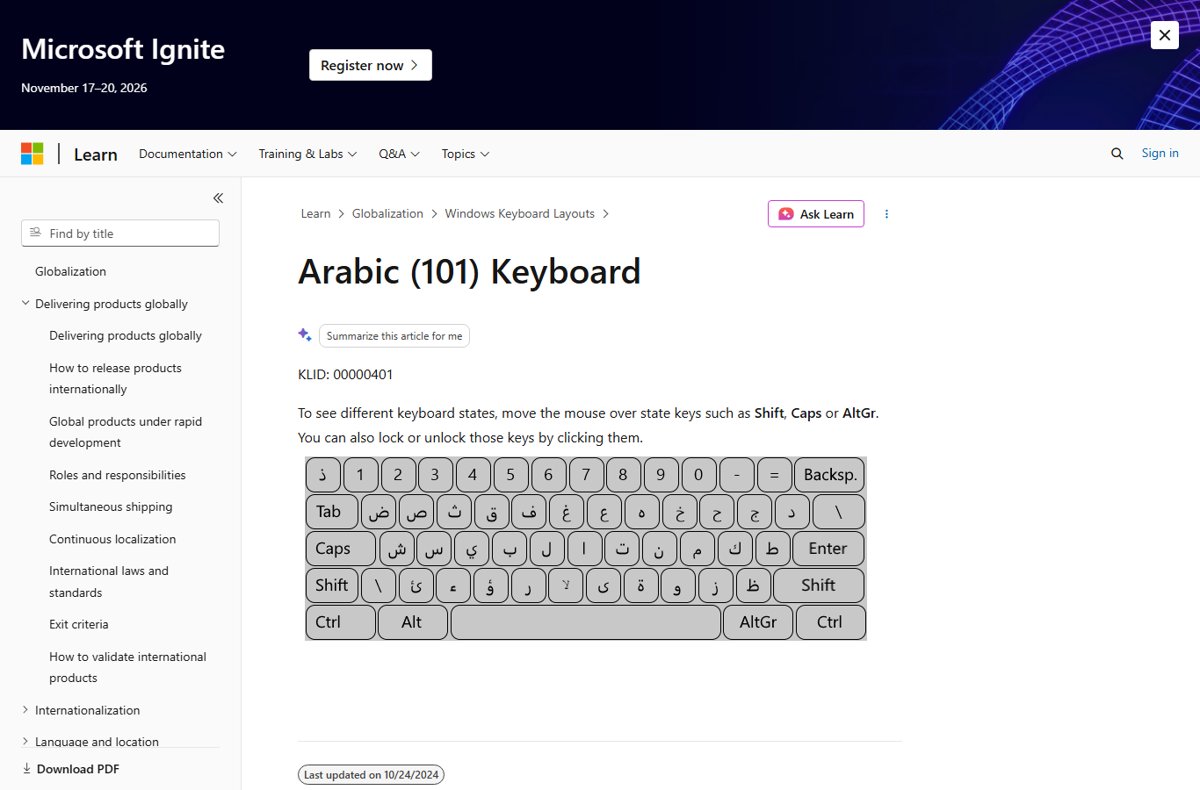
Microsoft ships three Arabic layouts. Which one you get by default depends on the Arabic variant you add.
| Layout name in Windows | Keyboard identifier | Default for | Who it suits |
|---|---|---|---|
| Arabic (101) | 00000401 | Arabic (Saudi Arabia), Egypt, UAE, Jordan, Iraq, Kuwait, Lebanon, Qatar, Oman, Bahrain, Syria, Libya, Yemen | Most typists in the Gulf, Levant and Egypt |
| Arabic (102) | 00010401 | Not a regional default; added by hand | Typists trained on the 102 arrangement |
| Arabic (102) AZERTY | 00020401 | Arabic (Algeria), Arabic (Morocco), Arabic (Tunisia) | North African users whose physical keyboard is French AZERTY |
Microsoft publishes an interactive map of each layout, for example the Arabic (101) keyboard page. Hover over Shift or AltGr there to see the shifted characters and diacritics.
Each Arabic variant also keeps a second keyboard: US English for the Gulf and Levant variants, French for the North African ones. That second layout is how you get back to Latin letters.
Prerequisites for Adding an Arabic Keyboard in Windows 11
| Requirement | Why it matters |
|---|---|
| Windows 11 signed in to your user account | Keyboards are added per user from Settings > Time & language |
| No full language pack needed | Microsoft states a full language pack does not always need to be installed to use a keyboard layout; clear Language pack to keep English menus |
| Administrator account on Windows 10 only | Microsoft notes Windows 10 language pack installs need an admin; the Windows 11 page lists no such requirement |
| Arabic key stickers or a keyboard with Arabic legends (optional) | Only needed if you do not touch-type the Arabic layout |
Step-by-Step Guide to Adding Arabic Keyboard in Windows 11
This is the full route with every screen named, from opening Settings to the language list. Follow the next two sections to install Arabic and add a second Arabic layout.
- Open Settings: select Start, then select Settings.
- Select Time & language in the left pane.
- Access Language & Region settings: select Language & region.
- Find Preferred languages at the top of the page; your current display language is listed first.
- Leave this page open for the next step.
3. Add Arabic Language Pack
Adding the Arabic language also adds its default keyboard. You only need the language pack itself if you want Windows menus in Arabic.
- On Language & region, select Add a language next to Preferred languages.
- In Choose a language to install, type Arabic.
- Pick the variant that matches your country, such as Arabic (Saudi Arabia) or Arabic (Morocco), and select Next.
- Under Optional language features, keep Language pack selected only if you want Arabic menus; clear it to keep your current display language.
- Leave Set as my Windows display language cleared unless you want the whole interface in Arabic.
- Select Install and wait for Arabic to appear under Preferred languages.
4. Enable the Arabic Keyboard
Use this to add Arabic (102) or Arabic (102) AZERTY, or to restore an Arabic layout you removed. It also covers configuring which Arabic layout you type with.
- Go to Settings > Time & language > Language & region.
- Select the three dots (…) next to Arabic under Preferred languages, then select Language options.
- Under Keyboards, select Add a keyboard.
- Scroll the list and select Arabic (101), Arabic (102) or Arabic (102) AZERTY.
- Press Windows key + Spacebar until the new layout is highlighted to switch to it.
Switching Between Keyboards in Windows 11
Once Arabic is added, you have at least two layouts. Pick the switching route that fits how you work.
| Your situation | Use this | Why |
|---|---|---|
| You switch often while typing | Windows key + Spacebar | Cycles forward through every installed layout without leaving the keyboard |
| You overshot the layout you wanted | Windows key + Shift + Spacebar | Cycles backward |
| You flip between exactly two layouts | Windows key + Ctrl + Spacebar | Returns to the previously selected input option |
| You prefer the mouse or a touchscreen | The input language icon on the taskbar | Shows every layout by name so you can pick one directly |
| You are used to older Windows versions | Ctrl + Shift or Alt + Shift | Microsoft still lists both for switching layouts when several are installed |
Using the Keyboard Shortcut
- Click into the app where you want to type Arabic, such as Notepad or a browser field.
- Hold the Windows key and press Spacebar once; a panel lists your layouts.
- Keep holding the Windows key and press Spacebar again until Arabic is highlighted.
- Release both keys; the taskbar indicator changes to Arabic.
- Type your text, then press Windows key + Spacebar again to return to English.
Using the Taskbar Language Indicator
- Look at the right end of the taskbar, next to the clock, for the input language icon, which shows the active language.
- Select the icon; a pop-up lists your keyboard layouts.
- Select the Arabic layout you want, such as Arabic (101).
- Click back into your document and start typing.
The indicator appears only when two or more layouts are installed. If it is missing, see the troubleshooting section below.
Managing Keyboard Settings
Every Arabic keyboard setting lives in one of three places. Microsoft moved them between Windows 10 and Windows 11.
| What you want to change | Windows 11 path | Windows 10 path |
|---|---|---|
| Add the Arabic language | Settings > Time & language > Language & region > Add a language | Settings > Time & language > Language > Add a language |
| Add or remove an Arabic layout | Language & region > … next to Arabic > Language options > Keyboards | Language > Arabic > Options > Keyboards |
| Show or hide the old language bar | Settings > Time & language > Typing > Advanced keyboard settings | Settings > Devices > Typing > Advanced keyboard settings |
| Show the input indicator icon | Appears automatically with two or more layouts | Settings > Personalization > Taskbar > Turn system icons on or off > Input Indicator |
Customizing Arabic Keyboard Settings in Windows 11
After Arabic is working, trim the list so Windows key + Spacebar only cycles through layouts you use. Removing extra layouts is the most useful customization Windows offers here.
- Go to Settings > Time & language > Language & region.
- Select the three dots (…) next to Arabic, then Language options.
- Under Keyboards, select the three dots next to a layout you do not use, such as Arabic (102), and select Remove.
- Repeat for any unused layout under your English language.
- To use the floating language bar instead of the taskbar icon, go to Settings > Time & language > Typing > Advanced keyboard settings and select Use the desktop language bar when it's available.
How to check the Arabic keyboard is active
- Open Notepad and press Windows key + Spacebar until Arabic is selected.
- Check that the taskbar input language icon now shows Arabic.
- Press the key labelled A on an English keyboard; an Arabic letter appears instead of a Latin one.
- Type a full word and confirm the cursor moves from right to left.
- Press Windows key + Spacebar again and confirm Latin letters return.
How to add the Arabic keyboard in Windows 10
Windows 10 uses a Language page instead of Language & region. Microsoft ended support for Windows 10 on October 14, 2025, but the steps still work.
- Select Start > Settings > Time & language > Language.
- Under Preferred languages, select Add a language.
- Type Arabic, select your variant, and select Next.
- Clear Install language pack if you want to keep your current menus, then select Install.
- To add a second Arabic layout, select Arabic under Preferred languages, select Options, then Add a keyboard.
- Switch with Windows key + Spacebar.
How to type right to left in Word
Word needs both the Arabic keyboard and a right-to-left paragraph. Microsoft notes the Right-to-left button only appears when a right-to-left language is enabled.
- Add the Arabic keyboard using the steps above.
- Open Word and place the cursor in the paragraph you want to write in Arabic.
- On the Home tab, in the Paragraph group, select Right-to-left.
- Press Windows key + Spacebar to switch to Arabic and type.
- Switch back to English and select Left-to-right for the next English paragraph.
How to remove the Arabic keyboard
- Go to Settings > Time & language > Language & region.
- To remove one Arabic layout, select the three dots next to Arabic, then Language options, then the three dots next to the layout and Remove.
- To remove Arabic completely, select the three dots next to Arabic under Preferred languages and select Remove.
- Press Windows key + Spacebar to confirm Arabic no longer appears in the list.
If Remove is greyed out, that layout is the only one left for your display language. Add another layout first, then remove it.
Troubleshooting Common Issues When Adding an Arabic Keyboard in Windows 11
Arabic Keyboard Not Appearing in Language Options
Arabic was never added as a language, or its layout was removed from the Keyboards list.
- Go to Settings > Time & language > Language & region and check that Arabic is listed under Preferred languages.
- If it is missing, select Add a language, type Arabic and select Install.
- If Arabic is listed, open its Language options and check the Keyboards list.
- Select Add a keyboard and choose Arabic (101) if the list is empty.
Keyboard Layout Not Switching Properly
The shortcut is cycling through extra layouts, or the app window lost focus.
- Click inside the text field first, then press Windows key + Spacebar.
- Watch the pop-up panel and keep pressing Spacebar until Arabic is highlighted.
- Use Windows key + Ctrl + Spacebar to jump straight back to the previous layout.
- Remove layouts you never use so there are only two to cycle between.
Language Bar Not Showing or Not Responding
The legacy desktop language bar is turned on and replaces the taskbar indicator, or only one layout is installed.
- Confirm at least two layouts are installed; the indicator appears only then.
- Go to Settings > Time & language > Typing > Advanced keyboard settings.
- Under Switching input methods, clear Use the desktop language bar when it's available.
- On Windows 10, go to Settings > Personalization > Taskbar > Turn system icons on or off and switch Input Indicator on.
Persistent Issues
A damaged language entry that re-adding in place does not fix.
- Remove Arabic from Preferred languages.
- Restart the PC.
- Add Arabic again with Add a language and select Install.
- Check the Keyboards list under Language options and confirm your layout is there.
Additional Tips for Using Arabic Keyboard Effectively
These tips for smooth switching and daily typing cover the questions that come up after setup.
| If you want to | Do this |
|---|---|
| Learn where each Arabic letter sits | Open Microsoft's interactive Arabic (101), Arabic (102) or Arabic (102) AZERTY map and hover over Shift |
| Insert one Arabic character without switching | Use Character Map, which Microsoft suggests for occasional characters |
| Type Arabic on a touchscreen laptop | Switch to Arabic with the taskbar icon, then select the Touch keyboard icon in the system tray |
| Type a web address or file path | Switch back to English first; the forward slash guide shows where / sits on US and UK keyboards |
| Add another alternative layout later | The same Add a keyboard route works for any layout, as the Dvorak keyboard guide shows |
| Avoid landing on the wrong layout | Keep only two layouts installed so Windows key + Spacebar toggles cleanly |
Frequently Asked Questions
How do I add an Arabic keyboard in Windows 11?
Open Settings > Time & language > Language & region, select Add a language, choose Arabic and select Install. Windows adds the Arabic (101) keyboard for most variants. Press Windows key + Spacebar to switch to it.
How do I add an Arabic keyboard in Windows 10?
Open Settings > Time & language > Language, select Add a language, choose Arabic and select Install. To add another Arabic layout, select Arabic, then Options and Add a keyboard. Switch layouts with Windows key + Spacebar.
How do I use an Arabic keyboard on a laptop?
Add Arabic in Settings, then press Windows key + Spacebar or select the language icon near the clock to switch. The laptop keys stay the same; Windows maps Arabic letters onto them. Use key stickers or Microsoft's layout map if your keys show only English letters.
Do I need to install the Arabic language pack to type Arabic?
No. Microsoft states a full language pack does not always need to be installed to use a keyboard layout. Clear Language pack when adding Arabic to keep English menus while still typing in Arabic.
How do I make my keyboard Arabic permanently?
Add Arabic, then remove the other layouts from each language's Keyboards list under Language options. Windows keeps at least one layout per display language, so you may need to remove English entirely or set Arabic as your display language.
How do I switch between Arabic and English keyboard?
Press Windows key + Spacebar to cycle forward, or Windows key + Ctrl + Spacebar to jump to the previous layout. You can also select the input language icon on the taskbar and pick a layout from the list.
Which Arabic keyboard layout should I choose?
Choose Arabic (101) if your keyboard has standard Arabic legends; it is the default for Saudi Arabia, Egypt, the UAE and most other variants. Choose Arabic (102) AZERTY for a French-style keyboard, as used in Algeria, Morocco and Tunisia.
Why is the Arabic keyboard not showing in Windows 11?
Arabic is either not added under Preferred languages or its layout was removed. Add it with Add a language, or open Arabic's Language options and select Add a keyboard. The taskbar icon appears only once two or more layouts are installed.

![Fix: VLC Is Unable To Open MRL File [Step by Step Guide]](https://techdows.com/wp-content/uploads/2026/09/VLC-Media-menu-open-with-Open-File-highlighted-showing-CtrlO-shortcut-508x338.jpg)