To add Twitch to your desktop, open twitch.tv in Microsoft Edge or Google Chrome and install the site as an app, then pin it or create a desktop shortcut.
Twitch's own downloads page lists no Windows or Mac app, so this guide covers the browser app routes, plain shortcuts, account setup, streaming from a PC, and fixes when Twitch misbehaves.
Method 1: Installing Twitch as a Desktop App in Edge
Microsoft Edge ships with Windows 11 and Windows 10, and it can install any website as an app with its own window.
- Open Microsoft Edge and go to
twitch.tv. - Select Settings and more (the … button in the top corner).
- Select More tools > Apps > Install this site as an app.
- Confirm the install. Twitch opens as a separate app window.
- Go to
edge://appsin Edge and select Details on the Twitch card. - Select Create Desktop shortcut, Pin to taskbar or Pin to Start.
If Edge offers its own install prompt while you are on twitch.tv, accepting it does the same job. The installed application is listed under edge://apps either way.
Understanding the Need to Add Twitch to Desktop
An installed site behaves differently from a bookmarked tab. The table shows what each option actually gives you.
| What you want | Browser tab | Installed web app (Edge or Chrome) | Plain desktop shortcut |
|---|---|---|---|
| Twitch in its own window | No | Yes | Opens Twitch in the browser |
| Icon on the desktop | No | Yes, via Create Desktop shortcut in Edge | Yes |
| Pin to taskbar or Start | No | Yes, from the app's Details card in Edge | Edge does it from the installed app instead |
| Start with Windows sign-in | No | Yes, Edge's Auto-start on device login toggle; Chrome's Start apps when you sign in | No |
| Remove cleanly | Close the tab | Uninstall from edge://apps or the Chrome app menu | Delete the icon |
Using the Twitch Desktop App
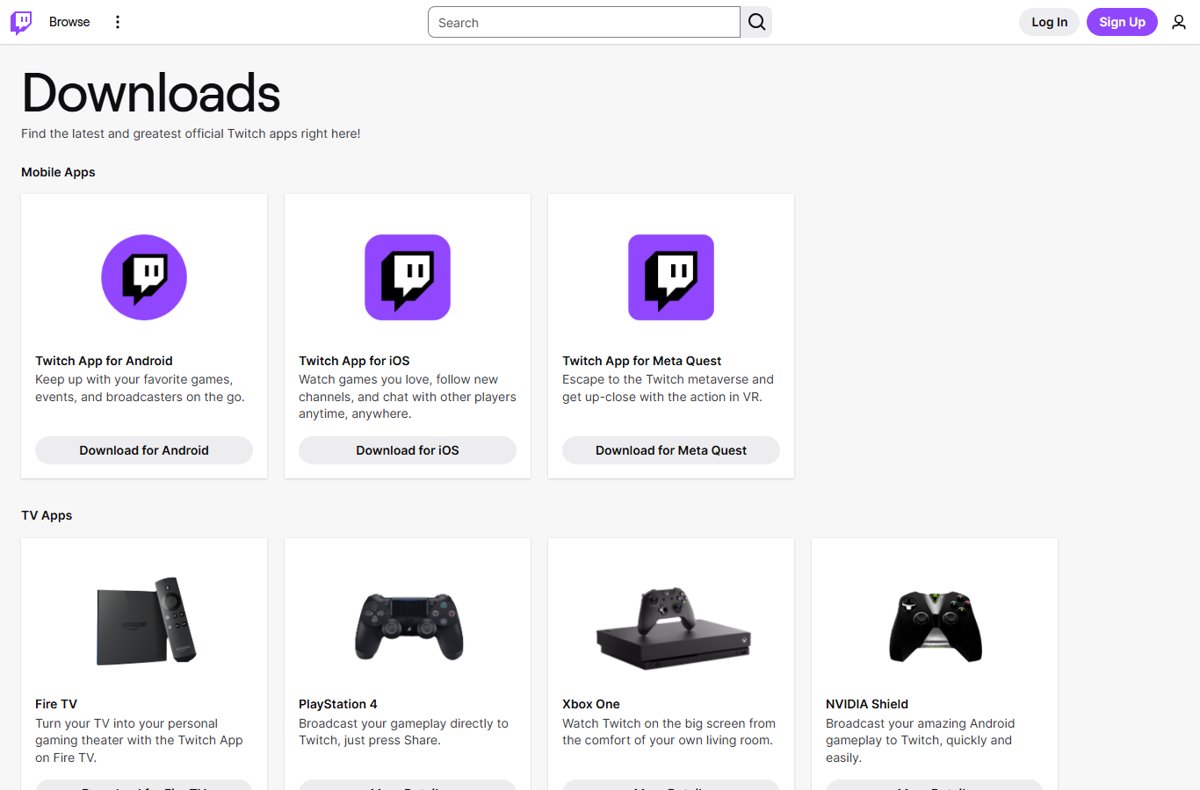
There is no Twitch desktop app to download for Windows or Mac today, so there is no download link to locate and no installer to run. The official page at twitch.tv/downloads lists apps for Android, iOS, Meta Quest, Fire TV, PlayStation 4, Xbox One, NVIDIA Shield, Chromecast and Apple TV, and nothing for Windows or macOS. On a computer, Twitch's help center documents the desktop web browser experience of twitch.tv, which is why installing the site as an app is the closest thing to a desktop client.
Any site offering a "Twitch desktop app" installer is not Twitch. If an old copy of the discontinued app is still on your PC and refuses to go, see how to remove the Twitch Desktop App from Windows if you can't uninstall it.
Prerequisites for Adding Twitch to Desktop
| Requirement | Details |
|---|---|
| A supported browser | Twitch officially supports the two latest versions of Google Chrome and Mozilla Firefox, and the most recent version of Microsoft Edge, Apple Safari, Opera and Opera GX. |
| A browser that installs web apps | Edge (Install this site as an app) or Chrome (Install page as app). Chrome web apps run on Windows, Mac and Linux computers. |
| Operating system | Choose by browser, not by Twitch: any Windows, macOS or Linux computer that runs a current supported browser works. |
| A Twitch account (optional to watch) | Needed to chat, follow channels and get go-live alerts, and to broadcast. Twitch requires users to be at least 13. |
| A stable internet connection | Twitch recommends 3-6 Mbps or higher download speed for 720p60 and 7-12 Mbps or higher for 1080p60. |
Alternative Methods to Access Twitch on Desktop
| Your situation | Use this | Why |
|---|---|---|
| You use Edge and want Twitch to feel like an app | Install this site as an app (Method 1) | Own window, plus desktop, taskbar and Start shortcuts from one Details card |
| You use Chrome | Install page as app | Same app window; right-click it on the taskbar for its shortcuts |
| You only want an icon that opens Twitch | A web browser shortcut (Method 2) | Chrome's Create shortcut adds a named link with no app install |
| You expected a Twitch desktop app | Not available | Twitch's downloads page lists no Windows or Mac app |
| You want a third-party client or an Android emulator | Not recommended | Twitch says it cannot endorse anything it did not create or support |
| You want browser extensions for Twitch | Optional, with care | Extensions are the first thing Twitch Support asks you to disable when something breaks |
Step-by-Step Guide to Install the Twitch App in Chrome
Chrome calls this a web app. The steps below follow Google's own Chrome Help wording.
- Open Google Chrome on your computer.
- Visit the official Twitch website at
twitch.tv. - At the top right, select More (three dots) > Cast, save, and share > Install page as app….
- If Chrome shows an Install icon at the right end of the address bar, you can select that instead.
- Follow the on-screen instructions to finish the install.
- Twitch opens in its own app window. Right-click its taskbar icon to see any app shortcuts.
To change how the Chrome app behaves, select More at the top right of the app window, then App info > Settings.
Login and Account Setup
Log in to your Twitch account from the new app window. Watching works signed out, but chat, follows and live alerts need an account.
- Open the Twitch app window you just installed.
- Select Log In if you already have an account, or Sign Up to create one.
- To sign up, use an email address or phone number, or Sign up with Google, Apple or Amazon.
- Choose a username of 4-25 characters and enter your date of birth.
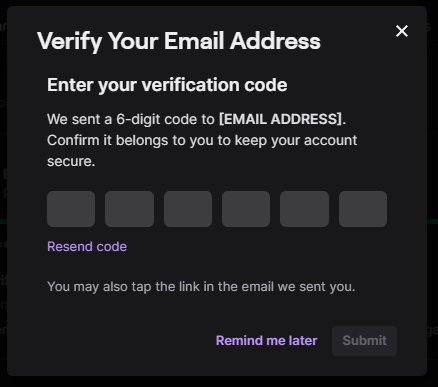
- Enter the 6-digit code Twitch sends by SMS or email within 5 minutes.
- Explore the home page and follow a few channels so their live alerts reach you.
If you already have an account but cannot sign in, use Twitch's account recovery at twitch.tv/user/account-recovery rather than creating a second account.
Method 2: Using a Web Browser Shortcut
A shortcut is lighter than an installed app: it is a named link that opens Twitch. These are the step-by-step instructions from Chrome Help.
- Open your web browser (Google Chrome).
- Go to
twitch.tv, or to a specific channel page you want one click away. - Access the site options: at the top right, select More > Cast, save, and share > Create shortcut….
- In Name, keep the default name or type your own, such as "Twitch".
- Select Create to create the shortcut.
Creating a Shortcut for Twitch on Your Desktop
In Edge, the desktop icon comes from the installed app's card. Install Twitch first with Method 1.
- Open Microsoft Edge.
- Type
edge://appsin the address bar and press Enter. - Find the Twitch card and select Details.
- Select Create Desktop shortcut.
- Locate the new Twitch icon on your desktop and drag it to move the shortcut where you want it.
Customizing Your Twitch Desktop Shortcut
Customize the shortcut from the app's card in Edge or from the app window in Chrome. Neither browser's help documents a way to customize the icon; it comes from Twitch, and Chrome asks before a site changes an installed app's name or icon.
- In Edge, go to
edge://appsand select Details on the Twitch card. - Select Pin to taskbar or Pin to Start for additional places to open it.
- Turn on Auto-start on device login if you want Twitch open every time you sign in.
- In Chrome, open the Twitch app, select More > App info > Settings, and change the setting you want.
- In Chrome, use Start apps when you sign in from its app management options for the same auto-start behaviour.
- If Chrome shows App update available, select Review app update, then Update, Ignore or Uninstall.
Google advises uninstalling a web app whose name or icon changes to resemble a different app. That is a sign of a malicious change, not a customization.
Using the Shortcut to Check Twitch Opens
- Double-click the Twitch icon on your desktop, or select it on the taskbar or in Start.
- Check that Twitch opens in a separate app window rather than a browser tab if you installed it as an app.
- In Edge, go to
edge://appsand confirm Twitch is listed with an Open button. - Play any live channel and confirm video and sound start.
- Check that your profile picture appears at the top right, which shows you are signed in inside the app window.
Configuring the Twitch Desktop App
Twitch's settings are the same in the app window as on the website. Adjusting settings here changes your account everywhere.
- Select your profile picture in the top right corner.
- Select Settings from the drop-down menu.
- On Profile, set your profile picture, banner, display name and bio.
- On Security and Privacy, set Two-Factor Authentication or add a passkey.
- On Content Preferences, hide content with content classification labels if you want.
Managing Notifications and Privacy
- Open Settings from your profile picture menu.
- Select Notifications.
- Turn on Desktop Notifications to get alerts on your computer even when you are not on Twitch.
- Set Smart Delivery and the Channels You Follow options to control where and how often alerts arrive.
- Select Security and Privacy and turn on Block Whispers from Strangers to stop private messages from people you do not follow.
- Use Show Blocked Users in the same page to review who you have blocked.
Connecting Accounts and Extensions
- Open Settings and select Connections.
- Under Recommended Connections, hover over the gray tick next to Twitter, YouTube or Steam until Connect appears, then select it.
- Finish the sign-in with that service. A green tick confirms the connection.
- For game platforms not listed there, connect from that platform's own settings page.
- Review Other Connections and select Disconnect on any app you no longer use.
Twitch Extensions are set by each channel owner. As a viewer you can minimize an extension in the video player but not disable it. Game account connections also matter for Drops; see how to check and claim Twitch Drops rewards.
Adjust Twitch Video Quality Settings
Select the Settings (gear) icon on the video player, then Quality, and choose Auto. Auto adjusts quality to your connection in real time, which reduces buffering.
| Quality you pick manually | Twitch's recommended download speed |
|---|---|
| 1440p60 (2k, not available everywhere) | 9-18 Mbps or higher |
| 1080p60 | 7-12 Mbps or higher |
| 720p60 | 3-6 Mbps or higher |
| 480p | 1.1-3 Mbps or higher |
| 360p | 0.7-1.5 Mbps or higher |
Download speed decides viewing quality. A fast upload speed helps broadcasting, not watching.
Enable Hardware Acceleration (or Turn It Off for Error 3000)
Hardware acceleration lets the graphics card help with video. Twitch's own fix for Error Code 3000, a decode error, is to toggle it off.
- In Chrome, open Settings > System.
- Toggle Use hardware acceleration when available on or off.
- In Firefox, open Settings > General > Performance.
- Toggle Use hardware acceleration when available.
- Restart the browser and reopen the Twitch app window.
If video still fails to decode, update your graphics (GPU) drivers from your PC or GPU maker.
How to stream to Twitch from your PC
Watching needs only the browser app. Streaming from a computer also needs a software or hardware encoder, such as OBS, plus your stream key.
- Sign in to Twitch and open your Creator Dashboard.
- Select the Settings icon > Stream.
- Copy your stream key. Never show it on stream or share it.
- Paste the key into your encoder software's Twitch or stream settings.
- Start streaming from the encoder. You do not need to re-enter the key unless you reset it.
Changing your Twitch password resets your stream key, so paste the new key into your encoder afterwards. Streaming from the Twitch app on iOS or Android needs no stream key.

Third-Party Apps and Clients
| Option | What Twitch says | Practical verdict |
|---|---|---|
| Third-party desktop clients | Twitch does not endorse anything it did not create or support. | Skip them; the Edge or Chrome app gives the same window with Twitch's own code. |
| Using Android emulators to run the phone app | Twitch lists its Android app under Mobile Apps on its downloads page. | Unnecessary on a PC that already runs a supported browser. |
| Browser extensions and desktop shortcuts | Third-party browser extensions are not covered by Twitch's Privacy Notice and are a common cause of broken chat, emotes and video. | Shortcuts are safe; add extensions sparingly and disable them first when troubleshooting. |
| Twitch Extensions | Built by developers on Twitch's supported APIs and switched on by the channel owner. | Nothing to install as a viewer. |
Troubleshooting Common Issues When Adding Twitch to Desktop
Twitch buffers, stutters or shows Error 2000
Your internet connection is not strong or stable enough for the quality selected.
- Set the player to Auto quality: Settings icon > Quality > Auto.
- Restart your modem and router: unplug them for 30 seconds, then reconnect.
- Try another live channel. If only one stream fails, the problem is likely the broadcaster's setup.
- Test on another network, such as a phone hotspot, to ensure the connection is the cause.
Twitch will not load or looks broken in your browser
Platform compatibility: an outdated or unsupported browser, or an extension changing the page.
- Check that you use a supported browser and update it to the latest version.
- Disable all extensions, especially ad blockers and developer extensions.
- Clear the browser cache and cookies (the temporary files and site data the browser keeps) after disabling extensions.
- Restart the browser and try again.
- Log out of any VPN, then try a different network or device.
Black video or Error 3000
The browser cannot decode the video stream.
- Update your browser to the latest version.
- Toggle hardware acceleration off in the browser's settings.
- Update your GPU drivers.
- Restart the browser, or restart your device if the browser restart does not help.
Error 7005 or protected content will not play
DRM permissions are turned off in the browser settings.
- In Edge, verify Allow sites to play protected content is on.
- In Chrome, verify Sites can play protected content and Sites can use identifiers to play protected content are on.
- In Firefox, verify Play DRM-controlled content is on.
- Disable ad blockers and reload the page.
The installed Twitch app opens wrongly or has vanished
The web app entry is damaged or was removed.
- Update or reinstall Twitch: in Edge, go to
edge://apps, select Details > Uninstall on the Twitch card. - Open
twitch.tvin a normal Edge tab. - Select Settings and more > More tools > Apps > Install this site as an app again.
- Recreate the desktop shortcut from the new app's Details card.
Nothing above fixes it
The issue needs Twitch Support to investigate.
- Note your browser name and version and your operating system.
- Write down the exact steps that reproduce the problem.
- Take screenshots of the issue, and of any red errors in the browser console (press F12).
- Seek support through Twitch's Contact Support link in the help center footer with those details.
Security and Privacy Considerations
| Risk | What to do |
|---|---|
| Fake "Twitch desktop app" downloads | Twitch offers no Windows or Mac app on twitch.tv/downloads. Install only from twitch.tv through Edge or Chrome. |
| Third-party browser extensions | They can read and change Twitch pages and are outside Twitch's Privacy Notice. Check the source before granting access. |
| A web app whose name or icon suddenly changes | Google advises uninstalling it if the change makes it resemble a different app. |
| Your stream key | Never share it or show it on stream. Reset it from the Creator Dashboard if it leaks. |
| A shared or public PC | Avoid adding a passkey there, and use Sign Out Everywhere in Security and Privacy if you forgot to log out. |
Tips for Optimizing Your Twitch Experience on Desktop
| Tip | What to do |
|---|---|
| Use a reliable web browser | Stay on a Twitch-supported browser: latest two Chrome or Firefox versions, or the current Edge, Safari, Opera or Opera GX. |
| Optimize your internet connection | Match the quality you pick to the speed table above, or leave it on Auto. |
| Adjust video quality settings | Auto avoids the buffering a fixed 1080p60 causes on a weak connection. |
| Hardware acceleration | Keep it on for smooth playback; toggle it off only when Error 3000 appears. |
| Use extensions and tools sparingly | If chat, emotes or video misbehave, disable extensions first and reload. |
| Keep software and drivers updated | Update the browser and your graphics drivers; outdated versions cause Errors 1000 and 3000. |
How to remove Twitch from your desktop
- Open Microsoft Edge and go to
edge://apps. - Select Details on the Twitch card.
- Select Uninstall.
- Choose whether to also delete app history and data, then select Uninstall again.
- Delete any leftover desktop shortcut icon if one remains.
For a Chrome web app, follow the Uninstall a web app section of Google's Use web apps help page.
Final Tips
Install twitch.tv as an app in Edge or Chrome, then add a desktop shortcut and a taskbar pin from the app itself. Twitch provides no Windows or Mac desktop app, and the browser app gives the same own-window experience with Twitch's supported browser code, automatic updates and a clean uninstall.
Frequently Asked Questions
Does Twitch not have a desktop app?
No. Twitch's official downloads page lists apps for Android, iOS, Meta Quest, TV devices and consoles, but nothing for Windows or macOS. On a computer, install twitch.tv as an app through Microsoft Edge or Google Chrome instead.
How do I download Twitch to my desktop?
There is no file to download. Open twitch.tv in Edge and select Settings and more > More tools > Apps > Install this site as an app, or in Chrome select More > Cast, save, and share > Install page as app.
How do I add Twitch to my PC desktop as an icon?
Install Twitch as an app in Edge, go to edge://apps, select Details on the Twitch card, and select Create Desktop shortcut. In Chrome, use More > Cast, save, and share > Create shortcut to add a named shortcut.
How do I install Twitch on Windows?
Use Microsoft Edge, which comes with Windows 11 and Windows 10. Go to twitch.tv, open Settings and more, and choose More tools > Apps > Install this site as an app. Twitch then opens in its own window and can be pinned to the taskbar.
How do I set up Twitch on PC?
Install twitch.tv as a browser app, then select Log In or Sign Up. Sign-up needs a username of 4-25 characters, your date of birth, and an email or phone number that Twitch verifies with a 6-digit code within 5 minutes.
How do I use Twitch on a laptop?
Use Twitch in a supported browser such as the latest Chrome, Firefox, Edge or Safari. For an app-like window, install the site as an app in Edge or Chrome. Leave video quality on Auto if the laptop is on unreliable Wi-Fi.
How do I stream on Twitch from my desktop?
Install an encoder program such as OBS, copy your stream key from Creator Dashboard > Settings > Stream, and paste it into the encoder's stream settings. Keep the key private, because anyone with it can broadcast to your channel.
Can I get Twitch notifications on my desktop?
Yes. Open Settings from your profile picture menu, select Notifications, and turn on Desktop Notifications. Twitch then alerts you on your computer when channels you follow go live, even when Twitch is not open.