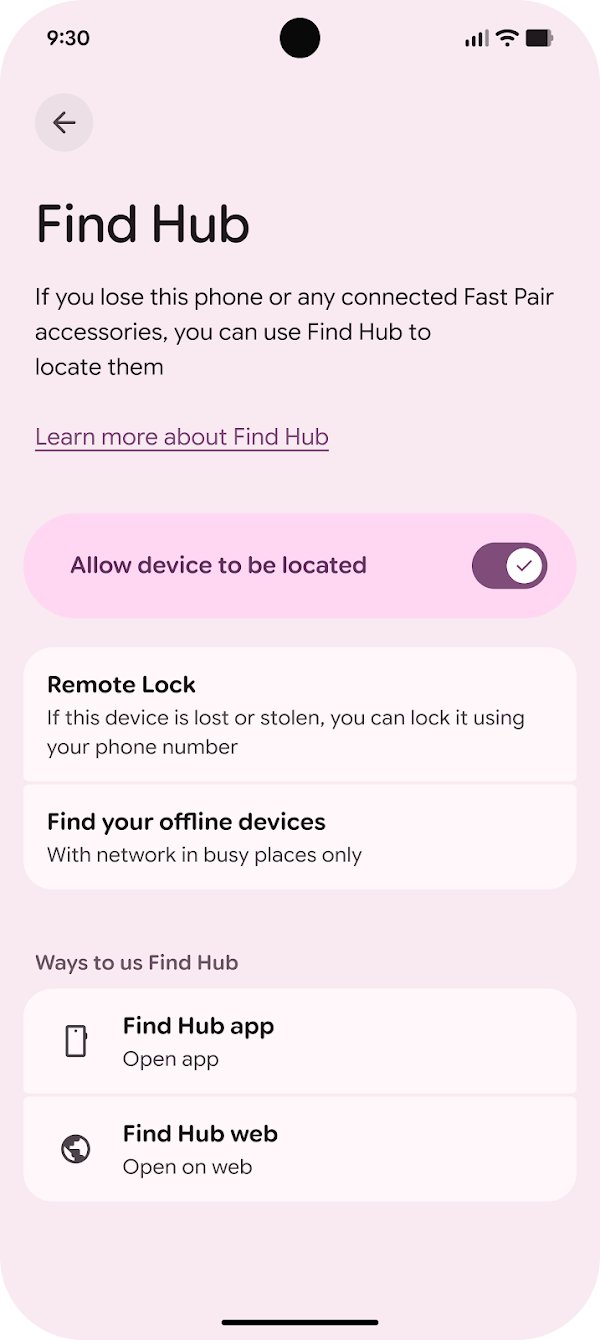
Android Device Manager is now called Find Hub, and it is already on for any Android phone signed in to a Google Account; you only need to confirm the setting under Settings > Security > Find Hub and keep location on.
This guide covers turning Find Hub on, the requirements your phone must meet, the offline finding network, and how to locate, ring, lock or erase a lost phone from android.com/find or another Android device.
Setting Up Android Device Manager (Now Find Hub)
Google adds Find Hub automatically when you add a Google Account to an Android device. These steps confirm every setting it depends on, so the phone can be found on the day you need it.
- Open Settings and tap Passwords, passkeys and accounts to confirm your Google Account is listed on the phone.
- Go back to Settings, tap Location and turn on Use location.
- Tap Settings > Security > Find Hub and check that Allow device to be located is turned on.
- Set a PIN, pattern or password as your screen lock, so the Find Hub network can help find the phone when it is offline.
- On a computer, open
https://play.google.com/library/devicesand make sure Show In Menus is checked for the phone. - Open
android.com/find, sign in with the same Google Account and confirm the phone appears in the device list.
On Android 5.0 and lower, the Find Hub settings sit in the separate Google Settings app instead of the Security menu. Google notes that some setup steps only work on Android 14 and up.
Understanding Android Device Manager and Find Hub
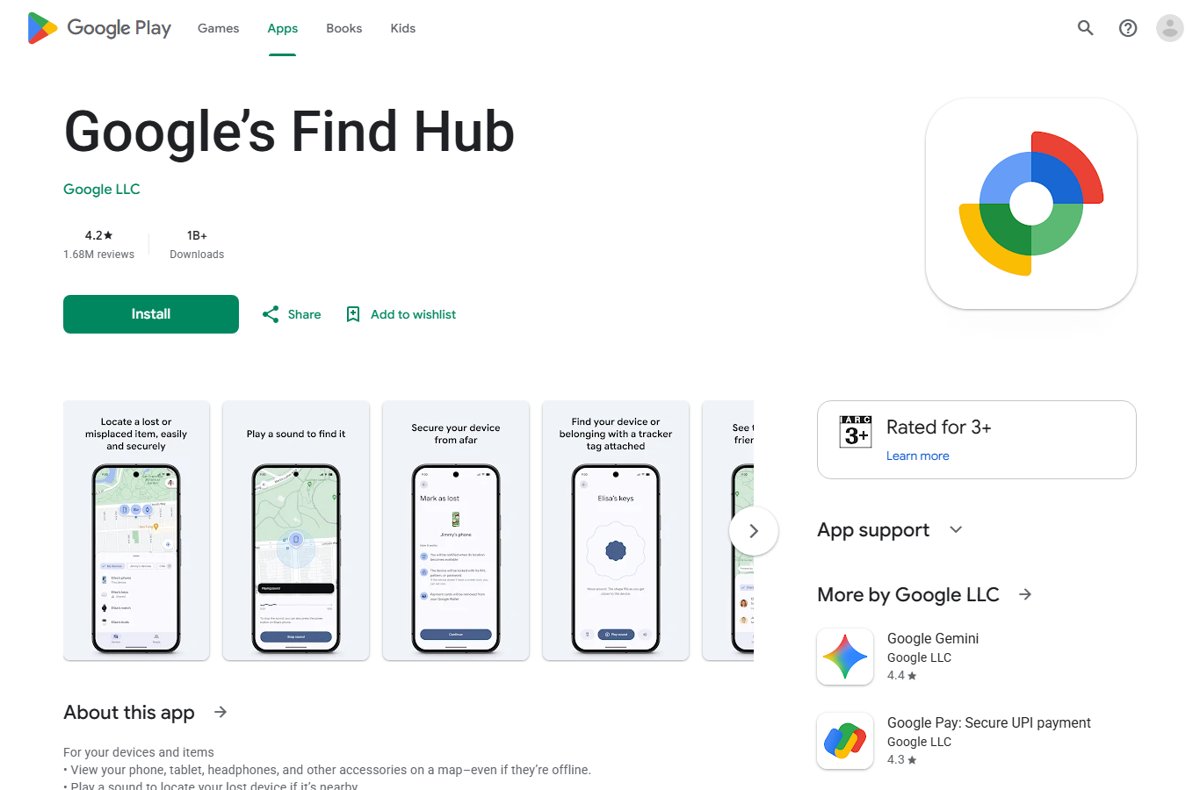
Android Device Manager is the older name for Google's lost-device service. Google's help pages and the Play Store listing now call it Find Hub, published by Google LLC under the same app package that Android Device Manager used.
| Question | What Google's pages say |
|---|---|
| What is it called now? | Find Hub, both the app (Google's Find Hub on Google Play) and the website at android.com/find |
| Do I need to install anything? | No, Find Hub turns on automatically when you add a Google Account; the app is only needed to find a device from another phone |
| What can it find? | Android phones and tablets, Wear OS watches, Fast Pair accessories such as compatible earbuds, and tracker tags |
| What can it do remotely? | Show the location on a map, play a sound, mark the device as lost to lock it, and factory reset it |
| Who sees the last location? | The device's most recent location is available to the first account activated on the device |
| Is location data private? | Location data in the Find Hub network is end-to-end encrypted, and Google says it is not visible even to Google |
What your phone needs before Find Hub can reach it
Google lists five conditions a device must meet before you can secure or erase it remotely. Miss one and the phone will not respond, even though it may still show a last known location.
| Requirement | Where to check it |
|---|---|
| Has power | A dead battery stops ringing, locking and erasing; only a stored recent location can remain |
| Connected to mobile data or Wi-Fi | Needed to receive ring, lock and erase commands |
| Signed in to a Google Account | Settings > Passwords, passkeys and accounts |
| Find Hub turned on | Settings > Security > Find Hub > Allow device to be located |
| Visible on Google Play | play.google.com/library/devices with Show In Menus checked |
| Location on | Settings > Location > Use location |
| Screen lock set | A PIN, pattern or password lets the Find Hub network help find the phone offline |
If you use 2-Step Verification, save your backup codes now. Without the phone, a backup code may be the only way to sign in to Find Hub on another device.
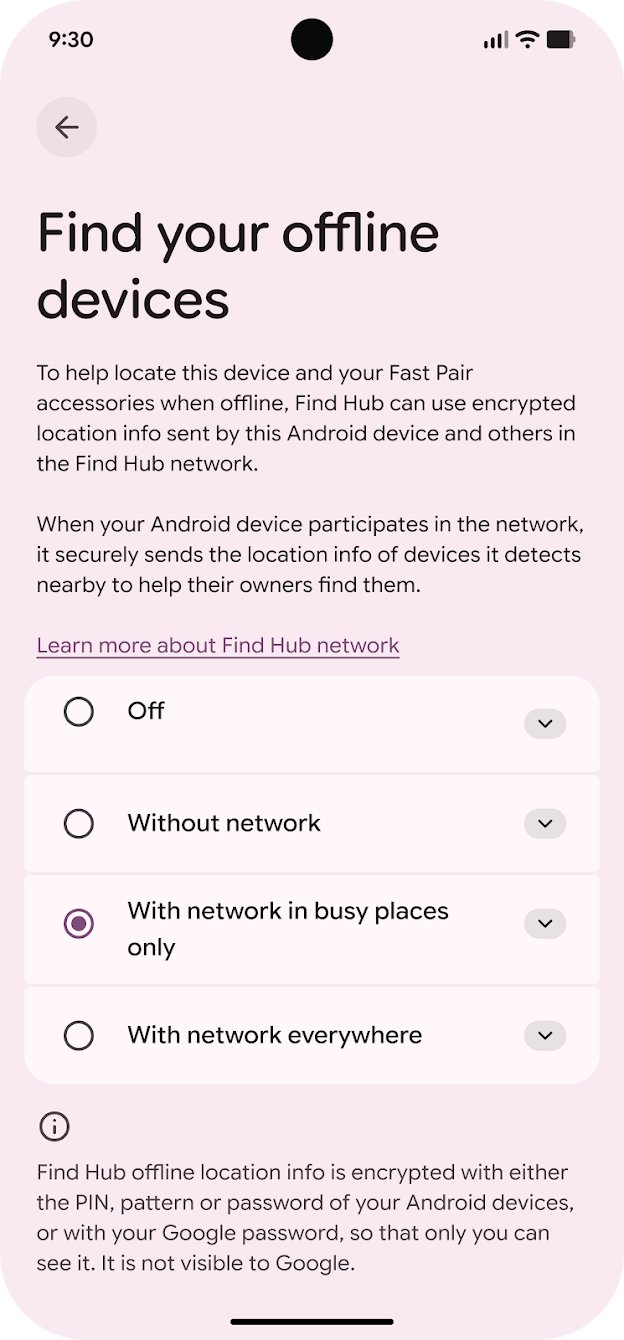
Turn on offline finding in the Find Hub network
By default, an Android device stores encrypted recent locations with Google and joins the Find Hub network. Participating phones use Bluetooth to spot nearby lost items and send their location, end-to-end encrypted, to the owner.
To change the level, open Settings > Google > All services (if your phone shows tabs) > Find Hub, tap Find your offline devices and pick one row below.
| Your situation | Choose | What it does |
|---|---|---|
| You want the best chance of finding the phone anywhere | With network everywhere | Uses stored encrypted locations, and the network helps in busy and remote areas if a screen lock is set |
| You want network help but only in crowded places | With network in busy places only | The network helps in areas like airports or busy footpaths, if a screen lock is set |
| You do not want your phone to help others find items | Without network | Your phone does not join the network, but you can still see encrypted recent locations stored while it was online |
| You want no location history kept at all | Off | Encrypted recent locations are not stored and the phone does not join the network |
Google stores only the most recent encrypted location for each device or accessory. Devices on Android 8.0 or lower cannot join the wider network but still store encrypted recent locations.
Features of Android Device Manager in Find Hub
Every action below works from the Find Hub app or the website. Ringing, locking and erasing need the lost phone to be on and online.
| Feature | What it does | Where to find it |
|---|---|---|
| Device location | Shows the device on a map, or its last known location if the current one cannot be found | Select the device in the Find Hub list |
| Ring your device | Rings at full volume for 5 minutes, even if the phone is set to silent or vibrate | Play sound |
| Lock your device | Locks it with your PIN, pattern or password and shows your contact info and message on the lock screen | Mark as lost |
| Erase your data | Permanently deletes all data on the device, though it may not delete SD cards | Device Settings > Factory reset |
| Check device status | Lists your signed-in devices, and shows the IMEI number when you open a device's settings | android.com/find, then Settings next to the device |
| Get directions | Opens navigation to the device's location on the map | Find Hub app |
| Remote Lock | Locks the screen with just a verified phone number, without signing in | android.com/lock |
Location accuracy depends on the source. GPS is accurate to around 20 meters, Wi-Fi uses nearby networks, and cell towers are accurate only to a few thousand meters.
How to Use Android Device Manager From a Computer
The Find Hub website at android.com/find is the fastest route when your phone is missing and you are at a computer.
- Open a browser and go to
android.com/find. - Sign in with the Google Account that is on the lost phone.
- If you have more than one device, select the lost one from the list.
- Read the location on the map; if the current location cannot be found, check the last known location.
- Select Play sound to ring it for 5 minutes if the map shows it nearby.
- Select Mark as lost to lock it and add a contact number and message, or erase it as described below.
Using Another Android Device
Use this when you have a tablet, a second phone or a friend's phone to hand. The Find Hub app is free on Google Play.
- On another Android phone or tablet, open the Find Hub app.
- Sign in as yourself, or on a friend's phone tap Sign in as guest and sign in with your Google Account.
- From the listed devices, select the device you want to locate.
- If asked, enter the lost phone's lock screen PIN or your Google password.
- Check the map for the location, then tap Play sound, Mark as lost or Get directions as needed.
A Wear OS watch can also find a paired phone. When you manage a child's account with Family Link, the child's supervised devices appear in Find Hub automatically.
Managing Lost or Stolen Device: Lock and Erase
Lock first, erase last. Once you factory reset a device, it no longer appears in Find Hub, so you can no longer see where it is.
| Your situation | Action | Steps |
|---|---|---|
| The phone may be nearby or with an honest finder | Mark as lost | Select the device, tap Mark as lost > Next, add contact info and a message for the lock screen, then tap Mark as lost |
| You cannot sign in to your Google Account right now | Remote Lock | Go to android.com/lock and lock the screen with the phone's verified number |
| The phone is stolen or you will not get it back | Factory reset | Select the device, select Settings, then Factory reset, and confirm |
| The lost item is earbuds or a tracker tag | Remove device | Select the accessory, select Settings, then Remove device |
Remote Lock needs a screen lock, an active SIM, a verified phone number, Find Hub on and an internet connection. Turn it on under Settings > Google > All services > Theft protection > Remote Lock.
If you find the phone after erasing it, you need your Google Account password to use it again. After a theft, also change your Google Account password.
How to check Find Hub can find your phone
Test it now, while the phone is in your hand, rather than on the day it goes missing.
- On a computer, open
android.com/findand sign in with your Google Account. - Confirm the phone is listed by name and shows a location on the map.
- Select Play sound and check that the phone rings, even with silent mode on.
- Stop the sound on the phone.
- Next to the device, select Settings and note the IMEI number shown, which your carrier or police may ask for.
Troubleshooting Common Issues
Match what you see to a heading below. Most failures trace back to one of the five requirements Google lists.
The device doesn't appear in Find Hub
The phone is hidden on Google Play, signed in to a different Google Account, or has been factory reset.
- Open
play.google.com/library/devicesand check Show In Menus for the phone. - On the phone, open Settings > Passwords, passkeys and accounts and confirm which Google Account is signed in.
- Sign in to
android.com/findwith that same account. - Check Settings > Security > Find Hub and turn on Allow device to be located.
Unable to locate device
Location is off, the phone is offline or out of power, or offline finding is set to Off.
- Check for a last known location on the map, which can show where the phone last connected.
- On a phone you still have, make sure Settings > Location > Use location is on.
- Set Find your offline devices to With network everywhere and set a screen lock, so the network can help next time.
- If the location is only approximate, remember that cell tower locations can be off by a few thousand meters.
Erasing or locking issue
The phone has no power, no mobile data or Wi-Fi, or is not signed in to your Google Account.
- Confirm you selected the right device in the list.
- Keep Find Hub open and retry once the phone shows as online.
- If you cannot sign in because the phone holds your second step, use a 2-Step Verification backup code.
- Use
android.com/lockto lock the screen with your phone number if Remote Lock was turned on.
Effective Use of Android Device Manager
Leave Find Hub on, set a PIN, pattern or password, choose With network everywhere for offline finding, turn on Remote Lock, and test Play sound from android.com/find once. Find Hub is on by default, but the screen lock, network setting and Play visibility decide whether a lost phone can still be found, locked or erased. A five-minute test now proves all of them work.
Frequently Asked Questions
Is Android Device Manager still available?
Yes, under a new name. Google now calls the service Find Hub, available as the Google's Find Hub app on Google Play and on the web at android.com/find. It locates, rings, locks and erases lost Android devices the same way.
Is Find Hub turned on by default?
Yes. Google turns Find Hub on automatically when you add a Google Account to an Android device. Check it under Settings > Security > Find Hub, where Allow device to be located should be on, and keep location turned on.
Can Find Hub find a phone that is offline?
Often, yes. Find Hub can show the last known location, and with offline finding on and a screen lock set, the Find Hub network of nearby Android devices can report the phone's location. Ringing, locking and erasing still need a connection.
Will Play sound work if my phone is on silent?
Yes. Play sound rings the phone at full volume for 5 minutes, even if it is set to silent or vibrate. The phone must have power and an internet connection to receive the command.
What happens if I erase my phone and then find it?
A factory reset deletes all data on the phone, though it may not delete SD cards, and the phone disappears from Find Hub. To use it again, you need your Google Account password.
Can I lock my phone without my Google password?
Yes, if Remote Lock was turned on beforehand. Go to android.com/lock and lock the screen using the phone's verified number. Remote Lock cannot locate or erase the phone; sign in to Find Hub for that.
Can a friend help me find my lost phone?
Yes. On your friend's Android phone, open the Find Hub app, tap Sign in as guest and sign in with your own Google Account. You can then locate, ring, lock or erase your device.
Is Android Device Manager the same as Device Manager in Windows?
No. Android Device Manager, now Find Hub, finds lost phones. Device Manager in Windows lists and manages a PC's hardware and drivers; see how to create a shortcut to Device Manager on Windows 10.