To clear the Microsoft Store cache, press Windows + R, type wsreset.exe and select OK; if the Store still misbehaves, open Settings > Apps > Installed apps > Microsoft Store > Advanced options and select Repair, then Reset.
This guide covers all three fixes on Windows 11 and Windows 10, the PowerShell re-register command Microsoft documents, the update, clock and network checks, and what to do when the Store still fails.
The fastest way to fix Microsoft Store
Work down this list and stop as soon as the Store opens and loads apps. Each step is gentler than the next one.
- Close Microsoft Store if it is open.
- Press Windows + R to open the Run dialog box.
- Type
wsreset.exeand select OK. - Wait about ten seconds. A blank Command Prompt window closes by itself and Microsoft Store opens.
- If the Store still fails, open its Advanced options page in Settings and select Repair.
- If Repair does not help, select Reset on the same page, then open the Store and sign in again.
When Should You Repair, Reset, or Clear the Microsoft Store Cache?
Match the symptom to the row, then use the fix in the middle column. Each fix is covered in detail below.
| Your situation | Best first fix | Why |
|---|---|---|
| Store opens but pages are blank, stuck loading, or searches return nothing | Clear the cache with wsreset.exe |
Microsoft's first fix for a Store that will not load; it keeps your settings |
| "Try that again" or error 0x80131500 when opening the Store | wsreset.exe, then Windows Update and time settings |
Microsoft's error page lists these fixes in this order |
| Store crashes on launch or closes straight away | Repair in Advanced options | Fixes the Store's own installation without clearing its data |
| Repair did nothing | Reset in Advanced options | Returns the Store app to a fresh state; its data is deleted and you sign in again |
| Store is missing from Start search | Re-register it with PowerShell | The package may be on the PC but not registered for your account |
| Store opens but downloads and updates fail | Check Windows Update, date and time, and proxy settings | The Store depends on Windows Update endpoints and a correct clock |
| Work or school PC shows a blocked message | Contact your administrator | Policy can turn the Store off, and no local fix overrides it |
Repair or Reset Microsoft Store from Windows Settings
The Store is an app like any other, so it has its own Advanced options page with Repair and Reset buttons. Try Repair first; Microsoft warns that Reset deletes the app's data.
- Select Start > Settings > Apps > Installed apps. On Windows 10, select Apps > Apps & features.
- Type Microsoft Store in the search box above the app list.
- On Windows 11, select More (the three dots) next to Microsoft Store, then Advanced options. On Windows 10, select Microsoft Store, then Advanced options under its name.
- Select Repair and wait for it to finish.
- Open Microsoft Store and test it.
- If it still fails, return to the same page and select Reset.
- Open Microsoft Store and sign in with your Microsoft account again.
Shortcut: press Windows + R, type ms-settings:appsfeatures-app?Microsoft.WindowsStore_8wekyb3d8bbwe and select OK. Microsoft documents this Settings link, and it opens the Store's Advanced options page directly.
The same buttons fix any other Store app. For apps that are not Store apps, see how to repair broken apps and programs in Windows 11/10.
Clear the Microsoft Store Cache with WSReset
wsreset.exe is Microsoft's built-in Store cache reset. Microsoft lists it first on its support pages for a Store that will not open, will not find an app, or shows error 0x80131500.
It is lighter than Reset in Settings: it clears the cache without asking you to set the app up again.
wsreset.exePress Windows + R, type the command and select OK. It clears the Microsoft Store cache and then relaunches the Store.
You should see: A blank Command Prompt window opens with no text, closes after about ten seconds, and Microsoft Store opens on its own.
If nothing happens at all when you run it, the Store package itself is likely damaged or unregistered. Use Repair in Settings or the PowerShell check below.
Re-register Microsoft Store Using PowerShell
Use this only when Microsoft Store has disappeared from your account. Microsoft's IT troubleshooting guide checks the package first, then registers it for the user.
The account matters. Run the final command in a normal, non-elevated PowerShell window, or the Store is registered to the administrator instead of you.
- Select Start, type PowerShell and open Windows PowerShell normally. Do not choose Run as administrator.
- Run
Get-AppxPackage *Microsoft.WindowsStore*and press Enter. - If details appear with Status : Ok, the Store is registered and PowerShell is not your fix. Go back to Repair or Reset.
- If nothing is returned, search Start for PowerShell again, select Run as administrator and run
Get-AppxPackage *Microsoft.WindowsStore* -AllUsersto see whether the package still exists on the PC. - If that returns package details, close the elevated window and return to the normal PowerShell window.
- Run
Add-AppxPackage -RegisterByFamilyName -MainPackage Microsoft.WindowsStore_8wekyb3d8bbweand press Enter. - Select Start, type Microsoft Store and open it.
If the -AllUsers check also returns nothing, the Store has been uninstalled. Microsoft states there is no supported way to reinstall it; the only supported route is to reset or reinstall Windows, which puts the Store back.
Avoid scripts that remove and reinstall every built-in app. Microsoft does not support uninstalling the Store and warns that it can cause unintended consequences.
Check Windows Update, Date/Time, and Network Settings
Microsoft's own Store fixes include pending Windows updates and wrong time or location settings. The Store also needs Windows Update endpoints to download and update apps.
Each row opens with Windows + R and the ms-settings: link, which Microsoft documents for both Windows 11 and Windows 10.
| What to check | Where (Windows 11 / Windows 10) | What to do |
|---|---|---|
| Pending Windows updates | ms-settings:windowsupdate. Windows 11: Settings > Windows Update. Windows 10: Settings > Update & Security > Windows Update |
Select Check for updates, install what is offered and restart. Microsoft notes a PC must restart after updates before Store installs work |
| Microsoft Store itself | Windows 11: Library > Get updates in the Store. Windows 10: See more > Downloads and updates > Get updates | Let the Store update itself, then close and reopen it |
| Date, time and time zone | ms-settings:dateandtime |
Set the time and time zone to update automatically, or correct them by hand |
| Country or region | ms-settings:regionformatting |
Set your real country or region. Apps are not available in every region, and a wrong one can hide apps you own |
| Proxy | ms-settings:network-proxy |
Turn off a manual proxy you no longer use. A proxy or firewall that blocks the Store's endpoints stops downloads |
| TLS versions | Press Windows + R, type inetcpl.cpl, then open the Advanced tab |
Microsoft's fix for error 0x80131500: clear Use TLS 1.0 and Use TLS 1.1, tick Use TLS 1.2 and Use TLS 1.3, then select OK |
Run wsreset.exe once more after changing any of these, so the Store reloads with the new settings.
How to check Microsoft Store is working again
- Select Start, type Microsoft Store and open it. The home page should load with app listings, not a blank page or error.
- Search for any free app. Results should appear within a few seconds.
- Select Library and then Get updates. The Store should check for updates without an error.
- Install a small free app, or reinstall one from Library with Install, to prove downloads work.
- If you used PowerShell, run
Get-AppxPackage *Microsoft.WindowsStore*again. It should return details with Status : Ok.
For the full install flow once the Store is healthy, see how to download Microsoft Store apps in Windows 10/11.
Troubleshooting When Microsoft Store Still Does Not Work
Pick the symptom that matches what you see. These fixes go further than the cache and app reset.
Microsoft Store reset not working
Windows components the Store relies on are out of date or damaged, so resetting the app alone changes nothing.
- Install all updates from Settings > Windows Update and restart.
- On Windows 10, open Settings > Update & Security > Troubleshoot > Additional troubleshooters, select Windows Store Apps and Run the troubleshooter.
- On Windows 11, open Settings > System > Troubleshoot > Other troubleshooters and select Run next to Windows Store Apps if it is listed. Microsoft is retiring this troubleshooter, so newer builds may not show it.
- Select Start, type cmd, select Run as administrator and run
DISM.exe /Online /Cleanup-image /Restorehealth. - When it finishes, run
sfc /scannowin the same window and wait for 100%. - Restart, then run
wsreset.exeagain.
Microsoft Store gone after reset
The Store shortcut was unpinned, the package is no longer registered for your account, or it was uninstalled.
- Select Start and type Microsoft Store. If it appears, right-click it and select Pin to Start.
- Check that you are signed in to Windows with a Microsoft account. Microsoft notes the Store may not be available on a local account.
- Run the PowerShell check and re-register command from the section above.
- If
-AllUsersreturns nothing, reset Windows with Keep my files from Settings > System > Recovery > Reset PC (Windows 10: Update & Security > Recovery > Get started). This is the only supported way to get the Store back, and it removes your installed apps.
Microsoft Store still not working after reset
The problem sits in your account, network or user profile, not in the Store app.
- Make sure the Store is signed in with your Microsoft account, not a local account.
- Turn off any VPN and any unused manual proxy in
ms-settings:network-proxy, then open the Store again. - On Windows 11, create a test account from Settings > Accounts > Other users > Add account.
- Sign in to the test account and open the Store. If it works there, the problem is limited to your original user profile.
- If the Store fails in every account, use Fix problems using Windows Update > Reinstall now in Settings > System > Recovery, which keeps apps and files.
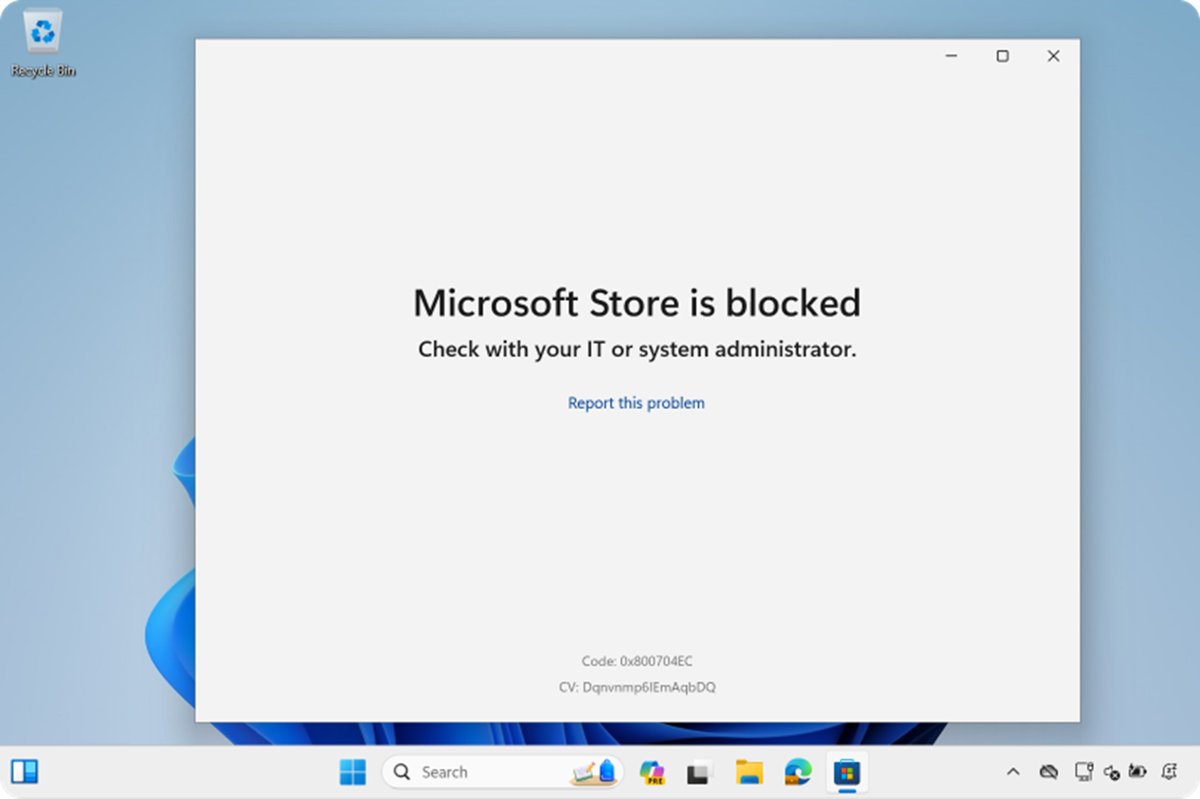
Store shows a blocked message, or there is no Repair or Reset button
An administrator turned the Store off by policy, which is common on work and school PCs.
- Note the exact message the Store shows when it opens.
- Ask your IT administrator whether the Store is blocked. Microsoft lets organisations turn it off, and no reset overrides that.
- Ask IT how they deliver the app you need instead. Microsoft notes Store apps can still update even when the Store app itself is blocked.
Frequently Asked Questions
How do I repair or reset Microsoft Store?
Open Settings > Apps > Installed apps, select More next to Microsoft Store and choose Advanced options. Select Repair first. If the Store still fails, select Reset on the same page. On Windows 10 the list is under Apps & features.
How do I reset the Windows Store or MS Store cache?
Press Windows + R, type wsreset.exe and select OK. A blank Command Prompt window opens, closes after about ten seconds, and Microsoft Store reopens with its cache cleared. This works the same way on Windows 11 and Windows 10.
What is the difference between Repair, Reset, and WSReset?
WSReset clears only the Store's cache. Repair fixes the Store app's installation and keeps its data. Reset returns the Store to a fresh state and deletes its data, so you sign in again. Try them in that order: WSReset, Repair, then Reset.
Will resetting Microsoft Store delete my installed apps?
Microsoft's warning for Reset covers the Store app's own data, so expect to sign in to the Store again. It does not describe removing other apps. Apps you bought stay tied to your Microsoft account and can be installed again from Library at any time.
Is WSReset safe to run on Windows 11 and Windows 10?
Yes. wsreset.exe is a Microsoft tool built into Windows, and Microsoft's own support pages tell users to run it when the Store will not open or install apps. It clears the cache and relaunches the Store; there is nothing to download.
How do I restore Microsoft Store if it is missing?
Search Start for Microsoft Store first, since it may only be unpinned. If it is not found, run Get-AppxPackage *Microsoft.WindowsStore* -AllUsers in an elevated PowerShell window. If the package exists, re-register it; if not, resetting or reinstalling Windows is the only supported way back.
How do I fix my Microsoft Store when it will not open?
Run wsreset.exe, install pending Windows updates and restart, then check that your date, time and region are correct. If it still will not open, use Repair and then Reset in the Store's Advanced options page in Settings.
Do I need an administrator account to fix Microsoft Store?
Only for some checks. Listing the Store for all users with -AllUsers, and running DISM and SFC, need an elevated window. The re-register command must run in a normal window, because an elevated one registers the Store to the administrator account instead of yours.
What should I do if Microsoft Store still will not open after resetting it?
Check for Windows updates, run the Windows Store Apps troubleshooter where it is listed, and run DISM and SFC. Then test the Store in a second user account. If it fails everywhere, reinstall Windows with Fix problems using Windows Update, which keeps your apps and files.
These questions come from real Bing searches such as "how to repair or reset microsoft store", "how to reset windows store" and "how to restore microsoft store", plus the questions the ranking page answers.
Bottom Line
Run wsreset.exe first, then Repair, then Reset, and only reach for PowerShell when the Store has vanished from your account. The cache reset keeps everything and fixes most loading problems in ten seconds. Repair and Reset fix the Store app itself, while re-registering only helps when the package is still on the PC. Never uninstall the Store, because Microsoft offers no supported way to reinstall it short of resetting Windows.

![Download & Install ASUS Aura Sync on Windows 10/11 [2024]](https://techdows.com/wp-content/uploads/2026/09/Armoury-Crate-Aura-Sync-effects-tab-with-Rainbow-selected-600x338.jpg)