Windows 11 needs a 1 GHz or faster 64-bit processor with at least two cores from Microsoft's supported list, 4 GB of RAM, 64 GB of storage, UEFI firmware that is Secure Boot capable, TPM 2.0, a DirectX 12 graphics card with a WDDM 2.0 driver, and a 720p display larger than 9 inches.
Below is every requirement with the exact way to check it on your PC, the extra hardware some features need, the Copilot+ PC bar, virtual machine settings, and what to change when a check fails.
Windows 11 Minimum Hardware Requirements
These are Microsoft's published minimums for installing or upgrading to Windows 11. A PC must meet every row, not most of them.
| Component | Minimum requirement | Where to check it |
|---|---|---|
| Processor | 1 GHz or faster, 2 or more cores, on a compatible 64-bit processor or system on a chip (SoC) | Settings > System > About > Processor |
| Memory (RAM) | 4 GB | Settings > System > About > Installed RAM |
| Storage | 64 GB or larger storage device | Settings > System > Storage |
| System firmware | UEFI, Secure Boot capable | msinfo32 > BIOS Mode and Secure Boot State |
| TPM | Trusted Platform Module version 2.0 | tpm.msc > Specification Version |
| Graphics card | DirectX 12 or later, with a WDDM 2.0 driver | dxdiag > Display tab > Driver Model |
| Display | 720p (HD), larger than 9 inches diagonally, 8 bits per color channel | Your monitor or laptop spec sheet |
| Internet and account | Internet and a Microsoft account to finish setup on Home (and Pro for personal use) | Needed only during setup and for updates |
| Current OS (upgrades only) | Windows 10, version 2004 or later, with the September 14, 2021 security update or later | Settings > System > About > Windows specifications |
Microsoft's own wording is blunt: a device that misses these requirements may not be able to install Windows 11, and Microsoft suggests considering a new PC.
Processor Requirements
Speed and core count are the easy part. The processor must also appear on Microsoft's supported list, and that list is where most older PCs fail.
Microsoft publishes a separate list for each Windows 11 version (original release, 22H2/23H2, 24H2 and 25H2) for Intel, AMD and Qualcomm chips. Processors released later that meet the same design principles count as supported even before they are listed.
| Maker | Oldest families on Microsoft's Windows 11 lists | Newer families on the 25H2 list |
|---|---|---|
| Intel | 8th Generation Core i3, i5, i7, i9 and Core m; Celeron, Pentium Gold and Pentium Silver families of the same era | 9th to 14th Generation Core, Core Ultra (Series 1, 2 and 3), Core Series 1 and 2, N100, N200 and N90, Atom X7000, Xeon W and Xeon Scalable |
| AMD | Selected Ryzen 2000 models on the original list, such as Ryzen 5 2600 and Ryzen 3 2300X | Ryzen 3000 through 9000 series, Ryzen AI 300, Ryzen AI Max 300, Ryzen Z1 and Z2, Threadripper and Threadripper PRO, EPYC, Athlon 7000 |
| Qualcomm (Arm) | Snapdragon 7c, 7c Gen 2, 7c+ Gen 3, 8c, 8cx (Gen 1 to 3), Microsoft SQ1, SQ2 and SQ3; Snapdragon 850 for customer upgrades only | Snapdragon X, X Plus and X Elite |
The lists are written for PC makers building new devices. For an existing PC, Microsoft points customers to the PC Health Check app or to the PC manufacturer. The 25H2 lists no longer name every older family, so check the list for the exact version you plan to install.
To see your processor model, open Settings > System > About and read Processor and System type. System type must say 64-bit.
Memory Requirement
| Scenario | RAM needed | Source of the figure |
|---|---|---|
| Install or upgrade to Windows 11 | 4 GB or more | Windows 11 minimum requirements |
| Windows 11 virtual machine | 4 GB or more assigned to the VM | Microsoft Learn VM requirements |
| Copilot+ PC | 16 GB DDR5 or LPDDR5 | Copilot+ PC minimum requirements |
| Everyday use, per Microsoft's buying advice | 8 GB for everyday tasks, 16 GB or more for gaming or creative work | Microsoft's PC specs guide |
Check it under Settings > System > About > Installed RAM. For slot counts, speed and other detail, follow the steps to check RAM on Windows 11.
Storage Requirement
Windows 11 needs a storage device of 64 GB or larger. That is the drive size, and Microsoft warns that updates and some features need more free space over time.
| Scenario | Storage needed |
|---|---|
| Minimum install | 64 GB or larger storage device |
| Virtual machine | 64 GB or more disk space |
| Copilot+ PC | 256 GB SSD or UFS |
| DirectStorage games | An NVMe SSD using the Standard NVM Express Controller driver |
| Feature updates | Varies with installed apps, earlier Windows versions and reusable space such as the page file |
Open Settings > System > Storage to see total and free space. Windows tries to free space automatically during an update and guides you through more cleanup if that is not enough.
UEFI Firmware Requirement
Windows 11 needs UEFI firmware, the replacement for the older BIOS interface. TPM 2.0 also depends on it: Microsoft states TPM 2.0 is not supported in Legacy or CSM modes and needs native UEFI.
| BIOS Mode in msinfo32 | What it means | What to do |
|---|---|---|
| UEFI | The firmware requirement is met | Nothing; move on to Secure Boot |
| Legacy | Windows is booting through legacy BIOS or CSM mode | Convert the system disk to GPT with MBR2GPT, then switch the firmware to UEFI (see the upgrade section) |
Press Win + R, type msinfo32 and press Enter. With System Summary selected, read BIOS Mode on the right.
Do not flip the firmware from Legacy to UEFI first. Microsoft warns that a Windows installation set up in legacy mode stops booting after that change unless the disk is prepared with MBR2GPT.
Secure Boot Requirement
The requirement is Secure Boot capable firmware. Secure Boot makes the PC start only with trusted software, and Microsoft lists it alongside UEFI as a single firmware requirement.
The quickest visual check is msinfo32: Secure Boot State shows On when it is enabled. For a clear yes or no, run the command below in PowerShell opened as administrator.
Confirm-SecureBootUEFIChecks the Secure Boot status on a UEFI computer. It must run in an elevated PowerShell window; otherwise it reports that access was denied.
You should see: True means the PC supports Secure Boot and it is on. False means the PC supports Secure Boot but it is off, so the firmware is capable. "Cmdlet not supported on this platform" means the PC booted in BIOS mode or has no Secure Boot support.
TPM 2.0 Requirement
Windows 11 needs a TPM version 2.0. It can be a separate chip, integrated hardware, or firmware TPM built into the processor, and Windows treats all three the same way. Every new PC model since July 28, 2016 has had to ship with TPM 2.0 enabled.
- Press Win + R, type
tpm.mscand press Enter. - Under TPM Manufacturer Information, read Specification Version. It must include 2.0.
- If the console says Compatible TPM cannot be found, the TPM is missing or turned off in the firmware.
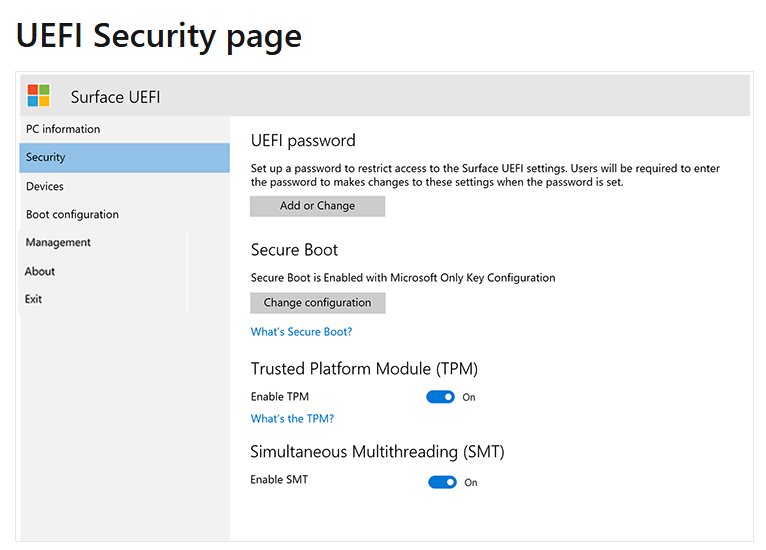
- Restart into firmware: hold Shift, select Power > Restart, then Troubleshoot > Advanced options > UEFI Firmware Settings.
- Look for a TPM setting named Intel Platform Trust Technology (PTT), AMD fTPM, Security Device or TPM State, and turn it on.
- Save, restart and open
tpm.mscagain to confirm version 2.0.
Setting names and menus differ by manufacturer, so check the PC or motherboard maker's support page if you cannot find them. The TPM 2.0 module guide covers boards that need a separate module.
Graphics Requirements
The graphics card must support DirectX 12 or later and use a WDDM 2.0 driver. PC Health Check does not test this, so check it yourself.
- Press Win + R, type
dxdiagand press Enter. - Select Yes if the tool asks to check whether drivers are digitally signed.
- On the System tab, read DirectX Version under System Information.
- Open the Display tab and read Driver Model in the Drivers area. WDDM 2.0 or later passes.
- If Driver Model shows WDDM 1.x, install the current driver from Windows Update or the graphics maker's site and check again.
Display Requirements
| Need | Requirement |
|---|---|
| Minimum display | High definition (720p), larger than 9 inches diagonally, 8 bits per color channel |
| Snap three-column layouts | Screen at least 1920 effective pixels wide |
| Auto HDR | An HDR monitor |
| Touch | A screen or monitor that supports multi-touch |
| Projecting to a wireless display | A WDDM 2.0 display adapter and a Wi-Fi adapter that supports Wi-Fi Direct |
Microsoft says most compatible devices meet the display and graphics minimums, which is why PC Health Check skips both. A screen of 9 inches or smaller fails regardless of resolution.
Internet and Microsoft Account Requirements
| Edition or situation | Internet at setup | Microsoft account at setup |
|---|---|---|
| Windows 11 Home | Required | Required |
| Windows 11 Pro for personal use | Required | Required |
| Switching out of Windows 11 Home in S mode | Required | Not stated |
| All editions after setup | Needed for updates and some features | Needed for some features |
S mode exists only on Windows 11 Home. If a Windows 10 device runs another edition in S mode, switch out of S mode before upgrading; the switch is one-way.
Windows 11 Feature-Specific Hardware Requirements
Some features need hardware beyond the minimums. Windows 11 still installs without it; only that feature stays unavailable.
| Feature | Extra hardware it needs |
|---|---|
| BitLocker to Go | A USB flash drive; Pro edition and above |
| Client Hyper-V | A processor with second level address translation (SLAT); Pro edition and above |
| Windows Hello | A near-infrared camera or fingerprint reader for biometrics; a PIN or security key works without one |
| Two-factor authentication | A PIN, a biometric sensor, or a phone with Wi-Fi or Bluetooth |
| 5G support | A 5G-capable modem |
| Wi-Fi 6E | New WLAN hardware and driver plus a Wi-Fi 6E router or access point |
| Wi-Fi 7 | Windows 11 version 24H2 or later and a Wi-Fi 7 adapter with drivers; a Wi-Fi 7 router for full features |
| DirectStorage | An NVMe SSD and a DirectX 12 GPU with Shader Model 6.0 |
| Auto HDR | An HDR monitor |
| Voice Typing | A microphone |
| Wake on Voice | The Modern Standby power model and a microphone |
| Microsoft Teams and taskbar mute/unmute | A camera, microphone and speakers |
| Spatial Sound | Supporting hardware and software |
| Presence | A sensor that detects a person's distance or intent to use the device |
| Windows Studio Effects | A built-in camera and an NPU with 10+ TOPS |
Copilot+ PC Hardware Requirements
Copilot+ PCs are a higher class of Windows 11 PC. They must meet every standard minimum plus the rows below. The Copilot app itself runs on any Windows 11 PC.
| Component | Copilot+ PC minimum |
|---|---|
| Processor | A processor or SoC with an NPU capable of 40+ TOPS: AMD Ryzen AI 300 and 400 series, Intel Core Ultra 200V and 300V series, or Snapdragon X series |
| RAM | 16 GB DDR5 or LPDDR5 |
| Storage | 256 GB SSD or UFS |
| Recall (preview) | Also needs Windows Hello Enhanced Sign-in Security |
A PC with a 40+ TOPS NPU but less than 16 GB of RAM or less storage is not a Copilot+ PC. It still runs Windows 11 and local AI apps, but not Copilot+ features such as Click to Do or improved Windows search.
How to Check If Your PC Meets Windows 11 Requirements
PC Health Check is Microsoft's free eligibility test for Windows 10 Home, Pro and Pro for Workstations. On Enterprise or Education, ask your IT department instead.
- Install PC Health Check from Microsoft if it is not already on the PC.
- Search for PC Health Check on the taskbar and open it.
- Select Check now in the Windows 11 section.
- Read the result. It states whether the PC can run Windows 11 and, if not, which requirement blocks it.
- Check graphics and display yourself with
dxdiagand your screen's spec sheet, because the app skips both. - Open Settings > Update & Security > Windows Update on Windows 10 to see whether the upgrade is offered.
Can You Install Windows 11 on Unsupported Hardware?
Do not plan on it. Microsoft says a device that misses the requirements may not be able to install Windows 11 and suggests a new PC; fixing the failed item, where the hardware allows it, is the supported route. Windows Update offers the upgrade only once its settings page confirms the device is eligible, and TPM 2.0, Secure Boot and the processor floor exist for security and reliability. Many failures are settings rather than missing hardware: a firmware TPM that is off, Secure Boot turned off, or Legacy boot mode. Fix those first, as described in the upgrade section below.
Windows 11 Requirements for Virtual Machines
| Setting | Requirement |
|---|---|
| VM generation | Generation 2; generation 1 VMs cannot be upgraded in place |
| Storage | 64 GB or more |
| Memory | 4 GB or more |
| Processors | Two or more virtual processors |
| Security on Hyper-V | Secure Boot and TPM enabled |
| Security on Azure | Trusted launch with vTPM enabled |
| Other hosts | Secure Boot capable, virtual TPM enabled |
| Host processor | Must itself meet the Windows 11 processor requirements |
| Hyper-V host firmware | Virtualization (VT-x, VT-d) enabled in the BIOS |
The virtual TPM 2.0 is emulated inside the guest, so it works whether or not the Hyper-V host has its own TPM.
What to Upgrade If Your PC Fails the Requirements
Match the requirement PC Health Check flagged to the group below. Settings fixes come first because they cost nothing.
TPM 2.0 is not detected
The firmware TPM is turned off or hidden, or the board has no TPM 2.0.
- Open
tpm.msc. If it reports Compatible TPM cannot be found, restart into UEFI Firmware Settings. - Turn on Intel Platform Trust Technology, AMD fTPM or the Security Device option.
- Confirm the firmware is in UEFI mode; TPM 2.0 does not work in Legacy or CSM mode.
- If the board has no firmware TPM, check the maker's support list for a compatible TPM 2.0 module.
Secure Boot or UEFI fails
Windows was installed in Legacy (MBR) mode, or Secure Boot is switched off.
- Back up your files.
- Open Terminal as administrator and run
mbr2gpt /validate /allowFullOSto check that the system disk can be converted. - If it passes, run
mbr2gpt /convert /allowFullOS. Suspend BitLocker first if the drive is encrypted. - Restart into UEFI Firmware Settings and set the boot mode to UEFI, disabling CSM or Legacy.
- Turn on Secure Boot in the firmware, save and restart.
- Check
msinfo32for BIOS Mode: UEFI and Secure Boot State: On.
The processor is not supported
The CPU is older than the families on Microsoft's list or lacks required features.
- Read the model under Settings > System > About > Processor.
- Compare it with Microsoft's supported Intel, AMD or Qualcomm list for your target version.
- On a laptop, ask the manufacturer whether a supported upgrade exists; otherwise plan for a new device.
- On a desktop, check with the motherboard maker which newer CPUs the board accepts, or replace board and CPU together.
Not enough RAM or storage
Less than 4 GB of memory or a drive smaller than 64 GB.
- Check Installed RAM under Settings > System > About.
- Add a memory module if the PC has a free slot or replaceable memory.
- Replace a drive smaller than 64 GB with a larger SSD.
- Free space under Settings > System > Storage if the drive is large enough but full.
Graphics driver model is below WDDM 2.0
An old or generic display driver, or a graphics card without DirectX 12 support.
- Run Windows Update and install any optional driver updates.
- Install the current driver from the graphics maker's site.
- Recheck Driver Model in
dxdiag. If it still shows WDDM 1.x, the card needs replacing.
Windows 10 Support and Older PCs
Windows 10 support ended on October 14, 2025. A PC that cannot meet the Windows 11 requirements keeps working, but no longer gets regular security updates.
| Option | What it involves |
|---|---|
| Fix the failed requirement and upgrade | Usually TPM, Secure Boot or UEFI settings; free if the hardware supports it |
| Enroll in Extended Security Updates (ESU) | Paid security-only updates for Windows 10, version 22H2; no new features |
| ESU for organizations | $61 per device for Year One, doubling each year, up to three years; Year One started November 2025 |
| ESU for home users | A separate consumer program; see Microsoft's Windows 10 end-of-support page for terms |
| Replace the PC | Microsoft's recommendation when a device cannot meet the requirements |
Quick Windows 11 Requirements Checklist
Run through this in five minutes. Every line must pass.
- Settings > System > About: Processor is on Microsoft's list, Installed RAM is 4 GB or more, System type says 64-bit.
- Settings > System > Storage: the drive is 64 GB or larger.
msinfo32: BIOS Mode reads UEFI and Secure Boot State reads On.tpm.msc: Specification Version includes 2.0.dxdiag: DirectX Version is 12 and Driver Model is WDDM 2.0 or later.- The screen is 720p or better and larger than 9 inches.
- On Windows 10, the version is 2004 or later; confirm on the Windows version check.
- PC Health Check reports that the PC meets the Windows 11 requirements.
Once every line passes, the upgrade appears in Windows Update. If you want Pro features afterwards, you can upgrade Windows 11 Home to Pro.
Frequently Asked Questions
What hardware is required for Windows 11?
Windows 11 needs a supported 64-bit processor of 1 GHz or faster with two or more cores, 4 GB of RAM, 64 GB of storage, UEFI firmware with Secure Boot capability, TPM 2.0, a DirectX 12 graphics card with a WDDM 2.0 driver, and a 720p display over 9 inches.
Does my hardware support Windows 11?
Run Microsoft's free PC Health Check app on Windows 10 and select Check now. It reports whether the PC meets the requirements and names any that fail. It does not test graphics or display, so check those with dxdiag and your screen's specifications.
How do I see my hardware on Windows 11?
Open Settings > System > About to see the processor, installed RAM and system type. For more detail, press Win + R and run msinfo32 for firmware and motherboard information, or dxdiag for graphics. Task Manager's Performance tab shows live CPU, memory, disk and GPU details.
How do I find full hardware information on Windows 11?
Press Win + R, type msinfo32 and press Enter. System Information lists the BIOS version, BIOS mode, Secure Boot state, motherboard model and components. Run tpm.msc for TPM details and dxdiag for the graphics driver model.
Is Windows 11 hardware or software?
Windows 11 is software: it is Microsoft's operating system. It runs on PC hardware such as the processor, memory, storage and TPM chip, and it only installs on hardware that meets Microsoft's minimum requirements.
Which Windows 11 do I have?
Open Settings > System > About and look under Windows specifications. Edition shows Home, Pro or another edition, and Version shows the release, such as 24H2 or 25H2. You can also press Win + R and run winver.
What is the recommended hardware for Windows 11?
Microsoft publishes minimums, not a recommended spec. Its buying advice suggests 8 GB of RAM for everyday tasks, 16 GB or more for gaming or creative work, and an SSD for speed. Copilot+ PCs need 16 GB of DDR5 or LPDDR5, a 256 GB SSD and a 40+ TOPS NPU.
Does Windows 11 need TPM 2.0 and Secure Boot?
Yes. Windows 11 requires TPM version 2.0 and UEFI firmware that is Secure Boot capable. A firmware TPM such as Intel PTT or AMD fTPM counts, but it is often turned off by default and has to be enabled in the UEFI settings.
Can a Windows 11 virtual machine run without a physical TPM?
Yes. The VM needs a virtual TPM, which Hyper-V emulates in the guest regardless of the host's TPM. The VM must also be generation 2 with Secure Boot, 4 GB of memory, 64 GB of storage and two virtual processors.


![How to find word count in Microsoft Word [updated 2026]](https://techdows.com/wp-content/uploads/2026/10/Word-Review-tab-with-the-Word-Count-menu-and-Show-Word-Count-ticked-600x252.jpg)
Using the Windows Update Assistant to Manually Install Updates - Techdows
[…] these before you download anything. The Windows 11 hardware minimums come from Microsoft's Windows 11 specifications page, and the PC Health Check app tests most […]
Popular Antivirus Software worked well in Windows 11 Previews - Techdows
[…] made hardware requirements very tough for its latest […]