You can get the Minecraft Education download for Windows 11, Windows 10 and Mac from the official download page, or install it from the Microsoft Store in a few minutes. Anyone can open the free Demo Lessons right away, and a school Microsoft 365 account unlocks the full game.
This guide covers which version to pick, the official links, Store, winget and Mac installs, licence prices, updates and fixes for installs that fail.
Which Minecraft Education download do you need?
Match your device to a row. Every row installs the same app, and the same sign-in works across all of them.
| Your device | Get it from | Size or note |
|---|---|---|
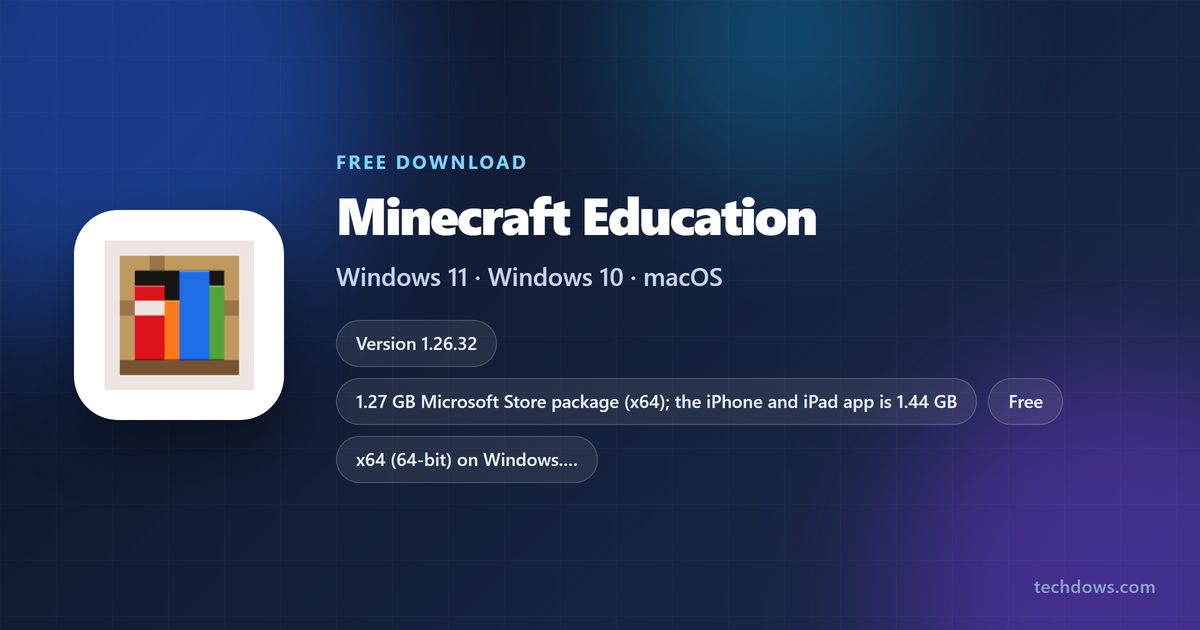
| Windows 11 or 10 PC (64-bit) | Microsoft Store listing | 1.27 GB package, updates through the Store |
| Windows PC without Store access | Official download page, Windows button | Desktop installer, updates through a scheduled task |
| Mac on macOS 14 or later | Official download page, Mac button | Direct download, manual updates |
| iPhone or iPad on iOS 15 or later | App Store listing | 1.44 GB |
| Chromebook or Android phone | Google Play listing | Needs Google Play support |
The Store version and the desktop installer cannot sit on the same PC. Pick one, and uninstall the other before switching.
Download Minecraft Education from the official pages
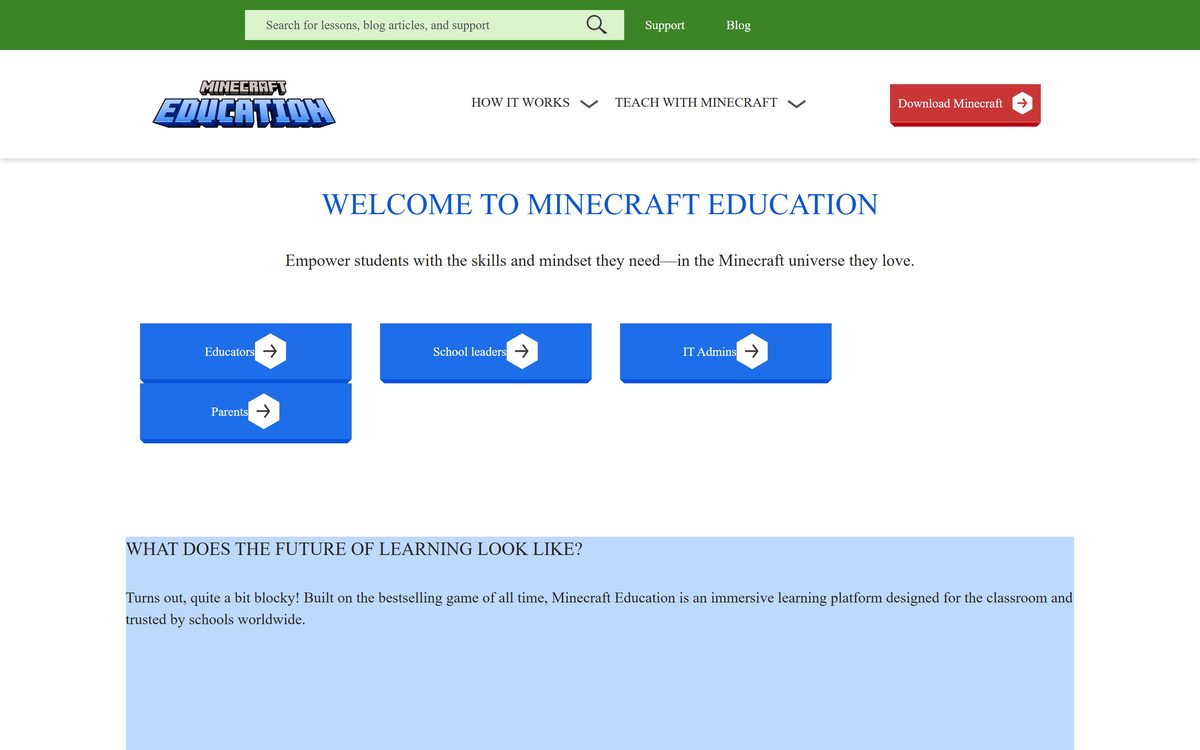
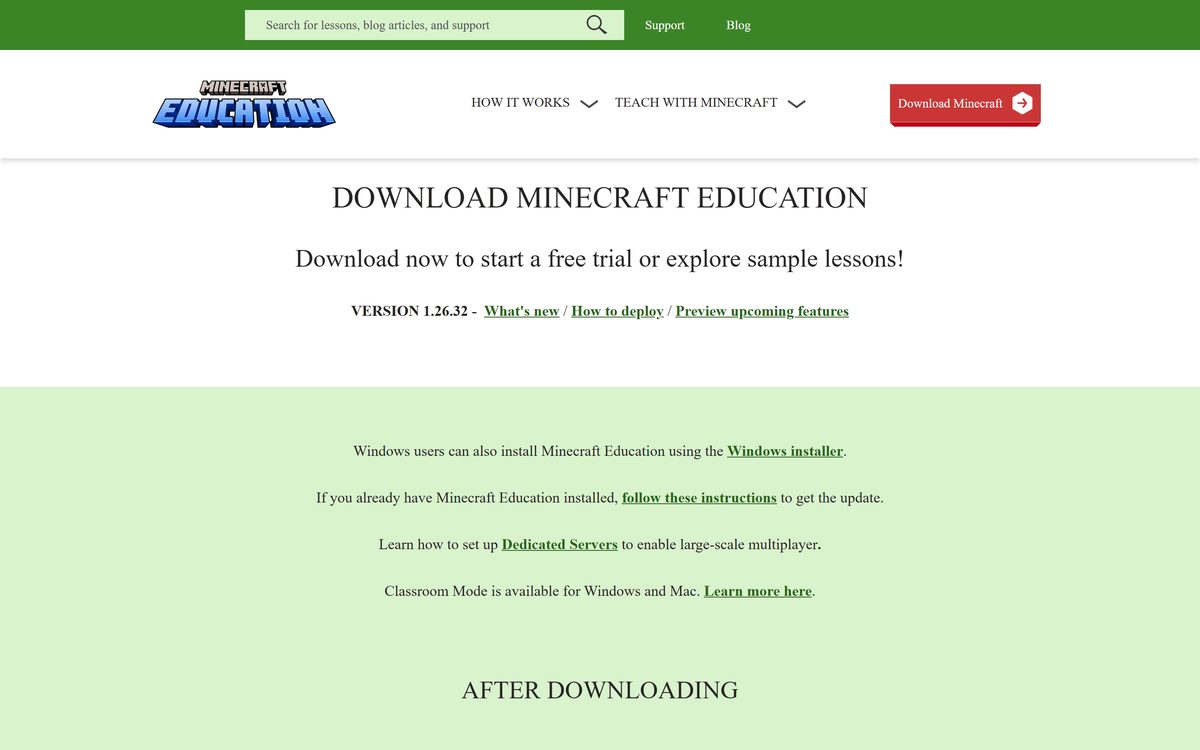
Every genuine copy comes from Minecraft Education or an official app store. The download page shows the current version above its platform buttons.
- Get Minecraft Education download page — Windows, Mac, Chromebook or Android, and iPhone or iPad buttons
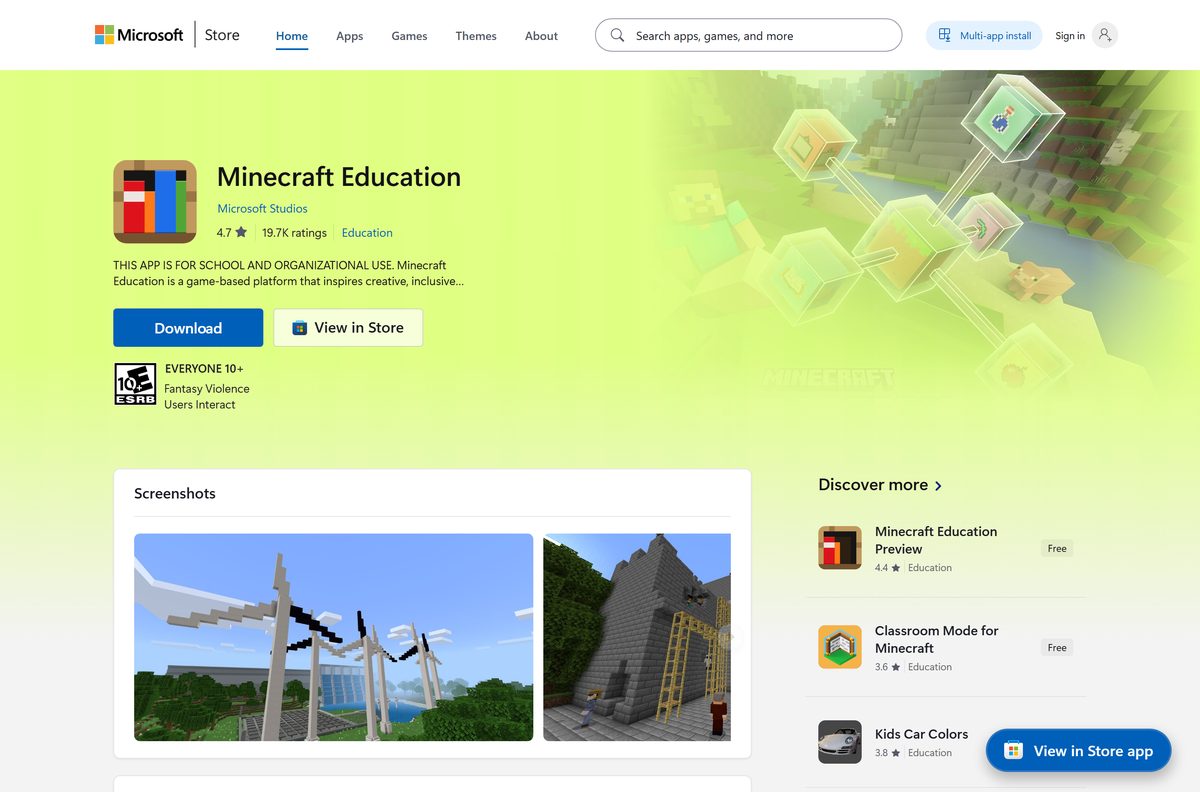
- Minecraft Education in the Microsoft Store — 1.27 GB · x64 package for Windows 11 and 10
- Minecraft Education in the App Store — 1.44 GB · iPhone and iPad, iOS 15 or later
- Minecraft Education on Google Play — Android and Chromebook
- Licensing and prices — school and commercial licences
Downloading is free on every platform. The licence check happens at sign-in, not at download.
Is Minecraft Education free?
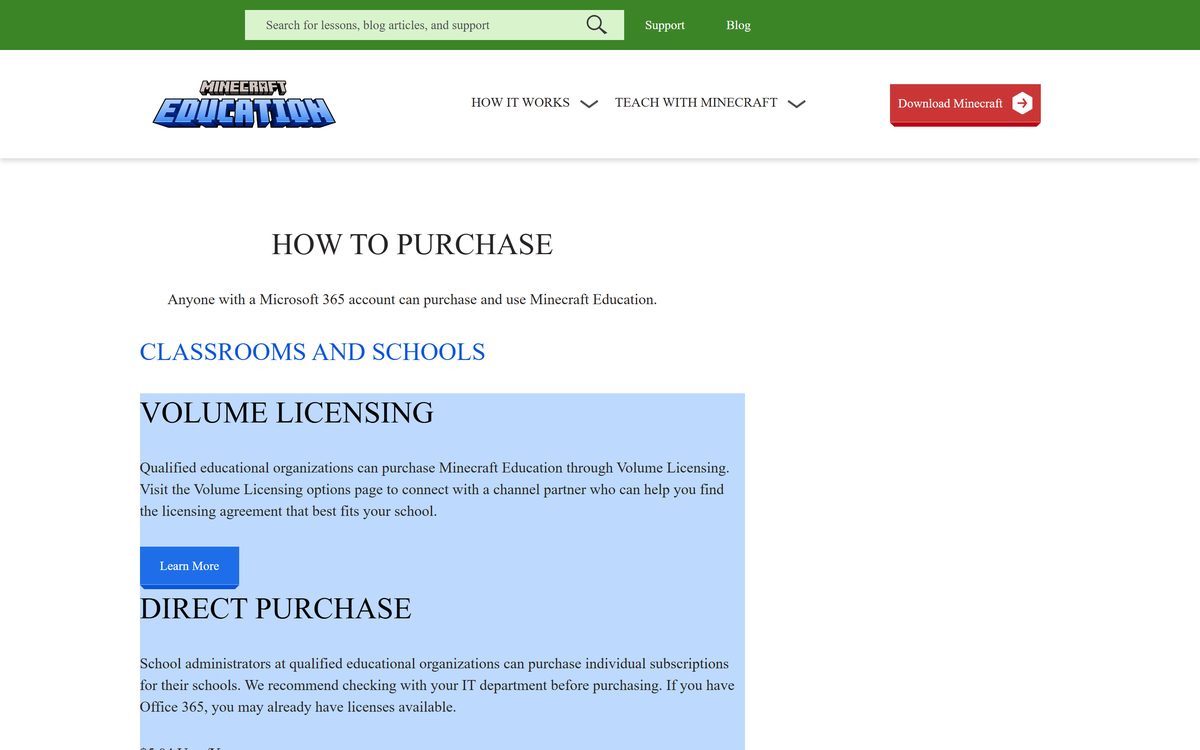
Start with the free Demo Lessons, then use the free trial logins if your school has Microsoft 365. Buy a licence for anything beyond that. The Demo Lessons need no account and never expire, but worlds cannot be saved, multiplayer is off and custom worlds will not load. Academically verified Microsoft 365 Education accounts get a full-featured trial of 25 logins for teachers and 10 for other users, and those logins cannot be refreshed. Qualified schools pay $5.04 per user per year, and camps, clubs and homeschools pay $36 per user per year, both on an annual commitment. Schools with Microsoft 365 A3 or A5 licences can switch Minecraft Education on in the admin center. A site selling a cheap lifetime key or an unlocked copy is not selling anything the sign-in will accept.
Read the trial rules in Try Minecraft Education for free, and the admin side in Microsoft’s licensing guide.
Check the Minecraft Education system requirements
The minimums let a class run lessons, coding and small multiplayer games. Hosting five or more players on minimum hardware brings lag and dropped connections.
| Field | Value |
|---|---|
| Developer | Mojang AB (Microsoft) |
| Latest version | 1.26.32 (Learning Cubed Update) |
| License | Free demo and trial; paid licence from $5.04 per user per year |
| Windows | Windows 11 or Windows 10, 64-bit only |
| Mac | macOS 14 or later |
| Mobile and Chromebook | iOS and iPadOS 15, Android 8, ChromeOS 114 |
| Processor | Intel Core i3-4150, Celeron N4100 or AMD A8-6600K (Core i7-6500U recommended) |
| Memory | 2 GB RAM (8 GB recommended) |
| Graphics | Intel HD Graphics 4400 or AMD Radeon R5 with OpenGL 4.4 |
| Storage | 2 GB minimum, 4 GB recommended |
| Architecture | x64 on Windows; no 32-bit build |
| Download size | 1.27 GB (Microsoft Store package) |
| Offline installer | Yes, the Windows desktop installer |
| Official source | education.minecraft.net |
| Last verified | 2026-09-19 |
Windows Server and Linux are not supported, including through emulators. The full list sits in the System Requirements article.
How to install Minecraft Education on Windows 11 and 10
The Microsoft Store version is the recommended install for school and home PCs. It updates itself through the Store.
- Open the Minecraft Education Store listing on your PC.
- Open Library in the Microsoft Store and select Get updates, so no other app update is pending.
- Return to the listing and select Get or Install.
- Wait for the 1.27 GB package to download and install.
- Select Open, or search for Minecraft Education from Start.
- At Welcome to Minecraft Education, sign in with your Microsoft 365 school account.
- Without an account, select If you don’t have an account, try a demo lesson instead.
- Select Accept Terms, then Play.
A pending update for any other Store app blocks this install, which is why step 2 matters.
Install Minecraft Education with winget
winget installs the Microsoft Store version from a command line, which suits shared PCs and scripts.
- Right-click Start and select Terminal (Admin), or open Command Prompt as an administrator.
- Run winget search “Minecraft Education” to confirm the package appears.
- For the signed-in user only, run winget install “Minecraft Education” –scope user .
- For every user on the PC, run winget install “Minecraft Education” –scope machine .
- Type Y if winget asks you to accept the Store terms.
- Launch Minecraft Education from Start when the command finishes.
The machine scope is the right choice for shared classroom PCs, because each student signs in with their own account.
Install the Minecraft Education desktop installer on school PCs
The desktop installer from the Windows button on the download page accepts MSI-style switches. The Windows Installation Guide also covers Intune and Group Policy.
| Task | Switch or setting |
|---|---|
| Get the installer | Windows installer link on the download page |
| Install silently | MinecraftInstaller.exe /qn |
| Install with no setup window | /exenoui (add /qn for a fully quiet run) |
| Change the install folder | MinecraftInstaller.exe AppDir=C:\Test\ /qn /exenoui |
| Skip the automatic update task | INSTALL_UPDATER="NONE" |
| Write a verbose log | /L*V or /exelog |
| Extract the files | /extract: |
| Detection rule | HKLM\SOFTWARE\Microsoft\Microsoft Studios\Minecraft Education Edition, value Version, greater than or equal to the deployed version |
| Intune | Add a Microsoft Store app (new) and search for Minecraft Education |
| Full admin guide | Deploy Minecraft Education to Windows devices |
Test the command on one PC first. With the updater task removed, every new release has to be pushed by hand.
Which Minecraft Education download do you need for your Mac?
Open the Apple menu and select About This Mac to read your macOS version.
| Your Mac or device | What to do | Link |
|---|---|---|
| Mac on macOS 14 Sonoma or later | Select Mac on the download page and install from the downloaded file | Get Minecraft Education |
| Mac on macOS 13 or earlier | Update macOS first; older releases are not supported | System Requirements |
| iPad or iPhone | Install from the App Store | App Store listing |
Before installing, open System Settings > Privacy & Security and set Allow applications downloaded from to App Store and identified developers. On older macOS this sits under Security & Privacy > General.
Open the downloaded file and drag Minecraft Education into the Applications folder. Launch it from Applications and sign in, or pick the demo lesson.
The Mac app never updates itself. The Mac Installation Guide covers managed deployments.
Should you install the Microsoft Store version or the desktop installer?
Install the Microsoft Store version on Windows 11 and 10. Use the desktop installer only where the Store is blocked or unavailable. Both versions have the same features and the same sign-in. The Store version updates through the Store, supports Delivery Optimization and deploys through Intune or winget. The desktop installer updates through a scheduled task, and it is the recommended build for Windows 10 1703 LTSB. Running both on one PC causes the Can’t connect to the service error, so switch cleanly by uninstalling the other version first.
How to check your Minecraft Education version and update it
Open Minecraft Education and read the version number in the lower right corner of the home screen. Compare it with the version on the download page.
- Store version: open the Microsoft Store, select Library, then Get updates.
- Desktop version: sign in to Windows; the Minecraft Education Automatic Updater task checks for a new release.
- Mac: export or back up your worlds, move the old app to the Trash, then install the new download from the download page.
- iPad: open the App Store, tap your profile picture and update Minecraft Education.
- Relaunch the app and confirm the new version number on the home screen.
A manual update can delete local worlds, so back them up before uninstalling. Update schedules per platform are in Update to a New Version.
Fix Minecraft Education not installing or signing in
The Microsoft Store install does not start
Minecraft Education will not install while other Store apps have updates pending.
- Open the Microsoft Store and select Library.
- Select Get updates and let every update finish.
- Return to the listing and select Install again.
Can’t connect to the service
Both the Store version and the desktop version are installed, or the network blocks the service URLs.
- Open Settings > Apps > Installed apps and search for Minecraft Education.
- Uninstall one of the two copies.
- Ask IT to allow the URLs listed in the URLs Used by Minecraft Education article.
- Relaunch and sign in.
Make sure you’re using an organizational account
A personal Microsoft account, an unsynced clock or a guest account in the tenant.
- Sign in with a Microsoft 365 school or business account, not a personal one.
- Open Settings > Time & language > Date & time and select Sync now.
- Ask your admin to assign a Minecraft Education licence to a full tenant account.
The Mac says the app cannot be opened
macOS only allows App Store apps.
- Open System Settings > Privacy & Security.
- Select App Store and identified developers.
- Open Minecraft Education from Applications again.
Only demo lessons appear after signing in
The account used up its trial logins or has no licence assigned.
- Ask your admin to assign a Minecraft Education or Microsoft 365 A3 or A5 licence.
- Sign out and sign back in.
How to uninstall Minecraft Education
Back up your worlds first. The Store version keeps them in %localappdata%\Packages\Microsoft.MinecraftEducationEdition_8wekyb3d8bbwe\LocalState\games\com.mojang\minecraftWorlds , and the desktop version in %appdata%\Minecraft Education Edition\games\com.mojang\minecraftWorlds .
- Zip the minecraftWorlds folder and copy it to OneDrive or a USB drive.
- Open Settings > Apps > Installed apps on Windows 11, or Apps & features on Windows 10.
- Find Minecraft Education, select the three-dot menu, then Uninstall.
- Confirm with Uninstall again.
- On a Mac, drag Minecraft Education from Applications to the Trash.
For a stubborn install, Minecraft Education publishes a script that removes every version for all users. It is linked in Clean Reinstall Minecraft Education on PC.
Frequently asked questions
Is Minecraft Education free?
The app is free to download, and the Demo Lessons are free for anyone without an account. Full access needs a licence: $5.04 per user per year for qualified schools, or $36 per user per year for clubs, camps and homeschools. Verified school accounts get free trial logins first.
Where is the official Minecraft Education download page?
The official page is education.minecraft.net/en-us/get-started/download. It has buttons for Windows, Mac, Chromebook or Android, and iPhone or iPad. The same app is also listed in the Microsoft Store, the App Store and Google Play.
Does Minecraft Education work on Windows 11?
Yes. Minecraft Education supports 64-bit Windows 11 and 64-bit Windows 10. It needs an Intel Core i3-4150, Celeron N4100 or AMD A8-6600K class processor, 2 GB of RAM, OpenGL 4.4 graphics and 2 GB of free storage.
How big is the Minecraft Education download?
The Microsoft Store package for Windows is 1.27 GB, and the iPhone and iPad app is 1.44 GB. Plan for at least 2 GB of free storage, or 4 GB to leave room for worlds and lesson maps.
Is there a Minecraft Education offline installer?
Yes, for Windows. The download page links a desktop installer that runs without the Microsoft Store, and IT admins can also install an appxbundle through App Installer. Signing in with a school account still needs an internet connection.
Can you download Minecraft Education on a Mac?
Yes. Select Mac on the official download page, open the downloaded file and drag Minecraft Education into the Applications folder. It needs macOS 14 or later, and the Mac app does not update itself.
Is Minecraft Education 64-bit only on Windows?
Yes. Minecraft Education dropped 32-bit Windows support on February 17, 2026, and the Microsoft Store package is published for x64 only. Check Settings > System > About and look for a 64-bit operating system before installing.
Is it safe to download Minecraft Education?
It is safe from education.minecraft.net, the Microsoft Store, the App Store and Google Play. Avoid download portals and sites offering a free unlocked or modded copy, because a genuine copy still checks your school licence at sign-in.
What is the latest Minecraft Education version?
The current release is 1.26.32, the Learning Cubed Update, shown on the official download page and in the App Store. Open the app and read the version number in the lower right of the home screen to compare.
Why won’t Minecraft Education install?
On Windows the usual causes are pending updates for other Store apps, a leftover desktop copy clashing with the Store version, or a 32-bit copy of Windows. On a Mac, the security setting must allow apps from identified developers.
Can you play Minecraft Education with a personal Microsoft account?
Only the Demo Lessons. A personal Microsoft account triggers the organizational account sign-in error, because full access needs a Microsoft 365 school or business account with a Minecraft Education licence assigned.
How many free trial logins does Minecraft Education give?
Teachers with an academically verified Microsoft 365 Education account get 25 logins, and other users get 10. Trial logins cannot be refreshed. When they run out, the app falls back to the Demo Lessons until a licence is bought.