To add Slack to your desktop, download the Slack app from slack.com/downloads, the Microsoft Store or the Mac App Store, install it and sign in to your workspace.
This guide covers the install on Windows, Mac and Linux, adding more workspaces, adding Marketplace apps to Slack and your channels, and fixing the usual install and connection problems.
Step-by-Step Guide to Adding a Slack App to Desktop
This is the whole job in five steps. The sections below expand each one for your operating system.
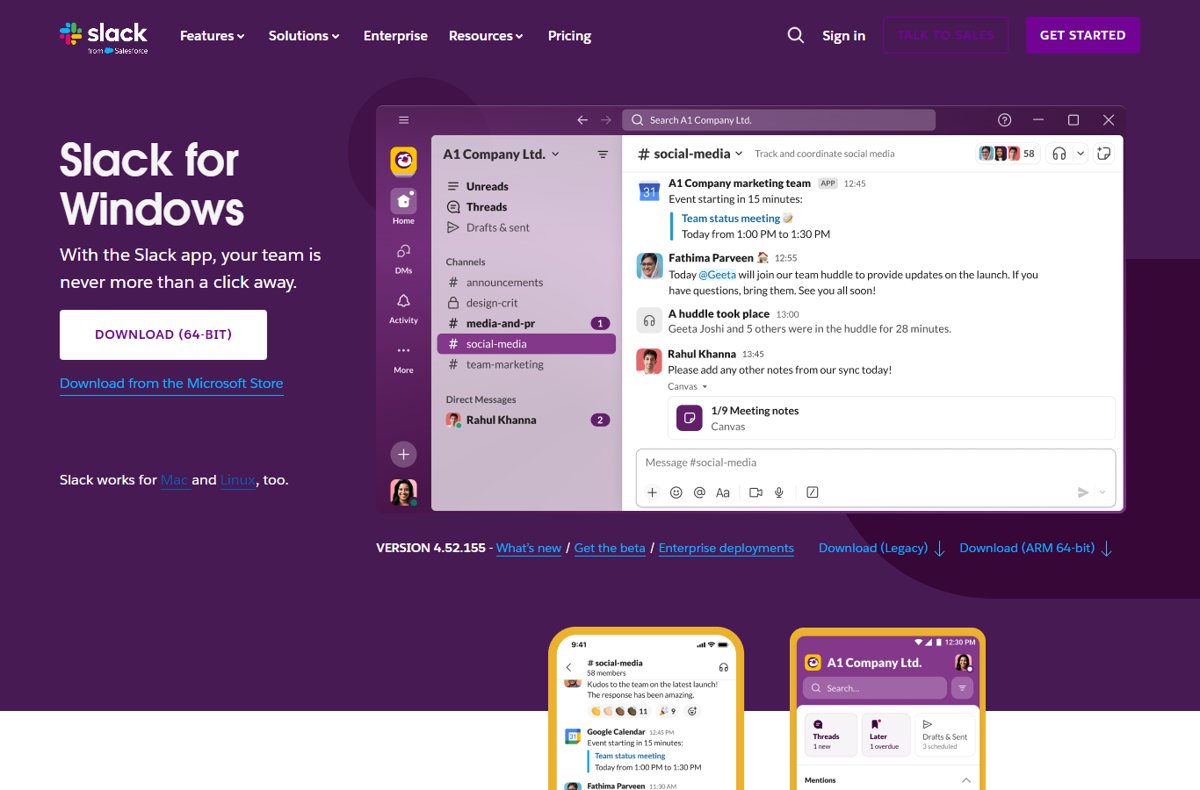
- Go to slack.com/downloads and pick Windows, Mac or Linux.
- Click Download, or choose the Microsoft Store or Mac App Store link on the same page.
- Open the downloaded file and follow the prompts to install Slack.
- Open Slack, click Sign in to Slack and enter the code emailed to you.
- To add an app inside Slack, click Agents & tools in the sidebar, then Apps, search for it and click Add.
Understanding Slack Apps and Their Benefits
"Slack app" means two different things, and search results mix them up. One is the Slack desktop program itself. The other is an app that connects another service, such as Google Calendar or OneDrive, to your workspace.
| Thing | What it is | Where you get it | What it gives you |
|---|---|---|---|
| Slack desktop app | The Slack program for Windows, Mac or Linux | slack.com/downloads, Microsoft Store or Mac App Store | Slack in its own window with desktop notifications, outside the browser |
| Slack Marketplace app | An integration built by Slack, a third party or your own team | The Slack Marketplace (formerly the App Directory) | Another tool's data and actions inside Slack |
| App Home and Messages tabs | An installed app's own pages in Slack | Click the app in Slack | App settings, information and messages the app sends you |
| App shortcuts and slash commands | Actions an app adds to Slack | The slash icon next to the message field | Run the app's actions without leaving the conversation |
| App agents | Conversational AI from an app, on paid subscriptions | The app icon in the top-right corner of Slack | Chat with the app's AI alongside your channels and DMs |
Slack says the Marketplace lists more than 2,600 apps. Most need an account with the service that built them, and some need a paid one.
Which Slack download should you use?
| Your situation | Use this | Why |
|---|---|---|
| Windows PC with an Intel or AMD processor | Download (64-bit) on slack.com/downloads/windows | Direct download, updates itself from inside Slack |
| Windows PC with an Arm processor | Download (ARM 64-bit) on the same page | Native build for Arm hardware |
| You prefer store-managed apps on Windows | Download from the Microsoft Store | Updates arrive through the Microsoft Store |
| Mac | Download on slack.com/downloads/mac, or Download from the Mac App Store | Both are official; the App Store version updates through the store |
| Ubuntu or Red Hat Enterprise Linux | The .deb or .rpm package, or snap |
Slack for Linux is still in beta and supports only these two |
| You cannot install software on the machine | Use Slack in a supported browser | No install needed; sign in at slack.com/signin |
Prerequisites for Adding a Slack App to Desktop
Slack revises these minimums twice a year, in May and November. The table reflects Slack's current requirements page.
| Requirement | Minimum |
|---|---|
| Windows | Windows 11 version 23H2 or later, or Windows Server 2016 |
| Mac | macOS 13 or later |
| Linux | Ubuntu LTS 22.04 or later, or Red Hat Enterprise Linux 9.0 or later |
| Slack desktop app version | 4.44 or later |
| Account | An email address, plus an invitation or an existing workspace |
| Adding Marketplace apps | Permission to install apps; if app approval is on, an owner must approve the app |
Windows 10 does not appear on Slack's current list of supported desktop systems.
1. Download and Install Slack Desktop
These steps use the direct download. Store versions install like any other store app.
- Open slack.com/downloads in your browser.
- Select your system: Windows, Mac or Linux.
- On Windows, click Download (64-bit), or Download (ARM 64-bit) on an Arm PC.
- On a Mac, click Download, or Download from the Mac App Store instead.
- On Ubuntu, click Download .deb (64 bit); on RHEL, click Download .rpm (64-bit).
- Open the downloaded file from your Downloads folder and follow the prompts. On Ubuntu it opens in the Software Centre, where you click Install.
- Launch Slack from the Start menu, the Applications folder, or by searching your computer for Slack.
The Microsoft Store listing is at microsoft.com/store/p/slack/9wzdncrdk3wp if you prefer the store route on Windows.
Install Slack on Linux from the command line
sudo snap install slackInstalls the Slack desktop app as a snap package. Slack advises against keeping the snap and a .deb or .rpm copy installed at the same time.
You should see: The command finishes without errors and Slack appears when you search your applications for Slack.
2. Sign In to Your Slack Workspace
- Open the Slack desktop app and click Sign in to Slack. Your browser opens.
- Enter your email address and click Sign in with email.
- Enter the confirmation code Slack emails to you.
- If your organisation uses single sign-on, finish signing in with your company's SSO provider.
- Alternatively, click Continue with Google or Continue with Apple and pick your account.
- If you belong to several workspaces, click the arrow next to the one you want to open.
Invited to a new workspace? Open the invitation email and click Join now, then enter your full name and click Continue.
Add another workspace to the Slack desktop app
One desktop app holds every workspace you belong to. Each workspace is a separate account, even with the same email address.
- Click your workspace icon in the sidebar.
- Click Add a workspace.
- Choose Sign in to another workspace and complete the sign-in.
- Switch between workspaces by clicking your workspace icon in the top-left corner.
- Press Ctrl + Shift + S (Windows and Linux) or Cmd + Shift + S (Mac) to keep every workspace visible in the sidebar.
3. Access the Slack App Directory
Slack now calls its App Directory the Slack Marketplace. From the desktop app you reach it through the apps browser.
- Click Agents & tools in the sidebar. If it is not there, click More, or look for a Tools tab instead.
- Click Apps to see the apps other members have already installed to your workspace.
- Search for the app you want. Results that are not installed yet show an Add button.
- To browse by category instead, open the Slack Marketplace directly and use its categories.
4. Install the Desired App
- In Agents & tools > Apps, search for the app and click Add. The Slack Marketplace opens.
- Review the app page, including its privacy policy and security information, if the developer supplied them.
- Click Add to Slack.
- Follow the prompts to grant the permissions the app asks for.
- If the app is already installed, you are asked to connect your account instead. Complete that step to start using it.
- If app approval is on, add a message explaining why you need the app and click Submit. Slack notifies you once it is reviewed.
Apps not listed in the Slack Marketplace show a banner saying Slack has not reviewed them. Treat that as a reason to check the developer before installing.
5. Use the App on Desktop
Some apps only work fully once they are in a channel. This is also how to add an app to a Slack channel.
- Open the channel where the app should work.
- Click the channel name in the channel header.
- Select the Agents & apps tab and add the app. Mentioning the app in a message to the channel also works.
- Click the app in Slack to open its Home tab for settings and information, or its Messages tab for messages it sends you.
- Click the slash icon to the left of the message field to find the app's shortcuts and slash commands.
How to check it worked
- Open Slack, click the ☰ three lines icon in the top-left corner and select Help.
- Select About Slack. The window shows your version number and mentions the Microsoft Store if that is the version you installed.
- Confirm the version is 4.44 or later.
- Click Agents & tools > Apps and confirm the app you added appears in the list.
- Open a channel where you added the app and confirm it appears on the channel's Agents & apps tab.
A version number starting with MSQ means your organisation manages Slack updates. Ask your IT team if it needs updating.
Configuring and Customizing Your Slack App
Settings live in three different places depending on who controls them. This table tells you where to go.
| What you want to change | Where | Who can do it |
|---|---|---|
| Your notifications, sidebar and display | Profile picture > Preferences in the desktop app | Every member |
| An app's own options | The app's Home tab in Slack | Every member who uses the app |
| Install, configure or remove an app for the workspace | Workspace name > Tools & settings > Manage apps | Members by default; owners and app managers if approval is on |
| Which apps members may install | Admin > Apps and workflows > App management settings | Workspace owners |
| An app's scopes and behaviour | The app's code and manifest | The app's developer |
Access App Settings
- Click your workspace name in the sidebar.
- Select Tools & settings, then click Manage apps. The Slack Marketplace opens.
- Select Installed apps in the left sidebar.
- Find the app and click App details.
- Open the Configuration tab to see and edit the app's settings for your workspace.
Configure Permissions and Features
Every Slack app requests a set of permission scopes. Scopes decide what the app can read and what it can do with that information.
| Question to ask | What to look for |
|---|---|
| What scopes does the app request? | Usually permission to post messages, perform actions and read information |
| What can it read? | Member profiles, channel names, messages or files |
| What can it do with that data? | Post messages, modify content or create channels |
| The developer added features. Why don't they work? | New features often need new scopes. Re-authorise the app with the developer's installation link, usually the Add to Slack button on its Marketplace page |
| Is app approval on? | If so, owners approve the scopes on your behalf when they approve the app |
Set Up Event Subscriptions
Event subscriptions are not a desktop app setting. They belong to the app's code, so only the app's developer configures them.
If you only install apps, skip this step; if you build one, configure the events it listens for in your app project, not in the Slack desktop app. Slack's developer quickstart builds apps with the Slack CLI and Bolt, and the app's details come from its manifest.json file. Members only choose whether to install the finished app.
Customize User Experience
| You want | Do this |
|---|---|
| Fewer interruptions from busy channels | Profile picture > Preferences > Notifications, then choose Mentions and direct messages |
| Every workspace visible at once | Press Ctrl + Shift + S or Cmd + Shift + S, then drag workspace icons to reorder them |
| An app's actions close at hand | Use the slash icon next to the message field |
| To change what an app sends you | Open the app's Home tab and adjust its settings |
| Slack in your Mac Dock permanently | Control-click the Slack icon in the Dock, then choose Options > Keep in Dock |
Troubleshooting Common Issues When Adding a Slack App to Desktop
Slack will not install or run on your computer
Compatibility: the operating system or app version is below Slack's current minimum.
- Verify your system against the requirements table above.
- Update the operating system if it is below the minimum.
- Use Slack in a supported browser until the computer meets the requirements.
Slack will not update or keeps running an old version
A broken direct-download installation.
- Quit Slack and make sure no Slack.exe or Update.exe processes remain in Task Manager.
- Open Settings > Apps & features, find Slack and click Uninstall.
- Press Windows key + R, type
%AppData%, press Enter and delete the Slack folder. - Repeat with
%LocalAppData%and delete that Slack folder too. - Download Slack again from slack.com/downloads/windows.
"Slack cannot connect" or Slack will not load
Network settings or a proxy, firewall, antivirus or VPN is interfering.
- Click Restart Slack below the error message.
- Click Help in the menu bar (on Windows, the ☰ icon), select Troubleshooting and click Clear cache and restart.
- Visit slack.com/help/test to run Slack's connection test.
- If the test shows errors, send the results to your network administrator so they can allow Slack through the firewall or proxy.
You cannot sign in or the confirmation email never arrives
Authentication fails because of a different email address, spam filtering or a missing 2FA code.
- Enter your email at slack.com/signin to ensure you are using the correct address for your account.
- Check your spam folder for the code.
- Ask IT to allow email from @slack.com and @slack-mail.com.
- If a 2FA code never arrives, ask a workspace owner or admin for help.
You cannot add an app, or there is no Add button
App approval is on, or the app is restricted in your workspace.
- Click Add to Slack and submit an approval request if the option appears.
- If there is no request option, ask a workspace owner for help.
- If the app is restricted, choose a pre-approved alternative from the Pre-Approved category in the Marketplace.
A specific app or integration does not respond in a channel
The app (the plugin, in older terms) is not in that channel, or your account is not connected to it.
- Add the app on the channel's Agents & apps tab.
- Open the app's Home tab and connect your account if prompted.
- Re-authorise the app from its Marketplace page with Add to Slack if the developer added new features.
Best Practices for Managing Slack Apps
| Practice | What to do |
|---|---|
| Review app permissions carefully | Read the scopes on the install screen and decline apps that ask for more than their job needs |
| Install apps from trusted sources | Prefer Slack Marketplace apps, which Slack reviews; unreviewed apps carry a warning banner |
| Manage app notifications | Set desktop notifications to mentions and DMs, and adjust each app on its Home tab |
| Review and remove unused apps | Remove apps nobody uses from Manage apps > Installed apps |
| Keep apps updated | Update the desktop app and re-authorise apps when developers add scopes |
| Use workspace-level controls | Owners can require approval, pre-approve apps and restrict others |
Manage App Notifications
- Click your profile picture in the sidebar.
- Select Preferences, then click Notifications.
- Under How to notify you, tick or untick Desktop notifications.
- Choose Everything or Mentions and direct messages from the What to notify you about menu.
- Under What to show in Activity, untick the notification types you do not need.
Regularly Review and Remove Unused Apps
Guests cannot remove apps, and with app approval on only owners and app managers can.
- Click your workspace name in the sidebar.
- Select Tools & settings, then Manage apps.
- Select Installed apps in the left sidebar.
- Pick the app you no longer use and click App details.
- Open the Configuration tab.
- For third-party apps, scroll down and click Remove app. For Slack-built apps, click the pencil icon and select Remove.
Keep Apps Updated
- In the direct-download version, click the ☰ icon in the top-left corner and select Help.
- Click Check for updates, then Restart to apply update.
- For the Microsoft Store version, open the Microsoft Store, click the ••• button and select Downloads and updates, then Get updates.
- When an app you use gains new features, click Add to Slack on its Marketplace page to accept the new scopes.
Slack's release notes rate each update. "Updating is strongly recommended" marks significant security improvements.
Use Workspace-Level Controls
Workspace owners can stop members installing apps without review. The setting is available on all subscriptions.
- Click Admin in the sidebar.
- Select Apps and workflows to open the Slack Marketplace.
- Click App management settings in the left sidebar.
- Click Edit next to Require approved apps.
- Tick Only allow pre-approved apps, and optionally Allow members to request apps for approval.
- Click Save. To pre-approve an app, click Browse, open the app and click Approve.
Security and Privacy Considerations
| Risk | What reduces it |
|---|---|
| An app reads more than it needs | Check its scopes before installing, and let owners approve apps |
| An unreviewed app | Apps outside the Slack Marketplace show a not-reviewed banner; install only from developers you trust |
| Data shared with the app's service | Read the privacy policy and security and compliance details on the app page |
| Old or revoked app tokens | Reinstall custom and third-party apps periodically to rotate their tokens |
| Sign in with Slack on other sites | Off by default; owners can allow it under Require approved apps |
| An outdated desktop app | Update promptly when release notes recommend it |
How to uninstall the Slack desktop app
- Quit Slack and make sure no Slack.exe or Update.exe processes remain in Task Manager.
- Open Settings > Apps & features, find Slack and click Uninstall.
- Press Windows key + R, type
%AppData%and press Enter, then delete the Slack folder. - Do the same with
%LocalAppData%to remove leftover data. - Removing the app does not delete your Slack account or workspaces. Sign in on the web at slack.com/signin whenever you need them.
Create your own Slack app with the Slack CLI
Slack's developer quickstart builds apps with the Slack CLI and the Bolt framework for Python or JavaScript. Install the CLI from Slack's developer documentation first, then run slack login to connect your workspace.
slack create first-slack-appCreates a new Bolt project from a template. Select Starter App, then Bolt for Python or Bolt for JavaScript. Then run slack run inside the project folder and choose Create a new app to install it to your workspace.
You should see: The terminal prints that the Bolt app is running, and the app replies when you send it "hello" in a DM.
Frequently Asked Questions
How do I add the Slack app to my desktop?
Download Slack from slack.com/downloads, the Microsoft Store or the Mac App Store, install it and open it. Click Sign in to Slack, enter your email and the code Slack sends you. Slack then runs in its own window with desktop notifications.
How do I install the Slack app?
Go to slack.com/downloads, choose Windows, Mac or Linux and download the installer for your system. Open the file and follow the prompts. On Ubuntu or RHEL you can instead install the .deb or .rpm package, or run sudo snap install slack.
How do I add an app in Slack?
Click Agents & tools in the sidebar, then Apps. Search for the app, click Add and then Add to Slack in the Slack Marketplace. Follow the prompts to grant permissions. If app approval is on, submit a request for an owner to review.
How do I add an app to a Slack channel?
Open the channel, click the channel name in the header and select the Agents & apps tab, then add the app. Mentioning the app in a message to the channel also adds it. The app must already be installed to the workspace.
How do I add a new workspace to the Slack app?
Click your workspace icon in the sidebar, click Add a workspace and choose Sign in to another workspace. After signing in, click the workspace icon to switch between workspaces. Each workspace is a separate account, even with the same email address.
How do I create a Slack app?
Install the Slack CLI, run slack login to connect a workspace, then run slack create and pick the Starter App template for Bolt for Python or JavaScript. Run slack run inside the project to install the app to your workspace and test it.
What does the Slack app do?
Slack is a messaging workspace where teams work in channels, direct messages and huddles. The desktop app runs Slack outside the browser with notifications. Slack apps from the Marketplace connect other services, such as Google Calendar or OneDrive, to your conversations.
How do I use the Slack app?
Sign in to your workspace, then read and post in channels listed in the sidebar and start direct messages with colleagues. Use the slash icon next to the message field for app shortcuts. Adjust notifications under Preferences to control what interrupts you.
How do I add Slack if I don't have a workspace yet?
Accept an email invitation by clicking Join now, or visit slack.com/signin and enter your email to see workspaces you can join. To start your own, create a new workspace. The same email can join as many workspaces as you like.