Ease of Access is called Accessibility in Windows 11, and pressing Win + U opens it straight away.
This guide covers every route to it, including the sign-in screen and Quick Settings, where each vision, hearing and interaction tool now sits, and what to check when the page seems to be missing.
Fastest way to open Accessibility settings in Windows 11
One shortcut lands you on the page that replaced Ease of Access. It works on Windows 10 too, where the page still carries the old name.
- Press Win + U on the keyboard.
- Settings opens on the Accessibility page.
- Pick a tool under the Vision, Hearing or Interaction heading.
If the keyboard is not an option, select Start > Settings > Accessibility with the mouse instead.
What happened to Ease of Access in Windows 11?
Microsoft renamed the section rather than removing it. Windows 10 labels it Ease of Access; Windows 11 labels the same set of tools Accessibility.
The tools themselves carried over, and Windows 11 added several new ones such as live captions and voice access in version 22H2.
| Where you look | Windows 10 label | Windows 11 label |
|---|---|---|
| Settings category | Ease of Access | Accessibility |
| Button on the sign-in screen (lower-right corner) | Ease of Access | Accessibility |
| Keyboard shortcut that opens the page | Win + U | Win + U |
| Example path for the On-Screen Keyboard | Settings > Ease of Access > Keyboard | Settings > Accessibility > Keyboard |
| Live captions and voice access | Not available | Windows 11, version 22H2 and later |
Which route should you use?
| Your situation | Use this | Why |
|---|---|---|
| You want the full list of tools | Win + U | Opens the whole Accessibility page in one step |
| You need one feature by name | Windows Search, or the search box in Settings | Skips the menus and lands on that tool |
| You want a quick on/off switch | Quick Settings (Win + A) > Accessibility | Toggles Magnifier, Narrator, live captions and more without opening Settings |
| You cannot sign in without help | The Accessibility button on the sign-in screen | Works before any account is signed in |
| You only need one tool right now | Its own shortcut, such as Win + Plus sign (+) for Magnifier | No page to open at all |
Open Accessibility from the Settings app
- Press Win + I, or select Start and then Settings.
- Select Accessibility in the left pane.
- Scroll to the group you need: Vision, Hearing or Interaction.
- Select a tool, such as Text size or Magnifier, to open its page.
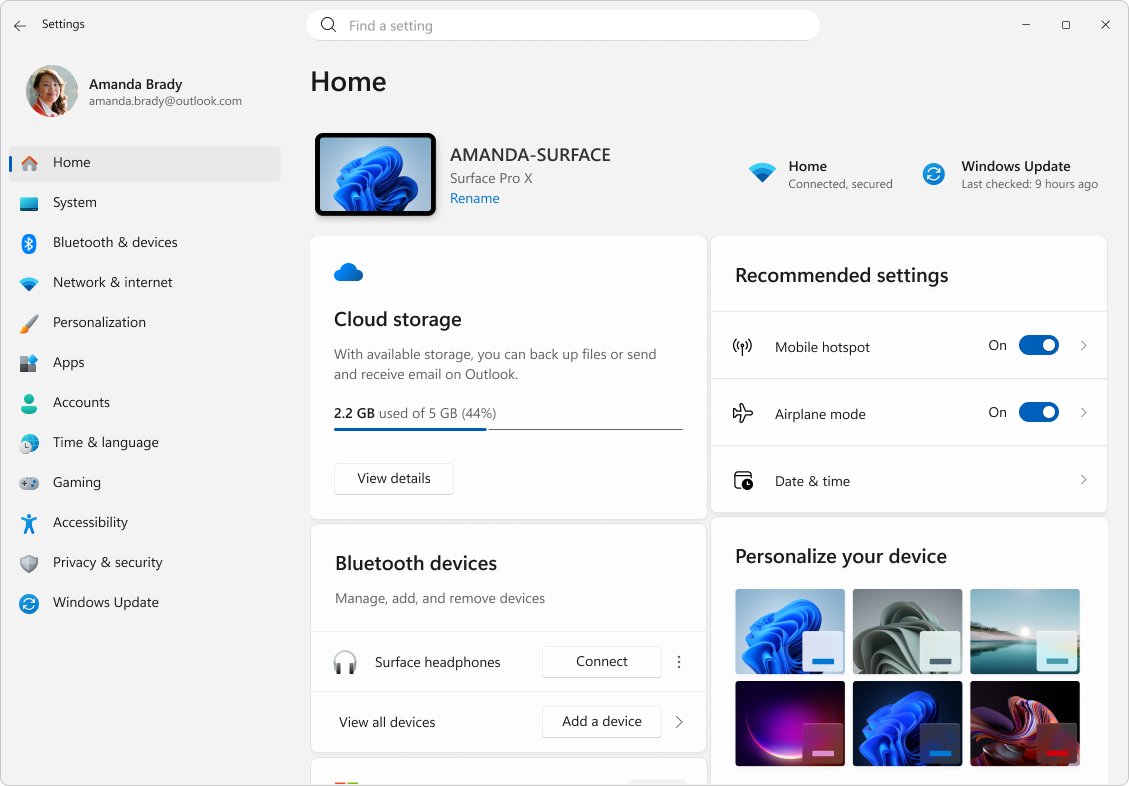
The search box at the top of Settings also works. On newer devices you can describe the problem in plain words, such as "my mouse pointer is too small".
Find Ease of Access features with Windows Search
Windows Search is the quickest route when you know the tool's name but not where it lives.
- Press Win + S, or select the search box on the taskbar.
- Type the feature name, for example voice access, magnifier or color filters.
- Select the matching result, or select Open, to launch the tool or its Settings page.
Open Accessibility options from Quick Settings
Quick Settings holds an Accessibility flyout with six common switches, so you can turn a tool on without opening Settings.
- Press Win + A to open Quick Settings.
- Select the Accessibility button. With a keyboard, use the arrow keys to reach it and press Enter.
- Turn on Magnifier, Color filters, Narrator, Mono audio, Live captions or Sticky keys.
- Select More accessibility settings at the bottom of the flyout to open the full page.
Open Accessibility from the sign-in screen
The sign-in screen has its own Accessibility button, so a reader who needs a screen reader or on-screen keyboard can still sign in.
- Wake the PC so the sign-in screen appears.
- Select the Accessibility button in the lower-right corner.
- Turn on the tool you need, for example Narrator or On-Screen Keyboard.
- Sign in as usual with the tool running.
The full walkthrough for typing with the mouse is in how to enable the On-Screen Keyboard in Windows.
Use keyboard shortcuts for common Ease of Access tools
Most tools have a direct shortcut, and Win + U opens the whole Accessibility page. These combinations are the ones Microsoft lists for Windows 11.
| Shortcut | What it does |
|---|---|
| Win + U | Opens Accessibility settings |
| Win + Plus sign (+) / Win + Esc | Turns Magnifier on / off |
| Win + Ctrl + M | Opens Magnifier settings |
| Win + Ctrl + Enter | Starts or stops Narrator |
| Win + Ctrl + N | Opens Narrator settings |
| Win + Ctrl + C | Turns color filters on or off, once the shortcut is enabled on the Color filters page |
| Win + Ctrl + L | Turns on live captions |
| Win + Ctrl + O | Turns on the On-Screen Keyboard |
| Win + H | Opens voice typing |
| Left Alt + Left Shift + Print Screen | Turns high contrast on or off |
| Left Alt + Left Shift + Num Lock | Turns Mouse keys on or off |
| Press Shift five times | Turns Sticky keys on or off |
| Hold right Shift for eight seconds | Turns Filter keys on or off |
| Hold Num Lock for five seconds | Turns Toggle keys on or off |
Where to find vision accessibility settings
Every path below starts at Settings > Accessibility and sits under the Vision heading. Display scale is the exception: it lives under System, not Accessibility.
| You want to | Go to | What to change |
|---|---|---|
| Make text bigger | Accessibility > Text size | Drag the slider, then select Apply |
| Make everything bigger | System > Display | Pick a larger percentage in the Scale list |
| Turn off animations and transparency | Accessibility > Visual effects | Switch off Animation effects and Transparency effects; turn on Always show scrollbars |
| Make the mouse pointer easier to see | Accessibility > Mouse pointer and touch | Size slider, pointer color style, and Touch indicator |
| Make the text cursor easier to see | Accessibility > Text cursor | Text cursor indicator and thickness slider |
| Zoom part or all of the screen | Accessibility > Magnifier | Turn on the Magnifier switch |
| Use color filters | Accessibility > Color filters | Turn on the switch and choose a filter |
| Use contrast themes | Accessibility > Contrast themes | Choose Aquatic, Desert, Dusk or Night sky, then Apply |
| Hear the screen read aloud | Accessibility > Narrator | Turn on Narrator |
Step-by-step pointer and text cursor changes are covered in how to change cursor size and color in Windows 10 and 11.
Where to find hearing accessibility settings
The Hearing group turns sound into something you can see, or makes it easier to hear on one ear.
| You want to | Go to | What to change |
|---|---|---|
| Use mono audio | Accessibility > Audio | Turn on Mono audio to merge left and right channels |
| See a flash instead of a sound | Accessibility > Audio | Pick an option under Flash my screen during audio notifications |
| Turn on Live Captions | Accessibility > Captions | Turn on Live captions, or press Win + Ctrl + L |
| Customize caption style | Accessibility > Captions | Choose a style under Caption style, or select Edit to build your own |
| Manage hearing devices | Accessibility > Hearing devices | Page added in Windows 11, version 24H2 |
| Keep notifications on screen longer | Accessibility > Visual effects | Change Dismiss notifications after this amount of time |
Where to find interaction accessibility settings
The Interaction group covers speech, the keyboard, the mouse and eye tracking.
| You want to | Go to | What to change |
|---|---|---|
| Use Voice Access | Accessibility > Speech | Turn on Voice access; Windows 11, version 22H2 or later |
| Adjust keyboard accessibility settings | Accessibility > Keyboard | Sticky keys, Filter keys, Toggle keys, On-screen keyboard, Underline access keys |
| Adjust mouse settings | Accessibility > Mouse | Turn on Mouse keys to move the pointer with the numeric keypad |
| Use Eye Control | Accessibility > Eye control | Turn on Eye control; needs a supported eye tracker connected |
Voice access can also start on its own. On the Speech page, select Start voice access before you sign in to your PC or Start voice access after you sign into your PC.
How to pin or access these settings more easily
Windows opens the Accessibility page from a settings link, which gives you a route that works even when Win + U is blocked.
ms-settings:easeofaccessPress Win + R, type the text above and press Enter. Settings opens on the Accessibility page. Individual pages have their own links, such as ms-settings:easeofaccess-magnifier, ms-settings:easeofaccess-narrator, ms-settings:easeofaccess-keyboard and ms-settings:easeofaccess-closedcaptioning.
You should see: The Settings window opens with Accessibility selected in the left pane.
For tools you use every day, let Windows start them for you. Magnifier offers Start Magnifier before sign in and Start Magnifier after sign in, and Narrator offers Start Narrator before sign-in.
The Quick Settings flyout (Win + A > Accessibility) keeps the six most common switches one click from the taskbar.
How to check you found the right page
- Look at the left pane of Settings: Accessibility should be highlighted.
- Check the page for three group headings: Vision, Hearing and Interaction.
- Open one tool, such as Text size, and confirm the page title matches.
- Test a change: press Win + Plus sign (+) and the screen should zoom in, then press Win + Esc to close Magnifier.
Troubleshooting: why you cannot find Ease of Access
There is no "Ease of Access" anywhere in Settings
Windows 11 renamed the category to Accessibility.
- Press Win + I to open Settings.
- Select Accessibility in the left pane.
- Or type the tool name, not "ease of access", into the Settings search box.
Win + U does nothing
On a kiosk or managed PC, Keyboard Filter can block the Win + U combination.
- Press Win + R, type
ms-settings:easeofaccessand press Enter. - If that works, the shortcut is blocked rather than the page.
- On a work or school PC, ask the administrator to unblock the key combination.
The Accessibility button is missing from the sign-in screen
Custom Logon on a managed or kiosk device can remove the Accessibility option from the lock screen.
- Sign in with another method if one is available.
- Open Settings > Accessibility and turn on the tools you need to start before sign-in, such as Narrator or Magnifier.
- Ask the device administrator to restore the Accessibility option if the PC is managed.
Live captions or voice access is not listed
Both need Windows 11, version 22H2 or later.
- Press Win + I and open Windows Update.
- Install the updates offered, including the latest Windows 11 feature update.
- Restart, then look again under Accessibility > Captions or Accessibility > Speech.
A setting is greyed out or keeps switching back
Group Policy or MDM on an organisation's PC can override accessibility settings.
- Contact the IT department and name the exact setting you need.
- Use the same tool's keyboard shortcut in the meantime if it still responds.
Frequently Asked Questions
Where do I find Ease of Access settings in Windows 11?
Open Start > Settings > Accessibility, or press Win + U. Windows 11 renamed Ease of Access to Accessibility, and the page groups its tools under Vision, Hearing and Interaction.
How do I open Ease of Access?
Press Win + U on Windows 11 or Windows 10. You can also use the Accessibility button on the sign-in screen, the Accessibility button in Quick Settings (Win + A), or type ms-settings:easeofaccess into the Run box.
Where is Ease of Access in Settings?
In Windows 11 it is the Accessibility entry in the left pane of Settings. In Windows 10 it is still the Ease of Access category in Settings.
Why can't I find Ease of Access?
Windows 11 calls it Accessibility, so searching for the old name often fails. Search for the tool itself, such as Magnifier. On a managed PC, an administrator can also block Win + U or remove the sign-in screen button.
What is Ease of Access?
Ease of Access is the Windows 10 name for the built-in tools that make a PC easier to see, hear and control. Examples include Magnifier, Narrator, color filters, captions, Sticky keys and the On-Screen Keyboard.
What are Ease of Access settings?
They are the switches and sliders that change how Windows looks, sounds and responds, such as text size, contrast themes, mono audio and Filter keys. Windows 11 keeps them under Settings > Accessibility.
What is Ease of Access in a computer?
On a Windows computer, Ease of Access is the set of accessibility tools built into the operating system. They help people with vision, hearing, mobility or focus needs use the PC without extra software.
Can I open Ease of Access before signing in?
Yes. Select the Accessibility button in the lower-right corner of the sign-in screen. It offers Narrator, the On-Screen Keyboard and other tools, so you can sign in with their help.