A 403 Forbidden error is an HTTP status code that means the web server understood your request but refuses to fulfil it, usually because you lack permission to see that page or file.
Who can fix it depends on which side of the connection you are on. Methods 1 to 5 are for visitors, and methods 6 to 9 are for the person who runs the site. A visitor often cannot fix a 403 at all, because the refusal is a decision the server made on purpose.
The fastest way to fix a 403 Forbidden error
Find your row and do only that first. Most visitor-side 403s clear at one of the first three rows, or not at all.
| Your situation | Do this first | Why |
|---|---|---|
| You typed or pasted the address | Check the URL for a typo or a missing file name (Method 1) | A request for a folder instead of a page is a common trigger |
| The page worked yesterday on this device | Open it in an Incognito or InPrivate window | That window uses no stored cookies and, in Chrome, no extensions by default |
| It works in a private window only | Clear that site's cookies and cache (Method 3) | A stale or broken session cookie is being sent |
| The page sits behind a login | Sign out, sign back in, and check your account's access (Method 4) | A 403 means your account is known but not allowed |
| You use a VPN, proxy or work network | Try again with the VPN disconnected (Method 5) | Sites often block shared VPN or data-centre IP addresses |
| You own the site and every page shows 403 | Check permissions, then .htaccess (Methods 6 and 7) | Those two cause most site-wide 403s on shared hosting |
| You own the site and only some visitors see it | Check your firewall, CDN and hotlink rules (Method 8) | A security rule is matching those visitors |
What Does “403 Forbidden” Mean?
MDN, citing the HTTP standard (RFC 9110, section 15.5.4), defines 403 as a refusal tied to application logic, such as insufficient permissions to a resource or action.
| Fact | What it means for you |
|---|---|
| Status code 403 is a client error class (4xx) | The server is working. It is refusing this particular request. |
| The server understood the request | The address reached a real server. This is not a DNS or connection failure. |
| Authenticating again makes no difference | Unlike a 401, entering a password does not change the answer on its own. |
| Repeating the same request will fail the same way | Refreshing ten times does nothing unless something about the request changes. |
| Servers may send a 404 instead | An owner who does not want to admit a page exists can hide it behind “Not Found”. |
| Wording varies by server | “403 Forbidden”, “Access Denied”, “You don't have permission to access this resource” and “HTTP Error 403” are the same status. |
403 Forbidden vs. 401 Unauthorized: What’s the Difference?
| 401 Unauthorized | 403 Forbidden | |
|---|---|---|
| Plain meaning | The server does not know who you are | The server may know who you are and still says no |
| Credentials | Missing or invalid | Valid, or not relevant, but insufficient |
| Server response header | Sent with a WWW-Authenticate header naming the expected sign-in scheme |
No sign-in challenge is required |
| Does signing in help? | Yes, that is the point of the code | No, not by itself |
| Typical fix | Sign in, or send a correct token | Get the permission granted, or correct the server rule |
In practice, a 403 on a page behind a login still has one visitor fix: signing in with a different account that does have access.
Common Causes of a 403 Forbidden Error
| Cause | Who can fix it | Method |
|---|---|---|
| Mistyped address, or a folder URL with no page at the end | Visitor | 1 |
| A temporary block, such as a rate limit after many requests | Visitor, by waiting | 2 |
| A stale cookie or cached copy of a denial | Visitor | 3 |
| Signed in to the wrong account, or your role lacks access | Visitor, or the account admin | 4 |
| VPN, proxy, or an extension changing your requests | Visitor | 5 |
| Wrong file or folder permissions on the server | Site owner | 6 |
| A deny rule or typo in .htaccess or the server config | Site owner | 7 |
| Firewall, WAF, CDN, geo-block or hotlink protection | Site owner | 8 |
| No index file, wrong document root, or wrong file owner | Site owner | 9 |
| The owner blocks you or your region on purpose | Nobody but the owner | Contact the site |
Which of the 9 methods applies to you
| You are | Start with | Skip |
|---|---|---|
| A visitor on someone else's site | Methods 1 to 5, in order | Methods 6 to 9: they need access to the web server |
| A member of a work, school or paid site | Method 4, then Method 3 | Method 2 rarely helps with an account-level block |
| The owner, and the error started after a change | Undo that change first, then Method 7 | Methods 1 to 3 unless you also see it as a visitor |
| The owner, after a migration or new upload | Methods 6 and 9 | Method 8 until file and owner settings are right |
| The owner, and only some visitors are blocked | Method 8 | Methods 6 and 7: they would block everyone |
Method 1: Check the URL Carefully
Many servers refuse to list the contents of a folder. An address that ends at a folder, such as /images/, returns 403 when no index page exists there.
- Click the address bar and read the full URL, including anything after the last slash.
- Fix any typo, doubled slash, or stray character copied from an email or document.
- If the address ends in a folder name, add the page you wanted or go back to the site's home page.
- Remove tracking parameters after a
?and load the page again. - Reach the page through the site's own menu or search instead of an old bookmark.
Method 2: Refresh the Page and Try Again Later
MDN notes that repeating an identical request fails the same way. A refresh only helps when the block was temporary, such as a rate limit or a site being updated.
- Select the Reload button once.
- If the 403 stays, stop reloading, because repeated requests can extend a rate-limit block.
- Wait a while, then try once more.
- Load the same page on another device or network, such as your phone on mobile data.
- If it works elsewhere, the block is tied to your browser or IP address, so continue with Methods 3 and 5.
Method 3: Clear Your Browser Cache and Cookies
Test in a private window first: in Chrome press Ctrl + Shift + N; in Edge select Settings and more > New InPrivate window. If the page loads there, clear the stored data for that site.
- Chrome, one site only: select More > Settings > Privacy and security > Third-party cookies > See all site data and permissions.
- Search for the site name, select the Delete icon next to it, and confirm with Delete.
- Chrome, everything: select More > Delete browsing data, pick a time range, tick Cookies and other site data and Cached images and files, then select Delete data.
- Edge: select Settings and more > Settings > Privacy, search, and services, then Choose what to clear under Clear browsing data now.
- In Edge, set Time range, tick Cookies and other site data and Cached images and files, and select Clear now.
- Reopen the page and sign in again if the site asks.
Clearing all cookies signs you out of every site. The one-site route in Chrome avoids that.
Method 4: Log Out, Log Back In, or Check Account Permissions
- Sign out of the site completely using its own Sign out or Log out link.
- Close the tab, open a fresh one, and sign in again.
- Check which account is active; browsers that sign you in to several accounts often pick the wrong one.
- For a shared document or folder, select the site's Request access option if it offers one, or ask the owner to share it with the exact email you signed in with.
- For a work or school portal, ask your administrator whether your role includes that page.
- For a paid service, check that your subscription or plan covers the content and has not lapsed.
Method 5: Test Without Your VPN, Proxy, Ad Blocker, or Security Extension
Sites and CDNs often refuse traffic from VPN exit addresses, known proxies, or blocked countries. Extensions can also strip or alter the headers a site expects.
- Disconnect your VPN or proxy, reload the page, and reconnect it afterwards.
- Open the page in a Chrome Incognito window, where extensions do not run unless you turned on Allow in Incognito for them.
- If it loads there, open More > Extensions > Manage extensions and switch off one extension at a time, starting with ad blockers and privacy tools.
- When you find the culprit, turn it back on and add the site to that extension's allow list instead of leaving it off.
- Keep antivirus and browser security protections on; if a security product is the blocker, report the false positive to its vendor.
- On a work network, ask IT whether a company proxy or filter blocks the site, rather than routing around it.
Method 6: Check File and Folder Permissions
From here on, the fixes need access to the web server. WordPress's own hardening guide sets folders to 755 or 750 and files to 644 or 640; a folder the web server cannot read returns 403.
- In cPanel, open File Manager and go to the folder that returns 403.
- Select the folder or file and click Permissions in the toolbar.
- Set folders to
755and ordinary files to644using the checkboxes or the number box, then click Change Permissions. - Over SSH, run
ls -lin the folder to read the current permissions of each item. - Correct a single item with
chmod 755 foldernameorchmod 644 filename. - Leave
wp-config.phpat440or400on WordPress; that stricter setting is intended and does not cause a page-level 403. - Reload the page in a private window.
Method 7: Fix a Broken .htaccess File or Server Rule
On Apache, a Require all denied line or a RewriteRule with the [F] flag sends a 403 by design. One wrong line in .htaccess can apply that to the whole site.
- In cPanel File Manager, open Settings and turn on Show Hidden Files (dotfiles).
- Download a copy of
.htaccessas a backup. - Rename
.htaccessto.htaccess-oldand reload the page. - If the 403 is gone, the file is the cause; rename it back and look for
Require all denied,Deny from,Require not ipor[F]lines that match the blocked page. - On WordPress, if the file is beyond repair, remove it and open Settings > Permalinks in the dashboard, then click Save Changes.
- Confirm the message Permalink structure updated. appears; WordPress has then written fresh rewrite rules.
- If it instead says You should update your .htaccess now., copy the rules shown at the bottom of that screen into a new
.htaccessfile.
The default WordPress block begins # BEGIN WordPress and ends # END WordPress. Rules above or below it usually came from a plugin or your host.
Method 8: Check Website Security, Firewall, CDN, and Hotlink Settings
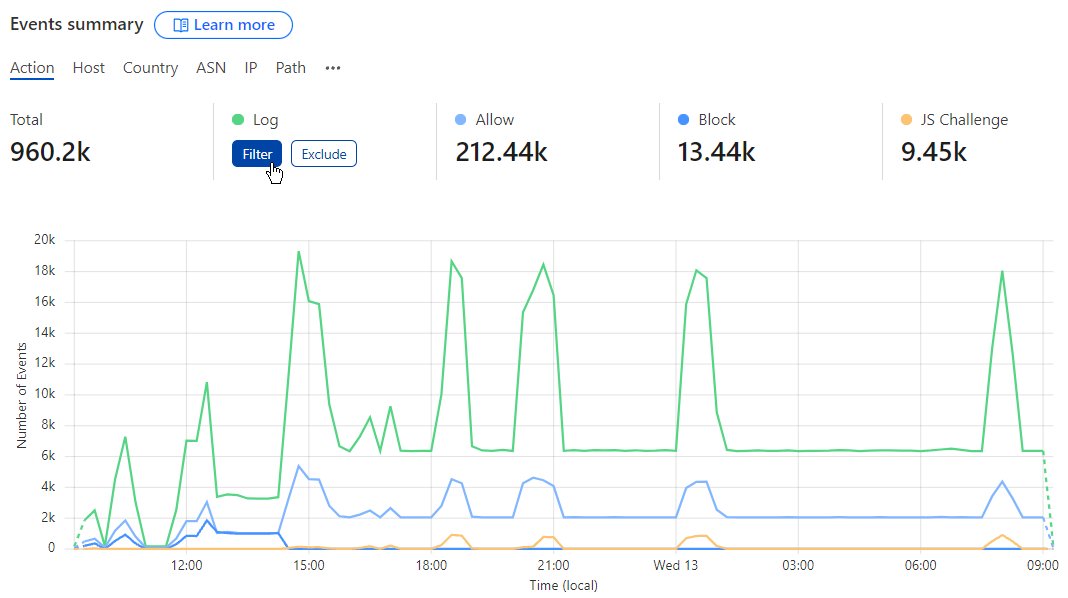
Cloudflare's documentation gives a quick test: a 403 page with Cloudflare branding came from Cloudflare, while an unbranded one came from your origin server.
- Ask a blocked visitor for a screenshot of the error page, including any reference or Ray ID shown.
- In the Cloudflare dashboard, go to Analytics and select the Events tab to see which rule took action on the request.
- Edit or add an exception to that WAF rule, security level or Browser Integrity Check rather than turning protection off for the whole site.
- If the error page is unbranded, check that your origin firewall or
.htaccessdoes not block Cloudflare's own IP ranges. - In a WordPress security plugin, open its blocked-requests or lockout log and unblock the visitor's IP if it was a false positive.
- For images that fail only when embedded on other sites, check Hotlink Protection; Cloudflare's version denies gif, ico, jpg, jpeg and png requests whose referer is another domain.
- To allow chosen images, put them in a folder named
hotlink-ok, which Cloudflare's Hotlink Protection skips.
Method 9: Verify Index Files, Ownership, and Hosting Configuration
Apache looks for the files listed in DirectoryIndex (default index.html), and Nginx uses its index directive (default index.html). A folder with neither an index file nor directory listing enabled has nothing it is allowed to show.
- Open the site's root folder and confirm an
index.htmlorindex.phpfile exists there. - In your hosting panel, check the domain's document root points at that folder and not at its parent or an old path.
- Run
ls -lover SSH and check the owner column; WordPress's guide says files should be owned by your hosting account, not the web server process. - Ask your host to correct ownership if you cannot change it yourself, which is normal on shared hosting.
- On your own server, check the Apache site configuration for
Require all deniedinside a<Directory>block that covers the site. - On Nginx, check the
serverblock fordenylines and anindexline that names your real index file. - Reload the web server after any configuration change, then retest in a private window.
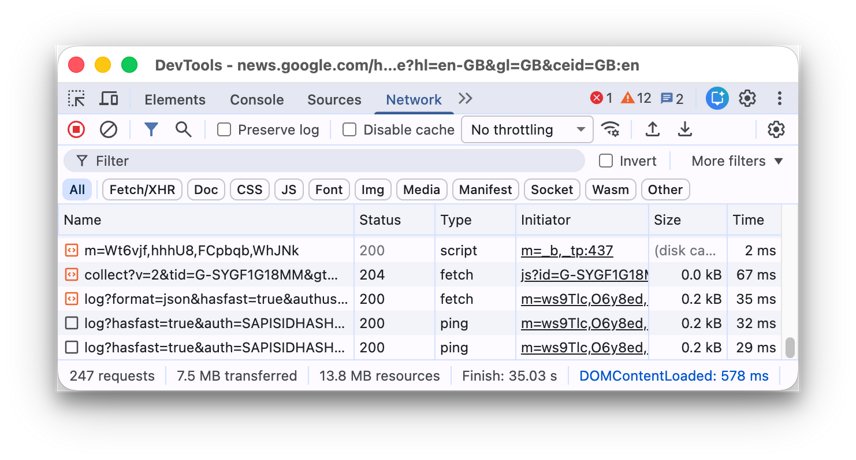
How to check the 403 is really gone
A page that loads from your cache can hide a live 403, so check the status code the server actually sends.
- Open the page in a fresh Incognito or InPrivate window.
- In Chrome, press Ctrl + Shift + J to open DevTools and select the Network tab.
- Reload the page so DevTools records the requests.
- Read the Status column for the first row;
200means success, and403means the block is still there. - Site owners can also run
curl -I https://example.com/page, which fetches headers only, and read the status on the first line. - Ask one affected visitor to load the page, because a firewall rule can block them while you get through.
How to Troubleshoot a 403 Error Faster
Why do I keep getting a 403 Forbidden error on one site?
The site has blocked something about your connection: your IP address, account, region, or browser data.
- Load the page on mobile data with Wi-Fi off; if it works, your home IP or VPN address is blocked.
- Load it in a private window; if it works, clear that site's cookies (Method 3).
- Sign in with the account that should have access (Method 4).
- If none of these change anything, the block is deliberate, so contact the site.
Why do I get a 403 Forbidden error on many different sites?
Something on your side is shared by every request: a VPN, a proxy, an extension, or a network filter.
- Disconnect the VPN or proxy and retest.
- Retest in Incognito, where extensions are off by default.
- Try a different network; if the errors stop, the filter belongs to that network and its administrator.
- Run a scan with your existing antivirus if unknown extensions or proxy settings appeared without your consent.
403 Forbidden error in Postman or another API client
The API accepted your identity but your token or key lacks permission for that endpoint or method.
- Confirm the request goes to the right endpoint and uses the right method, such as GET or POST.
- Check that the token or API key belongs to an account allowed to use that endpoint.
- Check the scopes or roles attached to the token in the provider's developer console.
- Read the response body, which often names the missing permission.
- If you get 401 instead, the credentials are missing or invalid rather than insufficient.
Every page on your own site started returning 403 after a change
The last change, such as a plugin, security rule, permissions reset or migration, is the likely cause.
- Undo the most recent change and retest.
- Rename
.htaccessto test it (Method 7). - Reset folder and file permissions to 755 and 644 (Method 6).
- Check your hosting and CDN firewall logs for the blocked requests (Method 8).
What Not to Do When Fixing a 403 Error
| Don't | Why | Do this instead |
|---|---|---|
| Set folders or files to 777 | WordPress's guide warns world-writable files let an attacker who can upload a file take over the site | Use 755 for folders and 644 for files |
| Delete .htaccess without a backup | It may hold redirects, security rules and caching settings you cannot rebuild | Rename it to test, and keep a copy |
| Turn off the whole firewall or WAF | It opens the site to the attacks it was blocking | Add an exception for the one rule that matched |
| Turn off antivirus or browser protection as a visitor | It leaves you exposed and cannot change a decision the server made | Allow-list the site in the one extension that caused it |
| Keep hammering Reload | Repeated requests can lengthen a rate-limit block | Wait, then try once from another network |
| Use proxies or tricks to get past a deliberate block | It can break the site's terms and gets your address blocked more widely | Ask the site owner for access |
When to Contact Support
Contact the site once Methods 1 to 5 fail on two networks. As the owner, contact your host once permissions, .htaccess and firewall logs all look right.
| If you are | Contact | Include |
|---|---|---|
| A website visitor | The site's contact page, support email or help centre | The full URL, the time, your approximate location, and any reference or Ray ID on the error page |
| A member of a work or school site | Your IT help desk or the page owner | Your account email and the page you need |
| The website owner | Your hosting provider's support | The URL, when it started, what you changed, and the permission and .htaccess checks already done |
| The owner, with a CDN in front | The CDN's support, if its dashboard shows the block | The event or rule ID from its security log |
Frequently Asked Questions
What is the 403 Forbidden error?
A 403 Forbidden error is an HTTP status code sent when a web server understands a request but refuses to process it. The refusal usually comes from permissions: your account, IP address or request is not allowed to see that page or file.
What does a 403 Forbidden error mean?
It means access is denied on purpose, not that the site is down. The server works and received your request, but a rule, permission setting or security filter told it to refuse. Signing in again does not change the answer on its own.
Why am I getting a 403 Forbidden error?
Common visitor-side reasons are a mistyped folder address, a stale cookie, the wrong signed-in account, or a VPN address the site blocks. Server-side reasons include wrong file permissions, a deny rule in .htaccess, or a firewall rule. Methods 1 to 5 test the visitor causes.
Why do I keep getting a 403 Forbidden error?
A repeating 403 means the same thing about your request matches the same block each time, such as your IP address, account or region. Repeating an unchanged request fails the same way, so change one thing: network, browser data, account or VPN.
Why does a 403 Forbidden error occur on a website I own?
On your own site, a 403 usually comes from folder or file permissions the web server cannot read, a deny rule in .htaccess or the server config, a missing index file, wrong file ownership after a migration, or a firewall, CDN or security plugin rule.
Can a visitor fix a 403 Forbidden error?
Sometimes. A visitor can fix a typo in the URL, clear a bad cookie, sign in with the right account or turn off a VPN. If the owner blocked the page, your region or your address on purpose, only the owner can lift it.
Is a 403 error the same as a 401 error?
No. A 401 means the server does not have valid credentials from you and asks you to authenticate. A 403 means that authenticating makes no difference: the server knows enough and still refuses because the permission is not there.
Does clearing cookies fix a 403 Forbidden error?
Only when a stale or corrupted cookie is the cause. Test first in an Incognito or InPrivate window, which ignores your stored cookies. If the page loads there, delete that one site's data. If it still fails there, cookies are not the problem.
Why do I get a 403 Forbidden error in Postman?
In Postman or any API client, a 403 usually means your token or API key is valid but lacks the scope, role or plan the endpoint requires. Check the endpoint, method and token permissions, and read the response body for the missing permission.

![How to Switch Out of S Mode [Works for Windows 10/11]](https://techdows.com/wp-content/uploads/2026/09/Windows-11-SE-Start-menu-with-its-default-curated-app-tiles-600x338.jpg)