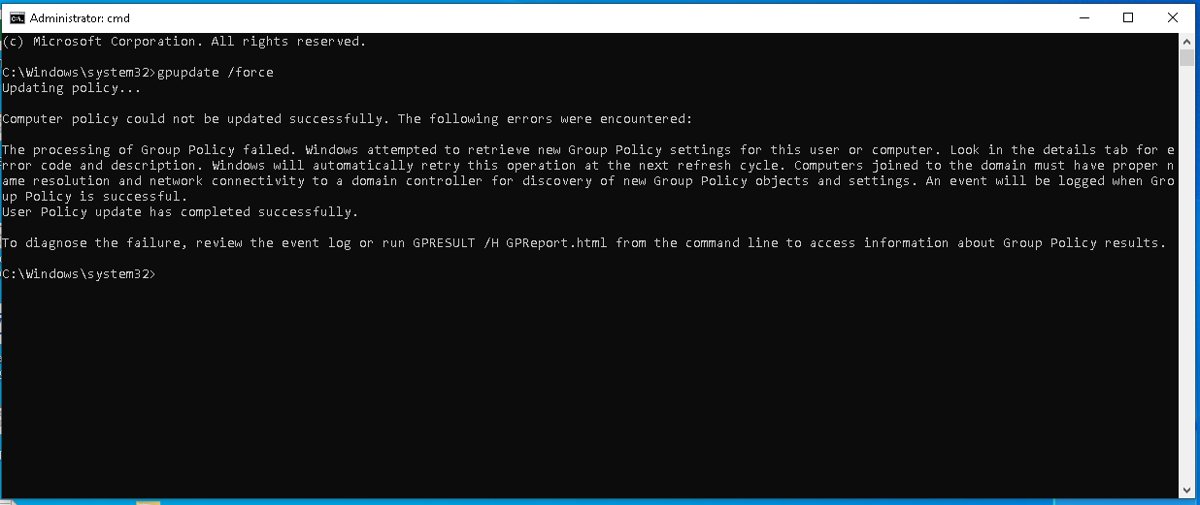
Open Command Prompt as administrator, type gpupdate /force, and press Enter to reapply every Group Policy setting on a Windows 11 or Windows 10 PC right away.
This guide covers each gpupdate switch, the PowerShell and remote options, local policy on a home PC, how to confirm the policy landed, and fixes when it does not.
Force update Group Policy using Command Prompt
This is the same command Microsoft's Group Policy troubleshooting guide runs on the affected client. It refreshes both computer and user policy in one pass.
- Select Search on the taskbar and type
cmd. - Select Run as administrator next to the Command Prompt result, then select Yes at the User Account Control prompt.
- Type
gpupdate /forceand press Enter. - Wait for the prompt to come back. By default, gpupdate waits up to 600 seconds for policy processing to finish.
- If gpupdate asks to sign out or restart, accept it. Some settings only apply at sign-in or startup, covered further down.
Plain gpupdate without /force also works. It applies only the settings that changed, which is usually enough after a single new policy.
What “force updating Group Policy” actually does
Windows already refreshes policy on its own. Microsoft documents a background refresh every 90 minutes, plus a random offset of up to 30 minutes, and domain controllers check for computer policy changes every five minutes. Forcing an update skips that wait.
| Refresh type | When it runs | What it reapplies |
|---|---|---|
| Foreground processing | Computer policy at startup, user policy at sign-in | Everything, including Software Installation and Folder Redirection |
| Automatic background refresh | Every 90 minutes plus up to 30 random minutes | Only settings whose Group Policy objects changed |
gpupdate |
Immediately, on demand | Only settings that changed, the same as a background refresh |
gpupdate /force |
Immediately, on demand | All policy settings, whether they changed or not |
A forced update cannot fetch a policy the domain controller does not have yet. Microsoft notes a changed GPO must replicate first, and SYSVOL replication within a site runs every 15 minutes.
Which way to refresh Group Policy fits your situation
| Your situation | Use this | Why |
|---|---|---|
| You are at the PC and want everything reapplied | gpupdate /force in an admin Command Prompt |
Built into every Windows 11 and 10 edition |
| Only computer or only user settings changed | gpupdate /target:computer or /target:user |
Skips the half you did not touch |
| Standalone PC, not in a domain, after editing gpedit.msc | gpupdate /force |
Local policy is processed by the same client |
| You manage one remote domain PC | Invoke-GPUpdate -Computer <name> |
Schedules gpupdate on that PC without signing in to it |
| Every PC in an organizational unit | GPMC, right-click the OU, Group Policy Update… | One click covers the OU and every OU inside it |
| PCs in the default Computers container | Get-ADComputer piped to Invoke-GPUpdate |
GPMC cannot target that container |
Force update only computer or user policy
gpupdate refreshes both halves by default. The /target switch limits it to one, which is faster and is the form Microsoft's troubleshooting guide uses when a single user or computer is missing settings.
gpupdate /target:computer /force
gpupdate /target:user /force
/target:computer updates only Computer Configuration settings, which apply to the machine regardless of who signs in. /target:user updates only User Configuration settings for the account running the command. /force reapplies every setting in that half instead of only changed ones.
You should see: The prompt returns without an error. For a user refresh, run it as the affected user, not from another account, because user policy follows the account that runs gpupdate.
Force Group Policy update with PowerShell
gpupdate /force runs unchanged in PowerShell and Windows Terminal. PowerShell also has Invoke-GPUpdate, which schedules the gpupdate command as a task and is the tool for remote refreshes.
gpupdate /force
Invoke-GPUpdate -Force -RandomDelayInMinutes 0
Invoke-GPUpdate with no computer name schedules a refresh of the PC you are on. -RandomDelayInMinutes 0 starts it as soon as the task is scheduled instead of after a random delay. In this cmdlet, -Force means run without asking for confirmation. It is not a copy of gpupdate's /force switch. -Target User or -Target Computer limits the refresh the same way /target does.
You should see: Invoke-GPUpdate returns no output when it succeeds. If PowerShell reports that the term is not recognized, the GroupPolicy module is missing; add RSAT: Group Policy Management Tools from Optional features in Settings, or use gpupdate /force instead.
Use gpupdate command options
The full syntax from Microsoft's command reference is gpupdate [/target:{computer | user}] [/force] [/wait:<VALUE>] [/logoff] [/boot] [/sync] [/?].
| Switch | What it does | Default or note |
|---|---|---|
/target:computer or /target:user |
Updates only computer or only user policy settings | Both are updated when omitted |
/force |
Reapplies all policy settings | Without it, only changed settings are applied |
/wait:<seconds> |
Seconds to wait for processing before returning to the prompt; processing continues after the limit | 600 seconds; 0 means do not wait, -1 means wait indefinitely |
/logoff |
Signs the user out after the update, for extensions that only process at sign-in | No effect if no such extension is called |
/boot |
Restarts the computer after the update, for extensions that only process at startup | No effect if no such extension is called |
/sync |
Makes the next foreground policy application, at startup or sign-in, run synchronously | /force and /wait are ignored when combined with it |
/? |
Shows the built-in help | Useful to confirm the switches on your build |
Force update Group Policy remotely
From a domain-joined admin PC with the Group Policy Management Console (GPMC), you can refresh every computer in an organizational unit at once. GPMC creates a remote scheduled task on each PC that runs gpupdate /force, once for the computer and once for each signed-in user.
- Open Group Policy Management on a domain-joined PC or server with the Group Policy Management Tools installed.
- In the console tree, find the organizational unit that holds the computers to refresh. Child OUs are included automatically.
- Right-click the OU and select Group Policy Update….
- Select Yes in the Force Group Policy update dialog box.
- Read the Remote Group Policy update results window. It shows only whether each task was scheduled, not whether policy applied.
- Allow up to 10 minutes, because each task starts after a random delay, then verify with
gpresulton a target PC.
Each target PC needs inbound firewall rules for Remote Scheduled Tasks Management (RPC), Remote Scheduled Tasks Management (RPC-EPMAP) and Windows Management Instrumentation (WMI-In). Microsoft provides a Starter GPO named Group Policy Remote Update Firewall Ports that sets all three.
Refresh one remote PC or a whole container from PowerShell
Invoke-GPUpdate offers everything GPMC does plus a choice of targets and delay. It needs the same three firewall rules on each client.
Invoke-GPUpdate -Computer "PC-01" -Force -RandomDelayInMinutes 0
Get-ADComputer -Filter * -SearchBase "ou=Accounting,dc=contoso,dc=com" | ForEach-Object { Invoke-GPUpdate -Computer $_.Name -Force -RandomDelayInMinutes 0 }
Invoke-Command -ComputerName PC-01 -ScriptBlock { gpupdate /target:computer /force }
Line 1 schedules an immediate refresh on one PC; -Computer accepts a host name, an FQDN or a DOMAIN\name value. Line 2 feeds every computer in an OU, or in cn=computers for the default container, into Invoke-GPUpdate. Replace the SearchBase with your own distinguished name. Line 3 uses PowerShell remoting to run gpupdate directly. It runs as your remote session, so keep it to computer policy and use Invoke-GPUpdate when signed-in users also need a refresh.
You should see: Invoke-GPUpdate returns silently when the task is scheduled; access or RPC errors mean a firewall rule or permission is missing. Invoke-Command prints gpupdate's own output from the remote PC.
Force update Local Group Policy on a non-domain PC
A PC that is not joined to a domain only has its Local Group Policy Object. Changes made in the Local Group Policy Editor apply at the next background refresh, or immediately when you force one.
- Press Win + R, type
gpedit.msc, and press Enter. - Change the setting under Computer Configuration or User Configuration, then select OK.
- Open Command Prompt with Run as administrator.
- Run
gpupdate /force, orgpupdate /target:computer /forceif you only changed a Computer Configuration setting. - Sign out and back in if the setting sits under User Configuration and still has not taken effect.
On a domain-joined PC, local policy is processed first and domain GPOs override it. A local change that conflicts with a domain policy will be replaced on every refresh.
Check whether Group Policy applied successfully
gpupdate returning to the prompt only means processing ran. These checks show which GPOs actually applied and why any were skipped.
- In an administrator Command Prompt, run
gpresult /rto see the Resultant Set of Policy summary for the computer and the signed-in user. - Find your GPO in the applied list. A GPO that was filtered out appears with the reason it was denied.
- Add
/scope computeror/scope userto show only one half, for examplegpresult /scope computer /r. - Run
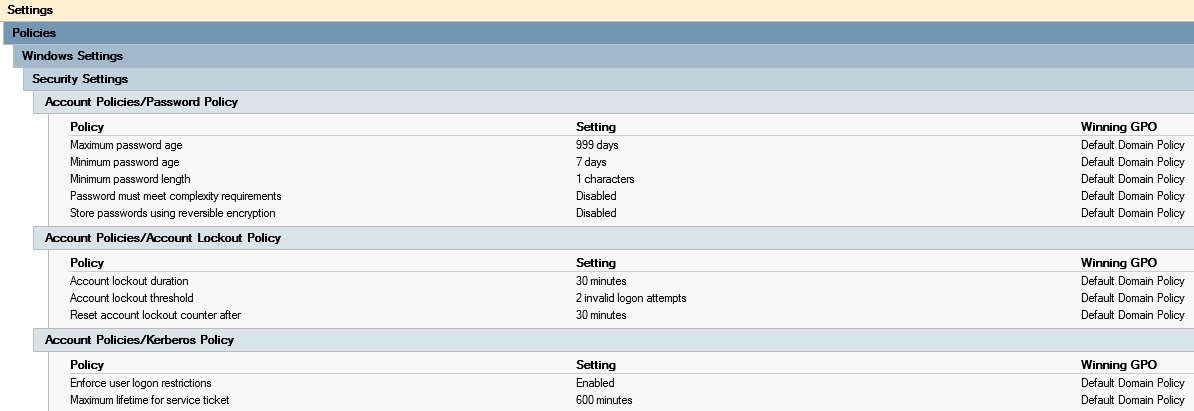
gpresult /h %Temp%\GPResult.htmland open the file for a full HTML report of every applied setting and the GPO that won. - Open Event Viewer and go to Applications and Services Logs > Microsoft > Windows > GroupPolicy > Operational to read the list of applied and denied GPOs from the latest refresh.
- Check Windows Logs > System for Group Policy warnings or errors logged at the same time.
For another machine, add /s <computername>, for example gpresult /s PC-01 /scope computer /r. The /v and /z switches add the individual setting values.
Common gpupdate examples for Windows 11 and Windows 10
Each line below combines the switches for one real task. Run them in an administrator Command Prompt or PowerShell window.
| Task | Command |
|---|---|
| Refresh everything now | gpupdate /force |
| Refresh computer settings only | gpupdate /target:computer /force |
| Refresh user settings only | gpupdate /target:user /force |
| Apply a new software deployment assigned to the computer | gpupdate /target:computer /force /boot |
| Apply Folder Redirection or a per-user software assignment | gpupdate /target:user /force /logoff |
| Continue a script without waiting for policy to finish | gpupdate /force /wait:0 |
| Make the script wait until processing completes | gpupdate /force /wait:-1 |
| Process policy fully before the desktop appears at next startup | gpupdate /target:computer /sync, then restart |
When you must restart or sign out
Some client-side extensions skip background refreshes and only process at startup or sign-in, so gpupdate /force alone cannot apply them. Microsoft names the examples below.
| Policy type | Applies at | Switch that finishes the job |
|---|---|---|
| Software Installation assigned to computers | Computer startup | /boot restarts after the update |
| Software Installation assigned to users | User sign-in | /logoff signs the user out after the update |
| Folder Redirection | User sign-in | /logoff |
| Startup, shutdown, sign-in and sign-out scripts | Only at the matching startup, shutdown, sign-in or sign-out event | Restart or sign out to trigger them |
| Administrative Templates and most security settings | Any background or forced refresh | None needed |
/logoff and /boot do nothing when no extension needs them, so adding them is harmless on a PC with no pending startup or sign-in policy.
Why gpupdate /force may not apply your policy
gpupdate can finish cleanly while the setting you expected is still missing. Match your case below.
gpupdate /force completes, but the setting is not there
The GPO does not apply to this user or computer because of its link, security filtering or a WMI filter.
- Run
gpresult /rand check whether the GPO appears as applied or as filtered out. - Confirm the GPO is linked to the site, domain or OU that holds the computer or user account.
- Check the GPO's security filtering includes the user, computer or a group they belong to.
- If a WMI filter is linked, confirm the query is true on this PC; the GPO applies only when it evaluates to true.
- Check the GPO's computer or user settings half has not been disabled.
A new or edited domain policy does not reach the PC
The change has not replicated to the domain controller the PC is using yet.
- Wait for replication. Active Directory usually replicates within a minute inside a site; SYSVOL replicates every 15 minutes within a site.
- Allow longer for domain controllers in other sites, which follow the site replication schedule.
- Run
gpupdate /forceagain after the wait. - Check
gpresult /rfor the name of the domain controller that served the policy.
A different value wins than the one you set
A higher-precedence GPO overrides yours, or loopback processing replaces the user settings.
- Remember the order: local, site, domain, then OU, with the GPO closest to the object winning.
- Look for an Enforced link higher up, which beats lower links and Block Inheritance.
- Check whether Configure user Group Policy loopback processing mode is enabled for the computer.
- Open the
gpresult /hreport to see which GPO supplied the winning value.
A software or folder redirection policy is still pending
These extensions process only at startup or sign-in.
- Run
gpupdate /target:computer /force /bootfor computer-assigned software. - Run
gpupdate /target:user /force /logofffor user-assigned software and Folder Redirection.
Troubleshoot common gpupdate errors
When gpupdate reports a failure, open Event Viewer > Windows Logs > System and find the Group Policy event. The event ID points to the fix, and its Details tab carries the error code.
Event ID 1129: lack of network connectivity to a domain controller
The PC cannot reach a domain controller, often because LDAP port 389 is blocked. Domain controller discovery runs through the Netlogon service, so check that it is running on the PC too.
- Connect to the company network or VPN, then run
gpupdate /forceagain. - Ask the network team to confirm TCP port 389 is open between the PC and the domain controller.
- Check the next refresh logs a success event; the error can be transient.
Event ID 1006: Windows could not authenticate to the Active Directory service
Authentication failed; the error code shows whether it was access denied, invalid credentials or a timeout.
- For error code 49, change the user's password, then lock and unlock the PC.
- For error code 258, run
nslookup _ldap._tcp.<your-domain>to confirm the domain controller records resolve. - For error code 5, check the user has permission to read Active Directory.
Event ID 1058: Windows attempted to read a gpt.ini file and was not successful
The PC cannot read the GPO's files in SYSVOL because of name resolution, replication or permissions.
- Copy the path in the event, in the form
\\<dcName>\SYSVOL\<domain>\Policies\<guid>\gpt.ini. - Try to open that path as the same user or computer that failed.
- For error code 53, test
\\<dcName>\netlogonto check name resolution to the domain controller. - For error code 5, restart the PC and sign in again with the same domain account.
Event ID 1053: Windows could not resolve the user name
A DNS fault, replication delay or expired password stops the account lookup.
- For error code 1355, use
nslookupto confirm the domain controllers resolve. - For error code 5 after a recent password change, allow replication time, then lock and unlock the PC.
- For error code 1727, check firewall rules between the PC and the domain controller.
Event ID 1097: Windows could not determine the computer account
The computer failed to authenticate, often because its clock differs from the domain controller by more than five minutes.
- Check the PC's time and time zone against the domain controller.
- Run
w32tm /resyncin an administrator Command Prompt. - Restart the PC and run
gpupdate /forceagain.
Event ID 1002: a system allocation failure
The PC was low on memory or disk space during processing.
- Free up disk space and close memory-heavy apps.
- Restart the PC if it has been running for a long time, then run
gpupdate /force.
Best practices for using gpupdate /force
/force is safe on a single PC, but it reapplies every setting and adds load when run across many machines at once.
| Practice | Reason |
|---|---|
Use plain gpupdate after a small change |
It applies only changed settings, which is faster |
Add /target when only one half changed |
Skips processing the other half |
| Keep a random delay on large remote refreshes | Microsoft offsets scheduled refreshes to avoid loading the network |
| Do not shorten the refresh interval to replace gpupdate | Microsoft warns shorter intervals add network traffic and domain controller load |
Warn users before /logoff or /boot |
Both sign out or restart when a pending extension needs it |
Check gpresult after every forced update |
A clean gpupdate run does not prove the GPO applied |
Quick reference: commands to force update Group Policy
| Goal | Command or path | Where to run it |
|---|---|---|
| Force update everything | gpupdate /force |
Admin Command Prompt or PowerShell on the PC |
| Force update computer or user half | gpupdate /target:computer /force, gpupdate /target:user /force |
Same |
| Scheduled refresh of this PC | Invoke-GPUpdate -Force -RandomDelayInMinutes 0 |
PowerShell with the GroupPolicy module |
| Refresh one remote PC | Invoke-GPUpdate -Computer <name> -Force |
PowerShell on an admin PC |
| Refresh a whole OU | Right-click the OU > Group Policy Update… | Group Policy Management Console |
| Show applied GPOs | gpresult /r |
Admin Command Prompt |
| Full HTML policy report | gpresult /h %Temp%\GPResult.html |
Admin Command Prompt |
Frequently asked questions
How do I force update Group Policy?
Open Command Prompt as administrator, type gpupdate /force, and press Enter. Windows reapplies every computer and user policy setting instead of waiting for the automatic refresh. The command works the same on Windows 11 and Windows 10, including on PCs that are not in a domain.
What is the cmd command to force a Group Policy update?
The command is gpupdate /force. Use gpupdate /target:computer /force or gpupdate /target:user /force to refresh only one half. Add /boot or /logoff when a policy only applies at startup or sign-in, and /wait:<seconds> to control how long the command waits.
How do I update Group Policy without /force?
Run gpupdate on its own. It applies only the policy settings that changed since the last refresh, which is what the automatic background refresh does. Use /force when you need unchanged settings reapplied too, for example after a user changed a setting locally.
How do I force a local Group Policy update?
After changing a setting in gpedit.msc, run gpupdate /force in an administrator Command Prompt. The Local Group Policy Object is processed by the same Group Policy client, so the change applies immediately. Sign out and back in if a User Configuration setting still has not taken effect.
How often does Group Policy update automatically?
Every 90 minutes by default, with a random offset of up to 30 minutes added so PCs do not all refresh at once. Domain controllers check for computer policy changes every five minutes. Computer policy also applies at every startup and user policy at every sign-in.
Can I force a Group Policy update on a remote computer?
Yes. Run Invoke-GPUpdate -Computer <name> -Force in PowerShell, or right-click an OU in the Group Policy Management Console and select Group Policy Update…. Both schedule gpupdate on the target PC, which needs its Remote Scheduled Tasks and WMI firewall rules open.
Does gpupdate /force restart the computer?
Not by itself. A restart happens only when you add /boot and a pending extension, such as computer-assigned Software Installation, needs one. The /logoff switch works the same way for sign-in extensions like Folder Redirection. Neither switch has any effect when no extension requires it.
How long does gpupdate /force take?
It usually finishes within seconds to a few minutes. gpupdate waits up to 600 seconds by default before returning to the prompt, and processing continues in the background after that. Microsoft states that all policy processing must complete within 60 minutes.
How do I check if gpupdate worked?
Run gpresult /r in an administrator Command Prompt and look for your GPO among the applied objects. For more detail, run gpresult /h to save an HTML report, or read the GroupPolicy Operational log in Event Viewer, which lists applied and denied GPOs.
Why is Invoke-GPUpdate not recognized in PowerShell?
The cmdlet belongs to the GroupPolicy module, which comes with the Group Policy Management Tools in RSAT. Add RSAT: Group Policy Management Tools from Optional features in Settings on a Pro or Enterprise edition, or use gpupdate /force, which is always available.
Does gpupdate /force install Windows updates?
No. gpupdate only reapplies policy settings, including any Windows Update policies an administrator configured. Installing updates is handled by Windows Update itself, which then follows those policy settings on its next scan.






How to open Group Policy Editor in Windows 11 - Techdows
[…] For every switch of the refresh command, see how to force update Group Policy from the command line. […]