To force quit an app on a Mac, press Option + Command + Esc, select the frozen app, and click Force Quit. You can also force quit from the Apple menu or use Activity Monitor when an app or background process refuses to close.
Force quitting closes an app immediately, so unsaved work can be lost. If the app still responds, try Command + Q first because a normal quit gives the app a chance to save changes and close properly.
This guide covers the Mac force quit shortcut, Finder, Activity Monitor, Terminal, frozen full-screen apps, and what to do when the entire Mac stops responding.
How to Force Quit on Mac with the Keyboard Shortcut
The fastest method is the built-in Force Quit Applications window.
- Press Option + Command + Esc at the same time.

- Select the app that is frozen or not responding.
- Click Force Quit.
- Click Force Quit again when macOS asks for confirmation.
The app closes immediately. Apple recommends force quitting only when an app does not respond to its normal Quit command because unsaved changes can be lost.
| Action | Mac shortcut |
|---|---|
| Quit an app normally | Command + Q |
| Open Force Quit Applications | Option + Command + Esc |
| Close the current window | Command + W |
How to Force Quit on Mac from the Apple Menu
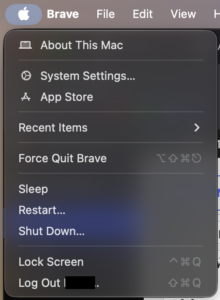
If the mouse or trackpad still works, you can open the same Force Quit window from the menu bar.
- Click the Apple menu in the upper-left corner of the screen.
- Select Force Quit.
- Select the app that is not responding.
- Click Force Quit.
- Confirm the action.
This method and the keyboard shortcut perform the same task, so use whichever is easier when an app freezes.
How to Force Quit the Current App Immediately
If you already know which app is frozen, you can open the Force Quit window with Option + Command + Esc and select it directly.
Some older Mac tips suggest holding extra modifier keys or clicking Dock icons to force quit an app, but the Force Quit Applications window remains the clearest built-in method because it shows exactly which app you are terminating.
How to Force Quit an App from the Dock
The Dock can also close an app when its normal Quit command is not working.
- Find the frozen app in the Dock.
- Hold the Option key.
- Right-click or Control-click the app icon.
- Select Force Quit if the option appears.
If you only see Quit, try that first. Force Quit becomes useful when the app ignores a normal quit request.
How to Force Quit on Mac Using Activity Monitor
Activity Monitor gives you more control than the standard Force Quit window because it lists apps, helper processes, and background services. Apple specifically recommends it when a process is stuck in a loop or stops responding.
- Press Command + Space to open Spotlight.

- Type Activity Monitor and press Enter.
- Find the frozen app or process in the list.
- Select it.
- Click the Stop button in the toolbar.
- Select Force Quit.
An unresponsive process can appear in red with (Not Responding) beside its name. Activity Monitor also shows CPU and memory use, which helps when the Mac feels slow but you do not know which app is causing the problem.
Quit vs Force Quit in Activity Monitor
| Option | What it does |
|---|---|
| Quit | Asks the process to close normally and gives it time to save or clean up. |
| Force Quit | Terminates the process immediately. |
Use Quit first when possible. Use Force Quit when the process ignores the normal quit request.
How to Force Quit Finder on Mac
Finder works differently from normal apps because macOS keeps it running. When Finder freezes, you relaunch it rather than permanently closing it.
- Press Option + Command + Esc.
- Select Finder.
- Click Relaunch.
- Confirm the relaunch.
Finder closes and starts again automatically. This often fixes a frozen desktop, unresponsive Finder windows, or file operations that have stopped responding.
How to Force Quit a Frozen Full-Screen App
A frozen full-screen game, browser, video editor, or other app can hide the menu bar and Dock, but the keyboard shortcut still works.
- Press Option + Command + Esc.
- Wait for the Force Quit Applications window.
- Select the frozen app.
- Click Force Quit.
If the window does not appear, try Command + Tab to switch to another app, then open Force Quit again. When the entire Mac no longer reacts to keyboard or pointer input, move to a restart or forced shutdown.
How to Force Quit Chrome, Safari, Photoshop, or Other Apps on Mac
The same force quit methods work with most Mac applications, including browsers, Adobe software, Microsoft Office, games, and communication apps.
For example, if Google Chrome freezes:
- Press Option + Command + Esc.
- Select Google Chrome.
- Click Force Quit.
- Reopen Chrome.
Browsers often offer to restore previously opened tabs after an unexpected shutdown. Apps such as Photoshop, Word, or video editors can sometimes recover autosaved work, but force quitting does not guarantee that unsaved changes will return.
How to Force Quit a Background Process on Mac
Some problems come from helper processes that do not appear in the Force Quit Applications window. Activity Monitor is the better tool in that situation.
- Open Activity Monitor.
- Use the search field to find the process.
- Select the process.
- Click the Stop button.
- Choose Quit or Force Quit.
Do not terminate unfamiliar macOS processes simply because they use CPU or memory. Many system services restart automatically, while killing the wrong process can interrupt another app or temporarily affect macOS.
How to Force Quit on Mac Using Terminal
Terminal can terminate an app or process when the graphical controls are unavailable, although Activity Monitor is easier for most users.
Quit an app with killall
Open Terminal and enter:
killall "App Name"For example:
killall "Safari"The app name must match the process name. If the command cannot find it, use Activity Monitor to check the exact process name.
Force terminate a process by PID
Every running process has a process ID, or PID. You can find it in Activity Monitor and terminate that process from Terminal:
kill PIDReplace PID with the actual number. If the process still refuses to exit, a stronger termination signal is:
kill -9 PIDUse kill -9 only when the normal termination command fails because it stops the process immediately without allowing normal cleanup.
How to Force Restart a Mac That Is Frozen
If one app is frozen, force quit the app instead of restarting the entire computer. Restart the Mac when macOS itself stops responding or the app cannot be closed.
If the Apple menu still works:
- Click the Apple menu.
- Select Restart.
- Clear Reopen windows when logging back in if you do not want the same apps to reopen.
- Confirm the restart.
If the Mac no longer responds at all, press and hold the power button until the computer turns off. On a MacBook with Touch ID, the Touch ID button also serves as the power button. Apple says you may need to hold it for up to about 10 seconds.
Wait a few seconds, then press the power button again to start the Mac.
A forced shutdown can discard unsaved changes in every open app, so use it only when normal quitting, Force Quit, and Restart do not work.
What to Do If Force Quit Does Not Work on Mac
If the Force Quit window opens but the app remains frozen, use Activity Monitor and terminate the process there. If Activity Monitor also stops responding, restart the Mac.
When the same app repeatedly freezes after reopening, check for an app update and install available macOS updates. A damaged app installation, incompatible plug-in, extension, corrupted preferences, or a recurring background process can cause repeated hangs.
Stop the frozen app from reopening after restart
When restarting or shutting down, clear Reopen windows when logging back in. This prevents macOS from restoring the same set of app windows immediately after startup.
If the app launches automatically every time you sign in, open:
Apple menu > System Settings > General > Login Items & Extensions
Select the app under Open at Login and remove it. Apple also recommends temporarily removing login items when troubleshooting repeated startup problems.
Why Does an App Keep Freezing on Mac?
An occasional freeze can happen when an app encounters a temporary error, but repeated freezes usually point to a specific problem worth investigating.
- The app or macOS needs an update.
- The app is using excessive CPU or memory.
- A plug-in or extension is incompatible.
- The app has damaged settings or cache files.
- The Mac is running very low on free storage.
- An external drive, network location, or cloud service stops responding.
- A login item or background process conflicts with the app.
Activity Monitor is useful here because it shows which processes consume the most CPU and memory. If one app repeatedly becomes unresponsive, update or reinstall that app before making broader changes to macOS.
Force Quit vs Close Window vs Quit on Mac
These commands perform different actions, which explains why clicking the red button does not always stop an app.
| Action | What happens |
|---|---|
| Close Window | Closes the current window, but the app can remain running. |
| Quit | Closes the app normally and gives it a chance to save and clean up. |
| Force Quit | Terminates the app immediately. |
You can tell whether many apps are still running by looking for the small dot beneath their Dock icons. Closing the last window does not necessarily quit the application on macOS.
Frequently Asked Questions
What is the shortcut to force quit on Mac?
Press Option + Command + Esc. Select the unresponsive app from the Force Quit Applications window and click Force Quit.
What is the Mac equivalent of Ctrl + Alt + Delete?
For closing an unresponsive app, the closest Mac equivalent is Option + Command + Esc. It opens the Force Quit Applications window.
How do I force quit on a MacBook?
Press Option + Command + Esc, select the frozen application, and click Force Quit. The shortcut works on MacBook Air and MacBook Pro models as well as desktop Macs.
How do I force quit without a mouse?
Press Option + Command + Esc. Use the arrow keys to select an app if necessary, then use the keyboard to activate the Force Quit button.
How do I force quit without a keyboard?
Click the Apple menu in the upper-left corner and choose Force Quit. Select the app and click Force Quit.
Can I force quit Finder?
Yes. Open Force Quit with Option + Command + Esc, select Finder, and click Relaunch. Finder automatically starts again.
Will force quitting delete my files?
Force quitting does not normally delete files that were already saved, but unsaved changes in the application can be lost. Apps with autosave or recovery features can sometimes restore recent work when reopened.
Why won’t Command + Q close an app?
Command + Q asks an app to quit normally. A frozen process can stop responding to that request, in which case use Option + Command + Esc and force quit it.
What should I do if Option + Command + Esc does not work?
Try Activity Monitor if you can still use the desktop. If the entire Mac is frozen, restart it from the Apple menu or hold the power button until it turns off when no normal control responds.
How do I force quit an app from Activity Monitor?
Open Activity Monitor, select the app or process, click the Stop button, and choose Force Quit.
How do I force quit an app using Terminal?
You can use killall "App Name" or terminate a process by PID with kill PID. Use kill -9 PID only when the normal termination signal fails.
Why does clicking the red X not quit an app on Mac?
The red button generally closes the current window rather than quitting the entire application. Press Command + Q when you want to close the app completely.
How do I force shut down a frozen MacBook?
Press and hold the power or Touch ID button until the Mac turns off, which can take up to about 10 seconds. Press the button again to restart it. Use this only when macOS does not respond to normal restart or force quit commands.