If you type a website address without protocol, the browser connects to the HTTP version first, then redirects to HTTPS if supported. Chrome used to do this too, but Google made navigations from the address bar to sites, HTTPS by default in Chrome 90 for desktop and Android. Now, Chromium-based Edge is picking up the “Automatic HTTPS” support with version 92.

Mozilla introduced optional HTTPS-only mode in Firefox with version 83.
If enabled, Firefox upgrades all connections to HTTPS. Chrome followed that, and implemented needed change in version 90, now Microsoft Edge is joining the suit.
Enable/Disable Automatic HTTPS in Microsoft Edge 92
The feature is available in the Canary version behind a flag, here is how you can enable and further, you can turn it off or on, or configure it by visiting edge://settings/privacy.
- Ensure you’re using Edge Canary 92.0.877.0 or later, visit edge://flags/#edge-automatic-https
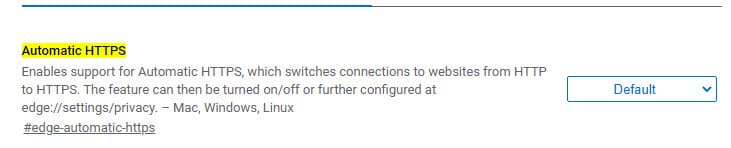
- Enable the flag and restart the browser
- Head to Settings > Privacy, search, and services. Toggle “Automatically switch to more secure connections with Automatic HTTPS” switch to enable or disable
- The setting offers two options:
- Switch to HTTPS only on websites likely to support HTTPS
- Always switch from HTTP to HTTPS (connection errors might occur more often)
Note: Edge defaults to first preference and is recommended. Choosing the second preference may give connection errors when HTTPS is not supported. For a better experience, keep the first preference selected.
Microsoft hinted the feature is coming to Edge with version 92 much before.
“Starting with Microsoft Edge version 92, users will have the option to upgrade navigations from HTTP to HTTPS on domains likely to support this more secure protocol. ”
” This support can also be configured to attempt delivery over HTTPS for all domains. More secure connections help protect customers from man-in-the-middle attacks.”
Automatic HTTPS is just the name assigned by Microsoft for this security feature in Edge. In simple words, Microsoft Edge always attempts to provide a secure, encrypted connection to the website you visit whenever possible.
What’s your take on this? Let us know in the comments below
More on Microsoft Edge:
Microsoft adds Sidebar Search for Images to Edge
Microsoft Edge gets authentication option for Password Autofill
First Look at Office Viewer feature in Microsoft Edge
Microsoft Edge now lets you send tabs to other devices





