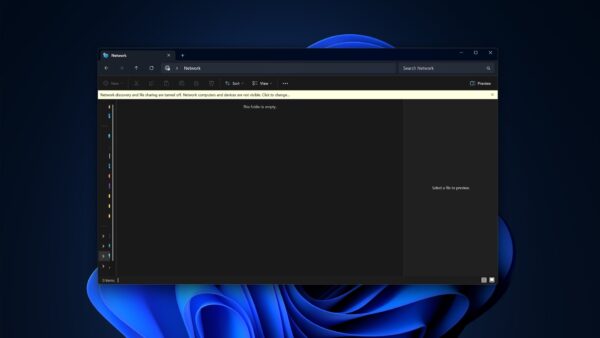
Recently Malwarebytes has added a setting for Hardware Acceleration feature to its Settings and was enabled by default for some time, after receiving reports from users about interface issues it has caused, Malwarebytes has decided to disable hardware acceleration for new installations from the Malwarebytes 4.1.0.56 version 1.0.875 component update onwards.
Back in November 2019, Malwarebytes 4 has been launched with a new scanning engine, since then the anti-malware has received new updates with bug fixes and improvements. Malwarebytes version 4.1 has added the most requested dark mode/dark theme support on Windows 10.
There are reports on the Malwarebytes support forum [1] [2] [3] about Malwarebytes interface loading slowly or unresponsive or UI elements in the MB system tray icon are appearing empty without options.

The thing is Malwarebytes with hardware acceleration enabled isn’t compatible with some of the graphics drivers on Windows devices and causing issues in Malwarebytes UI which you can notice in the above screenshot. Malwarebytes Corporation has acknowledged these reports and ensured the hardware acceleration setting is disabled by default with the new CU it has released on April 15.

Malwarebytes 4.1 component update 1.0.875 Changelog:
1. Hardware acceleration is disabled by default ( for new installations)
2. Enhanced web protection
3. Enhanced component upgrade functionality
4. Enhanced detection and remediation
Issues fixed:
- Web Protection interrupts connection to Azure Devops Agent and RDP
- BSOD 0X7F and 0XD1 during UDP stress test
- BSOD stop code: KERNEL SECURITY CHECK FAILURE bugcheck 139 -CU 1.0.825
- Several additional issues relating to upgrading to 4.1
- Several UI issues
If you’ve upgraded to the latest Malwarebytes version and having issues with Malwarebytes UI, go ahead and do the following
1. Settings > Display > Hardware acceleration,
2. Disable hardware acceleration when available, close and reopen Malwarebytes interface.
Related articles:
Malwarebytes embraces Dark theme for Windows version
Malwarebytes 4 gets its First update in 2020
Fix Malwarebytes 4 Shows “LoadLibrary failed with error 87: The parameter is incorrect”
Malwarebytes 4.0 release adds new Kanata Engine to detect Zero-Hour Threats [Offline Installer]
Fix Malwarebytes 4 Uninstall issues with Malwarebytes Support Tool in a Snap