To use Microsoft Authenticator, install the app on an Android phone or iPhone, add your Microsoft, work, school, or third-party account, and scan the QR code shown in that account’s security settings. When you later sign in on a PC, approve the request or number shown on your phone, or enter the six-digit verification code generated by Authenticator.
Microsoft does not offer an Authenticator app for Windows or Mac. The app remains on your phone while your PC displays the QR code, sign-in number, or verification-code field.
| What you want to do | Where you do it |
|---|---|
| Install Microsoft Authenticator | Android phone or iPhone |
| Add or manage an account | Authenticator on your phone and the account’s security page |
| Approve a PC sign-in | Start on the PC and approve it on the phone |
| Enter a verification code | Read the code on the phone and type it on the PC |
| Use Authenticator directly on Windows | Not supported; there is no official desktop app |
How Can I Secure My Accounts with Microsoft Authenticator?
Microsoft Authenticator can protect accounts in three main ways:
- Push approval: Authenticator sends a notification asking you to approve a sign-in, often after matching a number displayed on the PC.
- One-time verification code: The app generates a code that changes every 30 seconds.
- Passwordless or passkey sign-in: Supported accounts can let you confirm your identity using the phone’s fingerprint, face recognition, or PIN instead of entering a password.
Available options depend on the account. A personal Microsoft account may offer different sign-in methods from a Microsoft 365 work or school account, whose security options can be controlled by an administrator.
Setting Up Microsoft Authenticator on Your Phone
Download and Install Microsoft Authenticator
- Open Google Play on Android or the App Store on an iPhone.
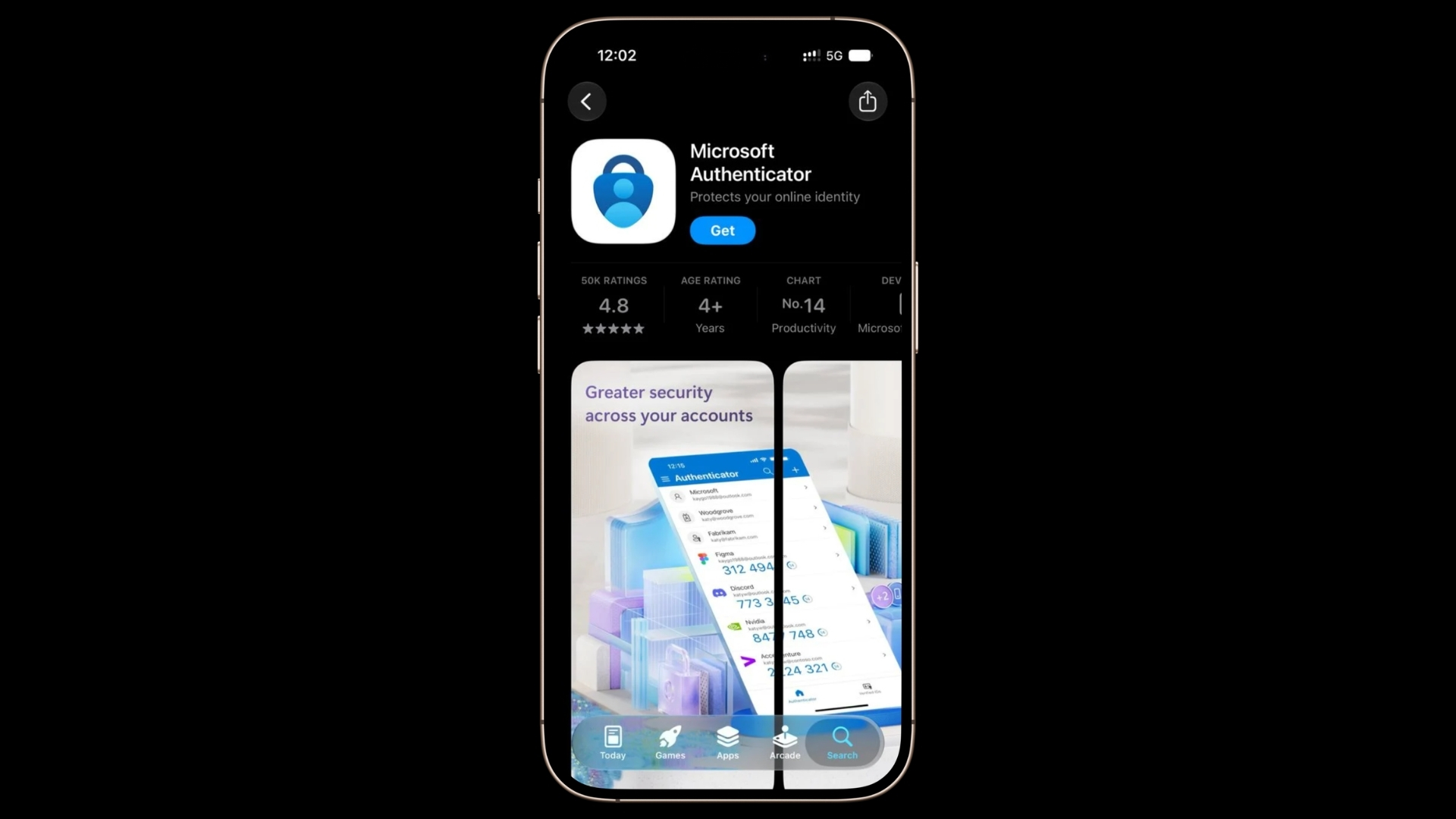
- Search for Microsoft Authenticator.
- Confirm that Microsoft Corporation is listed as the developer.
- Install and open the app.
- Allow notifications when prompted if you want to approve sign-in requests.
- Allow camera access when you are ready to scan a QR code.
You can also begin from Microsoft’s official Authenticator download page.
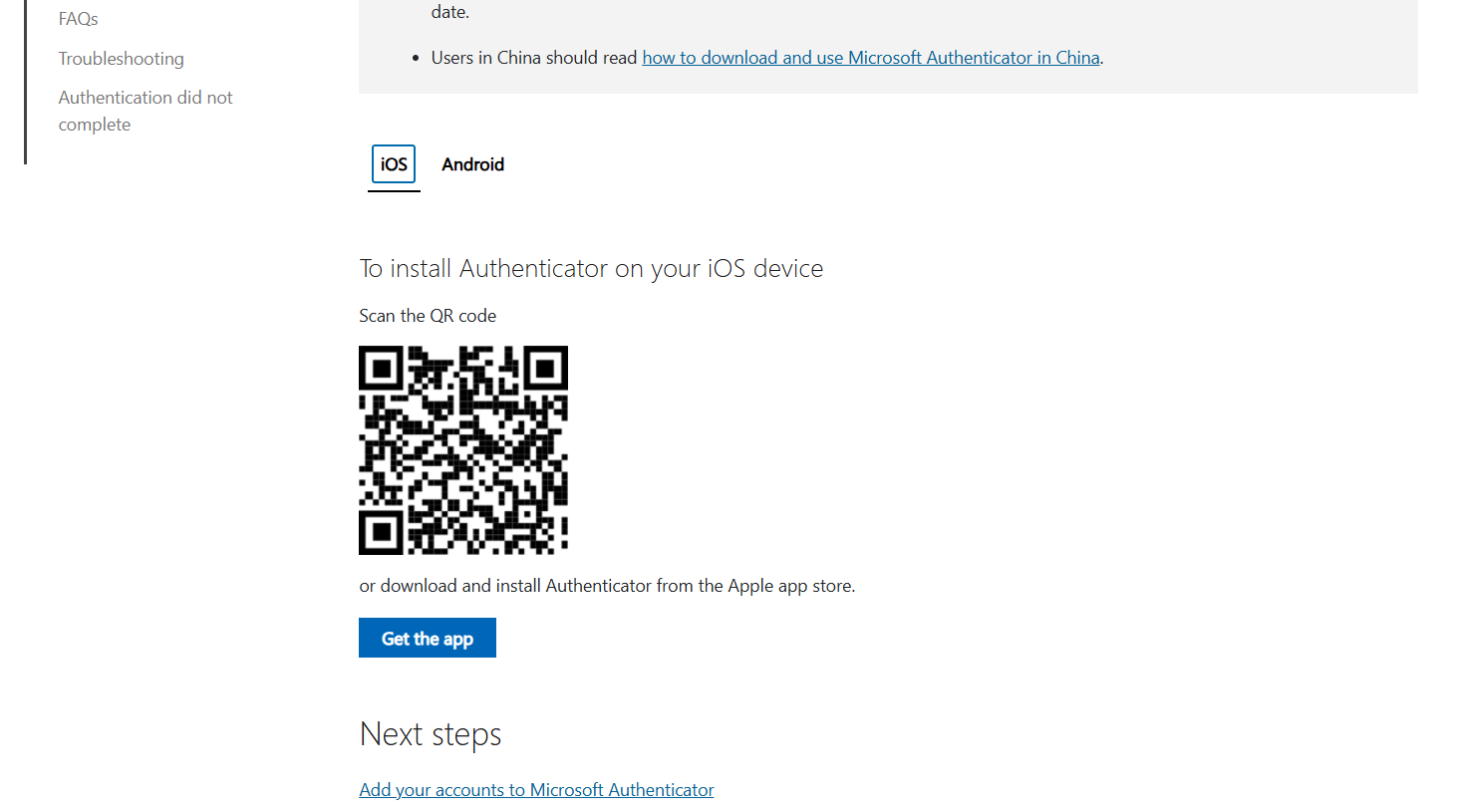
Do not install an unofficial “Microsoft Authenticator for PC” program or browser extension. Microsoft provides Authenticator only for supported Android and iOS devices.
Add a Personal Microsoft Account
Use these steps for a personal Outlook.com, Hotmail, Xbox, Skype, OneDrive, or Microsoft account:
- Open Microsoft Authenticator.
- Tap the + button or Add account.
- Select Personal account.
- Choose Sign in with Microsoft.
- Enter your Microsoft account details.
- Complete any verification requested by Microsoft.
You can also configure Authenticator from a computer:
- Open Microsoft account Security on the PC.
- Sign in and select Manage how I sign in.
- Choose the option to add a new sign-in or verification method.
- Select Microsoft Authenticator.
- Follow the on-screen instructions and scan the QR code with your phone.
Leave the QR-code page open until Microsoft confirms that setup is complete.
Add a Work or School Account
For a Microsoft 365, company, university, or school account:
- On a PC, open My Sign-Ins Security Info.
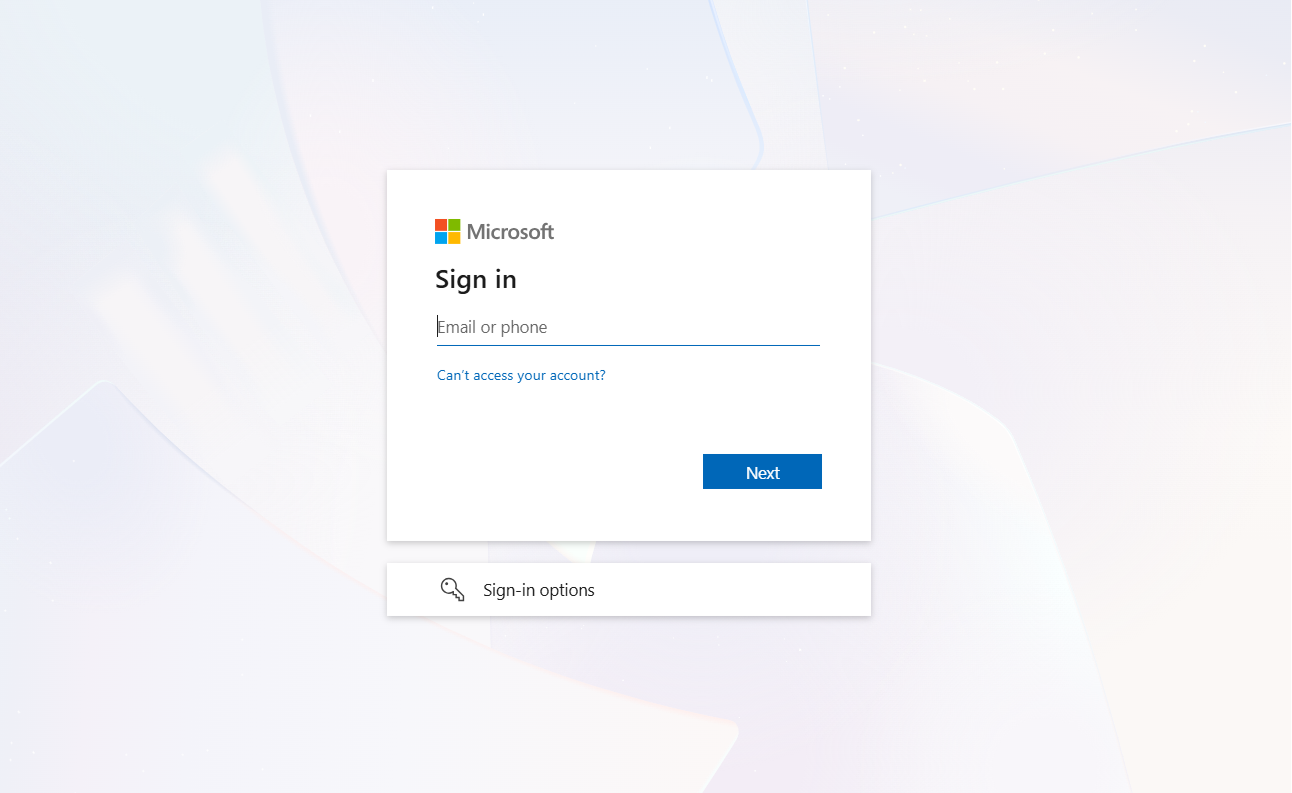
- Sign in using your work or school account.
- Select Add sign-in method.
- Choose Microsoft Authenticator.
- Select Add or Next until the QR code appears.
- Open Authenticator on your phone.
- Tap + or Add account.
- Select Work or school account.
- Choose Scan a QR code.
- Scan the code displayed on the PC.
- Approve the test notification or enter the requested number.
Your organisation may restrict which sign-in methods you can add. Contact its IT administrator if Microsoft Authenticator is unavailable or the security information page is blocked.
Add Google, Amazon, Facebook, or Another Account
Microsoft Authenticator also supports services that use standard time-based one-time passwords, commonly called TOTP codes.
- Sign in to the website you want to protect.
- Open its security or two-factor authentication settings.
- Choose Authenticator app as the verification method.
- Wait for the website to display a QR code.
- Open Microsoft Authenticator.
- Tap + or Add account.
- Select Other account.
- Scan the QR code.
- Enter the six-digit code shown in Authenticator back on the website.
- Save any recovery codes supplied by the service.
Third-party accounts generally use rotating codes rather than Microsoft push notifications. The code changes every 30 seconds, but a nearly expired code may still be rejected by the website. Wait for the next code and try again.
What If the QR Code Is on the Same Phone?
A QR code is easiest to scan when it is displayed on a PC, tablet, or another phone. If the code is already open on the same device as Authenticator, look for an option such as Can’t scan?, Enter code manually, or Set up key.
In Authenticator, choose the manual-entry option and enter the account name and secret key supplied by the website. Do not share or save screenshots of that key because anyone who obtains it may be able to generate your verification codes.
Setting Up Microsoft Authenticator on Your PC
There is no Microsoft Authenticator desktop application to install. To use Authenticator with a PC, begin the login or setup process in the PC’s browser or app, then complete verification on your phone.
Approve a PC Sign-In Notification
- On the PC, open the Microsoft website or app you want to use.
- Enter your email address and select Next.
- Choose Send notification or Approve a request on my Microsoft Authenticator app.
- Note the number displayed on the PC.
- Open the notification on your phone.
- Unlock Authenticator if requested.
- Enter or select the matching number.
- Review the account and location, then tap Approve.
The phone does not have to be physically close to the PC. Push approval works as long as the phone has internet access and can receive Authenticator notifications.
Use a Verification Code Instead
If a notification does not arrive, the sign-in page may let you use a code:
- Select Other ways to sign in on the PC.
- Choose Use a verification code.
- Open Microsoft Authenticator on the phone.
- Select the account.
- Find the current one-time password code.
- Enter it on the PC before it changes.
One-time verification codes do not need mobile data, Wi-Fi, or phone service. Push notifications and approval responses do require an internet connection.
Can You Mirror Authenticator to a PC?
Phone-screen mirroring tools may display the Authenticator interface, but they do not turn it into a Windows app. Security policies may also block screenshots, screen recording, or mirroring inside Authenticator.
For security, approve the request directly on the phone rather than using an unofficial emulator, browser extension, or desktop authenticator claiming to import your Microsoft credentials.
Using Microsoft Authenticator for Passwordless Login
Passwordless sign-in lets a supported account use Authenticator, a passkey, Windows Hello, or another secure method instead of a traditional password.
Enable Passwordless Sign-In for a Personal Microsoft Account
- Add your personal Microsoft account to Authenticator.
- Open Microsoft account Security.
- Select Manage how I sign in.
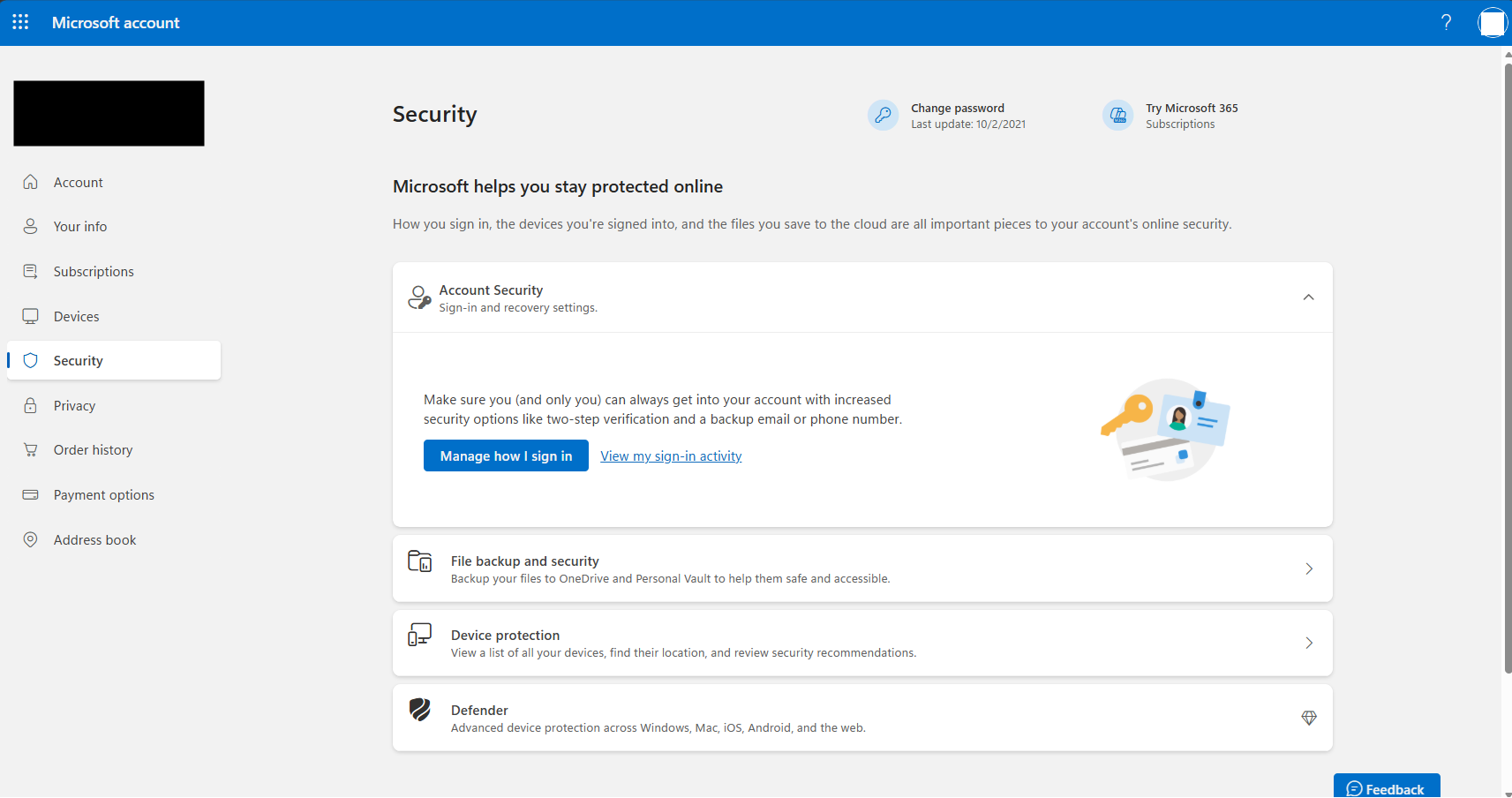
- Find the passwordless-account option.
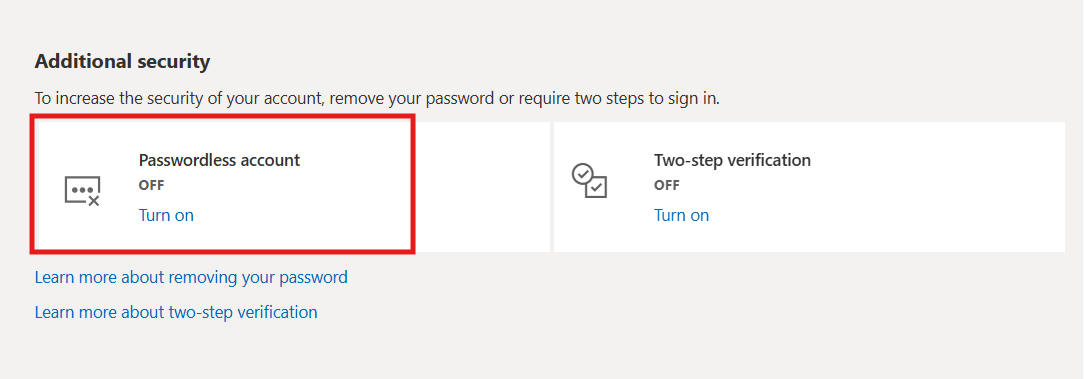
- Select Turn on.
- Approve the request in Microsoft Authenticator.
After passwordless sign-in is enabled, Microsoft may ask you to enter your email address, select a number, and approve the request on your phone.
Use a Passkey in Microsoft Authenticator
Some work or school accounts can store a passkey in Microsoft Authenticator. Availability depends on the organisation’s Microsoft Entra policies.
A passkey combines something stored on the device with the phone’s PIN, fingerprint, or facial recognition. Your biometric data remains on the device and is not sent to the website during sign-in.
Windows Hello may be more convenient when you regularly sign in from the same Windows PC. Authenticator remains useful when signing in on another computer or when your organisation specifically requires phone-based verification.
Managing Your Authenticator Accounts
Remove an Account from Microsoft Authenticator
- Open Authenticator.
- Select the account you want to remove.
- Open its settings.
- Tap Remove account.
- Confirm the removal.
Removing an account from the app stops that phone from generating codes or approving sign-ins for it. However, you should also remove the old Authenticator method from the account’s online security settings when replacing or retiring the phone.
For personal Microsoft accounts, review Microsoft account Security. For work or school accounts, use Security Info.
Back Up Microsoft Authenticator
Enable Authenticator backup before replacing or resetting your phone:
- Open Microsoft Authenticator.
- Open Settings.
- Find the cloud or account-backup option.
- Enable backup.
- Confirm the Microsoft or iCloud recovery account used for the backup.
Authenticator backups can only be restored to the same device platform. An iPhone backup cannot be restored to Android, and an Android backup cannot be restored to iPhone.
Restoring a backup also does not mean every account is immediately ready. Work and school accounts, as well as Microsoft accounts using passwordless sign-in, may require you to sign in and register the new phone again.
Move Microsoft Authenticator to a New Phone
- Enable backup on the old phone.
- Keep the old phone available until the move is complete.
- Install Authenticator on the new phone.
- Select Restore from backup or Begin recovery before adding other accounts.
- Sign in using the recovery account used for the backup.
- Complete re-registration for accounts marked as requiring attention.
- Test sign-in on the new phone.
- Remove the old phone from each account’s security settings.
Do not erase the old phone until you have confirmed that the new one can approve sign-ins and that you still have another recovery method.
Can You Use Authenticator on Multiple Phones?
Some services let you register more than one authentication device, but this is controlled by the individual account or organisation. Add each phone as a separate security method when the service supports it.
Authenticator backup should not be treated as live cross-device synchronisation. Restored Microsoft work, school, and passwordless accounts may still need to be registered again.
FAQs
Can I install Microsoft Authenticator on a PC?
No. Microsoft does not provide Authenticator for Windows or Mac. Install it on Android or iPhone and use the phone to approve sign-ins initiated on the PC.
How do I use Microsoft Authenticator on Windows 11 or Windows 10?
Open the website or application on the PC, enter your account name, and choose Authenticator as the sign-in method. Approve the request or enter the code using the Authenticator app on your phone.
Does my phone need to be close to the PC?
No. Push approvals work over the internet, so the phone does not need to be within Bluetooth range. It must be online and able to receive notifications.
Does Microsoft Authenticator work without internet access?
The rotating verification codes work offline. Push notifications, number matching, account setup, backup, and approval responses require an internet connection.
Can I use Microsoft Authenticator with non-Microsoft accounts?
Yes. You can add many services that support standard authenticator-app codes, including Google, Amazon, Facebook, GitHub, and other compatible accounts.
Can I use Microsoft Authenticator instead of a password?
Yes, for accounts that support passwordless sign-in or passkeys. The available option depends on the Microsoft account, service, or work and school administrator.
Why does Microsoft Authenticator ask me to enter a number?
Number matching confirms that the person approving the request can see the sign-in screen. Enter the number displayed on the PC rather than approving a generic notification.
Can I approve a sign-in without unlocking my phone?
Authenticator may require the phone’s PIN, fingerprint, or facial recognition before approval. This prevents someone holding an unlocked notification screen from accessing your account.
What happens if I remove an account from Authenticator?
That phone can no longer generate codes or approve sign-ins for the removed account. Make sure another sign-in method is available before removing it.
Can I restore Authenticator from Android to iPhone?
No. Microsoft says Authenticator backups can only be restored to the same device type. Android backups restore to Android, while iPhone backups restore to iPhone.
Will restoring a backup restore every account completely?
Not always. Third-party rotating codes may be restored, but work, school, and passwordless Microsoft accounts commonly require you to sign in or register the new device again.
Does Microsoft Authenticator still save passwords?
No. Microsoft ended password autofill and access to saved passwords in Authenticator in 2025. Microsoft now directs password management and autofill through Edge.
Does Microsoft Authenticator have its own PIN?
Authenticator normally relies on your phone’s PIN, fingerprint, or facial recognition. Its App Lock feature uses the device authentication method rather than a separate forgotten Authenticator PIN.
Can Microsoft support restore my Authenticator codes?
Support cannot recreate secret keys for third-party accounts or bypass work and school security policies. Restore from an existing backup, use another verification method, or re-register Authenticator through the account provider.
What Happens to Microsoft Authenticator If You Lose Your Phone?
Use another sign-in method that you configured earlier, such as a passkey, security key, recovery code, backup email address, another Authenticator device, or phone number.
After regaining access:
- Remove the lost phone from the account’s security methods.
- Change the password if the phone was unlocked or may have been compromised.
- Register Authenticator on the replacement phone.
- Review recent sign-in activity.
For a work or school account with no remaining verification method, contact the organisation’s IT administrator. Microsoft support cannot simply bypass an organisation’s authentication requirements.