This article covers the basics in Microsoft Edge where you may want to turn on or turn off Recent Searches in the address bar.
Recent Searches in Edge
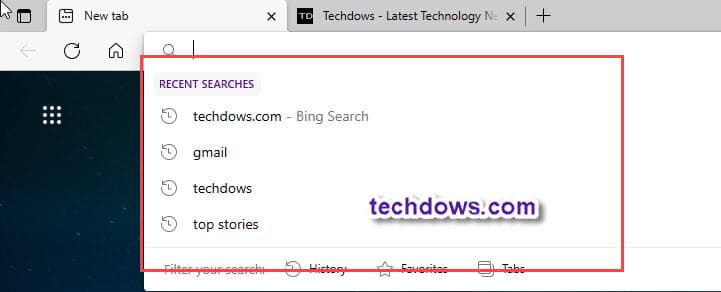
Like Chrome and Mozilla Firefox, Microsoft Edge also displays the search and site suggestions from your typed history. These appear under “Recent Searches”.
While there may be a privacy reason you don’t want them to appear or you may want to get them to check recent searches you’ve performed quickly.
How to enable or disable Recent Searches in Microsoft Edge
- Click on the 3-dot icon and select Settings
- Visit Privacy, search, and services
- Scroll down to the bottom and click the Address bar and search
- Under Address bar and search, enable or disable “Show me search and site suggestions using my typed characters”, done.

Open a new tab and input the mouse cursor, depending on the change you made to the above setting recent searches may or may not appear in the dropdown as you type.
Do note, disabling recent searches also improves your privacy while characters you typed into the Address bar with Bing set as the default search engine won’t be sent to Microsoft, but, you can still suggestions from your history and favorites.
Remove Recent Searches from the Address bar in Microsoft Edge
There is also a cumbersome way to remove recent search suggestions.
- Hover over each suggestion
- Click on the close icon that appears at the end to remove.
You’ve to do like this for all the search suggestions. But, Microsoft Edge keeps showing them based on your browsing history. So you better use the above method rather than the manual.
Keep in mind, you should be using Bing as Default Search Engine, otherwise Edge won’t show up the Recent Searches for other Search engines such as Google, Yahoo, and DuckDuckGo when you make primary.
What’s your take on this? Have you found the Edge tip useful? Let u know in the comments below.
Summary: Missing Recent Searches that you usually see in the dropdown of the Edge search bar, here is how you can enable or disable them.
Related article: