After updating Microsoft Edge to version 111, you may have noticed a big Bing button or icon on the toolbar and, that’s not impressive, You’re not alone. Here is how you can disable or remove it from Microsoft Edge running on Windows, Linux, and Mac.
Microsoft Edge v111 is out with the Bing Chat Discover button on the Toolbar
Recently, Microsoft released Edge 111 with Chat, Drop file sharing, and other features.
The company also integrated the Bing button into the sidebar.
It allows you to chat with Bing AI and get answers as you browse, lets you write online with compose and check insights from improved Discover in the sidebar while browsing websites.

Microsoft made it easily discoverable so that, it comes into action whenever you hover over it.
This may be not very pleasant.
The irony is the Bing AI with Chat is not available for some Edge users with version 111.
Moreover, Edge doesn’t offer any Settings option to hide or disable it.
If you’ve found the Bing Chat Discover icon annoying, here is how you can get rid of it on Windows, Mac, and Linux.
Disable or remove the Bing button in Microsoft Edge 111 or later
For Windows and Linux:
- Close Microsoft Edge
- Right-click on its shortcut and select Properties
- In the Target field, at the end, append the following
–disable-features=msUndersideButton
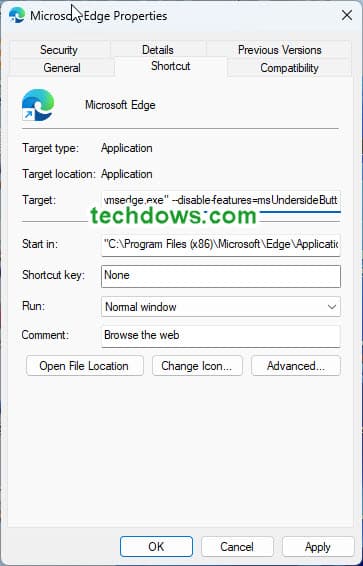
- Click Ok and Apply. Unpin the Edge icon from the taskbar, right-click on the Edge desktop shortcut and pin it again.
- Use the shortcut to launch Edge.
- Click on Menu, select Settings
- Visit the System and performance and disable the “Startup boost”
- Close and reopen Microsoft Edge to notice no Bing icon on the toolbar. That’s it
To get the Bing button again with Sidebar, remove the string attached to the Target field and apply the change to the shortcut and use Edge and re-enable Startup boost.
You can use the same instructions for Edge on Linux also.
If you’ve found the above not working, follow the below registry method for Windows.
Get rid of the Bing button in Edge using Registry Editor
- Open the Run dialog and open registry Editor by running the command “regedit” (without quotes)
- Once Registry Editor opens,
Navigate toHKEY_LOCAL_MACHINESOFTWAREPoliciesMicrosoft - Right-click and select New >Key, and name it Edge.
- While Edge is selected, on the right pane, right-click and select New> Dword (32-bit) value and name it “HubsSidebarEnabled”
leave it as 0.

- Open Edge and visit edge://policy, and click reload policies.
- Here you can notice, we’ve created a HubSidebarEnabled policy in Edge and disabled it.
Like magic, the Bing button will appear no more on the toolbar.
This has side effects.
With the policy we created, you’ll notice the “your browser is being managed by an organization” message in settings and Sidebar will be no longer available
To restore the sidebar with the Bing icon you may have to delete the Edge subfolder and the Hubsidebarenabled key in the registry.
A system restart is required to see the change.
How to disable or remove Bing button from Microsoft Edge on Mac
While on Windows, we used Registry Editor, on Mac, it requires running a command.
- Open Terminal
- Copy and paste the below command and press enter.
open -n -a “Microsoft Edge” –args –disable-features=msEdgeSidebarV2
You can see that things are complicated and not straightforward, hope Microsoft provides a UI option in Settings or on right-click menu of the Bing button to hide it.
Have you found the new Bing button useful or distracting? Let us know in the comments below
Summary: Microsoft has pushed a new Bing button to Edge users with the version 111 release. The button is provided to access Bing Chat and compose and get discover insights. If you’ve found it as bloat or unnecessary, you can disable or remove it from Edge running on Windows, Mac, and Linux using the steps mentioned in this article.