Firefox Screenshots is no longer a page Action, it’s a browser action and won’t be available in the three-dot menu in the address bar. It has been removed in Firefox 88. Here is how you can use the Screenshot feature in Firefox going forward.
Firefox has a pretty useful screenshot feature built-in before the new Microsoft Edge.
Till now, here is how you can take a screenshot in Firefox.
- Visit any web page.
- Click on the three-dot icon menu also called as Page actions menu
- Select Take a screenshot
- You have the option to save the whole page or visible region, after that, you can either copy the screenshot to the clipboard or download it to your device.
The above steps are not valid from the Firefox 88 version onwards, the change also affects the discoverability of the Firefox Screenshots button.

First things first, ensure the feature is enabled in Firefox.
- Visit about: config
- Search for Screenshots
- And ensure extensions.
screenshots. pref value is set to false.disabled
Two ways to access and use Firefox Screenshots in Firefox 88
- Page Context menu option
- Toolbar option
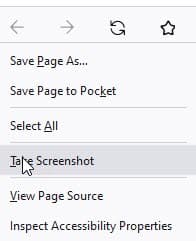
- Right-click on page
- Select Take Screenshot. Yes, Mozilla removed the icon as well for Screenshots.
Add Firefox Screenshots to Toolbar
- Right-click on the toolbar
- Select “Customize toolbar”
- Drag and drop the Screenshot icon to the toolbar area.

Do you use Firefox Screenshots in Firefox? How this change affects you? Let us know in the comments below.
More on Firefox:
Firefox Proton Dark and Light themes now available in Nightly
Firefox ‘Safe Mode’ is ‘Troubleshoot Mode’ now
How to disable the new Print UI in Firefox 86
How to disable Firefox’s Tab to Search